Reporting mailbox logins

Before much of what is covered here is possible you need to ensure you have enabled all the logging in your Office 365 tenant. I’ve covered how to do that here:

Enabling Office 365 mailbox auditing

Enable mailbox auditing in Exchange Online

Enable activity auditing in Office 365

Once you have done that you will be able to track what’s going on in your tenant much better.

In the situation of a compromised mailbox, a bad actor has control of it using legitimate credentials. This eliminates looking for failed logins, because there won’t be any. It also makes the finding the bad actor tougher because their access is most likely mixed in with the legitimate user.

The place to start is to run an audit log search as I have detailed here:

Searching the Office 365 activity log for failed logins
image

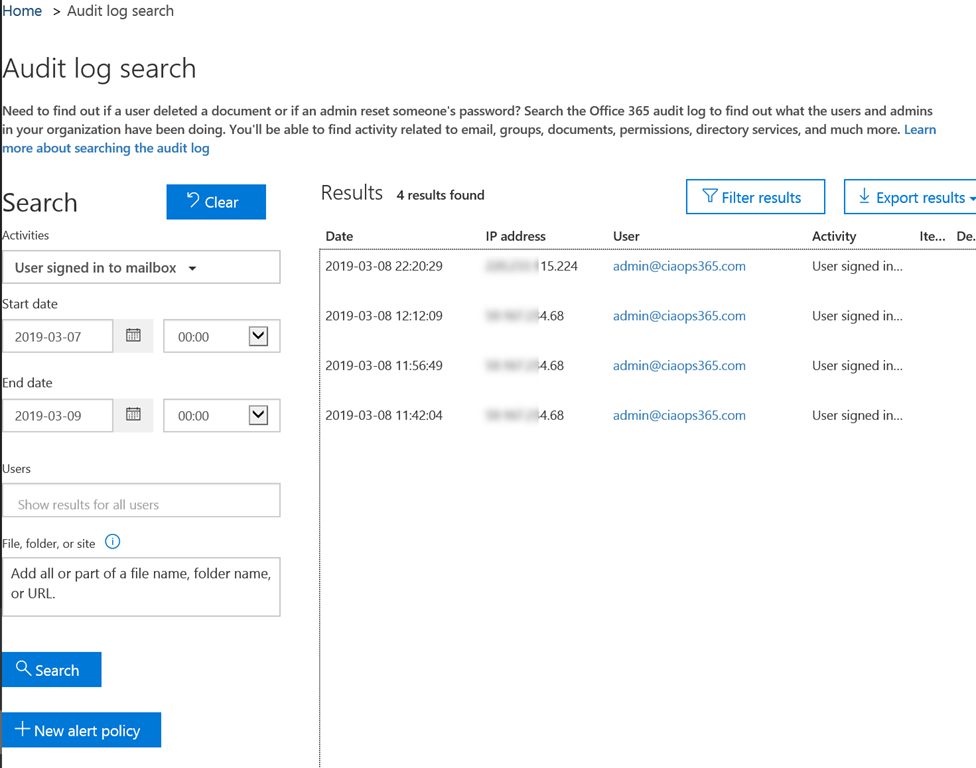
However, as I mentioned, we can no longer search for failed logins, we need to use a different search criteria. I would suggest that you instead run a search using the attribute “User signed in to mailbox” as shown above. That will produce something like shown for all users. Problem with this is that times and dates are in UTC not local time and it is cumbersome to manipulate in a web page. You can of course manipulate by exporting the results to a spreadsheet for more control.
image

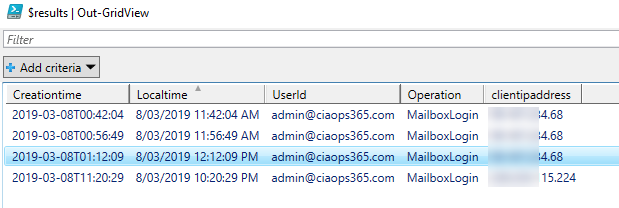
Unsurprisingly, I feel PowerShell offers a much better solution to check the logs and report as you can see above. The script to do this I have made freely available at my Github repo here:

https://github.com/directorcia/Office365/blob/master/o365-mblogin-audit.ps1

Basically, it will search the Audit log for Exchange Items that are Mailbox logins and send that output to a nice table via the Out-Grid command. As you can see, using Out-Grid you can now easily sort by time by clicking the column heading, and thanks to the script, the times are local not UTC!

By default, the script will check the last 48 hours but you can easily modify that to suit your needs by either entering the scope in hours or entering a start and end date in the variables at the top of the script.

With this output I can now look for suspect IPs that login into the mailbox and begin hunting from there. However, remember, all of this relies on you enable your auditing BEFORE you need it. So, if you haven’t enabled it, go do it now! You’ll find scripts to enable the logs also in my Office 365 repo here:
https://github.com/directorcia/office365

Monitor outbound spam as well

image

Hopefully everyone is well aware of the need to protect Office 365 email from inbound spam, however what are you doing about outbound spam?

Hopefully, no bad actor gains access to your environment BUT if they did and they started using you accounts to send spam email how would know?

image

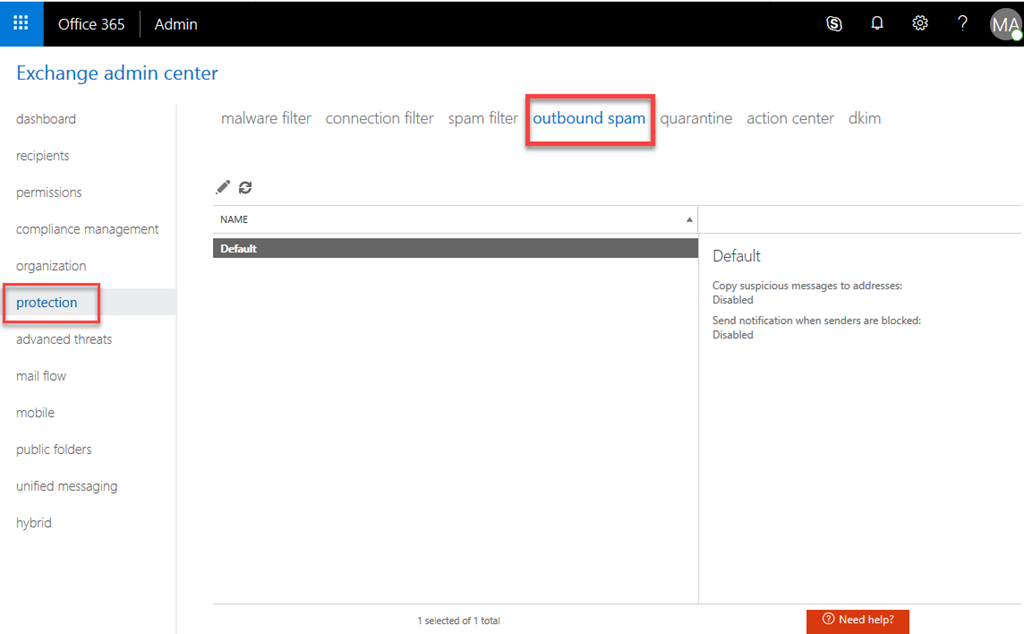
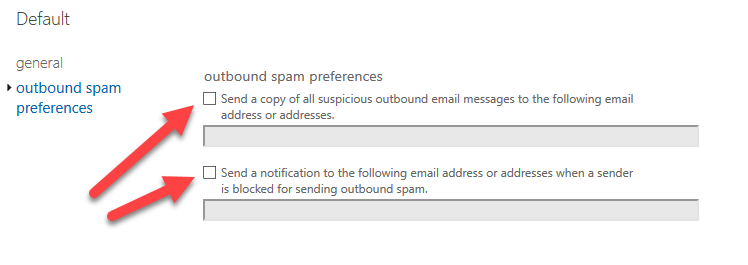
For this reason, I suggest that it is a good idea to go into the Exchange Administration console, select Protection, then Outbound spam. Edit the default policy (that’s really your only option), then select outbound spam protection on the left hand side. Then I suggest you should enable the option to send an email when there is a suspicious outbound email to somewhere that is monitored.

That obviously, won’t stop outbound spam but it should at least give you a heads up that it is happening.

OneNote error code 0XE0001462 bukxq 19999

I received the not so helpful error code OXE0001462bukxq 19999 on an iOS device when trying to sync some OneNote notebooks.

This error I believed was the because I was mixing and matching identities on the device and inside OneNote. The result was that the notebooks would load into OneNote, I could see the sections but not any pages. I will also say that I was also playing with Intune app protection policies at the same time on the device, which probably really didn’t help.

To get rid of the error I figured that I needed to change the login credentials for each notebook. Problem was I couldn’t see how to do that within OneNote.

image

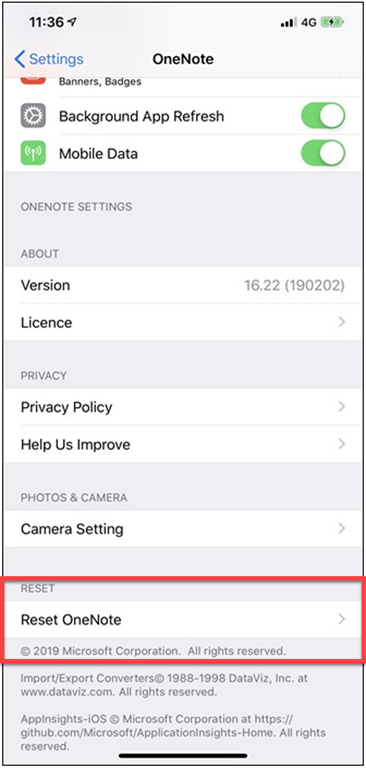
Turns out, what I needed to do was go into the iOS Settings, select OneNote and then down the bottom you’ll find an option to Reset OneNote as shown above.

image

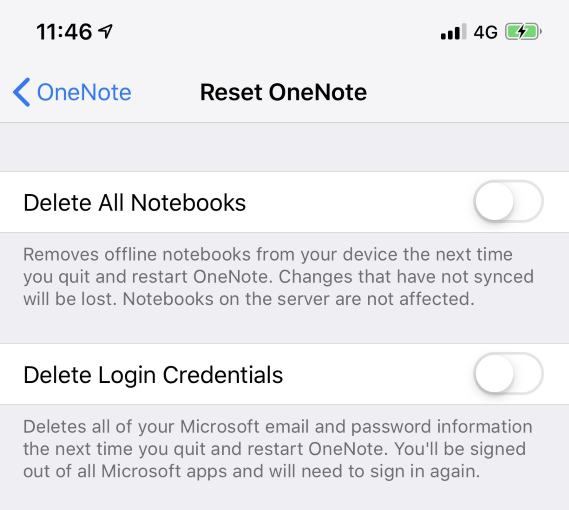
Once you select that you’ll see the above screen giving you the option to Delete all notebooks or Delete Login credentials, which is what I selected.

I then restarted OneNote and re-authenticated to the notebooks and I was away. An easy fix when you know how, just wish the error message was a little bit more helpful. However, in the end, problem solved and new lesson learned.

CIAOPS Techwerks 4–Perth April 12

bw-car-vehicle

The next instructor lead, all day, technical whiteboarding workshop session I’ll be doing on Microsoft Cloud Technologies (Office 365, Microsoft 365, Azure, Intune, Windows 10, etc) will be held in Perth on Friday April 12th, 2019. The course is limited to 15 people and you can sign up and reserve your place now!

The content of these events is driven by the attendees. That means we cover exactly what people want to see and focus on doing hands on, real world scenarios. Attendees can vote on topics they’d like to see covered prior to the day and we continue to target exactly what the small group of attendees wants to see. Thus, this is an excellent way to get really deep into the technology and have all the questions you’ve been dying to know answered. Typically, the event produces a number of best practice take aways for each attendee. So far, the greatest votes are for deeper dives into Intune, security and PowerShell configuration and scripts, however that isn’t finalised until the day.

Recent testimonial – “I just wanted to say a big thank you to Robert for the Brisbane Techworks day. It is such a good format with each attendee asking what matters them and the whole interactive nature of the day. So much better than death by PowerPoint.” – Mike H.

The cost to attend is:

Patron Level

Price inc GST

Gold Enterprise Free
Gold $ 33
Silver $ 99
Bronze $ 176
Non Patron $ 399

To learn more about the benefits of the CIAOPS Patron program visit www.ciaopspatron.com.

To register, simply email me – director@ciaops.com and I’ll take care of everything from there.

The CIAOPS Techwerks events are run regularly in major Australian capital cities, so if you can’t make this one or you aren’t in Perth on that date, stay tuned for more details and announcements soon. If you are interested in signing up please contact me via emails (director@ciaops.com) and I can let you know all the details as well as answer any questions you may have about the event.

I hope to see you there.

Example of Office 365 ATP Safe Links in action

image

The above is a very typical example of a phishing email. You’ll notice when you mouse over the link in the email it wants to re-directed you to a non-descript and malicious (non-Office 365) link.

image

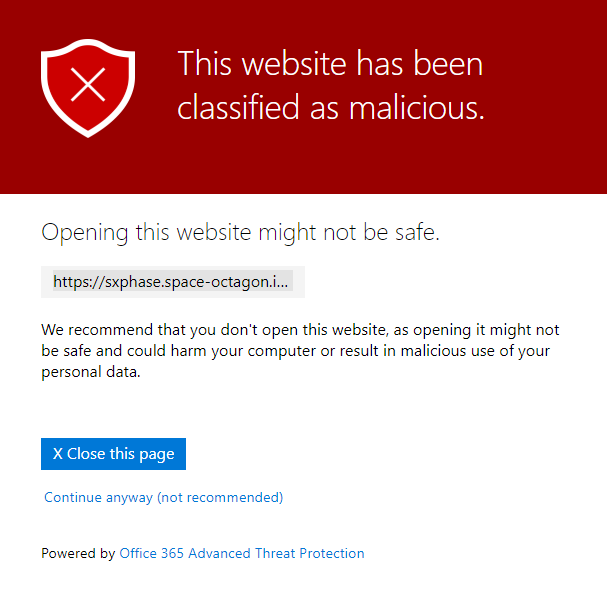
Now, because I’ve configured Office 365 ATP (Advanced Threat Protection) Safe Links in my tenant, when I do click that link in the email I am taken to the above page that warns me that this is bad.

image

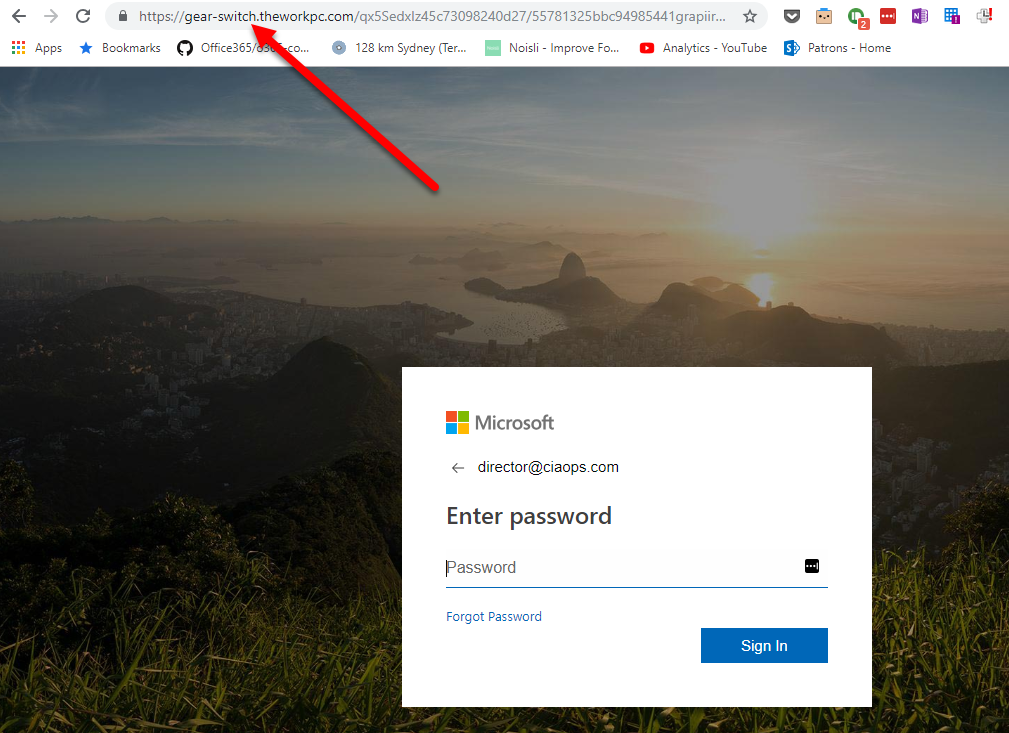
Because I have configured my own Office 365 ATP Safe Links to allow click past this warning just for myself, if I continue on to the ultimate destination page, I see something that looks like a very convincing default Office 365 login page, with my email address already filled in. The idea is, I type my password, thinking this is legitimate and then bingo, I’m phished.

You will also notice that the ultimate URL is also different from the one in the initial email. An attempt to hide the attack using redirection.

image

So let’s see how effective Office 365 ATP Safe Links is at detecting these kinds of attacks compared to other vendors.

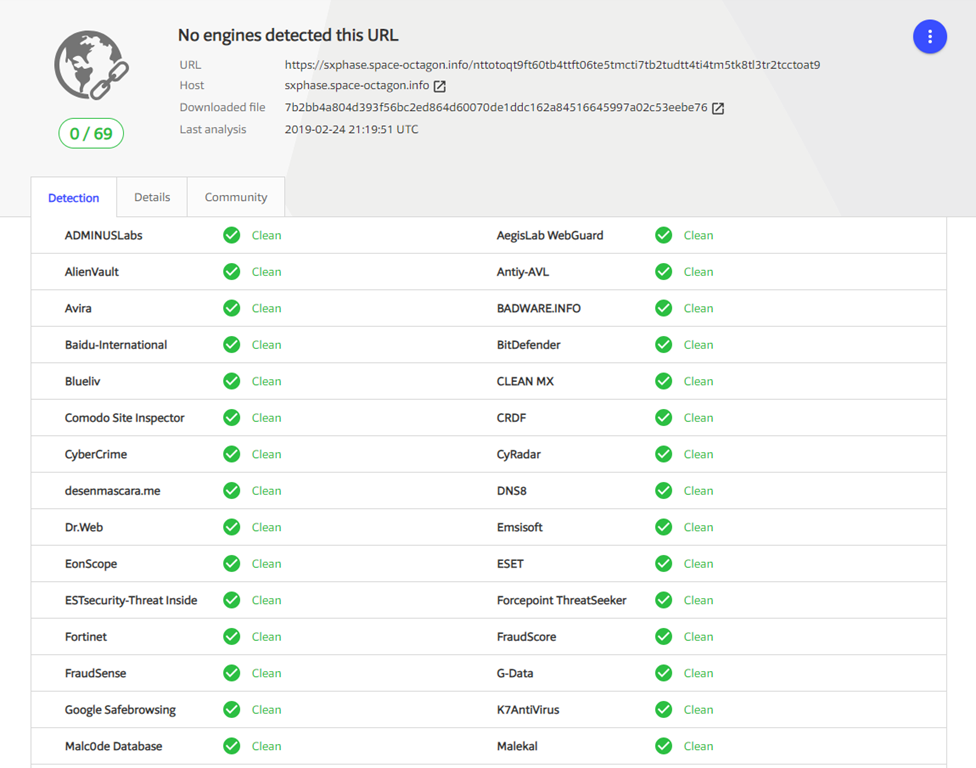
If I plug the initial URL, that was contained in the email, into Virustotal.com I see the above report. None, yes that is zero, of the third party AV providers have detected this initial link to be a malicious link as yet. Not even Google Safebrowsing! Of course, Office 365 ATP did detect it as malicious if you are keeping score.

image

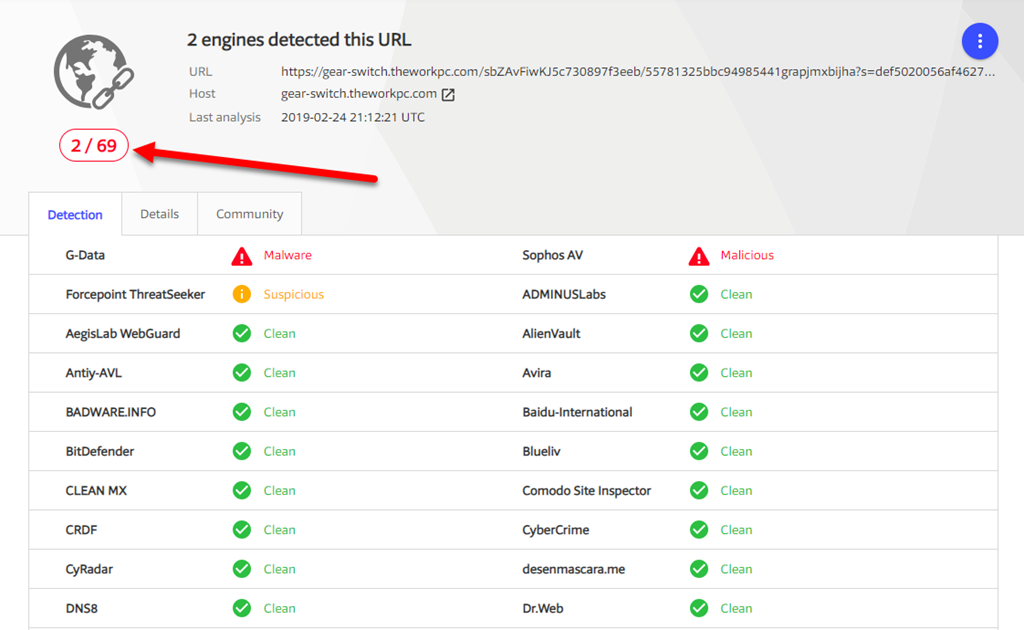
If I now plug in the ultimate destination URL of the attack I do see some confirmation from other vendors that the site is malicious. However, only 2 of 69 vendors (i.e. only about 3%) also rate that link as malicious.

So Office 365 ATP Safe Links was able to identify this link as malicious and potentially block user access (with appropriate configuration). Few other vendors have yet even detected it to be an issue at this stage. That makes Office 365 ATP quite pro-active.

We all know that there are no absolutes in security and no system is ever perfect. However, given the size of the signals coming into Office 365 in regards to threats, their ability to provide early warning is as good or if not better that anything else out there on the market today in my opinion. This is why I recommend Office 365 ATP as a ‘must have’ for all Office 365 tenants. If you have Microsoft 365 Business today, you already have Office 365 ATP. So make sure it is correctly configured and you should feel much more comfortable about the reduced risk you face from phishing.

Need to Know podcast–Episode 202

The Microsoft Ignite tour has been to town so Brenton and I share our thoughts on attending the event. We wrap up what we believed to be the best sessions and overall take aways from the premier Microsoft IT Professional conference in Australia for 2019. We also cover off a few of the important updates from the Microsoft Cloud to make sure that you don’t miss anything in the meantime. I also share my thoughts on using the Kaizala app during the conference with the CIAOPS Patron community which is great lead in for our interview this episode – Parveen Maloo who is the Senior Product Marketing Manager for Kaizala. Sit back and enjoy something about a product you probably never knew Microsoft had.

Take a listen and let us know what you think – feedback@needtoknow.cloud

You can listen directly to this episode at:

https://ciaops.podbean.com/e/episode-202-kaizala/

Subscribe via iTunes at:

https://itunes.apple.com/au/podcast/ciaops-need-to-know-podcasts/id406891445?mt=2

The podcast is also available on Stitcher at:

http://www.stitcher.com/podcast/ciaops/need-to-know-podcast?refid=stpr

Don’t forget to give the show a rating as well as send us any feedback or suggestions you may have for the show.

Resources

@contactbrenton

@directorcia

@praveen_maloo

CIAOPS Patron Program

BRK3610 – Layers of Office 365 communication

Sessions from Ignite The Tour – Sydney

Step 4: Set conditional access policies: top 10 actions to secure your environment

Microsoft authenticator app now sends security notifications

Windows Update for Business and the retirement of SAC-T 

Microsoft begs you to stop using Internet Explorer 

Microsoft Kaizala

Microsoft Kaizala – Tech Community

Microsoft Kaizala – Feedback

Scheduling compliance reports

image

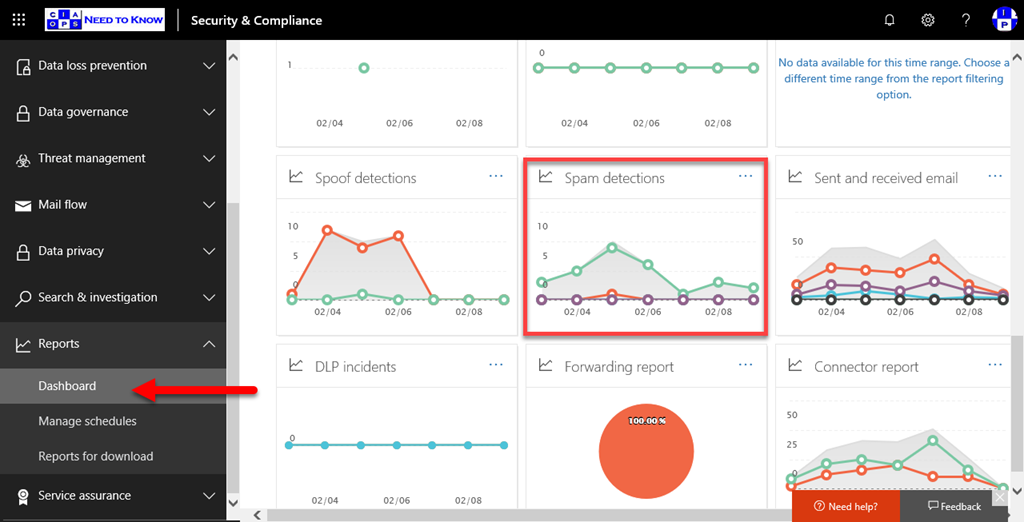
If you go into the Microsoft 365 Security portal and locate the Reports option from the menu on the left and expand it, you should find the Dashboard option. This option, when selected, will show a range of reports like that shown above. You can get more details by simply selecting the body of the tile you wish to view. Here, I’ll select the Spam detections tile to get further information.

image

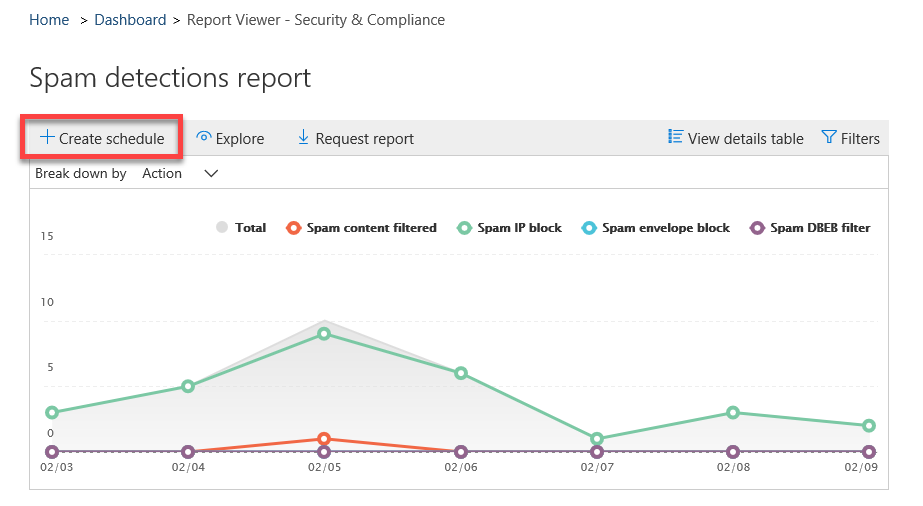
You’ll now see a more focused report but you’ll also notice that many graphs have the Create schedule in the top right hand corner as shown. Selecting this allows you to schedule a report to be delivered via email.

image

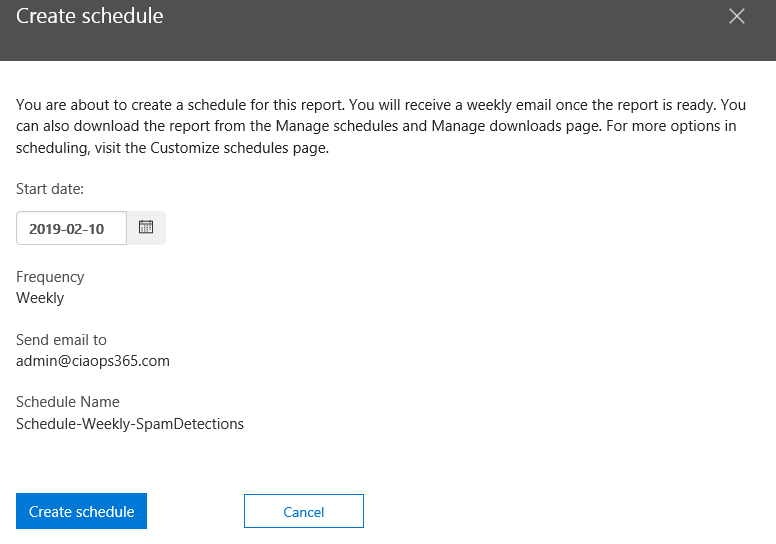
By selecting Create schedule you should see a tile appear from the right with the above options that you can configure.

image

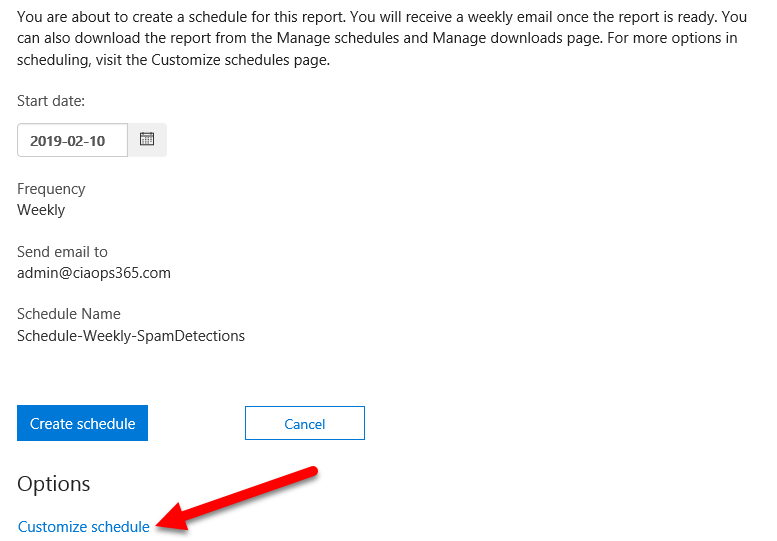
If you scroll down to the bottom of the window you will see that there is a Customize schedule option as shown above.

image

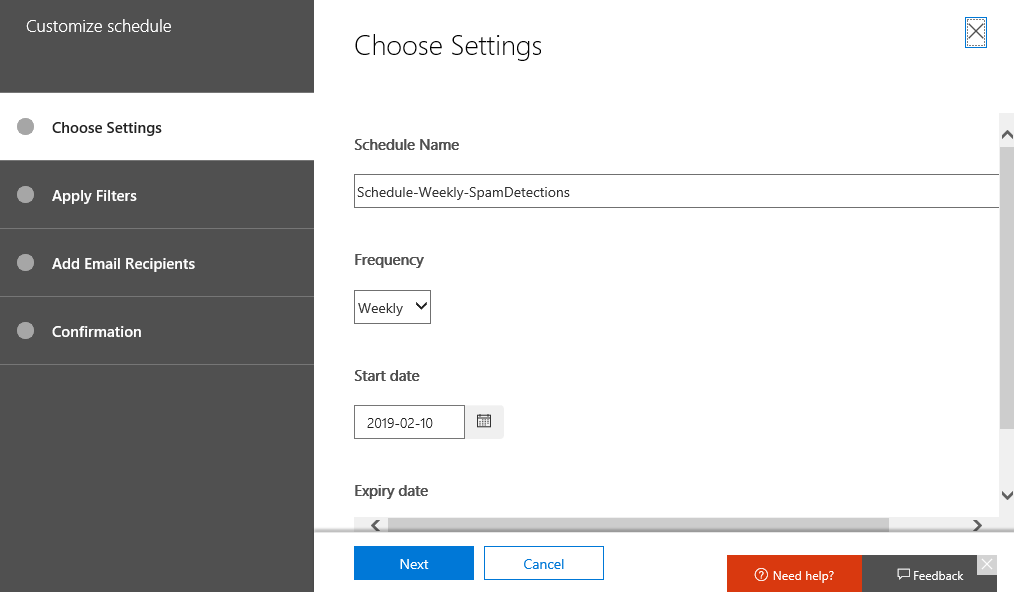
Selecting this will give you much greater options as shown above.

image

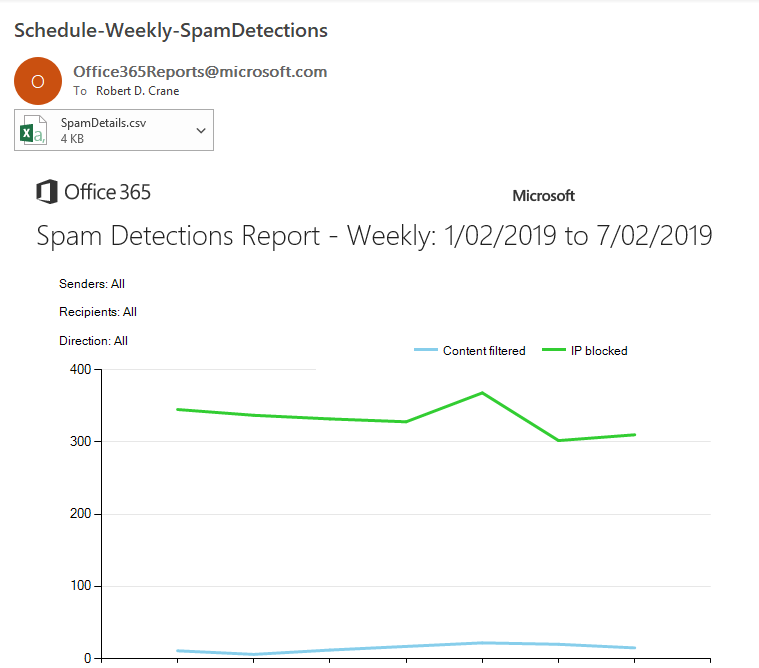
Once you have saved your schedule, you will then receive a regular email like that show above with the report you configured. You’ll note that there is also a CSV file attached that you can use for further analysis.

image

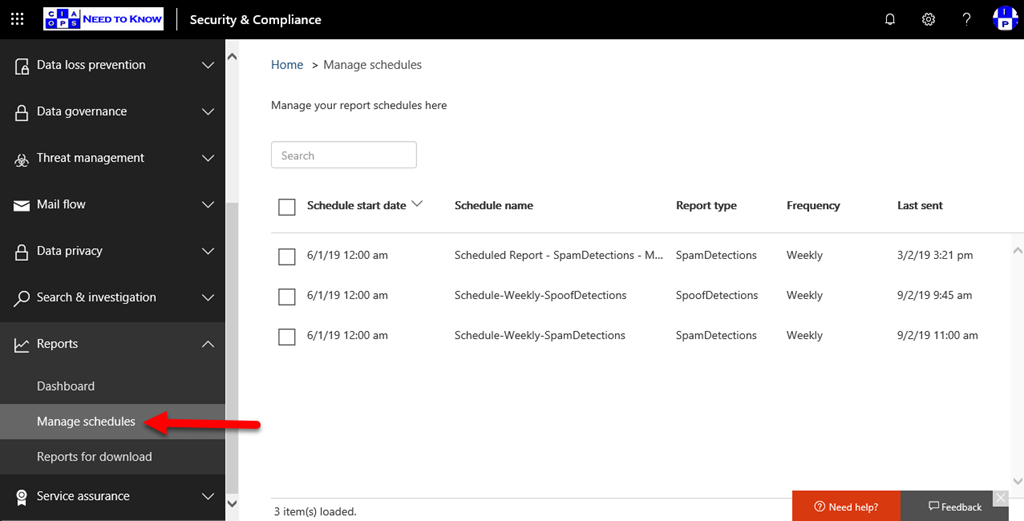
You can adjust the schedules you have configured via the Manage schedules option as shown above.

As yet, I haven’t found an easy way to configure these using PowerShell. There is way using the Microsoft Graph but that requires some setup so I’m trying to find a way just to use a pure script. If I work that out, I’ll post an article on how to do it. Till then, you’ll just have to manually go in a select and configure the reports you wish to receive regularly.