Need to Know podcast–Episode 227

FAQ podcasts are shorter and more focused on a particular topic. In this episode I’ll talk about the recommended process for file migrations to Microsoft 365 collaboration.

Take a listen and let us know what you think – feedback@needtoknow.cloud

You can listen directly to this episode at:

https://ciaops.podbean.com/e/episode-227-wide-not-deep/

Subscribe via iTunes at:

https://itunes.apple.com/au/podcast/ciaops-need-to-know-podcasts/id406891445?mt=2

The podcast is also available on Stitcher at:

http://www.stitcher.com/podcast/ciaops/need-to-know-podcast?refid=stpr

Don’t forget to give the show a rating as well as send us any feedback or suggestions you may have for the show.

Resources

FAQ 4 – Your collaboration structure should be wide not deep

CIAOPS Patron Community

Ignite 2019 sessions on YouTube

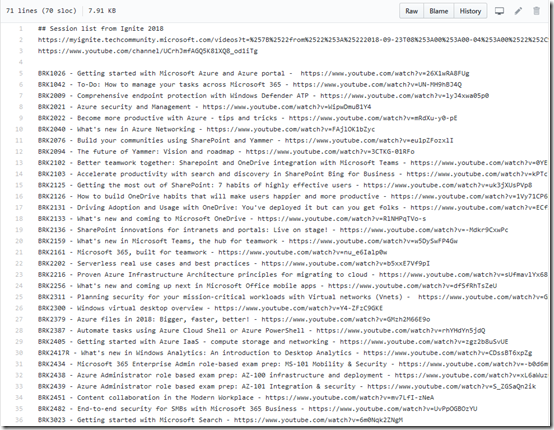
Not everyone, including me, is able to get to Microsoft Ignite for various reasons. Microsoft, to their credit, live streams and records the sessions. Eventually, these sessions make their way onto YouTube which is my preferred viewing platform. However, what is missing is a catalogue of the links to each session.

image

As in previous years:

Ignite 2017 sessions on YouTube

Ignite 2018 sessions on YouTube

I have started building this index and making it available on my GitHub:

Ignite session 2019 on YouTube

Please note, all the session are not there as yet. I add them as I discover them along the way through the year.

Of course, if you have a link to a session that I don’t have up there yet, please send it along so I can add it and we can all benefit.

Thanks again to Microsoft for doing this and uploading the sessions to YouTube. They are a great source of learning and allows people like me would couldn’t get to Ignite the ability to work through the content.

That COG is pretty handy!

image

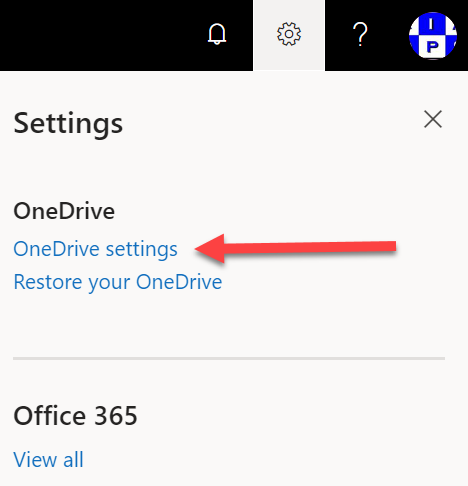
If you visit the page for your OneDrive for Business, you’ll notice a COG in the top right hand corner of the window as shown.

image

If you select that, you’ll see a menu like shown above. Select the OneDrive settings option as shown.

image

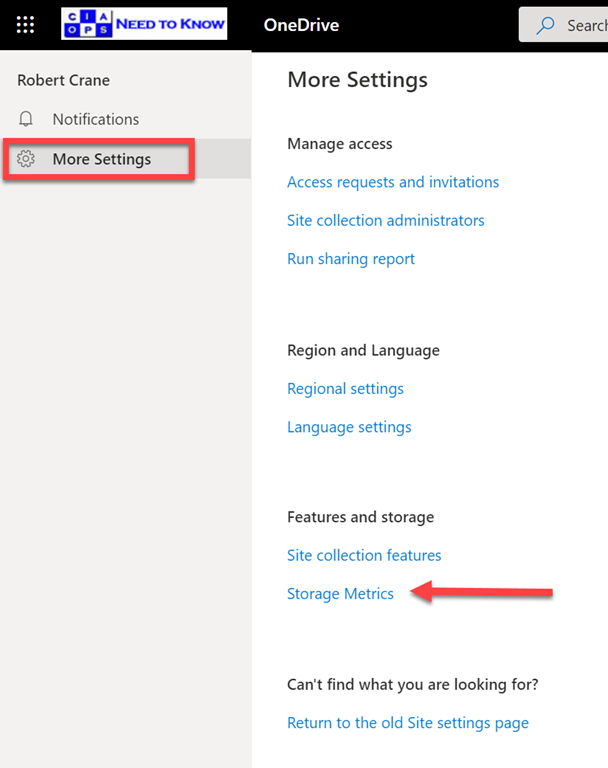
Here you’ll find a page with a whole lot more options. In this case select the option, Storage metrics as shown.

You should also note that there is a Run sharing report option as here well.

image

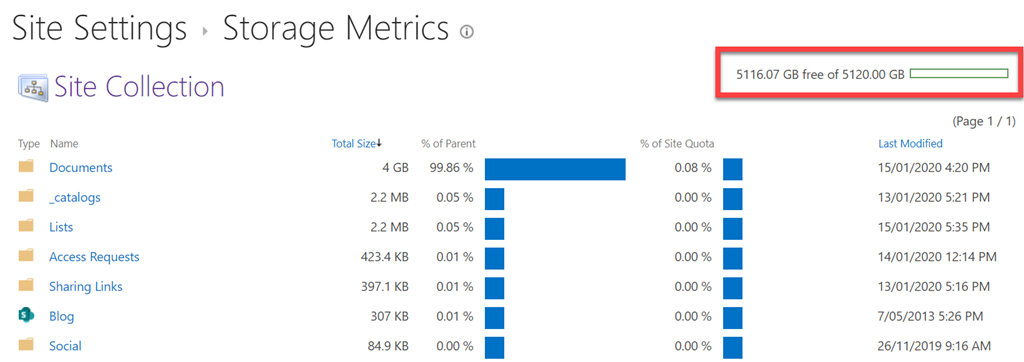
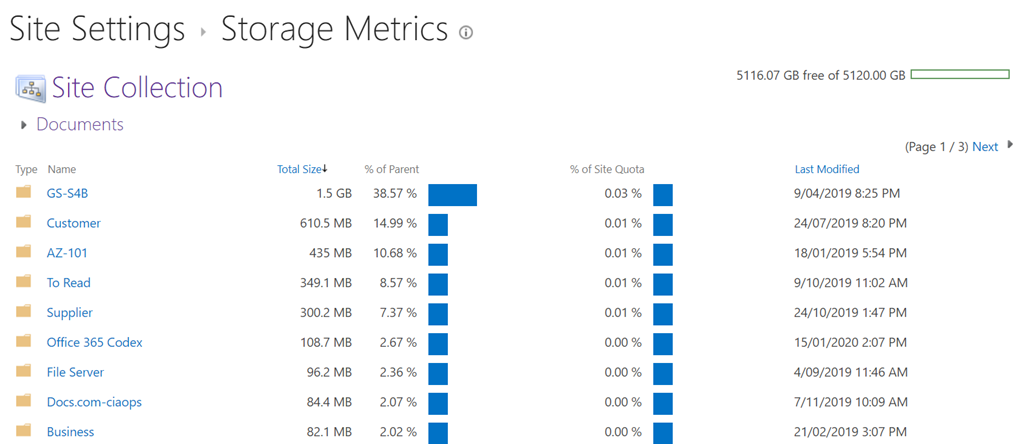
The Storage metrics option allows you to see a breakdown of the data storage in your OneDrive for Business as shown. You’ll also notice in the top right, the total and used capacity of your data.

image

You can drill further into directories by simply clicking on them. The above shows the data break down in the Documents directory below the OneDrive for Business home location.

Microsoft will also be adding more options to the COG over time so make you check there regularly.

Need to Know podcast–Episode 225

FAQ podcasts are shorter and more focused on a particular topic. In this episode I’ll talk about the recommended process for file migrations to Microsoft 365 collaboration.

Take a listen and let us know what you think – feedback@needtoknow.cloud

You can listen directly to this episode at:

https://ciaops.podbean.com/e/episode-225-process-for-file-migrations/

Subscribe via iTunes at:

https://itunes.apple.com/au/podcast/ciaops-need-to-know-podcasts/id406891445?mt=2

The podcast is also available on Stitcher at:

http://www.stitcher.com/podcast/ciaops/need-to-know-podcast?refid=stpr

Don’t forget to give the show a rating as well as send us any feedback or suggestions you may have for the show.

Resources

Process for file migrations to Microsoft 365

Need to Know podcast–Episode 223

FAQ podcasts are shorter and more focused on a particular topic. In this episode I’ll talk about my framework for file migrations to Microsoft 365 collaboration.

Take a listen and let us know what you think – feedback@needtoknow.cloud

You can listen directly to this episode at:

https://ciaops.podbean.com/e/episode-223-file-migration-framework/

Subscribe via iTunes at:

https://itunes.apple.com/au/podcast/ciaops-need-to-know-podcasts/id406891445?mt=2

The podcast is also available on Stitcher at:

http://www.stitcher.com/podcast/ciaops/need-to-know-podcast?refid=stpr

Don’t forget to give the show a rating as well as send us any feedback or suggestions you may have for the show.

Resources

A framework for file migrations to Microsoft 365

Remove known bad emails from tenant

Microsoft has a technology in Exchange Online known as ZAP. It will basically move known malicious emails, even after they may have initially been delivered to a mailbox. You can read more about the the technology here:

Zero-hour auto purge protection against spam and malware

ZAP however, is a ‘reactive’ security technology requiring knowledge of malicious content prior to taking action. There will therefore be cases when malicious content can get delivered to a mailbox, especially if the attack is relative new in the wild, simply because it has not yet been identified.  Hopefully, users have been trained so they can report any suspicious material that they do find, as I have detailed here:

Improved security is a shared responsibility

You can also enable an alert that notifies when someone reports an email. When that happens, you may want to check through all the other mailboxes to see whether that malicious email occurs elsewhere. If the payload is indeed malicious, you may wish to take the pro-active step of deleting that bad email from all users inboxes.

You can achieve this using two steps:

1. Create a content search to locate the suspect item in your tenant

2. Use PowerShell to delete the discovered items

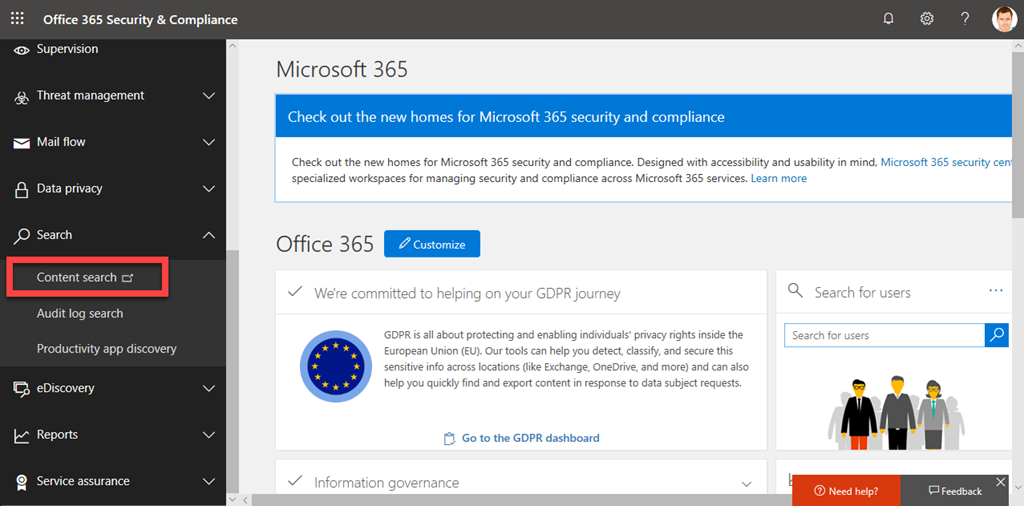
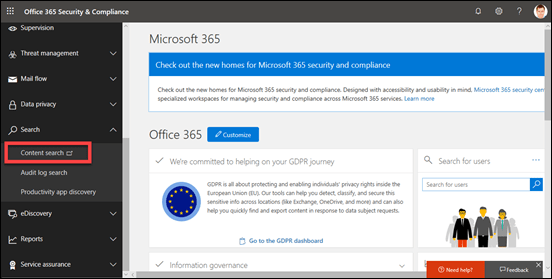
Step one is to login to the Microsoft 365 tenant as an administrator and visit the Security and Compliance Center like so:
image

Select Content Search from under the Search option on the left.

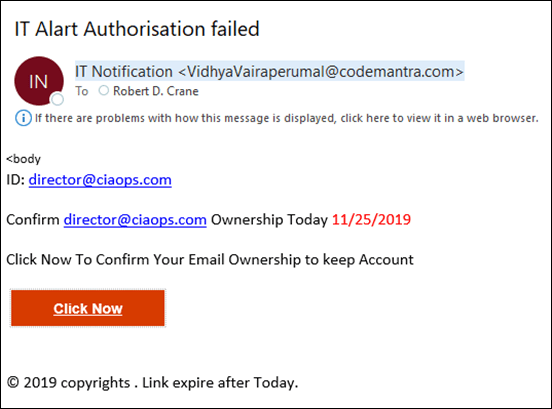
Before you create a new search, you’ll need to find something unique about the item you are searching for.
image

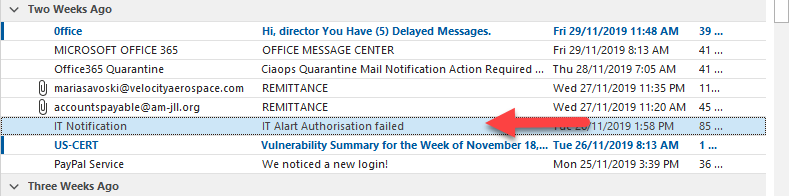
In the case above, with this dodgy email, I’ll do a search based on the senders email but I could as easily do one on the mis-spelled subject ‘Alart’. All you need is something unique.
image

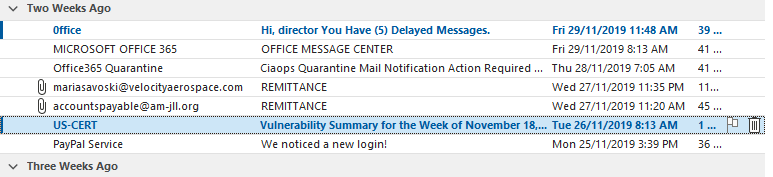
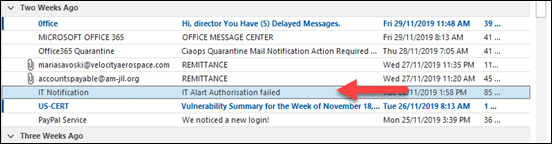
If I look in my inbox I can see this email listed as shown.
image

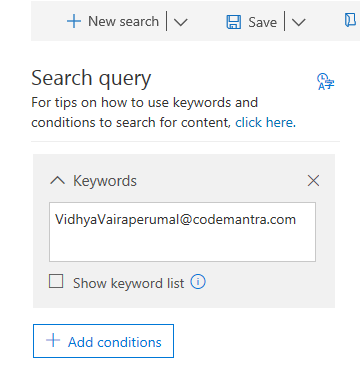
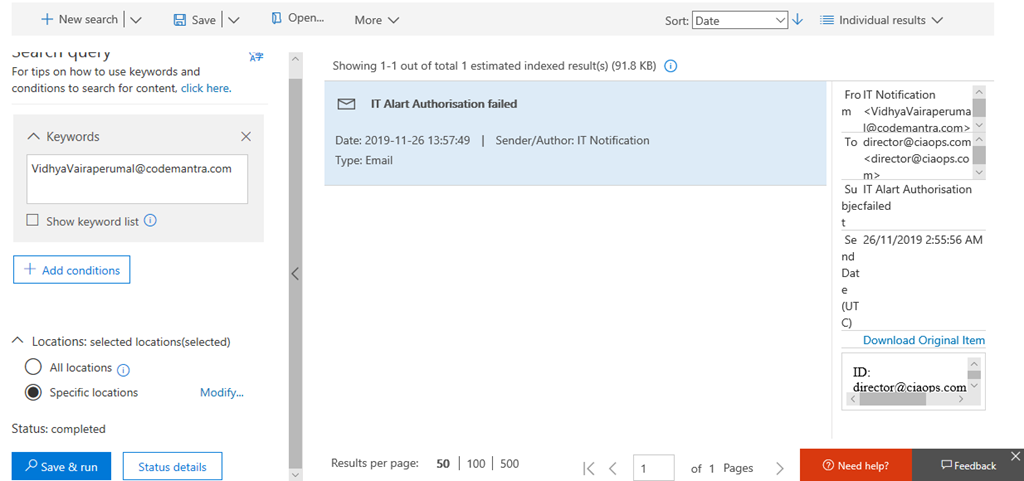
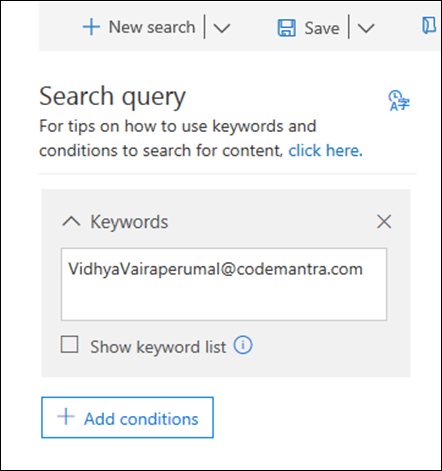
I create a new Content Search and use the unique criteria in the keywords as shown above.
image

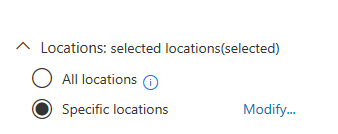
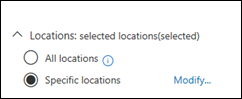
Below this I can limit where the search is conducted. In this case, I will specify messages, as that is what I am looking for. You can get quite granular here if you need to. Just select Modify and specify the location you wish to search. Remember, the more places you search the longer it will take to return results.
image

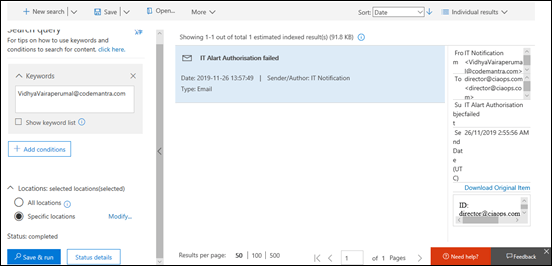
Once you have crafted your search, select Save & run in the lower left. After a short while, you should see the results. In this case, I have only found the one result, which is the item in my inbox. Make sure you check the items that are returned as it is these items that will be deleted! You may need to adjust your search to get exactly the results you wish.

Next, you’ll need to fire up PowerShell and connect to the Microsoft Security and Compliance Center for you tenant. I have a script that you can use here if you have MFA:

https://github.com/directorcia/Office365/blob/master/o365-connect-mfa-sac.ps1

and if you don’t (shame on you):

https://github.com/directorcia/Office365/blob/master/o365-connect-sac.ps1

Once you have successfully connected you need to run the following line of PowerShell:

New-ComplianceSearchAction -SearchName “<Content search query name>” -Purge -PurgeType SoftDelete

for a ‘soft delete’ of the item (i.e. recoverable). Or

New-ComplianceSearchAction -SearchName “<Content search query name>” -Purge -PurgeType HardDelete

for a ‘hard delete’ (i.e. non-recoverable). You’ll also need to change <Content search query name> to match the name you gave the Content Search when you created it.

image

You should now see a prompt, as shown above, asking you to confirm your actions. Generally, you’ll select Yes to All here.

image

This will kick off the process of deleting the content you have found. Note, this process is not immediate. It may take a little while to work through all the locations.
image

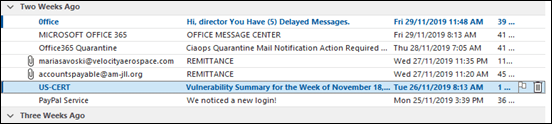
When the process is complete, as shown above, that item no longer appears in mailboxes.

That’s how you run your own ZAP!

Intune policy sets

The modern way to manage and configured devices in the Microsoft Cloud is to use Intune to handle device enrolment and configuration. This can become complex quickly when you at look configuring across the different operating systems (iOS, Android, Windows, MacOS, etc) and the different policies (endpoint, compliance, restrictions, etc) because there are so many possible variations. If you then layer on a variety of users and their requirements, being consistent across the organisation can be a challenge.

image

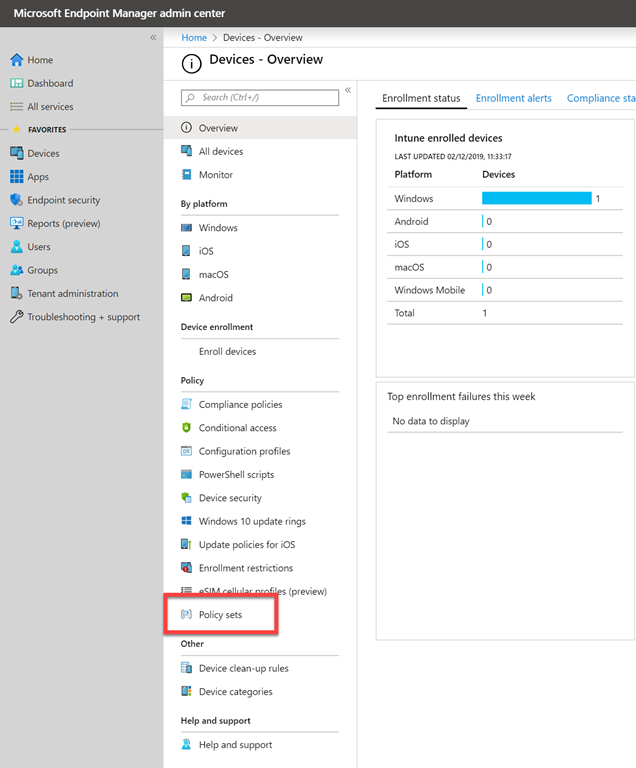
Luckily, Intune now gives us something called Policy Sets which you can find in the Microsoft Endpoint Manager admin center as shown above.

image

As the opening screen, shown above, notes – Policy sets are basically a way to group a set of individual policy configurations together and have them applied as a group. Handy eh?

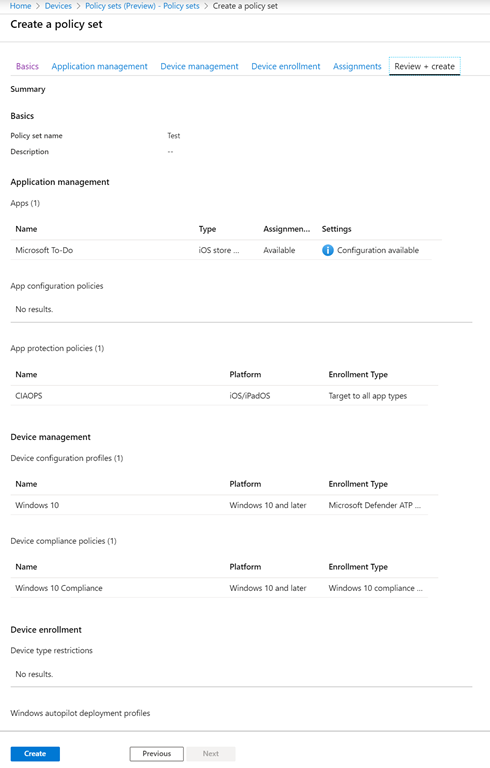
image

Basically, you follow through the wizard and select the policies you wish to group together and then users you wish that to apply to. You save that as an individual Policy set, of which you can create as many different ones as you like.

Once you create the policy it will be applied exactly the same as if you did each policy individually, but now you can do all that together via a single setting! You can go back in at anytime and edit the Policy sets you created.

Device manager Policy Sets allow you to easily group a variety of individual Intune policies together and apply them together to a group of users quickly and easily. This should save you lots of time over creating an individual enrolment policy and applying, then an individual compliance policy and applying, then an individual endpoint protection policy individually and so on.

Need to Know podcast–Episode 220

In this episode I speak with Leigh Wood from Node IT in the UK about what attending the Microsoft worldwide partner conference known as Inspire. Leigh gives us some great insights, experiences and the benefits of attending. A great episode for Microsoft partners to listen in to and learn from Leigh. We have our usual Microsoft Cloud updates from Brenton and myself. Stay tuned, stay up to date and listen along. Let us know what you think of this episode.

This episode was recorded using Microsoft Teams and produced with Camtasia 2019

Take a listen and let us know what you think – feedback@needtoknow.cloud

You can listen directly to this episode at:

https://ciaops.podbean.com/e/episode-220-leigh-wood/

Subscribe via iTunes at:

https://itunes.apple.com/au/podcast/ciaops-need-to-know-podcasts/id406891445?mt=2

The podcast is also available on Stitcher at:

http://www.stitcher.com/podcast/ciaops/need-to-know-podcast?refid=stpr

Don’t forget to give the show a rating as well as send us any feedback or suggestions you may have for the show.

Resources

@nodeIT

@contactbrenton

@directorcia

Microsoft submissions to Cyber 2020 strategy

Outlook on the web is becoming a progressive web app

Security defaults provides key security for free

Microsoft Partner Agreement

Azure Sentinel

Azure Sentinel is a great add on

MFA penetration in the Microsoft Cloud

Microsoft Norway now open

Azure cost management for partners