Trusted IPs

One of the ways that you can ease the burden of having to use MFA with every login to services like Microsoft 365 is to implement Trusted IPs for a limited set of networks. This feature is available with Azure MFA which is part of Azure AD Premium P1 and all SKUs of Microsoft 365 including Microsoft 365 Business.

You can read more about Trusted IP’s here:

https://docs.microsoft.com/en-gb/azure/active-directory/authentication/howto-mfa-mfasettings#trusted-ips

To configure Trusted IPs in your environment visit:

https://account.activedirectory.windowsazure.com/usermanagement/mfasettings.aspx

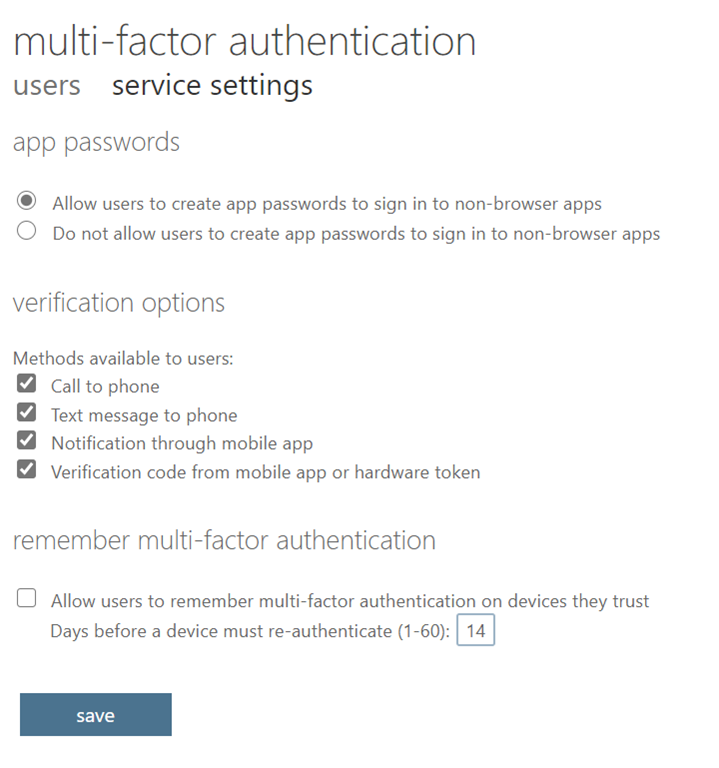
If you don’t have the appropriate license you will only see:
image

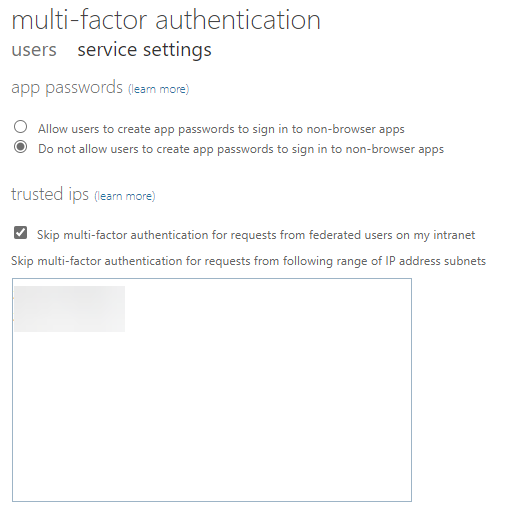
If you have the appropriate license you will see more options like so:
image

Thus, into the lower box you put the IP address range(s), behind which you do not wish to have MFA enabled. Anywhere else, it will remain enabled and required. Also don’t forget to check the option to Skip above this box.
image

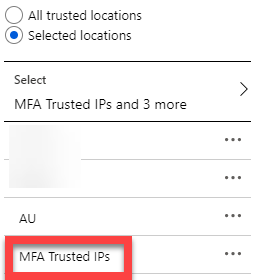
If you also look inside your Conditional Access configuration, you will now find that you also have a new Location called MFA Trusted IPs as shown above. You can thus use that as part of your Conditional Access policies if you wish which you can read more about here:

https://docs.microsoft.com/en-us/azure/active-directory/conditional-access/location-condition#trusted-ips

In summary then, Trusted IPs allow you to remove the need to use MFA when configured and are part of Azure AD Premium P1 or Microsoft 365 licenses. They are great way to remove the need for MFA for network ranges that you trust. Typically these are the IP ranges inside a businesses local network, that the business completely manages and controls.

Secure logging with Microsoft 365 presentation

Here’s the slides from my longer presentation today at Ignite Copenhagen

Securely logging to Microsoft 365

Getting access to your information in Microsoft 365 starts with logging in but is it secure as it could be? Understanding security options at the point of entry like MFA, Legacy Authentication and Conditional Access on all devices is critical to keeping information protected as it is not only you that is trying to log into your account these days! Learn what security technologies you can add at login and the best practices approaches to configuring and monitoring these. Security starts  at the doorway to Microsoft 365 and simple configurations can greatly reduce your risks of unauthorised access. Come and learn what can be done.

https://www.slideshare.net/directorcia/securely-logging-to-microsoft-365

Office 365 Backup presentation

Here’s the slides from my short theatre presentation at Ignite Copenhagen

THR30149 – Do you need to backup Office 365?

Is there are need to backup Microsoft 365 data given the feature set in place? What exactly is provided out of the box by Microsoft and what might require the consideration of additional solutions? What are the best practices with what can be enabled in Microsoft 365 to provide maximum data protection before considering alternatives? Determining this will help you create a better and more effective policy to ensure the availability of your information in all situations. Come and learn how to better protect your data and what additional steps you can take to improve its security and reliability.

https://www.slideshare.net/directorcia/do-you-need-to-backup-office-365


Need to Know podcast–Episode 231

FAQ podcasts are shorter and more focused on a particular topic. In this episode I’ll talk about the different Advanced Threat protection (ATP) offerings that Microsoft has.

This episode was recorded using Microsoft Teams and produced with Camtasia 2019

Take a listen and let us know what you think – feedback@needtoknow.cloud

You can listen directly to this episode at:

https://ciaops.podbean.com/e/episode-231-all-the-atps/

Subscribe via iTunes at:

https://itunes.apple.com/au/podcast/ciaops-need-to-know-podcasts/id406891445?mt=2

The podcast is also available on Stitcher at:

http://www.stitcher.com/podcast/ciaops/need-to-know-podcast?refid=stpr

Don’t forget to give the show a rating as well as send us any feedback or suggestions you may have for the show.

Resources

Office 365 ATP

Defender ATP

Azure ATP

Microsoft Defender App Guard issue

**** Update **** – Solution is here – Resolving Windows Application Guard issues

This article is bit different from most others. In this post I’ll be sharing a current issues I have with Defender Application Guard. If you have some suggestions of any additional troubleshooting, I’d love to hear, because currently, I’m not having much luck finding a solution.

image

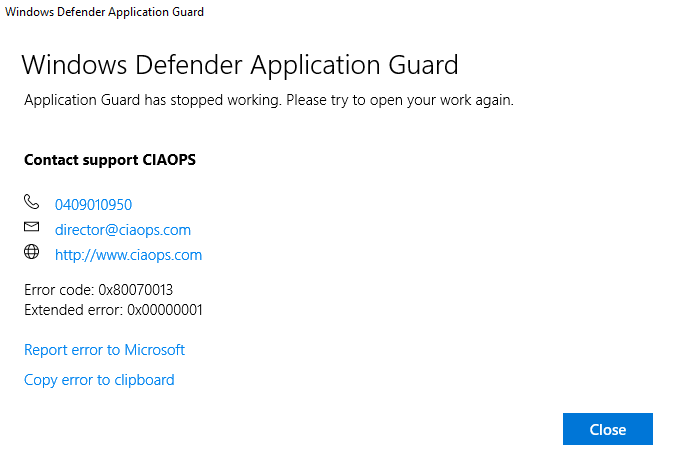
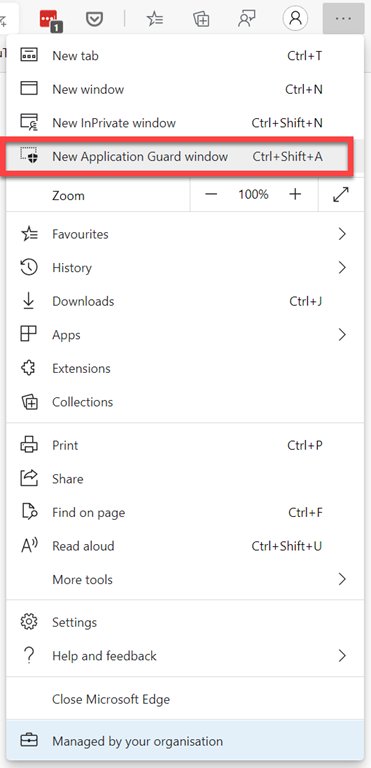
The issue is that if I go into the new Edge browser and select a New Application Guard Window, I end up with:

image

WDAG Report – Container: Error: 0x80070013, Ext error: 0x00000001; RDP: Error: 0x00000000, Ext error: 0x00000000 Location: 0x00000000

I have tried the wdagtool command line tool with the following result:

image

I have also run a:

sfc /scannow

across my machine with no integrity issues.

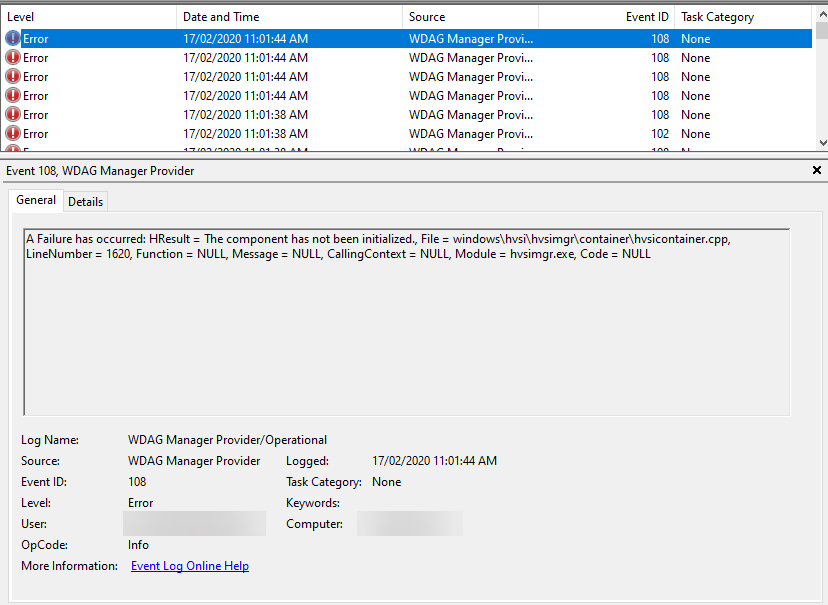
If I dig into Event viewer | Application and services log | Microsoft  | Windows | WDAG-Manager, I see:

image

A Failure has occurred: HResult = The media is write protected., File = windows\hvsi\hvsimgr\container\hvsicontainer.cpp, LineNumber = 769, Function = NULL, Message = NULL, CallingContext = NULL, Module = hvsimgr.exe, Code = NULL

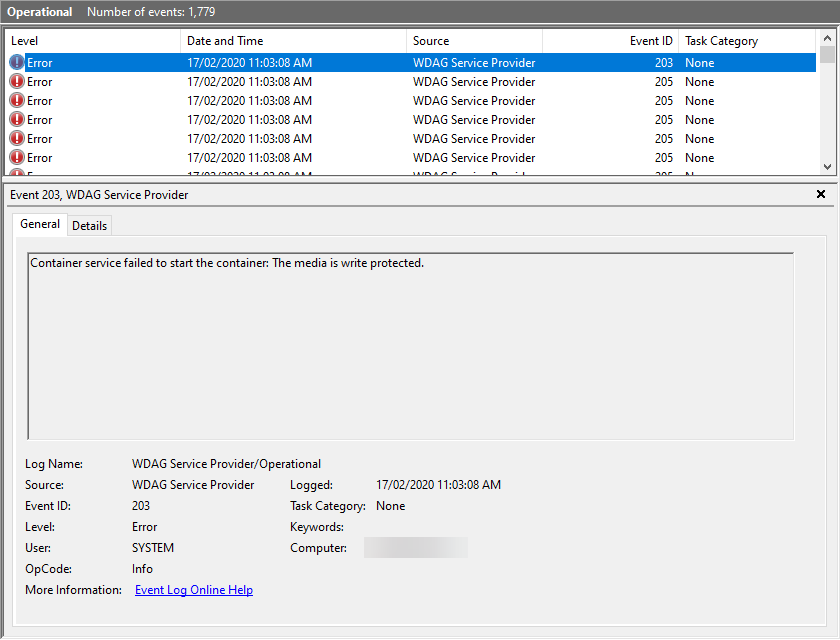
and in Event viewer | Application and services log | Microsoft  | Windows | WDAG-Service, I see:

image

Container service failed to start the container: The media is write protected.

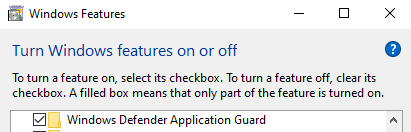
I have the App Guard Service enabled in my Windows Features  as well.

image

I have tried:

  • Re-installing Windows
  • Re-running Windows install again
  • Removing all App Guard components, rebooting, reinstalling all the components again and rebooting
  • Installing Hyper V service
  • Installing Sandboxing Service

I am still trying to resolve this issue, and have tried quite a few knowledgeable people who haven’t had much luck either. So, if you have any suggestion of what may help, please let me know.

Your collaboration should be wide not deep – BRK30221

Day 2 of Microsoft Ignite the Tour Sydney gave me the opportunity to present

Your collaboration should be wide not deep

and the slides are available at:

https://www.slideshare.net/directorcia/your-collaboration-should-be-wide-not-deep

I again thank Microsoft for the opportunity to speak and for everyone who attended.

We are now all done here in Sydney for 2020.

Need to Know podcast–Episode 230

We welcome back our co-host, Brenton Johnson, after his extended break. We catch up on all the news and events from the Microsoft Cloud. This is followed by an interview with Dave Sobel from MSPRadio.com taking about the transformation that many MSPs need to address to continue success in the light of the constantly changing cloud landscape.

This episode was recorded using Microsoft Teams and produced with Camtasia 2019

ake a listen and let us know what you think – feedback@needtoknow.cloud

You can listen directly to this episode at:

https://ciaops.podbean.com/e/episode-230-dave-sobel/

Subscribe via iTunes at:

https://itunes.apple.com/au/podcast/ciaops-need-to-know-podcasts/id406891445?mt=2

The podcast is also available on Stitcher at:

http://www.stitcher.com/podcast/ciaops/need-to-know-podcast?refid=stpr

Don’t forget to give the show a rating as well as send us any feedback or suggestions you may have for the show.

Resources

@mspradionews

@contactbrenton

@directorcia

Bye, bye basic auth

Updates to Threat Protection Reports

Microsoft’s Surface success

Microsoft’s failure to renew SSL certificates

User enrollment in Intune

Training modules for IT Pros

Introducing Conditional Access for Office 365

SharePoint next steps