Need to Know podcast–Episode 321

Lots of news an updates after being a few weeks since last episode. Fear not however, they are all linked below. Plenty of really detailed and helpful articles from Microsoft of late, especially around security. All of which I highly recommend you spend time working through and implementing the recommendations. Also plenty of new features and products to cover so dive in and take a look.

You can listen directly to this episode at:

https://ciaops.podbean.com/e/episode-321-initiatives/

Subscribe via iTunes at:

https://itunes.apple.com/au/podcast/ciaops-need-to-know-podcasts/id406891445?mt=2

Don’t forget to give the show a rating as well as send me any feedback or suggestions you may have for the show.

Brought to you by www.ciaopspatron.com

Resources

@directorcia

Join my shared channel

CIAOPS merch store

Become a CIAOPS Patron

CIAOPS Blog

CIAOPS Brief

CIAOPSLabs

Support CIAOPS

Granular RBAC permissions for endpoint security workloads

How to break the token theft cyber-attack chain

Microsoft Incident Response lessons on preventing cloud identity compromise

How Copilot for Microsoft 365 Works

From pixels to presence: new features coming to Microsoft Mesh

How to unlock new experiences on your Copilot+ PC

Introduction to Cross-Tenant Mailbox Migrations

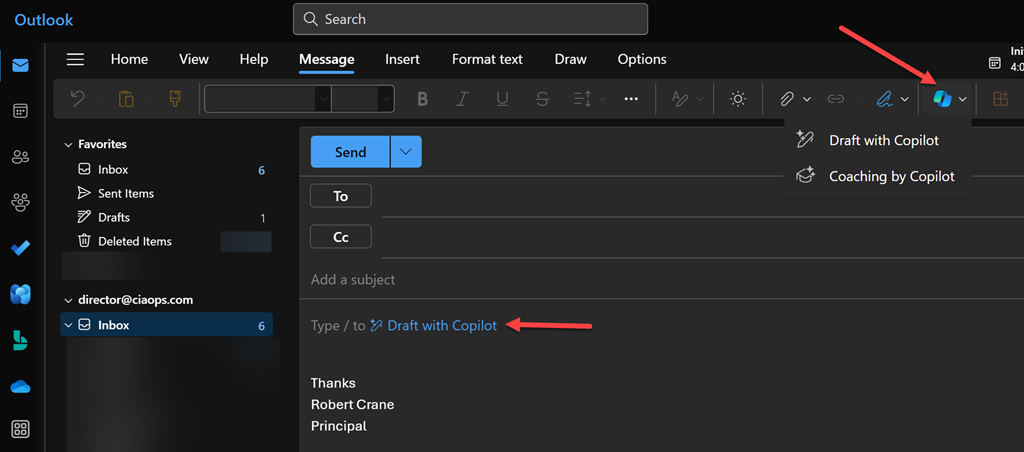
Copilot is now available in classic Outlook for Windows

Microsoft Incident Response tips for managing a mass password reset

Set default organization version limits for new document libraries and OneDrive accounts (Preview)

The guide to Microsoft Intune resources

Email Protection Basics in Microsoft 365: Bulk Email

Data security in Microsoft Copilot for Microsoft 365

Moving from AI experimentation to business breakthrough

Update on the Recall preview feature for Copilot+ PCs

Secure your business: Four ways Microsoft 365 for Business can help

The new Microsoft Planner is here! Streamline the planning, management, and execution of work

Announcing new Windows Autopilot onboarding experience for government and commercial customers

AI jailbreaks: What they are and how they can be mitigated

How Russia is trying to disrupt the 2024 Paris Olympic Games

Microsoft is again named the overall leader in the Forrester Wave for XDR

What’s New in Copilot | May 2024

Exploring Copilot for Security to Automate Incident Triage

Demystifying Microsoft Entra ID, Tenants and Azure Subscriptions

Moonstone Sleet emerges as new North Korean threat actor with new bag of tricks

Automatic attack disruption in Microsoft Defender XDR

Introducing Team Copilot

Missing devices in Windows Update for Business reports?

Need to Know podcast–Episode 320

I’ve now had a chance to play with Copilot for Security and can recommend it but to ensure that costs don’t spiral out of control for SMB, it needs to used in an ad hoc manner. Listen along for my thoughts and a walk through of resources available for you. Also news of updates of Exchange email threshold limits being changed as well as improvements for Microsoft Mesh, Loop and more. Listen in for the latest updates.

You can listen directly to this episode at:

https://ciaops.podbean.com/e/episode-320-build-is-now-done/

Subscribe via iTunes at:

https://itunes.apple.com/au/podcast/ciaops-need-to-know-podcasts/id406891445?mt=2

Don’t forget to give the show a rating as well as send me any feedback or suggestions you may have for the show.

Brought to you by www.ciaopspatron.com

Resources

@directorcia

Join my shared channel

CIAOPS merch store

Become a CIAOPS Patron

CIAOPS Blog

CIAOPS Brief

CIAOPSLabs

Support CIAOPS

Microsoft Build 2024 book of news

Build presentation keynote

New agent capabilities in Microsoft Copilot unlock business value

Introducing Team Copilot

Microsoft Copilot Studio: Building copilots with agent capabilities

New Windows 11 security features are designed for hybrid work

Introducing Copilot+ PCs

You’re wrong about Windows Recall — How Microsoft keeps your data safe on Copilot+ PCs

Microsoft Edge for Business: Revolutionizing your business with AI, security and productivity

Demystifying Microsoft Entra ID, Tenants and Azure Subscriptions

Windows deployment with the next generation of Windows Autopilot

Summary of podcast episode straight from Copilot for Microsoft 365:

Key Topics:
  • Microsoft Build 2024: Robert highlighted the new AI features and capabilities announced at the developer conference, such as Copilot Studio, Teams Copilot, and GPT-4O. 2:23

  • Windows 11 security updates: Robert explained some of the new security features in Windows 11, such as Smart App Control, Vulnerability Driver Protection, and Credential Guard. 9:39

  • Copilot Plus PCs: Robert shared his thoughts on the new PC form factor with an NPU and Windows Recall, and asked for feedback from anyone who has bought or considered buying one. 13:38

  • Edge browser: Robert recommended using Edge for better security and productivity, and pointed out some of the AI features in the browser. 15:56

  • Azure tenants and subscriptions: Robert suggested reading a blog post that clarifies the concepts of Azure tenants, Entra ID, and subscriptions. 16:41

  • Windows Autopilot: Robert mentioned the benefits of using Windows Autopilot for hands-off deployment of Windows devices, and shared a link to an article that details the new features in the next generation of Autopilot. 17:28

Copilot for Microsoft 365 in ‘classic’ Outlook

image

To get Copilot for Microsoft 365 to work with desktop applications you need to follow this process:

Adding Copilot button to desktop applications

To get the most from Copilot for Microsoft 365 you need to use the ‘new’ Outlook. However, there is currently the ability to use some of the Copilot features in the ‘classic’ desktop version of Outlook.

image

When you open an email in the older desktop version of Outlook you will find a Summarize button in the upper right as shown above (provided you have a Copilot for Microsoft 365 license of course).

image

If you select that, Copilot will go away and munch on the information in the email for a moment.

image

Then, you’ll then get a nice summary at the top of the email as shown above.

As I understand it, more Copilot for Microsoft 365 will be coming to the ‘classic’ version of Outlook and I’ll let you know when they start appearing for me. However for now, if you do have Copilot for Microsoft 365 and prefer the older version of Outlook on the desktop put it work doing email summaries.

Need to Know podcast–Episode 313

The big news is that Copilot for Microsoft 365 is now available in SMB. There are also some additional Copilot options available as well. I cover all this plus provide some information around getting Copilot on your desktop apps as well as other news and updates from the Microsoft Cloud. Tune in and catch up.

You can listen directly to this episode at:

https://ciaops.podbean.com/e/episode-313-copilot-amongst-us/

Subscribe via iTunes at:

https://itunes.apple.com/au/podcast/ciaops-need-to-know-podcasts/id406891445?mt=2

Don’t forget to give the show a rating as well as send me any feedback or suggestions you may have for the show.

Brought to you by www.ciaopspatron.com

Resources

@directorcia

Join my shared channel

CIAOPS merch store

Become a CIAOPS Patron

CIAOPS Blog

CIAOPS Brief

Support CIAOPS

Bringing the full power of Copilot to more people and businesses

Microsoft Copilot for Microsoft 365

Microsoft 365 Copilot video play list

Copilot for Microsoft 365 for small and medium businesses

Introducing Microsoft Copilot App

Introducing Copilot Pro: Supercharge your Creativity and Productivity

Microsoft’s new Copilot Pro brings AI-powered Office features to the rest of us

Adding Copilot button to desktop applications

Set up Microsoft 365 backup

Microsoft Entra’s Top 50 Features of 2023

Protect faster with Microsoft Defender XDR’s latest UX enhancements

New Microsoft Incident Response guides help security teams analyze suspicious activity

Introducing SharePoint Premium for Information Workers

Employee quick setup

Introducing the new PowerShell Module for Microsoft Defender for Identity

Visualize Entra Sign-in Logs using an Interactive Map

Train your users to be more resilient against QR code phishing

Introducing Automatic File and URL (Detonation) Analysis

Adding Copilot button to desktop applications

Microsoft has just made Copilot for Microsoft 365 available for SMB customers:

Bringing the full power of Copilot to more people and businesses

So I went and signed up to get a look. Bottom line at the moment is that, yes you can buy a single license for a tenant with Business Premium but you need to pay for 12 months up front. Here in Australia than means around $600 inc GST upfront for a minimum 12 months. I have no doubt that I will get value but as yet there is no month by month option.

image

When I open my Microsoft 365 portal now I see a new Copilot icon as shown on the left.
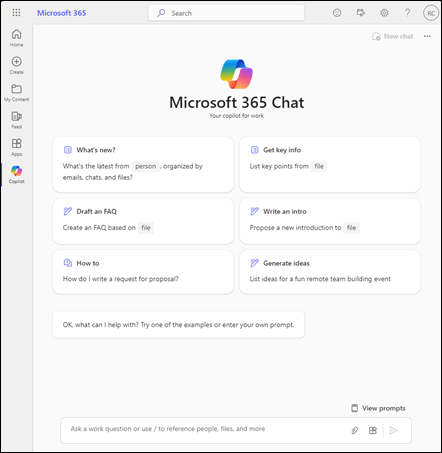
image

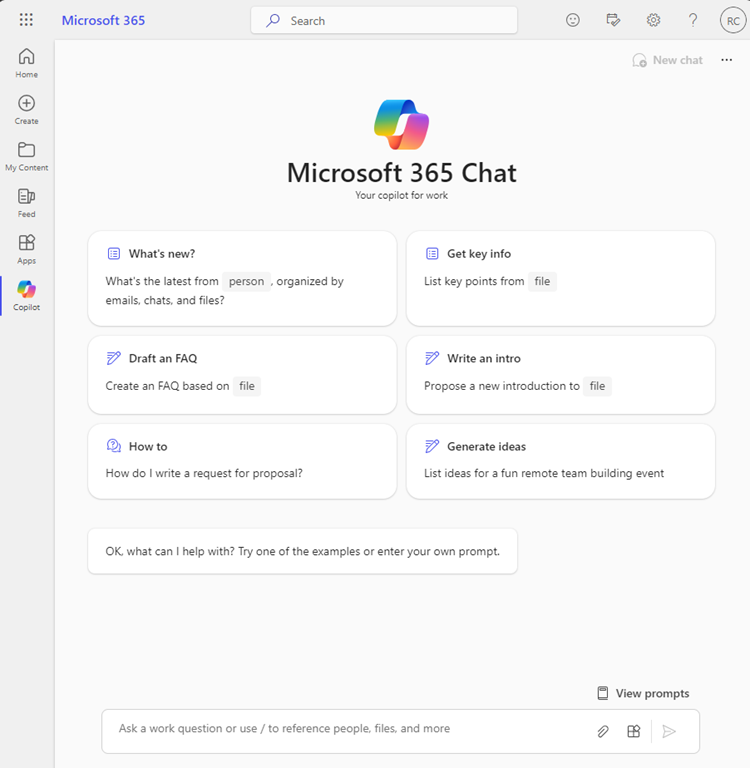
When I select that icon, I am taken to a ChatGPT like screen as shown above that allows me to interact with my data in Microsoft 365 as expected.
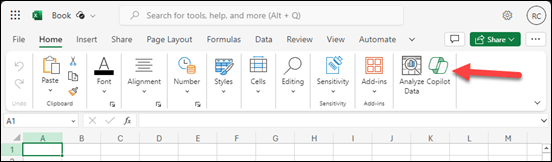
image

If I open Word, Excel, Powerpoint, etc on the web I see a Copilot button in the ribbon as shown above.
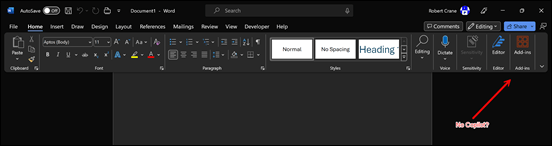
image

However, I can’t see the expected Copilot button in any of desktop applications, like Word shown above.

This video from MVP Shane Young:

https://www.youtube.com/watch?v=KROOEdZXvoY

provided all the answers.

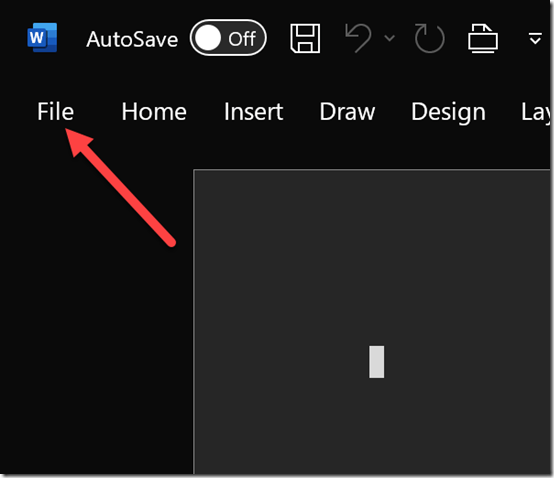
To see the Copilot button in Word, Excel, PowerPoint, OneNote (but not Outlook or Teams) you need to
image

go into each application individually (yes all of them one by one at this stage). Select File from the menu.
image

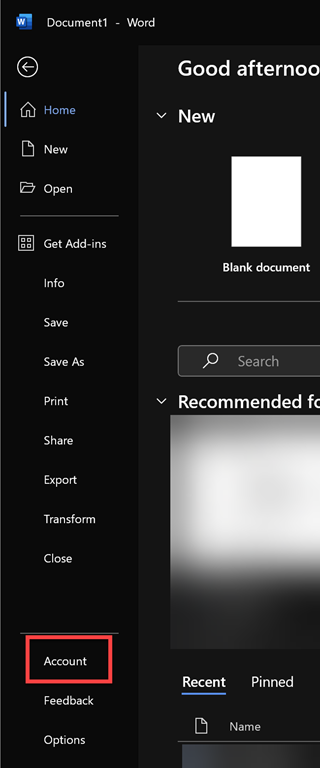
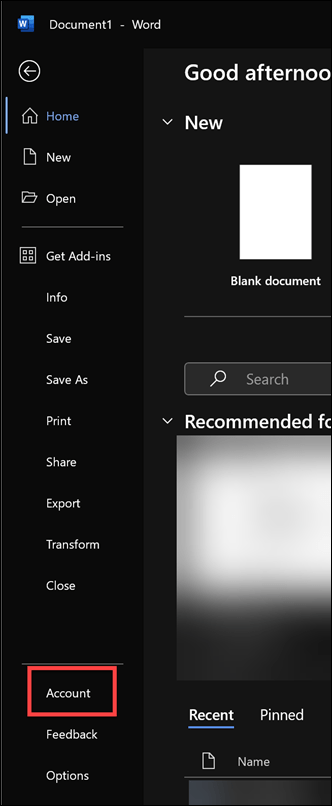
Then select Account from the option on the left.
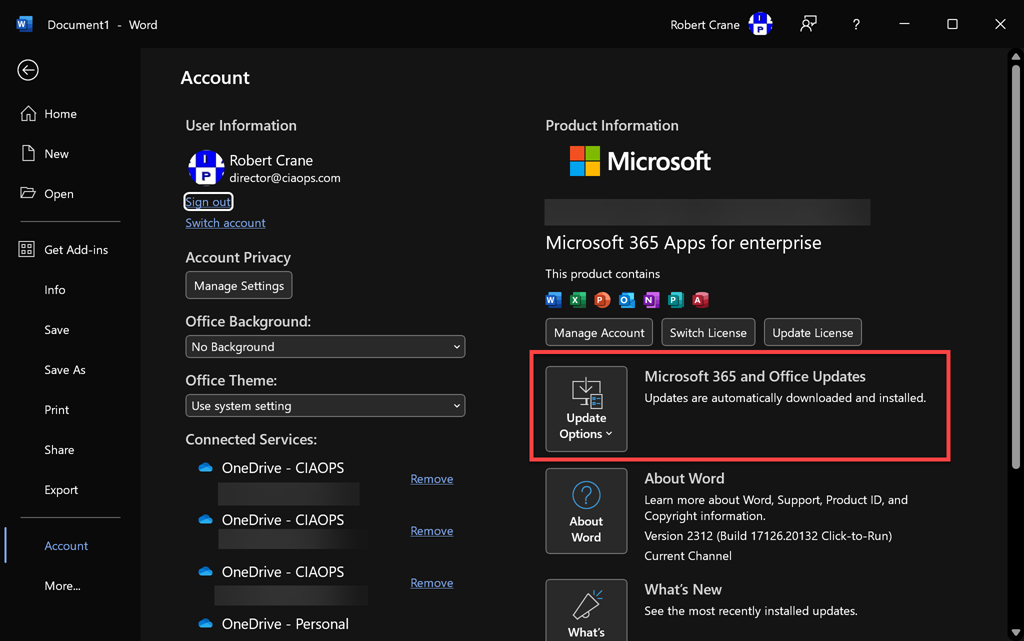
image

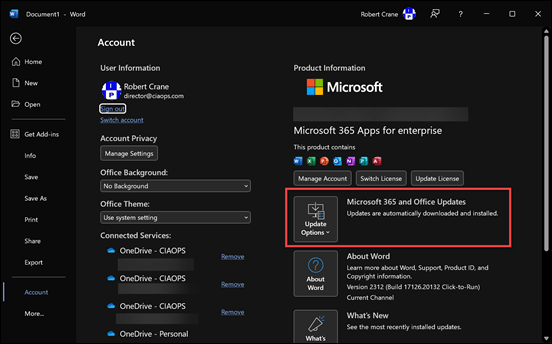
On the right, I’d suggest that ensure your application is up to date first by selecting the Update Options button as shown above.

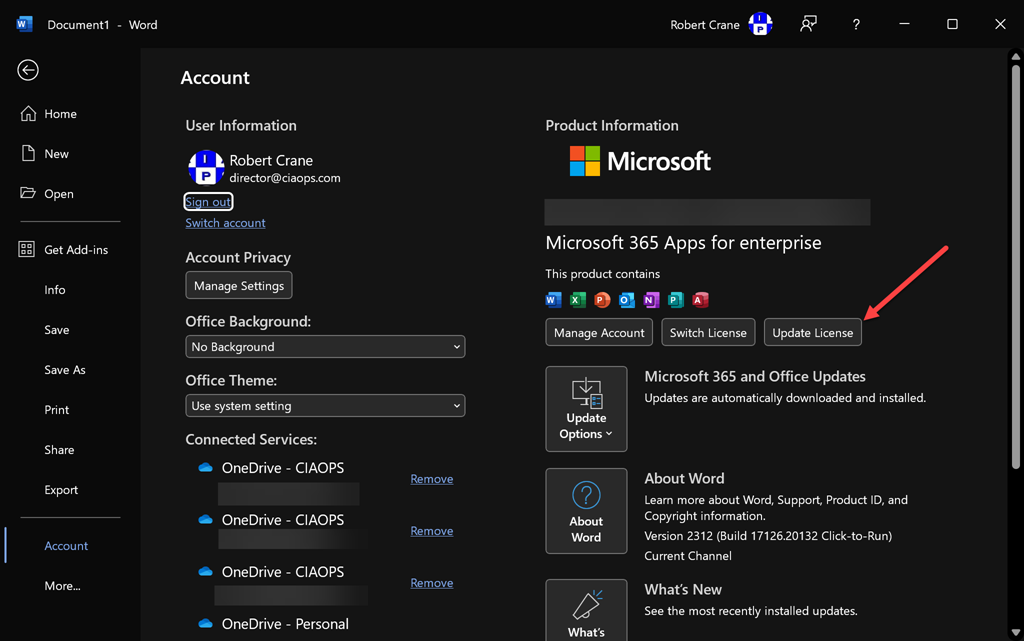
image

Now select the the Update License button as shown.
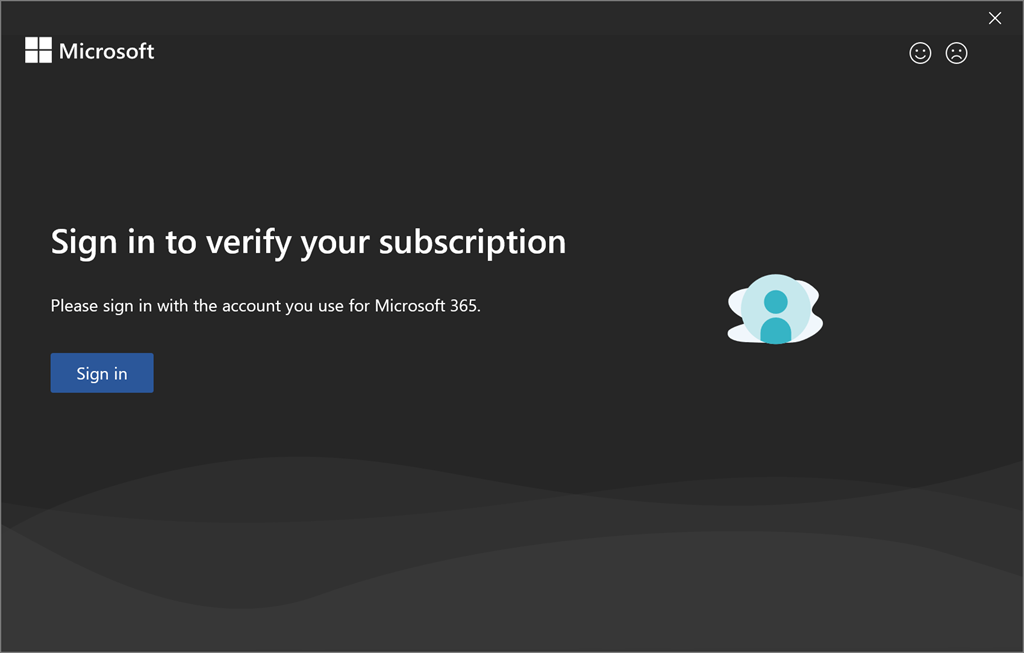
image

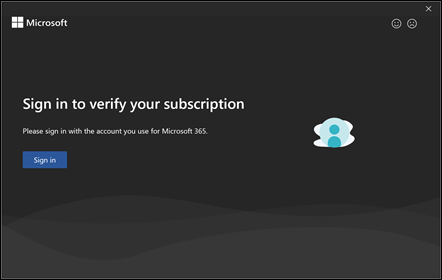
You’ll see the above dialog appear. Select Sign in and sign in using the account that has been assigned a Copilot for Microsoft 365 License.
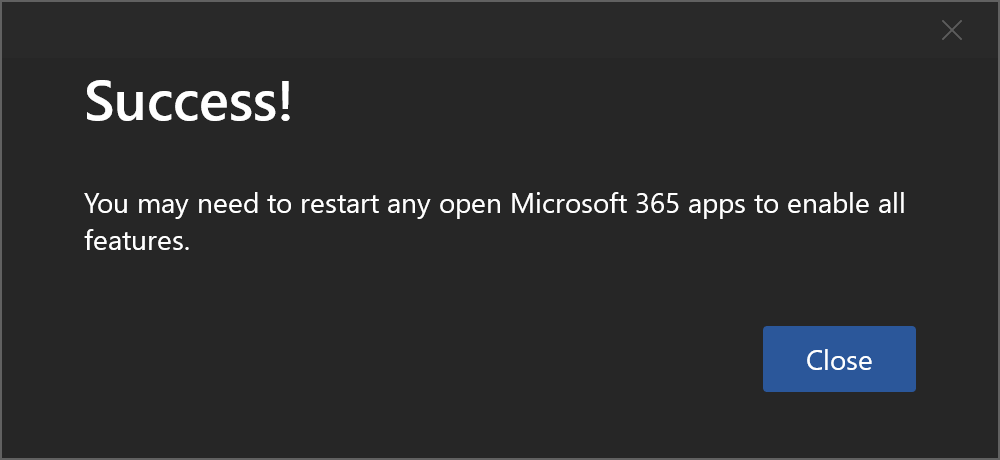
image

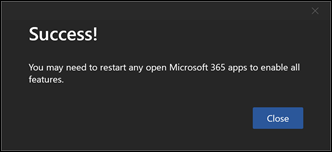
You should see the above message indicating the process is complete. Select Close.

Now, Close and re-open the application.
image

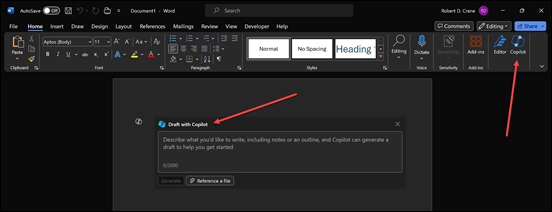
Now the Copilot button should be visible and because this is Word you will also see the Draft with Copilot dialog as shown above confirming everything is enabled.

Remember, you’ll need to do this individually for each desktop application: Word, Excel, PowerPoint, OneNote following the same process.

Things are bit different for Outlook and Teams.
image

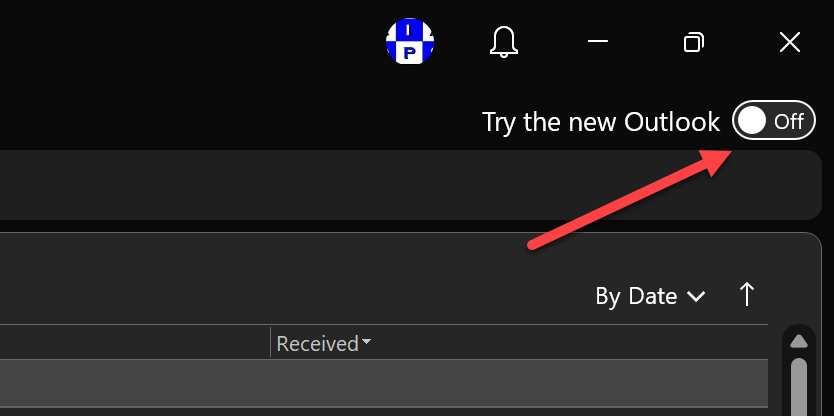
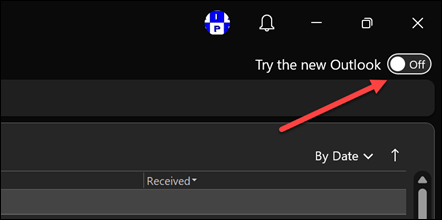
For Outlook you’ll need to switch over to the New Outlook by toggling the option in the top right corner of Outlook on the desktop as shown above.
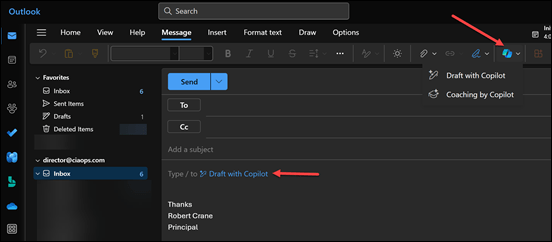
image

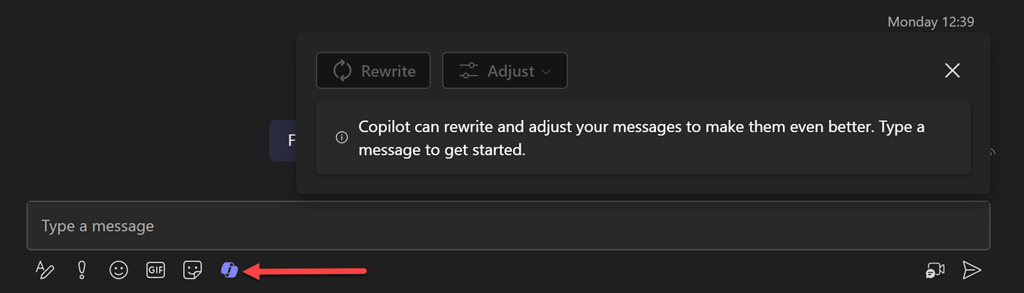
As for Teams, you’ll just need to Sign Out and then Sign in with the account that has Copilot assigned.
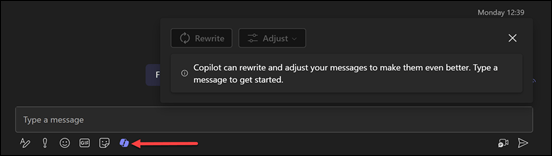
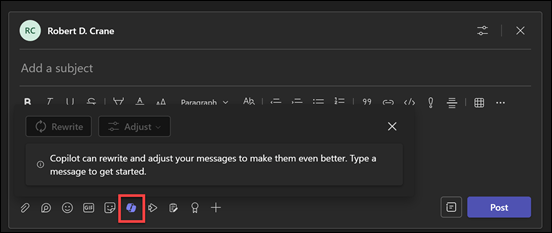
image

image

you can also add the Copilot app on the left menu bar.
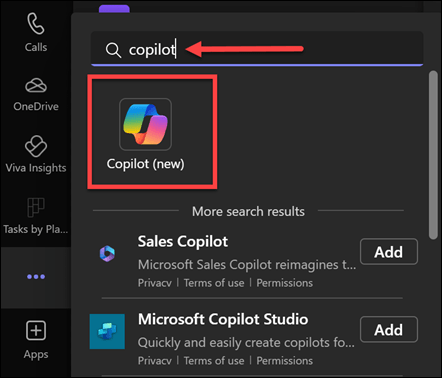
image

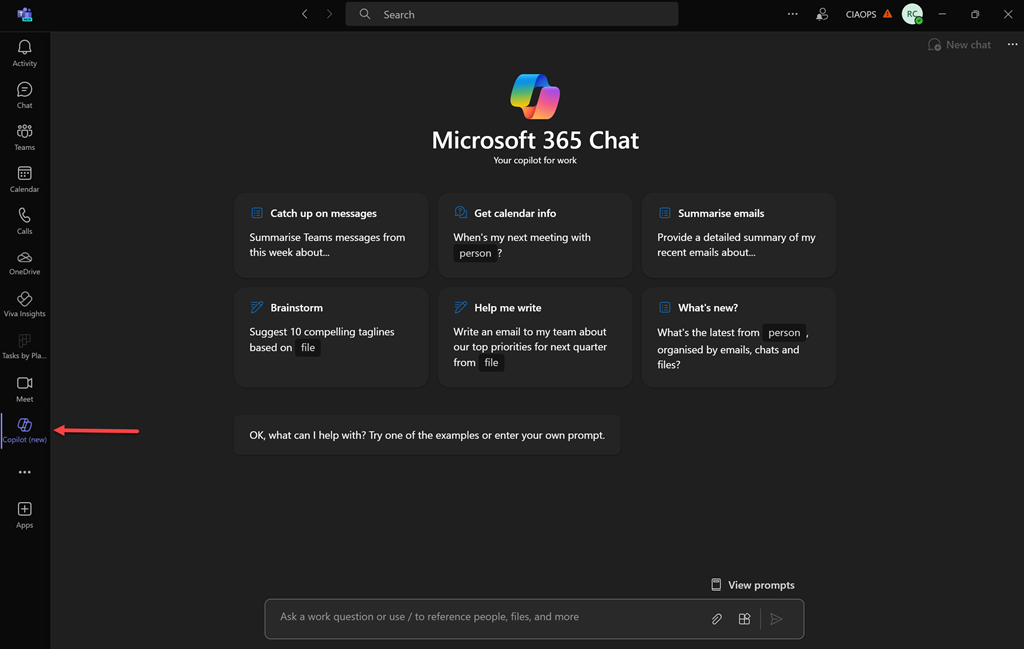
which will allow you access to the original ChatGPT style interface:
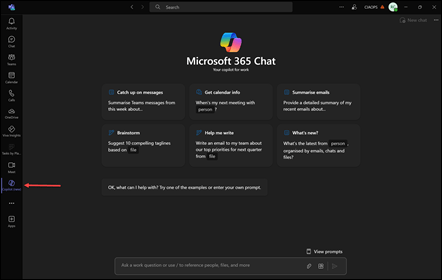
image

Don’t forget you can pin this ‘app’ to menu bar as well by right clicking on it.

All this an it is only day one with Copilot for Microsoft 365. Much to come. Stay tuned.

CIAOPS Need to Know Microsoft 365 Webinar – December

laptop-eyes-technology-computer_thumb

Join me for the free monthly CIAOPS Need to Know webinar. Along with all the Microsoft Cloud news we’ll be taking a look at Microsoft Copilot in all it’s various forms to help separate fact from fiction.

Shortly after registering you should receive an automated email from Microsoft Teams confirming your registration, including all the event details as well as a calendar invite.

You can register for the regular monthly webinar here:

December Webinar Registrations

(If you are having issues with the above link copy and paste – https://bit.ly/n2k2312

The details are:

CIAOPS Need to Know Webinar – December 2023
Thursday 29th of December 2023
11.00am – 12.00am Sydney Time

All sessions are recorded and posted to the CIAOPS Academy.

The CIAOPS Need to Know Webinars are free to attend but if you want to receive the recording of the session you need to sign up as a CIAOPS patron which you can do here:

http://www.ciaopspatron.com

or purchase them individually at:

http://www.ciaopsacademy.com/

Also feel free at any stage to email me directly via director@ciaops.com with your webinar topic suggestions.

I’d also appreciate you sharing information about this webinar with anyone you feel may benefit from the session and I look forward to seeing you there.