Creating a WVD host pool in the Azure console

Before you launch into creating host pools in Windows Virtual Desktop (WVD), you’ll need to do some preparations. I’ve detailed those previously here:

What you need for Windows Virtual Desktop (WVD)

Once you have all that in place, navigate to Windows Virtual Desktop in your portal and you should see the following screen.

image

A host pool is the container in which the virtual machines hosting your desktops and apps will live in. You’ll need at least one of these before you configure anything else

image

Select Host pools from the menu on the left.

image

If you have no host pools as yet you can select the Create host pool button at the bottom of the page as shown or you can select the Add button at the top of the page.

image

Step one will be to nominate a Resource group for your pool, as well as a Name for your host pool. You’ll then need to select a Location for the pool metadata to live. Note, at this time, these locations are in the US but will expand in the future.

image

You have a number of options to select from when it comes to Host pool type. Typically, you are going to select the type as Pooled, rather than Personal. This will allow multiple users to share multiple hosts that you create.

You then need to determine Max session limit, which is the maximum number of users your hosts can have. The number you place here will depend on the size of your configuration. The suggestion is to keep it low initially as adding additional hosts is easy when required.

A few suggestions here. I’d suggest you keep all of your WVD infrastructure in the same Azure Resource group and in the same region. To be able to deploy hosts onto the VNet you have already created prior to this, things will need to be in the same region. The location of the metadata configured in this screen is not that important, but where you put your pool and hosts does matter. So, keep it all together in the same Resource group and region I suggest.

Press the Next: Virtual machines button at the bottom of the page to continue.

image

Here, you can add hosts (VMs) to you pool at the time you create your pool if you wish. You can always add hosts later, so to reduce complexity here, leave this set as No and select the Next: Workspaces button at the bottom of the page to continue.

image

You can also create a Workspace at the same time you create your pool. Think of a Workspace as a way to group virtual hosts and apps together. You can always add Workspaces later, so to reduce complexity, leave this set as No and select Next: Tags button at the bottom of the page to continue.

image

Azure tags are a great way to easily categorise Azure resources to help with things like billing and management. Here you can use pre-existing tags or create new tags.

When complete, select the Next: Review + create button at the bottom of the page to continue.

image

Your selections will then undergo validation as shown above.

image

If the validation passes, you should see the Create button at the bottom of the page. if you get an error here it maybe because the total number of cores exceeds the quota for the tenant as I detailed here:

Watch the core limit in your Azure tenant

Press the Create to complete the process.

image

You should then see a deployment screen as shown above and short time later you will see that the process has completed successfully.

image

If you return to your WVD console and look in Host pools you should now see the pool you just created as shown above.

image

If you select the Host pool name you should see the details of that pool as shown above.

image

If you look in the Application groups option from the menu on the left, you’ll see that a default Desktop application group (<Pool name?-DAG) has been created but has no users assigned as yet. You’ll see no RemoteApp application groups have been created as yet.

image

If you look in Session hosts, you see that nothing in here as yet either. We’ll be added hosts to this pool in the next step in a following article.

Remember, this host pool creation process is part of the Spring 2020 update to WVD. You can also create host pools with PowerShell, which I’ll cover in an upcoming article. However, you now have a container in which you can start adding virtual hosts.

Remote Desktop app for WVD doesn’t work with WIP

*** Solution – ensure the WVD feed URL (e.g. http://rdweb.wvd.microsoft.com/webclient) is part of the appropriate definitions in your WIP network isolation configuration

image

When I tried to update the feeds on my Remote Desktop client on Windows 10 for use with the Spring release of WVD I was greeted with the above issue with Windows Information Protection. (WIP). I tried setting the Remote Desktop app (msrdcw.exe) to be a protected app in WIP and still had the same issue. Also tried setting to be an exempt app, but that also didn’t help-. Only disabling WIP seemed to allow me to refresh the feeds. Once you do this you can turn WIP back on if you need to.

Hopefully Microsoft will address this issue in upcoming releases of he Remote Desktop app for Windows 10. Until then, there doesn’t seem to be much option but disabling WIP.

Watch the core limit in your Azure tenant

image

So when spinning up a new host inside the new WVD experience I received the error as shown above:

The template deployment ‘AddVMsToHostPool-7b00d9c7-8690-455f-90fa-d69d2661601f-deployment’ is not valid according to the validation procedure. The tracking id is ‘867f4f35-b3dc-42c7-879d-b588517f15d0’. See inner errors for details

I wasted plenty of time looking in other location rather than looking in the “inner error: as recommended. To get there, press the copy button at the top right as shown and then paste the information. When I did do this and actually read what it said I saw:

Operation could not be completed as it results in exceeding approved Total Regional Cores quota. Additional details – Deployment Model: Resource Manager, Location: australiaeast, Current Limit: 10, Current Usage: 10, Additional Required: 2, (Minimum) New Limit Required: 12. Submit a request for Quota increase at

Damm! I gotta read those errors more fully I reminded myself, instead of ‘assuming’ and rushing off elsewhere for solution.

The end result was that I simply needed to lift the core quota for the tenant to allow for the additional VMs. Hopefully, this help someone else wasting time looking for a solution when it is really there in your face.

CIAOPS Need to Know Microsoft 365 Webinar–May

laptop-eyes-technology-computer

With all this work from home going on it is a good time to focus on security in Microsoft 365. Attend to learn how you can make your environment more secure and minimise your risks. I’ll have the  the latest Microsoft Cloud updates plus open Q and A as well.

You can register for the regular monthly webinar here:

May Webinar Registrations

The details are:

CIAOPS Need to Know Webinar – May 2020
Friday 29th of May 2020
10.30am – 11.30am Sydney Time

All sessions are recorded and posted to the CIAOPS Academy.

The CIAOPS Need to Know Webinars are free to attend but if you want to receive the recording of the session you need to sign up as a CIAOPS patron which you can do here:

http://www.ciaopspatron.com

or purchase them individually at:

http://www.ciaopsacademy.com/

Also feel free at any stage to email me directly via director@ciaops.com with your webinar topic suggestions.

I’d also appreciate you sharing information about this webinar with anyone you feel may benefit from the session and I look forward to seeing you there.

How to get deeper administration insights into your tenant

Here’s my presentation from Microsoft May 2020:

https://www.slideshare.net/directorcia/how-to-get-deeper-administration-insights-into-your-tenant

How to get deeper administration insights into your tenant

Microsoft Cloud App Security is a powerful reporting and alerting tool that provides deep analytics into your Microsoft 365 tenant. Combined with other agents it can be a central place to bring all your reporting and alerting together and even incorporate information from endpoints, servers and firewalls. Come and learn why Microsoft Cloud App Security provides administrators power beyond their wildest dreams when it comes to managing Microsoft 365.

I’ll also post up when the recording is available but checkout the remaining sessions at Microsoft 365 May.

Uploading Graph credentials to Azure key Vault

If you have been following along with the recent articles I have been posting, you’ll know that I have been detailing how to use saved credentials from an Azure AD application to access multiple tenants using the Microsoft Graph. This post showed you how to create an Azure AD application inside multiple tenants and generate those credentials:

Using the Microsoft Graph with multiple tenants

Part of that process involved saving the Azure AD application credentials into locally encrypted XML files. I detailed how the encryption process for these configuration files locks those files to a single user on a single Windows 10 machine. Thus, if those files were copied to another location they couldn’t be used as you see below.

The potential challenge is, what if you want to use those credentials on multiple machines? And, what happens if the original machine on which those credential resides fails or is inaccessible? What is needed is a process to backup these files to somewhere secure in the cloud. Luckily, I know just the solution – Azure Key Vault.
To make things easy, I have created a free program to upload these credentials into an Azure Key Vault of your choosing. You’ll find the program at:

https://github.com/directorcia/Office365/blob/master/az-keyvault-saveto.exe

image

Simply download it and put into the same directory that the XML credential files for the domains live, as shown above.

image

When you run the program you’ll need to nominate an admin account for the Azure Key Vault destination as well as login into that Azure tenant into which you wish to save the credentials to. That tenant will need to have an Azure paid subscription.

image

Once you have logged into the destination tenant, you’ll be asked to select the subscription you wish to use for the Azure Key Vault. Remember, you need to have a paid Azure subscription to achieve all this.

image

When you enter the name of the destination Azure Resource Group for the destination Azure Key Vault, you’ll be warned if it already exists and if you are happy to use it. If no matching Azure Resource Group is found a new one will be created. Azure Resources Groups are just management containers for things like Azure Key Vaults.
image

You are then asked for the name of destination Azure Key Vault in that Resource Group. Again, the program will check to see if an Azure Key Vault of that name already exists and ask you whether you wish to use it. A single Azure Key Vault can hold many credentials, so using just one is fine if you choose to.

If the Azure Key Vault doesn’t already exist in that Azure Resource Group, a new one will be created with the name entered.

The destination Azure Key Vault will then be checked to determine whether a similar set of credentials already existing in there with the same name. If so, you’ll be given the option to use these existing entries or abort.

In most cases, with an Azure Key Vault with those credentials will not already exist so they can be written into the Azure Key Vault as shown above. At the end of the process, you’ll be given the option to delete the local XML configuration files if you want.

image

This process will continue through all the local XML configuration files for all the domains as shown above.

image

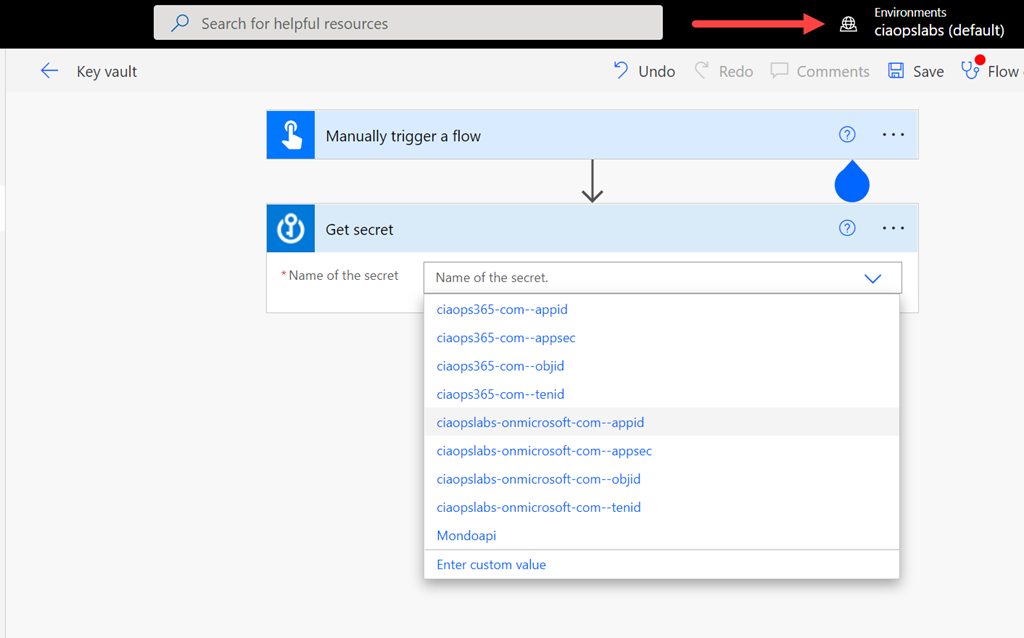
When the program has completed if you go and look in the destination Azure Key Vault, under the Secrets option on the left menu, you should find an entry for each configuration file uploaded as shown.

Effectively, you have now ‘backed up’ the Azure AD application credentials for all the tenants you have configured to a central secure location in Azure Key Vault.

I’ve also created a program here:

https://github.com/directorcia/Office365/blob/master/az-keyvault-saveto.exe

That will copy the credentials from Azure Key Vault and save them as local XML credential files. The good thing with this is now you can ‘restore’ these credentials securely to any Windows 10 machine.

Start by downloading the following file:

https://github.com/directorcia/Office365/blob/master/az-keyvault-saveto.exe

image

and placing it in a location where you want the Azure AD application credentials to be restored to.

image

When you run the program you’ll be asked to login to the Azure tenant with the Azure Key Vault containing the credentials you wish to restore as shown above.

image

You’ll then be prompted to select the subscription inside that tenant in which the Azure Key Vault is located as shown above.

image

Next, you’ll be prompted for the Azure Resource Group in which the Azure Key Vault lives as shown above.

image

Finally, you’ll be asked to select the Azure Key Vault inside that Azure Resource Group in which the credentials are stored. Remember, an Azure Resource Group can have many different resources, including multiple Azure Key Vaults if you choose.

image

The four credentials for each domain will be extracted one at a time and you will be prompted to hit CTRL+V (Paste) to save these in an encrypted format in the local directory. Thus, you’ll need to repeat this CTRL+V (Paste) process four times for each domain. I detailed this process previously if you need to understand it.

image

When the program is complete, if you look in the current directory, you should now see the familiar XML configuration files, four for each domain, as shown above. A copy of these credentials still remains in Azure Key Vault. You can now run any of the other Graph reporting programs on this machine as now the credential files are local o that machine.

These two programs now allow you to save the Azure AD application credential list into Azure Key Vault and restore them from there onto as many other Windows 10 workstations as you wish. Credentials are still stored securely locally and in Azure Key Vault.

Adding Microsoft To Do as a recommended app with Windows Information Protection

I’m a big fan of Microsoft To-Do but recently noticed that I was having trouble syncing data from my Windows 10 desktop to my other devices. Everything looked fine on my desktop but the next troubleshooting step I took revealed my problem as you can see below.

image

A Windows Information Protection (WIP) policy is preventing the use of Microsoft To Do on this device.

Ah ha, I had indeed recently changed my Windows Information Protection (WIP) policy for the desktop. This change had inadvertently stopped Microsoft To Do syncing as well as preventing me from logging in.

To solve the problem you need to add the Microsoft To Do app to the list of Protected apps in the Intune App Protection policy for the device, which by default, isn’t there.

image

Navigate to the Intune App Protection policy in question and view the properties as shown above. On the right hand side, select the Edit link next to Targeted apps as shown.

image

You should then see the Targeted apps as shown above.

SNAGHTML2706055

Scroll to the bottom of the list of Protected Apps and select the +Add link at the bottom as shown.

This process is similar to one I documented a while back for Adobe Acrobat:

Adding Acrobat as an allowed app

The difference this time is that Microsoft To Do is a store app.

image

To identify the app you need to search for the store app on the Microsoft Store as shown above. When you locate the app and view the URL you will see a unique identifier as shown. In this case, for Microsoft To Do, it is 9NBLGGH5R558.

You’ll then need to visit this URL:

https://bspmts.mp.microsoft.com/v1/public/catalog/Retail/Products/9NBLGGH5R558/applockerdata

image

Doing so will spit out the information you need to add the app as a protected app to your policy. To view the result for other store apps just insert the appropriate identifier into the URL instead of the one for Microsoft To Do shown here.

Thus, for Microsoft To Do you’ll need:

“packageIdentityName”: “Microsoft.Todos”

“publisherCertificateName”: “CN=Microsoft Corporation, O=Microsoft Corporation, L=Redmond, S=Washington, C=US”

image

Back on the Add apps page opened earlier, change the pull down at the top of the page to be Store apps. Then enter the information for Name, Publisher and product name as:

Name = Microsoft To Do

Publisher = CN=Microsoft Corporation, O=Microsoft Corporation, L=Redmond, S=Washington, C=US

Product name = Microsoft.Todos

Select OK at the bottom of the dialog to save the changes. Then select  Review+Save to update the policy.

image

You can either wait for the policy to be pushed down or force a sync from the device sync settings in the user account information for the Windows device. Once the policy has been updated to the machine you’ll be able to open and use Microsoft To Do or any store app you have configured. Doing so fixed my Microsoft To Do issue by allowing me to login to the app again on the desktop and sync information.