
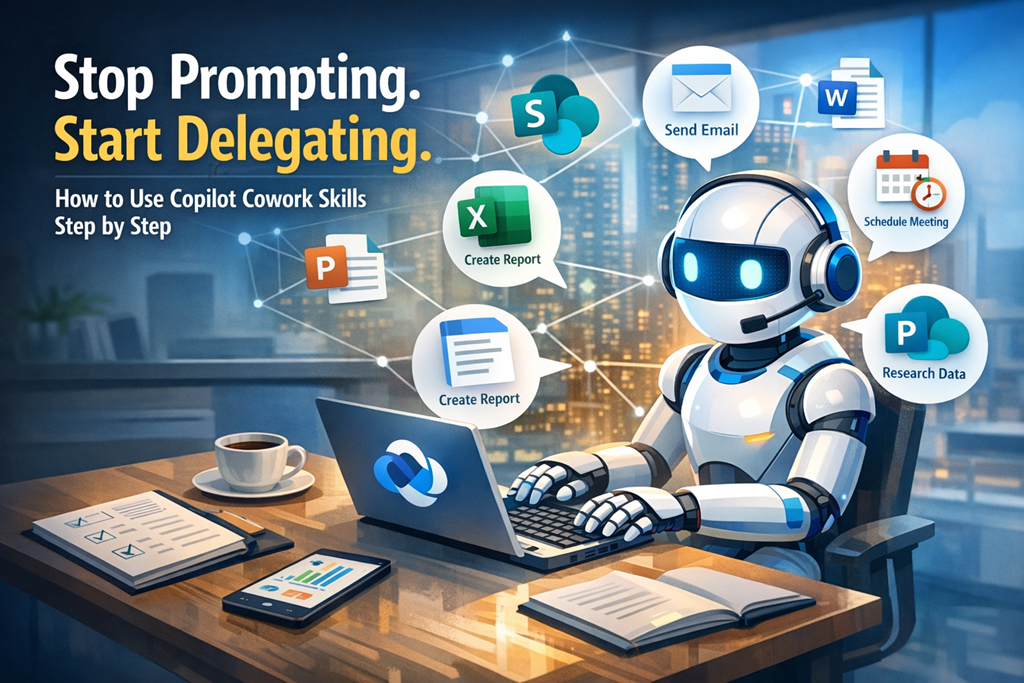
Most people are still using Copilot like a very expensive chatbot. Ask a question, get an answer, move on. Copilot Cowork changes that model completely. Instead of responding once, it takes ownership of work, executes it step by step, and stays with the task until it’s finished—or you tell it to stop. Microsoft calls this a coworker, not an assistant, for a reason.
At the heart of this shift are Cowork skills. These aren’t prompts or templates; they’re defined capabilities Cowork loads dynamically to get real work done across Microsoft 365.
Let’s break down what this actually means and how to start using it properly.
What Are Copilot Cowork Skills (and Why You Should Care)
Copilot Cowork ships with a set of built‑in skills covering common Microsoft 365 workloads—things like documents, email, meetings, research, and scheduling. When you give Cowork a task, it plans the work, selects the relevant skills, and executes them in sequence, showing its progress as it goes.
The key difference from normal Copilot usage is this:
- You give one outcome‑based instruction
- Cowork figures out the steps
- It asks for approval before irreversible actions (like sending an email)
- Output is saved directly to OneDrive or SharePoint, ready for use.
This is procedural AI, not conversational AI—and that matters for anyone serious about productivity or governance.
Step 1: Open Copilot Cowork
Start in Microsoft 365 Copilot:
- Open the Microsoft 365 Copilot app
- Select Cowork from the available agents
- You’ll land on the Cowork home page, with suggested starter tasks like:
- Catch me up
- Organise my inbox
- Prepare for a meeting
- Research a company
- Catch me up
These aren’t marketing examples—they’re fully functional task starters designed to load the right skills automatically.
Step 2: Enter a Task, Not a Prompt
In the chat input box:
- Type what you want done, not how to do it
- e.g. “Prepare me for my meeting with the sales team tomorrow”
- Press Enter or select Send
- Cowork immediately starts planning and executing the task
Behind the scenes, Cowork decides which skills to use—email, calendar, meetings, documents—based on your request. You don’t need to micromanage this.
Step 3: Add Context with Files (This Is Critical)
Cowork is good by default, but it’s far better with context.
To attach files:
- Drag and drop files directly into the chat, or
- Select Add attachments and choose:
- Work files from OneDrive, SharePoint, or Teams
- Upload files from your device
- Reference meetings or people from your tenant
- Work files from OneDrive, SharePoint, or Teams
- Wait for file uploads to complete, then send your task
This is how you stop Copilot guessing and start getting outputs that match how you work.
Step 4: Follow Along While Cowork Works
Once the task starts, you’ll see:
- A thinking/processing indicator
- Step‑by‑step progress as Cowork executes each phase
- Pauses when approval is required for higher‑risk actions
This is deliberate. Microsoft designed Cowork so you stay in control—even when you’re delegating complex, multi‑step work.
Step 5: Resume or Extend the Task
Cowork treats work as ongoing, not single‑use:
- Recent tasks appear on the home page
- You can resume any task without starting from scratch
- You can add new instructions while Cowork is still working
This is especially powerful for research, reporting, and meeting prep workflows.
The Bigger Picture
If you’re still judging Copilot by how clever its answers sound, you’re missing the point. Cowork is about execution, traceability, and control inside your M365 boundary. That’s the real shift—and it’s why skills matter more than prompts.
Used properly, Copilot Cowork isn’t faster typing. It’s labour delegation.
And that’s the mindset change most people haven’t caught up with yet.
Cowork skills – https://learn.microsoft.com/en-us/microsoft-365/copilot/cowork/use-cowork#cowork-skills


One thought on “Stop Prompting. Start Delegating: How to Use Copilot Cowork Skills Step by Step”