Need to Know podcast–Episode 207

We have an interview with Senior product Marketing Manager for Microsoft 365 Business, Ashanka Iddya. There is of course an update on everything from the Microsoft Cloud with a special focus on the recent SharePoint 2019 Conference. Delta synced files, full Document Library fidelity in Teams and more are covered in this episode.

This episode was recorded using Microsoft Teams and produced with Camtasia

Take a listen and let us know what you think – feedback@needtoknow.cloud

You can listen directly to this episode at:

https://ciaops.podbean.com/e/episode-207-ashanka-iddya/

Subscribe via iTunes at:

https://itunes.apple.com/au/podcast/ciaops-need-to-know-podcasts/id406891445?mt=2

The podcast is also available on Stitcher at:

http://www.stitcher.com/podcast/ciaops/need-to-know-podcast?refid=stpr

Don’t forget to give the show a rating as well as send us any feedback or suggestions you may have for the show.

Resources

@aiddya

@contactbrenton

@directorcia

Small and Medium Business on the Microsoft Tech Community

SharePoint home sites

New mobile features, interactivity and more announced at SharePoint Conference 2019

OneDrive announcements – SharePoint Conference 2019

Turbocharging Microsoft 365 cloud user experiences

Framework for file migrations to Microsoft 365

Processes for File migrations to Microsoft 365

CIAOPS Patron Program

Processes for file migrations to Microsoft 365

architecture-buildings-city-325185

Recently, I wrote about

A framework for file migrations to Microsoft 365

In essence, this helps you understand where to put what when it comes to moving file data to Microsoft 365. However, collaboration in Microsoft 365 is more than just moving data. To really get value from that data you need to ‘process’ it or ‘transform’ it. How do you do that?

When you go through the process of migrating data there are four major process steps you should be focus on:

1. Structure

2. Permissions

3. Metadata

4. Automation

and do so in that order.

1. Structure

Before you move any data you need to think about the structure of the destination. Is it going to be the same as the source? What data moves into Teams versus SharePoint? How many Document Libraries are there going to be? How many folders inside each Document Library will there be? And so on.

Best practice when it comes to designing structure is not to go beyond three levels deep (Robert’s rule of three applies). Thus, Team = Level 1, Document Library or Channel = Level 2 and Folder within that = Level 3. Moving into this new collaboration world means you should be aiming to have a structure that is as flat and wide as possible rather than narrow and deep. Why? Because the tools provided in Microsoft 365 make it easy for users to filter and sort data that was previously not available to them. Deep structures hide information away and users waste time and effort navigating up and down trees looking for the things they need. It is better to have lots of unique Document Libraries in SharePoint than a single Document Library containing a very deep folder structure.

Every time you create a level in your collaboration structure you ask the question “Will this be by function or location?”. For example:

Q: “Will this Microsoft Team be by function or location?”

A: Function, since it is for Finance

Q: “ Will this Channel inside the Finance Team be by function or location?”

A: Location, since we want a unique channel for each of our state branches

Q: “Will the folder inside the State channel be by function or location?”

A: Function, since we want it to hold our policies

and so on. In most cases, your structure will typically be by function, however you should continue to ask the question at every point during the design or your structure.

Like building a house, your structure is the foundation that your new information system is built on. Build so it has the right structure for you. Build it so it can support your business as it grows. Build it so you have the flexibility to change as required. However, above all else, build it for your users to get the most from!

2. Permissions

Now that you have established the structure, you need to determine who has access to what. If you use the previous framework that I provided it is generally pretty easy to achieve this.

OneDrive for Business = each user is the only one that has access to their own area. This is already configured by default.

Teams = simply add the desired people into the Team and they will receive contribute rights (read/write).

SharePoint Team site = typically everyone one will only need read rights here, a select group will need read/write.

Intranet = all users will typically need to be able to read the whole site while selected groups of people will typically need read/write inside the structure to provide updates.

Yammer = all users will have contribute (read/write) rights.

Best practice with permissions, is to approach it from a top down perspective. That is, apply permissions to the largest containers first and work your way down. Who needs access to this location? Then, who needs access to this Document Library? Then who needs access to this folder? Then who needs access to this file?

Best practice again, is not to apply unique permissions too deep inside the structure. If you are applying unique permissions more than three layers down you should break that item out into its own container. For example, if you have a folder, two levels deep, inside a Document Library that requires unique permissions that differ from the parent folder, I’d be creating a new Document Library for that data and applying permissions on that. Again, ‘Robert’s rule of three applies’, unique permissions beyond three levels calls for a new container.

Aim to keep permissions as simple and top level as possible. Yes, you can more granular and complex but that makes administration and management much harder, especially to those following behind you.

3. Metadata

This is all the material that helps describe the data inside the structure. This is therefore the additional columns you add to your Document Libraries, the graphics, look and feel used in SharePoint, the descriptions you use for your sites and locations. Metadata is really, really important because it helps optimise search which is the major tool people will use inside your new environment.

Unfortunately, I will say that in most cases, I don’t see people investing in adding appropriate metadata. They create the structure, set permissions and do little more. Metadata is really about polishing your data so that it shines. Metadata is also a way to help you flatten your structure. Metadata is about applying consistency across your environment. Will you have an document naming convention? What are common items assigned as? For example, is a state location going to be NSW, N.S.W., nsw, New South Wales, etc, etc. Having consistent metadata adds so much value to search and is therefore worth the investment to define up front and apply as a standard.

When you look at existing data, for example, you’d probably see something like:

F:\Finance\Customer\2018

F:\Finance\Customer\2017

F:\Finance\Customer\2016

F:\Finance\Customer\2015

and so on

When you transform this, you’d create it as say a Team called Finance, a Team’s Channel called Customer and instead of folders below that for each year, you’d have an additional column called “Year” with the values “2018, 2017, 2016, 2015, etc” and you’d “tag” each file with the appropriate year. Once tagged, people can easily filter and sort to find what they need. They can quickly filter by year to find everything from 2018 say rather than having to navigate deeper into the structure. This means they can find what they want faster and now each item is ‘tagged’ for additional value rather than just living inside a container. Thus, when you now search, you can do so by that tag. Metadata adds ‘signals’ around your data rather than just a boundary.

In most cases, the metadata required is already in place in the source structure and most don’t even appreciate that. Many of the subfolders within the existing structure have been used in an attempt to apply metadata. It demonstrates that most people are already using ‘metadata’ today but they are using a tool (old style files and folders) that doesn’t lend itself to appropriate ‘metadata’ usage. Using the collaboration tool in Microsoft 365 allows you now to take full advantage of ‘metadata’ and reap the benefits thanks to search.

Using this guidance around file metadata it becomes easier to collapse deep structure and organisation information in a flatter and more open way. Doing so makes it easier for users to find and work with, thus improving productivity.

Another important thing to point out here is that metadata is the third step in the process not the first! What I typically see is people wanting a ‘pretty’ Intranet first without considering the functionality first. Thus, functionality always trumps form, because you users will be using the environment to get work done, not spending their time ‘ooohhing’ and ‘aaahhing’ about what it looks like, because ‘ooohhhs’ and ‘aaahhsss’ don’t last long. Yes form, look and feel, is important but how your environment operates and is structured is far more important to the productivity and effectiveness of the business. Best practice is also to stick with the tools Microsoft provides. Yes, you can go nuts with customisation on this platform but don’t! And certainly don’t go berserk with it first out of blocks. If you are tempted, as many are, read this article I wrote a while back:

SharePoint customisation code will bite you

and listen to what Tracey Haun, Director, IT Collaboration and Privacy from Dupont says:

When we set up SharePoint we were so proud of ourselves for only customizing less than 5% of the environment and that less than 5% customization has come back to bite us time and time again. Every time we upgrade, every time we migrate we have to deal with these customizations. I just want to say that we were so rigid in the way that we in way we wanted to — and this is specifically around our records management and the way we classify the security classification of our sites, we were so rigid and so set in our ways on how we wanted to do that. So I highly recommend, if you are just getting started, go with the industry standard. Don’t force your business model into SharePoint. Let the it adapt to the Microsoft way.

This is why metadata is the third NOT the first process you should focus on. Remember, your collaboration environment in Microsoft 365 is there to provide business benefit (i.e. generate more profit) primarily, NOT be focused on being pretty above all else. Save pretty and customised for your website that everyone in the wide world can see (and remember of course, how much you paid for a ‘pretty’ web site which hopefully you do get ROI from). Make your collaboration environment something your employees love to use because it makes their job easier to use! Function over form, always!

4. Automation

Now everything else in place you can, and should, turn you attention to automation. How can you use tools like Microsoft Flow and PowerApps to remove repetitive processes. How can you design systems that get things done faster and in more consistent ways? Optimise, optimise, optimise should be your mantra here.

You can’t automate until you have your structure so you know where stuff is. You can’t automate until you know what people can access. You can’t automate until you have metadata around your data to help provide additional signals around that data that automation can then take advantage of.

Automation is truly the domain of businesses who will be successful into the future.

Summary

The idea is to focus on the right processes in the right order. Doing so makes life much easier and becomes something that you can repeat over and over again. Like the framework I provided, these four simple processes give you a path to success with collaboration in Microsoft 365. Chances are, whatever the system you are coming from, there was never a framework or a system in place. That is why the current data is in such a mess and in many ways hampering the productivity of the business. Simply ‘moving’ data to Microsoft 365, transfers those inefficiencies and frustrations as well. Why would you pay all that money and invest all that time and effectively end up in the same place with the same inefficiencies? Strangely, many do exactly that. They lift and shift, failing to appreciate that they not only bring across their data but also their antiquated and inefficient ways of working with data. Success in the Microsoft 365 collaboration space is defined by TRANSFORMING data. Such transformation means cleaning, structuring, adding value with metadata and so on. Every transformation requires work but the investments pay huge dividends down the track. They allow your business to work faster, be more efficient and agile. In the end they allow the business to be more competitive because they are taking maximum advantage of the tools that they have.

Can you use a screwdriver with nails? Yup, sure can. However, it is a much better idea to use the right tool for that job such as a hammer. Is there a best practice method to using a hammer? Yes, there sure is. Is it better to learn that process before or after you start work? Effectiveness dictates before, of course! Start using the Microsoft 365 collaboration environment in a way that it will be most effective instead of using it as a screwdriver to hammer nails. Staring thinking about “transforming” your data and processes to take full advantage of what Microsoft 365 provides. Follow frameworks and processes as I have outlined here to help you on this transformational journey and you may even enjoy the ride!


A framework for file migrations to Microsoft 365

One of the major points of confusion and poor execution I still see today is the approach that many take to migrating files to Microsoft 365 and Office 365.

Many years ago I wrote a number of articles about this:

The classic SharePoint migration mistake

SharePoint Online – Pilers and Filers

SharePoint Online migration – Start up is key

and all of that is still valid and I recommend you read it, however the technology has moved on somewhat and it is now perhaps time for an update.

What I’ll cover here is a framework for migrating on premises data, typically on file servers in network shares, into the collaboration tools in Microsoft 365. And that’s the first point. You need to look at this across all the services Microsoft 365 provides you today. Not just SharePoint. Not just OneDrive. And not just Teams. Microsoft provides a range of services that you should consider in this file migration process.

Now many claim that because of all these options it is too complex and therefore you should just dump your data in one place. I can’t tell you how many times I’ve see exactly this, everything from a file server F: drive dumped into a single Document Library in SharePoint. Oh the pain.

image

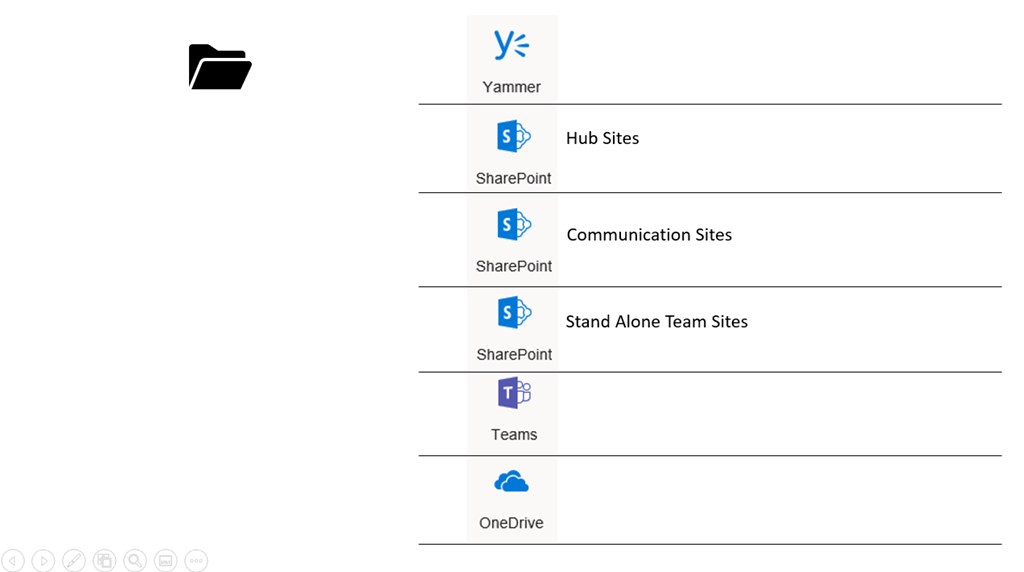
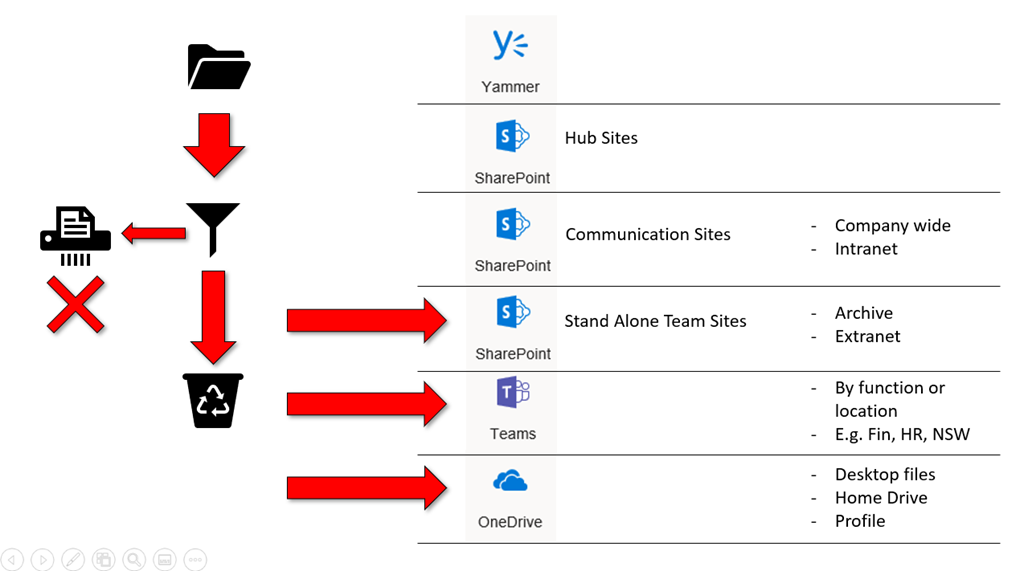
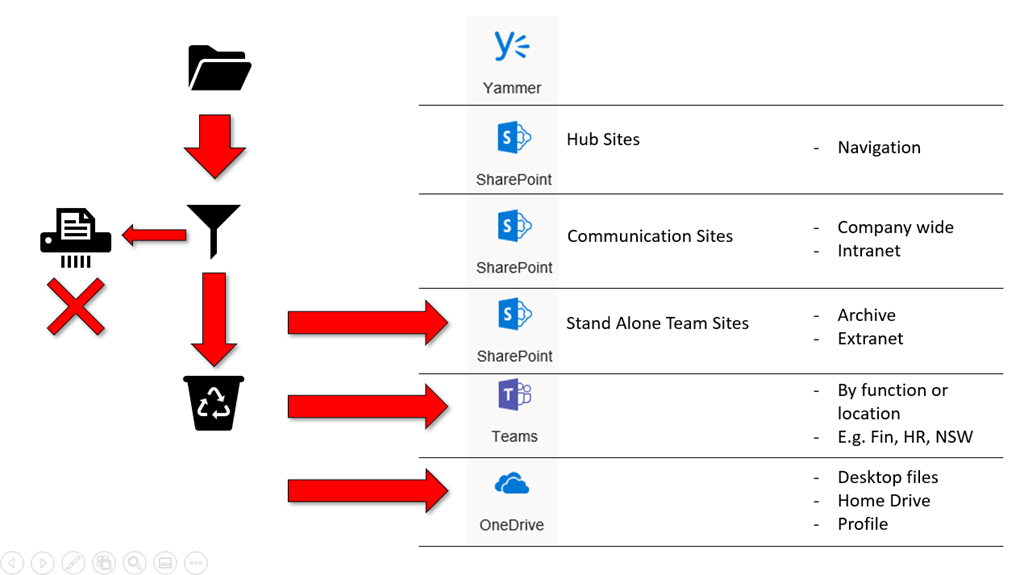
The secret of success is to have a “system” and not do things randomly without thought. Thus, my framework is shown above. Now let me break down the pieces for you.

image

You firstly start with the source (on the left i.e. a file server drive) and the destinations (on the right, i.e. collaboration services in Microsoft 365).

image

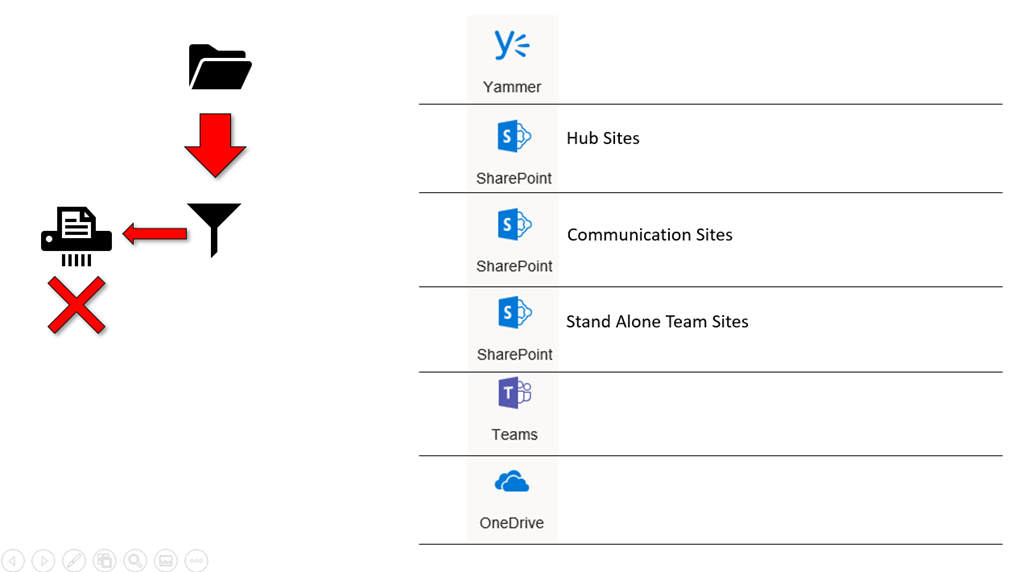
The first step is to filter the source information and remove (yes I said DELETE) stuff that doesn’t make sense to move. Old and duplicate files are example but I have highlighted this in more depth in a previous article:

Data discovery done right

Thus, you should now have less data to move because you have thrown some away. If you haven’t then you are not being serious about this. You should also have a better idea about what data to archive, what is user data, what is common data and so on.

image

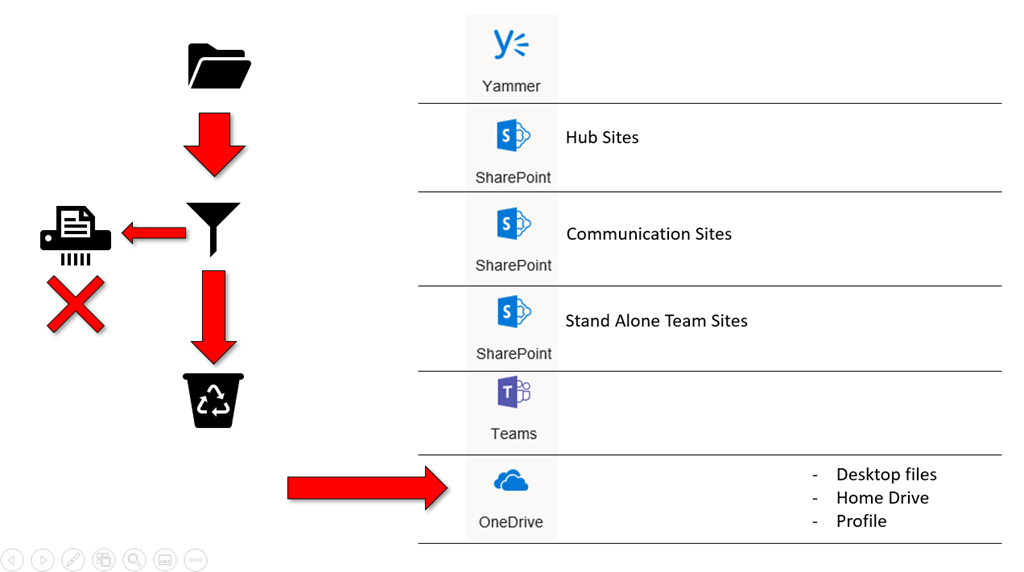
With the remaining good data you move (yes, I said move NOT copy) users personal data to their OneDrive. You actually get them to do that so firstly they get familiar with the new environment, they move only what they want to keep and you crowd source this task reducing the workload. We all know that some people will never ‘get around’ to moving their data, so after a suitable time period has elapsed you move it for them. The typically data that is moved in this process is anything on the desktop, home drive or in user profiles.

image

Next, is to identify the common data by function or location and move it to a Microsoft Team. In a typical on premises file server the existing shares you will find data stored in folders like F:\Finance and F:\Administration and so on. These top level shares are most likely going to be the name of the Team and the next level down folders to be the channels inside that Team. In many cases, users may also wish to ‘clean up’ the existing or ‘start fresh’, which is also fine. However, it is relatively easy to find the data that should go into a Microsoft Team and move it there.

image

The next data to move is common data that makes sense living in it’s own dedicated SharePoint Team site. Data that goes into stand alone SharePoint is data that does not require chat and conversations around it, Teams is where that data would live.

The best example here is probably Archive data. This is data the business want to keep ‘just in case’ but won’t be updated by users. Thus, you move the archive data as is, into it’s own designated SharePoint Team site, mark it as read only for everyone so they can use it as a starting point if they need to. The major advantage of moving the archive data to SharePoint is that it is now searchable using the tools in Microsoft 365.

Another good example of a stand alone SharePoint Team site would be an Extranet from which you want external parties to come and download data. Having a stand alone SharePoint Team site makes managing securities much easier.

image

The data that is now left is typically company wide data like policies, procedures, manuals, etc. This is then moved into the traditional ‘Intranet’ using a nice pretty SharePoint Communications Site. This Intranet is available to all and typically used to consume data i.e. get something, read something. New data for this Intranet comes from the output of the individual Microsoft Teams created earlier. For example, imagine the Finance team produces an annual budget. They do this creation inside their own Team and publish the finished result into the Intranet for everyone in the business to consume. I’ve covered this concept in greater detail in a previous article:

The layers of Office 365 collaboration

image

Now you have data all over the place inside Microsoft 365 as many will point out correctly. What’s missing is a consistent method of navigation between all these sources to make it easy for users to navigate. This is where SharePoint Hub Sites come in. You uses this to provide a consistent navigation over the top of all your data. To users this makes it all appear very logical and structured (even perhaps like their old file server) and yet provides the flexibility to be reconfigured at any stage and have those changes automatically applied across the whole structure thanks to SharePoint Hub sites.

image

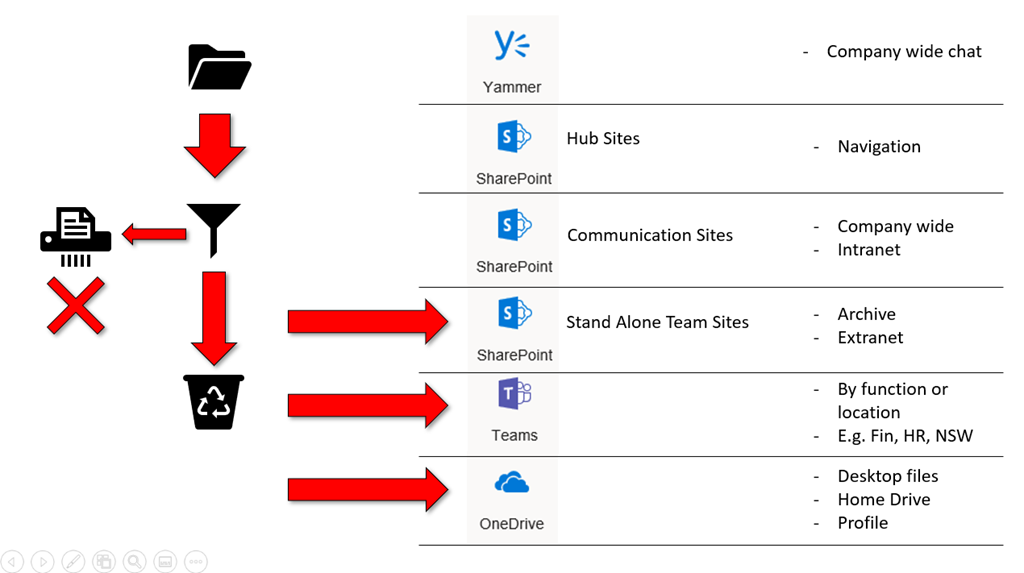
The final layer is Yammer. This is for company wide communications such as water cooler chat (birthdays, sports, holidays), information on how to better use Microsoft 365, questions about the business, messages from CEO, suggestion boxes, what’s happening with the business or competition, sales, wins and so on.

Like the Intranet, Yammer is designed for corporate wide chat that doesn’t fit into any specific Team (which are arranged by function or location). I have detailed the importance of Yammer in a previous article:

Why Yammer is still relevant

image

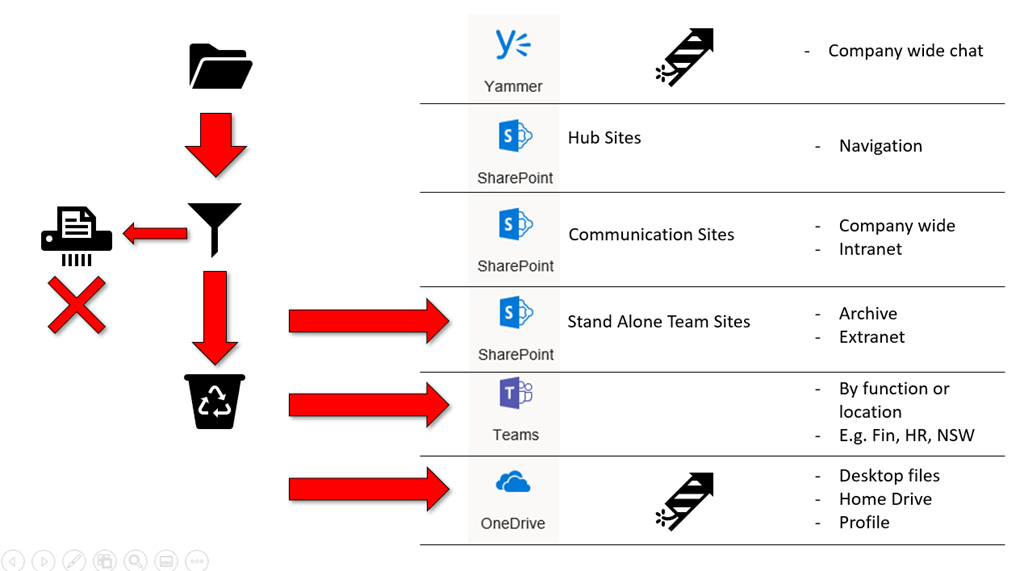
Now that you have a linear framework that builds on top of itself, hopefully you have a better picture of where you can put data from a file server into Microsoft 365. Having a framework is great but more importantly is how to get users to also adapt to working in this way. My approach is to start with Yammer and OneDrive first as I have detailed previously:

Focus on the ‘Me’ services first

In short, if users get used to working with just files using OneDrive and then with just chat in Yammer, they will find it much easier to then move to Teams which is effectively files and chat combined. This thinking stems from:

The rule of three

I advocate to not over load people. This is because you need to:

Stop making your users feel stupid

You can have the greatest technology in the world but if no one uses it then it is pretty much wasted. that’s what I see with Microsoft 365. Not enough through and time is devoted to adoption and transformation. Most migrations are done as fast as possible to ‘close the ticket’ and move onto the next. The fallacy of that rushed approach is evident in failed adoption and user frustration.

So there you have it, a framework for migration of file data into the world of Microsoft 365. You can use this framework in whatever way makes sense to you. You can use all of it, none of it or as a basis for your own approach. However, the key message is to HAVE a process rather than something random. Remember, moving to a world of collaboration from a world of storage requires transformation not just migration!

Once you have the top level framework or process, you can then start developing individual frameworks and adoption processes for each piece. That is, one for OneDrive, one for Teams, One for Yammer and so on. Once you have these processes, next you can start automating them to improve reliability and allow you to scale. Without a system you can’t automate. Without automation your effectiveness and profitability continue to fall, so investing the time in a collaborate system is definitely worthwhile. It makes users happier and it makes IT more profitable! A win – win. That is what a move to Microsoft 365 should be all about!

Microsoft Cloud URLs

apple-desk-internet-209151

I’ve started to put together a list of unique URL’s from Microsoft Cloud services such as Azure and Microsoft 365. Typically you navigate to individual services inside the main portal. However, this file I am maintaining on my Office 365 GitHub repository:

https://github.com/directorcia/Office365/blob/master/urls.txt

has a direct link to the services so you can navigate there directly.

I’ll keep adding to these over time, so ensure you check back regularly. if you know any URL’s you reckon should be included, let me know and I’ll add them.

Need to Know podcast–Episode 206

A short sharp episode focusing on the latest news and updates from Microsoft Build. Brenton and I cover off all the Microsoft Cloud news, good and bad as there is unfortunately some bad news to report in recent experiences with Azure. However, there is also lots of good news about updates to your favourite services. Tune in and give us your feedback.

This episode was recorded using Microsoft Teams

Take a listen and let us know what you think – feedback@needtoknow.cloud

You can listen directly to this episode at:

https://ciaops.podbean.com/e/episode-206-ghost-in-the-machine/

Subscribe via iTunes at:

https://itunes.apple.com/au/podcast/ciaops-need-to-know-podcasts/id406891445?mt=2

The podcast is also available on Stitcher at:

http://www.stitcher.com/podcast/ciaops/need-to-know-podcast?refid=stpr

Don’t forget to give the show a rating as well as send us any feedback or suggestions you may have for the show.

Resources

@contactbrenton

@directoria

CIAOPS Patron program

Azure cheat sheet

Azure global outage

What’s new in Microsoft 365 user management

New people centered experiences in Microsoft 365

Microsoft Edge – All the news from Build

Minimize distractions and stay focused with AI powered updates in Microsoft 365

Script to disable direct Shared Mailbox logins

A while back I spoke about

The Insecurity of Shared Mailboxes

and how that even though they have an Azure AD Account they should have their logins disabled and access rights ONLY provided via the mailbox.

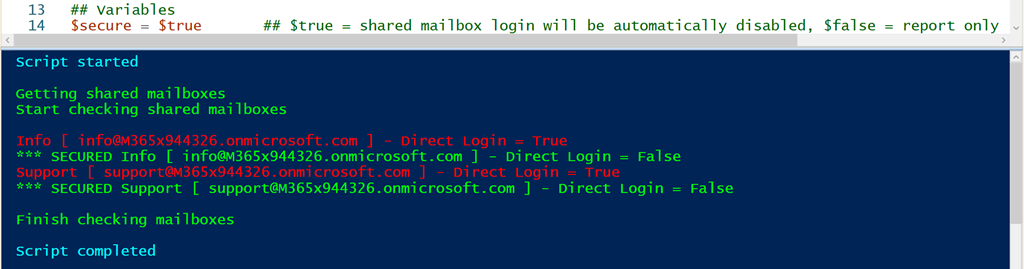
To make things easier for people I have now created a script that will allow you to view and potentially disable the direct logins for all your shared mailboxes to make them more secure.

image

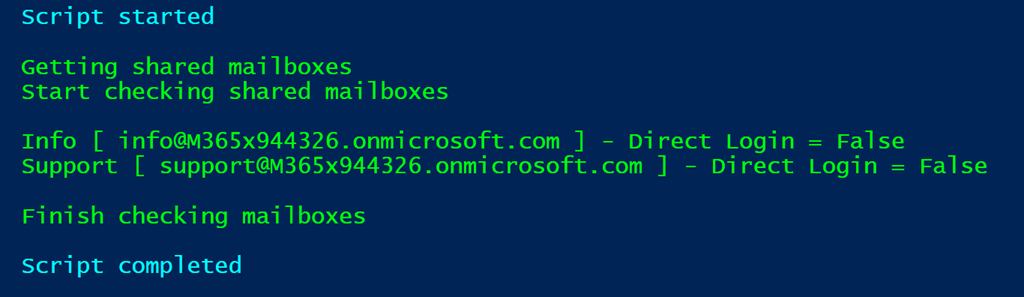
The scripts requires that you are already connected to both Exchange Online and Azure AD.

At the top of the script, you’ll find a variable called $secure. If that is set to $false then no changes will be made to your environment, you’ll just get a report like shown above. Shared mailboxes that have direct login enabled will be displayed in red.

image

Now, if you change the variable $secure to $true then any shared mailbox that is currently enabled for direct connection will have that ability disabled. The output will display two lines for each mailbox that has direct access enabled. The first line indicates that direct logins are enabled and then the second line will show that has now been secured. In this scenario, all that is happening is that the shared mailbox identity is simply being blocked as I outlined in my earlier article.

image

 The last possibility is that the shared mailboxes direct logins have already been disabled, and in this case the results of the script should simply show that result in green.

In summary then, you can run this script with the variable $secure set to $false to just display the direct login condition of your shared mailboxes. You can run this script with $secure set to $true and then not only will the direct login condition of the shared mailboxes be reported but they will all then be blocked for direct login.

You will find this script in my GitHub Office 365 repository at:

https://github.com/directorcia/Office365/blob/master/o365-exo-sharedblock.ps1

CIAOPS Techwerks 6–Sydney June 6

bw-car-vehicle

CIAOPS Techwerks move to Sydney in June on Thursday the 6th. The course is limited to 15 people and you can now sign up and reserve your place. To do this just email me (director@ciaops.com) and I’ll add you to the list.

The content of these events is driven by the attendees. That means we cover exactly what people want to see and focus on doing hands on, real world scenarios. Attendees can vote on topics they’d like to see covered prior to the day and we continue to target exactly what the small group of attendees wants to see. Thus, this is an excellent way to get really deep into the technology and have all the questions you’ve been dying to know answered. Typically, the event produces a number of best practice take aways for each attendee. So far, the greatest votes are for deeper dives into Intune, security and PowerShell configuration and scripts, however that isn’t finalised until the day.

Recent testimonial – “I just wanted to say a big thank you to Robert for the Brisbane Techworks day. It is such a good format with each attendee asking what matters them and the whole interactive nature of the day. So much better than death by PowerPoint.” – Mike H.

The cost to attend is:

Patron level Price inc GST
Gold Enterprise Free
Gold $ 33
Silver $ 99
Bronze $ 176
Non Patron $ 399

The CIAOPS Techwerks events are run regularly in major Australian capital cities, so if you can’t make this one or you aren’t in Sydney on that date, stay tuned for more details and announcements soon. If you are interested in signing up please contact me via emails (director@ciaops.com) and I can let you know all the details as well as answer any questions you may have about the event.

I hope to see you there.

The insecurity of shared mailboxes

Shared mailboxes are a really handy component of Microsoft 365 in that they allow multiple users to access a single mailbox. This works really well for generic accounts like info@, accounts@, etc. However, there are some security issues with these that I don’t think many people are aware of.

The first point to note is that shared mailboxes in Microsoft 365 actually have a login and password. Thus, they can be accessed directly using these details. Don’t believe me? Well check out the following documentation:

https://docs.microsoft.com/en-us/office365/admin/email/create-a-shared-mailbox?view=o365-worldwide#block-sign-in-for-the-shared-mailbox-account

which says:

“Every shared mailbox has a corresponding user account. Notice how you weren’t asked to provide a password when you created the shared mailbox? The account has a password, but it’s system-generated (unknown). You aren’t supposed to use the account to log in to the shared mailbox”

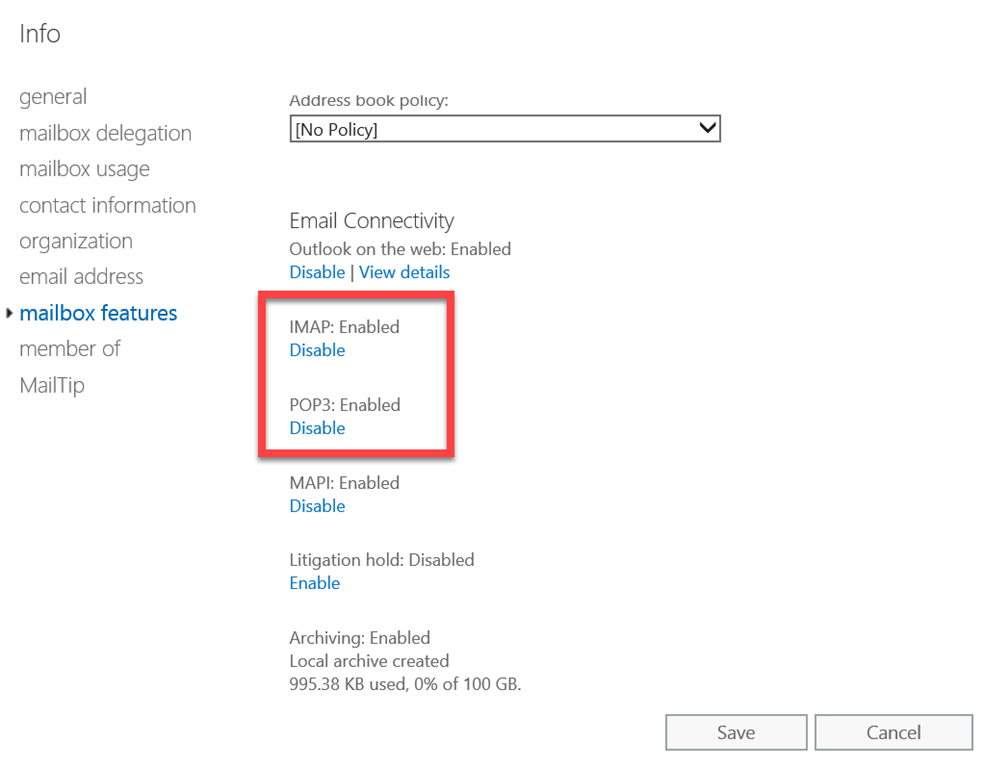
So, by default, when you create a shared mailbox you are actually creating an account with a system password in your environment. No so bad you think right? Well, the problem is that, by default, IMAP and POP3 are enabled on all mailboxes, including shared ones.

image

Some actually use this IMAP ability to be able to open shared mailboxes on mobile devices, however doing this comes with a huge risk in my books.

Why? Well, if IMAP is enabled, that means basic authentication is enabled and that is bad as I have said previously:

Disable basic auth to improve Office 365 security

You may feel an unknown system or complex password on a shared mailbox is good enough but to remote bad actors running automated cracking programs against accounts on your tenant, it is only a matter of time until they generate a matching password for that shared mailbox. Once they have that, boom, they’re into that mailbox. From that foothold, they can then launch all types of attacks, but the most likely being phishing your users. It’s all down hill from there!

If you use shared mailboxes on mobile devices, this means you have to know the password for the shared mailbox prior to configuration on the mobile device. Because the shared mailbox has an account, it can have it’s password changed. That means, if you want to use shared mailboxes on mobile devices, you reset the password for the shared mailbox so you know it. You then give that to users so they can configure access on their phones. Anyone else see a problem here? You are providing multiple people access to a single resource with a shared password. What is a shared password? It ain’t a secret for sure now is it? So, what happens when a user leaves the business? I’ll bet most businesses don’t go and reset the password on all the shared mailboxes that user had access to. This means you now have someone outside your business who has a login (shared mailbox email address) and password to a resource in your tenant.

Here’s a scenario where that came back to bite the business. A disgruntled user was terminated and their individual login account was disabled. After the user has fired, they connected back into a shared mailbox directly using IMAP and started sending all sorts of nasty emails to all staff from this mailbox. Now if they had been smart, they would have done this from an anonymous IP address, not one assigned to them from their ISP so we could track them down. However, the damage was done. Why? All because access to the shared mailbox was permitted by insecure protocols and shared passwords.

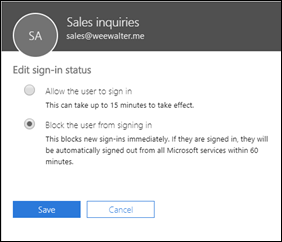
Edit sign-in status flyout in the M365 admin center

As with most things security, it is pretty easy to protect yourself from this BUT it requires changing the defaults. The easiest way is to:

Block sign-in for the shared mailbox account

along with disabling IMAP, POP and basic auth. Yes, I fully appreciate that may have productivity ramifications, so you need to balance up the risk. However, given how easily this can be exploited, and the damage it could to the business, I’d rather be in the safe and secure camp than the ‘it’ll never happen to us’ blind faith camp personally. Anything that allows anonymous external users the ability to access accounts externally and allows them to keep guessing passwords as you can with IMAP spray attacks is very, very bad in my books. If you read this article:

https://www.proofpoint.com/us/threat-insight/post/threat-actors-leverage-credential-dumps-phishing-and-legacy-email-protocols

make sure you note the very last paragraph which says:

Update, March 21, 2019: This post has been updated to reflect specific cases in which IMAP-based password-spraying attacks were successful, particularly as threat actors targeted shared service accounts, (e.g., hr@company[.]com or helpdesk@company[.]com) or exploited weaknesses in MFA implementations and third-party email client logins.” 

So please, secure your shared mailboxes NOW! If you really, really need shared mailbox access on mobile devices I would suggest you use Office 365 groups instead until Microsoft enables shared mailboxes natively on mobile devices (which is on the roadmap).