Quick Wins with Microsoft To Do & Planner

image

End the Post‑it chaos—manage tasks like a pro.

I still see it everywhere. Sticky notes on monitors. Whiteboards half‑erased. Notebooks full of half‑written to‑dos. And then the same people tell me they’re “too busy” to look at their task list.

The problem isn’t work volume. It’s task sprawl.

What’s changed for me lately is how Microsoft 365 Copilot reframes this mess. Not by magically doing the work for you, but by forcing clarity. Copilot doesn’t tolerate vague intentions. It thrives on decisions. And that’s where tools like Microsoft To Do and Planner suddenly matter a lot more than people think.

Personal work lives in To Do

Team work lives in Planner
Everything else is noise.

Here’s the mental model I use—and it’s one I now teach MSPs managing multiple clients.

If it’s my responsibility, it goes into Microsoft To Do.
If it’s shared responsibility, it belongs in Planner.

Simple rule. Massive impact.

To Do becomes the single place I track personal commitments: follow‑ups, prep work, client actions, things I’ve promised someone else I’ll handle. No tasks scattered across emails, chats, or worse—memory.

Planner is where teams work. Projects, operational tasks, recurring client work. It creates shared visibility, which is the real currency of modern collaboration.

Copilot amplifies this by helping surface what actually matters. When tasks are consistently captured, Copilot can help prioritise, summarise, and prompt next steps. When tasks are scattered… Copilot just shrugs.

A simple setup that actually sticks

For MSPs, especially those juggling multiple clients, complexity is the enemy. Here’s the setup I see working consistently:

  • One To Do list for “Today”, one for “This Week”, one for “Waiting On”
  • One Planner plan per client or per service area, not per technician

  • Buckets in Planner for lifecycle stages: New, In Progress, Blocked, Done

That’s it.

No elaborate taxonomies. No colour‑coded madness. If someone needs a training session just to understand your task system, it’s already failed.

What changes with Copilot is the feedback loop. When tasks live in the right place, Copilot can summarise Planner progress for a client meeting, highlight overdue work, or help you re‑prioritise your To Do list based on what’s slipping.

More importantly, it changes behaviour. People stop “remembering” work and start managing it.

The real win isn’t automation—it’s trust

Here’s what I’ve observed repeatedly: once teams trust that tasks are captured, stress drops. Meetings shorten. Decisions speed up.

Copilot doesn’t replace judgement. It supports it. When I can ask, “What did I commit to this week?” or “What’s blocking this client project?” and get a clear answer, I stop second‑guessing myself.

That’s productivity at a human level.

Not more tools. Fewer excuses.

Try this today

Here’s the challenge I give every team I work with:

Move one sticky‑note task into Microsoft To Do today and report back.

Just one.

Then notice what happens. It stops floating around your head. It gets a due date. It becomes visible. Copilot can actually work with it.

Repeat that daily and, within a week, the chaos starts shrinking.

Microsoft 365 Copilot doesn’t magically make you organised. But it rewards people who are willing to be intentional. Tools like To Do and Planner are already in your stack. Used properly, they turn “busy” into “under control”.

And that’s a quick win worth taking.
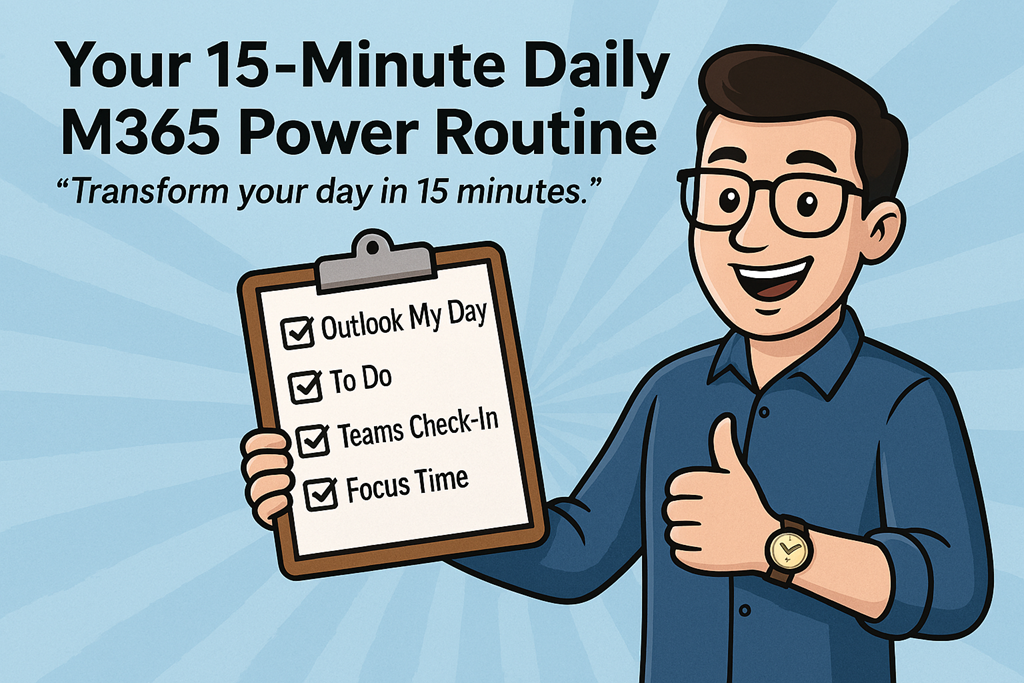
Your 15‑Minute Daily M365 Power Routine

image

“Transform your day in 15 minutes.”

Most people don’t have a productivity problem.
They have a starting problem.

The day kicks off reactively. Emails, Teams pings, half‑finished tasks from yesterday, and suddenly it’s 11am and you’re already behind. Not because you’re lazy or disorganised, but because you never took control of the day before it took control of you.

That’s where this comes in.

This is a simple, repeatable 15‑minute Microsoft 365 power routine you can run every morning. No new tools. No fancy systems. Just using what you already have – properly.

Do this consistently and you’ll stop feeling busy and start feeling deliberate.


The Rule

Before you touch email properly.
Before you open your tenth Teams chat.
Before you let someone else’s urgency define your priorities.

You run the routine.

Every. Single. Morning.


Minute 1–3: Outlook “My Day” – Reality Check

Open Outlook and bring up My Day.

This is where most people already go wrong. They either ignore their calendar completely or treat it as a suggestion rather than a commitment.

Look at:

  • Today’s meetings

  • Gaps between meetings

  • The real amount of time you actually have available

This isn’t about optimism. It’s about honesty.

If your calendar says you’ve got back‑to‑back meetings until 3pm, pretending you’ll “get some deep work done” before lunch is a lie you’ve told yourself too many times.

My Day shows you the truth. Accept it.


Minute 4–7: Microsoft To Do – Decide What Actually Matters

Now jump into Microsoft To Do.

Not your entire backlog.
Not your wish list.
Just today.

Ask one simple question:

“If I only got three things done today, what would move the needle?”

Flag or prioritise no more than three tasks. If everything is important, nothing is.

This is where most people sabotage themselves. They create a list that’s really just a guilt inventory. Don’t do that. Your job isn’t to remember everything. Your job is to progress the right things.

Everything else can wait.


Minute 8–10: Teams Check‑In – Reduce Noise Before It Starts

Send a short Teams check‑in.

This can be to:

  • Your team channel

  • A project chat

  • A key stakeholder

Something as simple as:

“Top priority today is X. I’ll be focused until lunch – ping me if urgent.”

This does two things:

  1. It sets expectations (which reduces interruptions)

  2. It forces clarity on your priorities

Most interruptions aren’t malicious. They’re caused by silence. A 60‑second message now can save you 20 distractions later.


Minute 11–15: Viva Insights – Protect Focus Time

Finally, open Viva Insights and block focus time.

Not “when I get a chance”.
Not “if the day allows”.

You schedule focus like you schedule meetings, because that’s what it is – an appointment with your most valuable asset: attention.

Even one 60–90 minute focus block changes the shape of the day. Without it, your time fragments. With it, work actually finishes.

If you don’t defend this time, nobody else will.


The Checklist (Save This)

Every morning:

  1. Review Outlook My Day

  2. Pick 3 priorities in To Do

  3. Send a Teams check‑in

  4. Block focus time with Viva Insights

That’s it.

No hacks. No dopamine tricks. Just discipline and consistency.


The Challenge

Follow this routine every morning for a week.

Not when you remember.
Not when it feels convenient.
Every morning.

Then ask yourself:

  • Did I feel more in control?

  • Did less work spill into the evening?

  • Did I stop reacting and start deciding?

If the answer is yes, you’ve just built a habit that scales better than any productivity app ever will.

If the answer is no, at least you’re now honest about how you’re starting your day.

Either way, you win.

Adding Microsoft To Do as a recommended app with Windows Information Protection

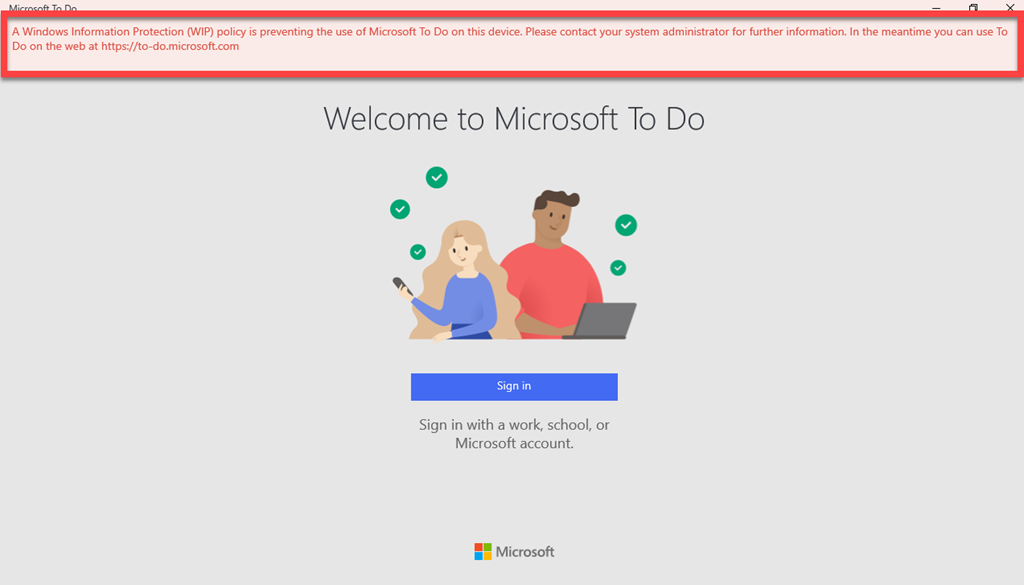
I’m a big fan of Microsoft To-Do but recently noticed that I was having trouble syncing data from my Windows 10 desktop to my other devices. Everything looked fine on my desktop but the next troubleshooting step I took revealed my problem as you can see below.

image

A Windows Information Protection (WIP) policy is preventing the use of Microsoft To Do on this device.

Ah ha, I had indeed recently changed my Windows Information Protection (WIP) policy for the desktop. This change had inadvertently stopped Microsoft To Do syncing as well as preventing me from logging in.

To solve the problem you need to add the Microsoft To Do app to the list of Protected apps in the Intune App Protection policy for the device, which by default, isn’t there.

image

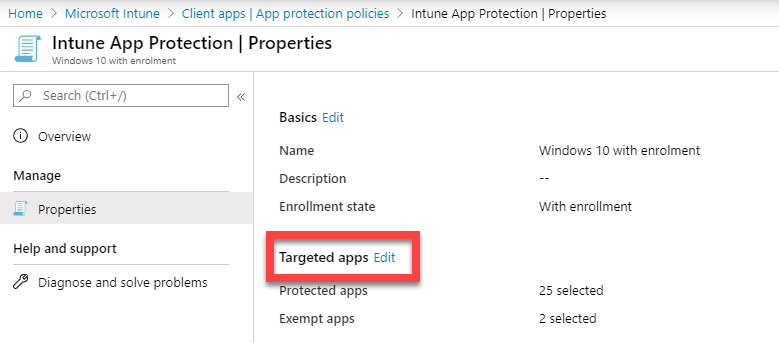
Navigate to the Intune App Protection policy in question and view the properties as shown above. On the right hand side, select the Edit link next to Targeted apps as shown.

image

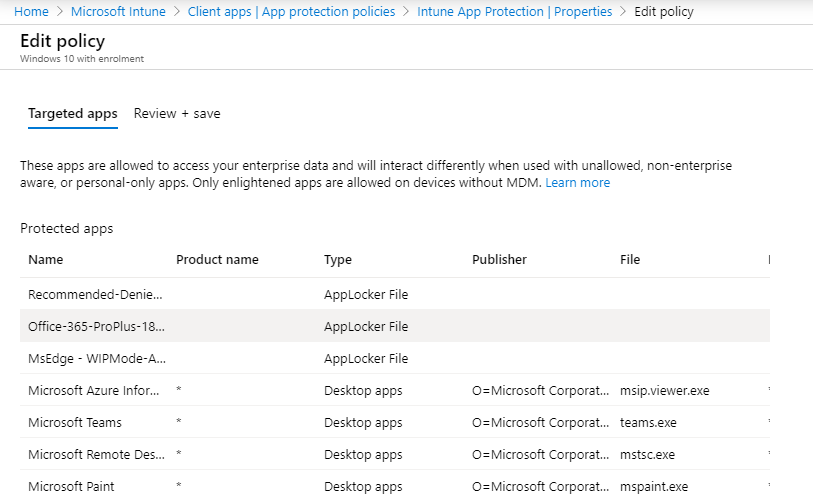
You should then see the Targeted apps as shown above.

SNAGHTML2706055

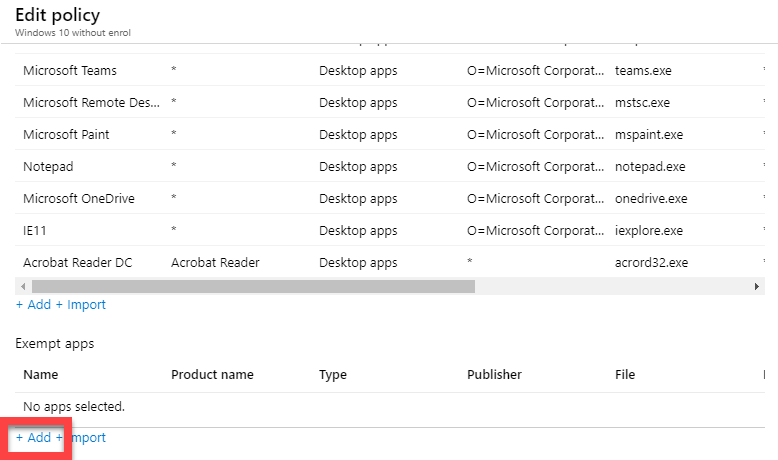
Scroll to the bottom of the list of Protected Apps and select the +Add link at the bottom as shown.

This process is similar to one I documented a while back for Adobe Acrobat:

Adding Acrobat as an allowed app

The difference this time is that Microsoft To Do is a store app.

image

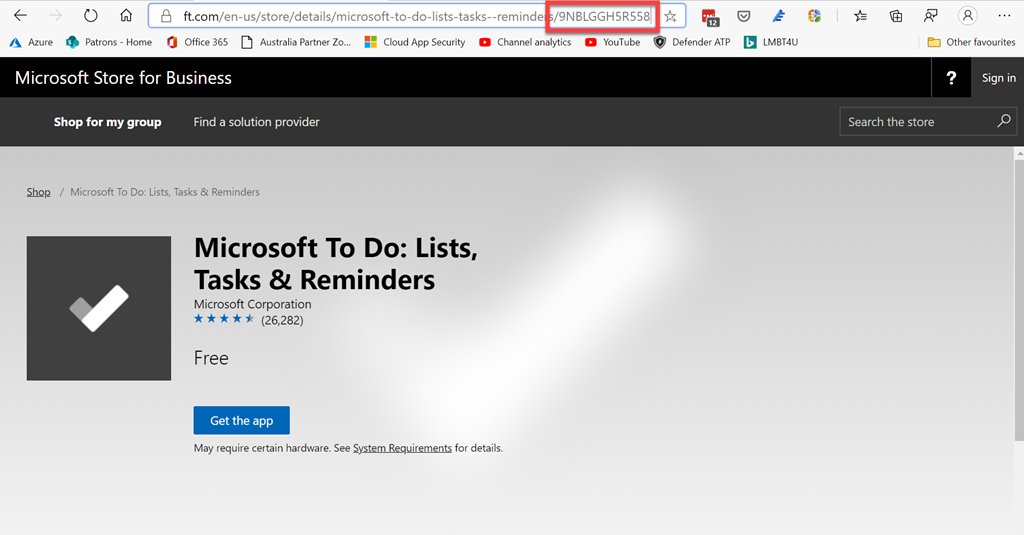
To identify the app you need to search for the store app on the Microsoft Store as shown above. When you locate the app and view the URL you will see a unique identifier as shown. In this case, for Microsoft To Do, it is 9NBLGGH5R558.

You’ll then need to visit this URL:

https://bspmts.mp.microsoft.com/v1/public/catalog/Retail/Products/9NBLGGH5R558/applockerdata

image

Doing so will spit out the information you need to add the app as a protected app to your policy. To view the result for other store apps just insert the appropriate identifier into the URL instead of the one for Microsoft To Do shown here.

Thus, for Microsoft To Do you’ll need:

“packageIdentityName”: “Microsoft.Todos”

“publisherCertificateName”: “CN=Microsoft Corporation, O=Microsoft Corporation, L=Redmond, S=Washington, C=US”

image

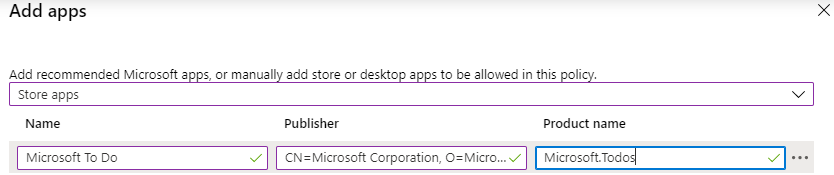
Back on the Add apps page opened earlier, change the pull down at the top of the page to be Store apps. Then enter the information for Name, Publisher and product name as:

Name = Microsoft To Do

Publisher = CN=Microsoft Corporation, O=Microsoft Corporation, L=Redmond, S=Washington, C=US

Product name = Microsoft.Todos

Select OK at the bottom of the dialog to save the changes. Then select  Review+Save to update the policy.

image

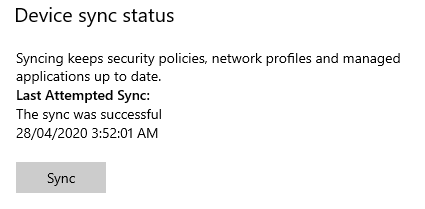
You can either wait for the policy to be pushed down or force a sync from the device sync settings in the user account information for the Windows device. Once the policy has been updated to the machine you’ll be able to open and use Microsoft To Do or any store app you have configured. Doing so fixed my Microsoft To Do issue by allowing me to login to the app again on the desktop and sync information.

CIAOPS Need to Know Microsoft 365 Webinar–January

laptop-eyes-technology-computer

We are back for a new decade! Yes, it is 2020 and Microsoft 365 webinars continue. This month I’m going to take a look of the some less common services of Microsoft 365 including Forms, To-Do, Whiteboard, Kaizala and more. I’ll have the  the latest Microsoft Cloud updates plus open Q and A as well. Start your year and decade off with a BANG!

You can register for the regular monthly webinar here:

January Webinar Registrations

The details are:

CIAOPS Need to Know Webinar – January 2020
Thursday 30th of January 2020
10.30am – 11.30am Sydney Time

All sessions are recorded and posted to the CIAOPS Academy.

The CIAOPS Need to Know Webinars are free to attend but if you want to receive the recording of the session you need to sign up as a CIAOPS patron which you can do here:

http://www.ciaopspatron.com

or purchase them individually at:

http://www.ciaopsacademy.com/

Also feel free at any stage to email me directly via director@ciaops.com with your webinar topic suggestions.

I’d also appreciate you sharing information about this webinar with anyone you feel may benefit from the session and I look forward to seeing you there.

CIAOPS Need to Know Microsoft 365 Webinar–October

laptop-eyes-technology-computer

The October webinar is here. This month we’ll take a closer look at the various options available to manage tasks in Microsoft 365. You’ll learn how tasks can be completed using SharePoint, Planner and Microsoft To-Do as well as when to use each service. There will also be the latest Microsoft Cloud news as well as Q and A plus loads more. I’d love if you’d come along and be part of this.

You can register for the regular monthly webinar here:

October Webinar Registrations

The details are:

CIAOPS Need to Know Webinar – October 2019
Thursday 31st of October  2019
10.30am – 11.30am Sydney Time

All sessions are recorded and posted to the CIAOPS Academy.

There of course will also be open Q and A so make sure you bring your questions for me and I’ll do my best to answer them.

The CIAOPS Need to Know Webinars are free to attend but if you want to receive the recording of the session you need to sign up as a CIAOPS patron which you can do here:

http://www.ciaopspatron.com

or purchase them individually at:

http://www.ciaopsacademy.com/

Also feel free at any stage to email me directly via director@ciaops.com with your webinar topic suggestions.

I’d also appreciate you sharing information about this webinar with anyone you feel may benefit from the session and I look forward to seeing you there.