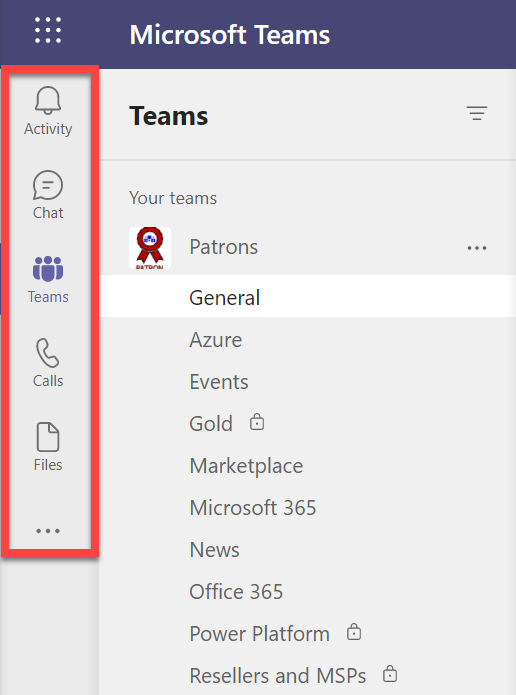
Missing calendar icon in Microsoft Teams

image

I recently ran a Live Event in Microsoft Teams and wanted to get back to the event resources but found my calendar was missing as seen above. This was evident on both the desktop and web interface.
image

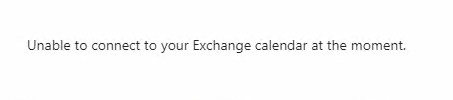
When I attempted to use the link from the Live Event appointment in the calendar in my Outlook I was greeted with the above message:

Unable to connect to your Exchange calendar at the moment

I thought this strange as i had scheduled the Live Event using the calendar icon in Teams?

Turns out that what I had done in the meantime was disable Exchange Web Services (EWS) in my environment. Doing so affects a number of services in my environment including Teams and Exchange Add-ins as it turns out.

If you are seeing the same issues you can use PowerShell to check the EWS status of your environment. You’ll firstly need to connect to Exchange Online with PowerShell which you can do using my script:

https://github.com/directorcia/Office365/blob/master/o365-connect-exo.ps1

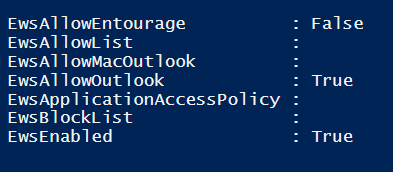
then run the following command to see what the EWS settings are at the tenant level:

Get-organizationconfig | fl ews*

to which you should see something like:
image

From what I understand you’ll need to ensure that EWSEnabled and EWSAllowOutlook are NOT False (i.e. disabled). This will take care of allowing EWS for any new mailboxes created from this point forward.

Also run the command:

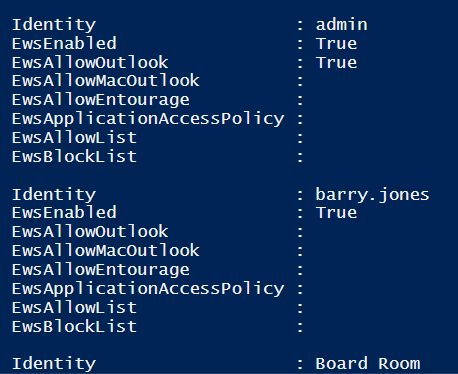
Get-CASMailbox  | fl identity, ews*

which should result in a list of all the EWS for each user like so:
image

Make sure that users do not have EwsEnabled or EwsAllowOutlook set to False (i.e. disabled). If it is you can use the command:

set-casmailbox –identity user@domain.com –ewsenabled $true –ewsallowoutlook $true

command to re-enable it and set it to True.

If you change an EWS setting for an individual mailbox it can take 4 – 24 hours for that change to flow through according to documentation I’ve seen. In my case however, I found by logging out and back in the change appeared almost immediately.

image

It should then re-appear in Teams as shown above. If it doesn’t, simply use the three dots (ellipse) at the bottom of the list to add it back in. You may also need to right mouse click it once you have added it back in and “pin” it to the side menu, so it stays there.

So in a nutshell, don’t disable EWS in your environment because things like Microsoft Teams needs it! If you are missing your calendar in Microsoft Teams or have issues with Outlook Add-ins, check EWS is enabled.
Custom Praise badges in Microsoft Teams

image

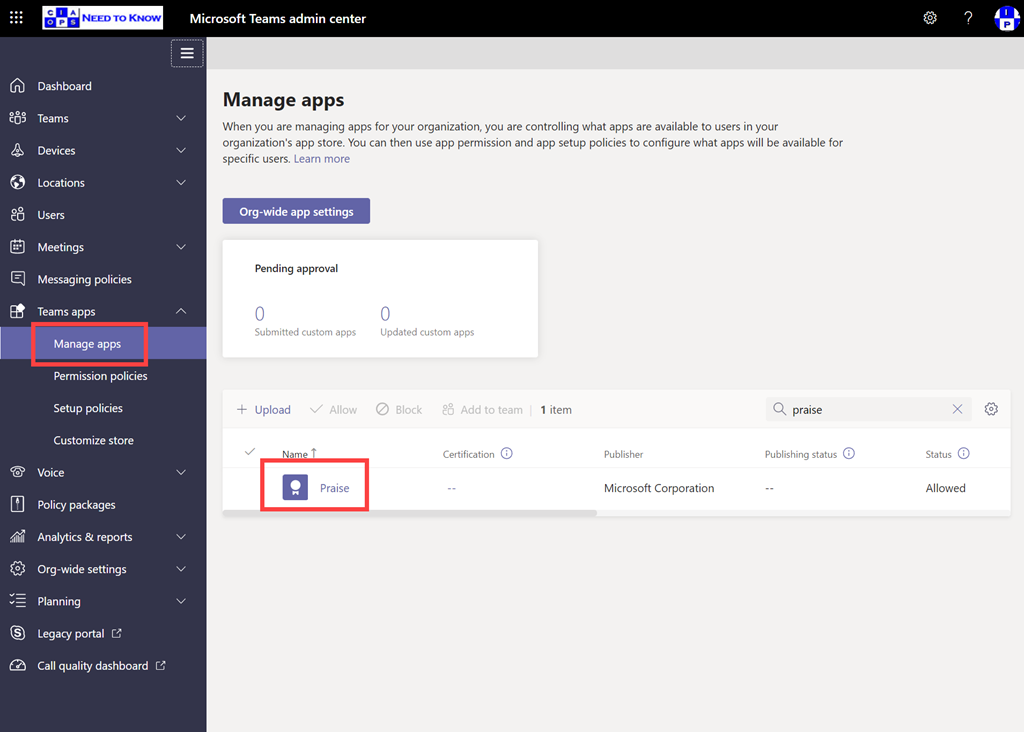
If you navigate to the Teams admin portal and expand the Teams apps option from the menu on the left, you should see a Managed apps option. You can locate the Praise app by using search on the right.

image

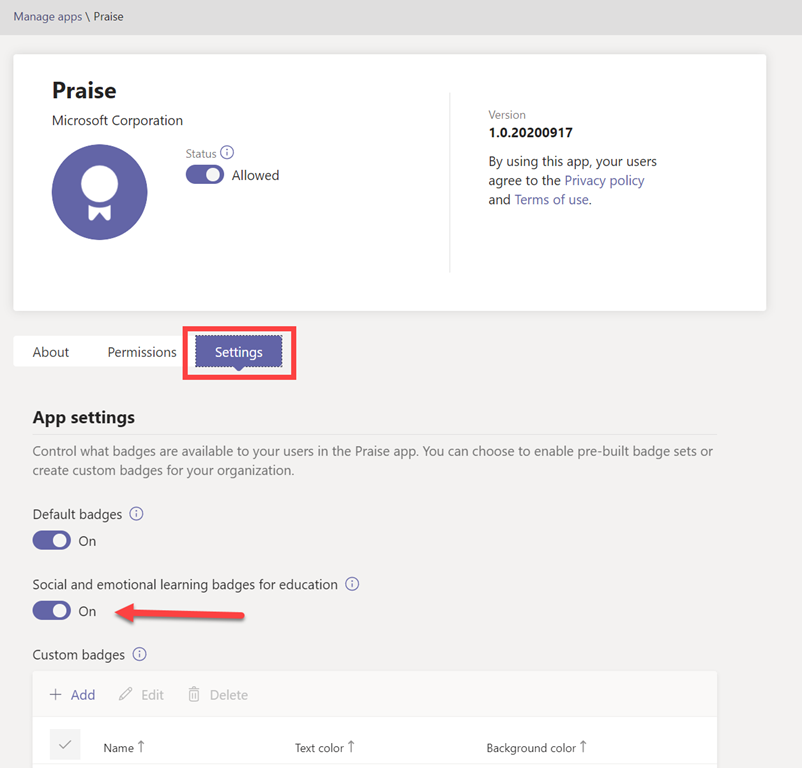
If you select the Praise app you’ll then see a screen like that shown above. If you then select the Settings option just under the information banner you get the badges options.

Generally, default badges are enabled but why not also enable the Social and emotional learning badges for education as well? They are free after all!

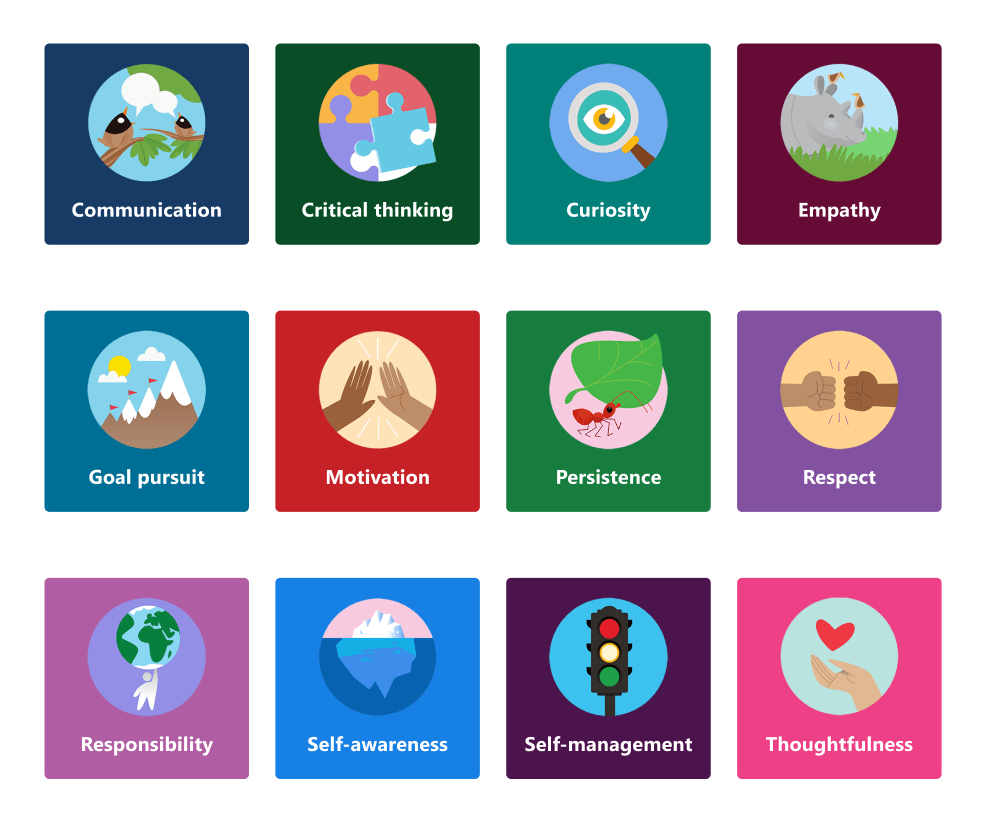
Preview of the Social and emotional learning badges for  education

When you do so, you’ll see the additional badges shown above in your Teams Praise app.

image

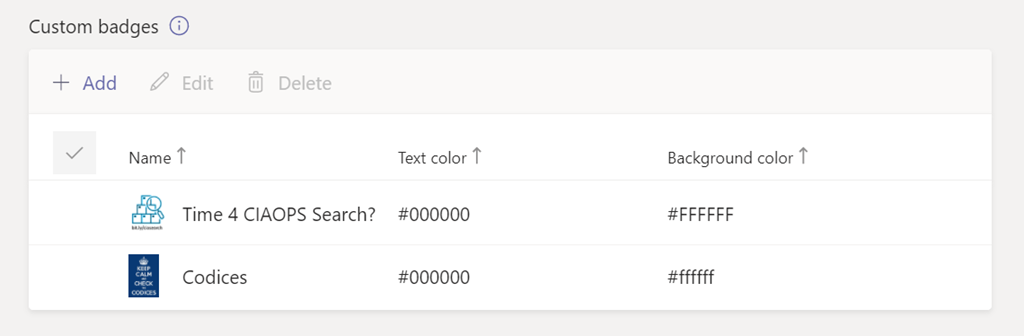
Even better, further down, you can also add you own custom Praise apps.

image

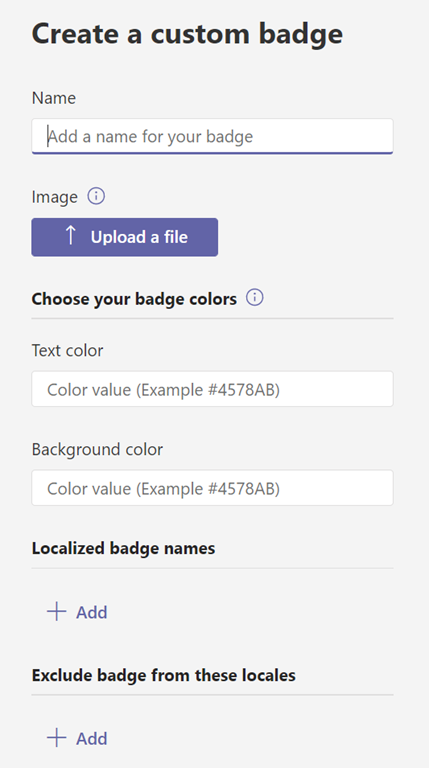
Just update a suitable badge graphic and add the details about the badge.

image

So now, when you Praise someone in Teams, you have many more options, including your own custom ones as shown above.

When selecting an image, keep badge dimensions in mind. For the best quality, we recommend uploading an image file that is 216 x 216 pixels (which are the maximum dimensions). Avoid stretching or distorting the image to fit these dimensions.

The above is from a great Microsoft article:

Manage the Praise app in the Microsoft Teams admin center

that provide lots of information about the Praise app and badges. So I recommend you take a look to learn more.

CIAOPS Need to Know Microsoft 365 Webinar–October

laptop-eyes-technology-computer

It’s about time we revisited what Microsoft Teams is all about and how to get the most from this major service in Microsoft 365. Join us for a deep dive into what Teams is and how to make the most from it in your business. I’ll warn you that it probably going to challenge the way you think about collaboration. There is also plenty of news that I’ll cover as well as open Q and A for any questions you may have.

You can register for the regular monthly webinar here:

October Webinar Registrations

The details are:

CIAOPS Need to Know Webinar – October 2020
Friday 30th of October 2020
11.00am – 12.00am Sydney Time

All sessions are recorded and posted to the CIAOPS Academy.

The CIAOPS Need to Know Webinars are free to attend but if you want to receive the recording of the session you need to sign up as a CIAOPS patron which you can do here:

http://www.ciaopspatron.com

or purchase them individually at:

http://www.ciaopsacademy.com/

Also feel free at any stage to email me directly via director@ciaops.com with your webinar topic suggestions.

I’d also appreciate you sharing information about this webinar with anyone you feel may benefit from the session and I look forward to seeing you there.

New conversation button in Teams

image

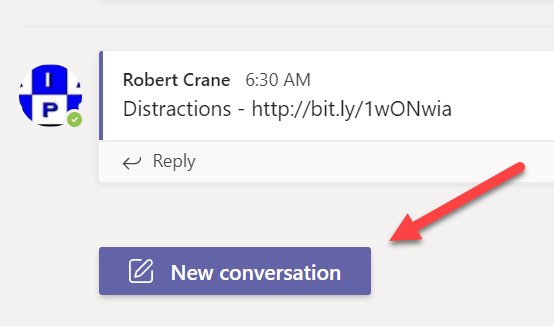
A New conversation button has appeared for me inside my tenant both on the desktop and on the web as shown. This is very much like the button you in the mobile experience of Teams.

One of the major challenges with conversations or chats in Teams was the simplicity that you could create new conversation threads. This simplicity was its own worse enemy unfortunately, because what you’d find is that people would post new message threads rather than posting to the current or existing one. Many users didn’t notice that fact and you ended up with many, many disjointed conversations. That reduced Teams chat benefits and effectiveness.

This New conversation button will ensure that any existing reply will stay in the existing thread and you’ll only get a new conversation by pressing that button. It also makes the interface between, desktop, mobile and web more consistent.

Look out for the New conversation button coming to your Teams environment soon.

Need to Know podcast–Episode 252

In this episode I speak with MVP Megan Strant all about adoption. However, in this discussion we focus on the human side of adoption and change management which can be really challenging for many organisations to successfully manage. Megan shares her experiences and provides some handy insight into how we can improve our chances of successful adoption of Microsoft 365.

Of course, there is always Microsoft Cloud news which I’ll bring you up to date with. We will be expecting a whole lot more once Microsoft Ignite starts, so stay tuned here for all the latest!

This episode was recorded using Microsoft Teams and produced with Camtasia 2020

Take a listen and let us know what you think – feedback@needtoknow.cloud

You can listen directly to this episode at:

https://ciaops.podbean.com/e/episode-252-megan-strant/

Subscribe via iTunes at:

https://itunes.apple.com/au/podcast/ciaops-need-to-know-podcasts/id406891445?mt=2

The podcast is also available on Stitcher at:

http://www.stitcher.com/podcast/ciaops/need-to-know-podcast?refid=stpr

Don’t forget to give the show a rating as well as send us any feedback or suggestions you may have for the show.

Resources

@meganstrant

@directorcia

Meganstrant

Megan Strant on Linkedin

Prosci

Microsoft Ignite 2020

Organize content your way with the Preview of Project Moca

Microsoft Lists in Microsoft Teams is now generally available

Updates for Dictate, including voice commands in Word

Transcribe in Word

What’s New with Microsoft 365 | August 2020

What’s New in Microsoft Teams | August 2020

Incrementing a SharePoint list column using Power Automate and Flow

Updated CIAOPS PowerShell course

https://ciaops.podbean.com/e/episode-252-megan-strant/

Allow administrators to delete any chat message in Teams

By default, in Microsoft Teams, you have the ability to delete your own messages but not other people’s. That’s a good thing unless you are an administrator or owner of the Team. There are plenty of cases where a chat message from another member of the Team could be considered inappropriate and needs to be removed by an administrator. Problem is that, generally, even an administrator cannot delete another person’s chat message.

This behaviour can be changed in the Teams administration portal by making changes to the appropriate Messaging policy.

image

You’ll firstly need to navigate to the Teams administration center which you can access via the Microsoft 365 admin center. You can also get there directly by navigating to:

https://admin.teams.microsoft.com/

You then need to select Messaging policies from the items on the left as shown above.

Then, on the right, you will see the option to Manage policies, which you should select.

Most tenants should only have a single policy as shown above, but if not you’ll need to select the appropriate policy you wish to change. Simply click on the policy name you wish to change. Here, I’ve selected the only one available Global (Org-wide default).

image

Ensure the option Owners can delete sent messages is set on On as shown above.

You’ll now need to wait for that policy to be updated to your Team. It will take a little while so don’t expect the changes to be seen immediately. Not that I have tried to see whether using PowerShell to force the changes works any quick but if you find it does, let me know. The command you want if you plan to user PowerShell to make this change is:

set-csteamsmessagingpolicy –allowownerdeletemessage $true

Once the changes in the policy have been pushed out to the Team, any owner of that Team will now be able to delete any chat message from any user as simply as they can their own messages.

image

This ability will hopefully make life a little easier for Team owners who need to ensure compliance and appropriate behaviour in their Teams.

Need to Know podcast–Episode 248

I speak with Michael Van Horenbeek who is one of the authors of a new Microsoft 365 Security eBook. We talk everything Microsoft 365 security as well a little about the challenges of publishing. I also get you up to date with the latest news from the Microsoft Cloud.

This episode was recorded using Microsoft Teams and produced with Camtasia 2020

Take a listen and let us know what you think – feedback@needtoknow.cloud

You can listen directly to this episode at:

https://ciaops.podbean.com/e/episode-248-michael-van-horenbeek/

Subscribe via iTunes at:

https://itunes.apple.com/au/podcast/ciaops-need-to-know-podcasts/id406891445?mt=2

The podcast is also available on Stitcher at:

http://www.stitcher.com/podcast/ciaops/need-to-know-podcast?refid=stpr

Don’t forget to give the show a rating as well as send us any feedback or suggestions you may have for the show.

Resources

@vanhbrid – Michael Van Horenbeek

@directorcia

Microsoft 365 Security for IT Pros eBook

Microsoft Lists begins general availability roll out to Microsoft 365

Connecting tasks experiences across Microsoft 365

Announcing Tasks in Microsoft Teams public rollout

Teams is shaping the future of work with low code features to enhance your digital workspace

The new Yammer is generally available worldwide

Announcing public preview of Microsoft Endpoint Data Loss Prevention

Introducing the Bing Enterprise Homepage

End users can now report “This wasn’t me” for unusual sign-in activity