New sharing interface in Office 365

image

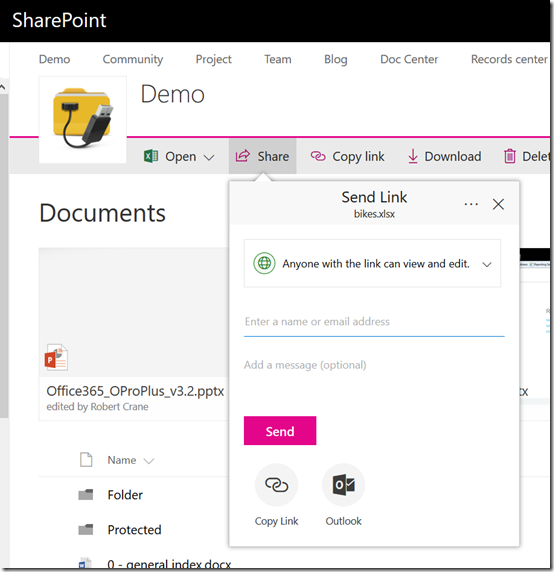
Looks like we have a new interface for sharing files in both Teams Sites (above),

image

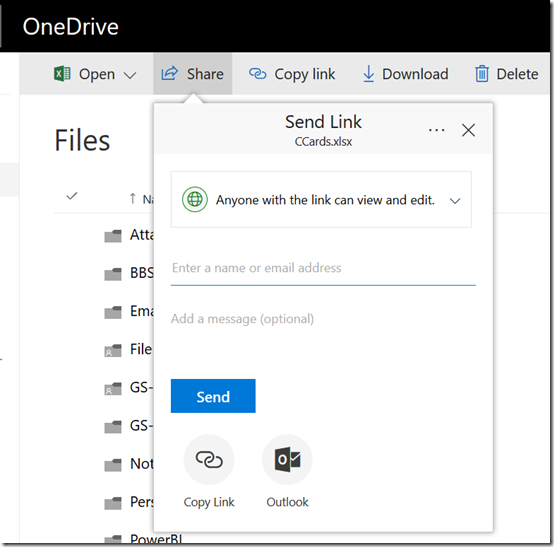
and OneDrive (above).

Now the sharing option drops down from the Share menu rather than popping up a dialog box in front of everything.

image

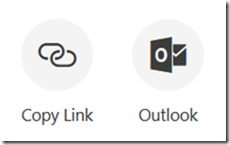
It also has some buttons at the bottom to help you with the way you want to share the item.

image

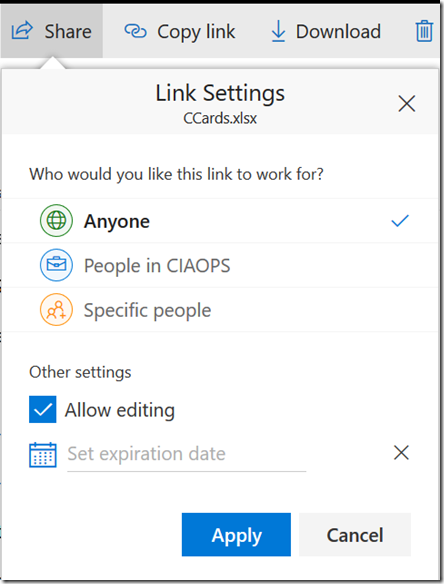
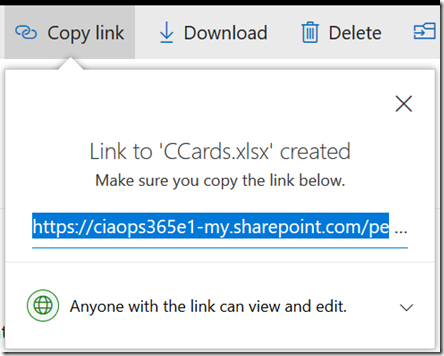
You can adjust the link settings by clicking on the pull down menu for whom you wish to share the link with.

image

You also get the same style of menu when you try and get a link as shown above.

You may not as yet see these options but expect them to be rolling out to you soon.

Changing a Group/Teams icon in Office 365

image

If you go out and create a new Microsoft Team you don’t get the opportunity to add a custom icon for that Team. Thus, you get a Team as shown above with just some letters and coloured background which is rather boring.

image

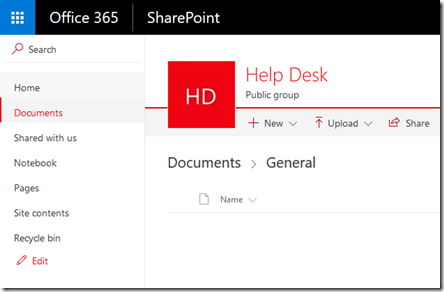
However, when you create a Microsoft Team, you also get a SharePoint Team Site. Unfortunately, this also just has the same ‘standard’ icon by default.

image

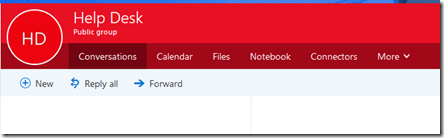
A Microsoft Team also creates an Office 365 Group which again has the same old ‘standard’ icon.

So how do you change the icon?

image

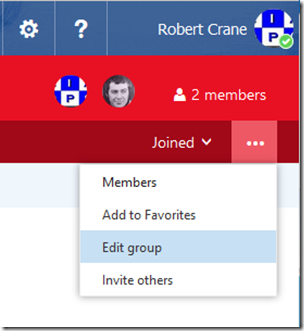
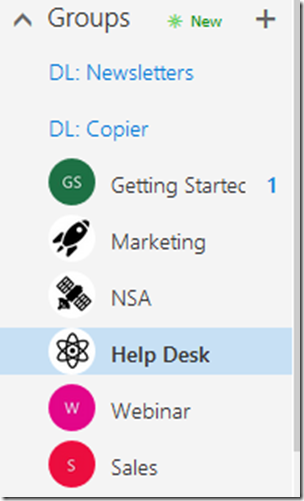
Go to the very right of the Group menu and select the three dots (also called an ellipse). From the menu that appears select Edit Group.

image

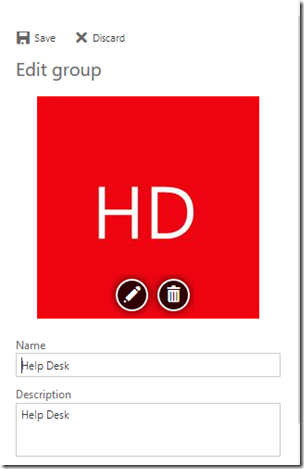
A panel will slide out from the right. Select the pencil icon on the image and upload you new icon.

image

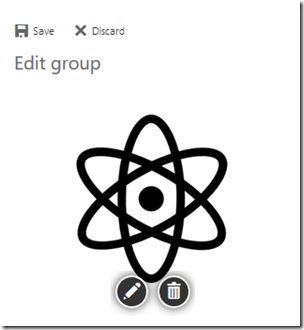
When the new images appears in the pane, select the Save option at the top of the panel, just above the image.

image

You should see your Group icon update as shown above.

image

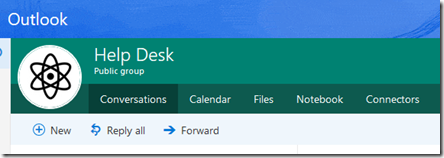
You should also see the icon update in Outlook on the web (OWA) as shown above.

image

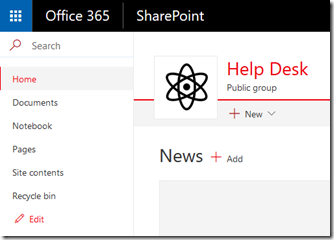
The SharePoint Team Site icon should also update automatically

image

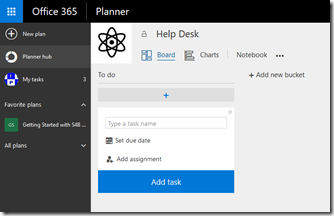
and the Planner plan connected to the Group and Team.

image

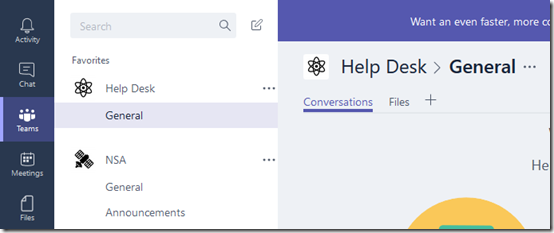
and finally into the Microsoft Teams app itself.

One icon to rule them all!

Understanding collaboration in Office 365 course

people-woman-coffee-meeting2

I’m happy to announce a new course is available from the CIAOPS Academy. This course will focus on the collaboration tools available in Office 365. This means SharePoint, Teams, Yammer, OneDrive and more. You’ll not only learn how these products work but you’ll also learn how to use them effectively to increase the productivity of your business.

The course will divided into 5 live sessions held every Friday in June. Thus:

Friday June 2nd 2017 – SharePoint & OneDrive
Friday June 9th 2017 – Groups, Teams and Staffhub
Friday June 16th 2017 – Yammer & Skype for Business
Friday June 23rd 2017 – Delve & Planner
Friday June 30th 2017 – Migration and Driving adoption

The sessions will run for 1 hour and be recorded. Session time are:

8am – 9am – Sydney, Australia
3pm – 4pm – PDT, USA
6pm – 7pm – EDT, USA
11pm – 12am – BST, UK

The recordings of each session will be available shortly after each session is completed. Although each session will run for 60 minutes, there will be an open Q and A at the end that will continue as long as people have questions not answered in the session.

All the material, including recordings, course notes and additional offers will be available for download after the fact.

The material presented during this course is a great way to fast track you understanding and adoption of Office 365 adoption tools in your business. Not only will you see the technology in use but the sessions will include hands on material for all students to participate in, so you’ll be directly interacting with the technology during the time. This way you’ll get to see and experience exactly what is possible with Office 365 collaboration technologies.

If you are keen to jump on board then I have a special early bird discount as a reward. Normally the cost of the course is US$299 but if you sign up before the 12th of May 2017 at 9:00am you’ll receive $60 off the cost using the coupon code EARLYBIRD1 or this direct link:

Understanding collaboration in Office 365 – $60 early bird discount

Remember, you need to use the link or the coupon code to get the discount.

An additional offer is that if you are not already a CIAOPS Academy affiliate you should sign up so you can offer this course to others and receive a commission. That’s right, just refer this (or any CIAOPS Academy course) to others and you’ll receive a percentage of the course direct to you. To become an affiliate simply sign up for free at the CIAOPS Academy and then contact me (director@ciaops.com) to let me know you want to be an affiliate and I’ll send you all the details and get you signed up asap.

In summary. Sign up for the upcoming CIAOPS Academy Office 365 collaboration course here (and get an early bird discount):

Understanding collaboration in Office 365 – $60 early bird discount

and contact me (director@ciaops.com) if you want to become an academy affiliate and receive commissions for courses you sell.

I hope to see you in attendance at the course in June.

April webinar resources

https://docs.com/d/embed/D25190964-2382-8197-9450-000528713933%7eMd4186d87-61d5-259a-4d26-00a8bd86cfff

April’s webinar is done and dusted. You can download the slides from:

April 2017 Need to Know Webinar

If you are not a CIAOPS patron you want to view or download a full copy of the video from the session you can do so here:

http://www.ciaopsacademy.com/p/april-2017-need-to-know-webinar/

We had a great session around Microsoft Staffhub with some fantastic questions from attendees. Thanks everyone for attending

you can also now get access to all webinars via:

http://ciaops-academy.teachable.com/courses/need-to-know-webinars

for a nominal fee.

See you next month.

The rule of three

forks

I’m a big believer in systems and doing things for a reason (because doing random things only generates random results, which ain’t good). I also like to keep things as simple as possible.

With that in mind I’d like to tell you about my ‘Rule of Three’. You may have already seen this in action in a previous blog post about designing an initial SharePoint structure for migration:

A basic SharePoint Online Framework

So where did this rule of three come from? Well, in my experience when it comes to change most people can’t handle more than three changes. In essence, they can’t juggle more than three new concepts or changes at a time in their mind.

Let’s view that in light of a migration to Office 365 from a traditional on premises file server. The first change is moving to Office 365 itself, the second change is around the fact that files are now accessed via a browser in SharePoint rather than via Windows Explorer and a mapped drive. The final change is around the structure inside a SharePoint site (i.e. where the hell are my files actually?).

Thus, most people can accommodate three changes but that is their limit. If you add a fourth then this is where the illogical occurs. At the point of mental overload (i.e. four or more changes) not only is the user unable to cope with this last change but they also abandon all the previous changes they had already accepted. That is, at the point of overload they throw their hands up in the air and say ‘this is all too hard’ and throw in the towel, abandoning all change. Like a house of cards, overload a user and their whole adoption acceptance collapses and you have to start again, but typically you are now starting with a bigger mess and face more resistance.

Thus, pushing people to the point of failure results in catastrophic failure of adoption, where they no longer accept any change. That is bad news when it comes to adoption and thus should be avoided at all costs. In many cases, after the point of overload and collapse the user becomes much more resistant to any thing that you propose that is different from what they already know.

So, when you are making changes in people’s lives, especially when it comes to how they use technology in their job, remember my rule of three and don’t overload them. Also keep in mind this article I wrote a while back:

Stop making your users feel stupid

because making them feel stupid is the fastest way to tip them into catastrophic failure and create a rod for your own back.

Keep it simple to start with but don’t give them any more than three things to juggle at a time. As they become comfortable with one thing add another but limit the balls they have in air to no more than three. A lot of small changes in rapid succession are much more likely to succeed than massive jumps.

February Webinar Resources

https://docs.com/d/embed/D25191508-8189-6254-8310-001748698594%7eMd4186d87-61d5-259a-4d26-00a8bd86cfff

Our February webinar event is all done. You can see the slides either above or download them directly from here:

February 2017 Need to Know Webinar

If you are not a CIAOPS patron you want to view or download a full copy of the video from the session you can do so here:

http://www.ciaopsacademy.com/p/february-2017-need-to-know-webinar/

you can also now get access to all webinars via:

http://ciaops-academy.teachable.com/courses/need-to-know-webinars

for a nominal fee.

Thanks to everyone who attended and I hope to see you again next month when the focus session will be on Microsoft Teams.

Getting Started With SharePoint Online course

Getting Started With SharePoint Online course

If you are struggling to put the pieces together when it comes to SharePoint and OneDrive for Business then I have created this course especially for you. Hi, I’m Robert, a technology trainer and SharePoint veteran who is also a Microsoft MVP that has been helping people for years when it comes to understanding and working better with SharePoint.

I understand that SharePoint seems really daunting and you’re not sure where to begin. Well, I’ve made that easy for you with my course. The lessons here take a complex topic like SharePoint and break them down into small pieces. They focus on a single topic that takes only a few minutes to complete and include a video tutorial showing you exactly what to do as well as providing you downloadable notes you can keep and review at anytime. There are also links to additional information if you want to extend your knowledge further.

My aim is to make you as productive as quickly as possible with SharePoint and that’s why the first lessons show you how to get your documents into SharePoint Online. From there you learn how to use common tools like calendars, tasks lists, and more. I’ll then show you how to recover deleted information as well as use the powerful built-in search functionality that comes with SharePoint Online to find anything! There are over twenty lessons you can work through at your own pace. You are free to return at any point to review all the content at your leisure. You are also free to jump to any lesson that takes your fancy, allowing you to learn at your own pace and in your own way.

The course contains over three hours of video tutorials, 200+ pages of documentation and 30 additional web locations to extend your knowledge. I’m confident that by the end of the course you’ll be using SharePoint like a pro. I’ve worked really hard in creating this course to pass on my knowledge and experience of SharePoint to people like you who need it to do their job. People like you who need to learn SharePoint but don’t know where to start. This course has been built for you and the many others who struggle coming to grips with SharePoint. Read their testimonials below to see how this course has helped them.

Testimonials

“Great introduction to the vast array of capabilities offered by SharePoint via Office 365. Really demystified SharePoint for me in a very easy to follow and practical manner. Thanks heaps Rob!” – Darren Chapman (Pivotal Data Solutions).

“Robert, you’ve done a great job of providing bites size chunks of relevant information to get me on the road to using SharePoint” – Nathan Oldfield (Cybercomp)

“As a user with no/very limited SharePoint experience, I found this course extremely helpful. As course notes have been included it makes referring back to something very easy. I would recommend this course” – Ursula Kriel (Multotec)

“The material is easy to understand and follows a logical sequence that makes learning fun! I would recommend these courses to anyone and they should come out with a better understanding in using all of the tools available to the share point user. Thanks for such a well designed course!” – Charles Perry

“The best training I have been to in recent memory – very practical, customer-focused exercises and loads of great information and resources.” – Tristram Morgan (365 Architects)

“Robert Crane from CIAOPS has created an incredible resource for anyone wanting to get into Sharepoint for Office 365. They are well presented and laid out for users on any level from beginner to advanced. If you follow through the steps and examples you are guaranteed to learn something new even if you think you know it all. Roberts learning academy online should be a go to place for anyone who wants to get serious about their IT.” – Craig Young (Greendata Pty Ltd)

Need to Know Podcast–Episode 131

Some news and opinions to start the show from Marc and I. We discuss some of the new learning offerings from Microsoft and why they are so important for IT Professionals to use to upskill the knowledge. We then dive into another discussion with a Microsoft Ignite Australia presenter, Elaine van Bergen whose topics are:

How to build a modern portal with Office 365 and on premises data

See how you can build a modern portal on Azure PaaS by leveraging the API’s and out of the box elements available from Office 365. We’ll showcase a modern portal on Office 365 including use of the Graph API, Office 365 Groups, OneDrive and the Video Portal all combined into a compelling and responsive design with full level of control over customisation. Also we’ll discuss options for utilising the SharePoint framework for smaller customisations and how elements of the solution can be integrated with on-premises data via Azure Hybrid Connections.

Deploying and governing Office 365 Groups

Office 365 Groups is one of the best ways to get wide adoption and usage of Office 365. It’s a fundamental building block of many of the newer features of Office 365 including Planner. Explore how to get Office 365 Groups deployed and setup and how to do this with the most common Hybrid setups of Exchange. In addition, we will also go through the various governance and control options to help keep groups well controlled in a large organisation. Finally, we will briefly cover the API’s that can be used to pull Office 365 Groups into custom solutions.

Don’t forget to send us your feedback at feedback@needtoknow.cloud

You can listen to this episode directly at:

https://ciaops.podbean.com/e/episode-131-elaine-van-bergen/

or on Soundcloud here:

Subscribe via iTunes at:

https://itunes.apple.com/au/podcast/ciaops-need-to-know-podcasts/id406891445?mt=2

The podcast is also available on Stitcher at:

http://www.stitcher.com/podcast/ciaops/need-to-know-podcast?refid=stpr

Don’t forget to give the show a rating as well as send us any feedback or suggestions you may have for the show.

Resources

@laneyvb

@marckean

@directorcia

Azure news from Marc

Microsoft teams gains steam

Flow updates

Why developers (And IT pros) need Azure skills

Microsoft OpenEdX