Before we get into this article I need to reinforce the following:
Retention is NOT the same as backup
Thus, what I am going to cover here should NOT be considered as a replacement to any existing backup policy you have for Office 365. What I’ll cover here is retention of data based on policies you set. Retention can be a way to preserve data as well as delete data based on a set of defined rules. You should consider retention policies as part of your compliance strategy not as part of the disaster recovery strategy.
The great thing about retention policies in Office 365 is that they are generally available across all plans. So what I detail here should apply to all Office 365 tenants.
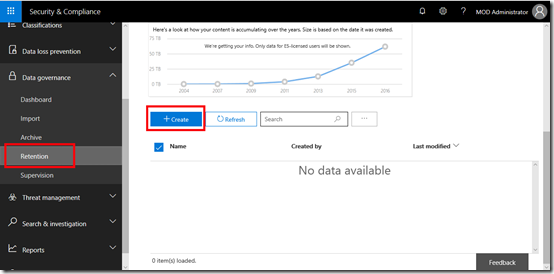
Office 365 has no retention policies in place by default. This means that any existing data has no additional protection. Importantly, this means that existing data will NOT be covered by the policy UNTIL the data has been changed. Thus, if you create a retention policy and then go and delete data BEFORE making any changes to it, the data will NOT be saved! Once in place, the policy ONLY applies to data that gets altered (i.e. updated or modified) from that point on.
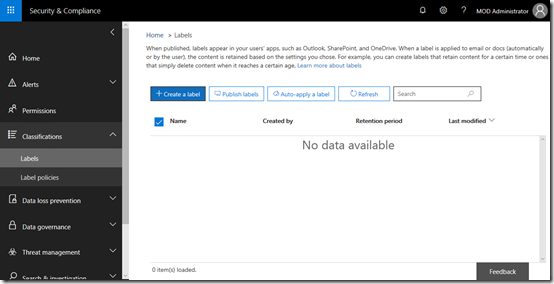
With that in mind the first step in the process is to create a retention policy. You do this by navigating to the Security and Compliance center in Office 365. From there, select the Data Governance option from the menu on the left and then Retention from the submenu as shown above. You should see that there no policies in place yet.
To create a new policy select the Create button on the right hand side of the screen.
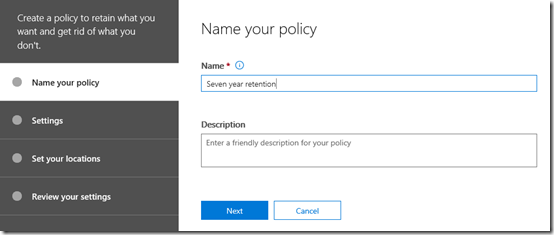
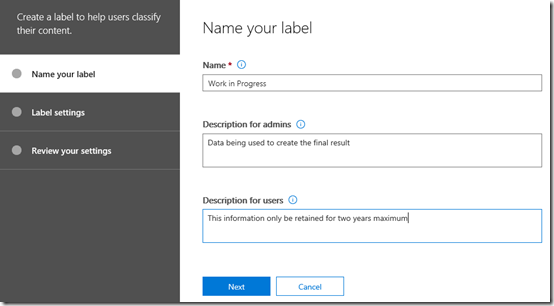
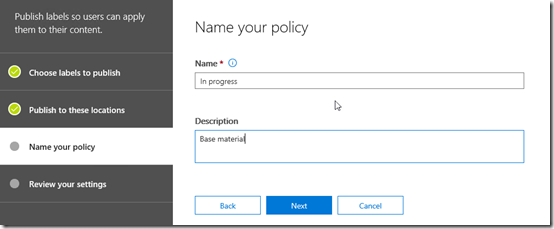
Give your new policy a name and description and press the Next button at the bottom of the screen.
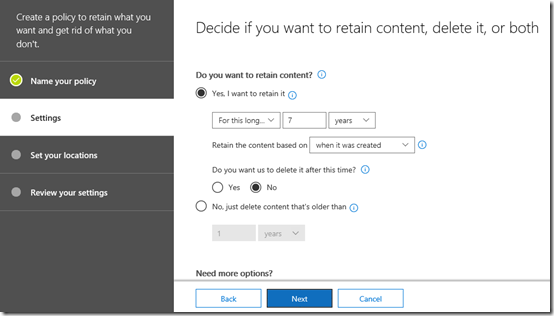
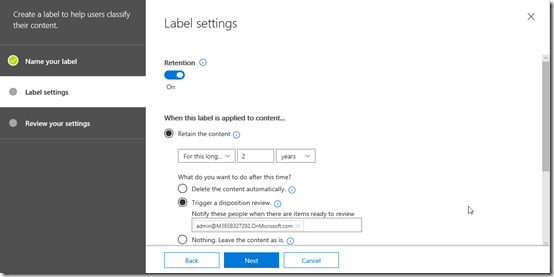
Here is where you need to decide what rules your policy will have. In this case I have chosen to retain data for 7 years based on when it was created and to not delete it after this period.
You’ll note that you can create policies that also delete data so be very careful when you select those options.
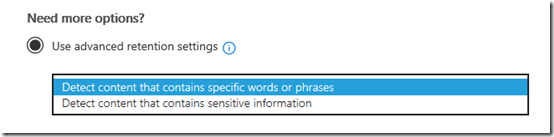
The bottom of the page allows you to use more advanced retention settings. In here there should two options to select from as shown above.
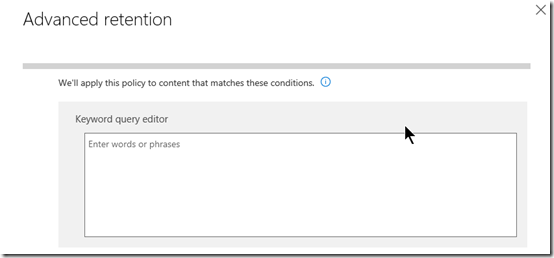
The first option allows you to apply the policy via keyword or phrase. You simply enter those terms into the editor that is displayed when you select the option.
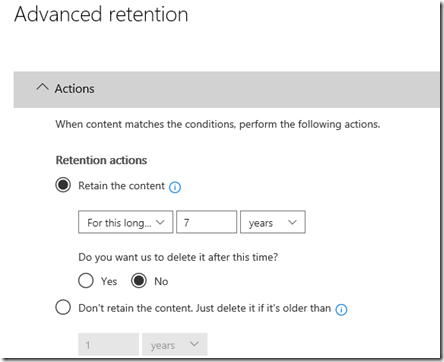
Once you have entered the keywords you wish, you’ll need to enter the standard retention options as shown above.
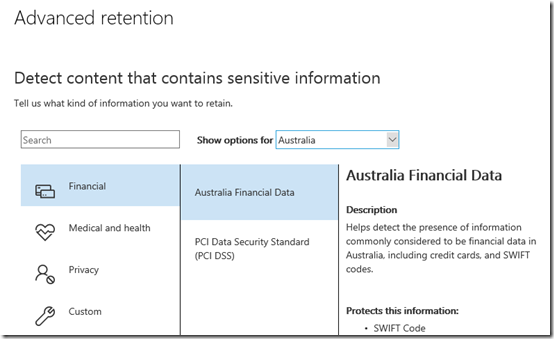
The second advanced retention option allows you to apply the policy based on ‘sensitive information’. As you can see from the above, you can select from a range of pre-configured sensitive information types that can be scoped to your country. Here, I am selecting Australian Financial Data.
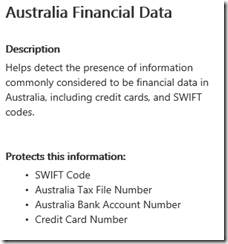
If you look at the policy you will see what information it consider ‘sensitive’. In this case, the policy will match things like Australian SWIFT banking codes, Tax File Numbers, Bank Accounts and Credit cards.
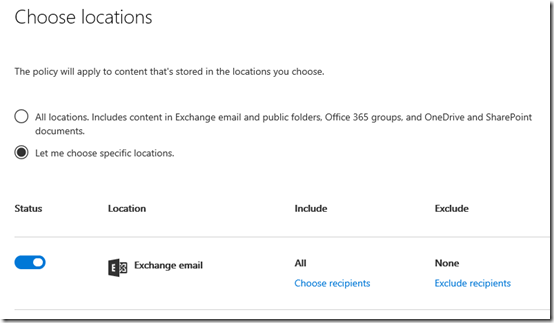
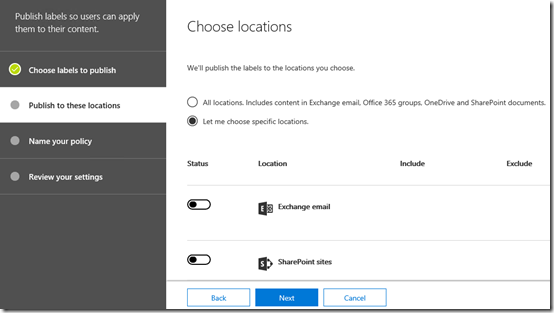
Once you have set the data types for your policy, you’ll need to nominate which locations inside Office 365 this retention policy will apply to. You can apply the policy across all or specific data inside Office 365 as shown above.
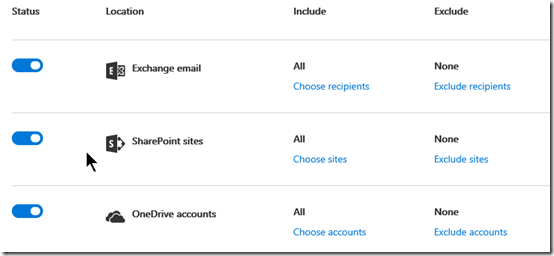
You’ll see that you can target Exchange mail, SharePoint Online,

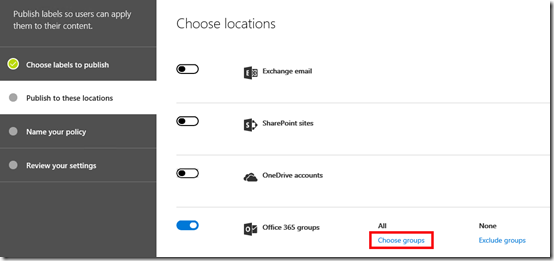
Groups (as well as Teams), Skype and Exchange public folders.
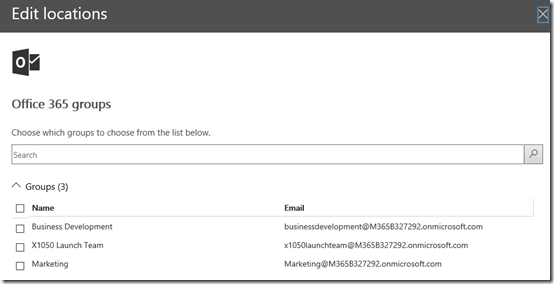
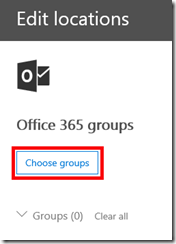
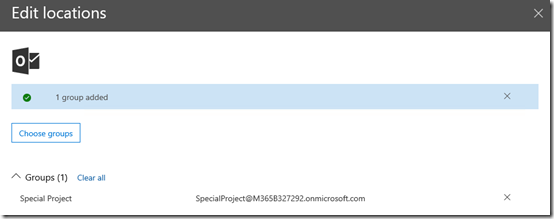
You’ll see that you can also include an/or exclude specific locations inside each service if you wish. Simply select the Choose hyperlink and make your selections as shown above.
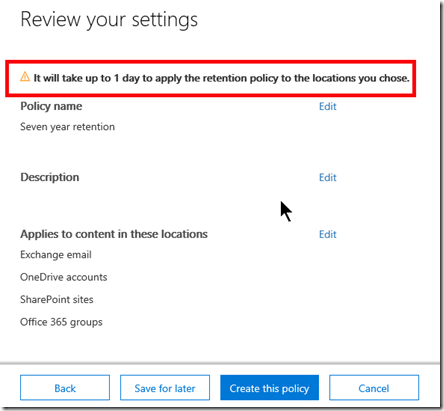
Once you have completed all these options you can then Create this policy and apply it immediately or Save for later application.
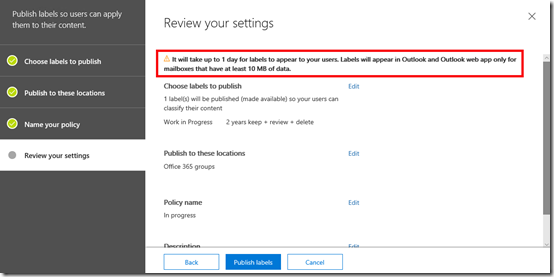
In this case I’ll create the policy and apply it immediately. Note the message at the top of of the dialog that tells you it may take a full day for the policy to be applied. I would suggest that you do wait a full day for the policy to be applied throughout your tenant before you continue.
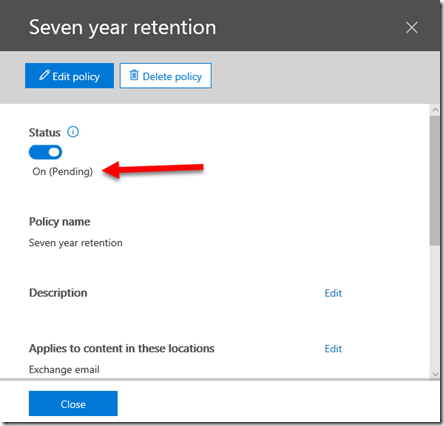
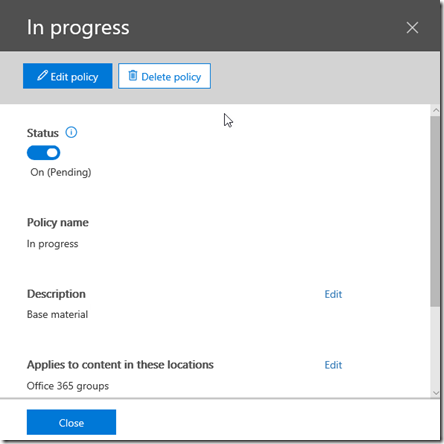
After creating the policy you will see that the Status is On but it is Pending as shown above.
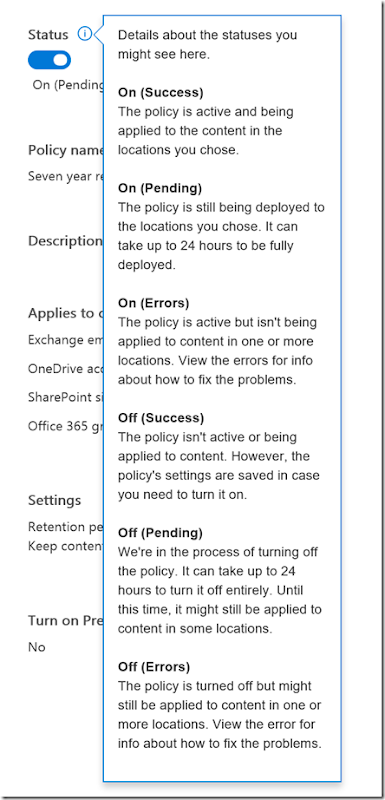
If you select the information icon you’ll see that what you want to wait for is the On (Success) option to be displayed here.
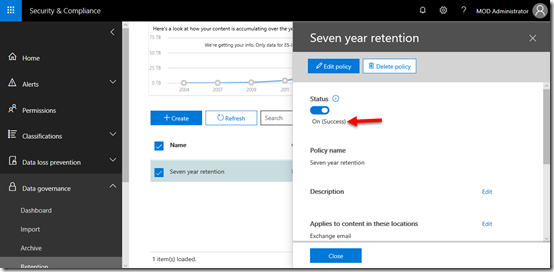
After waiting a suitable amount of time and checking the policy status you will find that it has succeeded as shown above.
At this point the policy is in place and is protecting any data that is now changed.
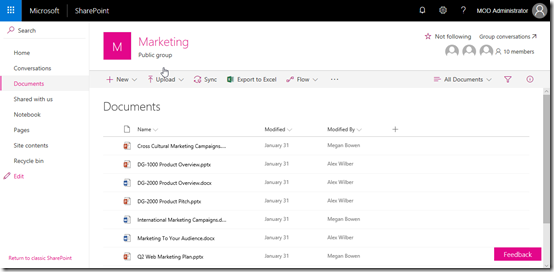
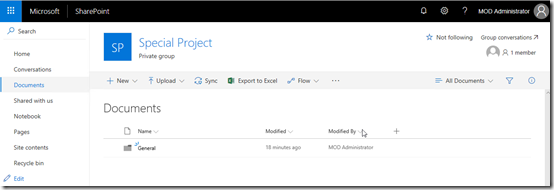
With the retention policy in place let’s go to the location of some file data in a SharePoint Team Site, specifically a Document Library as shown above.
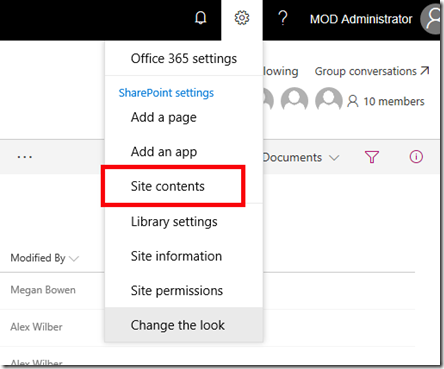
Before we do anything, let’s check out that the Site actually contains.
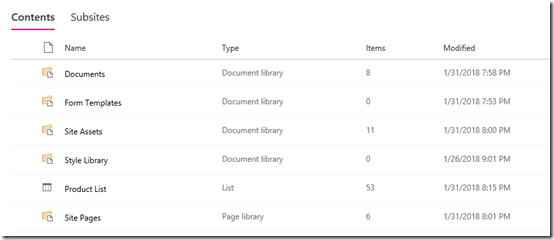
We see that there is nothing special as yet. There will be, just not yet.
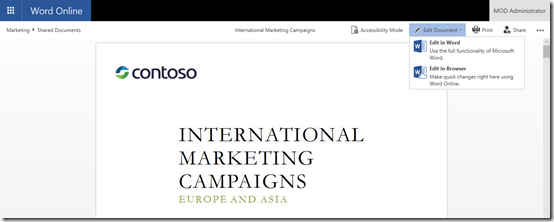
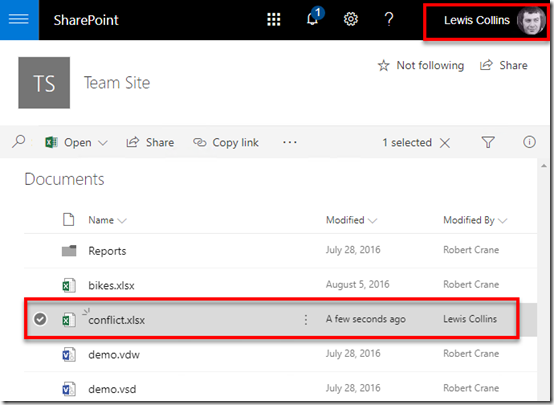
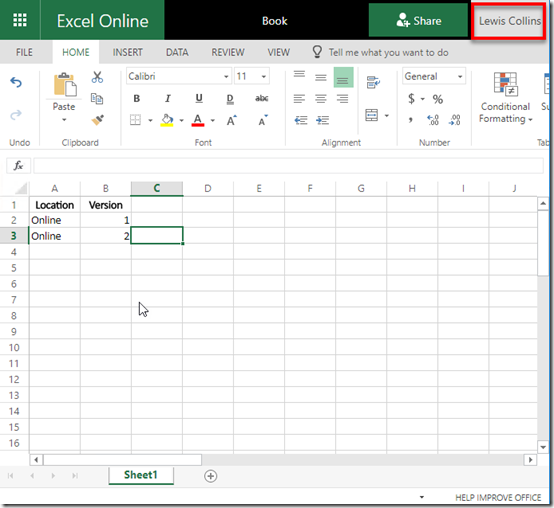
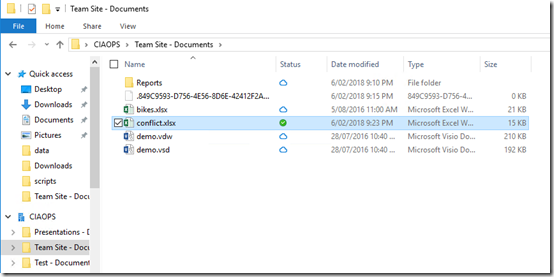
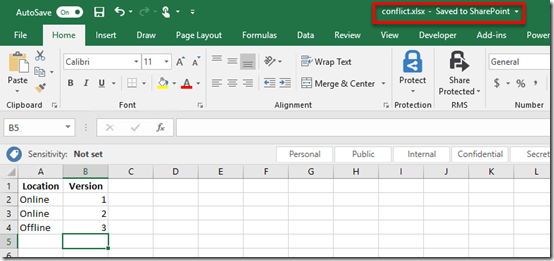
The retention policy will only act on changed documents from the point it was enabled. So we select a document in the library and edit it.
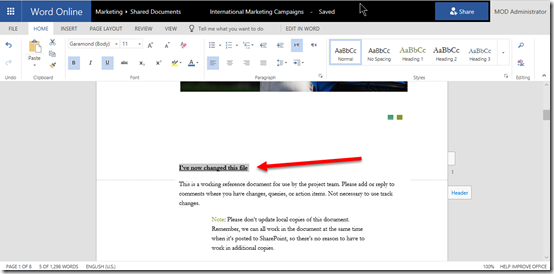
The document is changed and saved back to the library.
Now the file is still in it’s original location and the retention policy is applied. As the original file still existing in its original location the retention policy doesn’t need to take any action.
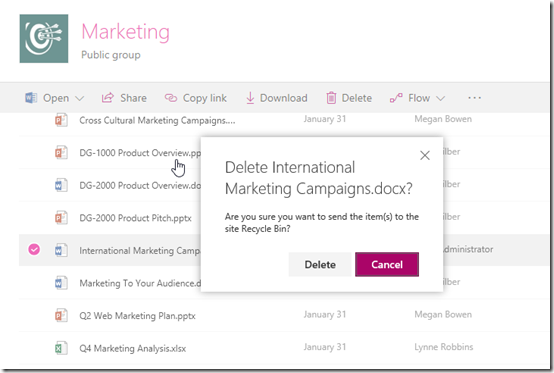
However, if the original file is now deleted from its original location as shown above what will happen?
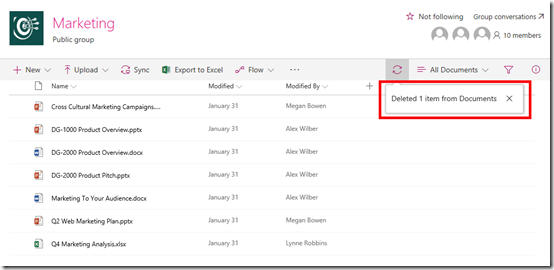
Any document deleted from a SharePoint Document Library is sent to the Recycle Bin.
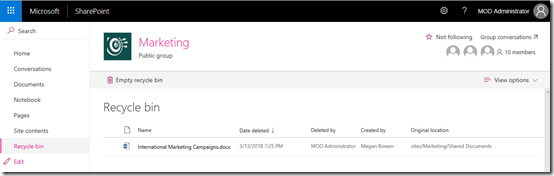
If we look in Recycle Bin we see the deleted document as shown again. The retention policy still does not yet need to take any actions as the document is still available, however remember, that items don’t stay in the SharePoint Recycle Bin forever. They are aged out after a total of 93 days. Thus, the retention policy doesn’t need to do anything until this time period is exceeded.
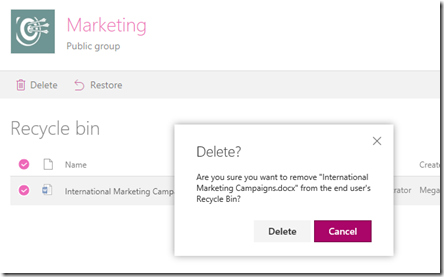
However, it is also possible for the user to delete the file from their recycle bin as shown above.
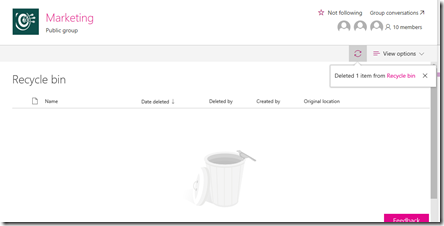
Once the user has deleted the file from their recycle bin the file will move to an administrator recycle bin or the remainder of the 93 days. Again, the retention policy doesn’t need to take any actions until this time period is exceeded.
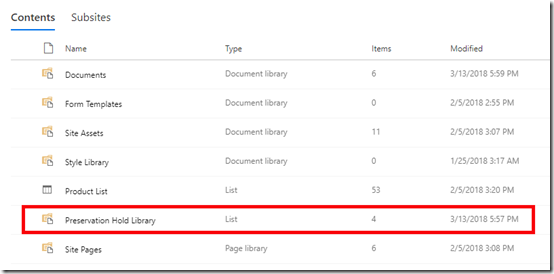
At the point at which the file is going to be purged from the Office 365 environment the retention policy that was configured kicks in. It creates a new document library in the Team Site called Preservation Hold Library as shown above.
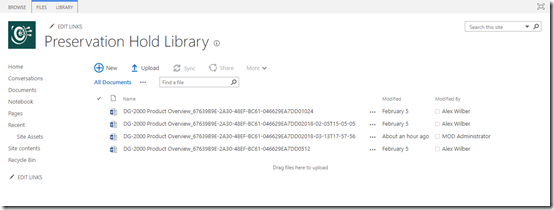
This new document library is only available for administrators to view and when you look in here you will see all versions of the deleted file. Remember, that every time you change a file in SharePoint it create a previous copy.
Thus, as an administrator, we can recover a file from this location for the period of the retention policy, which in this case is 7 years. Once the conditions of the retention policy no longer apply to the file (here it is > 7 years) the file will be removed permanently within 7 days from the tenant.
You can find lots more information about Office 365 retention policies here:
Overview of retention policies
In there, you will note for email data:
To include an Exchange Online mailbox in a retention policy, the mailbox must be assigned an Exchange Online Plan 2 license. If a mailbox is assigned an Exchange Online Plan 1 license, you would have to assign it a separate Exchange Online Archiving license to include it in a retention policy.
So, retention policies are a good way to manage the compliance of your data. As I said at the start, they are NOT a replacement for backup, however they do provide an extra layer of protection for you information and can be implemented quite easily as you can see above.
The last thing to remember is that retained data has to live somewhere and will consume you tenant space availability across the difference services. The more locations and data protect, the more copies of previous data you will have. So keep it simply and limit what you want to retain. This means planning your retention strategy in advanced rather than bulk applying it to all data in all locations.
Finally, remember that retention policies are available across the range of Office 365 license and I would encourage you to take advantage of them.