Capturing ALL Microsoft Secure Score items

image

Ok, so you are telling me you have time on your hands and want to improve the security of your Microsoft 365 tenant? Ok, if you are only kind of serious, I’d tell you to go to:

https://security.microsoft.com/securescore

and select the Improvement actions as shown above.

image

That will show you a filtered view of items based on what hasn’t yet been completed in the tenant. In the case above, that equates to 67 items.

Oh, you want more to do you say?

image

Ok, if you remove that filter you’ll see the number in the list increase. In this case up from 67 to 84. That’s 36% increase in things you can address. Enough?

What? You want even more? Are you sure? Really sure?

image

Well, if you are, then the good news is that I have written a script for you that uses the Microsoft Graph to go in and grab all, and I mean ALL, of the secure score items. You’ll find the script in my Office 365 GitHub repo:

https://github.com/directorcia/Office365/blob/master/o365-ssdescpt-get.ps1

Now before you run this scripts, you’ll need to follow the instructions I have written about before:

Access the Microsoft Graph with a script

and set yourself up an OAuth token to access your tenant. You only need to do this once.

You’ll then need enter the values from this configuration into the script prior to running it:

image

You get these three items from the oAuth token set up I set out.

image

When run, the script will connect to the Microsoft Graph and start reading information from the Secure Score of YOUR tenant. It will also save the output to a text file in the parent directory. Why you ask?

SNAGHTML20f6be5

Well, as you can see from the output from my tenant above, there are now potentially 6,972 items that I can go look at and configure to make my tenant more secure. That’s a 8,200% increase in things to keep you busy.

Remember, you did ask for more after all.

Connecting to Exchange Online with Azure Cloud Shell

I’ve written previously about

Azure Cloud Shell

and how handy it is when it comes to connecting to your tenant with PowerShell. What you may not realise is that you can also Azure Cloud Shell to connect to Exchange Online! All you need to do once you have launched Azure Cloud Shell is run the command:

connect-exopssession

image

As you can see from the above where I have connected and then used the command get-mailbox inside Azure Cloud Shell.
image

This now means you could copy my mailbox forwarding checking script:

https://github.com/directorcia/Office365/blob/master/o365-exo-fwd-chk.ps1

into your Clouddrive that is part of Azure Cloud Shell and run it.

image

And thanks to Clouddrive it will be there next time you use Azure Cloud Shell. Handy eh? If you want to learn about this capability, visit:

Azure Cloud Shell now supports Exchange Online

Need to Know podcast–Episode 215

In this episode I speak with Alex Fields about the power of conditional access. You’ll learn what it is, how to implement it as well as many best practices recommended by Alex based in his experience and knowledge. The great new is conditional access is part of Microsoft 365 Business, so listen in for the way to make it work to protect your information.

Brenton and I also bring you up to speed with all the latest Microsoft Cloud news, so listen in for the latest as always. We hope you enjoy this episode and don’t forget to send us your feedback.

This episode was recorded using Microsoft Teams and produced with Camtasia 2019

Take a listen and let us know what you think – feedback@needtoknow.cloud

You can listen directly to this episode at:

https://ciaops.podbean.com/e/episode-215-alex-fields/

Subscribe via iTunes at:

https://itunes.apple.com/au/podcast/ciaops-need-to-know-podcasts/id406891445?mt=2

The podcast is also available on Stitcher at:

http://www.stitcher.com/podcast/ciaops/need-to-know-podcast?refid=stpr

Don’t forget to give the show a rating as well as send us any feedback or suggestions you may have for the show.

Resources

@vanvfields

@contactbrenton

@directorcia

CIAOPS Patron Community

ITProMentor

ITProMentor – Best parctices

Attacker Kill Chain described

ITProMentor – Free Microsoft 365 Business eBook

ITProMentor – Licensing Guide

Telstra Purple

New version of To-Do

Authenticator backup on Android now available

Prepare for iPadiOS Launch

New webparts coming to SharePoint

Azure QuickStart Center

Top 5 advantages of syncing with OneDrive

Modernize your root site

Check your journaling rules

One of challenges with security is that there are lots of places to check and secure but only one vulnerability required for compromise. Most compromises happen at the user level but there are also other places that you may want to keep an eye. One of the is the journaling rules in Exchange Online.

Now, journaling rules can only generally be configured by an administrator. According to:

https://docs.microsoft.com/en-us/exchange/security-and-compliance/journaling/journaling

“Journaling can help your organization respond to legal, regulatory, and organizational compliance requirements by recording inbound and outbound email communications.”

That means it maybe possible to record email traffic and forward it to another location. That may mean for example, a rogue administrator setting up a journaling rule to send the CEO’s emails to their own private external email box.

Defending against rogue admin is tough and requires some planning. The least that you could do is check any existing journaling rules and ensure that only required ones appear.

image

You can do this by visiting the Exchange Online Admin Center. From here select Compliance Management then journal rules as shown above.

As you can see there are no journal rules in this tenant and it is my experience that most tenants don’t use journaling at all. That doesn’t mean there isn’t legitimate reasons for having journaling rules. All I’m saying is that you should check what you have and ensure it is right.

As always, I find that using PowerShell is a much quicker way to report on this using the command:

get-journalrule

The reason which checking journaling is important, is because as I understand it, journaling won’t show up in the audit logs for the tenant. This means that once it was surreptitiously enabled, it could run unreported in the background, collecting information unknown to everyone? That is a bad thing.

The best solution against rogue administrators in general is Privileged Access Management (PAM) in Office 365:

Configuring Privileged Access Management

which is typically only included in advanced Microsoft 365 licensing like E5. This, unfortunately, puts it beyond the reach of many. So, for the time being, keep an eye on your journaling rules and check to see where they maybe sending your information.


New Safe Links option

An eagled eye CIAOPS Patron spotted this new option in Office 365 ATP Safe Links:

image

Wait for URL scanning to complete before delivering the message

image

You get to this via the Security and Compliance Centre, Threat Management, Policy, Safe Links. You then select the lower policy option as shown above.

I had a look at the PowerShell for this policy:

image

Indeed, there is now an option:

delivermessageafterscan

as shown above.

Interestingly, there is no mention of this option yet in the:

Set-SafeLinksPolicy

documentation. So I thought I’d try adding it to the existing policy anyway.

image

No error, which is a good sign.

image

Checking back in the GUI, you can now see that option is set.

So, there is now a nice new shiny option that you can set Office 365 ATP Safe Links to prevent a message being delivered to an end user until the links have been fully checked. This now matches the policy option for safe attachments. You can also set this option via PowerShell.

Impact of a password spray attack

Basically, when someone launches a password spray attack on one of your accounts, they are basically using automated processes to guess your password and brute force their way into the account. These attacks typically happen via legacy protocols that should be disabled in your Microsoft 365 tenant as i have mentioned before:

Disable basic auth to improve Office 365 security

This can be tricker than you think because many legacy applications require basic authentication to operate. Therein lies the challenge.

I have purposely left legacy authentication enabled on some accounts to track what happens during brute force attempts. Experience is the best teacher as they say. Thanks to Cloud App Security:

A great security add on for Microsoft 365

I have configured it to alert me when there is failed login from outside my corporate locations:

Tracking failed logins using Cloud App Security

image

I would occasionally get the odd failed alert but nothing sustained. That was until today!

image

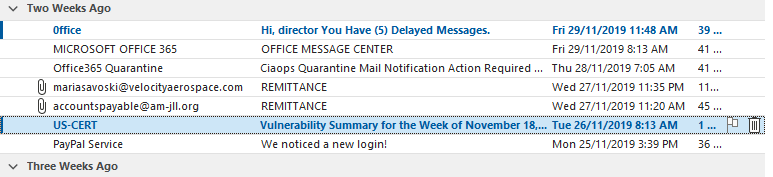
As you can see from my inbox, all of sudden I started to get massive volumes of alerts from Cloud App Security. The spray was on!

image

I jumped across to Azure AD sign-ins for the account and filtered the location down to be largely from China (i.e. CN is the location filter in the above results).

image

Due to the intensity of attack I started to get login failures and reported locks outs as shown above. So how does Azure AD handle lockouts? You’ll find that information here:

Azure Active Directory smart lockout

which says:

By default, smart lockout locks the account from sign-in attempts for one minute after 10 failed attempts. The account locks again after each subsequent failed sign-in attempt, for one minute at first and longer in subsequent attempts.

Smart lockout tracks the last three bad password hashes to avoid incrementing the lockout counter for the same password. If someone enters the same bad password multiple times, this behavior will not cause the account to lockout.

Smart lockout is always on for all Azure AD customers with these default settings that offer the right mix of security and usability. Customization of the smart lockout settings, with values specific to your organization, requires paid Azure AD licenses for your users.

In this case, the tenant didn’t have a premium version of Azure AD so the standard defaults were in effect.

image

The next application to feel the strain was the OneDrive for Business sync client which started requiring re-authentication.

image

Then the Azure portal began to struggle under the weight of so many failed login attempts.

image

Then the Microsoft Teams desktop application also started to have authentication issues.

image

Next, it was OneNote’s turn to start requiring re-authentication.

The attacks came in waves, typically separated by a few minutes (as happens with spray attacks) and then it was back again.

image

So what can you do if an account is subject to a spray attack and you are effectively getting denial of service thanks to that? Microsoft has provided every tenant with a number of free Baseline Conditional Access policies. The most appropriate one in this case is Block legacy authentication.

image

Enabling this policy will basically prevent legacy protocols like IMAP, POP and SMTP BUT it will do this across the WHOLE tenant! That is, for ALL users. That may be an issue if you have other accounts that depend on these older protocols for operation. However, this is certainly the quickest and easiest way to block spray attacks if you need to.

image

A more refined approach is to use PowerShell and create a new authentication policy as shown above. This creates a policy that disables the legacy protocols.

image

image

With the policy in place you can now apply it to just the user in question. Most authentication policies can take up to twenty four hors to take effect, however you can force an immediate refresh using the –STSRefreshTokenValidFrom option as shown above.

image

image

After doing all this, it is advisable to check to ensure the user has this authentication policy enabled as shown above.

image

When you dive into the Azure AD logs you’ll see that the brute force attempts have happened via SMTP, confirming a spray attack against the account.

image

Another service that may be affected by these attacks is Flow as seen above.

image

You may need to go into the Flow and re-authenticate as with the other affected apps. The issue may not be come evident until the next time your Flow actually runs.

So what my ten take aways?

1. Spray attacks are easy to automate and initiate. That means they will continue because they have a great ROI for attackers.

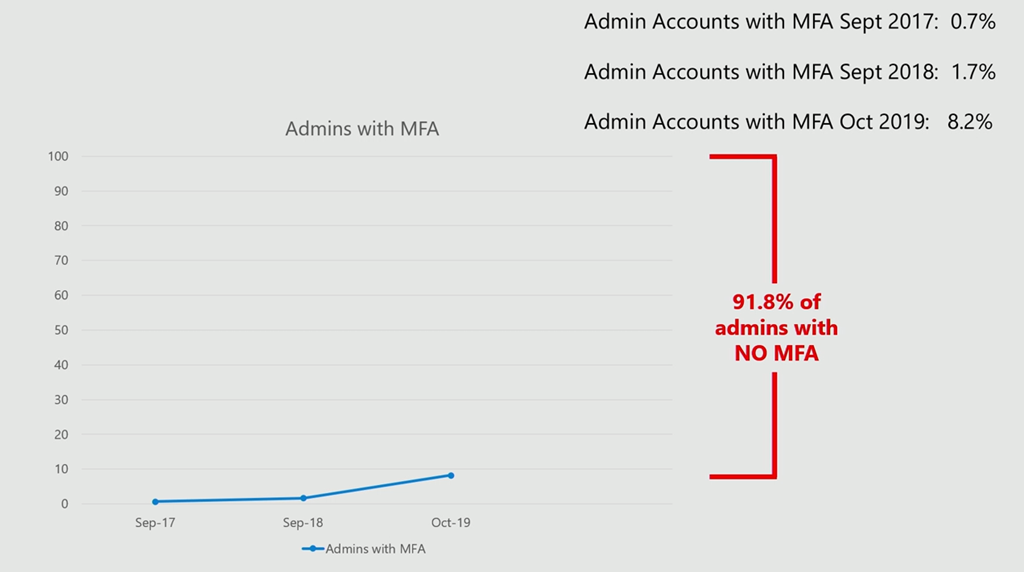
2. Implementing MFA on accounts is going to protect against an account breech from these spray attacks.

3. Spray attacks are facilitated via basic authentication which is enabled on all tenants by default for legacy support and has to be manually disabled! Enabling MFA DOES NOT automatically disable basic authentication since it allows support for static app passwords for applications that don’t support MFA out of the box. Disabling legacy authentication can cause issues with older applications that don’t support modern authentication. Disabling legacy authentication across the whole tenant needs to be done with caution. A user by user approach may be a better approach initially.

4. If your applications are complaining about failed authentication, check to see whether your account is not in fact the subject of a spray attack. Azure AD is trying to protect the account by locking itself out for a time period which affects good and bad attempts.

5. Use Cloud App Security and you’ll get a heads up on this sort of thing early on. Knowing what is happening makes it much easier to deal with and there really isn’t a better way than using Cloud App Security.

6. Use conditional access to restrict who can attempt to login to your tenant. Every one gets some free basic baseline policies from Microsoft but it is worth paying for Azure AD P1 to get the ability to be more granular. Don’t forget that Microsoft 365 Business comes with this granular Conditional Access ability out of the box now!

7. Consider having a ‘break glass’ emergency administrator account that you can call on to make admin changes if your only other existing administration account comes under attack and access becomes denied. This account doesn’t need a licence, it just needs permissions. It is hard to make changes to a tenant as an administrator if that account is subject to denial of service by a spray attack!

8. Even if you have MFA enabled, if you leave legacy authentication enabled, then even though attackers can’t correctly guess the password, their continued attempts could effectively result in a denial of service. This is very hard to mitigate, so look to eliminate all your legacy apps and protocols to prevent becoming collateral damage.

9. Review:

Azure AD and ADFS best practices: Defending against password spray attacks

as a good refence for the steps to protect your tenant against spray attacks. Remember, security is a journey and requires eternal vigilance and education.

10. Documentation before, during and after any incident is critical to knowing, understand and mitigating attacks. This all starts with preparation and knowing your situation and what can and needs to be done in a logical manner using tools like checklists. Your information is too important and valuable to leave to chance. Have a plan, your attacker does.

The more hardened your environment, the more likely attackers will simply move on to easier targets. Leaving legacy settings enabled is going to ensure they keep coming back to test your defences and potentially impacting your productivity as a side effect. In this case, once legacy authentication was disabled for the account the attacks ceased.

Sharing an Azure Information Protected file

image

Let’s say that we have a super secret text file with the contents shown above that we want to share with an external contact outside our Microsoft 365 tenant. We want to ensure that the document is encrypted and only viewable by those we have deemed to have permissions. We also want to restrict external users to have read only access to the file. How can we achieve that? With Azure Information Protection (AIP).

image

The first step in the process is to define an Azure Information Protection label with the permissions desired. You can see in the above that access for this label is defined for a Gmail account and the permissions for this account are set to “Viewer” (i.e. read only).

This label then needs to be added to a policy and pushed out to those Microsoft 365 users who will be creating documents, so it is available on their machines.

image

Users should already have the Microsoft Azure Information Protection Clients for Windows client installed on their machines. Doing so will add an Azure Information Protection banner to their Office desktop applications as well as an extension to Windows Explorer when they right mouse click on a file as shown above.

You typically use this Windows Explorer extension when you want to protect non-Office documents. You do this by selecting Classify and Protect as shown above.

image

This will launch the AIP client and allow you to apply the protection label that was created previously in the Azure portal. To apply that specific label to protect the document simply select the label name as shown above. You should then see the Sensitivity set to that level in the top left. Don’t forget to select the Apply button in the bottom right to actually protect the file!

SNAGHTML128bdeb6

You should now see that the file is a “Protected Text File” and that it has a new icon. You will also notice that the extension here is now .PTXT for protected text file.

image

That file can now be uploaded to OneDrive for Business and appears as shown.

image

If that protected file is now sent outside the organisation, using any method,  and is opened with the native viewer, here Notepad, you’ll note the message saying that the file is protected and to view it you must download the Microsoft’s protected file viewer. This is actually exactly the same client that was used earlier – Microsoft Azure Information Protection Clients for Windows client. So, this will need to be downloaded and installed on the destination machine to allow viewing/access of the file.

image

Once the Microsoft Azure Information Protection Clients for Windows client has been installed, when you open the file it should open automatically in the Azure Information Protection Viewer. If it doesn’t just launch the Azure Information Protection Viewer first, and then use it to open the protected document.

image

Because the document is protected the user will now be asked to enter their credentials as shown. This will be their email address.

image

In this case, the email address with permissions is a Gmail account which isn’t an Azure AD account like say an Office 365 account. Access will therefore be granted in a very similar way to the way OneDrive for Business does it’s sharing. This means, that after entering a non-Azure AD account, the account will be sent a verification code that needs to be entered as shown above.

image

Checking back in the Gmail account, the user sees the Account verification code and enters that at the prompt. You’ll also notice that this code is good for 30 minutes. Access outside that will require re-authorisation and a new code.

image

With the code entered, the user can view the document as shown above. You’ll notice that both the Print and Save As are greyed out.

image

Upon selecting the View Permissions option for the file, the user can see which permissions they are allowed. Here, as expected, the only permissions available are View.

Now there are some restrictions around the file types supported for classification, labelling and protection. You can read more about those here:

Admin Guide: File types supported by AIP unified labelling client

However, you should be able to protect just about any file and allow the Save As upon delivery to protect the file contents during transmission.

Azure Information Protection basically allows you to apply unique permissions to an individual document. This ensures that the permissions travel with, and are obeyed, no matter where or to whom the document is sent. That is a very powerful way to protection your information and as you can see, once you have configured the label it is very easy to apply to any document directly using Windows Explorer.

Azure Information Protection in some form is included in most Office 365 Enterprise SKUs but is also importantly included in Microsoft 365 Business. You cab also purchase it as a stand alone offering. Have a look at:

Requirements for Azure Information Protection

for more details.

Upload Bitlocker keys to Azure AD

Bitlocker is the Microsoft technology that allows you to full encrypt your Windows PC hard disk. This is a good thing as it provides additional security and protection for that device, especially if that device ever gets lost or stolen. Typically, Bitlocker will use the Trusted Platform Module (TPM) chip on your PC to provide the encryption key for BitLocker. This means that the user doesn’t have to type in a password to unlock their drive for use. Now having an automatically managed key raises a question, what happens if you actually need that key? If everything is automated and I never see the key how can I get access to it if needed? If, say, the original PC died and I wanted to recover the original encrypted drive how would I recover? To do that, you’d need the encryption key.

You can manually backup you BitLocker Recovery key to a file or USB drive however, if your device is Azure AD joined then that Recovery Key should be saved directly into Azure AD. Here’s how you check this.

SNAGHTML1d8570c5

If you are using something Microsoft 365 Business and Intune navigate to Intune inside the Azure portal. Select Devices.

image

Select All Devices.

image

Select the PC in question from the list.

image

Now select the Recovery keys option.

image

On the right you should see the Recovery keys listed. You’ll note here that I don’t see the expected BitLocker Key.

image

If you don’t see the Recovery Key for your device go to that device and open BitLocker management on your PC. Select the option to Back up your recovery key as shown.

image

Then select the option to Save to your cloud account as shown. This should then upload the Recovery Key to Azure AD, provided you have an Azure AD joined machine first of course.

image

If you return to the device in Intune and refresh the display, you should now see the Recovery key for you device as shown above.

image

If you do not have access to the Intune portal, perhaps because you are not an administrator, simply navigate to:

https://account.activedirectory.windowsazure.com

and login with your Microsoft 365/Office 365 credentials and view your profile. You should then see any registered device plus the option to get the BitLocker keys as shown. Remember BitLocker is for Windows devices, not iOS or Android.

Even though Azure AD joined machines should save BitLocker keys automatically, I’d suggest you go and have a look and make sure that they are indeed actually there! Best be sure I say.