Need to Know podcast–Episode 249

FAQ podcasts are shorter and more focused on a particular topic. In this episode I speak about what Office 365 Alerts is and provide some best practice suggestions.

This episode was recorded using Microsoft Teams and produced with Camtasia 2020

Take a listen and let us know what you think – feedback@needtoknow.cloud

You can listen directly to this episode at:

https://ciaops.podbean.com/e/episode-249-azure-information-protection/

Subscribe via iTunes at:

https://itunes.apple.com/au/podcast/ciaops-need-to-know-podcasts/id406891445?mt=2

The podcast is also available on Stitcher at:

http://www.stitcher.com/podcast/ciaops/need-to-know-podcast?refid=stpr

Don’t forget to give the show a rating as well as send us any feedback or suggestions you may have for the show.

Resources

FAQ 14

CIAOPS Patron Community

Azure Information Protection

@directorcia

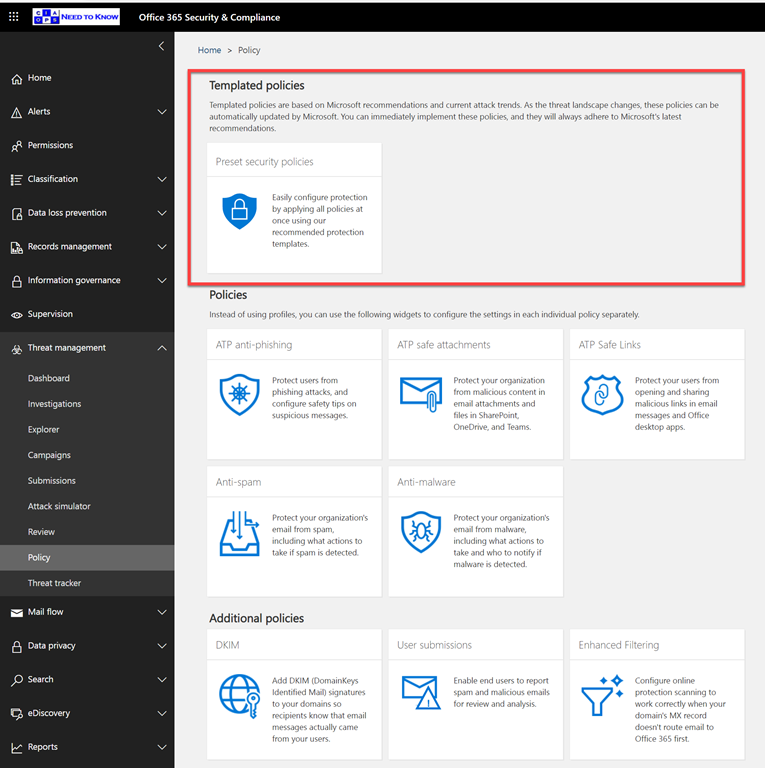
New templated email policies

image

If you dip into your Microsoft 365 Security and Compliance Center, then into Threat Management and then into Policy as shown above you might some new Templated policies.

image

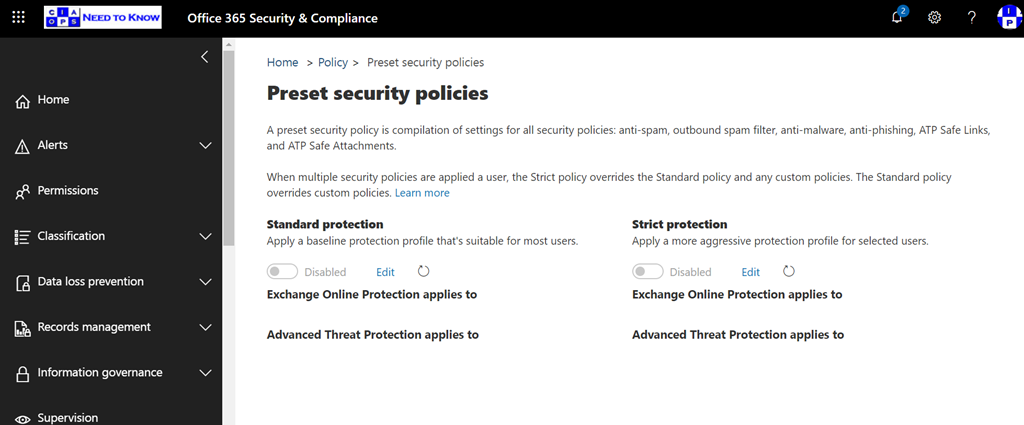
This will allow to select from two ‘best practices’ policies for your email protection from Microsoft. There is a standard and a Strict protection option.

You’ll find details about these here:

Preset security policies in EOP and Office 365 ATP

and if you want to know the low level settings that use you can find that here:

Recommended settings for EOP and Office 365 ATP

At the moment they are not enabled by default, but I can see the day when at the least the Standard template will be applied to all new tenants.

Of course, these are just a starting point for securing your email environment in but I certainly recommend that you do start with these templates because they apply a lot of best practices quickly and easily. They also configure not just Exchange Online but also Office 365 Advanced Threat protection (ATP) if that is part of the tenant.

August poll

ask-blackboard-chalk-board-chalkboard-356079

For August I’m asking people:

Are you considering or using Microsoft Defender ATP in place of other third party anti virus and end point security solutions?

which I greatly appreciate you thoughts here:

https://bit.ly/ciasurvey202008

You can view the results during the month here:

https://bit.ly/ciaresults202008

and I’ll post a summary at the end of the month here on the blog.

Please feel free to share this survey with as many people as you can so we can get better idea of what people are thinking when it comes to Microsoft Defender ATP.

Announcing the CIAOPS Azure Sentinel online course

pexels-mike-350784

If you want to get started with Azure Sentinel and don;t know quite where, then I have created an online course just for you.

You’ll find it here:

https://www.ciaopsacademy.com/p/getting-started-with-azure-sentinel/

Azure Sentinel is a cloud based security information and event management (SEIM) tool that you can easily connect to various data sources, both on premises and in the cloud. Once events are flowing you can then use Sentinel to analyse and report on those events quickly and easily as well as take automated actions if desired.


This course is aimed at helping you get up and running with Azure Sentinel quickly by introducing you to its main features and then showing you how to configure the most important settings to get it working for business.


If you want to quickly and easily ingest security logging data, analyse, report and act on that then Azure Sentinel is for you and this course will show you how to get up and running quickly. Inside you’ll find video tutorials, references, best practices, how-to’s and more.

I’ll continue to add more material to the course but once you sign up you’ll always have access to all the content.

Look out for more online courses coming soon.

Need to Know podcast–Episode 248

I speak with Michael Van Horenbeek who is one of the authors of a new Microsoft 365 Security eBook. We talk everything Microsoft 365 security as well a little about the challenges of publishing. I also get you up to date with the latest news from the Microsoft Cloud.

This episode was recorded using Microsoft Teams and produced with Camtasia 2020

Take a listen and let us know what you think – feedback@needtoknow.cloud

You can listen directly to this episode at:

https://ciaops.podbean.com/e/episode-248-michael-van-horenbeek/

Subscribe via iTunes at:

https://itunes.apple.com/au/podcast/ciaops-need-to-know-podcasts/id406891445?mt=2

The podcast is also available on Stitcher at:

http://www.stitcher.com/podcast/ciaops/need-to-know-podcast?refid=stpr

Don’t forget to give the show a rating as well as send us any feedback or suggestions you may have for the show.

Resources

@vanhbrid – Michael Van Horenbeek

@directorcia

Microsoft 365 Security for IT Pros eBook

Microsoft Lists begins general availability roll out to Microsoft 365

Connecting tasks experiences across Microsoft 365

Announcing Tasks in Microsoft Teams public rollout

Teams is shaping the future of work with low code features to enhance your digital workspace

The new Yammer is generally available worldwide

Announcing public preview of Microsoft Endpoint Data Loss Prevention

Introducing the Bing Enterprise Homepage

End users can now report “This wasn’t me” for unusual sign-in activity

Need to Know podcast–Episode 247

FAQ podcasts are shorter and more focused on a particular topic. In this episode I speak about what Office 365 Alerts is and provide some best practice suggestions.

This episode was recorded using Microsoft Teams and produced with Camtasia 2020

Take a listen and let us know what you think – feedback@needtoknow.cloud

You can listen directly to this episode at:

https://ciaops.podbean.com/e/episode-247-microsoft-cloud-app-security/

Subscribe via iTunes at:

https://itunes.apple.com/au/podcast/ciaops-need-to-know-podcasts/id406891445?mt=2

The podcast is also available on Stitcher at:

http://www.stitcher.com/podcast/ciaops/need-to-know-podcast?refid=stpr

Don’t forget to give the show a rating as well as send us any feedback or suggestions you may have for the show.

Resources

FAQ 13

CIAOPS Patron Community

Microsoft Cloud App Security options

@directorcia

Automating the deployment of an Attack Surface Reduction policy across multiple tenants

A while ago I wrote an article on:

Using the Microsoft Graph with multiple tenants

which showed you how to embed a ‘static’ Azure AD application in all the tenants you wish. I then showed how to give those ‘static’ Azure AD applications, in all those tenants, the appropriate permissions to access various tenant configuration settings in this article:

Reporting on multiple tenants with the Microsoft Graph

This meant that you could now run Microsoft Graph requests across all those tenants, securely and without needing a login to each tenant.

Recently, I also wrote about the:

Attack Surface Reduction rules for Windows 10

and how to set these in an automated way via PowerShell. I’m now going to bring these two concepts together and show you how to deploy an Attack Surface Reduction (ASR) policy into Microsoft Endpoint Manager across multiple tenants WITHOUT the need to login to each to do it!

Before you can do all this you’ll need to embed an Azure AD App into all the desired tenants. The information to do this I have previously covered here:

Using the Microsoft Graph with multiple tenants

Once you have an Azure AD application inside your tenants you can continue to use this for continued configuration processes like this. Thus, you only need to add an Azure AD application to the desired tenants once. You can then simply re-use it as needed.

With the Azure AD application in place, the next step is to provide the appropriate permissions for that Azure AD application to do to what it needs. In the case of working with ASR the Azure AD application will need the following Graph API permissions:

Read and write Microsoft Intune Device Configuration and Policies

and

Read Microsoft Intune Device Configuration and Policies

You can add these manually which I have covered off previously here:

Using interactive PowerShell to access the Microsoft Graph

However, I have also made available an automated tool to do this.
SNAGHTML1c9be6f2

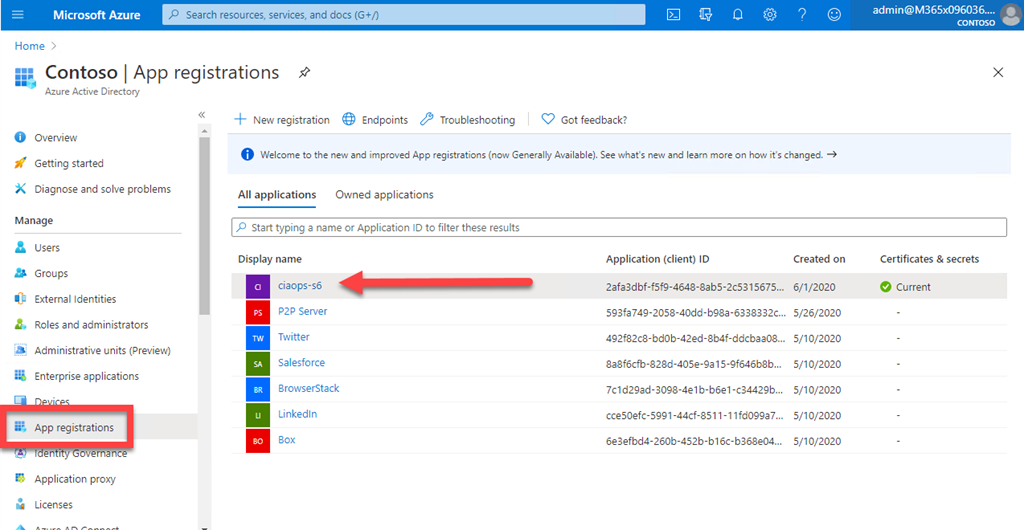
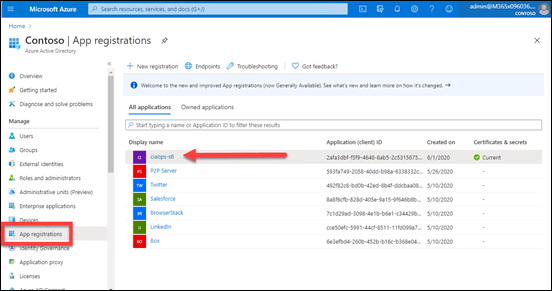
In this case, my pre-existing Azure AD application is called ciaops-S6 as shown above.
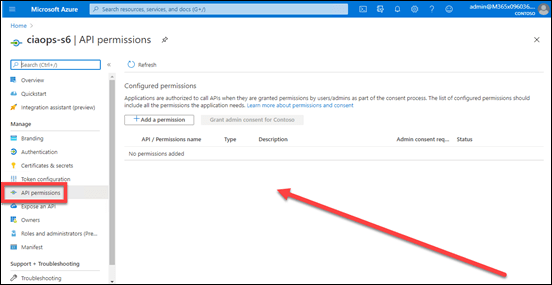
SNAGHTML1ca0c8b3

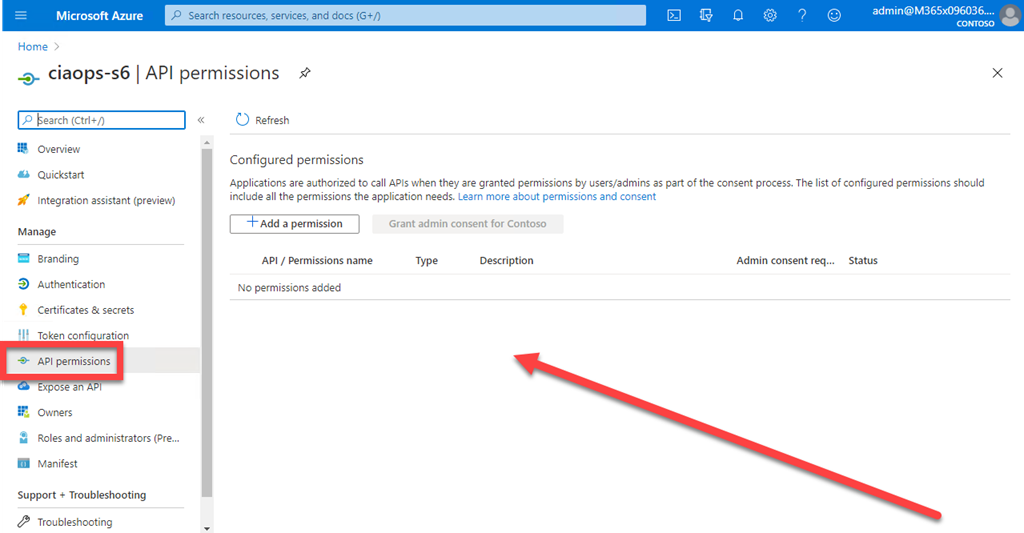
In this first tenant, you see that there are current no API permissions associated with my Azure AD application.
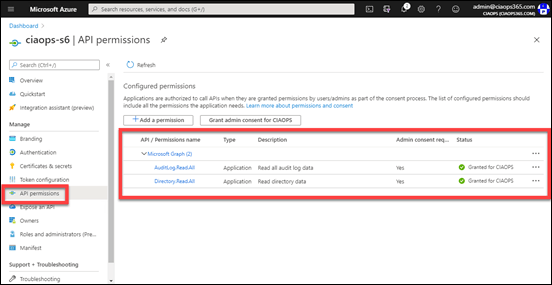
image

In the second tenant, there are already existing permissions as you can see above, but they currently don’t include the ones I want detailed above, so they will also need to be added here.

What I want to achieve for both tenants, is to add these two Graph API permissions:

  • Read and write Microsoft Intune Device Configuration and Policies
  • Read Microsoft Intune Device Configuration and Policies

to my existing Azure AD application, while also leaving any existing permission in place.

You’ll need to visit my Office 365 GitHub repository and down the program:

https://github.com/directorcia/Office365/blob/master/graph-adapp-per.exe
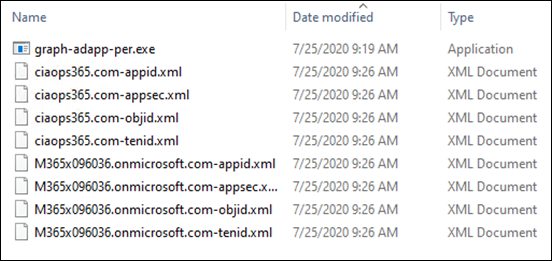
image

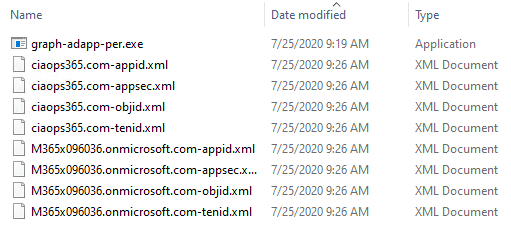
You’ll need to put the graph-adapp.per.exe in the same directory as the XML configuration files for the tenant, as shown above. Then you’ll need to run:

graph-adapp-per.exe 89a0934cc6064c1a95caffdaec4e5429

The 89a0934cc6064c1a95caffdaec4e5429 parameter tells my program which permissions you wish to add to the existing Azure AD application.
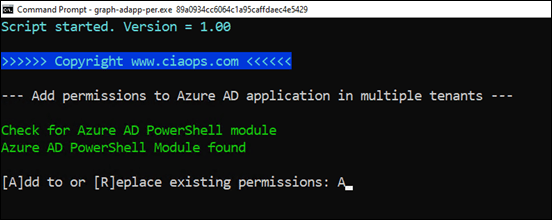
image

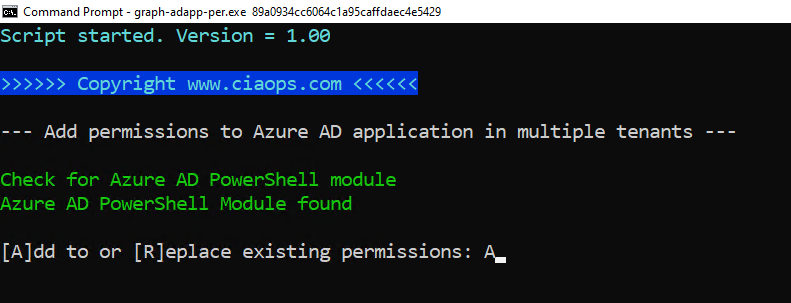
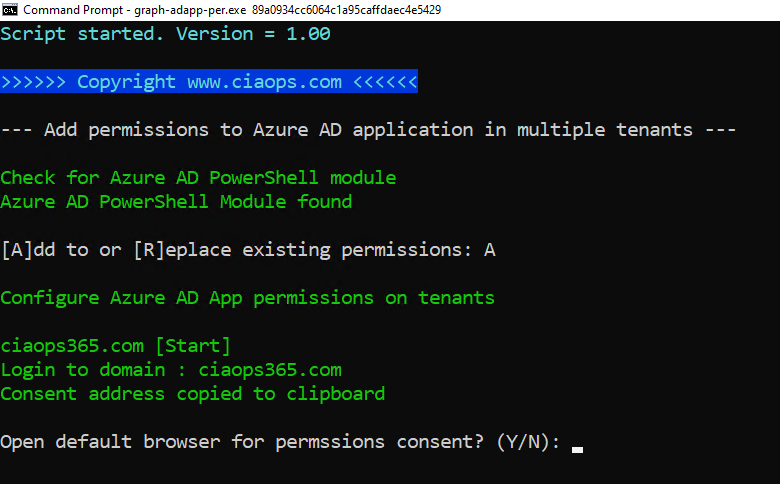
The program will check whether the Azure AD PowerShell has been loaded. If not, it will terminate.

In this case enter A when prompted to ADD permission to those that exist.
image

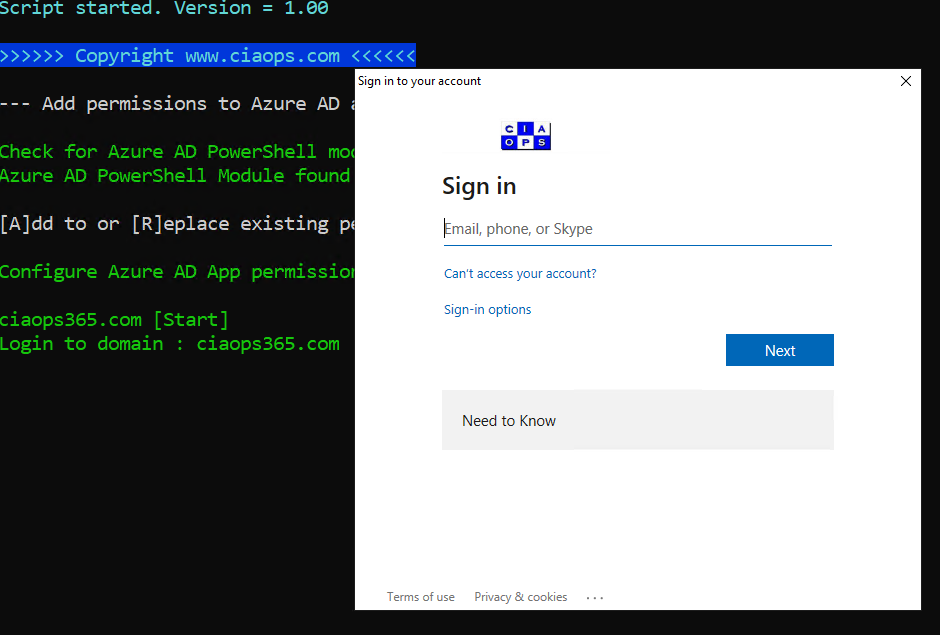
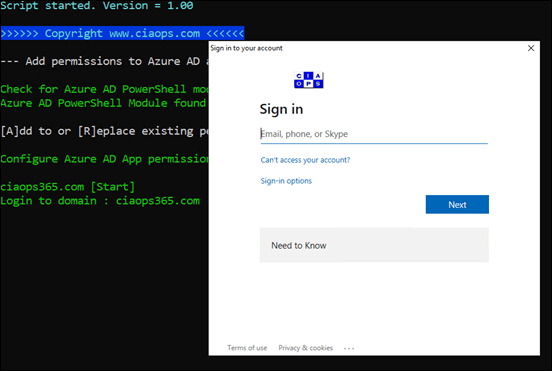
You’ll then be prompted to login as an administrator to the first tenant. This is required once for each tenant because you are ADDING permissions to an existing Azure AD application. Once these permissions have been added, you won’t need to repeat for any access to the same properties. For example, say you later on want to configure the Microsoft EndPoint Manager Firewall policy, you won’t need to complete this permissions step because what you are doing here adds the same  permissions you need to do the Firewall policy.
image

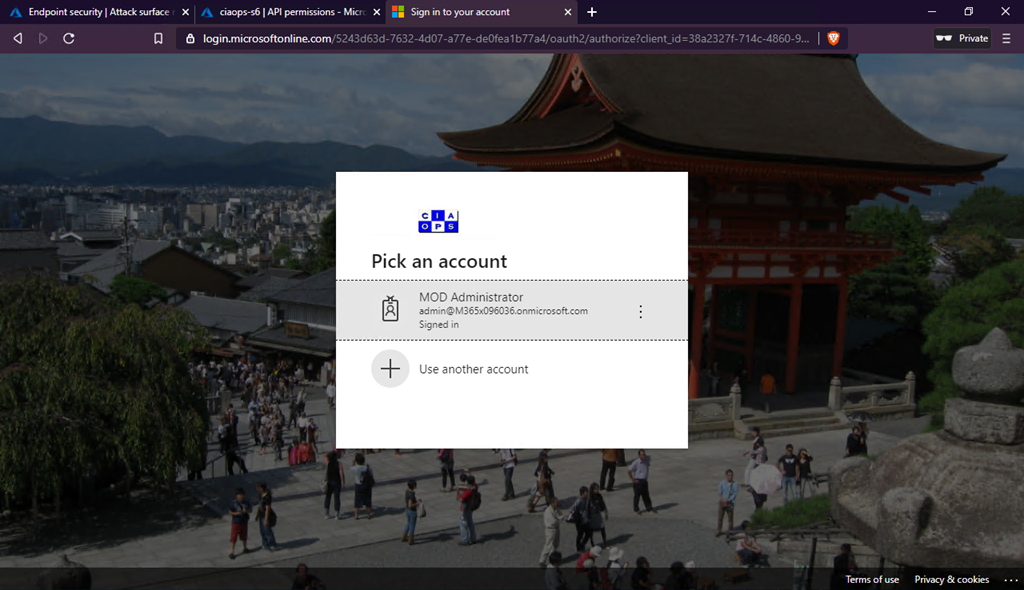
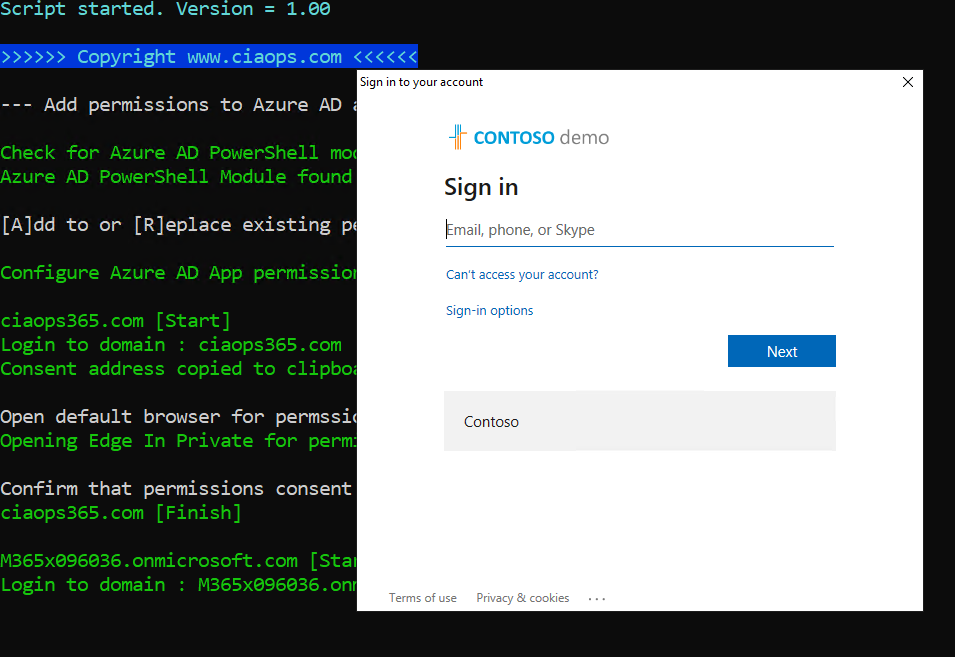
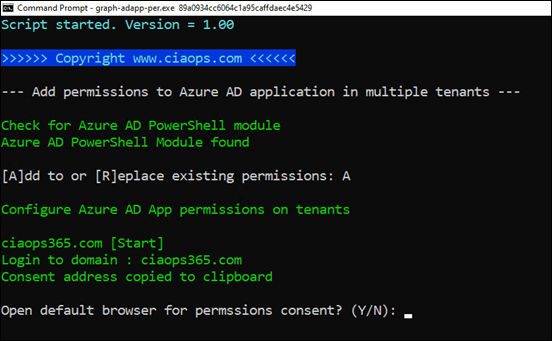
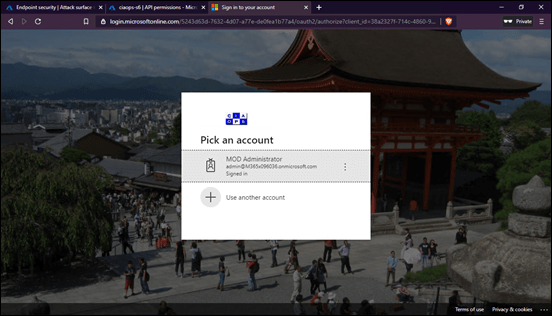
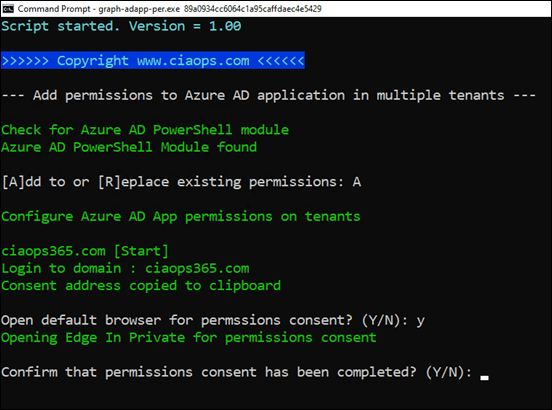
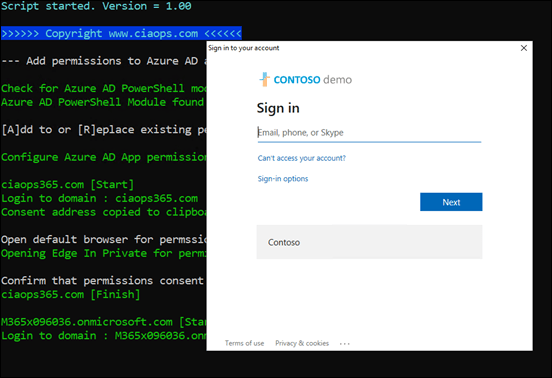
The required permissions are added and you will be then prompted to ‘consent’ to these. Unfortunately, I can only find a way to do this via a browser. Selecting Y here will open a browser in-private mode and allow you to complete consent. The required ‘consent’ URL is also copied to the clipboard, so if you already have the tenant open is a browser somewhere, just paste the clipboard there to complete ‘consent’ like so:
image

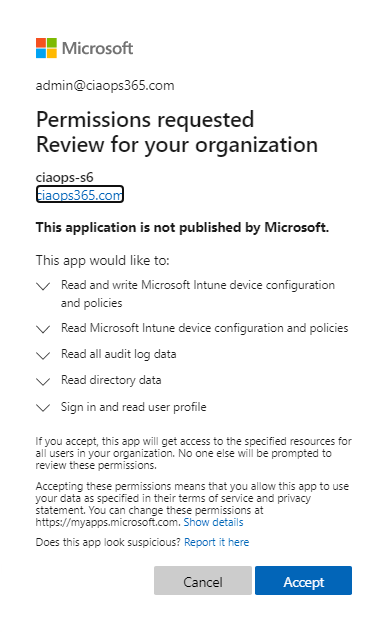
image

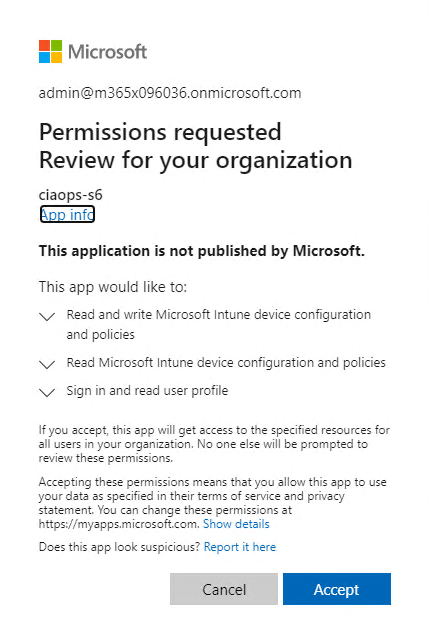
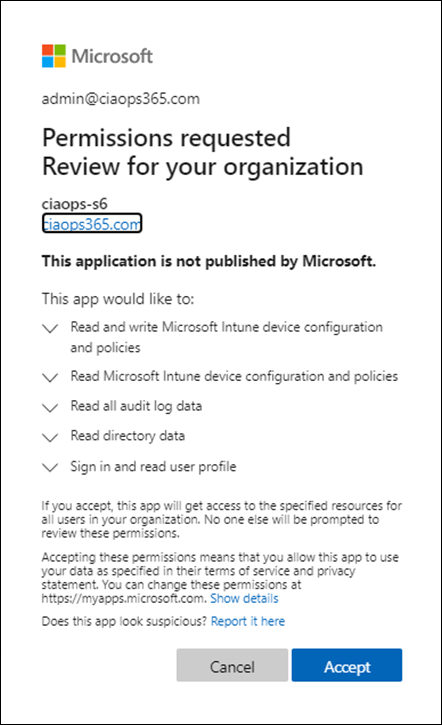
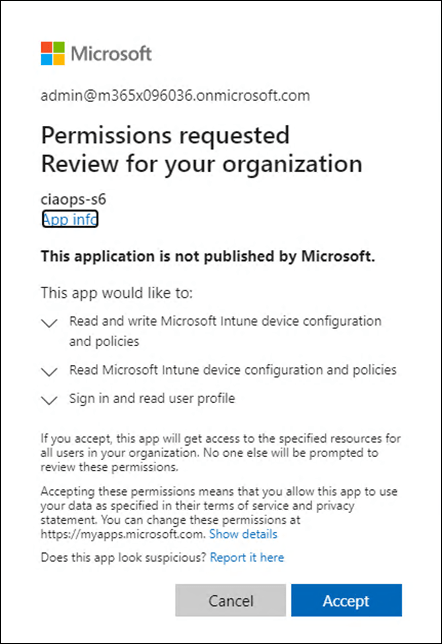
You should now see the permissions request as shown above that you need to Accept. What you see will vary slightly. You will always see:


  • Read and write Microsoft Intune Device Configuration and Policies

  • Read Microsoft Intune Device Configuration and Policies

as these are new permissions. However, if you have existing rights, as this first tenant did, you will also see those.

Simply select Accept to continue.
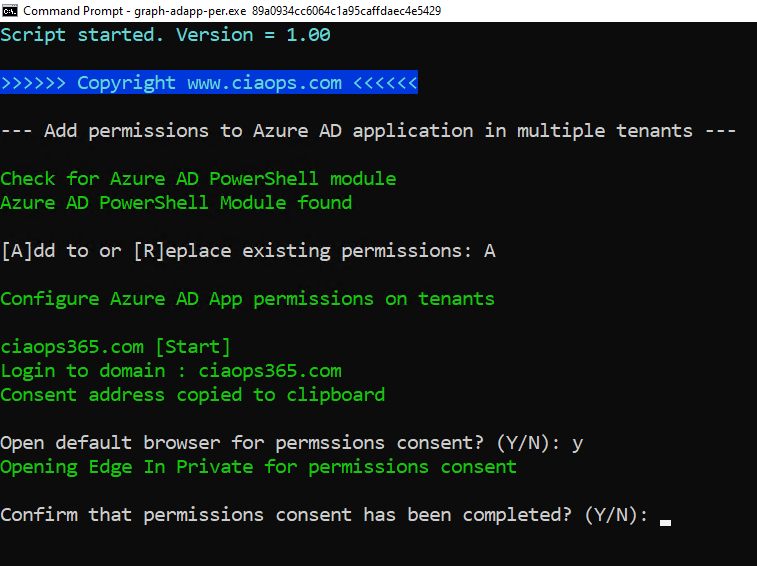
image

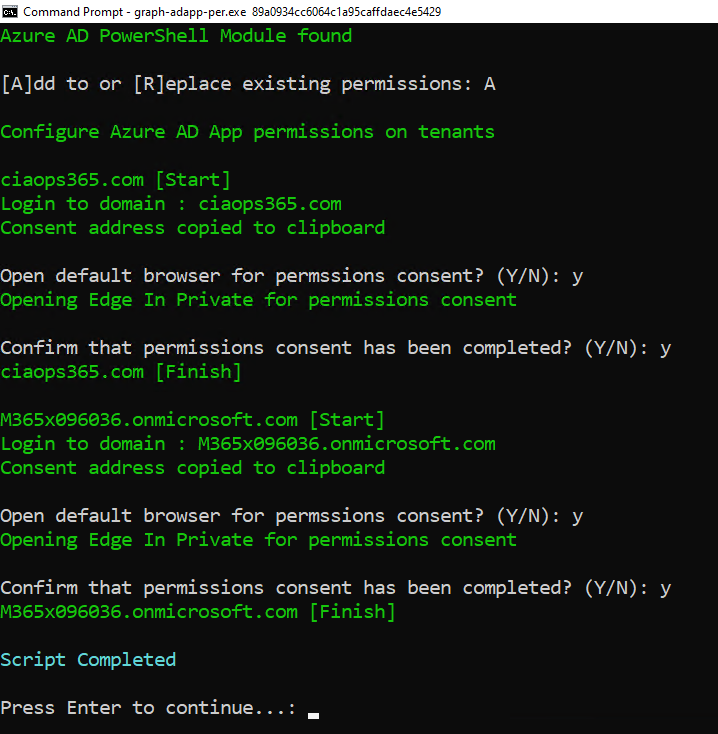
If you now return to the program, you’ll be prompted to confirm that ‘consent’ has been completed. Enter Y to continue.
image

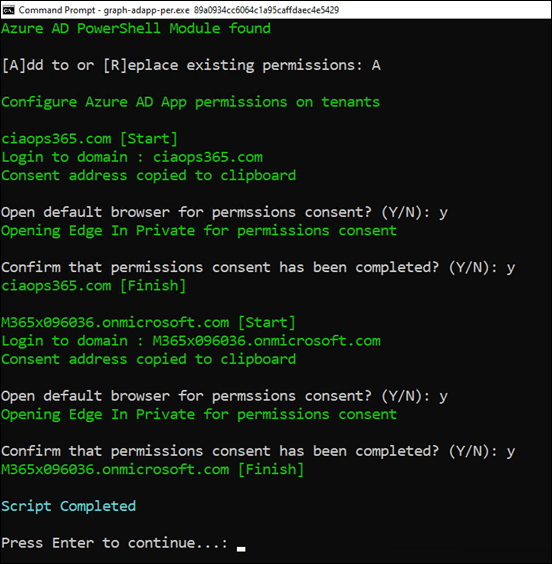
That will complete the first tenant and then commence the same process on all subsequent tenants as shown above.
image

The only difference you’ll probably see is the list of permissions you need to accept. This is because, in this case, the option to ADD permissions was selected. The above shows you the prompt from the second tenant in this example which started off with no permissions for the existing Azure AD application.
image

Once the program is complete, it will pause as ask you to hit ENTER as shown.
image

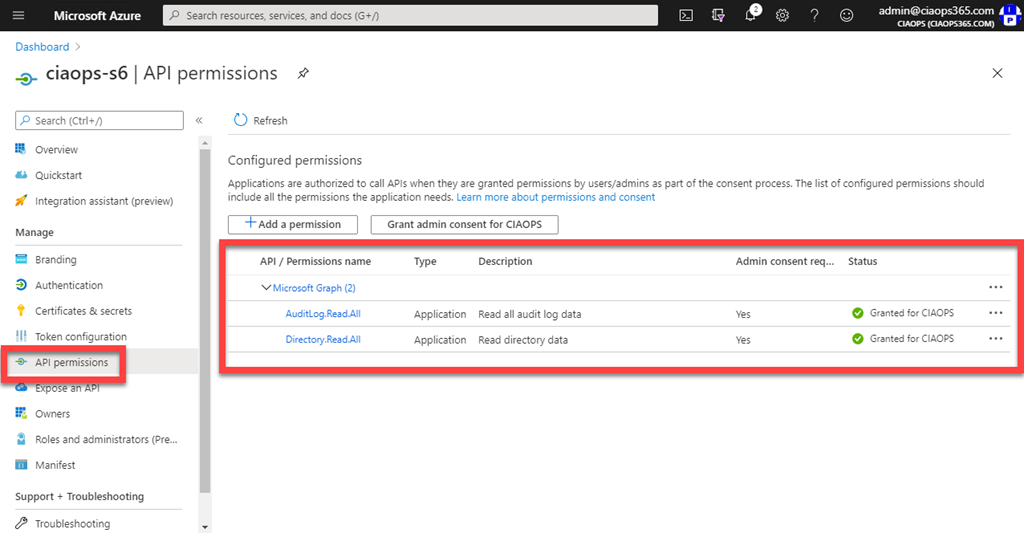
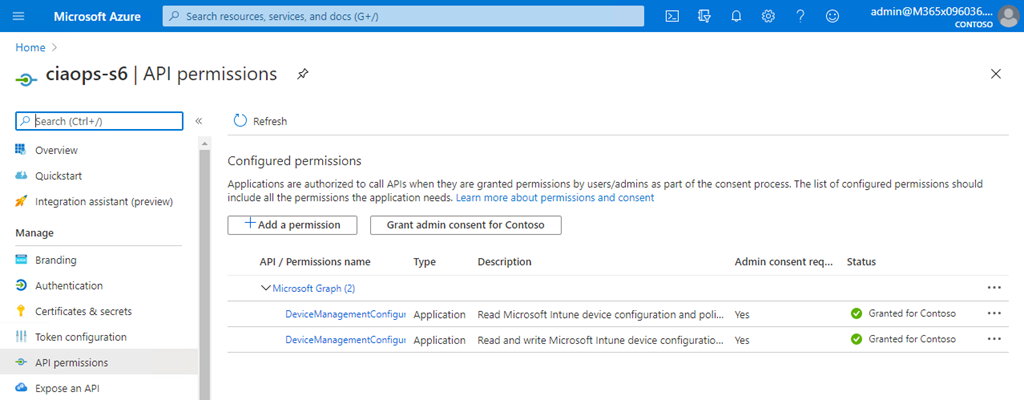
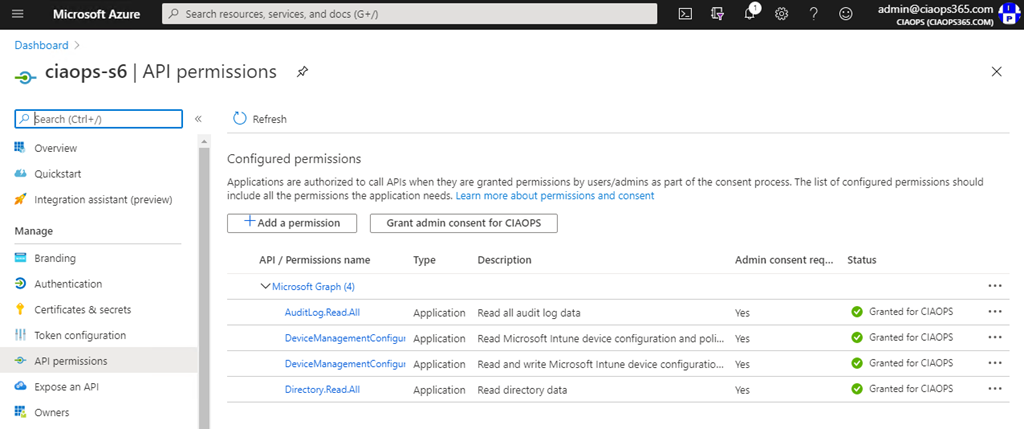
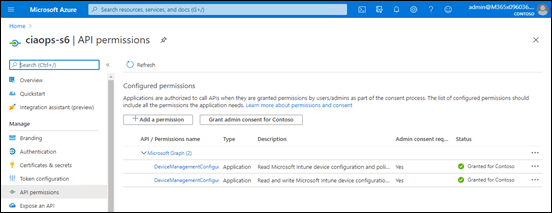
If you now look at the API permissions for the Azure AD application that was added you should see that they now have:


  • Read and write Microsoft Intune Device Configuration and Policies

  • Read Microsoft Intune Device Configuration and Policies

As shown above.
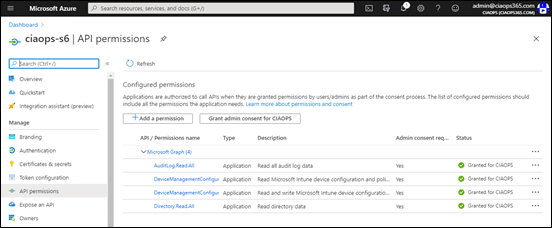
image

And if you check an Azure AD application that already had permissions, like the second example here shown above, you will see that the appropriate permissions have been added to any that previously existed.

Remember, you only need to go through this process when you want to ADD permissions to your Azure AD application. As mentioned, now that these permissions have been added to the Azure AD application you can work with just about any EndPoint Manager configuration for the tenant.

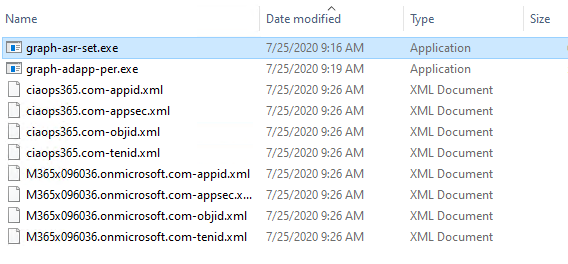
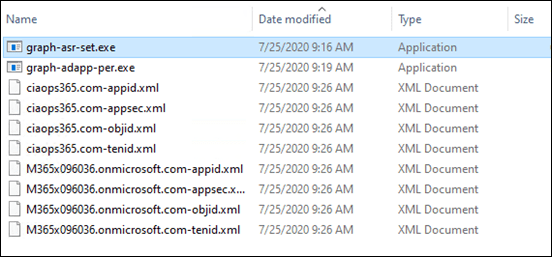
Now that the permissions are in place, the next step in the process is to run the program to add the ASR policy to EndPoint Manager for the tenant. To do that you’ll need to download the following program from my Office 365 GitHub repository:

https://github.com/directorcia/Office365/blob/master/graph-asr-set.exe
image

and copy into the same directory you have been using as shown above. That is the one with all the tenant configuration files.

Run the program:

graph-asr-set.ps1
image

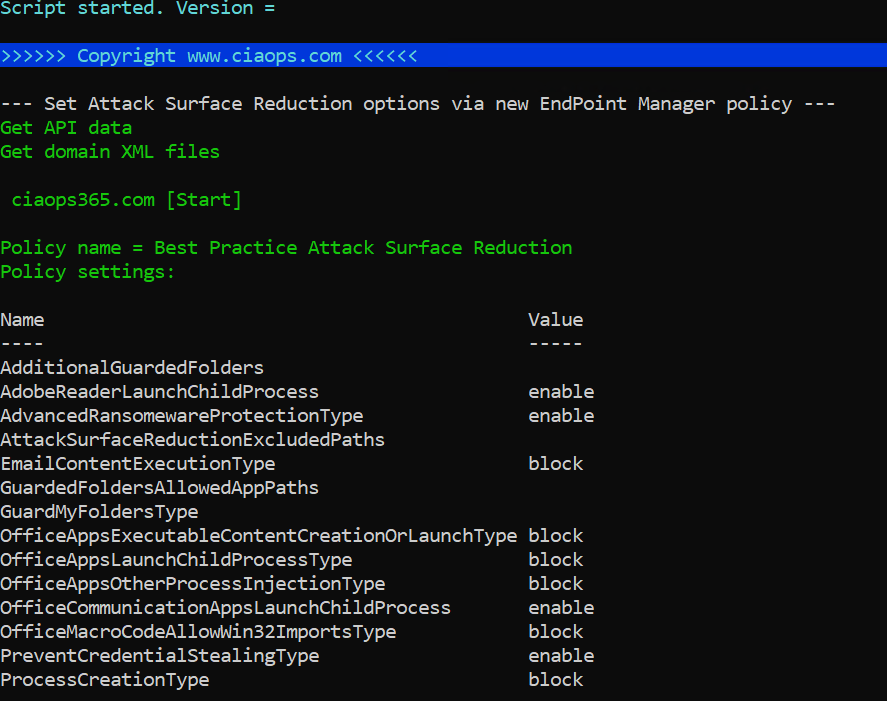
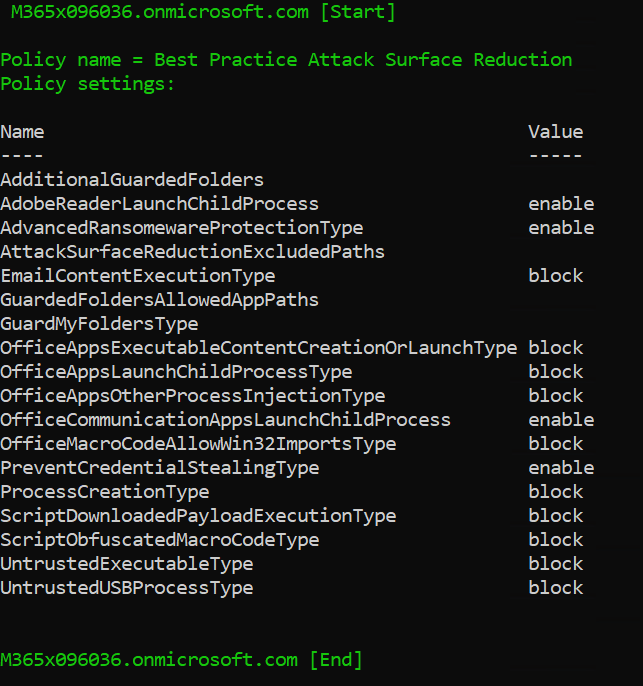
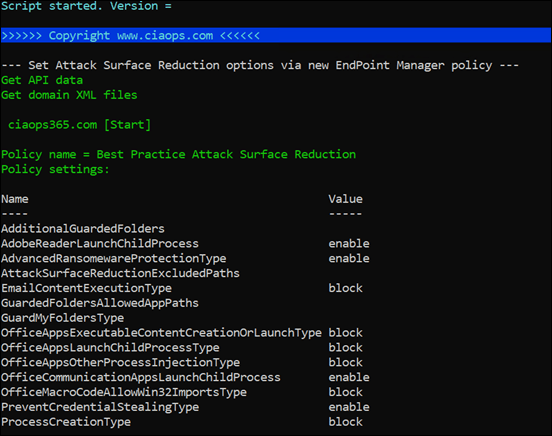
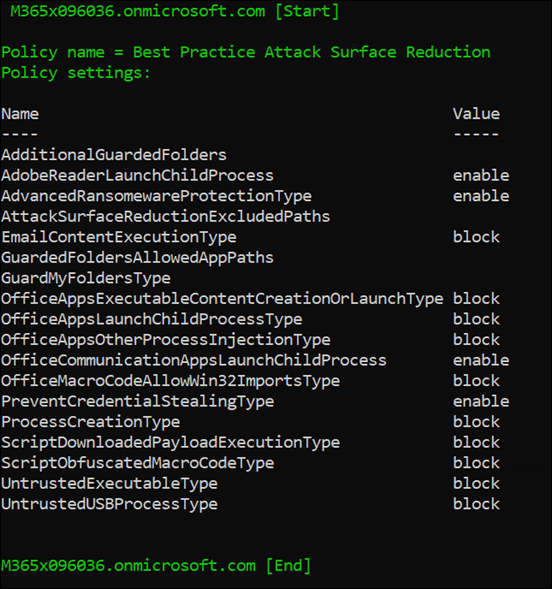
The program will run and work through the required tenants without any prompts.
image

You will see the policy settings for each tenant, as shown above, as a confirmation.
image

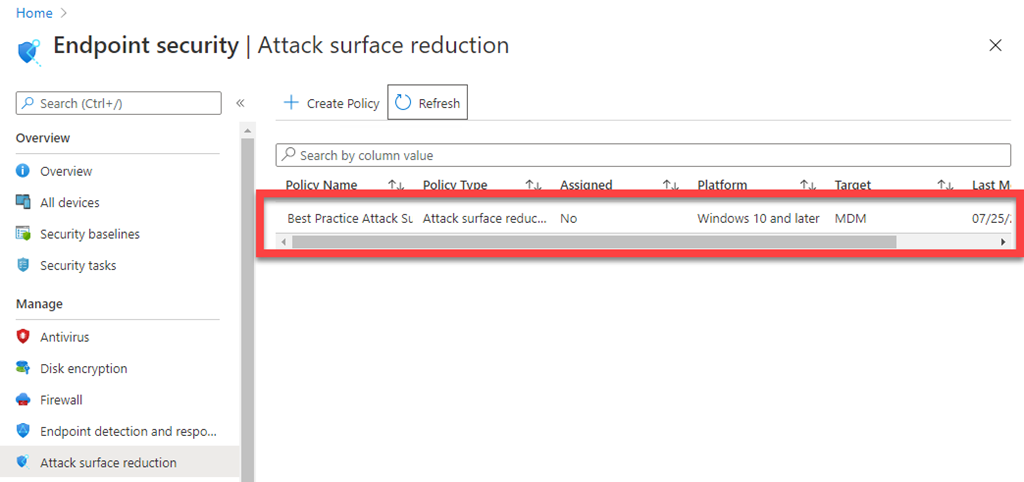
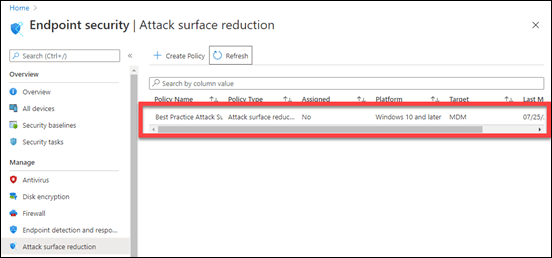
If you return to Microsoft EndPoint manager for the tenants and refresh that ASR policy listing as shown above, you should a new ASR policy as shown.
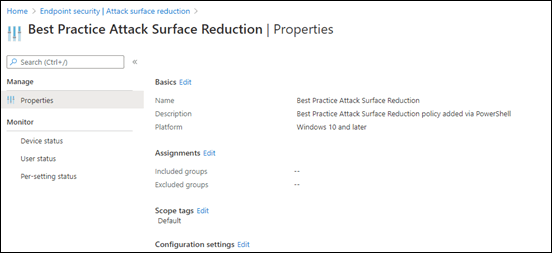
image

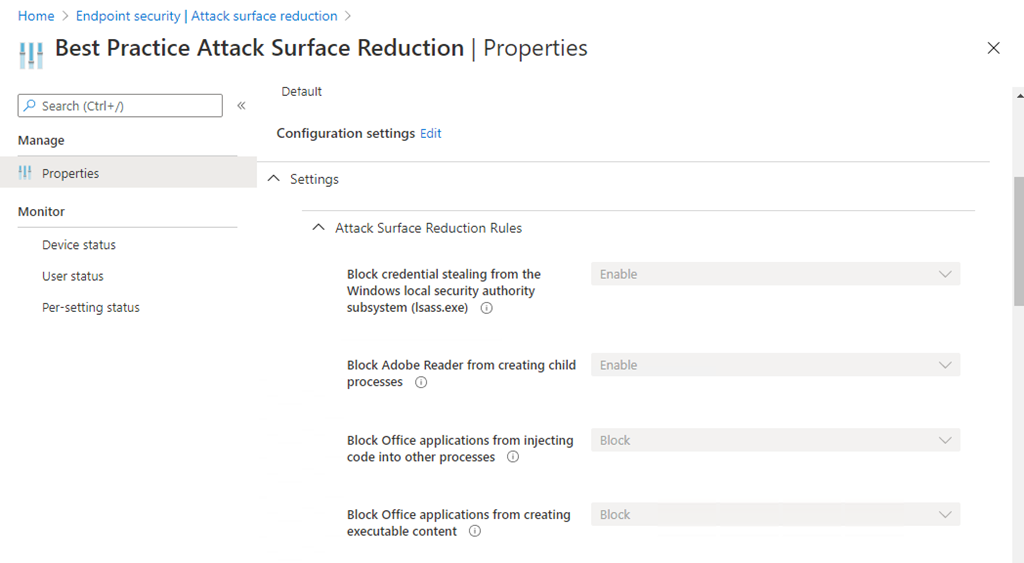
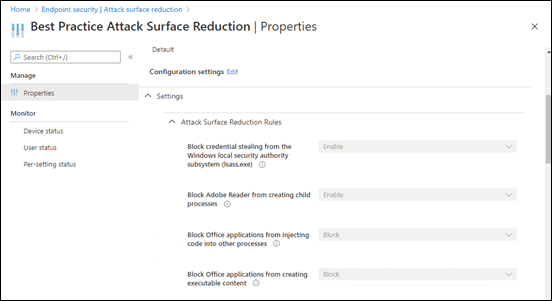
If you scroll down to the Configuration settings:
image

You will see that the individual settings have been configured.
image

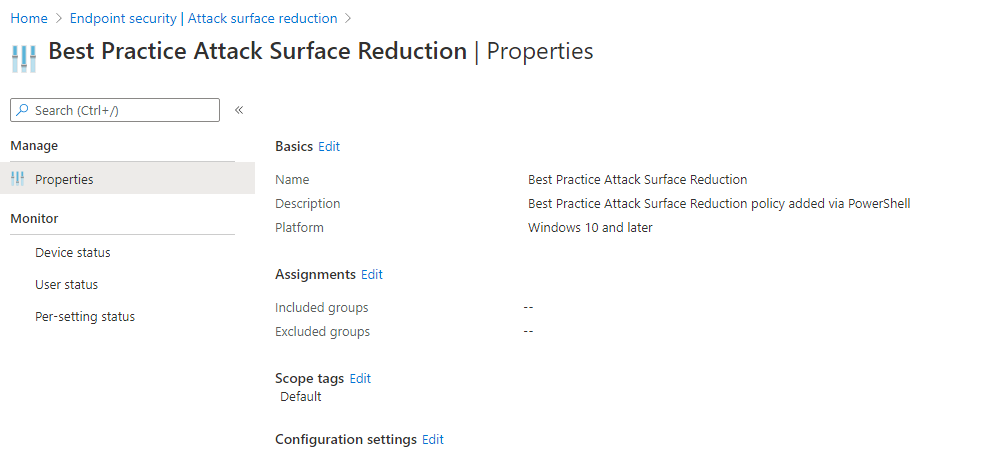
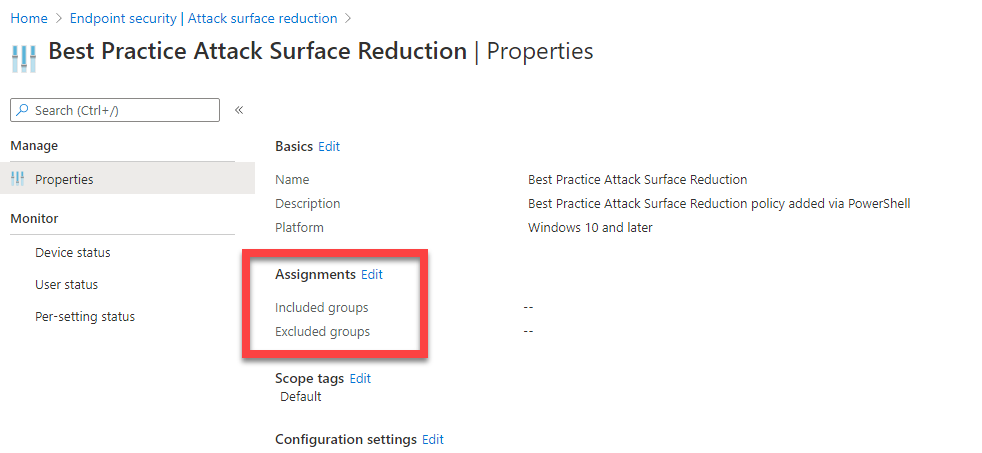
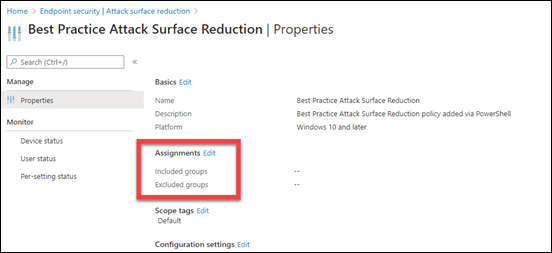
The only you’ll need to do manually, is to actually assign this policy to your environment as shown above. I have chosen not to do this automatically for all users and or devices in the tenant, because there may need to some tweaking of the individual settings as applying to a test group first to ensure there are no issues. Maybe in a future iteration I’ll look at providing that option.

If you run the graph-asr-set.ps1 program again, it will create an additional policy of the same name with the same settings. Another to-do item will be a program to adjust an existing script.

If for some reason you wish to remove ALL the permissions from your Azure AD application in ALL your tenants, use the command:

graph-adapp-per.ps1 693cb755244848a2a556025710cec086

Youi can also, of course, do this manually via the portal as well as selectively by the same method if you wish. However, I see no major not to leave the permissions in place, having gone to all that trouble, so you can make additional configuration changes later on (without the need to login to the tenants as I will again point out!)

So there you have it! An automated way to set ASR policies in Microsoft EndPoint Manager, across multiple tenants, without individually logging in, using the Microsoft Graph.


Attack surface reduction for Windows 10

You may not be aware, but Microsoft has a number of ways that you can implement Attack Surface Reduction (ASR) settings in your Windows 10 environment. You read about these here:

Reduce attack surfaces with attack surface reduction rules

In essence, these rules reduce the items that maybe exploited by attacks on Windows 10 desktops. In reality, they are a good thing to enable if you want to be more secure.

Microsoft has a number of ways you can implement these.

SNAGHTML5612e1b

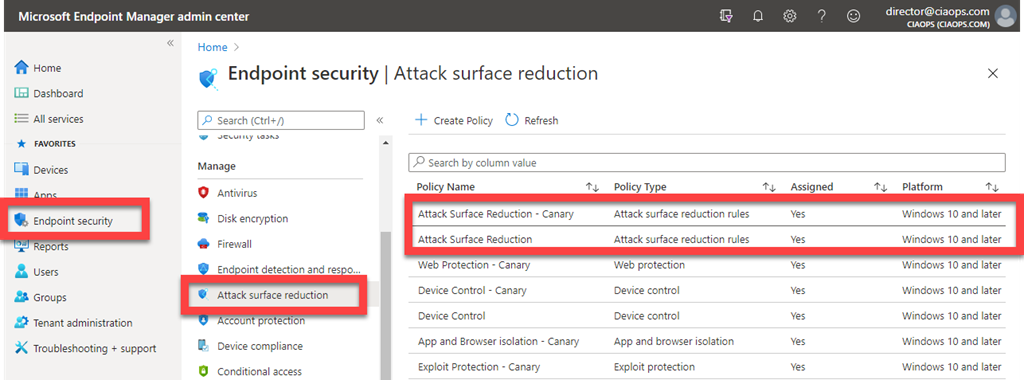
The preferred option is to use Microsoft EndPoint Manager as shown above. To do this navigate to:

https://endpoint.microsoft.com/

Select Endpoint security on the left, then Attack surface reduction and create a new policy on the right.

image

You can then enable all the settings you wish such as:

Block executable content from email client and webmail

Once you save the policy, it can be deployed to the devices configured in Microsoft EndPoint Manager. This will typically mean those devices have a license for Intune and use that or Configuration manager to deploy such policies. However, it will also support others forms of basic MDM that you may have (like the basic Device management that comes with most Microsoft 365 plans)

image

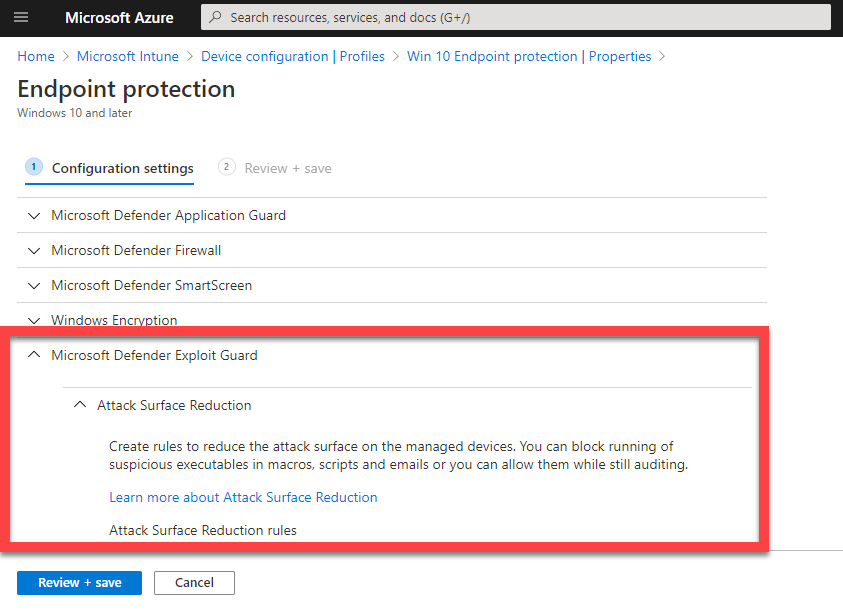
You can also deploy these using the EndPoint protection configuration policies for Intune as shown above. You’ll find the ASR items under the Microsoft Defender Exploit Guard area in the policy.

Group policy setting showing a blank attack surface reduction rule ID and value of 1

You can also use Group policy as seen above.

And of course you can also do it via PowerShell. if you do elect to use PowerShell, which is great for a stand alone machine, there is a handy tool you can use here:

https://github.com/hemaurer/MDATP_PoSh_Scripts/tree/master/ASR%20GUI

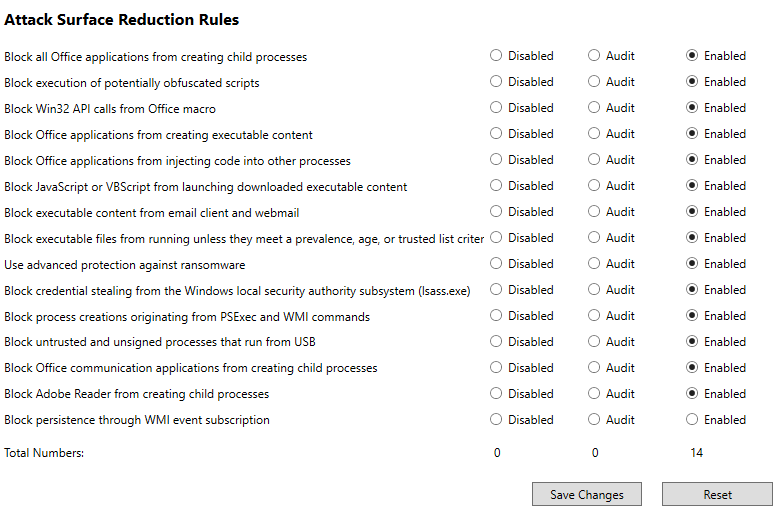
which, when run, looks like:

image

All you then need to do is select your options and save them to update the policies on the local machine.

The options above, plus more are detailed here:

Enable attack surface reduction rules

and I encourage you to visit the page and implement the option that works for you and your environment. For me, using Microsoft EndPoint Manager is the quickest and easiest method to deploy it across my devices. However, you can use PowerShell to quickly and easily implement it for a single device. Using ASR will make your Windows 10 devices more secure, and we all want that, so what are you waiting for?