I’ve moved sec-test

show a man moving a lot of files that are contaminated and need special care to move them

It was bound to happen sooner or later, my security testing PowerShell script called sec-test.ps1 is being detected as malware on local machines.

Thus, I have relocated it from more common Office365 repo into the less common examples repo here;

https://github.com/directorcia/examples/blob/main/sec-test.ps1

which contains a range of security testing files that typically get detected as malicious and is generally not recommended to sync locally.

Thus, you can sync the Office365 repo down to your desktop to do all the Microsoft 365 PowerShell connecting and use the utilities there without something in there being detected as malware.

Using PowerShell to get Secure Score history

image

I’ve created a new PowerShell script that is available in my Github repo:

https://github.com/directorcia/Office365/blob/master/mggraph-sscore-get.ps1

that when run, will use the Microsoft Graph (via the mggraph SDK) to return the history of the tenant you login to.

If you do not already have the Microsoft Graph permissions to allow this access you’ll need to allow these once. The scope is securityevents.readwrite.all. You’ll also need to have the Microsoft Graph PowerShell module installed, which can be found here:

https://www.powershellgallery.com/packages/Microsoft.Graph/

Given that connection to the Microsoft Graph can be persistent at times, I’ve also created this simple Graph disconnect script:

https://github.com/directorcia/Office365/blob/master/mggraph-disconnect.ps1

that will also close down any Graph sessions that exist. This is handy when you want to use the Microsoft Graph with other tenants.

I have a few more script ideas for the information you get using this method. More about those soon.

Adding a secret to an Azure Key Vault

An Azure Key Vault is a great location for storing credential securely. In a recent article I cover how to:

Create a new Azure Key Vault

next, I want to cover how you can actually put credentials in there.

image

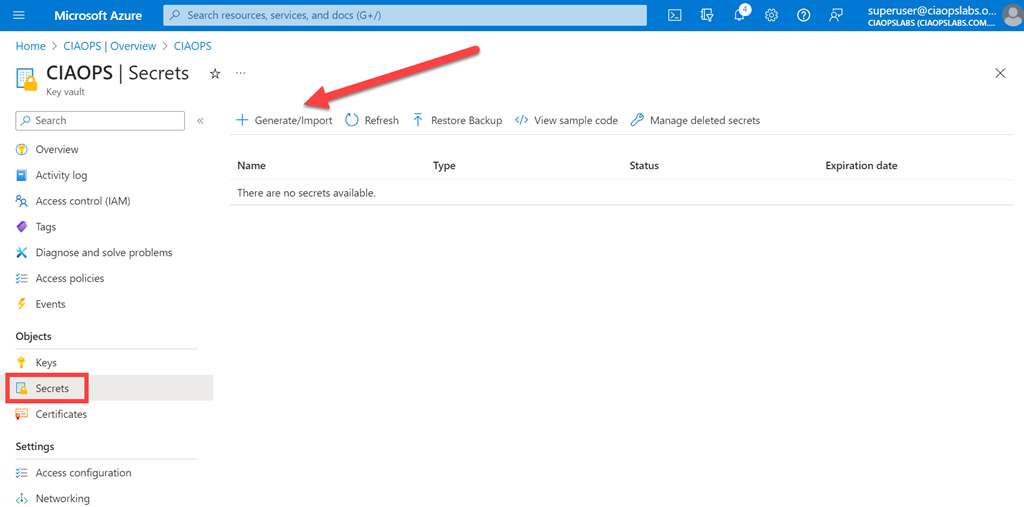
Step one is to navigate the Azure Key Vault you have created, and select the Secrets option from the menu on the left as shown above. From the menu on the right select +Generate/Import as shown.

image

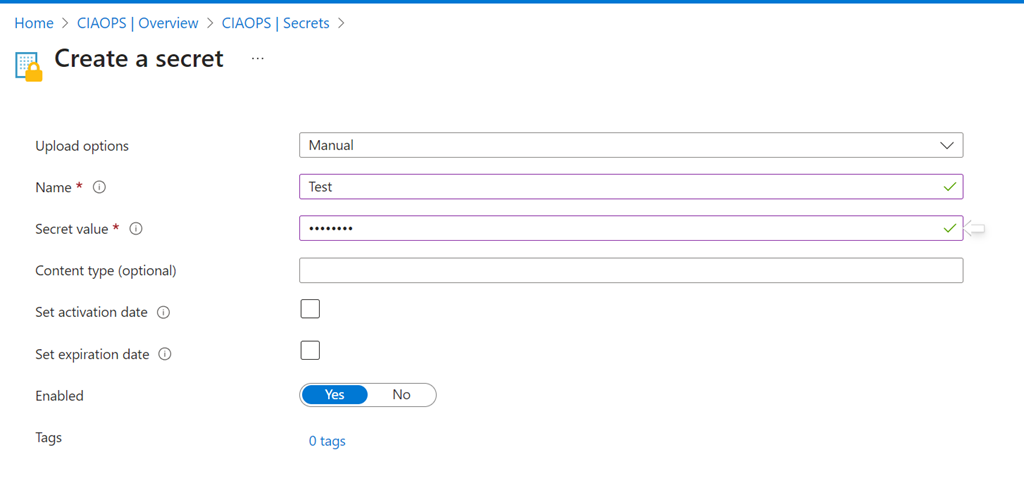
Simply complete the fields as shown and select the Create button at the bottom of the window.

You will note that your secret (say a password) has a Name and potentially an activation and expiration date if desired. You can also enable or disable if desired.

image

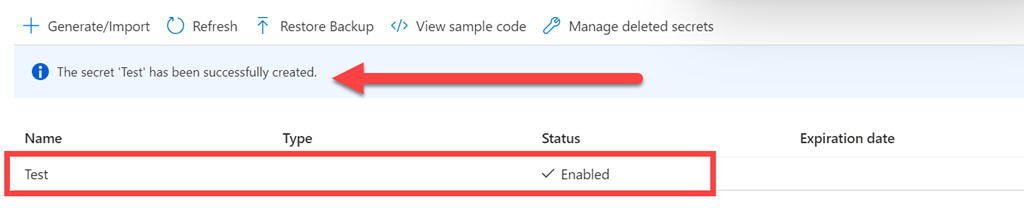
You should now see that the secret has been created as shown above. To view the details simply click on the secret.

image

Here you’ll now see all the details about the secret. The good thing about information about an Azure Key Vault credential is that you can easily update it if required and previous versions will be retained. You can also control access to this individual secret via the Access control (IAM) on the menu on the left hand side.

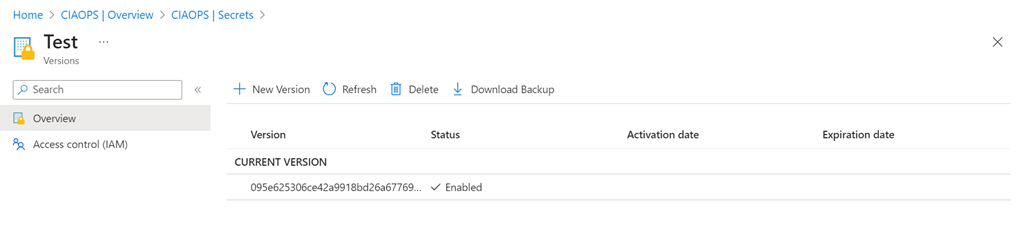
If you now select the Current version displayed in the middle of the page you will get more details like so:

image

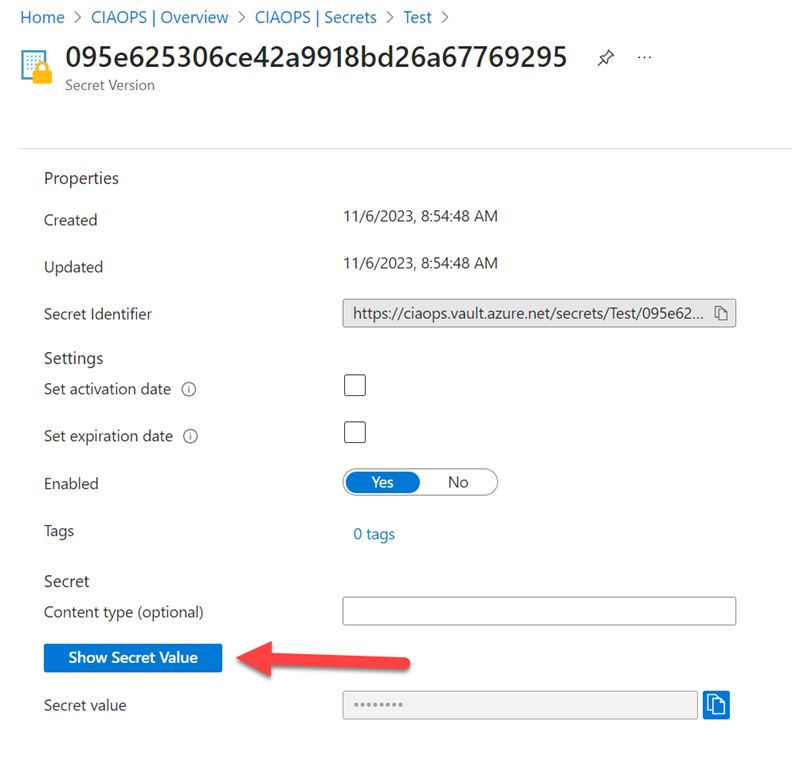
Here, you can update the settings for secret as well as reveal what the secret is by selecting the Show Secret Value button as shown.

image

You see the super secret password shown above.

One of the main reasons reasons for using an Azure Key Vault is that we can access this information also programmatically, for example by using PowerShell.

image

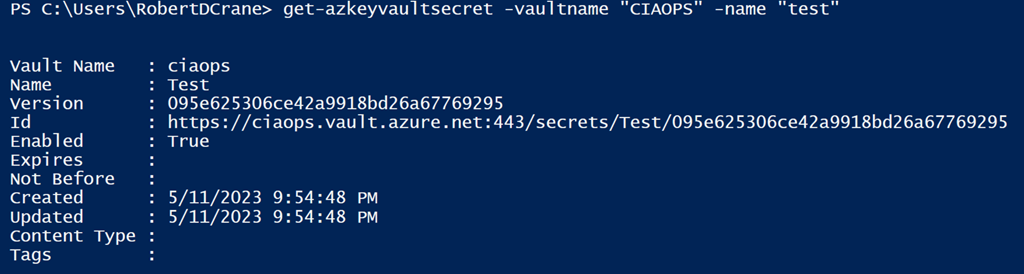
If I connect to Azure using the Azure PowerShell module with a user that has rights to access the vault and secret, I can run a command like:

get-azkeyvaultsecret -vaultname “vaultname” -name “secretname”

and the results will be shown above. But how do I get to the actual secret?

image

Basically, you repeat the previous command but this time assign it to a variable and add the –asplaintext option, like shown above. The command would look like:

$pwd = get-azkeyvaultsecret -vaultname “vaultname” -name “secretname” –asplaintext

Now the secret value (say password) is in the variable $pwd for use in my code.

PowerShell is not the only method you can use to obtain what is in an Azure Key Vault. You can use something like Power Automate and Flow, which I’ll cover off in an upcoming articles. However, PowerShell allows just about any function with vaults including creating, reading, deleting, updating and so on. Thus, using an Azure Key Vault provides a secure yet flexible method of storing credentials you want to protect as well as make potentially portable (i.e. you can use them anywhere on any device that runs PowerShell and connect to the internet).

So an Azure Key Vault provides secure storage for credentials that you can easily access programmatically using something like PowerShell and Power Automate. What can now be achieved with this? Stay tuned to find out more.

Connect to PnP PowerShell script

The latest pnp.powershell module (V2.X and above) now won’t work with PowerShell v5. Thus, I have updated my PnP connection script:

https://github.com/directorcia/Office365/blob/master/o365-connect-pnp.ps1

to accommodate this.

Thus, if you attempt to run this script in PowerShell version 5 with the latest pnp.powershell module you will typically see:

image

and the error is:

Could not load file or assembly ‘System.Management.Automation, Version=7.2.0.0, Culture=neutral, PublicKeyToken=31bf3856ad364e35’ or one of its dependencies. The system cannot find the file specified.

However, when you run the script in PowerShell V7 you’ll see:

image

that the connection is successful.

I have also taken the opportunity to remove the dependency in the script as well on the now depreciated module MSONLINE and replaced it the Microsoft.Graph module.

This kind of signals the beginning of the end for modern cloud modules in PowerShell 5. However, some still require PowerShell 5 but I expect that to change.

In summary, the latest pnp.powershell modules require PowerShell version 7 and I have updated my connection script to accommodate this.

PowerShell connection to M365 Compliance center no longer users WinRM

image

For the longest time, if you needed to connect to the Microsoft 365 Security and Compliance center with PowerShell you needed to allow WinRM to use basic authentication.

If you therefore ran my connection script:

https://github.com/directorcia/Office365/blob/master/o365-connect-sac.ps1

you’d see the above error if you didn’t have WinRM enabled for basic authentication.

Having WinRM enabled with basic authentication is not a best practice for security, and I’m happy to report that if you update you ExchangeOnlineManagement PowerShell to version 3.2.0 you’ll now no longer need WinRM at all!

image

My connection script will auto update your environment for you when it runs.

I’m glad to see this update as it means I can again connect to the Microsoft Security and Compliance center in my locked down environment.

Get Teams Meeting Attendees via PowerShell and the Microsoft Graph

Here’s a handy way to get a list of attendees in Microsoft Teams using PowerShell. I have uploaded the script to do this here:

https://github.com/directorcia/Office365/blob/master/tms-attend-get.ps1

Before you run the script you’ll need to have the Graph PowerShell module installed.

image

You’ll also need to set some variable values for your own environment in the script. You can do this by locating $tenantid in the script as shown above, and setting that to your own tenant URL. Then find $meetingjoinurl and set that to the URL for that meeting. Finally, set $useremail to the email address of the user who created the meeting.

image

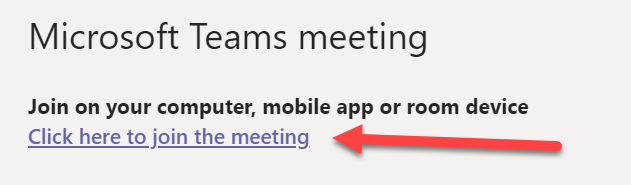
The meeting URL is the link people selected to join the meeting as shown above. You’ll also find it in the configuration for the meeting.

image

With all those settings updated, when you run the script it should look something like shown above. The script will connect to the Microsoft Graph with the scopes required to read the meeting details. You may be requested to login to the tenant and then potentially consent to these scopes during the connection phase. The required scopes are:

OnlineMeetingArtifact.Read.All
OnlineMeetings.Read

The script will get the GUID of the creator of the meeting from the email you specified followed by the meeting id from the meeting join link you specified, then the report id for that meeting and finally the report details for the meeting. It will then display the email address (if recorded) of attendees as shown above.

Of course, you can just download the CSV meeting report from the Teams page I know, but this process will be first step in eventually using Power Automate to get meeting attendees and send them an automatic follow up after the meeting. Stay tuned for details on that coming soon. This is simply proof of concept and a handy option if you do indeed just want to use PowerShell to get a list of meeting attendees.

Using the Defender for Endpoint API and PowerShell (Updated)

A while back I wrote this post:

Using the Defender for Endpoint API and PowerShell

Problem is, the script that I developed:

https://github.com/directorcia/Office365/blob/master/endpoint-api-svbm.ps1

now doesn’t seem to bring back any results!

image

It used the following API:

https://api.securitycenter.microsoft.com/api/machines/SoftwareVulnerabilitiesByMachine

which isn’t generating any data or any errors!

image

The above returned results shows a good status but the value of data is empty.

So for now I’ll have to assume that this API is unavailable. No fear I’ve developed a new script:

https://github.com/directorcia/Office365/blob/master/mde-vul-get.ps1

image

image

which will not only list out the vulnerabilities but also export to a CSV file.

image

That allows you to sort and filter the results any way you wish.

To get the script working you still need the following API permissions for your Azure AD App with the WindowsDefenderATP API:

Application permissions = Vulnerability.Read.All

Application permissions = Machine.Read.All, Machine.ReadWrite.All

like so:

image

You also need to ensure you change the Azure AD App information in the script to match your own:

image

If you want to export more information you should be able to easily modify the script which firstly get the machine info and then the vulnerabilities on each.

Hopefully, this give people what they need until the original API comes back on line.