Validate email address format with PowerShell

Here’s a handy function you can use in your PowerShell scripts when you need to verify that information contains a valid emails address.

function ValidateEmailAddress {
param (
[string]$EmailAddress
)

    $emailRegex = ‘^[a-zA-Z0-9._%+-]+@[a-zA-Z0-9.-]+\.[a-zA-Z]{2,}$’
$isValid = $EmailAddress -match $emailRegex

    return $isValid
}

Just call the function and specify the text you want to verify as a parameter like:

ValidateEmailAddress(“director@ciaops.com”)

and you’ll get either True or False.

Check mailbox auditing settings using PowerShell

an art deco cartoon of someone doing an audit

An important part of good security in Microsoft 365 is to ensure you are capturing all the logs available. Exchange Online has a number of actions that can be audited and some may not be enabled in your environment. The list available and what is enabled by default can be found here:

Manage mailbox auditing

Here is a quick script you can run to display all the audit settings for each mailbox:

Get-OrganizationConfig | Format-List AuditDisabled
$mailboxes=get-mailbox -ResultSize unlimited
foreach ($mailbox in $mailboxes) {
     write-host “`nMailbox =”,$mailbox.userprincipalname
     write-host (“`— Admin —“)
     $mailbox | Select-Object -ExpandProperty AuditAdmin | Sort-Object
     write-host (“— Delegate —“)
     $mailbox | Select-Object -ExpandProperty AuditDelegate | Sort-Object
     write-host (“— Owner —“)
     $mailbox | Select-Object -ExpandProperty Auditowner | Sort-Object
}

Just compare the list in the link to what you have configured to ensure everything that is available to you is enabled.

To connect to Exchange online prior to running the above code you can use my script:

https://github.com/directorcia/Office365/blob/master/o365-connect-exo.ps1

Getting Global Administrators using the Graph

A common task that needs to be performed is to return all the Global administrators in a tenant via PowerShell. With the focus on using the Microsoft Graph to do things like this you can use the following:

import-module Microsoft.Graph.Identity.DirectoryManagement


Connect-MgGraph -Scopes “RoleManagement.Read.Directory”,”User.Read.All”

$globalAdmins = Get-MgDirectoryRole | Where-Object { $_.displayName -eq “Global Administrator” }
$globalAdminUsers = Get-MgDirectoryRoleMember -DirectoryRoleId $globalAdmins.id

$globaladminsummary = @()
foreach ($adminuser in $globalAdminUsers) {
     $user = Get-MgUser -userId $adminuser.Id
     $globaladminSummary += [pscustomobject]@{      
         Id                = $adminuser.Id
         UserPrincipalName = $user.UserPrincipalName
         DisplayName       = $user.DisplayName
     }
}


$globaladminsummary

which I have also uploaded to my Github repo here:

https://github.com/directorcia/Office365/blob/master/graph-globaladmins-get.ps1

You may also need to consent to some permissions like:

image

If your user doesn’t have these. Permissions required are:

RoleManagement.Read.Directory
User.Read.All

The list of tenant global admins will be held in the variable $globaladminsummary at the completion of this script.

Reading from the CIAOPS Best Practices repo

I’ve recently upload a new JSON configuration file to my Best Practices repo on Github that you can deploy to Intune using PowerShell. You can find it here:

https://github.com/directorcia/bp/blob/main/Intune/Policies/ConfigurationProfiles/SettingsCatalog/odfb.json

The first thing to realise if you want to read this directly in from the repo is that you’ll need to use the raw version of that file which you can find here:

https://raw.githubusercontent.com/directorcia/bp/main/Intune/Policies/ConfigurationProfiles/SettingsCatalog/odfb.json

You will then need to use the command:

$query = invoke-webrequest -method GET -ContentType “application/json” -uri $url -UseBasicParsing

which will store the result in a variable called $query. Of course, you will need to assign the raw URL to the variable $url also.

Once executed if you look at $query.content you should then find a copy of JSON file you can then use to create a policy with PowerShell in Intune.

You can read all of the JSON files in my Best Practices repo in this way and use them to easily deploy to your environment.

ODFB summary script

I’ve have just uploaded a new script to my public Office 365 repo. Here is the direct link:

https://github.com/directorcia/Office365/blob/master/graph-odfb-get.ps1

The script will use the Microsoft Graph to create a summary report of users ODFB, which can also be output to a CSV file.

image

You will need to have the Graph PowerShell module installed. When you run the script you will typically need to consent to the above permissions. These can be found in the Users area of the Graph documentation.

image

The first thing the script will do is connect to the Microsoft Graph and you will generally be prompted to login with a user who has suitable permissions. Once that is complete a list of users will be displayed as shown above.

image

The script will then look at each user found and determine whether they have a ODFB assigned and enabled as shown above. Not all users in your tenant may have a ODFB.

image

For users that do have a ODFB the stats on these will display including total size, used and deleted as shown above.

image

If you use the –csv switch on the command line when you run the script a summary CSV file will also be generated in the parent directory.

Hopefully this helps get a quick summary of all your users ODFB usage.


Centralised Microsoft 365 Add in deployments with PowerShell

Almost 4 years ago I wrote this article:

Centralised Office 365 Add in deployments with PowerShell

Upon review, it seems that the Finedtime addin is no longer available. I have therefore updated the script:

https://github.com/directorcia/Office365/blob/master/o365-addin-deploy.ps1

to remove this and prevent errors.

If you have any Office addins that you believe should be deployed as a ‘standard’ to all users in a tenant, please let me know and I’ll look at adding them to the script.

blockMsolPowerShell blocks all users if set to true

One of the options in the EntraID Authorization policy in the Default user permissions section is a setting blockMsolPowerShell which means when you dig into it:

Specifies whether the user-based access to the legacy service endpoint used by MSOL PowerShell is blocked or not.

Screenshot 2024-03-12 210611

Using my script:

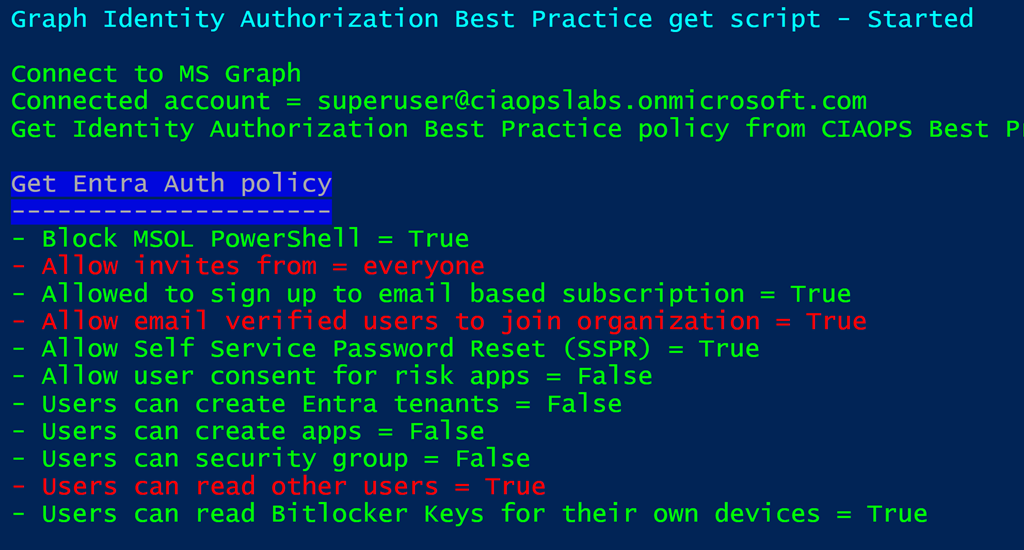
https://github.com/directorcia/Office365/blob/master/graph-idauthpolicy-get.ps1

you can see whether this is enabled, which it is as shown above.

Screenshot 2024-03-12 205633

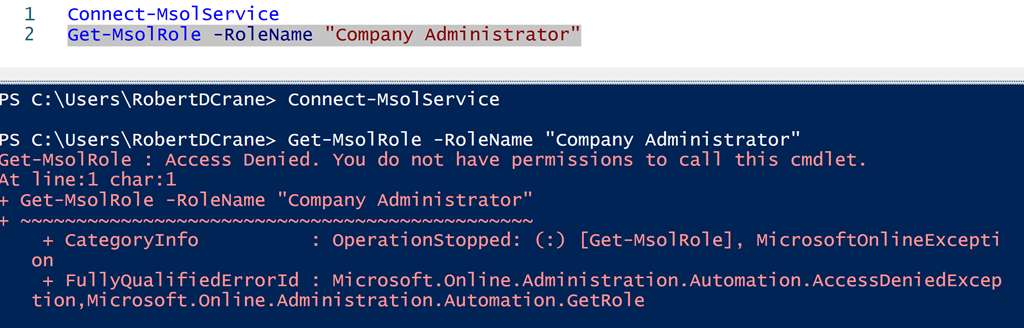
With this setting blockMsolPowerShell set to True, then all user access to the msolservice PowerShell commands are blocked as shown above. This applies to users, ordinary and administrators (even Global Administrators, which is the result I tested in the above screenshot). The user can connect to the service BUT they can’t run an msol commands as shown above.

Now given that the msolservice module will be deprecated on March 30, 2024 there shouldn’t be any issue disabling this for ALL users. However, you may want to make sure you test any Outlook add-ins or other third party apps you have in place that might have a dependency on the old msolservice module. The easiest way to achieve this is probably to simply disable the settings and see if problems arise. If they do, just make sure you know how to revert the setting back. I think is going to be the fastest way to determine if and what any dependencies you may have.

I would suggest that unless you have a dependency it should be disabled to improve the security of your environment.

CIAOPS M365 Best Practice Repo is now available

One of the big challenges I have found with securing a Microsoft 365 environment is determining and setting best practices settings for the environment. Recommendations can be found in many different locations from many different sources. I have always done my best to pull all these together and convert them into a single place that I can apply.

With that in mind I am happy to announce the availability of a new CIAOPS Best Practices repository for Microsoft 365here:

https://github.com/directorcia/bp/tree/main

The aim is for it to be the one place you can go that centralizes all the best practice information, security and otherwise, for Microsoft 365.

Let me give you an example of the benefits of this. In the repo you’ll find the following JSON file for an Entra ID authorization policy:

https://github.com/directorcia/bp/blob/main/EntraID/authorization.json

The idea is that you can use a script like I just uploaded:

https://github.com/directorcia/Office365/blob/master/graph-idauthpolicy-get.ps1

To read these settings and compare them to your own environment.

image

You can see the results above when you run this script. The items that are in red do not match the best practice settings that are in repo.

Not only can you use the repo to compare settings but you can also use it to apply settings. Again, you’d just read the JSON setting in the repo and apply that to your environment. Thus, you could take the Entra ID authorization policy JSON and use a script to actually apply, or write,  those settings to your environment. CIAOPS Patron subscribers will have access to the scripts that I develop that will do both the reading and setting of these parameters. Thus, if you don’t to actually write the code to do all this then become a CIAOPS Patron subscriber.

Having these settings available publicly also means people can examine and comment on them and help develop what is best practices in the Microsoft 365 environment. Remember, that best practices are not absolute, they are what works best for the majority of people. You may want to take these as a base and modify them to suit your needs. The benefits of using Github is that is easy to achieve. Thus, you could create your own repo, based on mine, and that as you base for your environment.

The repo also contains links to best practices I have found like this :

https://github.com/directorcia/bp/blob/main/best-practices.txt

That you can also use. Again, the idea is to bring all these resources for Microsoft 365 into a single location.

This best practices repo is far from complete but I wanted to get it out there so people can provide me feedback and we can all build this out to make all our lives easier. Going forward, I plan to spend time developing the repo wiki to provide documentation for all this. However, feel free to take a look at what is there and provide any suggestions for improvement or addition. I’m all ears.