Script to check mailbox settings

image

I’ve just uploaded a new PowerShell script to my Github repository, which you can find here:

https://github.com/directorcia/Office365/blob/master/o365-mx-check.ps1

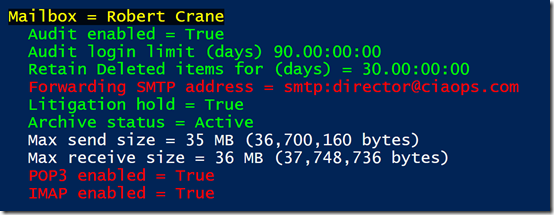
This one will cycle through all the mailboxes you have and then report back the status as you can see above. Basically, anything in red is bad (i.e. have POP3 and IMAP enabled as well as an email forward) and green is good (like have Litigation Hold and Archive enabled).

The script doesn’t make any changes to the mailboxes it basically just reports back the status so you can see what is configured and what is not. You can adjust the variables like log and deleted item limits to suit your needs but they are set at the default levels of the tenant (which should be generally increased).

Ensure you check back over time as I improve the scripts and don’t forget to check the others that I have available there.

Initial setup of an Office 365 PowerShell environment

Here’s a video I did to help people set up their PowerShell environment to support Office 365 and Microsoft 365 environments.

You’ll see how to install the various modules on a Windows 10 desktop as well as how to configure the environment and run scripts.

Once you have all this set up, of course, you can visit my Github repository at:

https://github.com/directorcia

and grab all the scripts I have there for Office 365 and Azure. Why re-invent the wheel I say? just use what is already there fore free.

Hopefully, this will enable you to get started using scripting to managing your Microsoft Cloud environment.

I’m puzzled by new-protectionalert

Microsoft is transitioning Office 365 Activity Alerts which I have talked about configuring here with PowerShell:

Create Office 365 Activity Alerts using PowerShell

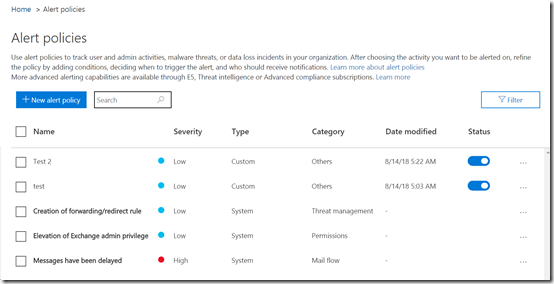
to Alert Policies which you can see in the console here:

image

You will notice that I have been able to go in and create two of my own alerts (test and Test 2). I did this via the web console. I performed this web console configuration on a Microsoft 365 Business tenant.

Working with the web console is the slow way to get things done. PowerShell is best practice if you want to do things quickly and make them repeatable.

My thinking was, if I can configure these alerts in the web console I “should” also be able to that in PowerShell.

Initially, I thought you could using this new PowerShell command:

new-protectionalert

Now the information for this actual command is a bit sparse but I started working backwards from the alerts I created in the web console.

image

As you can see from the above, when I was able to work out a command that seemed to execute I was greeted with the error:

Creating advanced alert policies requires an Office 365 E5 subscription or Office 365 E3 subscription with an Office 365

Threat Intelligence or Office 365 EquivioAnalytics add-on subscription for your organization. With your current subscription, only single event alert can be created.

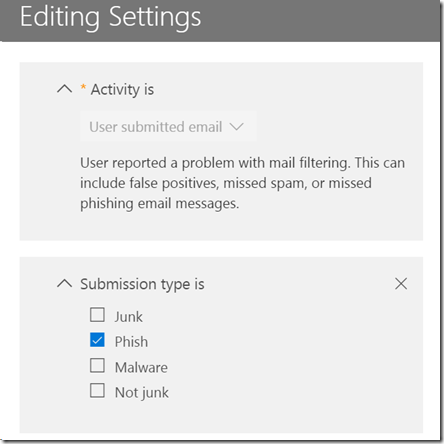
which seems to indicate I don’t have the license, but yet I can create what I believe to be an identical alert in the web console. Basically, I just want an alert when someone marks an email as “Phish”.

image

In Powershell I’m using the parameter:

-filter “Activity.SubmissionType -eq ‘Phish'”

which would seem to me to be the same thing. Yet, I’m told that I don’t have the right license??

In the end, I want to create a PowerShell script that allows me to configure these commands so that they can be easily applied. Currently, at the moment, I’m a bit confused on how to exactly achieve this.

Cleaning up orphaned SharePoint Online sites

image

A while back I made a script available that allows you to find all the external users in your environment. You can learn about this here:

Checking SharePoint External Users PowerShell Script

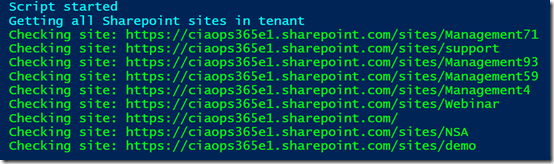
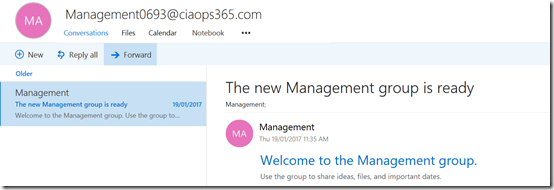
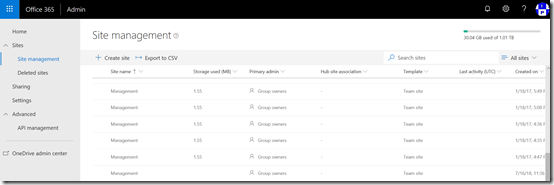
Now when I ran the script on my own tenant I noticed a number of SharePoint sites that didn’t seem right. As you can see from the above screen shot, these typically have the word “management” (e.g.management71, management93, management59, etc).

Hmm…ok, seems like I have some orphaned SharePoint sites. I kinda of remember playing around when Microsoft Teams came out, creating and deleting Teams to test the functionality. So it seems that when I deleted the Teams stuff in the early days it didn’t delete everything.

Ok, time for a clean up

image

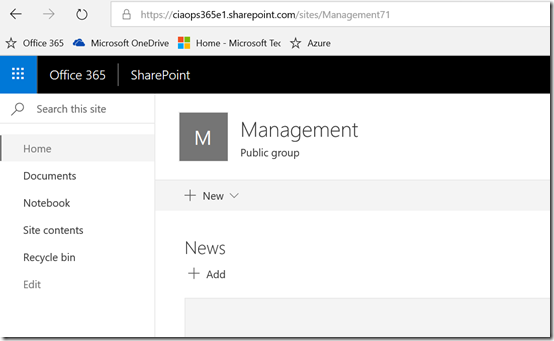
So I started with site Management71 and checked to see whether I could get to it. As you can see from the above, yes I can.

So back in the day, this would have been connected to the Office 365 Group. If I delete the site and it is isn’t fully orphaned (i.e. no Office 365 Group still exists) then I could have issues. So to see whether an Office 365 Group still existed with the word “management” in the title I ran this command to give me a list of every Office 365 Group in my tenant:

Get-UnifiedGroup | Format-List DisplayName,EmailAddresses,Notes,ManagedBy,AccessType

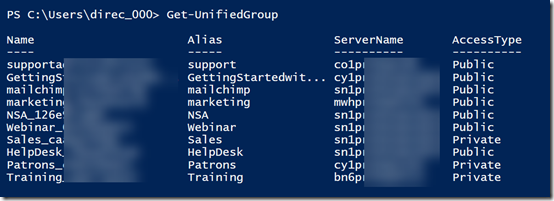
Turns out there still is an Office 365 Group called Management in my tenant as you can see from the results below.

image

So the question now, is whether the existing Office 365 Group called Management tied to the SharePoint site Management71 or another site also with management in the name? See how confusing I’ve made things?

image

So next I checked whether I could discover this operational Office 365 Group I see via PowerShell and indeed I could see it in my tenant as you see above.

SNAGHTML208e3e48

To determine whether this indeed was connected to Management71 I navigated to the SharePoint site connected to the Office 365 Group from the Group page. Low and behold, the Group Site in question is a different site, with a URL that includes the word Management not Management71. Hopefully you get why I’m trying to make all this go away!

So, not needing this valid Office 365 Group I decided the best way to remove it was to use the PowerShell command to delete it which you will find here:

Remove-UnifiedGroup -Identity "Management"

image

To see the sites created by Office 365 Groups you’ll need to go into the new SharePoint Online Admin console as you see above. Problem is, that this new portal doesn’t as yet allow you to delete sites. That means I’ll have to user PowerShell.

image

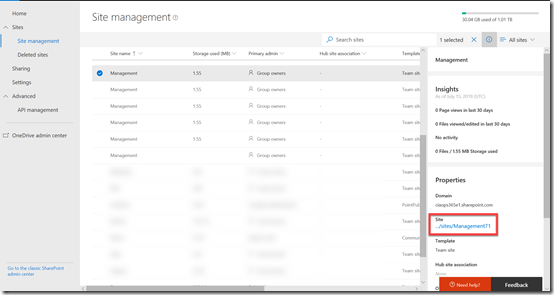
I was then able to locate the orphaned site in question – Management71 as shown above.

image

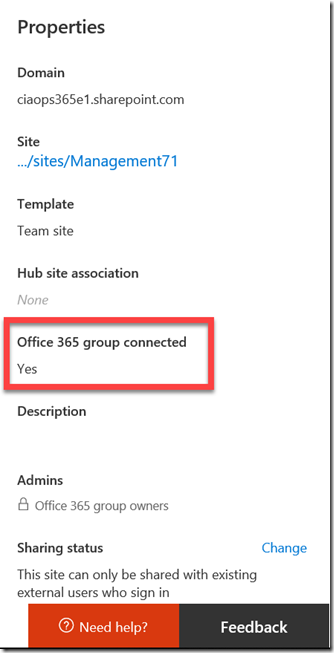
But if I look carefully at the properties for the site I see that it still thinks this site is connected to an Office 365 Group.

image

So I once again ran the PowerShell command to check the Office 365 Groups in the tenant and there is no longer one with the name management. I am therefore going to assume the site in question is orphaned and I’ll remove it using PowerShell.

image

When I look in the new SharePoint administration console, in the recycle bin for deleted sites I now see the site that was tied to the valid group that I just deleted called Management. To keep things tidy, I decided the best option was to purge unwanted items from here so the rogue SharePoint sites are completely gone from my tenant. To do that I ran:

remove-spodeletedsite -Identity https://ciaops365e1.sharepoint.com/sites/management –NoWait

To remove the other rogue SharePoint sites I firstly run:

remove-sposite -Identity https://ciaops365e1.sharepoint.com/sites/management71 –NoWait

Followed by the initial command to also remove them from the recycle bin and my tenant completely.

In the end, I have been able to remove active SharePoint sites in my tenant that appear to have been created by now defunct Office 365 Groups. I did all this via PowerShell to ensure that they weren’t still connected to something else in Office 365.

I feel much better have a clean tenant without these additional SharePoint sites float around and I got to also user PowerShell to get the job done. Win!

Determining Office Add ins

After posting how to protect your Office tenant from malicious add-ins recently:

Thwarting the Office 365 Ransomware cloud

I was asked whether you could determine what add-ins users had already authorised? Thanks to PowerShell the answer is always “Yes”.

You need to ensure that you are connected to Exchange Online first and then you can run:

$mailboxes = get-mailbox –resultsize unlimited

foreach ($mailbox in $mailboxes) {
     write-host “Mailbox =”,$mailbox.primarysmtpaddress
     get-app -mailbox $mailbox.primarysmtpaddress | Select-Object displayname,enabled,appversion | Format-Table
}

This will basically spit out something that looks like:

image

So you can easily see what is already configured for each mailbox.

I have uploaded the file to my GitHub repository here:

https://github.com/directorcia/Office365/blob/master/o365-exo-addins.ps1

if you want it.

Azure AD and SharePoint Online user differences

I’ve been developing scripts to work with OneDrive for Business when I fell into a bit of a rabbit hole that lead me to an interesting revelation.

Part of the challenge with working with OneDrive for Business in Office 365 is that not all users have one, even though they are licenses for it. The reason for this is simply that a user’s OneDrive for Business isn’t generally provisioned for them until they start using it. Thus, in my demo tenant there are probably users who haven’t as yet been through the process of having a OneDrive provisioned. No issues.

Secondly, when you share information with external users in SharePoint and Teams you may also find an AD account but that user hasn’t as yet access SharePoint resources for some reason. Maybe, they haven’t accepted the sharing request and so on. Again, no big deal.

image

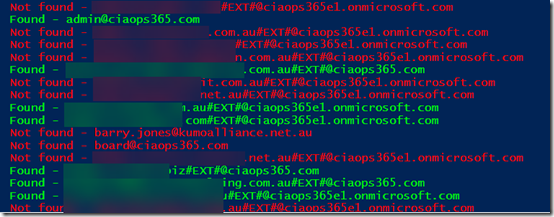
So I created a script that goes through each active Azure AD user in the Office 365 tenant and check to see whether there is a corresponding SharePoint Online user. To do this I used the following commands:

get-spouser

and

get-azureaduser

So I trained these commands on the OneDrive for Business URL which is typically:

https://tenantname-my.sharepoint.com

As you can see from the above report, the green lines indicates matches to accounts in my Azure AD and in my OneDrive for Business. The green tenant users, with a custom domain typically have their own OneDrive for Business. The green External users, distinguished by an account that includes #EXT# are typically accounts outside the tenant that have been shared information with and accepted that sharing request.

Now the red tenant users, typically haven’t had their OneDrive for Business provisioned yet and the red external users typically haven’t accepted the sharing request that has been sent them as yet. All understood.

image

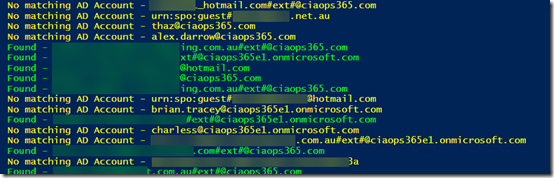
Here’s where the rabbit hole opened up. Ok, I thought, now what happens if I do the reverse? That is, check my SharePoint users against my Azure AD users? So off I went to create a script.

The script came back with the results you see above. All the the yellow accounts are SharePoint users that don’t have a match Azure AD account. Quite a few eh? When I first saw this I panicked a bit, because many of the accounts I didn’t recognize. What was going on here I wondered? Had I been compromised?

In a perfect world, there would be a one to one mapping between Azure AD accounts and SharePoint account. However, things aren’t that perfect, so in my demo tenant, I had created lots and lots of accounts over the years and many had become ‘orphaned’ leaving behind information in SharePoint. Many were just so old I forgotten that I created them and then later deleted the Azure AD account.

Is this a problem? Not really I don’t think, because without an Azure AD account to login to, these ‘orphaned’ resources aren’t much use. Still, if they aren’t needed then they really should be deleted to my mind.

Interestingly, some of these ‘orphaned’ SharePoint users actually still had their own OneDrive for Business that clearly wasn’t being displayed anywhere else. Once I took control of these ‘orphaned’ sites by making myself a Site Collection Administrator I could see what they actually contained. When I was happy it wasn’t needed or in use I deleted these, again using PowerShell.

So what did my trip down the rabbit hole teach me? Firstly, I learned that Azure AD and SharePoint user accounts don’t always line up. Next, I learned that you can end up with ‘orphaned’ SharePoint users and resources that you may want to clean up using PowerShell. I don’t believe these represent any security issues but if they aren’t necessary then they probably should be deleted. However, be careful of system accounts which shouldn’t be removed. Just get rid of those you recognise as no longer being required.

The biggest thing that my exploration taught me is the value of PowerShell to get behind the standard interface of Office 365 and see what is really going on. It gives you much better control and for me it helps me understand much better how everything works.

If you want the scripts that I used to do these comparisons then I suggest you sign up to my Patron community – www.ciaopspatron.com where you’ll find these and whole lot more Office 365, Microsoft 365 and Azure resources.

Checking SharePoint External Users PowerShell Script

image

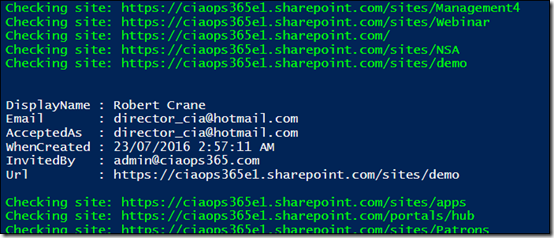
Another things that you should keep your eye on in your Office 365 environment are the external users who have been give access to any of your SharePoint sites. You’ll probably find that many of these should no longer have access, so I’ve done a simple script which you can get here:

https://github.com/directorcia/Office365/blob/master/o365-spo-extusr.ps1

that will basically loop through all your SharePoint sites (including OneDrive and those created by Teams and Groups) and list out all the external users on the screen.

As you can see from the above screen shot, it will tell you the external users name, email, when they were invited and by whom. Importantly, it also shows you which email actually accepted the invitation as this may vary in some cases (another point of investigation potentially).

I’ll continue to work on this script and the others I have in my GitHub repository. So please send me your feedback and suggestions on how to improve what I have developed as well as any ideas for scripts you’d like to see.

PowerShell script to check email forwards

A while ago I wrote an article about how important it is to check the email forwards that all your mailboxes have in Office 365. Why? Because, the first things most bad actors set up after successfully phishing a user’s credentials is to forward all email to their own account. This effectively mirrors everything a users receives. Doing so allows the bad actors to gather intelligence about the user and the organisation and potentially impersonate that user.

If you look at the configured email forwards for your tenant, as I detailed here:

Check those Office 365 email forwards

are much more likely to detect something that could be an issue and take action.

As the article details, the easiest way to do this is to use a PowerShell command. However, an even easier way to use the script that I have just made available for free in my GitHib repo here:

https://github.com/directorcia/Office365/blob/master/o365-exo-fwd-chk.ps1

You’ll need to connect to Exchange Online prior to running this script.

image

The script will report back on all mailboxes and show you any forwards configured. It will show those in place but disabled (in yellow) and those in place and enabled (in red). The enabled ones are the ones you really should check to ensure that they are required and not implemented by some bad actors.

I’ve also uploaded many more scripts to my GitHub repo to allow you to connect to Office 365 services directly or using multi factor authentication. I’ll keep adding scripts and updating existing ones regularly, so ensure you check back there regularly.