Power Automate Twitter connector failing

*** My resolution to this here – https://blog.ciaops.com/2023/04/27/connect-power-automate-to-twitter-using-a-bring-your-own-app-approach/

Since the 20th of April 2023 the Power Automate Twitter connector has been failing to authenticate. This means you get an error in your Flow that looks like:

image

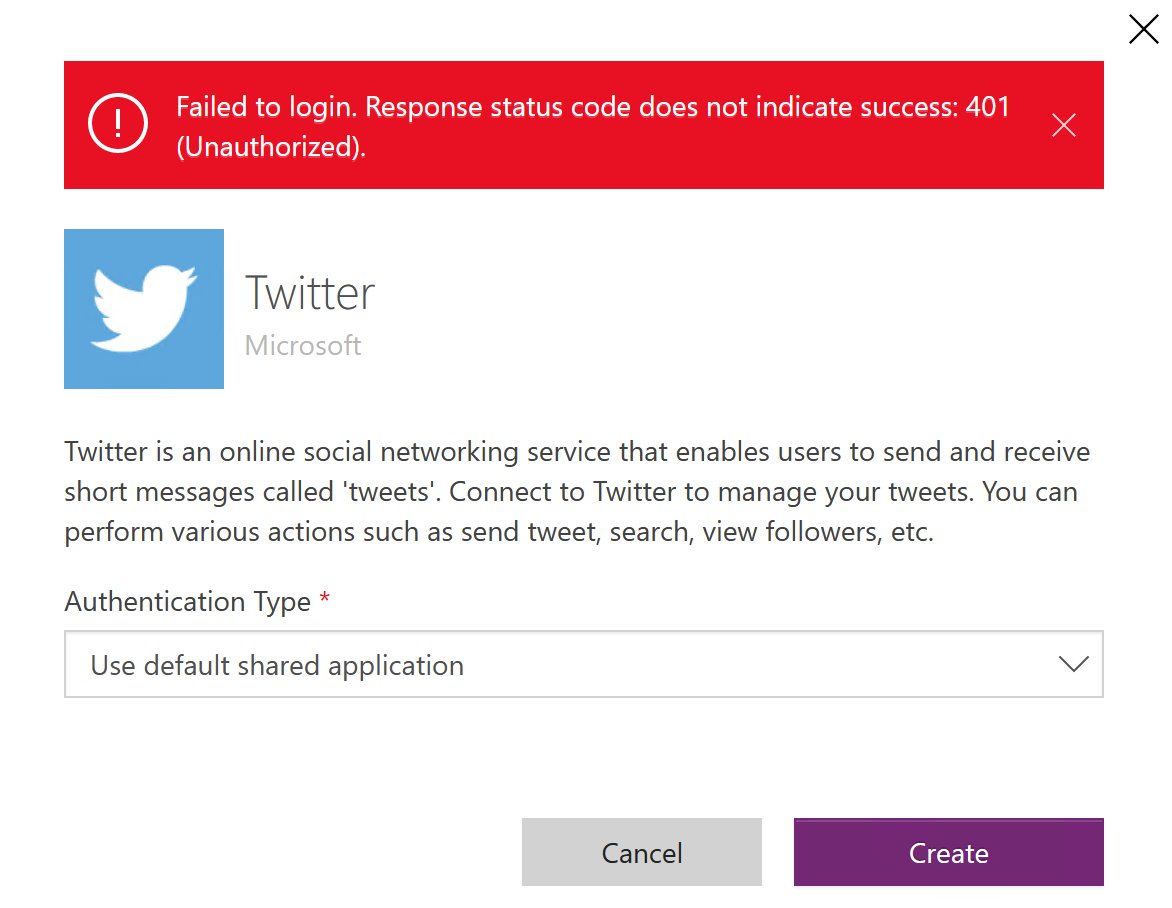
When I tried to fix the connector I am greeted by.

Image

There have no doubt been changes in the Twitter API which have caused this.

I’m trying to find an answer from Microsoft on how this will be handled going forward, but as yet I have not heard nothing back. If I find out, I’ll post here again.

CIAOPS Need to Know Microsoft 365 Webinar – November

laptop-eyes-technology-computer

Join me for the free monthly CIAOPS Need to Know webinar. Along with all the Microsoft Cloud news we’ll be taking a look at Power Automate.

Shortly after registering you should receive an automated email from Microsoft Teams confirming your registration, including all the event details as well as a calendar invite.

You can register for the regular monthly webinar here:

November Webinar Registrations

(If you are having issues with the above link copy and paste – https://bit.ly/n2k2211)

The details are:

CIAOPS Need to Know Webinar – November 2022
Friday 18th of November 2022
11.00am – 12.00am Sydney Time

All sessions are recorded and posted to the CIAOPS Academy.

The CIAOPS Need to Know Webinars are free to attend but if you want to receive the recording of the session you need to sign up as a CIAOPS patron which you can do here:

http://www.ciaopspatron.com

or purchase them individually at:

http://www.ciaopsacademy.com/

Also feel free at any stage to email me directly via director@ciaops.com with your webinar topic suggestions.

I’d also appreciate you sharing information about this webinar with anyone you feel may benefit from the session and I look forward to seeing you there.

Getting started automating Microsoft 365 administration with the Graph

https://www.youtube.com/watch?v=e1ypZGfifSQ

The Microsoft Graph is a unique and powerful way to administrate Microsoft 365. This session will provide you with a introduction to what the Microsoft Graph is, how to access it and how to use to improve the way you maybe currently administrating your customers environments. The session will also be jammed packed with live demonstrations and best practices for automating any Microsoft 365 environment. Save time, save money and save effort by viewing this session.

Power Automate Azure Key Vault access inconsistencies

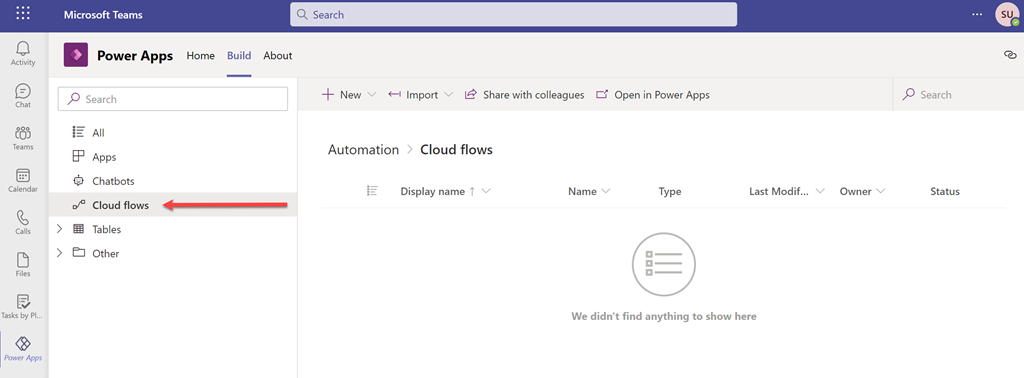
I’m in the process of building a Flow that connects to a Dataverse database inside a Microsoft Team. When you create this you get the ability to create Cloud Flows (aka Power Automate).

image

However, there is an issue when you try and use something like Azure Key Vault actions here.

image

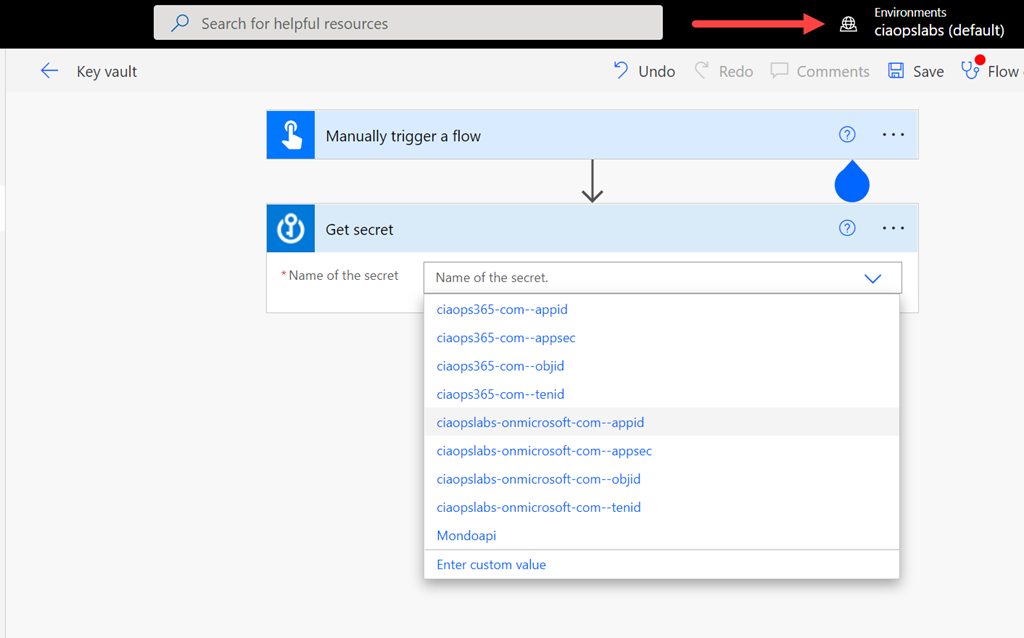
In the above, you can see that I’m in my default Power Automate environment and the Get secret action of Azure Key Vault is accessible as expected and shows all the items I have inside the vault.

image

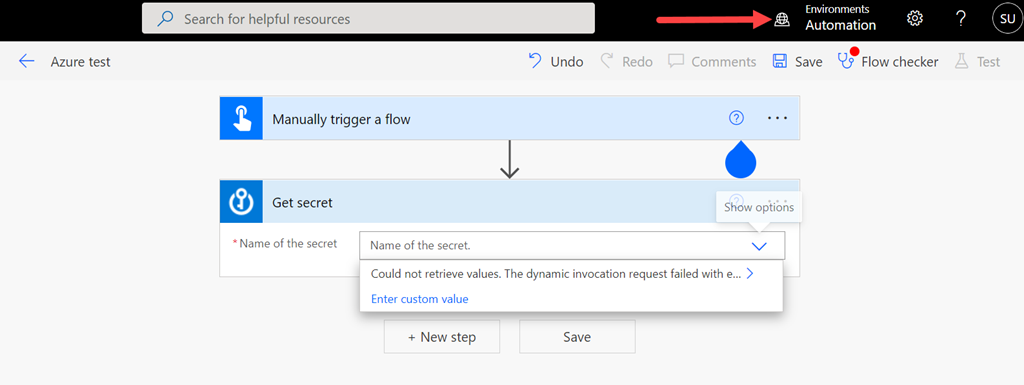
However, if I swap to another environment that was created as part of a Team (here an environment called Automation), you’ll see that I can add the Azure Key Vault action Get Secret but I no longer see the items inside that vault as I did before! I am using the same user in both cases.

It has clearly something to do with the connection,

image

which shows up as invalid as you can see above.

image

If I try and add a new connection, I see the above dialog but can’t make any changes or enter any information. Looks like I might need to investigate the Connect with a service principal option perhaps?

However, for now, there seems to be a limit when you use the Azure Key vault actions inside anything that is not the default environment for the Power Platform in your tenant. I will assume this is because these environments are limited to Microsoft Teams and have innate restrictions that I’ll need to find information on. If you know what this is, I’d love to hear from you.

Using Power Automate to send SMS

I recently had the need to send an SMS programmatically. The reason I wanted to be able to do this si because Microsoft Bookings currently doesn’t send SMS reminders to attendees of a booking outside the US. That means, here in Australia, I needed to add the capability via another SMS integration option.

The most obvious choice, once again, is Power Automate. To handle the SMS component I needed to work with a SMS provider. The one who came to party was Mondotalk.

The first step was to consult the Mondotalk API to discover how to send an SMS using code. Luckily, their documentation contained a handy PowerShell script:

$messagebody1 = @{

id = $id

key = $key

username = $username

password = $password

to = “<phone>”

sender = “<phone>”

msg = “hello world”

replyto = director@ciaops.com

}

$url = <API url>

Invoke-RestMethod -Method POST -Uri $url -Body $messageBody1

In essence you create the body of the API request using an array and then you simply POST that to the API URL. Pretty straightforward and after I worked out all the variables like username, id and key, I had this working.

image

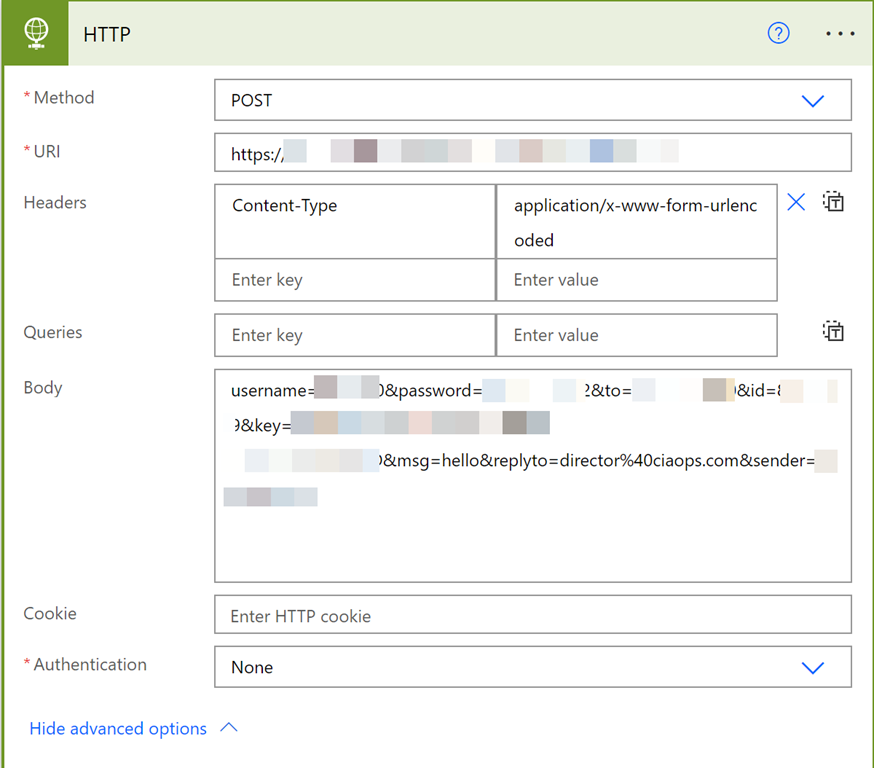
The key action is HTTP as shown above. It is important to remember that this a ‘premium’ connector and you may need a more advanced license to use this.

Initially, I thought I’d just bung in the parameters into the HTTP action as I have done before and it would be good to go. Not the case as it turned out. Everything I tried came back with a variation of the following error:

{“_meta”:{“status”:”ERROR”},”records”:{“errorCode”:401,”userMessage”:”Must login or provide credentials.”,”devMessage”:”Please provide credentials by either passing in a session token via cookie, or providing password and username via BASIC authentication.”,”more”:null,”applicationCode”:”Unauth:1″}}

In essence, the API is failing to login to my account to send the SMS. The PowerShell worked fine but Power Automate didn’t.

The solution ended up lying with adding a header field to the HTTP action:

Content type: application/x-www-form-urlencoded

and formatting the body with an ‘&’ between the fields i.e:

username=#####&password=*******&to=61######&id=#####&key=<GUID>msg=hello&replyto=director%40ciaops.com&sender=61########

as well as setting the authentication in the HTTP action to None as it was being done in the body of the request.

After all of that, I finally had success. The lesson here is that APIs don’t always want JSON!

image

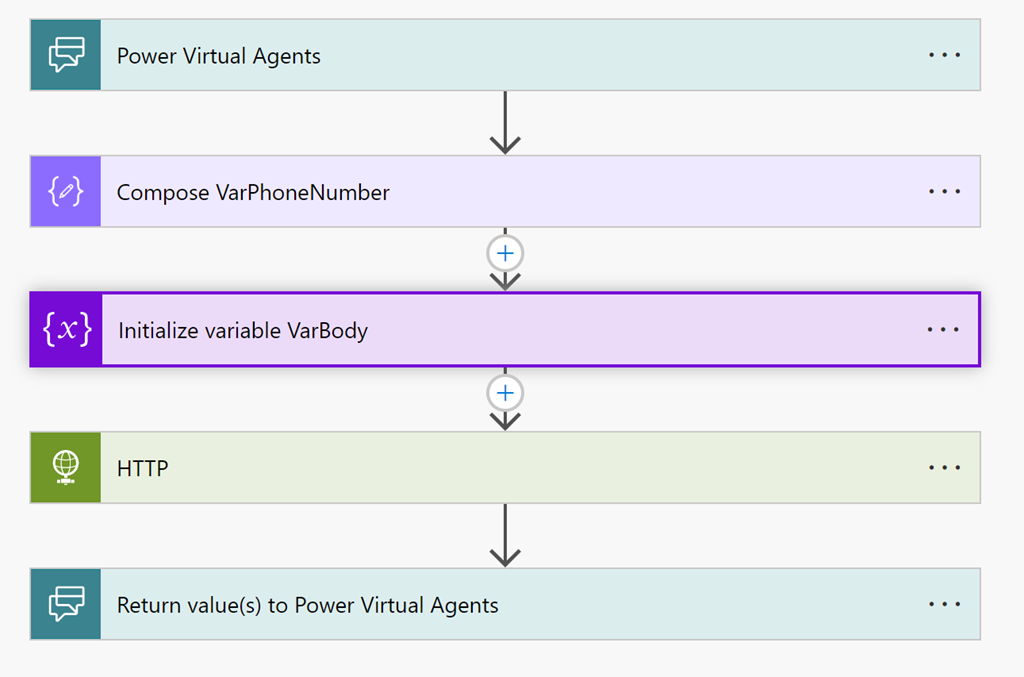
I then decided to wrap a Power Virtual Agent bot around the Flow and publish it into a Team to allow users to send SMS directly from Teams. They simply use a key phrase to call the bot and tell it when number to send to. The bot passes those details to the Flow and runs what I had worked out previously

image

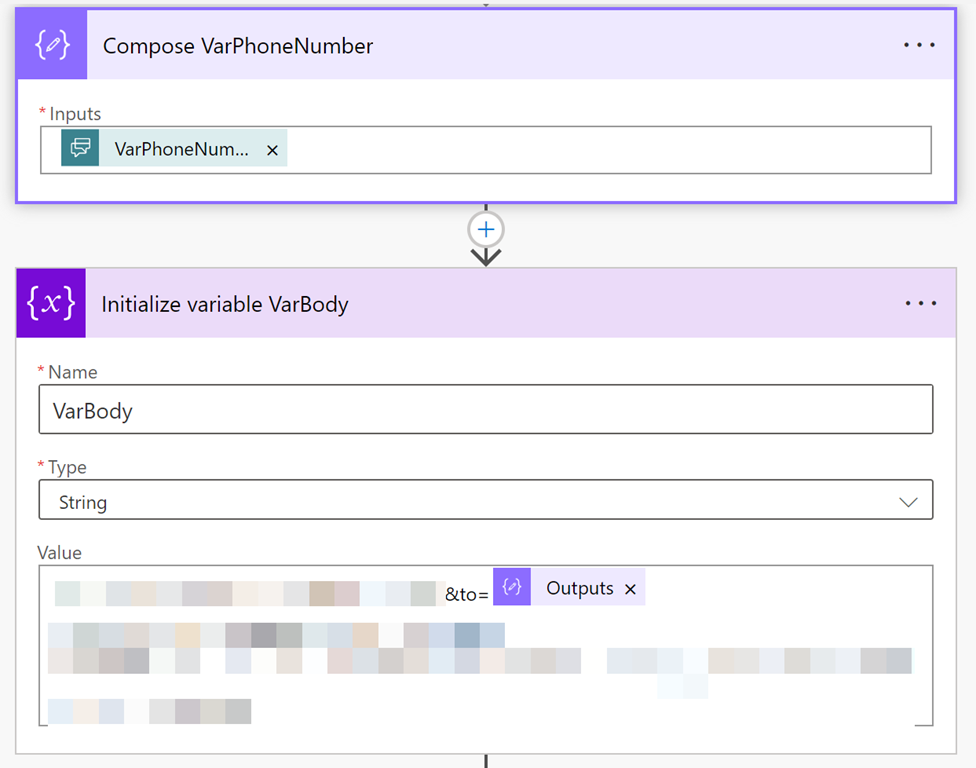
The only change here from the initial on demand Flow was the passing of a variable into the Flow from the bot and creating the body of the API request, also as a variable.

image

Again, it is important to get the body field in EXACTLY the right format for the API request when it is created.

So, that’s how you connect an SMS API gateway to Power Automate and Power Virtual Agents. The real trick was getting the right format of the API POST request which had to be deduced from the documentation. Hopefully, sharing that process here gives others a shortcut to getting it working in their environments because it took me a LONG time to work it out!

Thanks again to Mondotalk for being kind enough to give me a demo account and assist getting this working.

Displaying a percentage with two decimal places in Power Automate

image

In this section from my Power Automate I initialise two variables (currentscore and maxscore) with values using the Set variable action. I want a third variable, sspercentage, to be equal to:

(currentscore) / (maxscore) * 100

that is, a percentage but with only two decimal places. To do that I need to use the following formula in the Set variable 3 action:

formatNumber(mul(div(variables(‘currentscore’),variables(‘maxscore’)),100),’0.00′,’en-US’)

which you will note, if you look carefully, actually results in sspercentage being a string not a float!

(div(variables(‘currentscore’),variables(‘maxscore’))

handles the division

mul(div(variables(‘currentscore’),variables(‘maxscore’)),100)

multiples the division by 100 to get the percentage value.

The 0.00 in the formula is the actual formatting that you can adjust if you need and the en-US is the language format for the number. The Microsoft reference is for the formatnumber function is here:

https://docs.microsoft.com/en-us/azure/logic-apps/workflow-definition-language-functions-reference#formatNumber

The end result looks like:

image

If the formatnumber function is not used then the result contains a lot of numbers after the decimal place and remains of type float, which I would only need if I wanted to display the value of Pi!

Incentivising Microsoft Teams contributions with Power Automate

One of the most important parts of technology adoption is incentivising people. One simple way to do this is to acknowledge their contributions in Microsoft Teams. I’ve spoken about this before using something like:

Custom Praise badges in Microsoft Teams

The challenge there is, that this is a manual process. How can the same be achieved the same kind of thing using automation I recently wondered?

What if you could automatically determine the number of chat messages that someone posted into Microsoft Teams, and then acknowledge the highest contributors with a custom ‘thank you’ message? Here’s how I managed to do just that using the Microsoft Graph and Power Automate.

The core information needed about messages posted in Microsoft Teams will come the Microsoft Graph, specifically:

getTeamsUserActivityUserDetail

The first step in this process will be to create an Azure AD application in the tenant, which I have detailed previously:

https://blog.ciaops.com/2019/04/17/using-interactive-powershell-to-access-the-microsoft-graph/

the credentials for this Azure AD application will then need to be uploaded into Azure Key Vault as I have covered here:

Uploading Graph credentials to Azure Key Vault

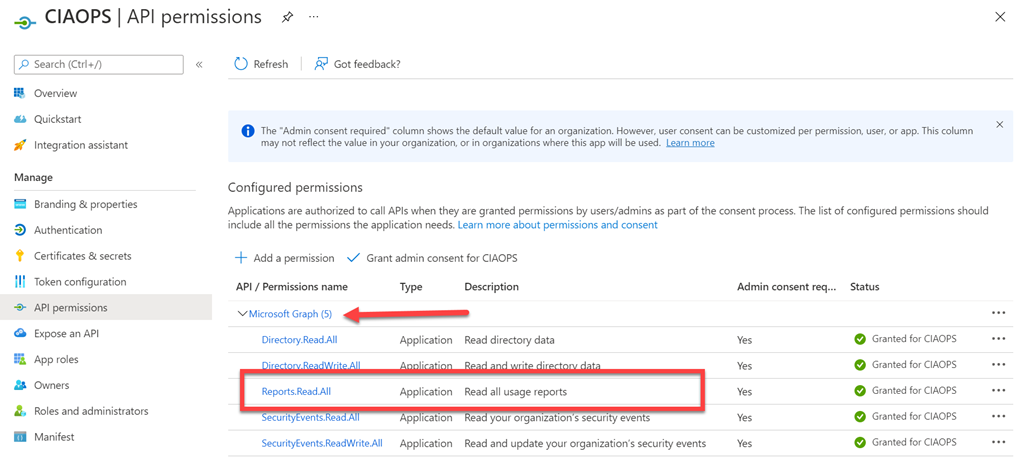
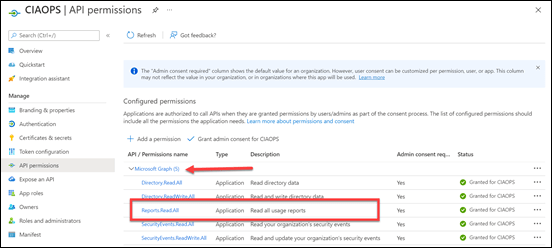
You’ll also need to set the API permissions for this application to :
image

Reports.Read.All

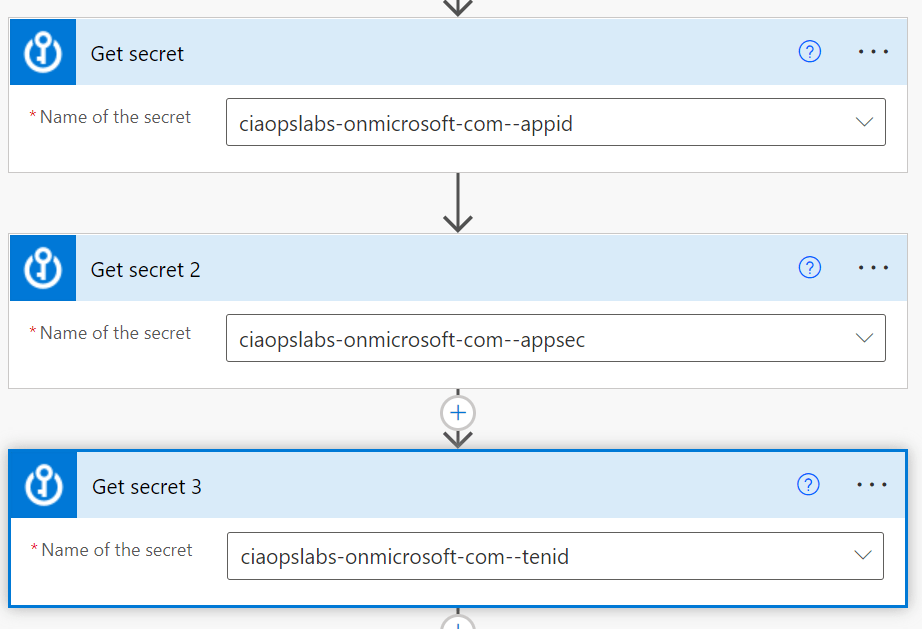
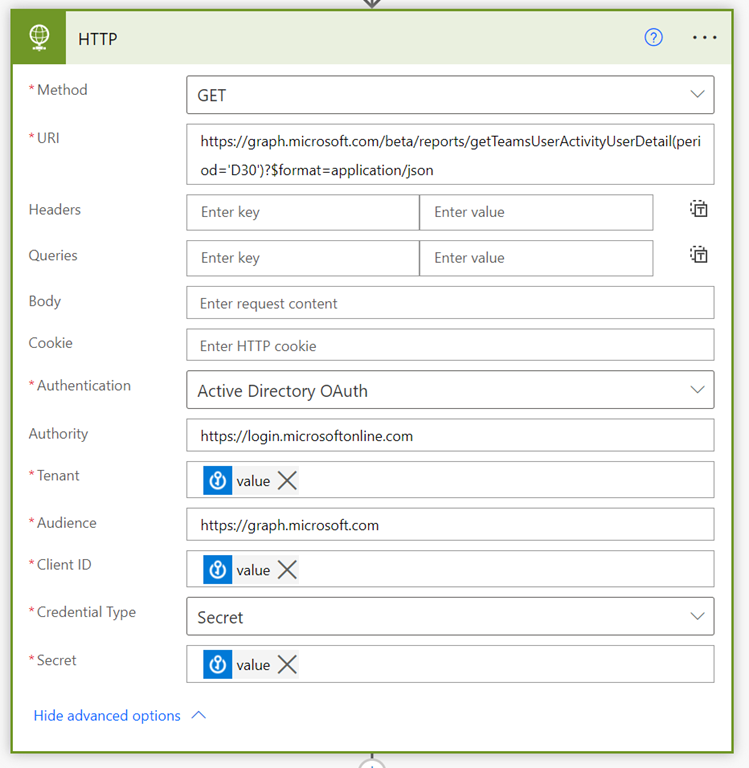
 You’ll need to trigger your Flow the way that suits you. Typically you’d schedule it to run on the first of each month. You’ll then need to use the Get secret action from the Azure Key Vault as shown above. You should also note that this is a premium connectors, so you’ll need an appropriate Power Platform license to use this.
image

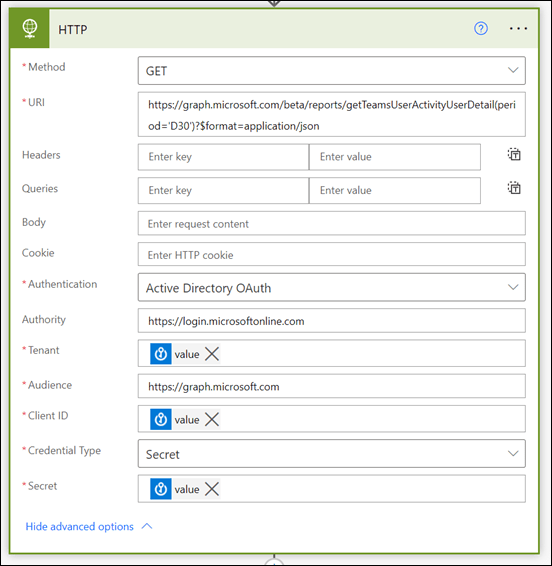
Next, will be the HTTP action that also a premium connector. The URI to use here will be:

https://graph.microsoft.com/beta/reports/getTeamsUserActivityUserDetail(period=’D30’)?$format=application/json

The D30 parameter determines how many previous days to consider. Valid options for the number of days is 7,30, 90, 180 according to the documentation.

The security parameters come from the Azure Key Vault Get secret actions.
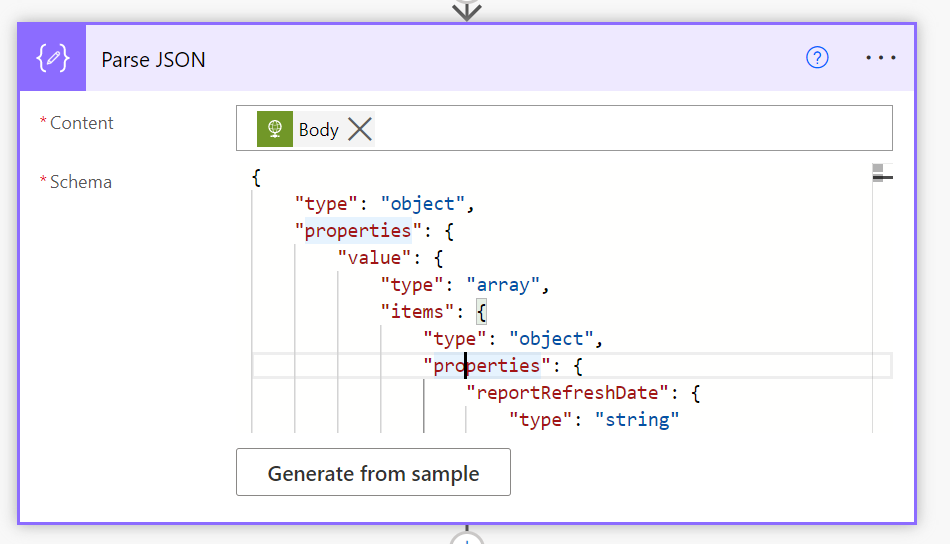
image

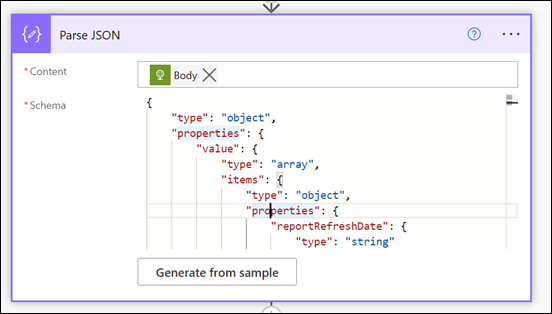
The data returned from this HTTP action will be in JSON format, so that is fed into the Parse JSON action as shown above.

One tricky things about parsing json is to get the right schema. When I first attempted this I received this error:

“message”: “Invalid type. Expected String but got Null.”,

After some digging I found that sometimes the lastactivitydate parameter returned a string or NULL value. Thus, I need to modify the original JSON for that parameter to accommodate both potential results:

“lastActivityDate”: {
     “type”: [
         “string”,
         “null”
     ]
},

Here the whole working JSON schema I used:

{
     “type”: “object”,
     “properties”: {
         “value”: {
             “type”: “array”,
             “items”: {
                 “type”: “object”,
                 “properties”: {
                     “reportRefreshDate”: {
                         “type”: “string”
                     },
                     “userId”: {
                         “type”: “string”
                     },
                     “userPrincipalName”: {
                         “type”: “string”
                     },
                     “lastActivityDate”: {
                         “type”: [
                             “string”,
                             “null”
                         ]
                     },
                     “isDeleted”: {
                         “type”: “boolean”
                     },
                     “deletedDate”: {},
                     “assignedProducts”: {
                         “type”: “array”
                     },
                     “teamChatMessageCount”: {
                         “type”: “integer”
                     },
                     “privateChatMessageCount”: {
                         “type”: “integer”
                     },
                     “callCount”: {
                         “type”: “integer”
                     },
                     “meetingCount”: {
                         “type”: “integer”
                     },
                     “meetingsOrganizedCount”: {
                         “type”: “integer”
                     },
                     “meetingsAttendedCount”: {
                         “type”: “integer”
                     },
                     “adHocMeetingsOrganizedCount”: {
                         “type”: “integer”
                     },
                     “adHocMeetingsAttendedCount”: {
                         “type”: “integer”
                     },
                     “scheduledOneTimeMeetingsOrganizedCount”: {
                         “type”: “integer”
                     },
                     “scheduledOneTimeMeetingsAttendedCount”: {
                         “type”: “integer”
                     },
                     “scheduledRecurringMeetingsOrganizedCount”: {
                         “type”: “integer”
                     },
                     “scheduledRecurringMeetingsAttendedCount”: {
                         “type”: “integer”
                     },
                     “audioDuration”: {
                         “type”: “string”
                     },
                     “videoDuration”: {
                         “type”: “string”
                     },
                     “screenShareDuration”: {
                         “type”: “string”
                     },
                     “hasOtherAction”: {
                         “type”: “boolean”
                     },
                     “urgentMessages”: {
                         “type”: “integer”
                     },
                     “postMessages”: {
                         “type”: “integer”
                     },
                     “replyMessages”: {
                         “type”: “integer”
                     },
                     “isLicensed”: {
                         “type”: “boolean”
                     },
                     “reportPeriod”: {
                         “type”: “string”
                     }
                 },
                 “required”: [
                     “reportRefreshDate”,
                     “userId”,
                     “userPrincipalName”,
                     “lastActivityDate”,
                     “isDeleted”,
                     “deletedDate”,
                     “assignedProducts”,
                     “teamChatMessageCount”,
                     “privateChatMessageCount”,
                     “callCount”,
                     “meetingCount”,
                     “meetingsOrganizedCount”,
                     “meetingsAttendedCount”,
                     “adHocMeetingsOrganizedCount”,
                     “adHocMeetingsAttendedCount”,
                     “scheduledOneTimeMeetingsOrganizedCount”,
                     “scheduledOneTimeMeetingsAttendedCount”,
                     “scheduledRecurringMeetingsOrganizedCount”,
                     “scheduledRecurringMeetingsAttendedCount”,
                     “audioDuration”,
                     “videoDuration”,
                     “screenShareDuration”,
                     “hasOtherAction”,
                     “urgentMessages”,
                     “postMessages”,
                     “replyMessages”,
                     “isLicensed”,
                     “reportPeriod”
                 ]
             }
         }
     }
}
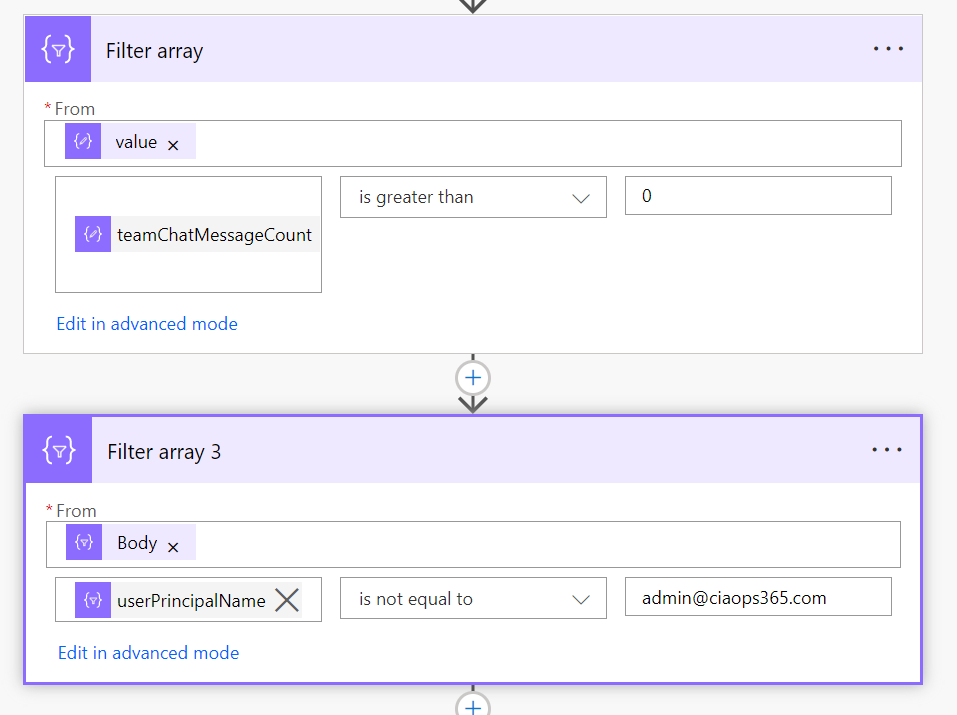
image

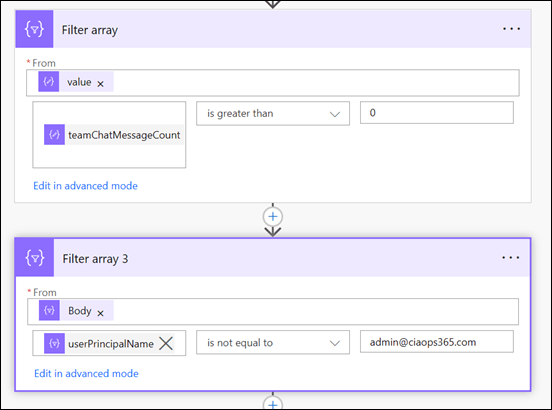
I filtered the results produced to firstly remove users with zero messages and then I removed specific users (in this case me) from the results using the two Filter action shown above.
image

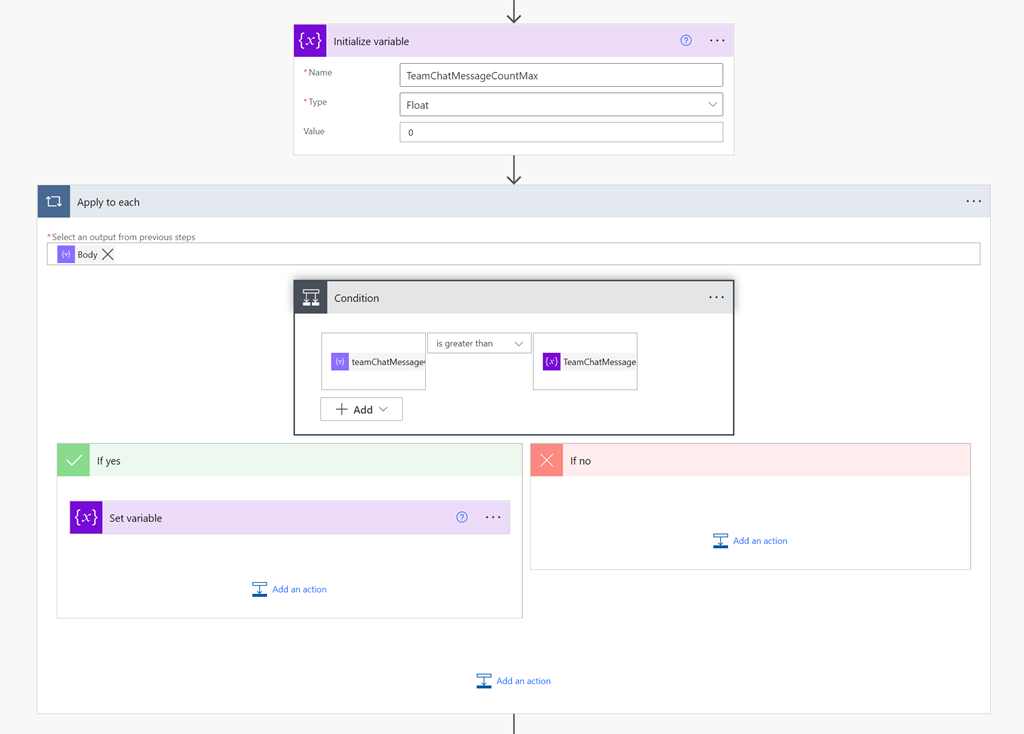
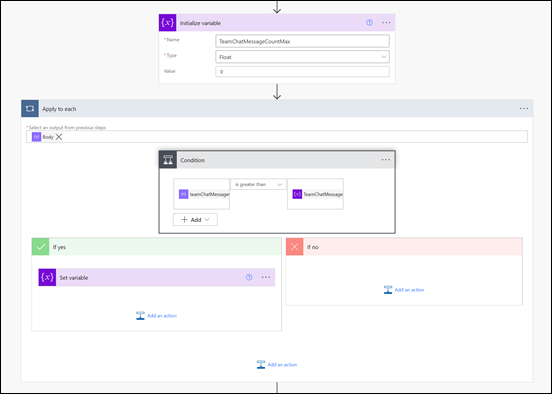
One of the limitations I found during this development process was that Flows are not very good at sorting information. It would have been nice if I could have just sorted my results from largest to smallest. I solved this but firstly creating a temporary variable into which I would store the highest number of chat messages. I then looped through all the remaining results using the Apply to Each action shown above, and set this variable to the greatest value found throughout the results.
image

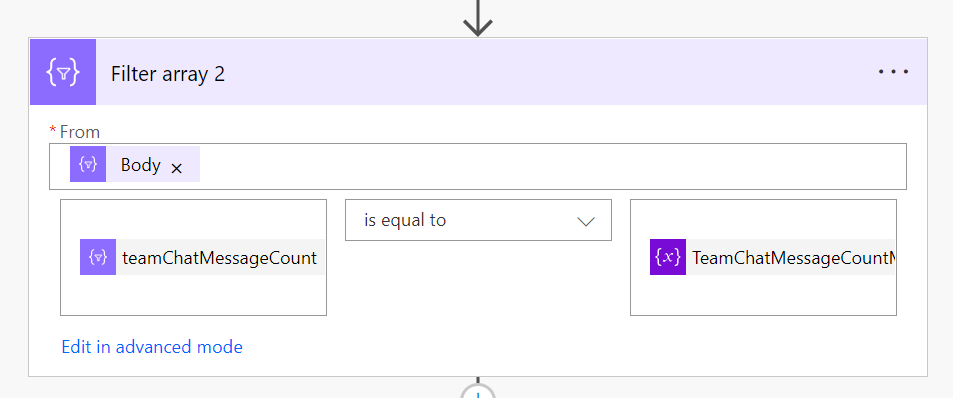
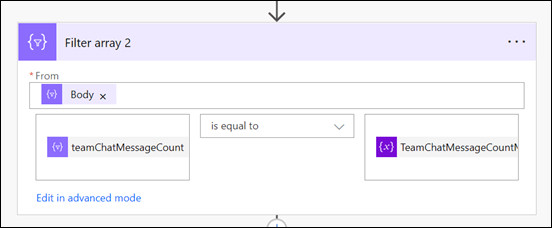
I then employed another Filter action again to remove any results that didn’t match this maximum value.

The next challenge came when considering external users, who have a UPN in the format of:

user_domain.com#EXT#tenant.onmicrosoft.com

Turns out the the Power Automate lookup actions don’t seem to work using these type of UPNs, they only work with an email address apparently!
image

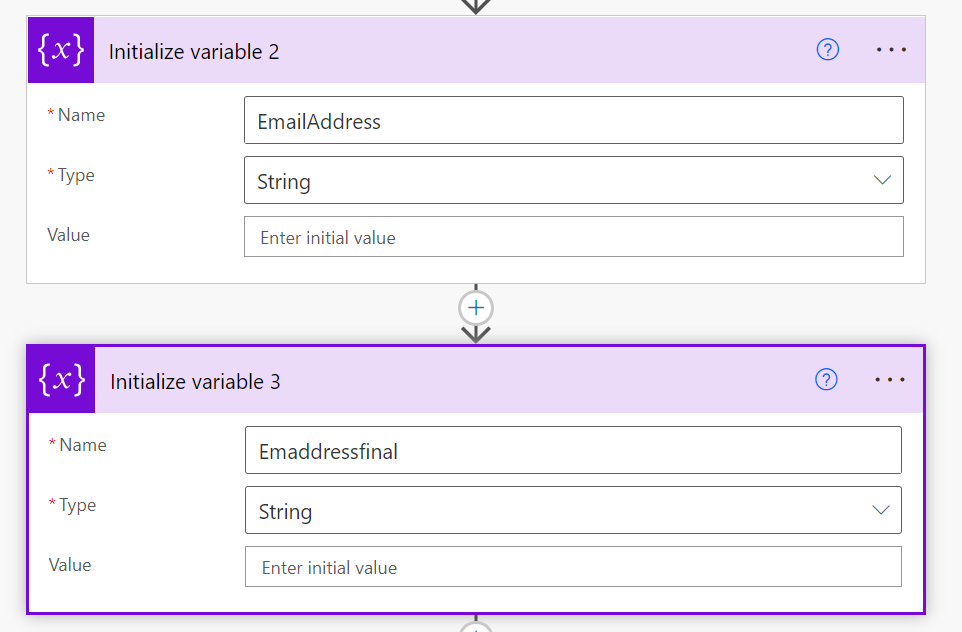
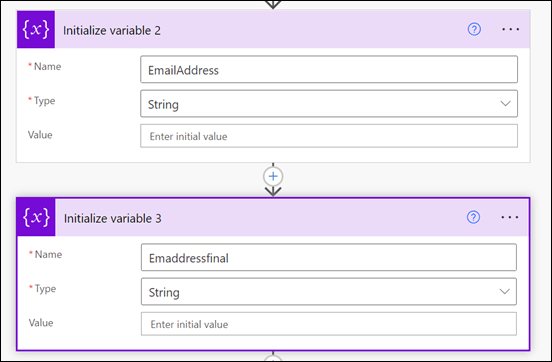
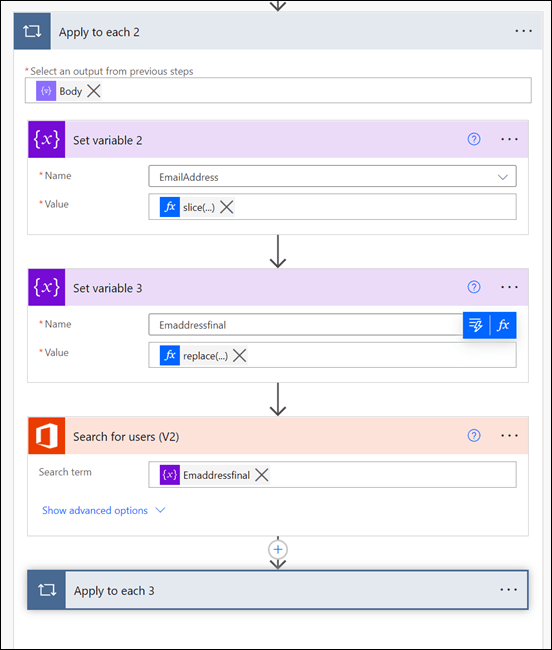
To solve this, I now created two more variables to use when extracting the external users email address.
image

I need to extract and create a user email address before using it in the Search for users (V2) action. To do this I used two functions inside two Set variable actions. The first is:

slice(items(‘Apply_to_each_2’)?[‘userPrincipalName’],0,lastIndexOf(items(‘Apply_to_each_2’)?[‘userPrincipalName’],’#EXT’))

which removes anything from the #EXT and beyond. This typically leaves the format of:

user_domain.com

The second function is:

replace(variables(‘EmailAddress’),’_’,’@’)

that replaces the underscore character with an “at” symbol. The output after both of these functions complete is the users full email address which I can then feed into the Search for users (V2) action to locate my user(s).
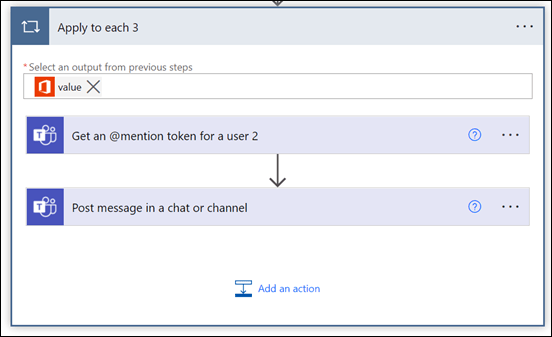
image

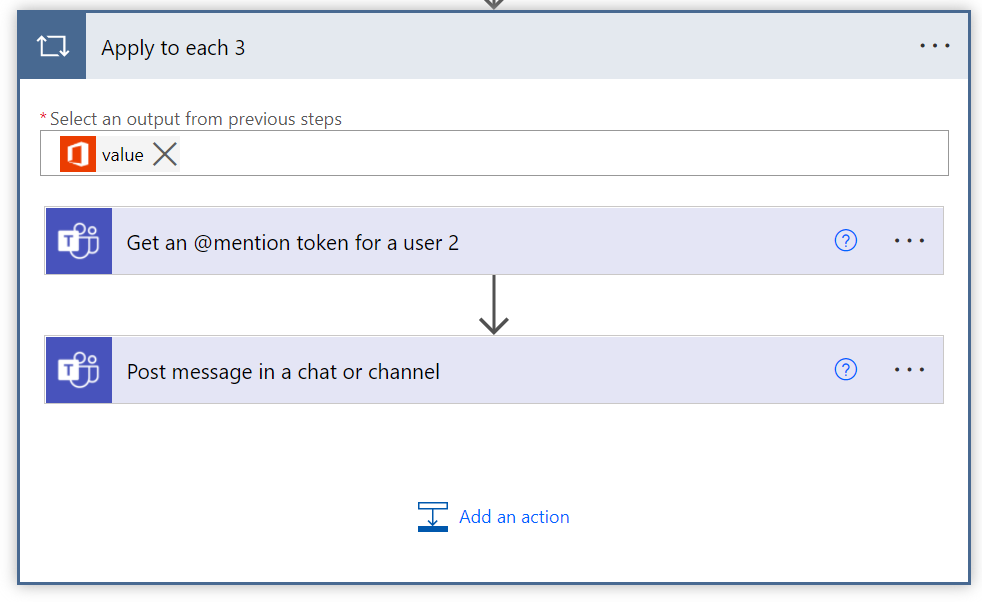
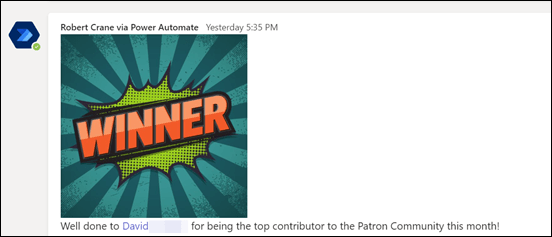
Now that I have the user information I can use it with the Get an @mention token for a user action and then post a message with that @mention and anything else into the Team to publicly recognise the user(s) using the Post message in a chat or channel action.
image

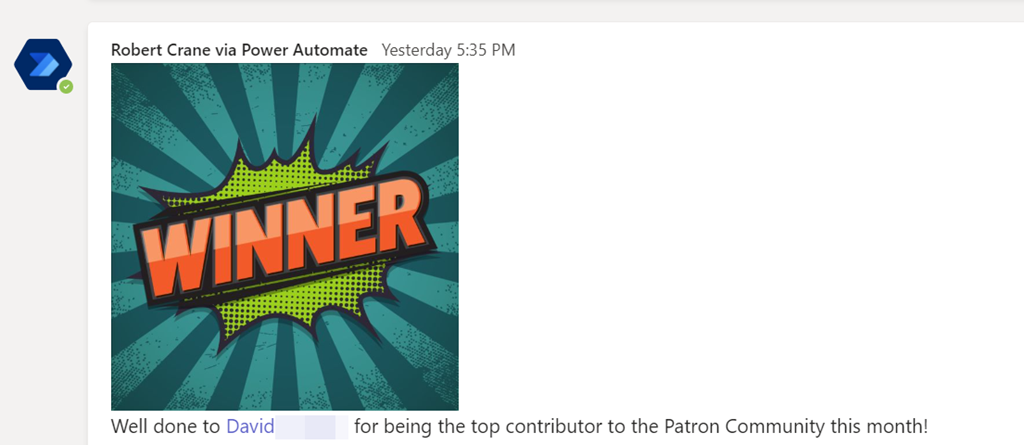
The end result is a nice message, like shown above, that acknowledges the user(s) for their contribution in the Microsoft Team. Best part is that now it is automated it’ll do all the hard work for you going forward!

The moral of the story here is that Power Automate combined with the Microsoft Graph can achieve just about anything you want. Yes, it does a little bit of setting up with an Azure AD application, Keyvault and so on but they are typically only once off. There is also some advanced techniques when it comes to the JSON parameters but once you start working with, it becomes easier. In short, none of that should put you off from what is possible with the Microsoft Cloud environment and putting the technology to work for you to give you more freedom and improve your business processes.