Accessing Azure Key Vault via Power Automate

In a previous article:

Adding a secret to an Azure Key Vault

I showed how a secure credential could be saved to an Azure Key Vault and then retrieved either from the browser, or PowerShell. You can however, also retrieve a secret using Power Automate.

image

You can see I have the same ‘super secret’ password stored in the Azure Key Vault above.

The Azure Key Vault connector in Power Automate is a premium connector which means you’ll either need an advanced Power Platform license or you’ll need to set up a

Power Platform PAYG configuration

which is probably the more cost effective approach.

image

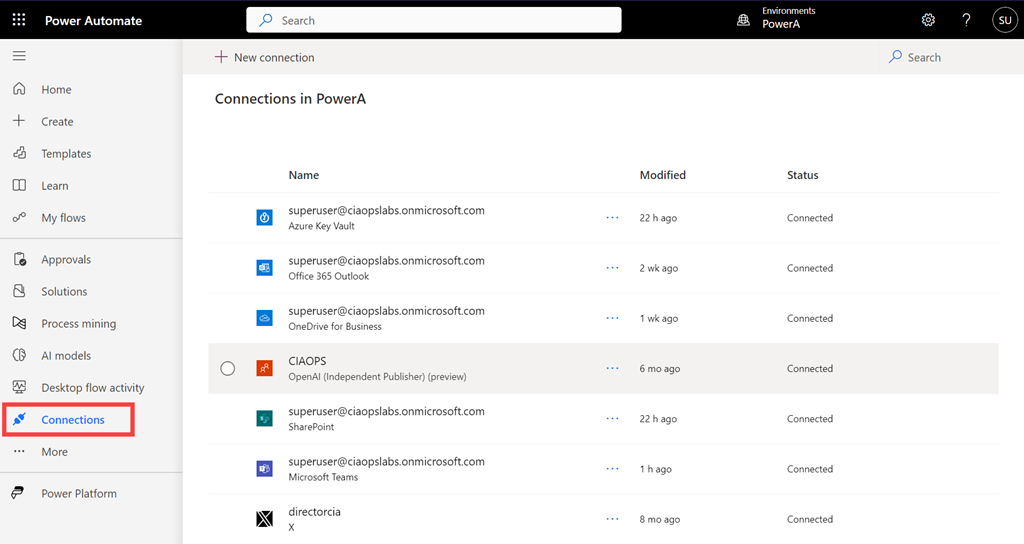
You’ll firstly need to login to your Power Platform environment and select Connectors from the menu on the left as shown above. In here look for the Azure Key Vault connector. If it is not there select the +New connector from the menu at the top.

image

Search for key vault in the top right and then select Azure Key Vault as shown above. You will note that this connector is a Premium connector as highlighted earlier.

image

Enter the vault name and select Create.

image

You should now see the connector displayed in the list as shown above.

image

If you select this connector you will see additional information and the connection Status as well. Icons on the menu bar at the top that allow you to maintain this connector if needed.

image

Create a new flow and add a new step. Search for key vault as shown and select Get Secret as the action below as shown above.

image

If you pull down the Name of the secret field you should see your secret name previously created in the Azure Key Vault as shown above, which you can select.

image

Complete your flow. Here I’m just going to output the value of the secret (i.e. the password) to a Microsoft Team channel.

image

If you now run the flow you see that it succeeds.

image

You should also see the output of the secret (i.e. here the password) stored in the Azure Key Vault displayed as shown above.

Another advantage of using an Azure Key Vault is that you can use it a variety of tools such as PowerShell and Power Automate as I have shown here. This means that the credentials stay secure and can still be accessed via your automation process.

Adding a secret to an Azure Key Vault

An Azure Key Vault is a great location for storing credential securely. In a recent article I cover how to:

Create a new Azure Key Vault

next, I want to cover how you can actually put credentials in there.

image

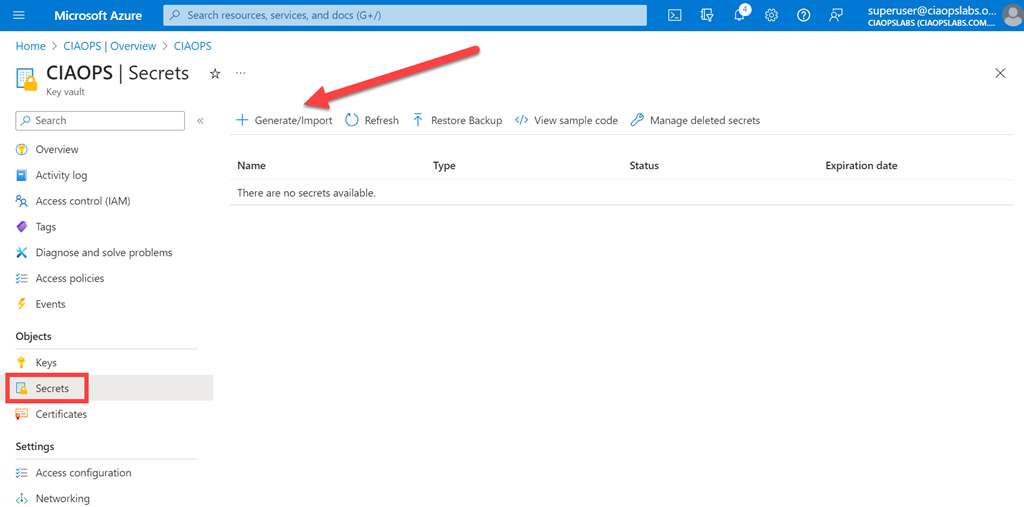
Step one is to navigate the Azure Key Vault you have created, and select the Secrets option from the menu on the left as shown above. From the menu on the right select +Generate/Import as shown.

image

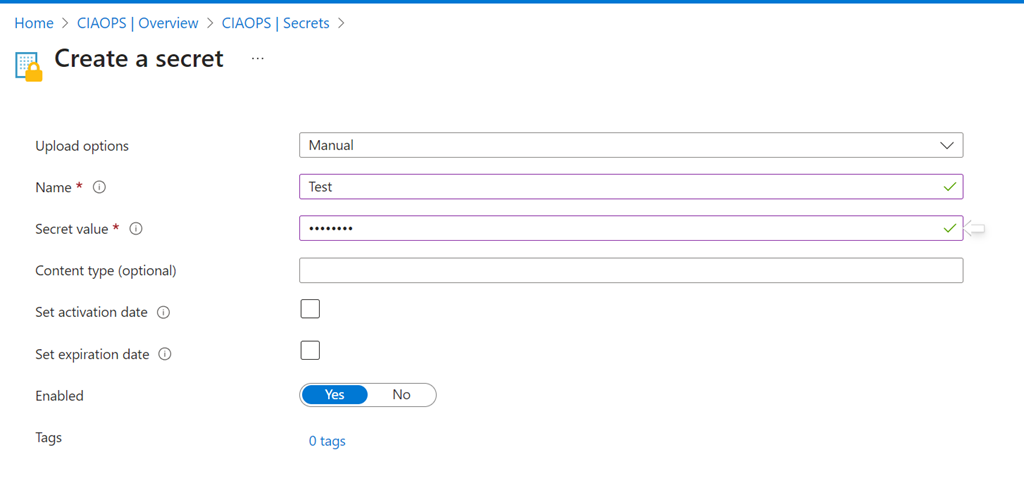
Simply complete the fields as shown and select the Create button at the bottom of the window.

You will note that your secret (say a password) has a Name and potentially an activation and expiration date if desired. You can also enable or disable if desired.

image

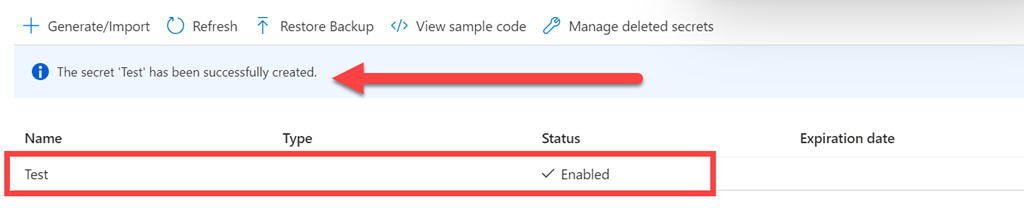
You should now see that the secret has been created as shown above. To view the details simply click on the secret.

image

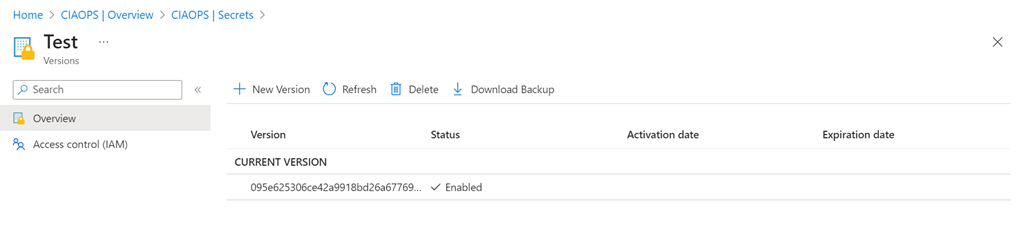
Here you’ll now see all the details about the secret. The good thing about information about an Azure Key Vault credential is that you can easily update it if required and previous versions will be retained. You can also control access to this individual secret via the Access control (IAM) on the menu on the left hand side.

If you now select the Current version displayed in the middle of the page you will get more details like so:

image

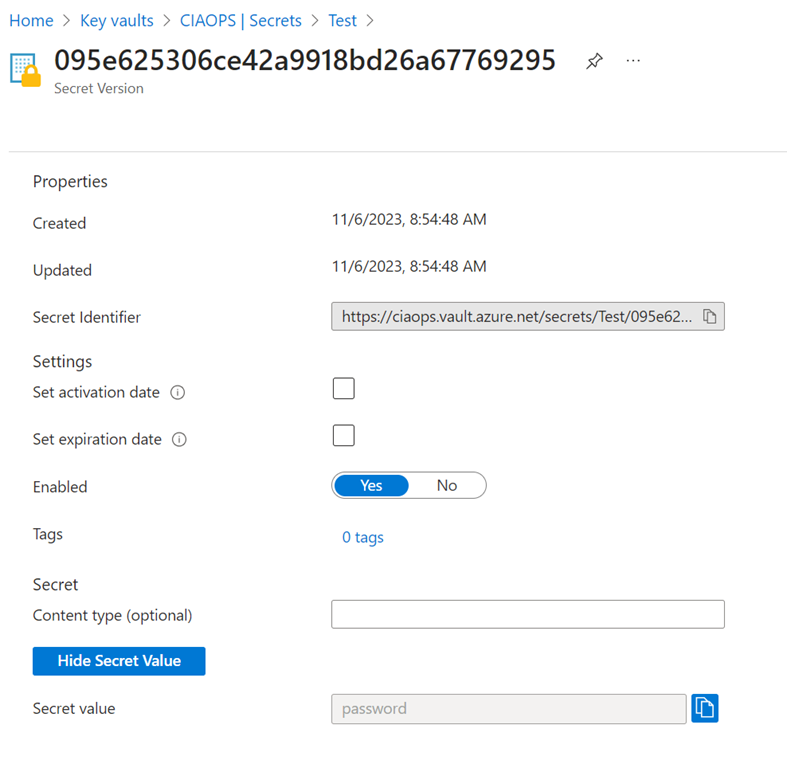
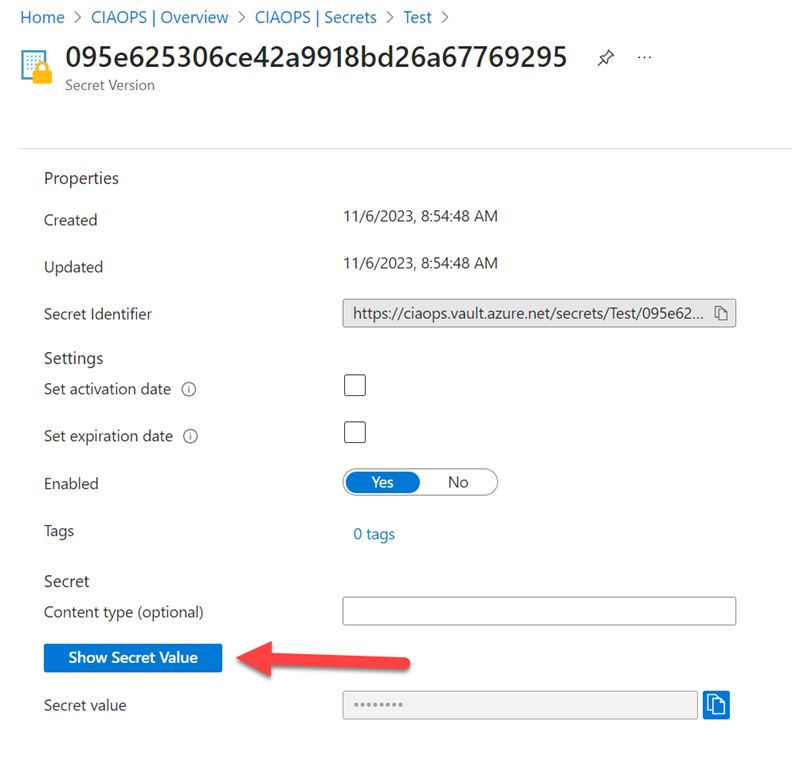
Here, you can update the settings for secret as well as reveal what the secret is by selecting the Show Secret Value button as shown.

image

You see the super secret password shown above.

One of the main reasons reasons for using an Azure Key Vault is that we can access this information also programmatically, for example by using PowerShell.

image

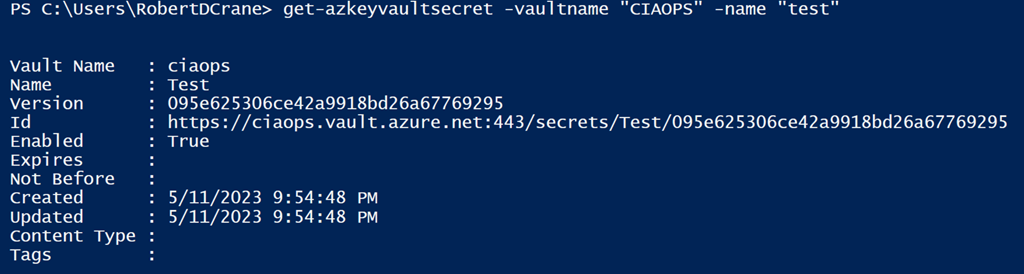
If I connect to Azure using the Azure PowerShell module with a user that has rights to access the vault and secret, I can run a command like:

get-azkeyvaultsecret -vaultname “vaultname” -name “secretname”

and the results will be shown above. But how do I get to the actual secret?

image

Basically, you repeat the previous command but this time assign it to a variable and add the –asplaintext option, like shown above. The command would look like:

$pwd = get-azkeyvaultsecret -vaultname “vaultname” -name “secretname” –asplaintext

Now the secret value (say password) is in the variable $pwd for use in my code.

PowerShell is not the only method you can use to obtain what is in an Azure Key Vault. You can use something like Power Automate and Flow, which I’ll cover off in an upcoming articles. However, PowerShell allows just about any function with vaults including creating, reading, deleting, updating and so on. Thus, using an Azure Key Vault provides a secure yet flexible method of storing credentials you want to protect as well as make potentially portable (i.e. you can use them anywhere on any device that runs PowerShell and connect to the internet).

So an Azure Key Vault provides secure storage for credentials that you can easily access programmatically using something like PowerShell and Power Automate. What can now be achieved with this? Stay tuned to find out more.

Create a new Azure Key Vault

Given that a number of upcoming articles will discuss Azure Key Vaults, I thought a good place to start was to show you how to set one up. It is pretty easy, so let’s do it!

image

You’ll need a paid Azure subscription and administrator access to your Azure portal.

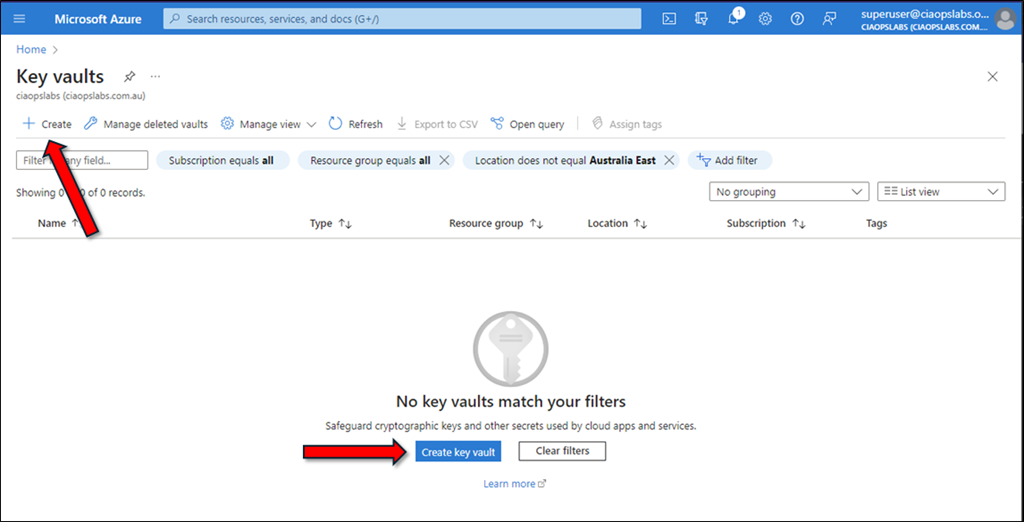
In the Azure portal, search for Key Vaults as shown and select Key Vaults from the results.

image

Then select the option to Create a new vault as shown above.

image

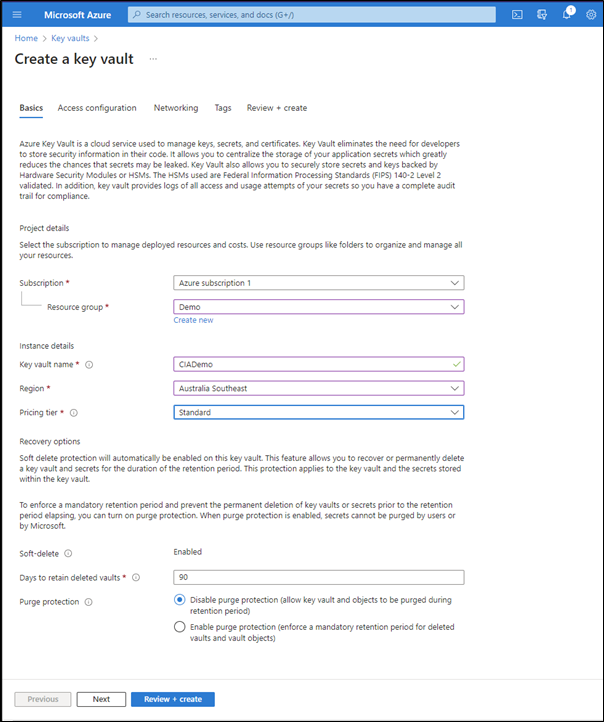
Complete the details for the vault, including:

– Azure subscription

– Resource group

– Key vault name

– Region

– Pricing tier

most of the other options can be left at their defaults. Select the Next button at the bottom of the window to continue.

image

In this case the default Permissions model of Azure role-based access control is desired setting.

Generally, no further changes are required. Select Next at the bottom of the windows to continue.

image

Typically, no changes need to be made here as we will want this new vault to be available publicly via something like PowerShell. However, you can make whatever changes you desire and select the Next button at the bottom of the screen to continue.

image

Add tags if you wish and then select the Next button at the bottom of the window.

image

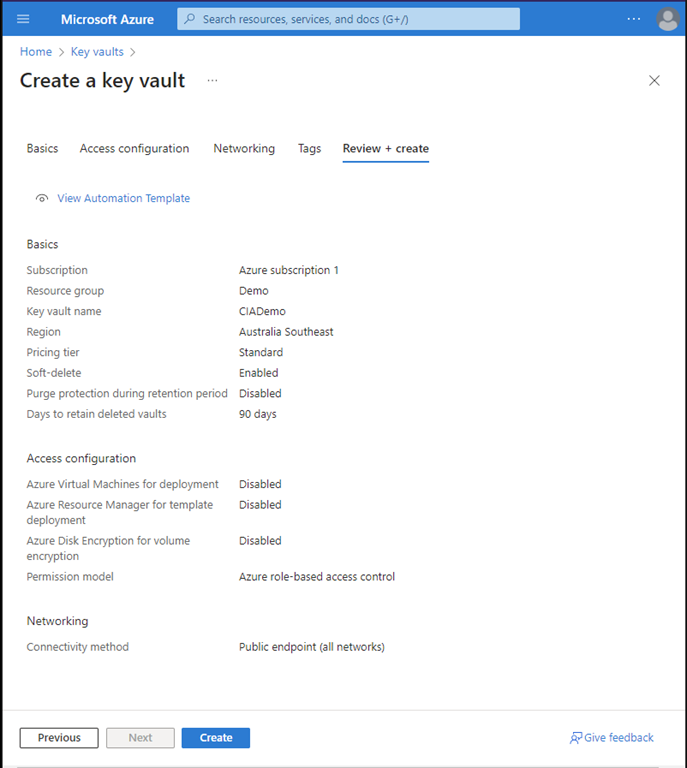
Review the settings you have made and select the Create button.

image

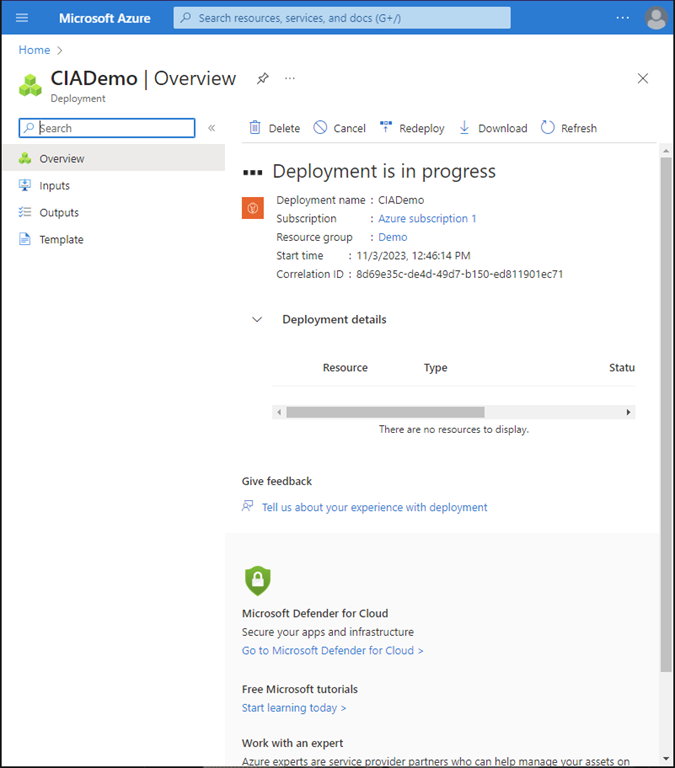
You should now see the new vault being provisioned as shown above.

image

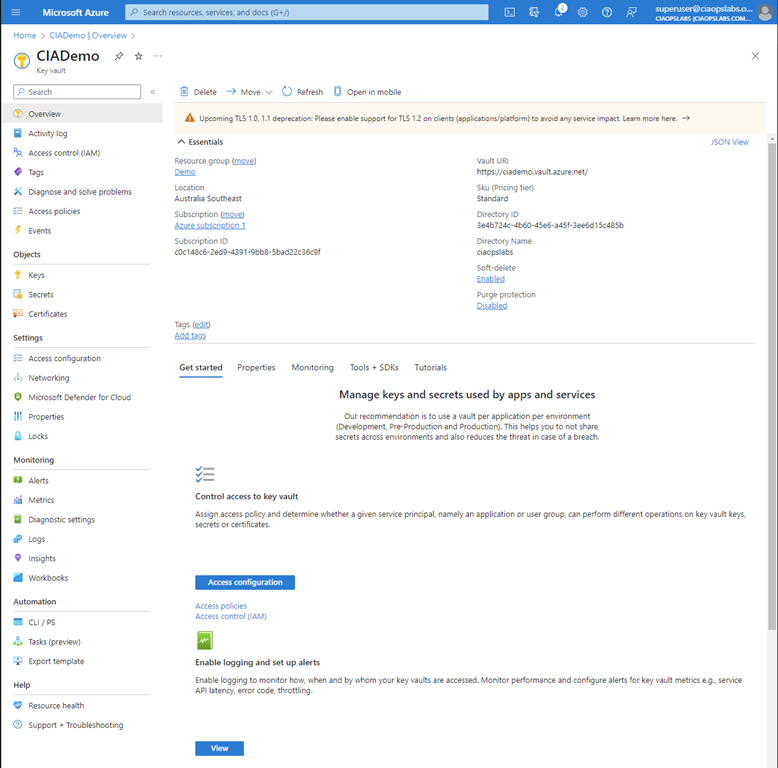
When the provisioning you can select the option to view the result as shown above.

image

You can return to your new vault at any time by navigating to Key Vaults in the Azure portal where you should see the vault just created as shown above.

image

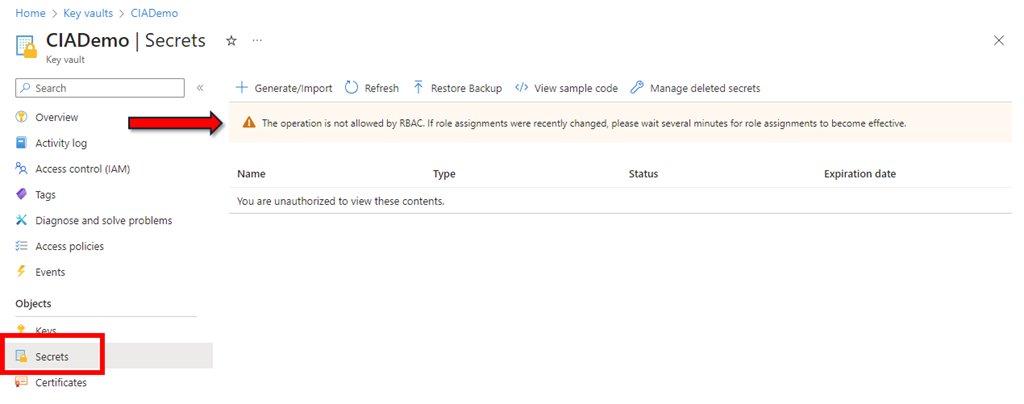
I’d also suggest you check some permissions before you leave. Open the newly created vault and select Secrets from the menu on the left. If you see the banner across the top as shown above the reads This operation is not allowed by RBAC then you’ll probably need to change some permissions.

image

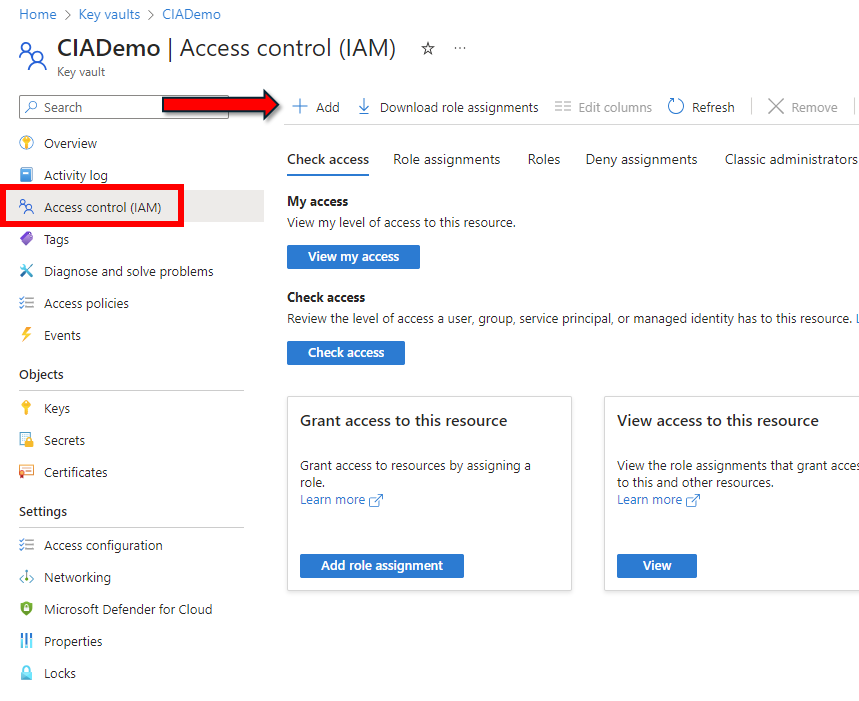
Navigate to the Access Control (IAM) option from the menu on the left as shown above. Then on the right select +Add.

image

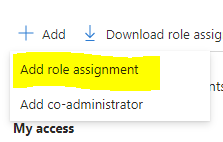
From the menu that appears select the Add role assignment as shown above.

image

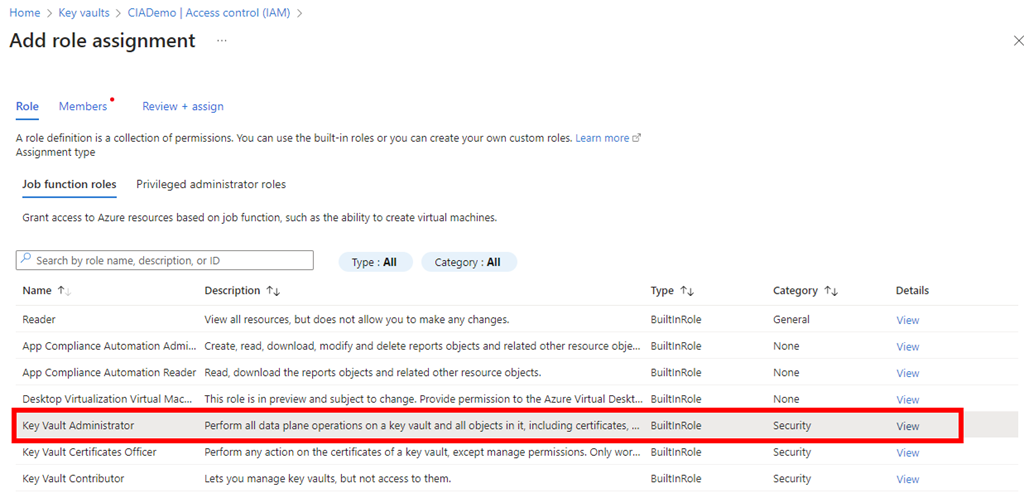
Locate and select the Key Vault Administrator job function role as shown.

Select Next at the bottom of the screen to continue.

image

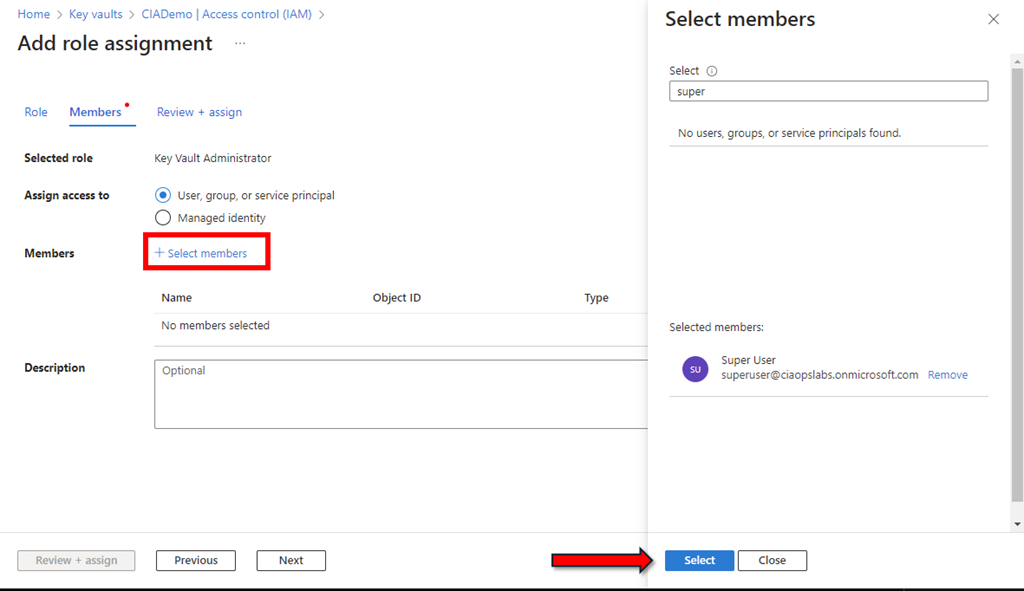
Click the +Select members hyperlink as shown above.

From the window that appears on the right, search for the user whom you want to have rights over the vault (typically the same user that is currently logged in). Press the Select button at the bottom of the window to continue.

image

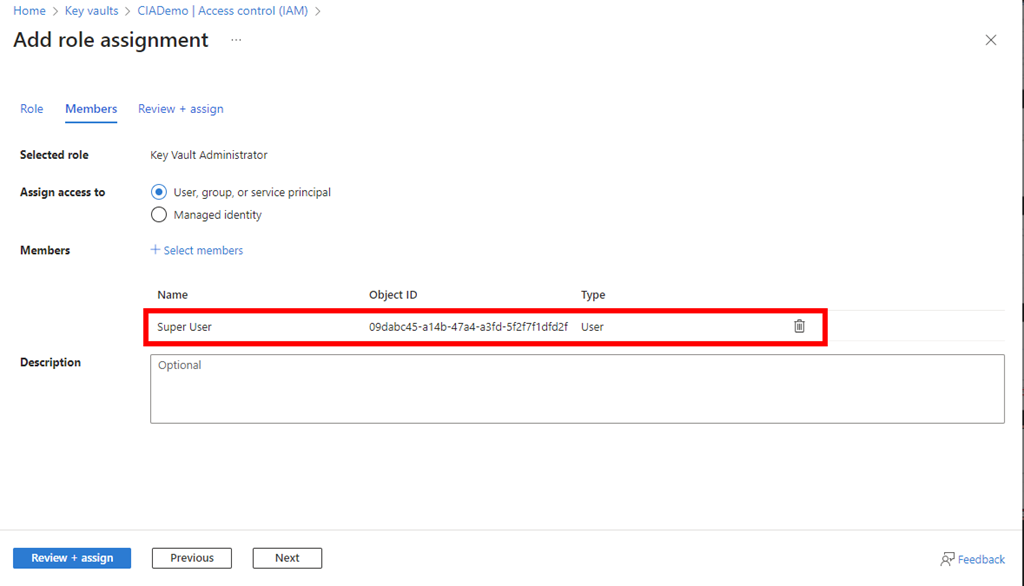
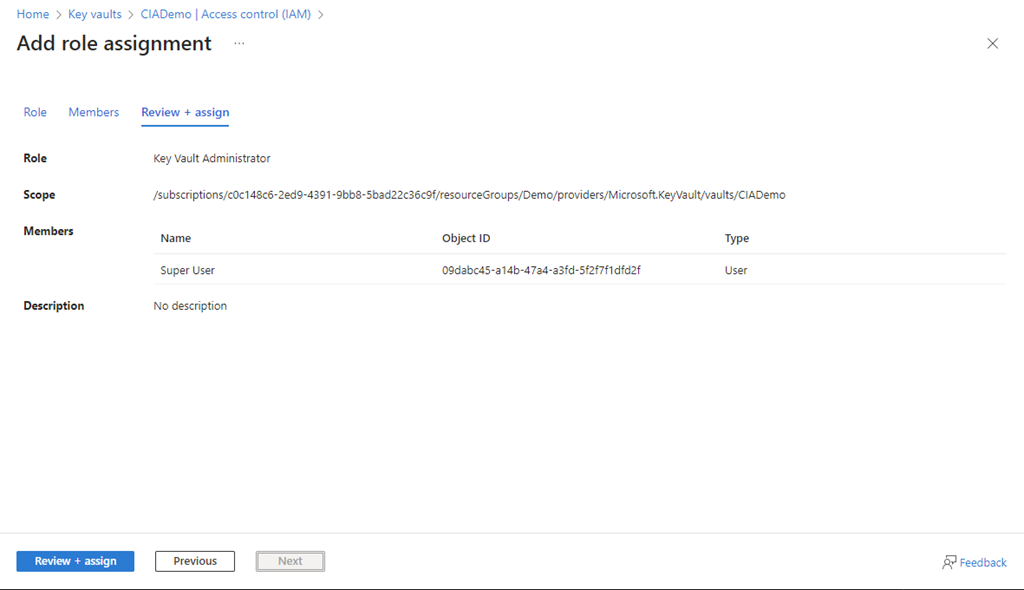
The selected user(s) should now appear under the Members section as shown above.

Press the Next button to continue.

image

Select the Review + assign button at the bottom of the screen to complete the process.

image

If you now return to the Secrets area that displayed the original RBAC warning, after a minute or two, you should see that message is longer displayed. The user that you just added now has administrative rights to the vault.

If you want to learn more about what Azure Key Vaults are all about take a look at:

Azure Key Vault basic concepts

however, in essence they are going to place to store stuff you want kept secure, like configurations details, including passwords and then access them programmatically.

Power Automate Azure Key Vault access inconsistencies

I’m in the process of building a Flow that connects to a Dataverse database inside a Microsoft Team. When you create this you get the ability to create Cloud Flows (aka Power Automate).

image

However, there is an issue when you try and use something like Azure Key Vault actions here.

image

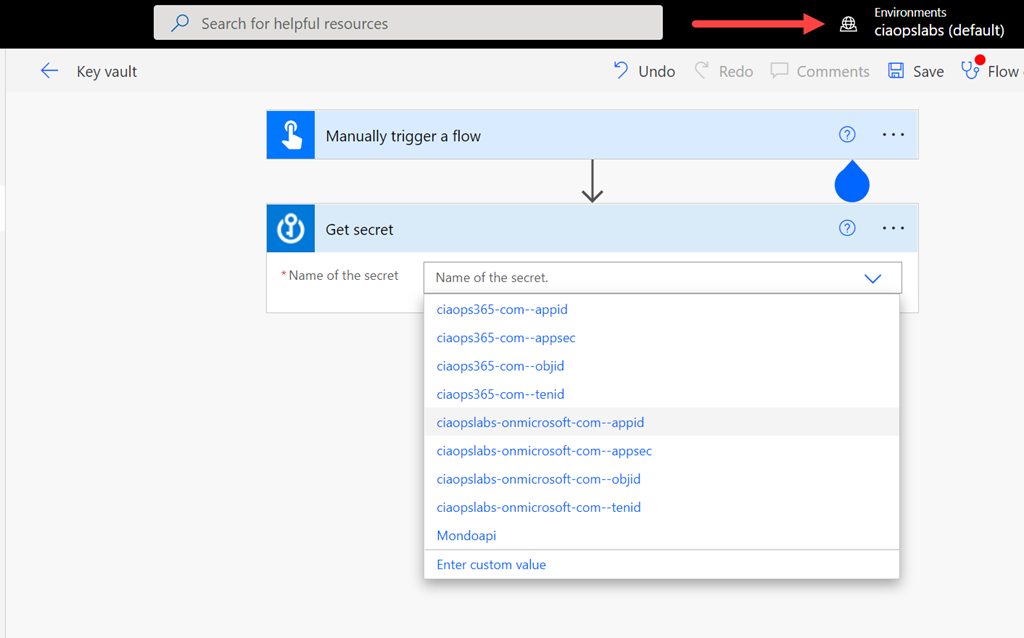
In the above, you can see that I’m in my default Power Automate environment and the Get secret action of Azure Key Vault is accessible as expected and shows all the items I have inside the vault.

image

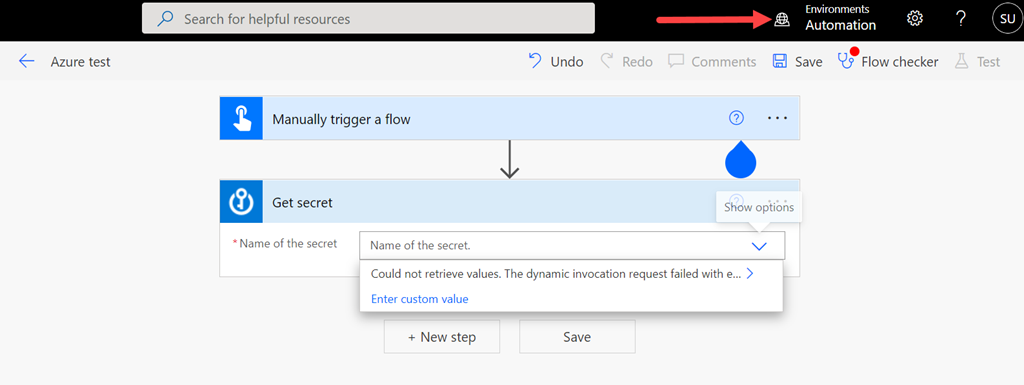
However, if I swap to another environment that was created as part of a Team (here an environment called Automation), you’ll see that I can add the Azure Key Vault action Get Secret but I no longer see the items inside that vault as I did before! I am using the same user in both cases.

It has clearly something to do with the connection,

image

which shows up as invalid as you can see above.

image

If I try and add a new connection, I see the above dialog but can’t make any changes or enter any information. Looks like I might need to investigate the Connect with a service principal option perhaps?

However, for now, there seems to be a limit when you use the Azure Key vault actions inside anything that is not the default environment for the Power Platform in your tenant. I will assume this is because these environments are limited to Microsoft Teams and have innate restrictions that I’ll need to find information on. If you know what this is, I’d love to hear from you.

Incentivising Microsoft Teams contributions with Power Automate

One of the most important parts of technology adoption is incentivising people. One simple way to do this is to acknowledge their contributions in Microsoft Teams. I’ve spoken about this before using something like:

Custom Praise badges in Microsoft Teams

The challenge there is, that this is a manual process. How can the same be achieved the same kind of thing using automation I recently wondered?

What if you could automatically determine the number of chat messages that someone posted into Microsoft Teams, and then acknowledge the highest contributors with a custom ‘thank you’ message? Here’s how I managed to do just that using the Microsoft Graph and Power Automate.

The core information needed about messages posted in Microsoft Teams will come the Microsoft Graph, specifically:

getTeamsUserActivityUserDetail

The first step in this process will be to create an Azure AD application in the tenant, which I have detailed previously:

https://blog.ciaops.com/2019/04/17/using-interactive-powershell-to-access-the-microsoft-graph/

the credentials for this Azure AD application will then need to be uploaded into Azure Key Vault as I have covered here:

Uploading Graph credentials to Azure Key Vault

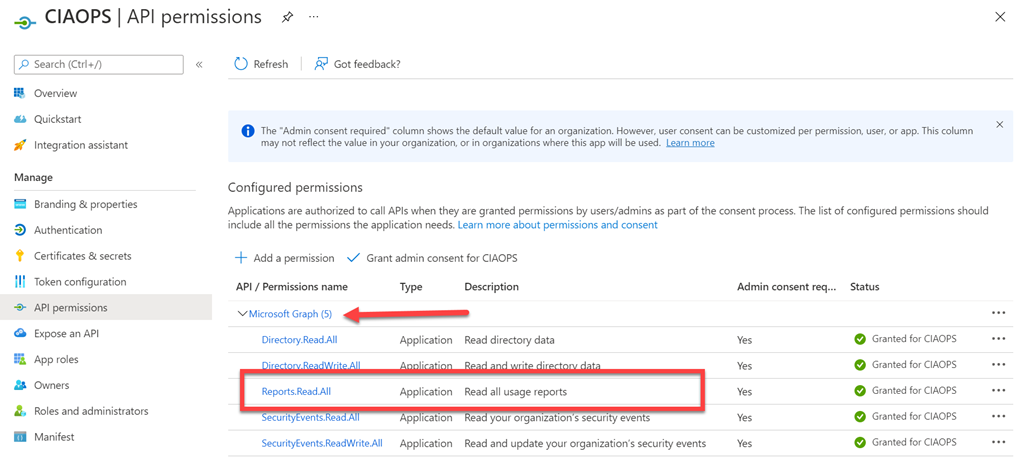
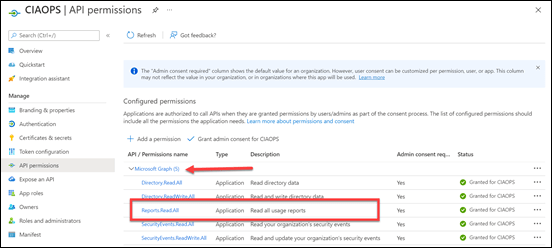
You’ll also need to set the API permissions for this application to :
image

Reports.Read.All

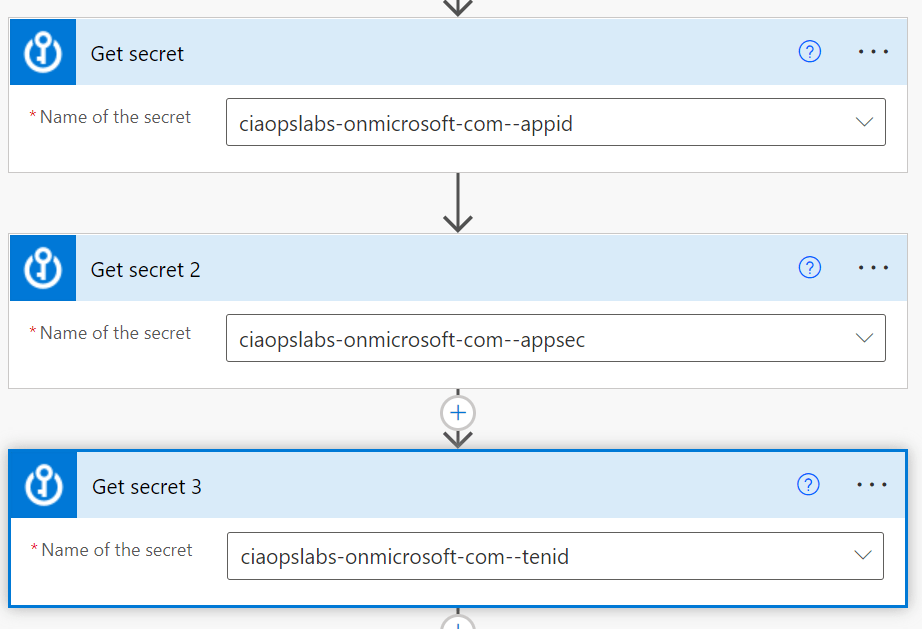
 You’ll need to trigger your Flow the way that suits you. Typically you’d schedule it to run on the first of each month. You’ll then need to use the Get secret action from the Azure Key Vault as shown above. You should also note that this is a premium connectors, so you’ll need an appropriate Power Platform license to use this.
image

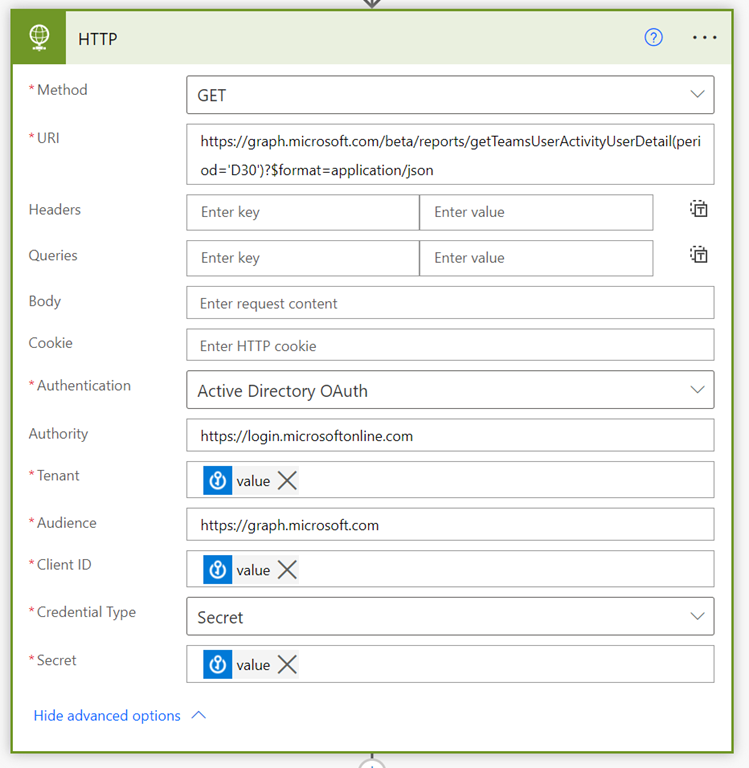
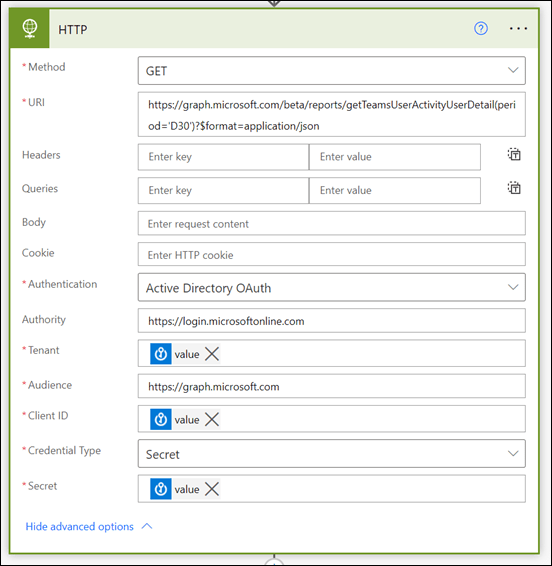
Next, will be the HTTP action that also a premium connector. The URI to use here will be:

https://graph.microsoft.com/beta/reports/getTeamsUserActivityUserDetail(period=’D30’)?$format=application/json

The D30 parameter determines how many previous days to consider. Valid options for the number of days is 7,30, 90, 180 according to the documentation.

The security parameters come from the Azure Key Vault Get secret actions.
image

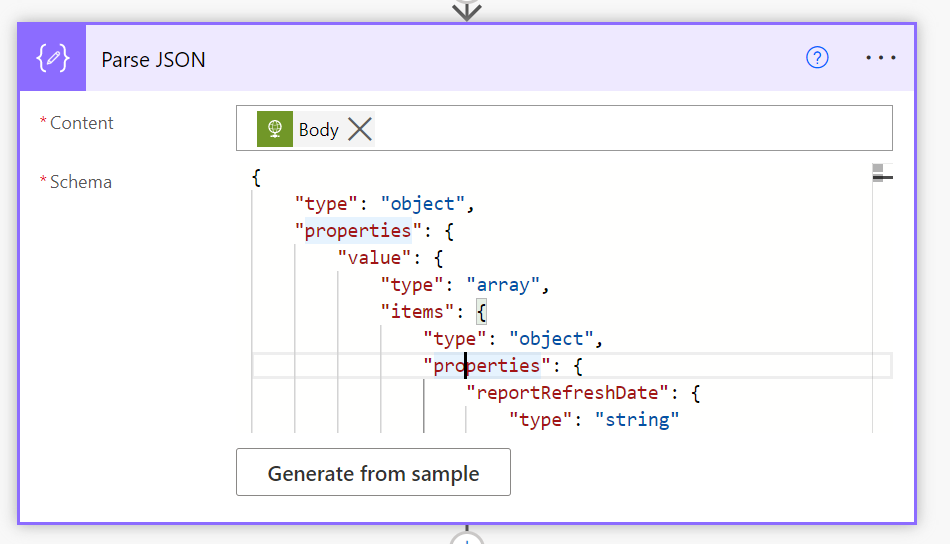
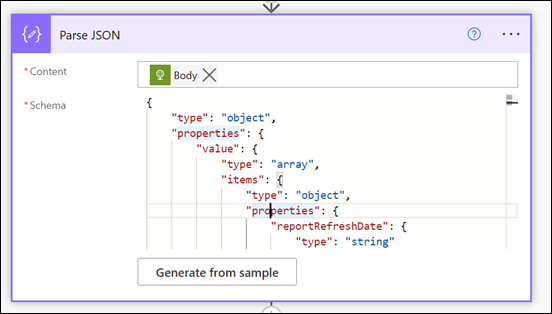
The data returned from this HTTP action will be in JSON format, so that is fed into the Parse JSON action as shown above.

One tricky things about parsing json is to get the right schema. When I first attempted this I received this error:

“message”: “Invalid type. Expected String but got Null.”,

After some digging I found that sometimes the lastactivitydate parameter returned a string or NULL value. Thus, I need to modify the original JSON for that parameter to accommodate both potential results:

“lastActivityDate”: {
     “type”: [
         “string”,
         “null”
     ]
},

Here the whole working JSON schema I used:

{
     “type”: “object”,
     “properties”: {
         “value”: {
             “type”: “array”,
             “items”: {
                 “type”: “object”,
                 “properties”: {
                     “reportRefreshDate”: {
                         “type”: “string”
                     },
                     “userId”: {
                         “type”: “string”
                     },
                     “userPrincipalName”: {
                         “type”: “string”
                     },
                     “lastActivityDate”: {
                         “type”: [
                             “string”,
                             “null”
                         ]
                     },
                     “isDeleted”: {
                         “type”: “boolean”
                     },
                     “deletedDate”: {},
                     “assignedProducts”: {
                         “type”: “array”
                     },
                     “teamChatMessageCount”: {
                         “type”: “integer”
                     },
                     “privateChatMessageCount”: {
                         “type”: “integer”
                     },
                     “callCount”: {
                         “type”: “integer”
                     },
                     “meetingCount”: {
                         “type”: “integer”
                     },
                     “meetingsOrganizedCount”: {
                         “type”: “integer”
                     },
                     “meetingsAttendedCount”: {
                         “type”: “integer”
                     },
                     “adHocMeetingsOrganizedCount”: {
                         “type”: “integer”
                     },
                     “adHocMeetingsAttendedCount”: {
                         “type”: “integer”
                     },
                     “scheduledOneTimeMeetingsOrganizedCount”: {
                         “type”: “integer”
                     },
                     “scheduledOneTimeMeetingsAttendedCount”: {
                         “type”: “integer”
                     },
                     “scheduledRecurringMeetingsOrganizedCount”: {
                         “type”: “integer”
                     },
                     “scheduledRecurringMeetingsAttendedCount”: {
                         “type”: “integer”
                     },
                     “audioDuration”: {
                         “type”: “string”
                     },
                     “videoDuration”: {
                         “type”: “string”
                     },
                     “screenShareDuration”: {
                         “type”: “string”
                     },
                     “hasOtherAction”: {
                         “type”: “boolean”
                     },
                     “urgentMessages”: {
                         “type”: “integer”
                     },
                     “postMessages”: {
                         “type”: “integer”
                     },
                     “replyMessages”: {
                         “type”: “integer”
                     },
                     “isLicensed”: {
                         “type”: “boolean”
                     },
                     “reportPeriod”: {
                         “type”: “string”
                     }
                 },
                 “required”: [
                     “reportRefreshDate”,
                     “userId”,
                     “userPrincipalName”,
                     “lastActivityDate”,
                     “isDeleted”,
                     “deletedDate”,
                     “assignedProducts”,
                     “teamChatMessageCount”,
                     “privateChatMessageCount”,
                     “callCount”,
                     “meetingCount”,
                     “meetingsOrganizedCount”,
                     “meetingsAttendedCount”,
                     “adHocMeetingsOrganizedCount”,
                     “adHocMeetingsAttendedCount”,
                     “scheduledOneTimeMeetingsOrganizedCount”,
                     “scheduledOneTimeMeetingsAttendedCount”,
                     “scheduledRecurringMeetingsOrganizedCount”,
                     “scheduledRecurringMeetingsAttendedCount”,
                     “audioDuration”,
                     “videoDuration”,
                     “screenShareDuration”,
                     “hasOtherAction”,
                     “urgentMessages”,
                     “postMessages”,
                     “replyMessages”,
                     “isLicensed”,
                     “reportPeriod”
                 ]
             }
         }
     }
}
image

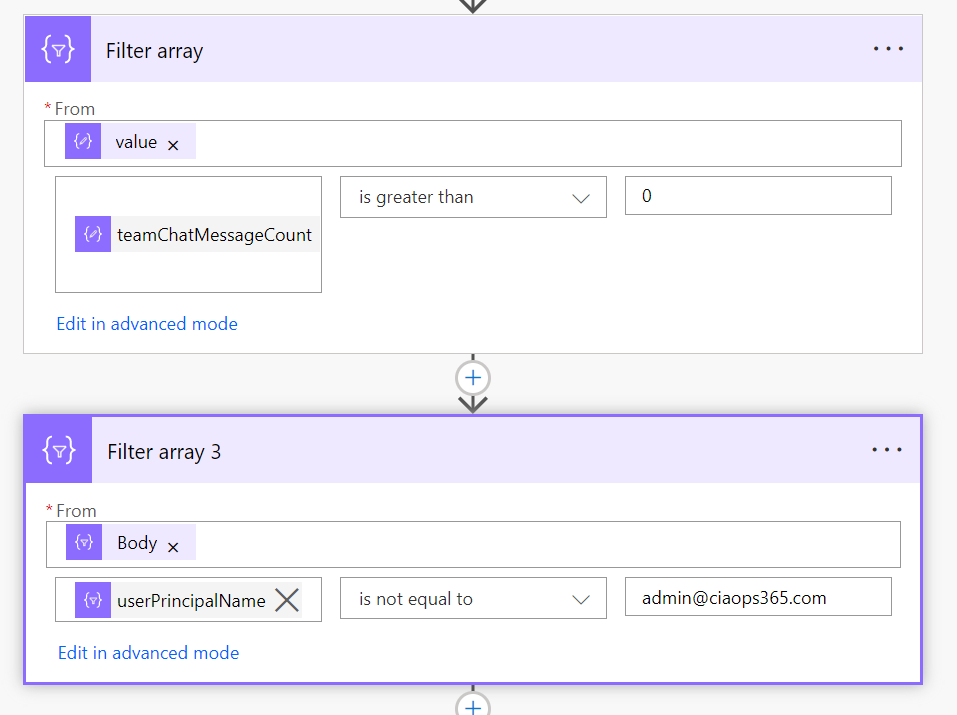
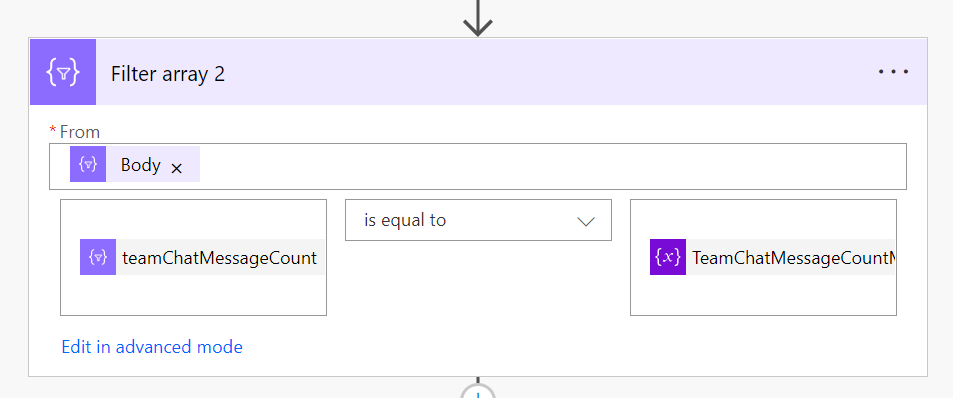
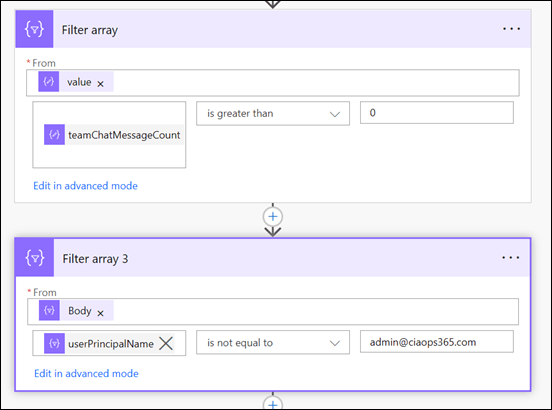
I filtered the results produced to firstly remove users with zero messages and then I removed specific users (in this case me) from the results using the two Filter action shown above.
image

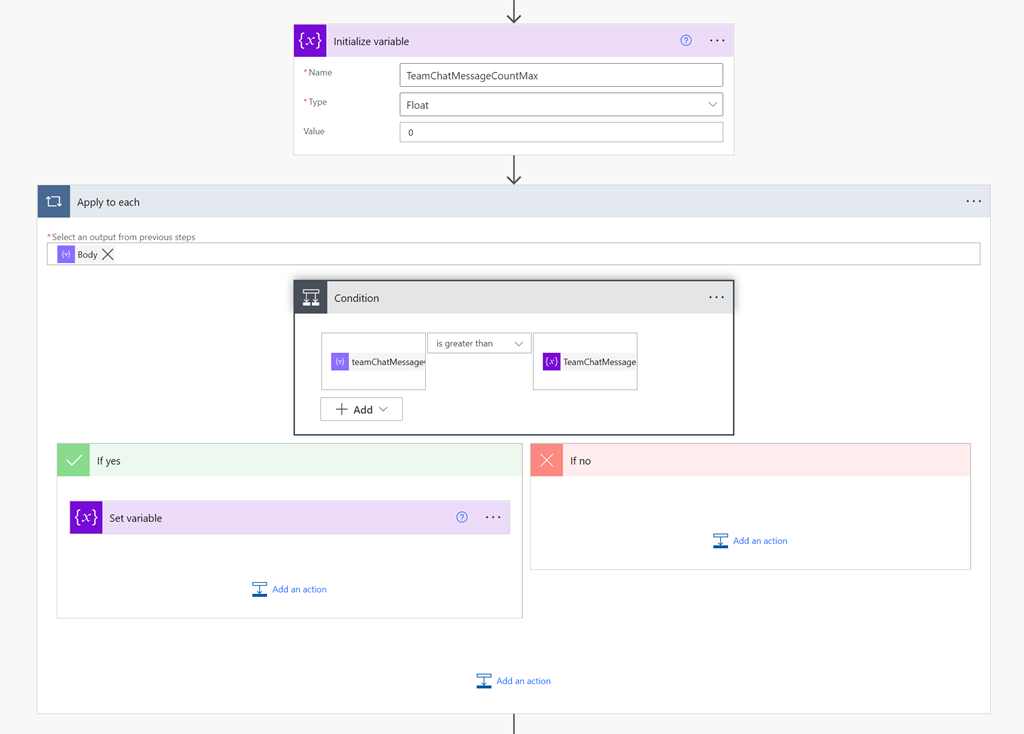
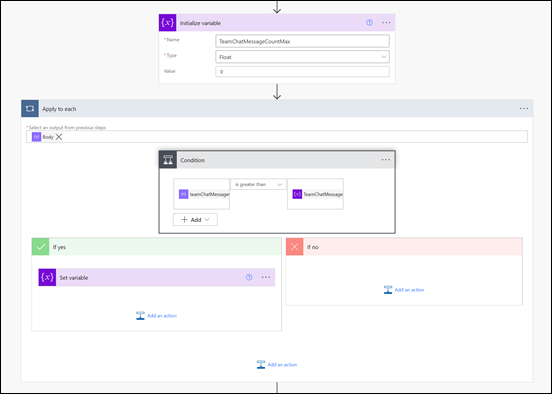
One of the limitations I found during this development process was that Flows are not very good at sorting information. It would have been nice if I could have just sorted my results from largest to smallest. I solved this but firstly creating a temporary variable into which I would store the highest number of chat messages. I then looped through all the remaining results using the Apply to Each action shown above, and set this variable to the greatest value found throughout the results.
image

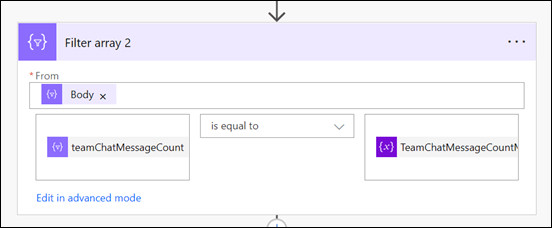
I then employed another Filter action again to remove any results that didn’t match this maximum value.

The next challenge came when considering external users, who have a UPN in the format of:

user_domain.com#EXT#tenant.onmicrosoft.com

Turns out the the Power Automate lookup actions don’t seem to work using these type of UPNs, they only work with an email address apparently!
image

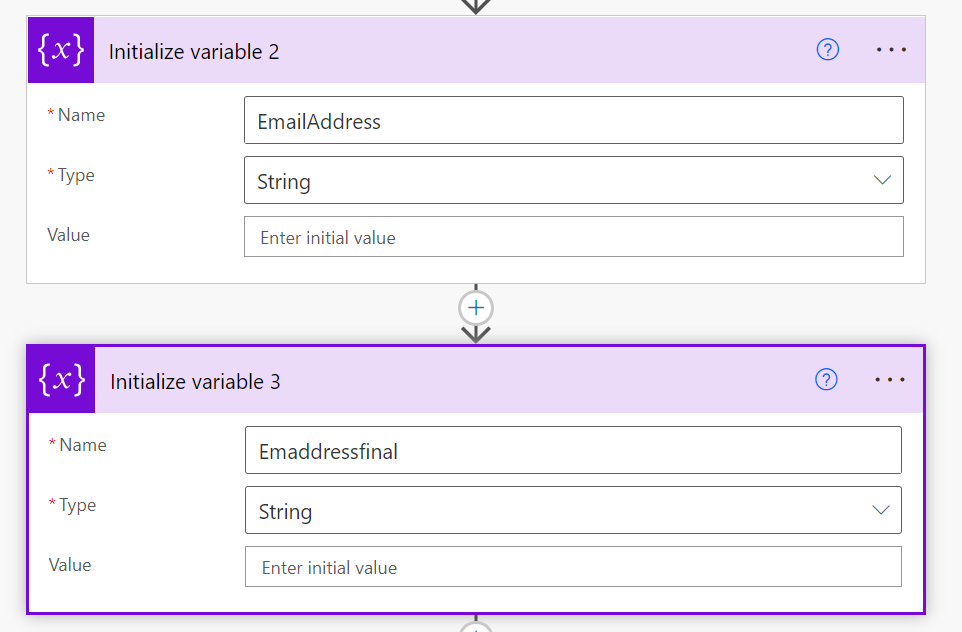
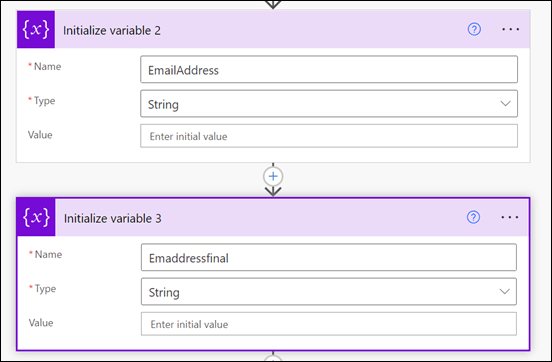
To solve this, I now created two more variables to use when extracting the external users email address.
image

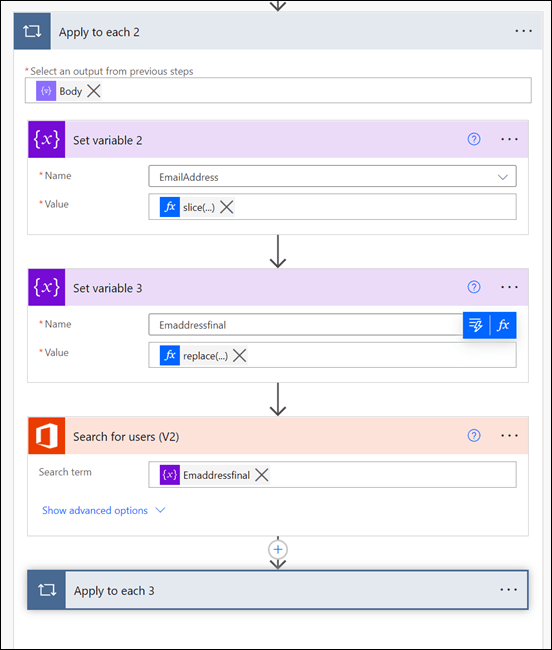
I need to extract and create a user email address before using it in the Search for users (V2) action. To do this I used two functions inside two Set variable actions. The first is:

slice(items(‘Apply_to_each_2’)?[‘userPrincipalName’],0,lastIndexOf(items(‘Apply_to_each_2’)?[‘userPrincipalName’],’#EXT’))

which removes anything from the #EXT and beyond. This typically leaves the format of:

user_domain.com

The second function is:

replace(variables(‘EmailAddress’),’_’,’@’)

that replaces the underscore character with an “at” symbol. The output after both of these functions complete is the users full email address which I can then feed into the Search for users (V2) action to locate my user(s).
image

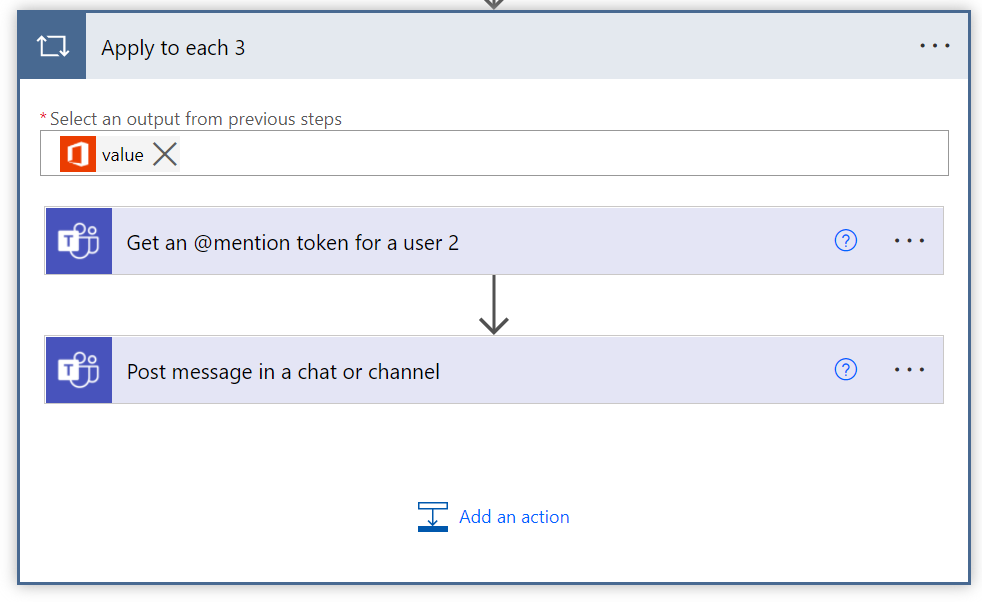
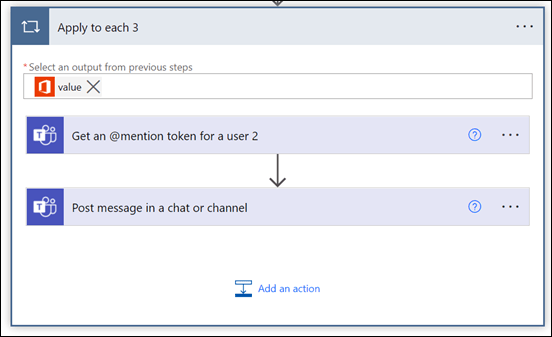
Now that I have the user information I can use it with the Get an @mention token for a user action and then post a message with that @mention and anything else into the Team to publicly recognise the user(s) using the Post message in a chat or channel action.
image

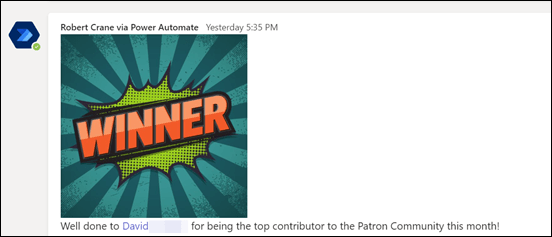
The end result is a nice message, like shown above, that acknowledges the user(s) for their contribution in the Microsoft Team. Best part is that now it is automated it’ll do all the hard work for you going forward!
The moral of the story here is that Power Automate combined with the Microsoft Graph can achieve just about anything you want. Yes, it does a little bit of setting up with an Azure AD application, Keyvault and so on but they are typically only once off. There is also some advanced techniques when it comes to the JSON parameters but once you start working with, it becomes easier. In short, none of that should put you off from what is possible with the Microsoft Cloud environment and putting the technology to work for you to give you more freedom and improve your business processes.