Why developers don’t own this one

image

I keep hearing the same thing from MSPs and IT pros when GitHub Copilot CLI comes up.

“That’s a developer tool, right? Not for me.”

No.

That’s the assumption I want to push back on. If you spend any time at a terminal — running PowerShell against a tenant, poking at logs, scripting an onboarding — Copilot CLI belongs on your machine.

And once you bolt Work IQ onto it, your terminal stops being a code playground and starts being something genuinely useful for the M365 work you already do.

What is GitHub Copilot CLI, really?

It’s an AI assistant that lives in your shell.

You install it, run copilot, and start typing in plain English. It proposes commands, runs them with your approval, edits files, reads repositories — and it holds context across the whole session. Every action waits for your tick before it executes, which I appreciate. Nothing happens to your machine without you saying yes.

Think of it less as a coding tool and more as a terminal pair who never gets bored and never forgets the exact git syntax you can never remember.

Step-by-Step: Getting Copilot CLI on your machine

You’ll need an active GitHub Copilot subscription (Pro, Pro+, Business, or Enterprise) and Node.js v22 or higher. On Windows, PowerShell 6 or higher.

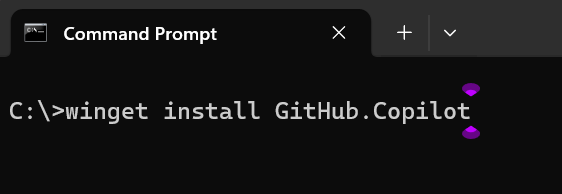
Install the package

Screenshot 2026-04-26 075341

Run:

winget install Github.Copilot

as an administrator that the command prompt

Launch it

copilot

Sign in

At the prompt, type login and follow the browser flow. That’s the whole authentication dance.

The full walkthrough — including winget, Homebrew, and the install script — sits on the official GitHub Copilot CLI installation docs.

That’s it. You’re talking to your terminal.

Step-by-Step: Connecting Work IQ inside Copilot CLI

Here’s where it gets interesting for anyone living in Microsoft 365.

Work IQ is a Microsoft MCP server that pipes your M365 tenant data — emails, meetings, documents, Teams messages, people — straight into Copilot CLI. It’s in public preview, and your tenant admin needs to grant consent the first time.

Open Copilot CLI

copilot

Add the plugin marketplace

copilot-plugins

Install the plugin

plugin install workiq@copilot-plugins

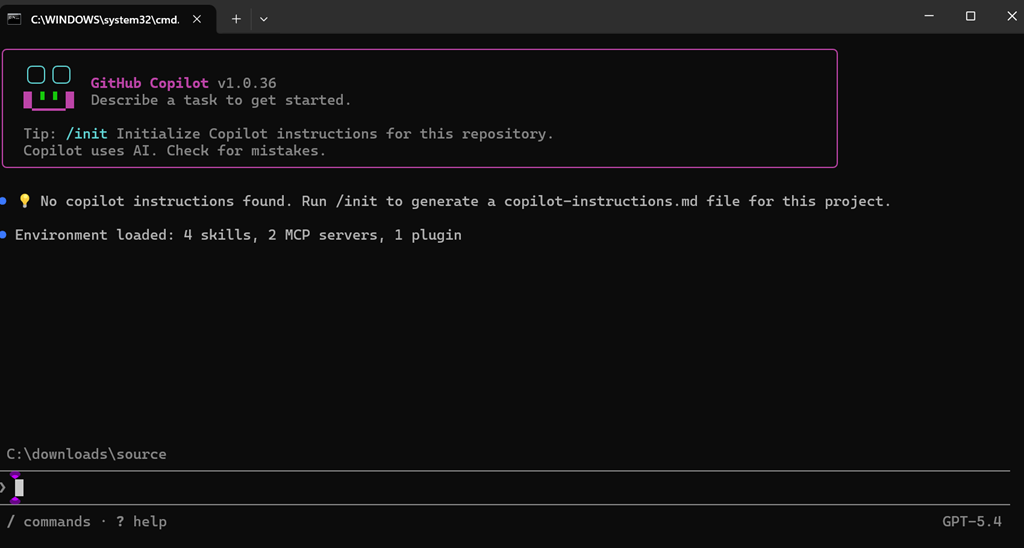
Restart and ask

Screenshot 2026-04-26 075859

Quit Copilot CLI, relaunch it, then try something like:

What did my client say last week about the Intune rollout?

Notice what’s missing? You never opened Outlook. You never opened Teams. You never alt-tabbed.

The official walkthrough — including admin consent and the EULA acceptance you’ll deal with once — sits on Microsoft Learn’s Work IQ overview. The broader plugin and MCP picture for the CLI is on the GitHub Copilot CLI docs.

Why this actually changes how you work

Most of my day, like yours, is spent jumping between windows. Email. Teams. SharePoint. A browser with seven tabs of Microsoft Learn open.

“But I already have Copilot in Microsoft 365 — why bother with the CLI?”

Because the CLI is where you do the work. Drafting an email is fine inside Outlook. But when you’re scripting tenant changes, comparing config exports, or poking at a stubborn migration log, you don’t want to leave the terminal to ask a question about the client. With Work IQ, you don’t.

That’s not a productivity tweak. That’s collapsing two tools into one place.

Here’s the real win for MSPs. Your engineers can ask once — “summarise the last five tickets from this client and show me the related Teams chat” — without context-switching, without copy-paste, without losing their thread. Same hour billed, more thinking inside it.

If you’re not showing your clients what their own terminal can already do for them, you’re leaving value on the table.

Copilot CLI doesn’t get tired. Use that.

GitHub Copilot CLI plus Work IQ isn’t there to make you faster at the terminal. It’s there to make the terminal stop being an island.

The Command Line Is Quietly Coming Back

image

I had a quiet moment last week that made me stop and think. I was watching a younger colleague get something done in about thirty seconds — no mouse, no menus, no four browser tabs open. Just typed a sentence into a terminal, hit enter, and the work was done. It looked exactly like the way I used to work in the late nineties, except the thing on the other side of the prompt was now an AI.

That’s the part I keep turning over. For more than two decades we have been told the future is graphical. Click, drag, drop, swipe. Every product wanted to be more visual, more “intuitive”, more pointy and clicky than the last one. And now, very quietly, the command line is walking back into the room — with a tool like GitHub Copilot CLI under its arm.

Typing is faster than clicking, again

The reason this shift is happening isn’t nostalgia. It’s pace. When you can describe what you want in plain English and have a tool translate that into the right command, the whole “where is that menu again” tax disappears. I’ve watched people who genuinely could not tell you what grep does happily ask Copilot CLI to find every file on their machine that mentions a particular client, and get a clean answer in seconds.

That same pattern is now showing up everywhere I look in Microsoft 365. Copilot in Outlook is, in effect, a command line for your inbox. You type “find the email from the supplier about pricing last month and draft a reply” and you’re done. No folder hunting, no scrolling. Copilot in Excel does the same thing for data — you describe the pivot you want, the chart you want, the trend you want highlighted, and it happens. The mouse becomes optional.

The interface is becoming language

What I think we’re really watching is not a return to green text on black screens. It’s the recognition that human language is itself a pretty good interface. For years we tried to dumb computers down for people. Now we’re meeting in the middle. People type or speak what they want. The machine figures out the click path.

Look at Microsoft Teams. The new way to drive it isn’t to click through tabs and channels — it’s to ask Copilot what was decided in yesterday’s project meeting, who owes who an action item, and what changed in the shared OneNote since Friday. The chat box has quietly become the most powerful button in the application.

What it means for how we work

For business leaders this matters more than it might first appear. The people who get good at “talking” to their tools — whether that’s Copilot CLI on a developer’s laptop, Copilot in Word turning rough notes into a board paper, or Copilot in SharePoint pulling the right policy out of a thousand documents — are going to be visibly faster than the people still hunting through ribbons and right-click menus.

I’m telling clients to start treating prompt-writing as a normal workplace skill, the same way we once treated email etiquette. It is the new shortcut key.

What I’m watching next

The interesting question is whether this collapses the distinction between “technical” and “non-technical” users altogether. If everyone’s interface is a sentence, the playing field flattens fast. The command line never really left. It just learned to listen.

Improved Windows Defender script

Recently, Microsoft updated Visual Studio code and Github Copilot to include the ability to auto detect which AI is best model to use when coding:

Screenshot 2025-09-15 081243

I therefore thought I’d take it for a spin and elected to use it to improve the script:

https://github.com/directorcia/Office365/blob/master/win10-def-get.ps1

which you now see the results for yourself. The script require escalation to local administrator to gather the information it needs.

Screenshot 2025-09-15 081733

Tests include:

– Attack Surface Reduction Rules

– Defender Settings

– Scanning Settings

– Latest Signature / Engine Versions

– Platform Security

and more. You will find the documentation at:

https://github.com/directorcia/Office365/wiki/Windows-Security-Audit-Script

which was also generated thanks to Github Copilot.

Let me know what you think and if you feel anything should be added.

How I 13x’d my code with AI

bp1

A long time ago I manually cobbled together a PowerShell script to update the M365 required PowerShell modules on a Windows device. You can find that now ‘ancient’ version here:

https://github.com/directorcia/Office365/blob/30c6d020f48a7c8ed8ff7abeb64f4e30803d7c4b/o365-update.ps1

It worked well but it was growing stale and needed and refresh and update. Having been working with Github Copilot’s agent capabilities on new scripts like:

https://blog.ciaops.com/2025/05/27/powershell-script-for-analyzing-exchange-online-email-headers/

I decided it was perhaps time to make seismic shift in how I thought about the code I write thanks to AI.

Being a trained engineer, to me code is simply a tool that I can use to make my job easier and quicker. In short, I understand code but I am not a developer. This allows me to use languages like PowerShell to create automations. However, these attempts have never been ideal in my books and always suffer from limitations, especially when it comes to error handling. Also, I know enough about PowerShell to get by, but I also know there is a hell of a lot more it can do. However, I knew I would never get the time to get to any mastery level.

Then along came AI. Now I was able to create the scripts that I wanted in a much shorter time and utilising far more of the full capabilities available in PowerShell. This made me realise that, thanks to AI, I have moved up the ladder from an unskilled PowerShell ‘hack’ to more of a software architect/engineer with an very capable programming employee being AI. Now, I don’t need to write every line of code as I did with my original module update script, all I needed to do is now tell my new digital coding employee what needs to be done and monitor the result

So, starting with the original 200 lines of code I asked Github Copilot to ‘improve’ the script. This started a journey of almost 2 full days of getting to a script of around 2400 lines but with far more functionality. Best of all, I didn’t write a single line of additional code, my AI coding employee did it for me.

That journey also taught me some important lessons about what is now termed ‘vibe’ coding. You can’t simply expect AI to get it right the first time. It took me many iterations and prompting to get what I wanted and fix the many, many errors that manifested along the way. Perhaps the most interesting was when the AI just didn’t seem to fix an error that manifested itself with constrained mode PowerShell. The lesson I learned is that I had to dig in a bit and help the AI focus on the parts of the code where the problem was. Without doing that it seemed to only take a high level view of the code, overlooking the obscure error. Thus, I still needed my PowerShell and ‘engineering’ skills to direct my AI employee to the solution.

It dawned on me that I needed to do more than just be a ‘manager’ and sit back and give commands (prompts) and expect a perfect output every time. in fact, I needed to be an ‘architect’ and get more involved and help my AI employee solve the problem, just like you would any junior or entry level resource. Only then, did I really start making headway of solving problems as they arose and drive to the 2400 lines of coded solution that is available to you today for free.

Github Copilot and I have continue to refine the code to the point now were it does so many things I simply could not have done myself without investing probably thousands of hours into. Yes, I ‘could’ have but I have now learned ‘why’ would i? Creating a 2400 line free script on my own is simply not an economically viable investment of my time. Thanks to AI, I have been able to achieve the same, if not better result, in a much, much shorter time frame.

I can now take my new found knowledge of using AI to code and position myself as an ‘architect’ to solve many of the automation challenges I have wanted to solve with PowerShell. By removing the need to code and debug every line of code I achieve a far more effective and efficient result, without the need of involving anyone else but me. I remember hearing the saying that ‘your job won’t be replaced by AI alone, but it will be replaced by someone using AI’ and to me, my recent experience confirms exactly that.

If you have managed to get this far, the the good news is that my revamped o365-update.ps1 script has now been improved to include such features as:

– removal of depreciated modules

– removal of previous module versions

– supports multi-threading

– supports constrained language mode

– and more.

The documentation which is here:

https://github.com/directorcia/Office365/wiki/Update-all-Microsoft-Cloud-PowerShell-modules

which was also totally Ai generated! And of the course the code is at:

https://github.com/directorcia/Office365/blob/master/o365-update.ps1

The leverage that Github Copilot has already provided me and what I now envision it will allow me to, I could of only dreamed of as a single person ‘hack’ only a short time ago! My AI employee and I are now off to solve the next challenge. Stay tuned.

PowerShell script to report EntraID signin update

One the things that I have tasked myself with is to go back through my scripts and using AI (aka Github Copilot) to improve my code.

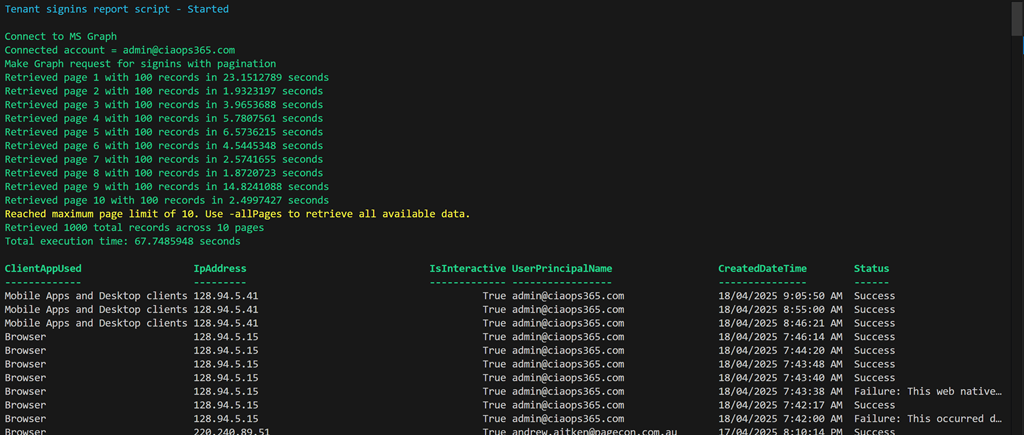
Screenshot 2025-04-18 095201

The latest script to get this treatment is:

https://github.com/directorcia/Office365/blob/master/graph-signins-get.ps1

which now has greater flexibility and speed. I also used Copilot to produce documentation for the script which is here:

https://github.com/directorcia/Office365/wiki/Get-tenant-signins

In my Visual Studio Code editor what I did was simply to open up the script.

Screenshot 2025-04-18 100356

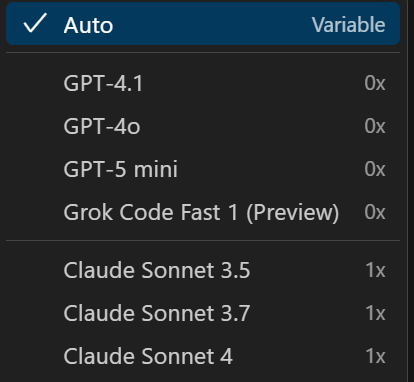
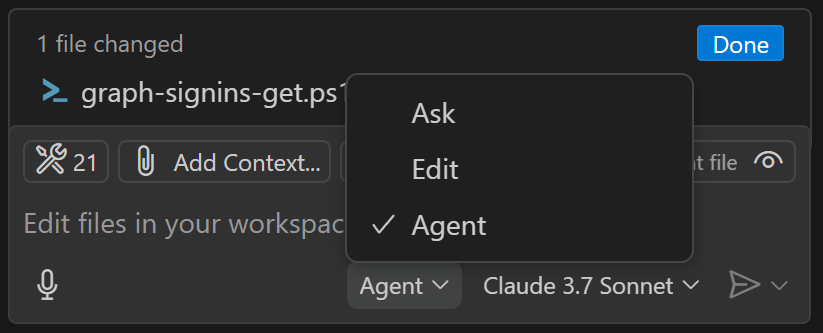
I then set Copilot to operate in ‘agent’ mode, as shown above. I also selected an AI model to use. I have the default choices of:

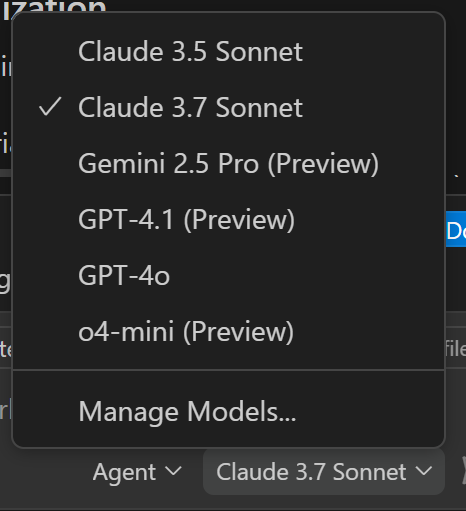
Screenshot 2025-04-18 100555

I can also configure others like Gemini if I want. This time I selected Claude 3.7 and then basically told Copilot to ‘improve’ my code. After that I asked it to provide options for using paging to get more results as well as ensuring the output was in local time.

After one update to the time format it produced an error when it ran but I simply told Copilot to fix that error and it did so. The code once again executed.

Thus, the updated script and documentation is now available via the links above and I am amazed at how easy it was to make all these changes to get the result that I wanted without having to type any additional code myself into the script! I suppose he downside is that the code is more complex and I don’t intrinsically understand it as well as if I had written every line, but I have Copilot to help explain any part of the code to me if needed and the time savings getting to a result speak for themselves.

The functionality that AI provided for me via Github Copilot is enormous and should make short work of any PowerShell automation I do in the future. If you are using PowerShell (or any code) then you really need to be looking at the benefits AI will provide you.

CIAOPS M365 Best Practice Repo is now available

One of the big challenges I have found with securing a Microsoft 365 environment is determining and setting best practices settings for the environment. Recommendations can be found in many different locations from many different sources. I have always done my best to pull all these together and convert them into a single place that I can apply.

With that in mind I am happy to announce the availability of a new CIAOPS Best Practices repository for Microsoft 365here:

https://github.com/directorcia/bp/tree/main

The aim is for it to be the one place you can go that centralizes all the best practice information, security and otherwise, for Microsoft 365.

Let me give you an example of the benefits of this. In the repo you’ll find the following JSON file for an Entra ID authorization policy:

https://github.com/directorcia/bp/blob/main/EntraID/authorization.json

The idea is that you can use a script like I just uploaded:

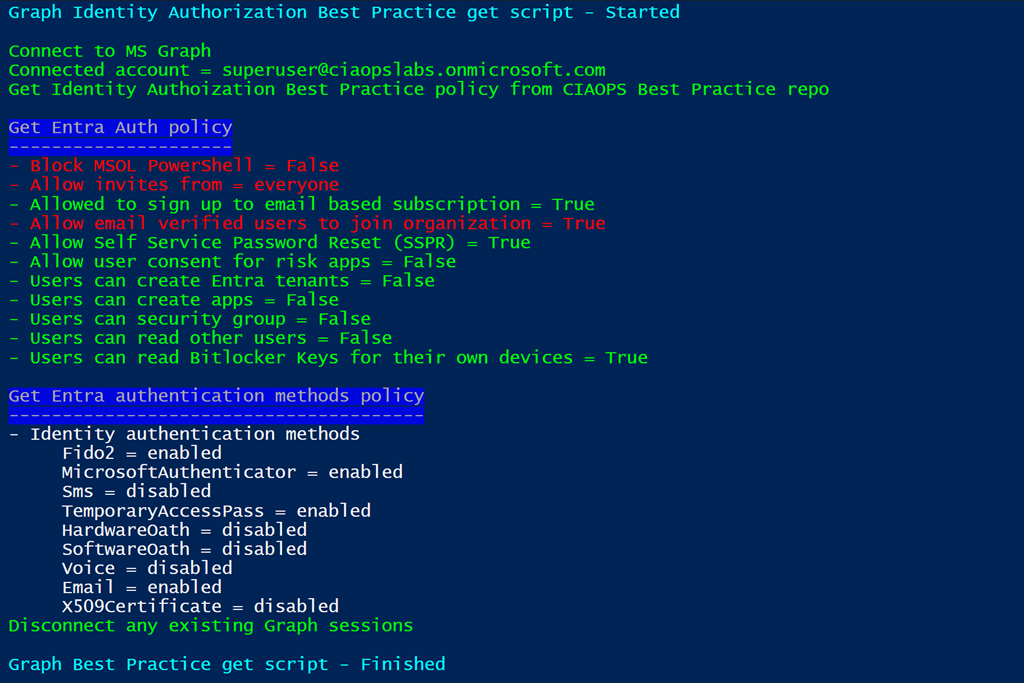
https://github.com/directorcia/Office365/blob/master/graph-idauthpolicy-get.ps1

To read these settings and compare them to your own environment.

image

You can see the results above when you run this script. The items that are in red do not match the best practice settings that are in repo.

Not only can you use the repo to compare settings but you can also use it to apply settings. Again, you’d just read the JSON setting in the repo and apply that to your environment. Thus, you could take the Entra ID authorization policy JSON and use a script to actually apply, or write,  those settings to your environment. CIAOPS Patron subscribers will have access to the scripts that I develop that will do both the reading and setting of these parameters. Thus, if you don’t to actually write the code to do all this then become a CIAOPS Patron subscriber.

Having these settings available publicly also means people can examine and comment on them and help develop what is best practices in the Microsoft 365 environment. Remember, that best practices are not absolute, they are what works best for the majority of people. You may want to take these as a base and modify them to suit your needs. The benefits of using Github is that is easy to achieve. Thus, you could create your own repo, based on mine, and that as you base for your environment.

The repo also contains links to best practices I have found like this :

https://github.com/directorcia/bp/blob/main/best-practices.txt

That you can also use. Again, the idea is to bring all these resources for Microsoft 365 into a single location.

This best practices repo is far from complete but I wanted to get it out there so people can provide me feedback and we can all build this out to make all our lives easier. Going forward, I plan to spend time developing the repo wiki to provide documentation for all this. However, feel free to take a look at what is there and provide any suggestions for improvement or addition. I’m all ears.