

I keep hearing the same thing from MSPs and IT pros when GitHub Copilot CLI comes up.
“That’s a developer tool, right? Not for me.”
No.
That’s the assumption I want to push back on. If you spend any time at a terminal — running PowerShell against a tenant, poking at logs, scripting an onboarding — Copilot CLI belongs on your machine.
And once you bolt Work IQ onto it, your terminal stops being a code playground and starts being something genuinely useful for the M365 work you already do.
What is GitHub Copilot CLI, really?
It’s an AI assistant that lives in your shell.
You install it, run copilot, and start typing in plain English. It proposes commands, runs them with your approval, edits files, reads repositories — and it holds context across the whole session. Every action waits for your tick before it executes, which I appreciate. Nothing happens to your machine without you saying yes.
Think of it less as a coding tool and more as a terminal pair who never gets bored and never forgets the exact git syntax you can never remember.
Step-by-Step: Getting Copilot CLI on your machine
You’ll need an active GitHub Copilot subscription (Pro, Pro+, Business, or Enterprise) and Node.js v22 or higher. On Windows, PowerShell 6 or higher.
Install the package
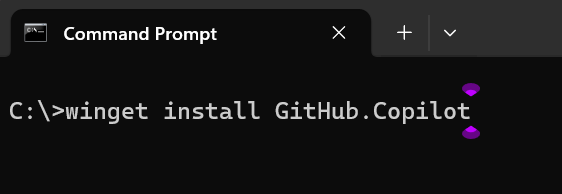
Run:
winget install Github.Copilot
as an administrator that the command prompt
Launch it
copilot
Sign in
At the prompt, type login and follow the browser flow. That’s the whole authentication dance.
The full walkthrough — including winget, Homebrew, and the install script — sits on the official GitHub Copilot CLI installation docs.
That’s it. You’re talking to your terminal.
Step-by-Step: Connecting Work IQ inside Copilot CLI
Here’s where it gets interesting for anyone living in Microsoft 365.
Work IQ is a Microsoft MCP server that pipes your M365 tenant data — emails, meetings, documents, Teams messages, people — straight into Copilot CLI. It’s in public preview, and your tenant admin needs to grant consent the first time.
Open Copilot CLI
copilot
Add the plugin marketplace
copilot-plugins
Install the plugin
plugin install workiq@copilot-plugins
Restart and ask
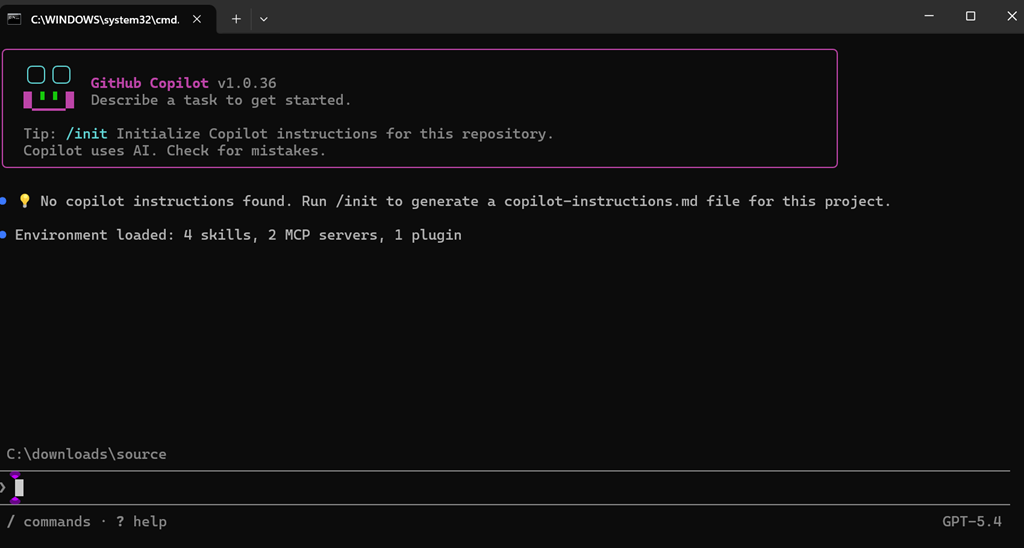
Quit Copilot CLI, relaunch it, then try something like:
What did my client say last week about the Intune rollout?
Notice what’s missing? You never opened Outlook. You never opened Teams. You never alt-tabbed.
The official walkthrough — including admin consent and the EULA acceptance you’ll deal with once — sits on Microsoft Learn’s Work IQ overview. The broader plugin and MCP picture for the CLI is on the GitHub Copilot CLI docs.
Why this actually changes how you work
Most of my day, like yours, is spent jumping between windows. Email. Teams. SharePoint. A browser with seven tabs of Microsoft Learn open.
“But I already have Copilot in Microsoft 365 — why bother with the CLI?”
Because the CLI is where you do the work. Drafting an email is fine inside Outlook. But when you’re scripting tenant changes, comparing config exports, or poking at a stubborn migration log, you don’t want to leave the terminal to ask a question about the client. With Work IQ, you don’t.
That’s not a productivity tweak. That’s collapsing two tools into one place.
Here’s the real win for MSPs. Your engineers can ask once — “summarise the last five tickets from this client and show me the related Teams chat” — without context-switching, without copy-paste, without losing their thread. Same hour billed, more thinking inside it.
If you’re not showing your clients what their own terminal can already do for them, you’re leaving value on the table.
Copilot CLI doesn’t get tired. Use that.
GitHub Copilot CLI plus Work IQ isn’t there to make you faster at the terminal. It’s there to make the terminal stop being an island.

