End to End email protection with Microsoft 365–Part 3

This is part of a series of articles about email security in Microsoft 365. Please check out previous articles here:

End to End email protection with Microsoft 365 – Part 1

End to End email protection with Microsoft 365 – Part 2
These articles are based on a model I have previously created, which you can read about here:

CIAOPS Cyber protection model

designed to help better explain expansive security included with Microsoft 365.
image

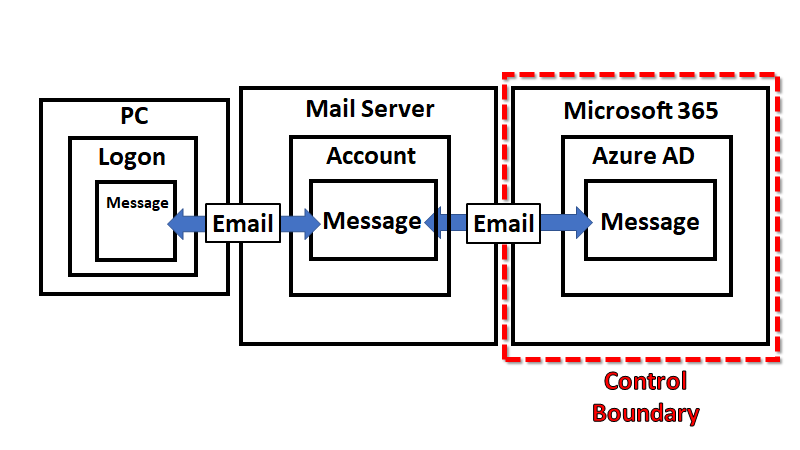
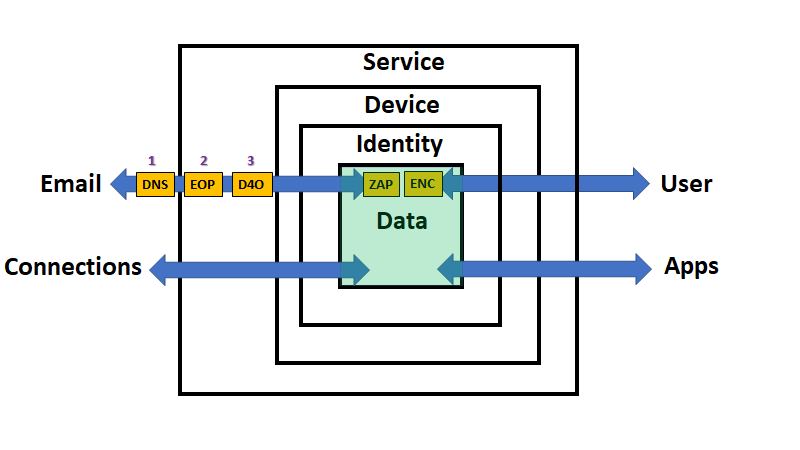
So far, email has travelled from ‘somewhere’ on the Internet (outside the service) through various layers of protection, which I have already spoken about previously. It has now finally come to ‘rest’ in the data container inside the Service (Microsoft 365) as shown above. However, even at ‘rest’, data is still protected thanks to the capabilities in Microsoft 365.

Remember, that as yet, there has been no user interaction with the data so far. The email has simply been delivered to the users inbox awaiting them to log in and view it.

While the email sits inside the data container in Microsoft 365, protection is being provided by Zero Hour Purge (ZAP). As Microsoft says:

In Microsoft 365 organizations with mailboxes in Exchange Online, zero-hour auto purge (ZAP) is an email protection feature that retroactively detects and neutralizes malicious phishing, spam, or malware messages that have already been delivered to Exchange Online mailboxes.

which you can read more on here:

Zero-hour auto purge (ZAP) in Exchange Online

This means that even after an email is delivered to a users inbox it is constantly being monitored as to whether it is phishing, malware, spam or something otherwise nefarious. If it is detected as such, then appropriate action is taken. Such action can be determined by an administrator during configuration things like spam policies per:

Use the Security & Compliance Center to create anti-spam policies

So this means that not only does Microsoft 365 scan inbound and outbound emails as they pass through the service, they continue to scan all emails once delivered thanks to the fact that they reside inside the actual Microsoft 365 service at all times. This is a big benefit over third party scanning services that only do so as the email passes through their filters, no inside the actual inbox.

You can therefore rest assured that if a malicious email is detected at any stage in Microsoft 365, and assuming you have enabled ZAP, you’ll be protected.

While sitting on servers in Microsoft data centers all sorts of additional protections are in place such as being encrypted at rest:

Encryption in the Microsoft cloud

Encryption Risks and Protections

In addition to using volume-level encryption, Exchange Online, Skype for Business, SharePoint Online, and OneDrive for Business also use Service Encryption to encrypt customer data per:

Service encryption

The best reference for all the extensive Microsoft cloud protections is the:

Service Trust Portal

You also might want to take a look at virtual tour of a Microsoft datacenter:

Take a guided tour of a Microsoft datacenter to learn how Microsoft delivers your cloud services

and read about how Microsoft meshes all these datacenters together to provide the Microsoft 365 service:

Azure global infrastructure

Azure facilities, premises, and physical security

Where your data is located

Hopefully now you are comfortable with the fact that the protection Microsoft 365 provides for your inbound email data (as well as all your other data) is rigorous, from the moment that it enters the Microsoft 365 service until it sits ready for a user to interact with it.

The next stage in the journey will be for a device (i.e. PC) to connect to the Microsoft 365 service and then for a user to log into that device and run an app, like Outlook, to read the delivered email. Spoiler alert – there is even more protection involved here and I’ll start covering that in upcoming articles, so stay tuned for a closer look at what happens during user interaction with the data inside Microsoft 365.
End to End email protection with Microsoft 365–Part 4

End to End email protection with Microsoft 365–Part 2

This is part of a series of articles about email security in Microsoft 365.

End to End email protection with Microsoft 365 – Part 1

These articles are based on a model I have previously created, which you can read about here:

CIAOPS Cyber protection model

designed to help better explain expansive security included with Microsoft 365.

image

In the previous part of this series I spoke about DNS and Exchange Online Protection (EOP) and the role they play in email security as well as how to configure these in your service. I haven’t as yet spoken about the best practices settings that you should employ. The initial objective here is to help you understand the flow as well as all the security services that can be utilised in Microsoft 365 to better help you protect your data.

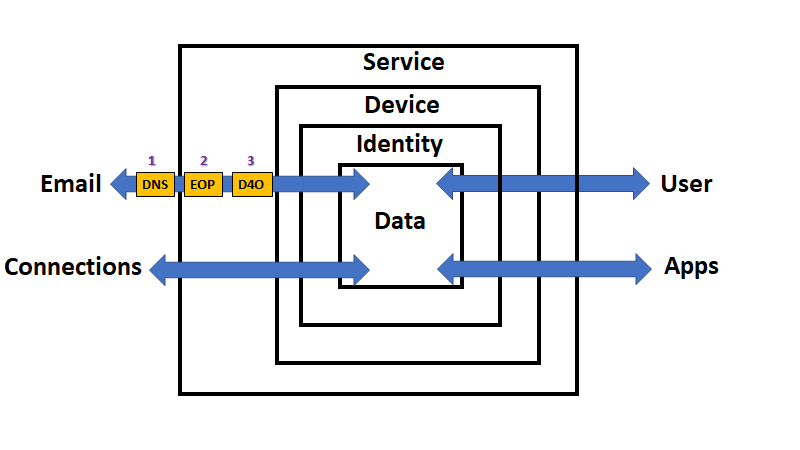
If you look at the above diagram, you’ll see that data is flowing via the email connector in and out of our Microsoft 365 environment (the ‘Service’). Through which, so far, we have talked about DNS and EOP, now it is time to move onto Defender for Office 365 (D4O). However, just before we do let, me point out somethings that you may not appreciate. Firstly, via the process far, inbound email data has not yet come to rest. That is, it hasn’t as yet been stored inside a users mailbox, it is still being ‘processed’ by the security feature set of Microsoft 365 (i.e. the ‘Service’). Secondly, and more importantly for security considerations, what we have examined so far largely only ‘scans’ the data and makes security decisions as data passed through that service. It doesn’t generally continue to protect the data once it has been processed by that service. For example, with spam filtering inbound emails are scanned by the anti spam service in EOP, appropriate action taken based on the policies in place but then the data exits the service. Once an email has exited the anti spam service in EOP it will no longer be scanned by the service. To distinguish these type of security services going forward, let’s refer to them as ‘pass through’ security services being that they only handle the data once during its transit through a connector.

So after DNS and EOP have ‘processed’ the inbound email it is time for Defender for Office 365 (D4O) to do it’s job.

image

Defender for Office 365 is an add-on to existing plans like Microsoft 365 Business Basic and Business Standard but included in Microsoft Business Premium. Interestingly, it is not part of Microsoft 365 E3 but is part of Microsoft 365 E5. In short, we’ll assume the plan here is Microsoft Business Premium.

Defender for Office 365 also has two plans

Gains with Defender for Office 365, Plan 1 (to date):

Technologies include everything in EOP plus:

  • Safe attachments

  • Safe links

  • Microsoft Defender for Office 365 protection for workloads (ex. SharePoint Online, Teams, OneDrive for Business)

  • Time-of-click protection in email, Office clients, and Teams

  • Anti-phishing in Defender for Office 365

  • User and domain impersonation protection

  • Alerts, and SIEM integration API for alerts
  • SIEM integration API for detections

  • Real-time detections tool
  • URL trace
  • So, Microsoft Defender for Office 365 P1 expands on the prevention side of the house, and adds extra forms of detection.

    Gains with Defender for Office 365, Plan 2 (to date):

    Technologies include everything in EOP, and Microsoft Defender for Office 365 P1 plus:

  • Threat Explorer
  • Threat Trackers

  • Campaign views
  • Automated Investigation and Response (AIR)

  • AIR from Threat Explorer

  • AIR for compromised users

  • SIEM Integration API for Automated Investigations
  • So, Microsoft Defender for Office 365 P2 expands on the investigation and response side of the house, and adds a new hunting strength. Automation.

    The above is from The Office 365 security ladder from EOP to Microsoft Defender for Office 365.

    Microsoft Business Premium includes Defender for Office 365 P1, while Microsoft 365 E5 includes Defender for Office 365 P2.

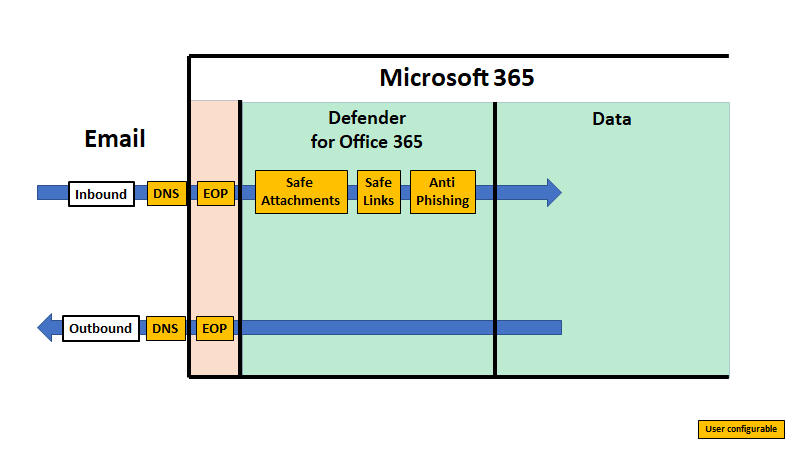
    Unlike EOP, you’ll also note that Defender for Office 365 extends protection actually into the data container as well as providing initial scanning of data as it passes through the service. This effectively means that Defender for Office 365 is monitoring email data inside user email boxes and providing additional protection even after an item is delivered. This is very important to appreciate because once most emails are delivered they are generally no longer protected by scanning technologies like anti-spam policies, especially third party offerings. Therefore, a major of value of using Microsoft 365 is that it can ensure the security of data even after it has been delivered using technology like Defender for Office 365.

    Another point that the above diagram illustrates is that Defender for Office 365 largely applies only to inbound email data. all the policies in Defender for Office 365 are focused at emails being delivered to, not from, mailboxes.

    Finally it is also important to note that previous components in the data flow chain impact Defender for Office 365, DNS probably being the more influential. This is why it is so important to ensure that you have your DNS records (especially SPF, DKIM and DMARC) configured correctly because their impact is more than on a single service in Microsoft 365.

    Defender for Office 365 is composed of three unique components:

    – Safe Attachments

    – Safe Links

    – Anti-Phishing

    Safe Attachments

    As Safe Attachments in Microsoft Defender for Office 365 notes:

    Safe Attachments uses a virtual environment to check attachments in email messages before they’re delivered to recipients (a process known as detonation).

    In short, it will open suspect attachments in a virtual environment and check to see whether they activate any malicious activity such as encrypting data (i.e. cryptolocker attack), changing registry settings and so on.

    Safe Attachments protection for email messages is controlled by Safe Attachments policies. There is no default Safe Attachments policy. Please note that, there is NO default Safe Attachments policy by default! Thus, ensure you have set one up if you are using Defender for Office 365.

    Set up Safe Attachments policies in Microsoft Defender for Office 365

    Safe Attachments will continue to provide protection even after the data has been delivered. This is because the maliciousness of the attachment is evaluated not only at the time the user opens it but also continually as they sit as data in users mailbox. Thus, you need to consider Safe Attachments as protection both during transit and at rest. This is generally different from the role of EOP.

    I will also briefly note here that Safe Attachments protection extends beyond just emails, but I’ll cover that in a later article.

    Safe Links

    As Safe Links in Microsoft Defender for Office 365 notes:

    Safe Links is a feature in Defender for Office 365 that provides URL scanning and rewriting of inbound email messages in mail flow, and time-of-click verification of URLs and links in email messages and other locations.

    In short, it routes any link clicked on in an email through a reputation proxy to ensure that it is safe prior to proceeding. This provides protection against malicious content, downloads, phishing and more.

    Safe Links settings for email messages

    How Safe Links works in email messages

    Safe Links can be configured to provide customised protection:

    Set up Safe Links policies in Microsoft Defender for Office 365

    Safe Links will continue to provide protection even after the data has been delivered. This is because the maliciousness of links is evaluated not only at the time the user clicks on them but also continually as they sit as data in users mailbox. Thus, you need to consider Safe Links as protection both during transit and at rest. This is generally different from the role of EOP.

    I will also briefly note here that Safe Links protection extends beyond just emails, but I’ll cover that in a later article.

    Anti-phishing

    Phishing is when attackers try to trick users into providing secure details in an effort to compromise that account. A common ‘trick’ is to attempt to impersonate a ‘familiar’ email address and try to have the recipient take an action that will result in an account compromise.

    Protection via Defender for Office 365 is again provided by a policy:

    Exclusive settings in anti-phishing policies in Microsoft Defender for Office 365

    Anti-phishing will continue to provide protection even after the data has been delivered. This is because the maliciousness of email content is evaluated not only at the time the user views  them but also continually as they sit as data in users mailbox. Thus, you need to consider Anti-phishing as protection both during transit and at rest. This is generally different from the role of EOP.

    In addition to the above Defender for Office 365 P1 also provides:

    Threat Explorer and Real-time detections

    while Defender for Office 365 P2 additionally provides:

    Threat Trackers

    Automated investigation and response (AIR) in Microsoft Defender for Office 365

    Attack Simulator in Microsoft Defender for Office 365

    Summary

    Inbound email data flows into Defender for Office 365 after it has been processed by EOP. Here additional protection policies are applied. All of these policies can be configured by the user and have capabilities that extend into protecting data even after it has been delivered. This means that a major benefit of Defender for Office 365 is that it not only scans email data during inbound transit but also while it is being stored in the users mailbox over the life of that data item for both current and future threats.

    It is also important to note that many of the Defender for Office 365 do not have appropriate default policies in place and it is up to the user to configure these to suit their environment.

    The inbound email data has yet further protection configurations to be applied to it after being processed by Defender for Office 365 thanks to the capabilities of Microsoft 365. Please follow that process with the next article:

    End to End email protection with Microsoft 365–Part 3

    CIAOPS Cyber Protection Model

    I have started on a journey to nut out a unique protection model with the aim of applying it to the Microsoft Cloud to simplify the application and understanding of cybersecurity for people. My initial thoughts are here:

    A simplified protection model

    With input from a few, I’ve now progressed my thinking.

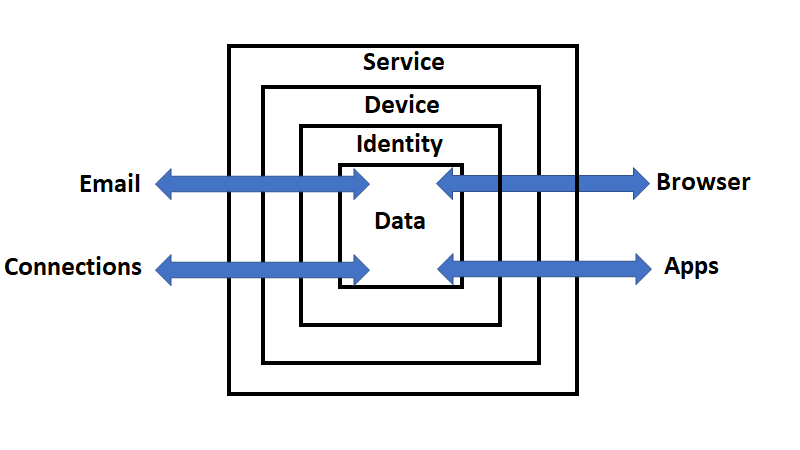
    image

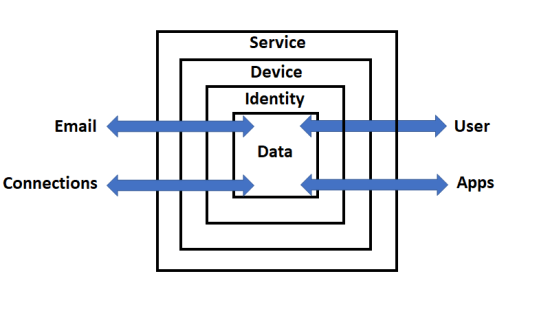
    The latest model is shown above. The containers are:

    1. Service – For example: Microsoft 365 or Gmail, etc

    2. Device – For example: Windows 10 desktop, iPhone, Android phone, Mac PC, etc

    3. Identity – For example: Azure AD credentials, Google or Apple account, etc

    4. Data – For example: Files, folders, email messages, etc

    Through and into these containers flows data from connectors like:

    1. Email

    2. Connections – For example: networked devices, the Internet, etc

    3. Apps – For example: desktop apps like Office, accounting apps, etc

    4. Browser – For example: Edge, Firefox, Chrome, etc

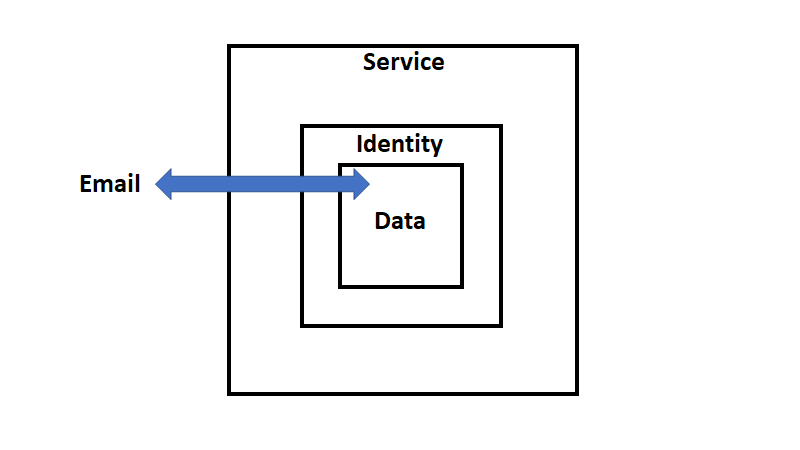
    image

    Let’s just focus on the email connector initially, as shown above. You see that in the above model that the device container is missing. This is because email can be delivered without the need of a device. That is an email can be sent to Exchange Online in Microsoft 365, received, verified that a user with that identity exists, and then finally delivered to the users inbox. That can all happen without the interaction of the user and without the need of a device.

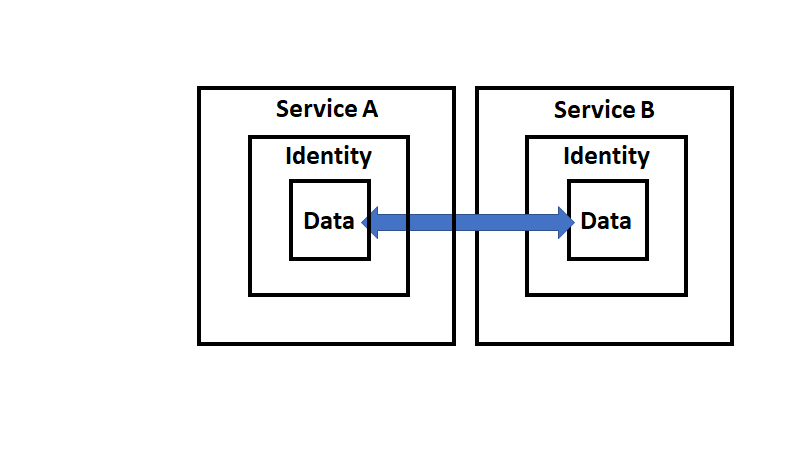
    image

    If we expend this out one level the inbound email received by Exchange Online (Service B) has to have been sent by another email service (Service A shown above). Service A must contain an identity (i.e. the sender of the email) and the actual message (i.e data).

    This however, still hasn’t involved a user. It has simply been a ‘service to service’ process.

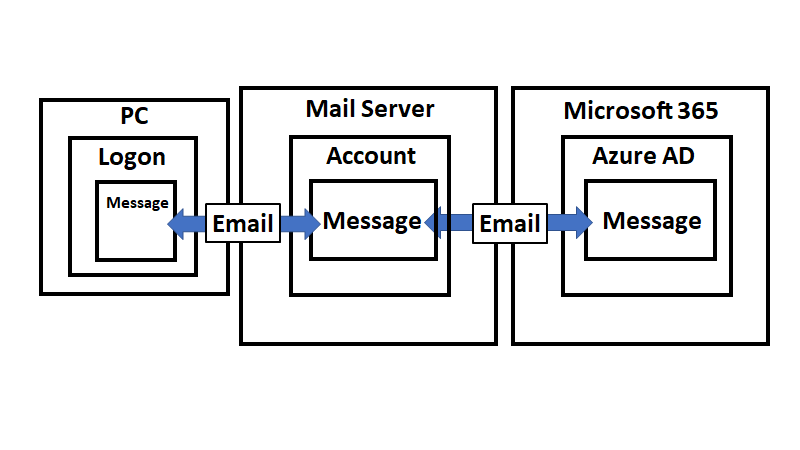
    image

    At the end of the chain will be a device (a Windows 10 PC say), logged into via a user account (identity), that created that data with an app (say Outlook). That data (email message) is then moved by the email connector firstly to Service A which then again uses an email connector to move it to Service B as shown above.

    image

    Putting specific identifiers on things you get the above.

    image

    So the model seems to scale but we need to re-focus it on protection. Looking at the above, it is clear that you can only control so much of the ‘chain’, as you see highlighted by the ‘control boundary’. Therefore, we should focus our efforts on only what we can control and protect.

    image

    With said focus, we can now start to map capabilities to protect the environment. For example, with email, we can ensure we have appropriate DNS records. This capability lies outside the Service boundary (here M365) but still within our control boundary. When data passes over any security boundary it creates logs. In the case of emails, this would be information that could be examined using features like Message trace in Microsoft 365.

    After the data, flowing through the connector, passes across a boundary and writes log data, security features of that container can now be applied to the data. In the example, once an email is delivered to Exchange Online in Microsoft 365 it then typically has anti-spam and anti-malware as well as other filtering policies applied. Additional protection can also be provided in the form of Microsoft Defender for Office 365 (shown as ATP in the above image to keep things short).

    So, that is just my brief thinking around the Email connector but I feel that the model works well so far helping to simplify security I hope. I’ll keep expanding what I have and begin to incorporate more specific examples of where Microsoft Cloud security products fit into this model. Hopefully, the more built out the model becomes the easier for people it will be to understand the total breadth of Microsoft can offer to help protect your environment.

    As always, love to hear your thoughts and feedback on what I’m developing here, so don’t be shy. Look out for future model enhancements coming soon!

    Microsoft 365 mailbox reporting issue

    image

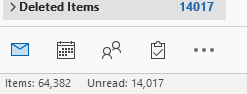
    If I look at my mailbox I see a total of 64,382 items in the deleted items as shown above.

    image

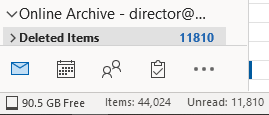
    If I then look at my Online Archive I see 44,024 items in the archived deleted item as shown.

    This means I have 64,382 + 44,024 = 108,406 items in total in my deleted items.

    image

    If I however run the Exchange Online PowerShell module v2 command as shown above,

    get-exomailboxstatistics

    it only reports 11,865 items??

    image

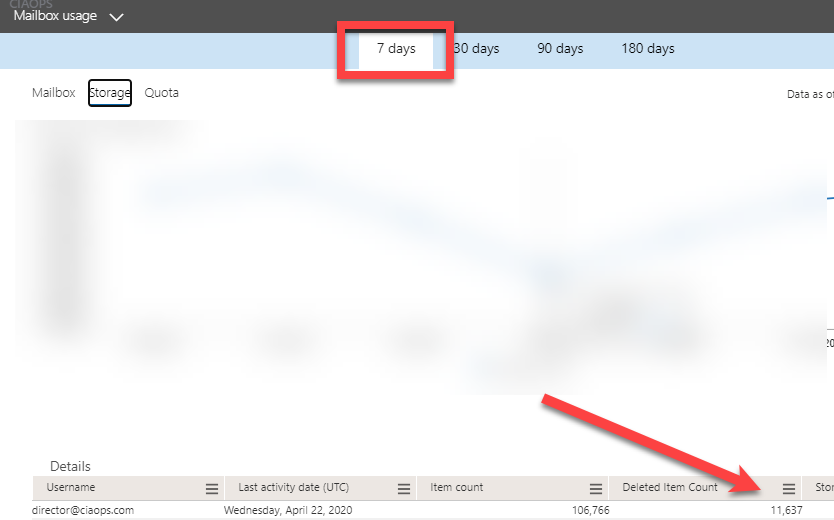
    If I look at the Mailbox usage statistics in the Microsoft 365 Admin center reports for 7 days I see 11,637 as the deleted item amount.

    image

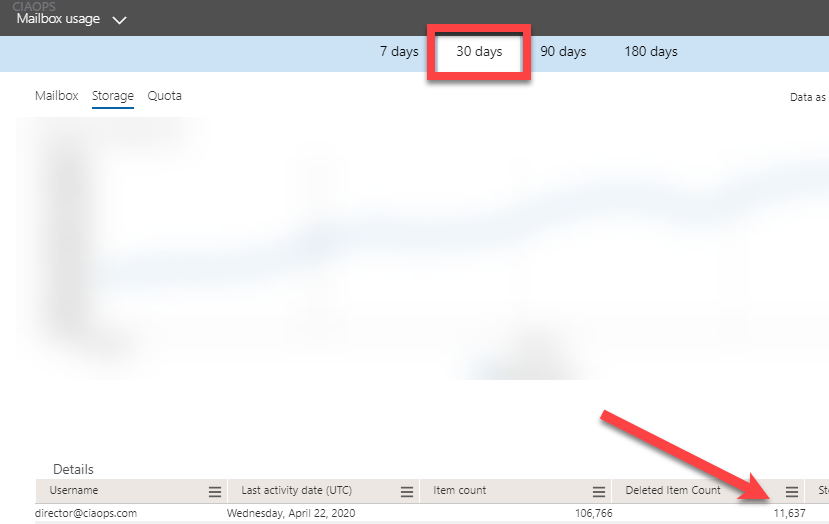
    If I look at the Mailbox statistics in the Microsoft 365 Admin center reports for 30 days I see 11,637 as the deleted item amount. The same number as for 7 days.

    image

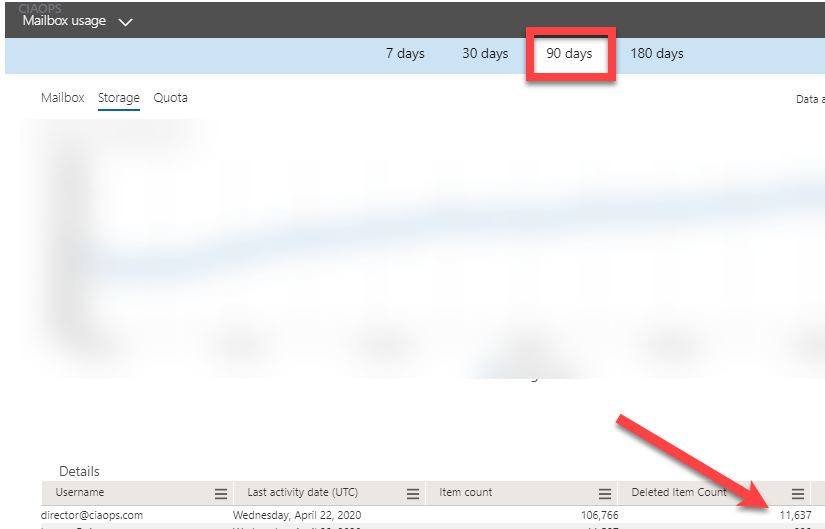
    image

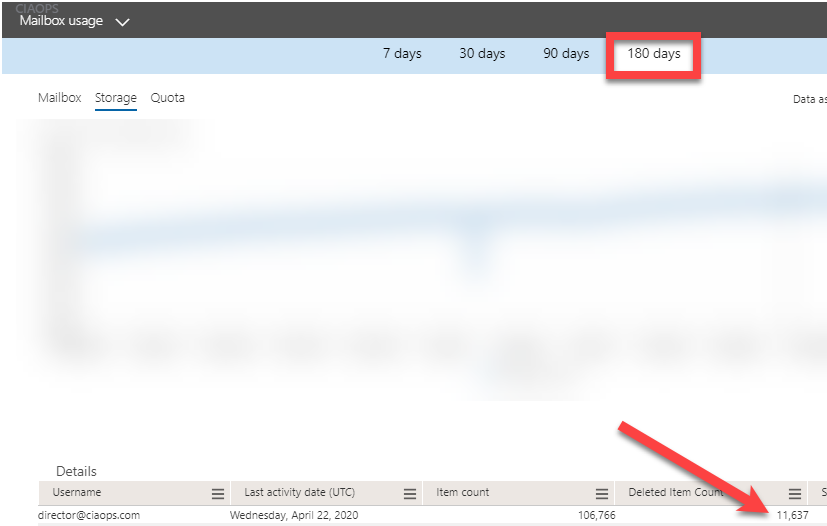
    Both 90 and 180 day options reveal the same results, Deleted Item Count = 11,637? Why?

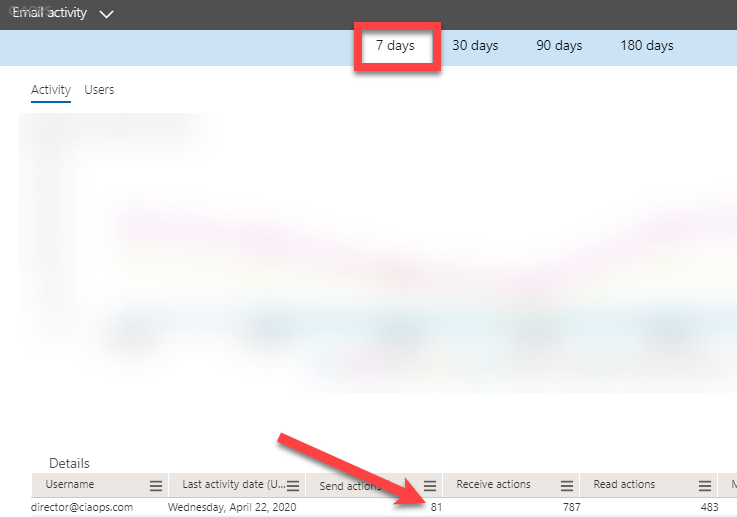
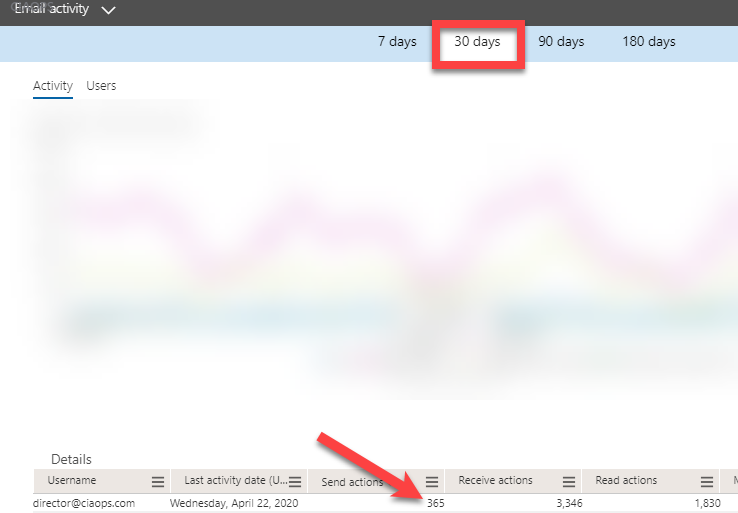
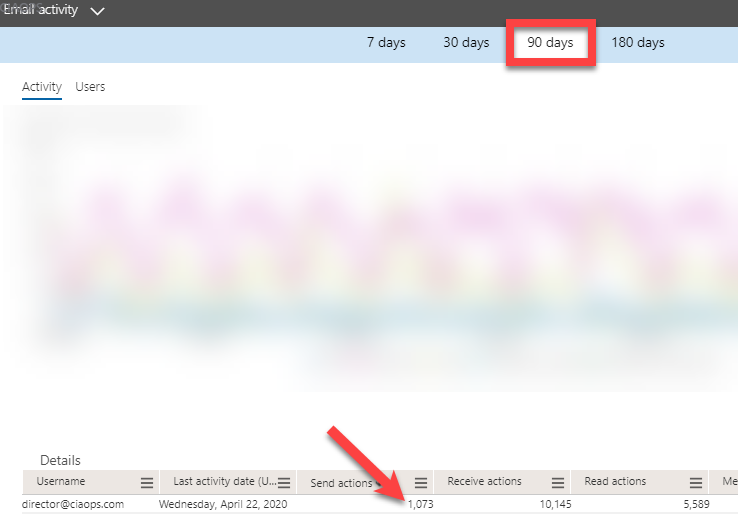
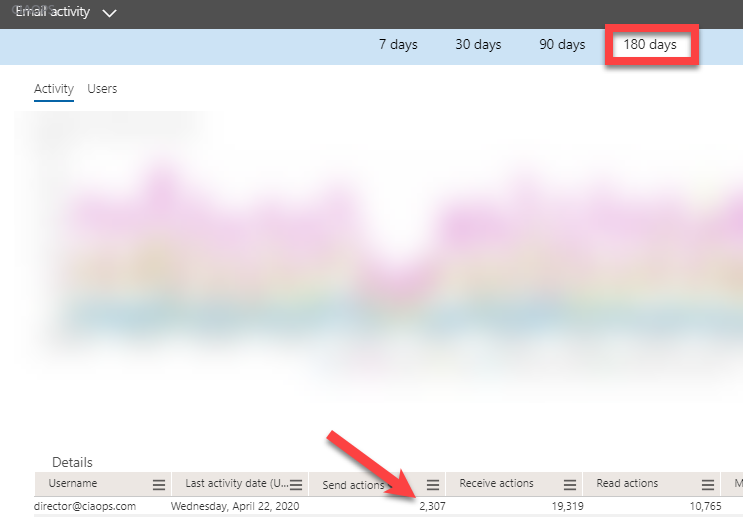
    Now compare this to Email activity over 7, 30, 90 and 180 days.

    image

    image

    image

    image

    The numbers vary based on the period as you see above. This is what I would expect to also see for Mailbox usage numbers.

    If you have a look at:

    Microsoft 365 Reports in the admin center – Mailbox usage

    It says:

    Deleted Item Count refers to the total number of deleted items in the mailbox.

    but that is only reporting 11,637 items not the expected 64,382. Also, changing the period of those reports doesn’t change the number of Deleted Items. I would have thought that if the figures shown were total items during that period, they would vary as I changed the period. But they don’t. I would expect a small figure for Deleted Item for 7 days and a larger figure for 180 days say. I wouldn’t expect the same figure for 7, 30, 90 and 180 days!

    So there must be something I’m missing here with these numbers? Anyone care to enlighten me?

    Making PowerShell automation easier with the Microsoft Graph

    About 2 years ago I released a free PowerShell script that allowed you to check for email forwards on mailboxes in a Microsoft 365 environment. I wrote about that script here:

    https://blog.ciaops.com/2018/07/05/powershell-script-to-check-outlook-mail-rules/

    This is still the most comprehensive method in my books for checking for all the various type of forwards on a mailbox and I recommend you continue to use the script which you’ll find freely available at:

     https://github.com/directorcia/Office365/blob/master/o365-exo-fwd-chk.ps1

    As good as that script is, there are still challenges for many people actually using it I have found. This mainly revolves around getting an appropriate PowerShell environment running, installing the Exchange Online PowerShell modules, connecting to Exchange Online with PowerShell and so on. I have detailed how to do all that over the period here but I still find that many struggle to make use of the PowerShell script.

    So a new approach is in order. In short, I have a new version of this script that is a single EXE file you can download and use here:

    https://github.com/directorcia/Office365/blob/master/graph-mbx-rules.exe

    It is important to note that this script does not make any changes to users or their mailboxes, it just reads and reports their mailbox rules using the Microsoft Graph. As yet, it can’t check more exotic things like direct mailbox forwarding or sweep rules, but you gotta start somewhere!

    Let me show you how it works.

    image

    You’ll need a PC that is running a current version of PowerShell. A Windows 10 PC will work fine. You should also have the AzureAD PowerShell module loaded prior in your environment. To do that, all you need to do is run an elevated PowerShell console and type install-azuread. However, hopefully most people already have this loaded.

    Download my new file from:

    https://github.com/directorcia/Office365/blob/master/graph-mbx-rules.exe

    and copy it anywhere on your machine as shown above. Double click to run the file.

    image

    You should now see a window like shown above.

    The program will first check for the Azure AD PowerShell module. It will then prompt you to log into your tenant of choice.

    image

    You’ll go through your normal login process to a tenant as shown.

    image

    Including using MFA if required.

    image

    Once logged into the tenant, a new Azure AD application will be created in the tenant with a unique name as shown above. The name in this case is CIAOPS-20200415232309. With the app created in the tenant, appropriate permission are added to that app to allow it to do things like read the list of users, their mailboxes, etc.

    After this app has been created and permissions applied to it to allow it to do its work, those changes need to be consented or approved by someone (typically the same user that initially logged into the tenant). Unfortunately, from what I can see, consent can only be managed via the browser. With that in mind, the required URL is copied to the clipboard and you are prompted whether you wish to open the default browser to complete this process. Copying the consent URL to the clipboard allows you to manually paste it to your browser session of choice. This is handy if you are working in multiple tenants currently.

    image

    You’ll now be prompted to login to the tenant again, but this time in a browser.

    image

    You should then see a list of requested permissions as shown above that you’ll need to accept for this process to complete.

    image

    If you look at the top of the dialog to see what is requesting permission you should see the name of the Azure AD application as noted previously. Here again that is CIAOPS-20200415232309.

    image

    Also note that there is only one write permissions requested, the majority are only read. Where do these permission come from? To use the Microsoft Graph, for example, to list the email folders for a user you use the command here:

    https://docs.microsoft.com/en-us/graph/api/user-list-mailfolders?view=graph-rest-1.0&tabs=http

    in which you’ll see to do this you need the permissions:

    Mail.ReadBasic.All, Mail.Read, Mail.ReadWrite

    I have tried to keep the rights requires as basic as possible but I am using what the Graph provides.

    You’ll see that it needs a number of permissions to accomplish this. Basically, I have automated the process I detailed how to do manually before here:

    https://blog.ciaops.com/2019/04/17/using-interactive-powershell-to-access-the-microsoft-graph/

    image

    After you Accept the permissions, you should be return to the home page of your tenant as shown. If for reason the consent page doesn’t appear or something else strange happens, just paste in the URL and try again. Sometimes web request don’t always work.

    image

    If you now return to the program you’ll see that it is prompting you to confirm that you have completed the consent stage.  Type Y and press ENTER to continue.

    image

    Because the web consent step can take a short while to complete I now wait 10 seconds, just in case, for this to complete.

    image

    The program will continue, getting all the information it needs and then starting to report on user mailboxes as shown above.

    image

    Once all mailboxes have been checked the Azure AD application created to facilitate this process (here CIAOPS-20200415232309) is deleted from your tenant to leave zero touch.

    If you then press any key, the program will complete.

    image

    If you now look in the source directory you will see two new text files as shown above.

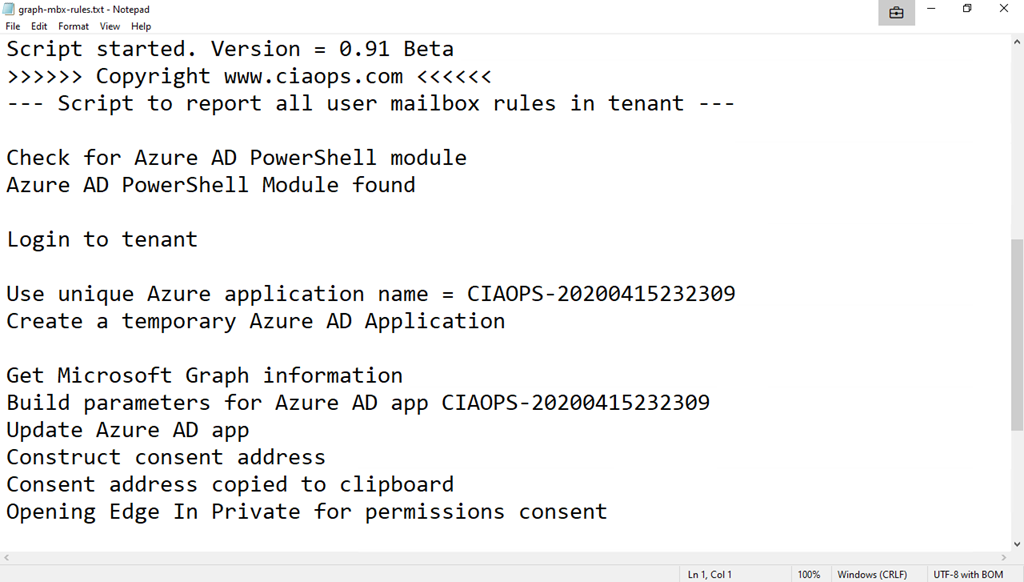
    image

    The first file, graph-mdx-rules.txt is basically a debugging log file that records what happens during the initialisation phase of the program.

    image

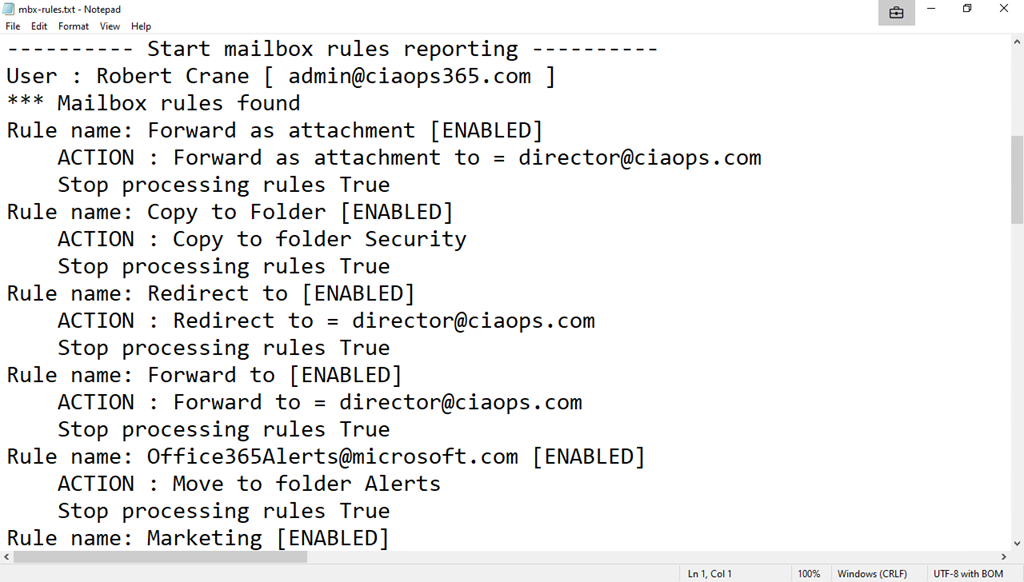
    The file mbx-rules.txt is basically a copy of the results.

    Note, both of these file get overwritten each time the program runs.

    Hopefully, this new program makes it much easier to get the information your need. However, because much is automated and simplified, some may be concerned as to what is actually happening behind the scenes. Well, thanks to the wonders of Azure AD you can easily see.

    SNAGHTML56963ab

    To review the whole process, open you Azure portal and navigate to Azure Active Directory and then Audit logs as you see above.

    image

    In there you should find an entry that corresponds to the Azure AD application being added as shown above. Note the name corresponds to the one details previously, here CIAOPS-20200415232309.

    image

    You should then see entries where permissions have been added to Azure AD application as shown above.

    image

    A bit further along, you’ll see where consent was granted to the Azure AD application as shown above.

    image

    Lastly, you’ll also see where that Azure AD application is completely deleted from the environment leaving no fingerprint.

    This is a new approach to automation that I believe will work well. There is still a lot of work that needs to be done and there are still some limitations but hopefully, this can be the first of many scripts I create and make available in this simplified way. Thus, I’d love you to try the program and tell me what you think. what works, what doesn’t? What would you like to see and how can it be improved? No matter what it is, I’d love to hear your thoughts, which you can send me directly via email director@ciaops.com.

    Look out for more updates and new scripts at my GitHub repository – https://github.com/directorcia/Office365

    Blocked files types in OWA

    Outlook Web Access maintain a list of allowed and blocked file types. These are contained in a policy for each user. To determine what this policy is with PowerShell, the first thing you’ll need to do is connect to Exchange Online. I have made that easy for you by creating a script to connect using the new Exchange Online V2 PowerShell module. you will find that script here:

    https://github.com/directorcia/Office365/blob/master/o365-connect-exov2.ps1

    Once you have connected, run the following commands:

    $casmailbox=Get-CASMailbox <user email address>
    $owapolicyname = $casmailbox.OwaMailboxPolicy
    $owapolicyname

    This should display something like:

    image

    which gives us the policy name.

    Next run the command:

    $policy = Get-OwaMailboxPolicy $owapolicyname

    to get the settings/values of that policy.

    To view the allowed file list run the commands:

    $allowedFileTypes = $policy.AllowedFileTypes

    $allowedFileTypes

    which should show something like:

    image

    To view the blocked file list run the commands:

    $blockedfiletypes = $policy.BlockedFileTypes
    $blockedfiletypes

    image

    The next question is, can you adjust these lists? Yes you can. You basically do that by adjusting the list of extensions variable (here $blockedfiletypes) via something like:

    $blockedFileTypes.Remove(“.XXX”)

    and reapplying that to the policy like:

    Set-OwaMailboxPolicy $policy -BlockedFileTypes $blockedFileTypes

    and if you want to extend the list just use add instead of remove in the above command prior to applying it to the policy.

    Microsoft is making additions to the BlockedFileTypes list from April 2020:

    What file extensions will be added to the BlockedFileTypes list with this change?
    The following extensions are used by the Python scripting language:


    “.py”, “.pyc”, “.pyo”, “.pyw”, “.pyz”, “.pyzw”


    The following extensions are used by the PowerShell scripting language:


    “.ps1”, “.ps1xml”, “.ps2”, “.ps2xml”, “.psc1”, “.psc2”, “.psd1”, “.psdm1”, “.cdxml”, “.pssc”


    The following extension is used by Windows ClickOnce


    “.appref-ms”


    The following extension is used by Microsoft Data Access Components (MDAC)


    “.udl”


    The following extension is used by the Windows sandbox


    “.wsb”


    The following extensions are used for digital certificates:


    “.cer”, “.crt”, “.der”


    The following extensions are used by the Java programming language:


    “.jar”, “.jnlp”


    The following extensions are used by various applications. While the associated vulnerabilities have been patched (for years, in most cases), they are being blocked for the benefit of organizations that might still have older versions of the application software in use:


    “.appcontent-ms”, “.settingcontent-ms”, “.cnt”, “.hpj”, “.website”, “.webpnp”, “.mcf”, “.printerexport”, “.pl”, “.theme”, “.vbp”, “.xbap”, “.xll”, “.xnk”, “.msu”, “.diagcab”, “.grp”

    The list in my test tenant right now is:

    Blocked File Types:

    .settingcontent-ms
    .printerexport
    .appcontent-ms
    .appref-ms
    .vsmacros
    .website
    .msh2xml
    .msh1xml
    .diagcab
    .webpnp
    .ps2xml
    .ps1xml
    .mshxml
    .gadget
    .theme
    .psdm1
    .mhtml
    .cdxml
    .xbap
    .vhdx
    .pyzw
    .pssc
    .psd1
    .psc2
    .psc1
    .msh2
    .msh1
    .jnlp
    .aspx
    .xnk
    .xml
    .xll
    .wsh
    .wsf
    .wsc
    .wsb
    .vsw
    .vst
    .vss
    .vhd
    .vbs
    .vbp
    .vbe
    .url
    .udl
    .tmp
    .shs
    .shb
    .sct
    .scr
    .scf
    .reg
    .pyz
    .pyw
    .pyo
    .pyc
    .pst
    .ps2
    .ps1
    .prg
    .prf
    .plg
    .pif
    .pcd
    .ops
    .msu
    .mst
    .msp
    .msi
    .msh
    .msc
    .mht
    .mdz
    .mdw
    .mdt
    .mde
    .mdb
    .mda
    .mcf
    .maw
    .mav
    .mau
    .mat
    .mas
    .mar
    .maq
    .mam
    .mag
    .maf
    .mad
    .lnk
    .ksh
    .jse
    .jar
    .its
    .isp
    .ins
    .inf
    .htc
    .hta
    .hpj
    .hlp
    .grp
    .fxp
    .exe
    .der
    .csh
    .crt
    .cpl
    .com
    .cnt
    .cmd
    .chm
    .cer
    .bat
    .bas
    .asx
    .asp
    .app
    .adp
    .ade
    .ws
    .vb
    .py
    .pl
    .js


    and Allowed File Types is:

    .rpmsg
    .xlsx
    .xlsm
    .xlsb
    .tiff
    .pptx
    .pptm
    .ppsx
    .ppsm
    .docx
    .docm
    .zip
    .xls
    .wmv
    .wma
    .wav
    .vsd
    .txt
    .tif
    .rtf
    .pub
    .ppt
    .png
    .pdf
    .one
    .mp3
    .jpg
    .gif
    .doc
    .bmp
    .avi


    Your mileage may vary.

    Remove known bad emails from tenant

    Microsoft has a technology in Exchange Online known as ZAP. It will basically move known malicious emails, even after they may have initially been delivered to a mailbox. You can read more about the the technology here:

    Zero-hour auto purge protection against spam and malware

    ZAP however, is a ‘reactive’ security technology requiring knowledge of malicious content prior to taking action. There will therefore be cases when malicious content can get delivered to a mailbox, especially if the attack is relative new in the wild, simply because it has not yet been identified.  Hopefully, users have been trained so they can report any suspicious material that they do find, as I have detailed here:

    Improved security is a shared responsibility

    You can also enable an alert that notifies when someone reports an email. When that happens, you may want to check through all the other mailboxes to see whether that malicious email occurs elsewhere. If the payload is indeed malicious, you may wish to take the pro-active step of deleting that bad email from all users inboxes.

    You can achieve this using two steps:

    1. Create a content search to locate the suspect item in your tenant

    2. Use PowerShell to delete the discovered items

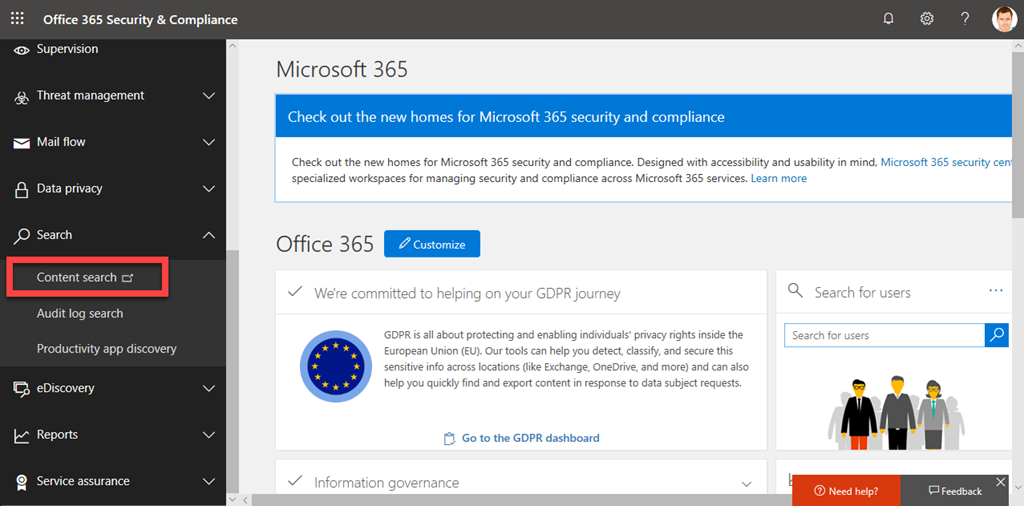
    Step one is to login to the Microsoft 365 tenant as an administrator and visit the Security and Compliance Center like so:

    image

    Select Content Search from under the Search option on the left.

    Before you create a new search, you’ll need to find something unique about the item you are searching for.

    image

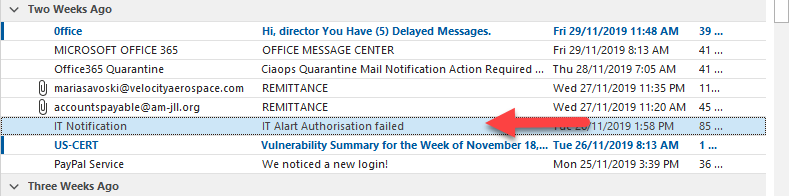
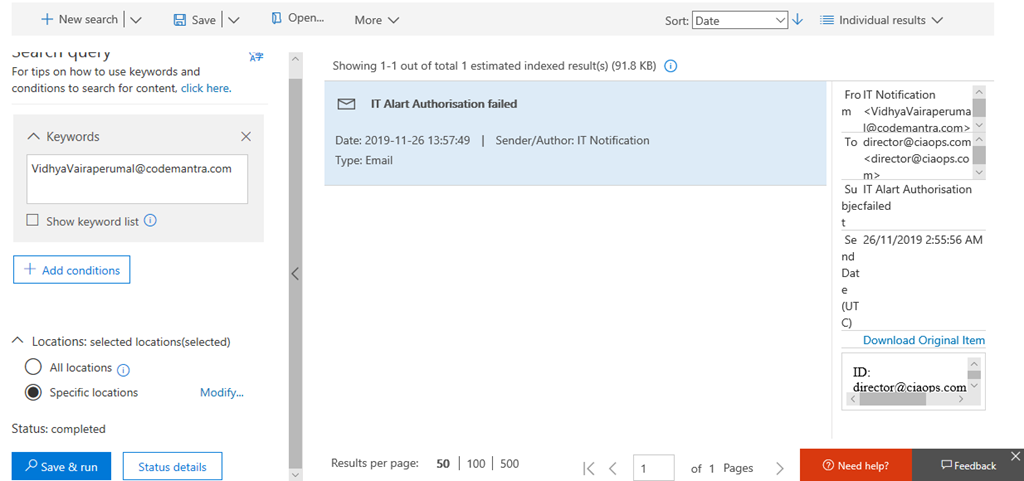
    In the case above, with this dodgy email, I’ll do a search based on the senders email but I could as easily do one on the mis-spelled subject ‘Alart’. All you need is something unique.

    image

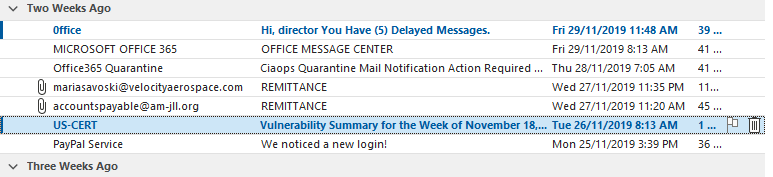
    If I look in my inbox I can see this email listed as shown.

    image

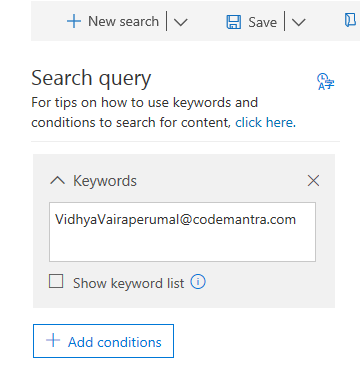
    I create a new Content Search and use the unique criteria in the keywords as shown above.

    image

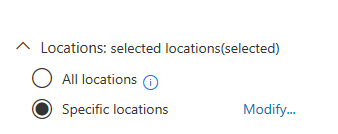
    Below this I can limit where the search is conducted. In this case, I will specify messages, as that is what I am looking for. You can get quite granular here if you need to. Just select Modify and specify the location you wish to search. Remember, the more places you search the longer it will take to return results.

    image

    Once you have crafted your search, select Save & run in the lower left. After a short while, you should see the results. In this case, I have only found the one result, which is the item in my inbox. Make sure you check the items that are returned as it is these items that will be deleted! You may need to adjust your search to get exactly the results you wish.

    Next, you’ll need to fire up PowerShell and connect to the Microsoft Security and Compliance Center for you tenant. I have a script that you can use here if you have MFA:

    https://github.com/directorcia/Office365/blob/master/o365-connect-mfa-sac.ps1

    and if you don’t (shame on you):

    https://github.com/directorcia/Office365/blob/master/o365-connect-sac.ps1

    Once you have successfully connected you need to run the following line of PowerShell:

    New-ComplianceSearchAction -SearchName “<Content search query name>” -Purge -PurgeType SoftDelete

    for a ‘soft delete’ of the item (i.e. recoverable). Or

    New-ComplianceSearchAction -SearchName “<Content search query name>” -Purge -PurgeType HardDelete

    for a ‘hard delete’ (i.e. non-recoverable). You’ll also need to change <Content search query name> to match the name you gave the Content Search when you created it.

    image

    You should now see a prompt, as shown above, asking you to confirm your actions. Generally, you’ll select Yes to All here.

    image

    This will kick off the process of deleting the content you have found. Note, this process is not immediate. It may take a little while to work through all the locations.

    image

    When the process is complete, as shown above, that item no longer appears in mailboxes.

    That’s how you run your own ZAP!

    Check your journaling rules

    One of challenges with security is that there are lots of places to check and secure but only one vulnerability required for compromise. Most compromises happen at the user level but there are also other places that you may want to keep an eye. One of the is the journaling rules in Exchange Online.

    Now, journaling rules can only generally be configured by an administrator. According to:

    https://docs.microsoft.com/en-us/exchange/security-and-compliance/journaling/journaling

    “Journaling can help your organization respond to legal, regulatory, and organizational compliance requirements by recording inbound and outbound email communications.”

    That means it maybe possible to record email traffic and forward it to another location. That may mean for example, a rogue administrator setting up a journaling rule to send the CEO’s emails to their own private external email box.

    Defending against rogue admin is tough and requires some planning. The least that you could do is check any existing journaling rules and ensure that only required ones appear.

    image

    You can do this by visiting the Exchange Online Admin Center. From here select Compliance Management then journal rules as shown above.

    As you can see there are no journal rules in this tenant and it is my experience that most tenants don’t use journaling at all. That doesn’t mean there isn’t legitimate reasons for having journaling rules. All I’m saying is that you should check what you have and ensure it is right.

    As always, I find that using PowerShell is a much quicker way to report on this using the command:

    get-journalrule

    The reason which checking journaling is important, is because as I understand it, journaling won’t show up in the audit logs for the tenant. This means that once it was surreptitiously enabled, it could run unreported in the background, collecting information unknown to everyone? That is a bad thing.

    The best solution against rogue administrators in general is Privileged Access Management (PAM) in Office 365:

    Configuring Privileged Access Management

    which is typically only included in advanced Microsoft 365 licensing like E5. This, unfortunately, puts it beyond the reach of many. So, for the time being, keep an eye on your journaling rules and check to see where they maybe sending your information.