
Here’s a brief introduction to Microsoft 365. Inside you’ll learn what the product is and how it is important for customers and resellers.
Tag: Azure
Look Ma, SBS running on Azure
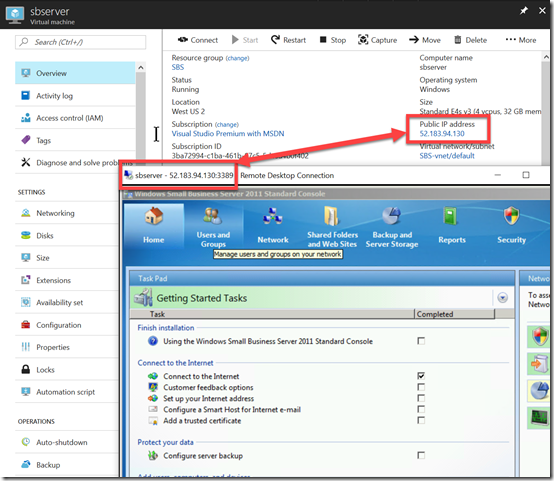
One of the challenges I set myself when I first started using Azure was to get Windows Small Business Server (SBS) working in Azure IaaS. Happily, I can announce that today I have achieved that goal as the above image shows hopefully demonstrates.
Why did I do this? Apart from the technical challenge I wanted to have a typical on premises SMB ‘legacy’ environment in Azure for testing, labs, training and migration scenarios. I am not planning to use it in production and STRONGLY recommend that SBS should no longer be run in production for many reasons anywhere, including on premises. I appreciate this is bordering on heresy for some, but I stand by the fact that you need to be off SBS.
That said, I do appreciate that there are people out there running it and some may even be considering moving SBS onto the cloud. Although I would never recommend you do that in production I can tell you that it is 100% possible with Azure. This, to me, demonstrates the flexibility and power Azure provides as well as it’s ability to solve just about any IT challenge you throw at it.
So, if you wanna know how I did, just ask me.
Azure Cloud Shell
One of the best tools you can use when working with Azure is PowerShell. I have published an earlier article on how you can connect to Azure Resource Manager (ARM) via PowerShell on your desktop.
Some people still struggle with this as it requires additional software to be installed and configured as well as authentication to the Azure tenant.
Microsoft has provided an easy way to use PowerShell with Azure and it is known as the Cloud Shell.
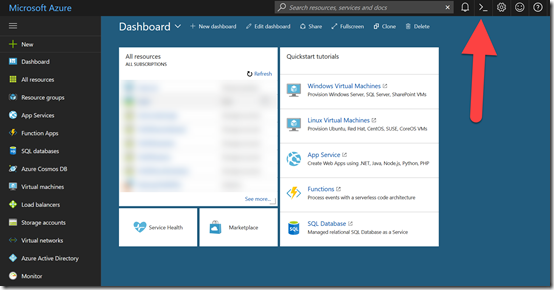
When you login to the Azure portal you should see a Script icon in the top right, just to the left of the Cog icon.
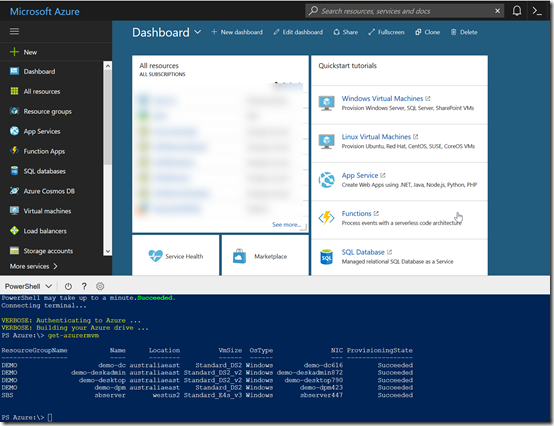
When you select this icon a window should appear at the bottom of your screen, showing a command line.
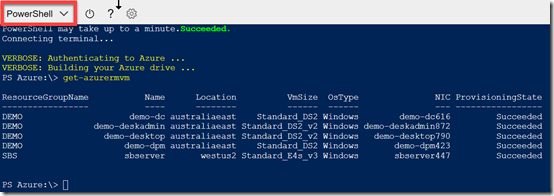
In most cases, the environment will default to BASH but you can select PowerShell in the top left of this window.
When you do a new command line environment will open up. It will run PowerShell AND (this is the really cool part) it will AUTOMATICALLY authenticate you to the Azure tenant tenant using the same credentials as you used in the browser to gain access to the Azure portal.
Now you can run your standard PowerShell commands directly in the browser as shown above.
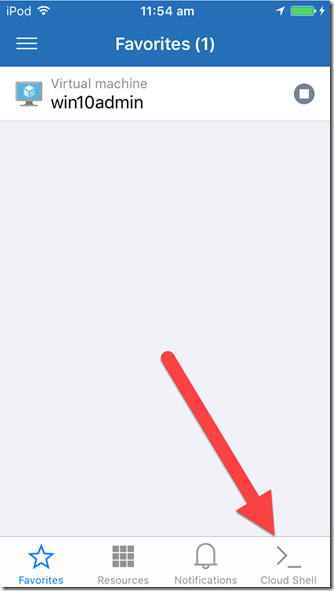
Now the super cool feature of this is that Azure is also available as a mobile app (here in iOS). When you run that app you will again find the option for the Cloud Shell (here in the lower right).
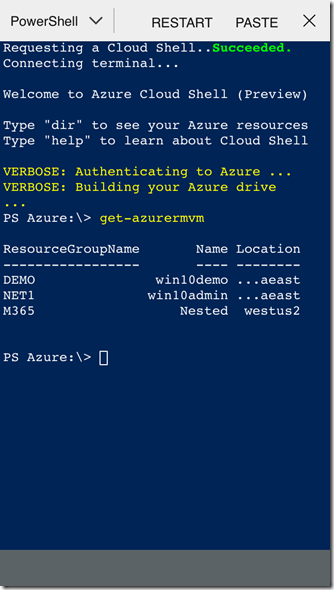
When you select this icon, you’ll again be a command line environment that you can configure to be PowerShell as you see above.
Now you can run your PowerShell commands directly from any mobile device! How super cool is that?
Having the ability to run PowerShell from just about anywhere to work with Azure is a really, really powerful feature of Azure and makes the life of managing these resources much easier.
So, go and give it a try for yourself.
Azure VM host machines are being updated
All those VMs that you use in Azure have to run on a host. At the moment, the majority of these hosts are running Windows Server 2012 R2. With Server 2016 now being available that include a range of additional features and functionality Microsoft is going to up updating the host machines in its datacenters to Server 2016 over the coming months.
This video will give you some good guidance on what to expect during the process for you VMs currently hosted in Azure. Chances are it will mean a reboot of your VMs but you’ll get plenty of notice beforehand and it is something that you should undertake manually anyway to complete the migration process.
The video has lots of great info, so if you have VMs running in Azure, consider this a heads up for upcoming host maintenance for your machines.
Need to Know podcast–Episode 165

Marc travels to Adelaide AU to speak with MVP Adam Fowler about his road to being an MVP as well his IT resources. They also cover off the local IT community in Adelaide as well as the upcoming cloud migration projects that Adam is involved with. Marc and I cover off the latest Microsoft Cloud news for Azure and Office 365.
Take a listen and let us know what you think –feedback@needtoknow.cloud
You can listen directly to this episode at:
https://ciaops.podbean.com/e/episode-165-adam-fowler/
The podcast is also available on Stitcher at:
http://www.stitcher.com/podcast/ciaops/need-to-know-podcast?refid=stpr
Don’t forget to give the show a rating as well as send us any feedback or suggestions you may have for the show.
Resources
Expand your collaboration with guest access in Microsoft Teams
How external access for Microsoft Teams
Shared status indicator in OneDrive
The SharePoint and OneDrive guide to Microsoft Ignite 2017
This program is brought to you by:
Azure Nested Virtualization
One of the things that Azure VMs currently don’t seem to allow is the ability to login to machines using just Azure AD credentials. So, how to overcome this issue but remain totally cloud based?
The solution is to use nested virtualisation in Azure which Microsoft recently announced here:
Nested Virtualization in Azure
Nested virtualization is only available on specific machines (See above link for details). One of these is the E_V3 series, which are currently not available in every region.


Just for comparison, I looked at my usual ‘go to’ machine (a DS2_v2) and the supported E2S_V3. As you can see from the above the E2S_V3 is far better value, being cheaper and having more RAM.
This made me think that perhaps I should convert some of my stand alone test VMs into guest VMs in a nested arrangement. As long as I only use these machines together the compute cost would only be for the single host VM on which the multiple guests are running rather than multiple individual Azure VMs. Hmm…something to consider down the track.
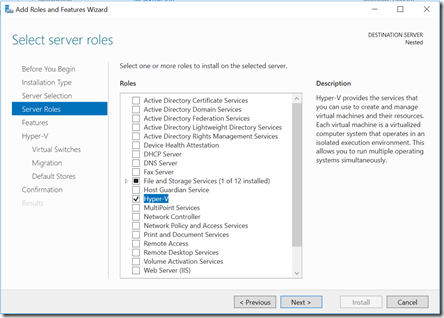
So I ran up a E2S_V3 out of the West US 2 datacenter with Windows Server 2016 datacenter in the standard manner.
Once the server I up I simply went in and added the Hyper V role as you would with any Windows Server.
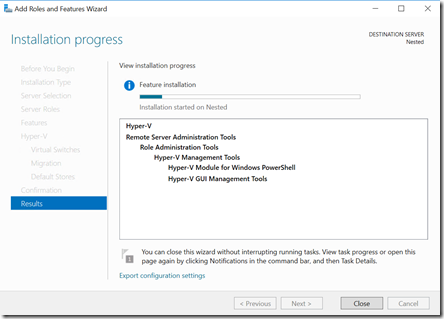
The feature installed and when complete I rebooted the server as required.
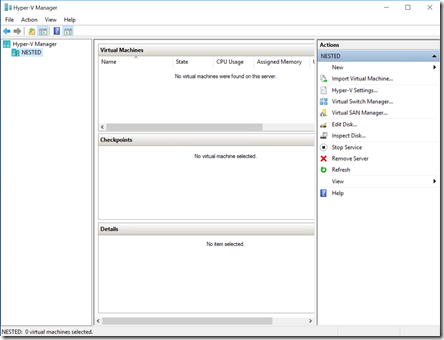
After the reboot I had access to the Hyper V Manager as you can see above, as with any Windows Server.
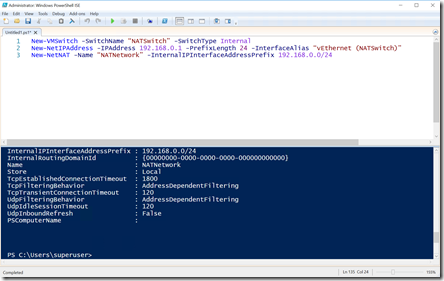
I now needed to create a new Hyper V Virtual Switch that would support NAT that my guests could connect to and then get access to the Internet.
To do this I needed to run 3 lines of PowerShell:
New-VMSwitch -SwitchName “NATSwitch” -SwitchType Internal
New-NetIPAddress -IPAddress 192.168.0.1 -PrefixLength 24 -InterfaceAlias “vEthernet (NATSwitch)”
New-NetNAT -Name “NATNetwork” -InternalIPInterfaceAddressPrefix 192.168.0.0/24
You can alter the IP addresses to suit.
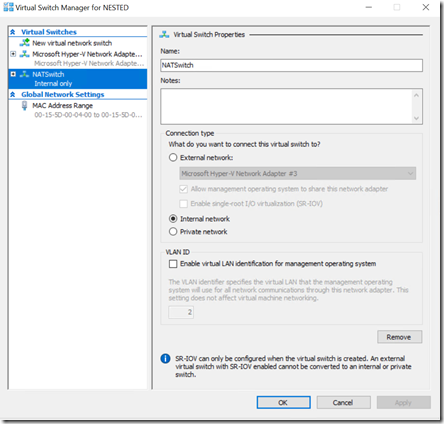
Once this is complete if I now look in my Hyper V Manager I see a new virtual switch as shown above. I’ll use this to connect the network card of my VMs to.
At this point I’ll need to assign the IP addresses to my virtual machines manually. I can configure an appropriate DHCP server if I want but I’ll leave that for a future article.
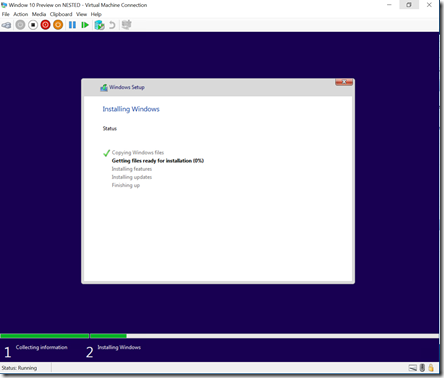
So now I just create a VM on this server as I would normally. In this case I chose a Windows 10 Preview edition.
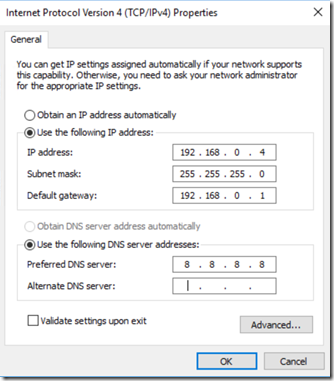
When complete I need to set a static IP until I get the DHCP server operating.
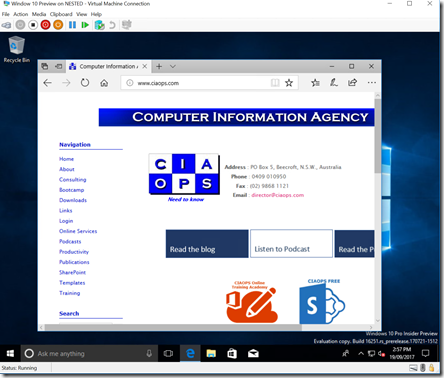
Voila, a nested VM in Azure connected to the Internet and ready for further testing.
I can’t tell you how much flexibility this is going to provide me. Not only can I now login to machines using Azure AD account but I can run up things like Windows 10S and (shock, horror) maybe even get SBS working as a guest. Now that would be really cool to achieve and I have added that to my ‘to do’ list. Watch for and article real soon!
Till then, all I can say is that Azure Nested Virtualization is super cool and really super cheap! Love the cloud!
Need to Know Podcast–Episode 164
Marc and I are back with the latest news and updates in the world of Office 365 and Azure. We are getting ready for the information overload we’ll suffer as Microsoft Ignite rolls around at the end of this month. Stay tuned right here for all the updates and maybe some special stuff!
In this episode I do a solo session around my belief that successful Office 365 adoption comes from focusing on the ‘me’ services – Yammer, OneDrive for Business, OneNote and Delve. I dive deep into my reasons and the actions you need to take away for success.
Take a listen and let us know what you think –feedback@needtoknow.cloud
You can listen directly to this episode at:
https://ciaops.podbean.com/e/episode-164-focus-on-me-services/
The podcast is also available on Stitcher at:
http://www.stitcher.com/podcast/ciaops/need-to-know-podcast?refid=stpr
Don’t forget to give the show a rating as well as send us any feedback or suggestions you may have for the show.
Resources
Conditional access with Microsoft Teams
Skype for Business becoming Microsoft Teams
Microsoft and Adobe build a closer relationship
Skype for Business updates on the Mac
This program is brought to you by:
September Azure Webinar resources
Slides from the very first CIAOPS Azure webinar are now available for download here:
https://www.slideshare.net/directorcia/ciaops-need-to-know-azure-webinar-september-2017
The recording is also available at:
http://www.ciaopsacademy.com.au/p/need-to-know-azure-webinars
which CIAOPS patrons get free access to as part of their subscription.
This webinar set the ground work for upcoming monthly webinars that will go deeper into Azure features and abilities.
So make sure you sign up for next month’s webinar.

