Introduction to Windows Autopilot

Microsoft has introduced a new technology called Windows Autopilot that allows you to easily deploy Windows 10 Professional and Enterprise machines with nothing more than just an Internet connection.

A good way to get a feel of how all this works in practice is to use a Virtual Machine (VM) as a test bed which is what I’ll show you here.

The first thing is that you are going to need to get some information about the machine so that it can be recognised by Windows Autopilot when it is provisioned. Normally, this information will be provided directly by the manufacturer of the PC, but here’s how it actually works behind the scenes.

For this test process we start by running up a new clean virtual machine with Windows Professional installed.

Once the machine is running (we don’t need to worry about connecting to Azure or a domain just yet), we need to run PowerShell as an administrator so we can extract the required information.

image

The first PowerShell command that needs to be run is:

wmic bios get serialnumber

record the number that it produces.

image

Next, run the PowerShell command:

Get-ItemPropertyValue “hklm:\SOFTWARE\Microsoft\Windows NT\CurrentVersion\DefaultProductKey\” “ProductId”

once again, record the number that is output.

image

Finally, run these two commands:

$wmi = Get-WMIObject -Namespace root/cimv2/mdm/dmmap -Class MDM_DevDetail_Ext01 -Filter “InstanceID=’Ext’ AND ParentID=’./DevDetail’”

$wmi.DeviceHardwareData | Out-File “$($env:COMPUTERNAME).txt”

This will create a file containing machine identification information, basically a hash.

image

This file will be written to the location from which the PowerShell command was run. By default this will be c:\windows\system32.

image

If you open the text file created (which has the name of the machine) it should appear like that shown above.
image

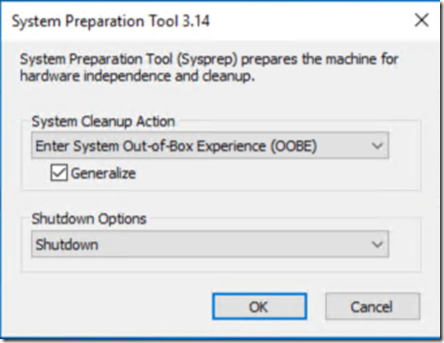
With all the information safely recorded, you can now run SYSPREP to generalise the machine and reboot or blow away the version of Windows (but not the actual VM. That needs to be retained so it is correctly identified during the coming provisioning process).
image

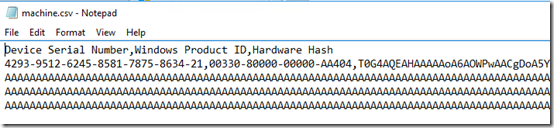
You need to now create a .CSV file to upload so that the machine can be identified at boot and provisioned. You can see the format of the file above.

Basically, the machine configuration file has at least 2 lines. The first is a heading line:

Device, Serial Number, Windows Product ID, Hardware Hash

The second line are the results from your PowerShell commands above separated by commas.

Ensure that you save the file as .CSV not .TXT!

You’ll now need to upload this file to the web. Navigate to:

https://businessstore.microsoft.com/

and login there with the Office 365 global administrator account for your tenant. This will typically be a tenant with Microsoft 365 licenses installed.

image

Once logged in the screen should appear like that shown above. Select the Manage option from the menu across the top of the page.

image

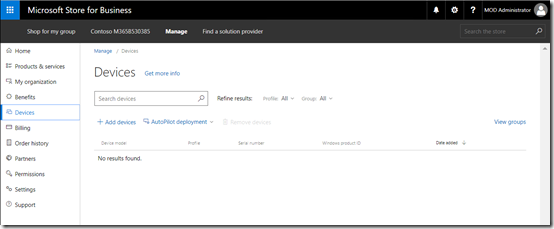
This should then take you to a screen like shown above. From the menu on the left hand side select Devices.
image

If this is the first device you’ve added to Windows Autopilot, you won’t see any existing devices.

Select the + Add devices menu option just under the Search devices box.

image

Navigate to the location of the .CSV file you created earlier that contains the information about your test VM. Select the file to upload it to the portal.

image

Since there are currently no deployment groups you’ll be asked to add a new one as shown above. Simply enter a group name and select Add.

image

The file should successfully upload to the portal and you’ll see a message telling you that it is being currently processed and you should refresh your screen to see the progress.

image

When the process is complete, you’ll get a happy green bar across the top and you’ll also see you machine listed below as shown above.

image

You’ll now need to create a profile for the deployment of Windows. Select the menu option AutoPilot deployment from the menu just above the list of devices as shown. From the menu that appears select Create new profile.
image

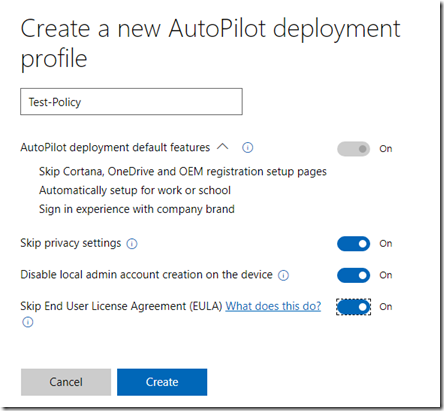
Give the new profile a name (here Test-Policy) and select any other desired settings.

Select the Create button when complete.

image

That will take you back to the list of devices. You’ll now need to apply the new profile you just created to the machine you have just added.

To do this, select the machine from the list.

image

Then select the option to Apply the appropriate policy.

Most of what we have just done will actually be done by the PC supplier down the track. They will basically get the details of each PC prior to shipment and upload that into the portal where you can then create and apply policies. We have stepped through the whole process here because we are using a virtual machine and to show you what actually happens.

The idea at this point is the new Windows 10 machine is shipped out to the end user. The only requirement the user needs to have is their Office 365 login details plus an Internet connection.

image

If we now re-provision the original machine it will boot to a point and ask the user to confirm their regional preference.

Make a select and press Yes.

image

They will then be prompted for a keyboard layout.

Make a selection and press Yes.
image

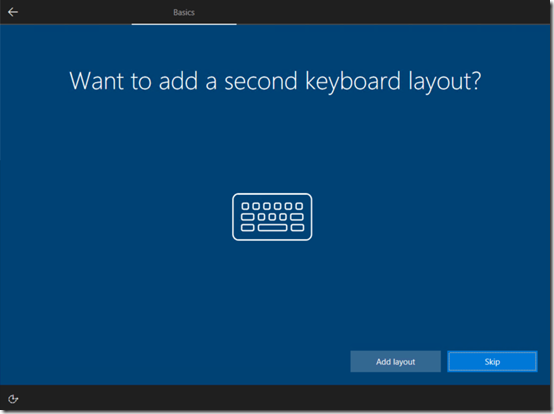
The use will also be prompted for any additional keyboard configuration. In most cases the user will select Skip here.

At this point the new machine will check to see whether it is connected to the Internet. If it detects a wifi network it will prompt the user to login. This means the machine can be provisioned ANYWHERE there is an internet connect (i.e.at home, at a coffee shop, etc). It doesn’t need to be connected to the corporate LAN.

image

The next prompt will ask the user to login with their Office 365 account. This is their Azure AD account which is the same as they use to login to the Office 365 portal.

image

The user will now be prompted for their password.

image

The machine will now add itself to the Office 365 Azure AD and apply any policies that have been configured. I’ll cover the deployment of custom policies and application deployment in another article.

image

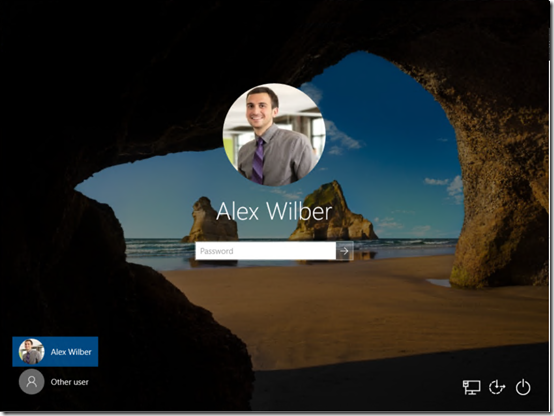
After a few moments the user will be logged into the Windows 10 machine and will display the information from their Office 365 account as shown above.

image

You will also find that the machine has been joined to Azure AD as shown above.
image

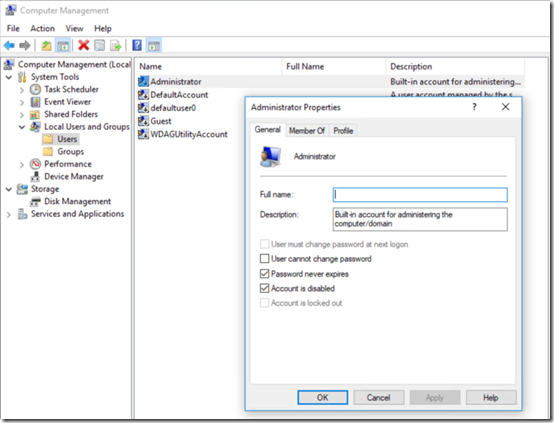
If you dig into the user accounts on the machine you will find that there are no local accounts enabled as we elected back when we set up the initial AutoPilot profile in the portal.
image

Now, thanks to Windows Autopilot, we have quickly and easily deployed a new Windows 10 machine without the need for administrative intervention (such as joining to a domain). This machine is now directly connected to Azure AD and any Office 365 user can now login.

Although this process has been done using a virtual machine it can be done with any Windows 10 Pro or Enterprise machine. The main requirement is to get the machine information into the web portal so that it can be identified and provisioned at boot. Obtaining that information is as simple as a few PowerShell commands so you can try it for yourself to get a feel of how well it works.

For more information on Windows Autopilot visit – https://docs.microsoft.com/en-us/windows/deployment/windows-10-auto-pilot

Need to Know podcast–Episode 167

Marc and I give you the latest news and updates in the Microsoft cloud featuring information About Office 365 and Azure. We also spend a bit of time looking at the new Azure File sync service that Microsoft announced recently. Both Marc and I set it up recent and we share our experience with getting it all working. Thanks for being a listener.

Take a listen and let us know what you think –feedback@needtoknow.cloud

You can listen directly to this episode at:

https://ciaops.podbean.com/e/episode-167-azure-file-sync/

The podcast is also available on Stitcher at:

http://www.stitcher.com/podcast/ciaops/need-to-know-podcast?refid=stpr

Don’t forget to give the show a rating as well as send us any feedback or suggestions you may have for the show.

Resources

@marckean

@directorcia

Azure news from Marc

Print and Export come to Sway

Policy tips in SharePoint

New usage scroe in Office 365

Office for Mac preview

SharePoint and OneDrive security updates

An introduction to Azure File Sync

October Azure Webinar resources

Slides from the very first CIAOPS Azure webinar are now available for download here:

https://www.slideshare.net/directorcia/ciaops-need-to-know-azure-webinar-october-2017/

The recording is also available at:

http://www.ciaopsacademy.com.au/p/need-to-know-azure-webinars

which CIAOPS patrons get free access to as part of their subscription.

This webinar set the ground work for upcoming monthly webinars that will go deeper into Azure features and abilities.

So make sure you sign up for next month’s webinar.

October Cloud Updates

Lots and lots of updates this month thanks to recent Microsoft Ignite conference. The above slides and accompanying video are what I believe are the highlights, but rest assured there are plenty more.

It was exciting to see the number of updates coming out for OneDrive and SharePoint. OneDrive really has some energy around it at the moment and is coming out with some great updates that I think are very, very positive. People everywhere seem so much more jazzed about OneDrive and with good reason. The upcoming files on demand and the ability to easily roll back multiple files are major improvements in functionality that will really resonate with the market.

On the Azure side I am super stoked about the release of Azure File Sync. Although still in preview I forsee big things for this service and expect it to rapidly mature, so stay tuned. I did more in depth blog post on Azure file sync here:

An introduction to Azure File Sync Service

I also hope to be posting more information on this soon.

All in all a very exciting time for Azure and Office 365. Tune in, get updated and start rolling out these new features.

Need to Know podcast–Episode 166

We pour over the news from Microsoft Ignite and give you what we believe are the major announcements to come out of Microsoft’s annual IT Pro conference.

Take a listen and let us know what you think –feedback@needtoknow.cloud

You can listen directly to this episode at:

https://ciaops.podbean.com/e/episode-166-ignite-news/

The podcast is also available on Stitcher at:

http://www.stitcher.com/podcast/ciaops/need-to-know-podcast?refid=stpr

Don’t forget to give the show a rating as well as send us any feedback or suggestions you may have for the show.

Resources

@marckean

@directorcia

Marc’s Azure stuff

Skype for Business becomes Microsoft Teams

New SharePoint admin console

Microsoft SharePoint migration tool

SharePoint Hub sites

New ways to share with OneDrive for Business

OneDrive files on demand

Other OneDrive updates from Ignite

image

Azure Cloud Shell

Azure file sync

Azure data box

SQL Server 2017 on Linux

Azure free account

New VM sizes

Reserved instances

Improved VM management

This episode brought to you buy:

image

An Introduction to Azure File Sync Service

One of the exciting announcements for me that came from Microsoft Ignite 2017 was the announcement of a new Azure File Sync Service. This basically back ends into Azure SMB files shares but allows you to sync files between servers quickly and easily.

What I also really like about this service is the integration that exists (or is coming) with other Azure services, like backup. This makes it an extremely powerful and compelling solution in my books.

It is still early days for the service and I found it a little tricky to get set up initially so I created the above video to make it easy for you to get started. Here are also some handy reference articles about the services that I suggest you take a look at:

Announcing the public preview of Azure File Sync

How to deploy Azure File Sync

Planning for Azure File Sync

Troubleshooting Azure File Sync

I can see a very bright future for this product as I think it fills a major requirement many businesses have. Is it a replacement for something like SharePoint or OneDrive for Business in Office 365? Definitely not. It is simply another option you have to solve business challenges.

I’ll be posting further updates on this product, so stay tuned for more soon.

CIAOPS Need to Know Azure Webinar–October 2017

pexels-photo-325229

Lots of news and updates to share care of the recent Microsoft Ignite conference in Orlando. We’ll also do a deep dive into Azure SMB files and hopefully a look at the new Azure sync offering. There will be open Q and A so you can answer all those burning Azure questions.

You can register for free at:

October Azure Webinar Registrations

The details are:

CIAOPS Need to Know Azure Webinar – October 2017
Friday 13th of October 2017
2pm – 3pm Sydney Time

All sessions are recorded and posted to the CIAOPS Academy.

There of course will also be open Q and A so make sure you bring your questions for me and I’ll do my best to answer them.

The CIAOPS Need to Know Webinars are free to attend but if you want to receive the recording of the session you need to sign up as a CIAOPS patron which you can do here:

http://www.ciaopspatron.com

or purchase them individually at:

http://www.ciaopsacademy.com/

Also feel free at any stage to email me directly via director@ciaops.com with your webinar topic suggestions.

I’d also appreciate you sharing information about this webinar with anyone you feel may benefit from the session.

Connecting Windows 10 Pro to Office 365

When you connect a Windows 10 Pro or Enterprise desktop system directly to Office 365 (thanks to Azure AD) you get seamless login to Office 365 without multiple password prompts.

It also allows you to directly login to the Windows 10 Pro machine with your Office 365 credentials. After that when you navigate to Office 365 in Microsoft Edge or Internet Explorer you’ll automatically be logged into the service. If you also add the following extension to Chrome:

https://chrome.google.com/webstore/detail/windows-10-accounts/ppnbnpeolgkicgegkbkbjmhlideopiji?hl=en

You’ll get the same functionality.

This ability and integration is one of the real benefits of connecting Windows 10 to Office 365 (via Azure AD). This video will show you how to take a stand alone desktop and connect it directly to Office 365 and get single sign on to Office 365.