My Gear 2026

blog

You can take a look back at last year’s gear here:

My Gear 2025

there were/are some major changes happening with my assortment.

iPhone 12 Pro Max – This remains my main mobile device still. It still has a number of cracks on the screen but it still does what it needs to do. The device lives in a Quad Lock case and I have Quad Lock mounts for both desktop and car, which I highly recommend and make life easy.

I have still not been able to justify the upgrade to a newer iPhone. No apps I use demand it and I can’t see that I am really missing out on anything by staying where I am. Yes, there has been another new iPhone but is a $2K+ cost warranted? Nope.

One thing that remains configured my iPhone for is default grey scale display. I do this for two major reasons, firstly to prevent the phone from grabbing and holding my attention and secondly to save power. With the colours disabled on your phone it is amazing at how les tempting it is to play with it and use it as a crux when you are bored.

The great thing I will say about about Apple devices is their battery life. My experience is that this allows them to work for years and years, providing great value.

So for now, unless this device breaks, I’m in no rush to replace it.

Surface Pro 9 – This is my travelling and demo machine and replaces the Surface Pro 6. Having a dedicated travel machine makes it easy to grab and also to only have the software on it that I need. By that I mean I’m not installing random stuff on it to test.

I like the size and also the fact that it comes with with a Surface pen, which is handy as I discovered that the Surface Pen also works on Surface Hubs! (Great when the Surface Hub pens don’t work).

The device has a Samsung ViewFinity S70D 32″ 4K UHD VA Panel HDR 10 Monitor attached, which I bought last year to provider high resolution. The previous Samsung 32 Inch S39C FHD Curved Monitor (1920×1080) monitor has been moved to my Surface Pro 3 for IoT work.

I do most of my demos on this machine as well as Teams webinar work as it is nice and quick. This machine runs Windows 11 Enterprise.

While this machine powers on, I again, can see no reason to shell out probably close to $3K for a new device.

Surface Pro 7 – This is my main desktop machine. Being the same form factor as the Surface Pro 6, it just slotted directly into my Kensington SD7000 Surface Pro Docking Station I already have in place. This machine runs Windows 11 Enterprise.

This device has a Acer CB281HK 28″ LED LCD monitor as well as a small Samsung connected to it. This makes things really handy when doing webinars.

The downside of going to another Surface device is that it won’t fit in my Kensington SD7000 Surface Pro Docking Station which I really love. So if I upgrade this machine, I need to do away with the docking station as well.

I can’t see me replacing this device in 2026 unless it totally fails.

Surface Pro 6 – My backup machine in case my main machine fails or is unavailable for some reason. This machine run Windows 11 Enterprise and only gets turned on occasionally.

This machine is becoming noticeably slower to work with and takes much longer to boot up and run applications. Once these are all ‘fired up’ it is fine, but it is noticeably slower than the more modern Surface machines I have.

Surface Pro X – I use this machine as a ‘lite’ travelling desktop as well as a whiteboarding machine for demos and training. Give that it comes with the Surface Pen and has a nice large screen and will lie flat it makes the prefect device for scribing. I also use this device for writing note into places like OneNote. Perhaps not the most effective use of the device but it beats the iPad when it comes to scribing hands down in my books. This machine runs Windows 11.

Surface Pro 3 – Continues to work fine and function as a test machine in my production environment. This machine has now been removed from my production network and operates stand alone. It does this so it can run my IoT project work. I found that with the security I have on my production network that I could not easily operate the IoT software I needed so the simple solution was to remove it from the production network and use it stand alone. This machine is slow and clunky, but for now it is doing the job it needs to. This machine is not suitable for Windows 11 and thus still happily runs Windows 10.

This device now has the Samsung 32 Inch S39C FHD Curved Monitor (1920×1080) monitor connected to it make code much easier to read and work with.

Surface – I have had an original Surface version 1 for many years now. The keyboard has long since broken by the system still works fine, although somewhat under powered with only 4GB of RAM. This machine is now a dedicated device on a separate test tenant. This allows me to test Autopilot and other settings on it regularly. This machine is not suitable for Windows 11.

iPad mini 5th Gen – I decided I wanted a smaller ‘notebook’ size table to use like a paper diary, amongst other things, so I went out and bought an iPad mini.

I also now use this iPad mini with the Apple pencil, which generally works well, although the Apple pencil battery is pretty much knackered. The secret is to get a good case for both the iPad mini and the pencil. My choice was:

Finite Case with Pencil holder

which I’d certainly recommend as it is flexible, tough and cheap.

After a number of years the Apple Pencil doesn’t really hold a charge any more. That is disappointing, although I appreciate it doesn’t have a huge battery. This has again increased the friction with me finding a suitable replacement for a paper notebook because every time I want to write something down, I need to charge the pencil up which takes ages.

Here is another device that works well and really has no need of a replacement but I have considered upgrading to a current iPad mini but again, I’m struggling to justify the AU$800 cost when the existing device is more than fit for purpose. Even if I did buy a new iPad mini what would I do with the current device?

D-Link Wireless N300 Model Router DSLG225 – to allow connect to the NBN broadband network.

Ubiquiti – I have a variety of Ubiquiti equipment in place including a  Security Gateway. All these have worked flawlessly and I can’t recommend this gear highly enough.

Docking station – I still love my Kensington SD7000 Surface Pro Docking Station. It is a really neat device, that suits most modern Surface Pro devices. It is slim, compact and now allows me to have 3 external monitors off the one Surface devices (as you can never have enough screen now can you eh?). I can plug in all my devices, microphones, phones, etc to it and all the cables are hidden at the back. I also like that you can adjust the screen up and down, a bit like a Surface Studio.

If I did upgrade my Surface pro 7 device it could not be used with this docking station which would be sad. Seems to me all the docking station form factors have moved to just being external bricks rather than the elegance this solution provides. being unable to use this docking device upon a device upgrade is a major reason preventing me from upgrading if I’m honest.

The original Kensington SD3500v has now moved to work with the Surface Pro 3 and that is also working well

My gear remain pretty much the same and functioning reliably. I’ve survived another year with teh same kit, meaning I have not shelled out for new kit. When the old stuff does the same and the new stuff, why waste money right?

I no longer have a frontline Android phone, but the longer I go without it the more I wonder whether I do in fact need it? if so, I could always buy it, but until then it can go on the back burner. The major investment in 2025 was a higher resolution screen for my Surface Pro 9.

Keeping things simple works best I believe.

My Stuff 2026

This post is my annual post aimed at bringing the links to everything I have out there on the Internet together into a single place. Here we go.

About me

Social Media

Free Stuff

Regular technical and business information, tutorials, walk throughs, learnings, upcoming courses and more.

Here you’ll find currently almost 200 videos full of tutorials on SharePoint, Office 365, Azure and technology.

Presentations and whitepapers for free download.

Documentation for older versions of SharePoint on premises, especially the free versions and those that came with SBS.

I have number of free GitHub repositories that include things like PowerShell scripts, pricing calculators, reference documents, helpful links and more. You will find all these at:

I maintain a GitHub repository that contains not only links to articles on best practices for services like Exchange Online but also contains configuration files and settings typically in JSON format that can be imported and used to configure your Microsoft 365 environment. You will find all that here:

https://github.com/directorcia/bp

With over 350 episodes and now in it’s 16th year, my podcast focuses on providing you news and updates from the Microsoft Cloud around Microsoft 365 and Azure.

You can subscribe using iTunes or Spotify. If you’d like to be a guest or know someone who would, please let me know.

Need to Know webinars are held monthly and announced on my blog. These are conducted using Microsoft Teams on a topic around the Microsoft Cloud.

You can join my free Teams shared channel. To do so follow the instruction here:

here you’ll find a forum on the Microsoft Cloud along with up to date news and information.

I publish a weekly round up of Microsoft Cloud news in my CIA Brief here on my blog:

I also have an email list you can join here:

You can get answers to Microsoft 365 questions via AI grounded on my knowledge by sending your question in the BODY of an email to:

Be patient, a response by return email will take a couple for minutes.

Commercial stuff

This stuff helps pay for free stuff above, so I appreciate your support for my paid work.

Access to the CIAOPS community for technical support, product discounts and access to the best Office 365 and Azure information

You can also just buy me a coffee and support what I do – https://ko-fi.com/ciaops, which I would very much appreciate.

General Interest

I’m a big believer in supporting those who want to build their own business but just need a leg up to get started. Kiva is simply and easy way to provide this and I recommend this to everyone.

Being an Electrical Engineer by trade I enjoy building and solving problems with a variety of projects. This involves digging to electronics, IoT and 3D Printing amongst other things. I try and document all of those learnings over at CIAOPS Labs when I can.

In 2025 I read over 30 books. That means I do a lot of reading on a variety of topics and with Goodreads you can follow along with the books I’m reading as well as those that I add to my bookshelf. I’ll have an upcoming post on my recommended reads, so watch out for that post coming soon.

If you ever need to send me stuff you can do so via the following address:

PO Box 5
Beecroft NSW 2119
Australia

My Bitcoin address is – bitcoin:bc1qwgcr296c7rtjvlpkv9yy5033qjgwwrvttxhtm7

My Ethereum address is – ethereum:0xD7cc991E1f84B625C3723D2965C9948238F5DFe8

Introduction to Copilot Notebooks

blog

Unlock the power of AI-driven productivity with Microsoft 365 Copilot Notebooks!
Are you ready to transform the way you organize, analyze, and create? This comprehensive beginner’s guide reveals how Copilot Notebooks—Microsoft’s revolutionary AI-enhanced workspace—can become your personal project brain, helping you work smarter, not harder.

Why This Guide Is a Must-Have for Every Microsoft 365 User
  • Supercharge Your Workflow:
    Learn how to gather content from Word, Excel, PowerPoint, PDFs, emails, and more into a single, organized notebook. No more hunting for scattered files—Copilot Notebooks centralize everything you need for any project.

  • AI-Powered Insights at Your Fingertips:
    Discover how to ask Copilot questions about your collected materials and receive instant, context-aware answers. Whether you need a summary, trend analysis, or a draft report, Copilot delivers tailored results based on your actual content—not generic web searches.

  • Automate Tedious Tasks:
    Say goodbye to manual note-taking and repetitive documentation. Let Copilot turn meeting notes into action lists, summarize long email threads, or draft proposals in seconds, freeing you to focus on what matters most.

  • Boost Collaboration and Creativity:
    Share notebooks with colleagues, co-author in real time, and leverage AI to keep everyone aligned. Copilot Notebooks are designed for seamless teamwork and creative brainstorming.

  • Stay Ahead with Audio Overviews:
    Unique to Copilot Notebooks, generate AI-narrated audio summaries of your projects—perfect for reviewing information on the go or multitasking.

  • Step-by-Step, Beginner-Friendly:
    This guide walks you through setup, best practices, and real-world use cases (data analysis, task automation, documentation), making it easy for anyone to get started—no technical expertise required.

Empower yourself to work faster, smarter, and more creatively.

Get your copy of the “Microsoft 365 Copilot Notebooks: Beginner’s Guide” today and unlock a new era of productivity!

I would always appreciate you supporting my work by purchasing a copy (nominate your own price) here:

https://directorcia.gumroad.com/l/bgcn 

and don’t forget all my other publications can be found here:

https://directorcia.gumroad.com/

November Microsoft 365 Webinar resources

image

The slides from this month’s webinar are available at:

https://github.com/directorcia/general/blob/master/Presentations/Need%20to%20Know%20Webinars/202512.pdf

If you are not a CIAOPS patron you want to view or download a full copy of the video from the session you can do so here:

http://www.ciaopsacademy.com.au/p/need-to-know-webinars

Watch out for next month’s webinar.

Step-by-Step Program for MSPs to Fulfill Priority #7 with Microsoft 365 Business Premium

This is part of a series on MSP priorities for 2026.

Workforce Development Program for SMB Clients (Step 7 Outcomes)

Step Seven of the MSP priorities (“Investing in Workforce Development and Talent”) emphasizes building a skilled, engaged, and loyal workforce. The following is a step-by-step implementation program for MSPs to help their SMB clients achieve these outcomes using Microsoft 365 Business Premium. It is organized into phased actions with clear timelines, assigned roles, and measurable outcomes, leveraging tools like Viva Learning, Teams, SharePoint, Intune, Defender, and Entra ID.

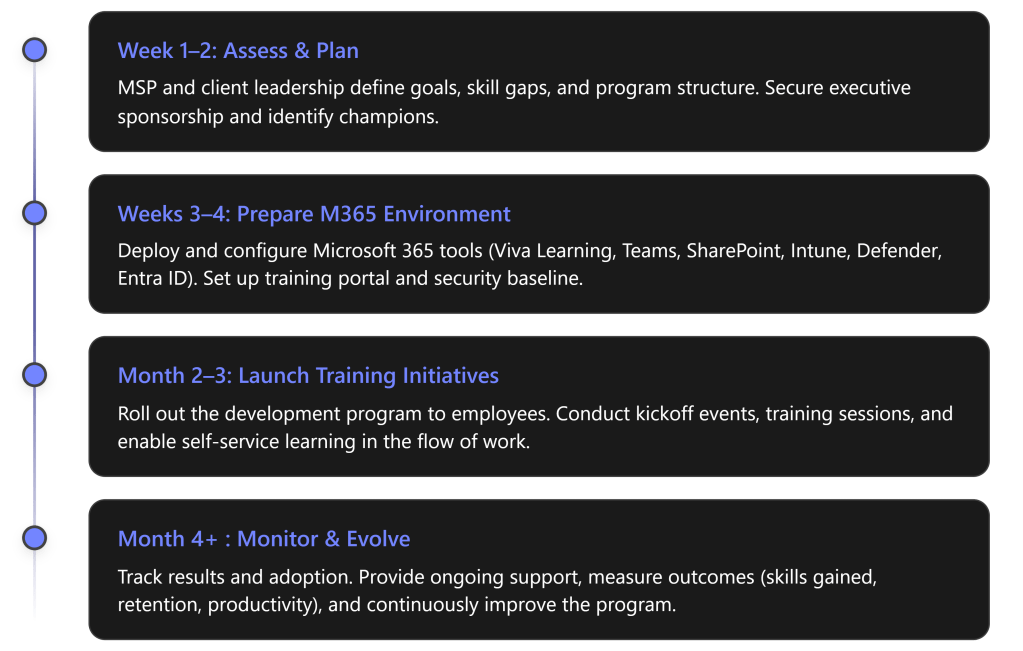
Program Phases Overview

Below, each phase is detailed with specific steps, responsible roles, and expected outcomes:

Phase 1: Assess & Plan (Weeks 1–2)

Objective: Establish a clear workforce development strategy aligned with business goals.

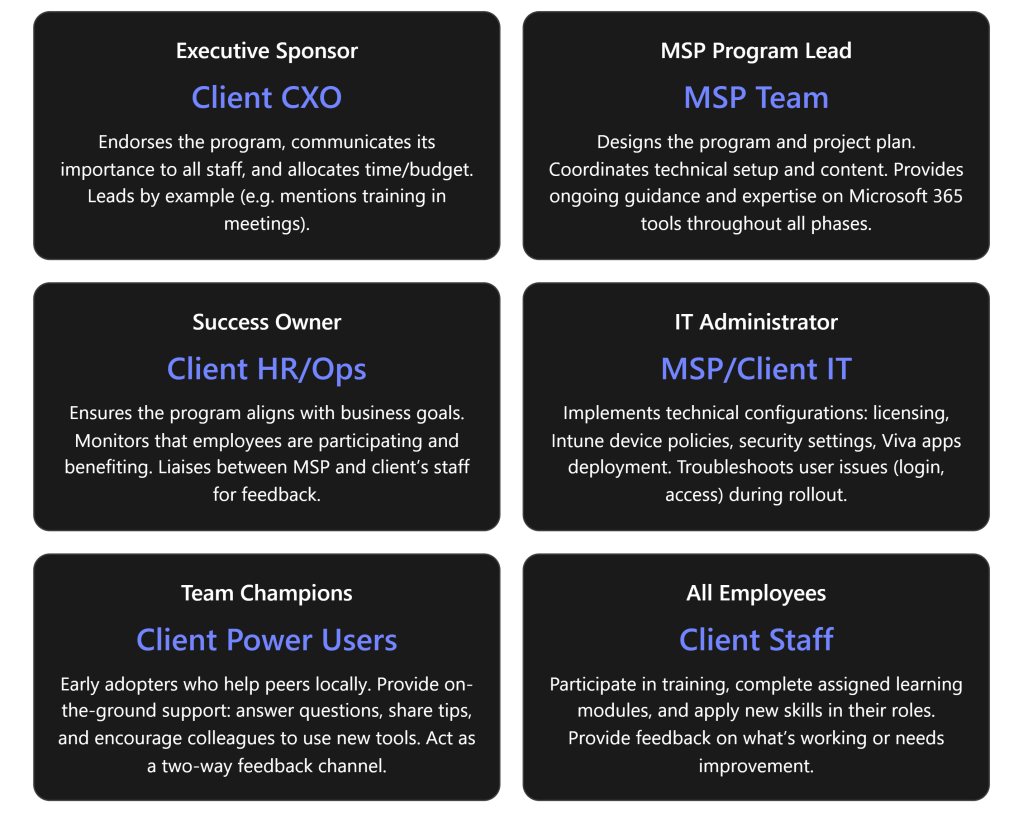
  • Secure Executive Buy-in: The MSP works with the client’s leadership (e.g. CEO or Principal) to designate an Executive Sponsor who will champion the talent program. This sponsor should communicate the high-level vision and commit resources, signaling to all employees that this initiative is a priority. A visible executive sponsor greatly increases success of the transformation.
  • Identify Stakeholders & Roles: Form a joint working group including the MSP project lead and key client stakeholders:
    • Success Owner (client’s HR manager or operations lead) – to ensure the program meets business goals and employees actually use the new tools.
    • IT Lead (either the MSP or client’s IT admin) – to oversee technical setup of M365 features.
    • Team Champions – identify a few tech-savvy, enthusiastic employees who can act as champions in each department. Champions will help evangelize new tools and assist peers in learning (peer coaching), creating grassroots support.
    • (See Roles & Responsibilities table below for a summary of all key roles.)
  • Assess Skills & Needs: Conduct a quick skills gap analysis. The MSP can survey or interview managers to pinpoint critical skill gaps or training needs in the client’s workforce (e.g. cloud skills, cybersecurity awareness, productivity tool usage). Identify relevant competencies needed for the business to grow. For example, if the client plans to adopt new cloud software, ensure employees will be trained on it.
  • Define Program Goals & KPIs: Set measurable outcomes to target. For instance: “Improve employee satisfaction with training resources (measured via survey) by 30%”, “Achieve 100% completion of cybersecurity basics training”, or “Reduce staff turnover rate from 15% to 10% within a year”. Establish baseline metrics (e.g. current turnover, current skill certification levels, etc.) so progress can be measured later. Also determine technical KPIs like Teams usage, Viva Learning engagement (course completion rates), and so on, which will be tracked in Phase 4.
  • Plan the Curriculum & Schedule: Based on identified needs, outline the learning curriculum. Decide on a blend of self-paced learning (leveraging Viva Learning and LinkedIn Learning content) and live training sessions (e.g. monthly Teams workshops or lunch-and-learns). Schedule an official program kickoff event in Phase 3 and tentative dates for key training modules. Keep the initial program scope manageable (e.g. a 3-month push) with the option to extend. Ensure to build in time for employees to learn – e.g. allocate a few hours per week as “learning time.”
  • Communication Strategy: Plan how to announce and promote the program to all staff. Utilize the executive sponsor for an announcement email or Teams post explaining “what’s in it for me” for employees. Create a simple message that investing in skills will benefit both the employees’ careers and the company. Generating excitement early will drive participation. (We will execute the communications in Phase 3.)

Deliverables (Phase 1): A brief Workforce Development plan document outlining the program goals, phases, and schedule; a list of identified participants in key roles (sponsor, success owner, champions); and baseline metrics recorded for future comparison.

Stakeholder Roles & Responsibilities:

Phase 2: Prepare M365 Environment (Weeks 3–4)

Objective: Set up the technical infrastructure and content needed to support the development program. Leverage Microsoft 365 Business Premium features to create a learning-friendly, secure environment.

  • Enable Viva Learning: As the central hub for learning, Viva Learning will be used to distribute and track training content. The MSP ensures Viva Learning is activated in Teams for all users (it’s included in M365 and can be pinned in the Teams sidebar). Configure Viva Learning’s content sources:
    • Connect to Microsoft 365 Training and Microsoft Learn (free, included content) so users can access MS’s own tutorials. [talentedla…esclub.com]
    • If the client has licenses or subscriptions, integrate LinkedIn Learning or other LMS content libraries for a richer course catalog (optional).
    • Upload or link any internal training materials the client already has (for example, an onboarding PDF or process videos stored on SharePoint) into Viva Learning’s central repository. This way, employees will find all learning resources in one place within Teams. [talentedla…esclub.com]
    • Outcome: Employees get a “one-stop shop” for training content within their daily workspace, greatly reducing friction to engage in learning. [talentedla…esclub.com], [talentedla…esclub.com]
  • Set Up SharePoint Training Portal: The MSP creates a simple SharePoint intranet site or uses an existing one for training and knowledge sharing. This site will serve as a home for program information – e.g. an FAQ about the program, a calendar of training events, links to helpful resources (like the company’s process docs or Microsoft’s support articles). This ensures even those who may not use Viva Learning immediately have a place to find training info via the intranet. The SharePoint site can also host discussion pages or a Q\&A list if needed. (Note: Viva Connections could be used to surface this SharePoint portal in Teams for convenience, if time permits.)
  • Deploy Microsoft Teams Channels: Leverage Teams for communication and collaboration around learning:
    • Create a dedicated “Learning & Development” Teams channel (or Team) for the client. This will be used to post announcements, schedules, and allow employees to discuss training topics. For example, after a webinar, participants can continue the conversation in this channel.
    • Ensure Teams is rolled out to all users on all their devices. Since Teams is already part of M365, verify everyone has access and is in the necessary Teams/Channels. If some staff aren’t actively using Teams yet, consider a brief orientation for them because all program events will rely on Teams (meetings, chat).
    • Within Teams, integrate Viva Learning app – so users can find and share courses directly in chat. Encourage a culture where employees share interesting learning content with each other via Teams (Viva Learning allows sharing courses in Teams chats/posts) to make learning social.
  • Intune – Device and App Readiness: If not already in place, use Microsoft Intune (Endpoint Manager) to ensure all employee devices are ready for a modern, remote-friendly work environment:
    • Enroll company PCs/mobile devices into Intune for management. This allows pushing required apps (Teams, Office, etc.) and settings.
    • Deploy the Company Portal app which can list available business apps and resources – include links or apps for learning resources if applicable.
    • Ensure Teams, OneDrive, and Office apps are installed and updated on all devices. Intune can push updates or new apps if someone is missing them.
    • Configure device settings that support productive learning: for example, enable Windows 10/11 “Work Accounts” or single sign-on so that employees can easily access SharePoint and Teams without login hassles.
    • Bottom line: Intune helps guarantee every user—whether in office or remote—has a secure device with the needed software to participate in online training.
  • Security Baseline with Entra ID & Defender: A safe learning environment is crucial. Configure Azure AD (Entra ID) and Defender security features included in Business Premium to protect users as they engage in new online tools:
    • Enforce Multi-Factor Authentication (MFA) for all user logins (via Entra ID). This protects identities as more services (Teams, SharePoint) are accessed from potentially anywhere. It’s a quick win to dramatically improve security and is part of Business Premium’s Entra ID P1 features.
    • Set up Conditional Access policies if needed – e.g. require devices to be compliant (Intune-managed) to access sensitive SharePoint content. This ensures only secure, managed devices are used for work, reducing risk.
    • Defender for Office 365: Turn on anti-phishing, anti-malware, and Safe Links/Safe Attachments for email and Teams. Users will be safer from cyber threats during their day-to-day work and training. (If available, use Attack Simulation Training to periodically send test phishing emails and auto-enroll those who fall for it into a quick remedial training. This feature might require an upgrade, but it’s worth considering to directly tie Defender security into workforce education.)
    • Defender for Endpoint: If the client’s devices are Windows 10/11, ensure Defender antivirus is active and reporting to the portal. Set up baseline endpoint protection policies via Intune (e.g. requiring disk encryption, firewall on). These measures protect the devices used for learning and work, reducing the chance of disruptions (like malware outbreaks).\ By deploying these protections, the MSP also sets the stage to teach employees about security best practices in Phase 3. Tools like MFA and threat detection not only secure the environment but can be referenced in security training modules (e.g. “we have enabled MFA – here’s why it’s important”). Note that making security seamless is part of enabling flexible work – it addresses the challenge of maintaining data safety when people learn and work from anywhere. [whatjobs.com]
  • Content Curation: Before launch, load up the initial content into Viva Learning and SharePoint:
    • For example, identify 5–10 priority learning modules relevant to the client’s business. An MSP might include “Microsoft 365 Fundamentals” training for all staff, a specific course like “Teams Tips and Tricks for Daily Productivity,” and a mandatory “Security Awareness 101” training. Mark these as “featured” content in Viva Learning or list them on the SharePoint portal.
    • Ensure each piece of content has an assigned owner who will track completion (this could be automated via Viva Learning reports if available, or manually by the Success Owner tracking who finishes what).
    • Test access: have a few pilot users (like the champions) log into Teams, open Viva Learning, and access the SharePoint site to verify everything is accessible and content displays properly.

Deliverables (Phase 2): Microsoft 365 environment configured for learning:

  • Viva Learning deployed with curated content and integrations.
  • SharePoint training site live.
  • Teams channels set up for program communication.
  • Intune policies applied (devices compliant, apps deployed).
  • Security policies active (MFA, threat protection).\ The end of Phase 2 should provide a “sandbox” ready for users to start their learning journey safely and easily.

Phase 3: Launch Training & Drive Adoption (Month 2–3)

Objective: Roll out the workforce development program to employees, maximize engagement, and achieve quick wins in upskilling and engagement. This phase is about execution – delivering the training and fostering a learning culture using M365 tools.

  • Kickoff Event (Week 5): Host a program kickoff meeting with all employees. This can be a live town-hall style meeting on Microsoft Teams led by the executive sponsor. In the kickoff, announce the goals (e.g. “Our goal is to invest in each of you – by helping you grow your skills for the future. Here’s how we’ll do it…”). Demonstrate how to access Viva Learning in Teams and the SharePoint portal. Emphasize leadership’s commitment: e.g. the sponsor might say “We expect everyone to spend a few hours each month on learning – and we fully support that time.” This leadership messaging is critical to set the tone. Encourage questions and excitement. (If scheduling allows, consider bringing in a guest speaker or an MSP expert to briefly talk about the importance of continuous learning in tech.) The kickoff should leave employees motivated and clear on how to get started.
  • Deploy Training Modules: Immediately after kickoff, launch the first set of training modules:
    • Assign all employees an “Onboarding to Viva Learning” tutorial (so they learn how to use the tool itself). Microsoft provides a quick guide which can be shared. This ensures no one is lost on the platform.
    • Assign or invite employees to the initial learning courses chosen in Phase 2. For example, everyone might be assigned “M365 Basics” and “Cybersecurity Basics” courses via Viva Learning. The MSP or Success Owner can use Viva Learning’s assignment/recommendation feature to push these to each user’s learning queue. Employees will see these recommendations in Teams and email.
    • Schedule the first live training session via Teams. For instance, a “Teams Best Practices Workshop” in week 6, run by the MSP trainer or a champion. Send a Teams meeting invite to all required attendees. Tip: Record these sessions (Teams can record) and post the recording on the SharePoint portal for those who miss it or future new hires.
    • Encourage managers to set aside time: have department managers discuss these courses in their team meetings, and allow perhaps 2 hours during work time in the first week for employees to complete the initial trainings. By integrating it into the work schedule, you increase participation (otherwise, busy staff might postpone it indefinitely).
  • Foster Engagement and Culture: Make learning visible and social:
    • Use the Teams “Learning & Development” channel for daily/weekly touchpoints. For example, start a thread asking: “What’s one new thing you learned this week?” – prompt champions to answer first to get the ball rolling. Celebrate small wins: “Kudos to for completing the Excel Advanced course!” Public recognition in Teams can motivate others.
    • Set up a friendly competition or incentive. For instance, track points for each course completed (Viva Learning doesn’t natively gamify, but the Success Owner can manually track completions) and reward the top learners at quarter-end (small prizes or simply recognition in a company meeting). This appeals to those with a competitive spirit.
    • Leverage Yammer/Viva Engage if the organization uses it, to create a community for sharing learning experiences company-wide. (If not, Teams channels suffice as the community hub.)
    • Have the identified Champions host informal “office hours” or drop-in help sessions (via Teams meetings or in-person) once a week during this phase. This gives peers a place to ask questions about new tools or concepts. Champions can also periodically share tips in the Teams channel (e.g. “Tip of the Week: Use @VivaLearning in Teams chat to share a course with a colleague!”).
    • Use Teams Live Events or Webinars for larger training if needed (since all employees are on Teams, it’s an easy way to broadcast to many).
    • Throughout the launch, tie learning back to daily work. Encourage employees to discuss in Teams how they applied something from a course to their job. Example: someone completes a Teams productivity course and then shares how they used a new feature in a client meeting – these stories reinforce the practical value of the training and inspire peers.
  • Support and Monitor: The MSP and client leads should be hands-on during this launch period:
    • Track participation closely. Use Viva Learning’s analytics (if available, Viva Learning provides basic reports on content completion). If not, the Success Owner can manually note how many have completed key courses after a couple of weeks. Follow up with gentle reminders via Teams or email to those who haven’t started (“We see many of you have finished the first modules – fantastic! If you haven’t yet, please make time this week.”).
    • Gather feedback in real-time. After the first module, perhaps post a quick Microsoft Forms survey asking employees how they found the experience – was the content relevant? Was the tech easy to use? Use this to address any issues immediately (e.g. if someone says “I didn’t understand how to access Viva Learning,” plan another short demo or send a tip sheet).
    • Troubleshoot issues fast: If employees have trouble logging in, or content not loading, the MSP IT lead should assist immediately. Ensure no one is left behind due to technical difficulties.
    • Continue the communications campaign: send weekly update emails or posts highlighting progress (“Week 2: 80% of our team has completed the security module – great work! If you haven’t, here’s the link to get started.”). Share success stories or quotes from employees who found value. According to best practices, ongoing communication boosts long-term adoption.
  • Include External Opportunities: Workforce development isn’t only formal training. Encourage staff to also utilize other resources:
    • For example, let them know they have access to the Office 365 Champion community or Microsoft tech community. Provide links on SharePoint to things like Microsoft’s free webinars or community forums relevant to their roles.
    • If budget allows, consider certification paths: e.g. some employees might aim for a Microsoft certification (like MS-900 or Azure Fundamentals). The MSP can help identify candidates and perhaps organize study groups. This shows employees there’s room to grow professionally (a big factor in retention) and leverages the e-learning content in a goal-oriented way.
  • Alignment with HR: Work with the client’s HR to integrate these development activities into performance reviews or development plans. For example, managers can set a goal for each team member: “Complete X training and apply it in a project.” This alignment ensures the program isn’t seen as “extra work” but part of career growth in the company. HR can also outline potential career paths that training can enable (e.g. “Complete advanced Azure training and you could move into cloud solution roles internally”). Making the connection to career advancement will strongly motivate participation.
  • Quick Wins: Focus on achieving some quick, visible wins by the end of Phase 3:
    • Highlight any immediate improvements. For instance, if many employees took a Teams training, perhaps meetings are already more efficient – call that out: “We’ve reduced our average meeting time by 15 minutes thanks to everyone using new Teams features learned in training” (if data available).
    • If someone learned a skill that saved money or time, publicize it. Eg: an employee learns Power BI and automates a report – that success story should be showcased as a tangible outcome of the program.
    • Ensure every employee has completed at least the baseline mandatory training (like security or compliance topics) by the end of this phase – that itself is a win (100% compliance on required training).

Deliverables (Phase 3): Employees actively engaged in development:

  • Kickoff and at least one live training session completed.
  • All staff onboarded to Viva Learning and core modules (with high completion rates).
  • Active discussion in Teams around learning (qualitative indicator of engagement).
  • Early feedback collected on program experience.

Outcome: By the end of month 3, the client’s workforce should have visibly higher engagement in learning. Ideally, you’ll see improved confidence and productivity – e.g. over 50% of employees report they have applied something learned to their job (measure via survey or anecdotes). The cultural shift toward continuous learning will have begun.

Phase 4: Monitor, Measure, and Evolve (Month 4 and beyond)

Objective: Transition the program into an ongoing cycle. Measure outcomes against the goals set in Phase 1, demonstrate improvements, and refine the program for continuous development of talent.

  • Track Measurable Outcomes: Now that the program has been running for a few months, assess the impact:
    • Skill acquisition: How many courses were completed per employee on average? Use Viva Learning reports to get numbers. Did employees earn any certifications or credentials? For example, if 5 people passed a Microsoft certification exam, that’s a concrete outcome (count it).
    • Employee feedback & engagement: Send a follow-up survey to all staff. Ask about their satisfaction with training opportunities now vs before, their confidence in using new tools, etc. High positive responses or an increase from baseline indicates success. Also check engagement metrics – e.g. the Viva Learning usage, or Teams channel activity. 92% of employees say workplace learning improves their engagement – your survey should reflect a similar uplift if the program is working.
    • Retention and HR metrics: Although a few months is short, check early signals. Has voluntary turnover slowed in these months? (Even anecdotal evidence like fewer resignation notices, or employees expressing that they feel more valued, is useful.) Over longer term (6–12 months), compare retention rates. The expectation is that investing in development will improve loyalty, aligning with statistics that training access makes over 90% of employees less likely to leave.
    • Productivity or performance: This can be tricky to measure short-term, but you might use proxies. For example, are projects completing faster or with better quality after staff received training? If the client tracks metrics like sales per employee or tickets closed by IT per week, see if there’s an uptick. Global research suggests a ~17% productivity increase when employees get needed training, so look for any positive trend in relevant business metrics.
    • Security posture: Since we included security training, measure incidents. Did phishing click rates drop? (If attack simulations were run, compare results before/after training.) Did the Secure Score in Microsoft 365 improve? A more aware workforce should contribute to fewer risky behaviors, which may show up as fewer malware infections or lower support calls related to security.
  • Report to Stakeholders: The MSP should compile a progress report for the client’s executives at the end of the initial program period (around month 4). This report should highlight:
    • Training participation stats (e.g. “85% of staff completed at least 3 courses”).
    • Improvements or success stories (e.g. “Sales team reports 30% faster proposal turn-around after SharePoint training”, or “New hire ramp-up time reduced by 2 weeks due to improved onboarding training”).
    • Employee quotes (e.g. an employee says “I feel more confident using Teams now and it saves me time every day”).
    • Progress on KPIs: compare to the baseline set in Phase 1. If a goal was reducing turnover, show the current trend. If goal was increasing internal promotion rates, note any promotions that happened and if those employees engaged in learning.
    • ROI of the program: While it may be early for full ROI, outline the expected long-term benefits. For instance: improved retention avoids recruitment costs (the report can cite that replacing an employee costs ~50–60% of their salary – so retaining even a couple of people has saved $X already). If productivity gains are evident, translate that to value (17% more productive workforce can equate to significant revenue gain). This helps solidify executive support to continue investing.
  • Continuous Improvement: Use the data and feedback to refine the program:
    • Address any gaps. If employees say the content wasn’t advanced enough, introduce more advanced courses next. If participation lagged in a certain department, have one-on-one meetings with that department head to find out why (maybe their workload was too high, or times weren’t suitable – adjust scheduling or provide more manager support in that area).
    • Update the learning content catalog. Retire or replace modules that weren’t useful, and add new ones in response to technology changes or business plans. (For example, if the client adopts a new CRM software, coordinate with them to add training for that tool into Viva Learning).
    • Evolve the timeline for ongoing training: Perhaps shift to a quarterly theme (e.g. Q2 focus on advanced data analytics skills, Q3 focus on leadership skills, etc.) to keep the momentum. Plan regular “boost” campaigns to maintain high engagement, such as a quarterly Learning Day or hackathon where everyone takes on a learning project.
    • Continue leveraging M365 updates: Microsoft 365 is ever-evolving – new Viva Learning features, new Teams capabilities, etc. The MSP should keep the client informed and integrate those into the program. For instance, if Viva Learning adds a feature to track learning assignments better or Viva Insights starts providing training analytics, make use of that to enhance tracking of outcomes.
    • Maintain the champion network: refresh membership if needed (new champions as people rise in skill), and keep rewarding champions. They can eventually run much of the peer support with minimal MSP involvement.
  • Sustain and Support: After the initial intensive phase, the MSP can scale back to a supporting role while the client’s internal team sustains the program:
    • The MSP might move to a quarterly check-in model – meeting with the Success Owner to review training metrics, providing any new recommendations or content updates, and assisting with any technical adjustments.
    • Ensure the client has the knowledge to administer Viva Learning content, create new Teams events, and manage Intune/Defender policies as needed. Provide admin training if necessary in Phase 4 so they can be self-sufficient.
    • Keep the door open for the MSP to provide advanced training or new rollouts in future (e.g. if the client later wants to implement Viva Insights or other Viva modules for further talent development, the MSP can step back in to assist).
  • Celebrate Achievements: Finally, it’s important to recognize the progress to reinforce a culture of development:
    • Have the executive sponsor acknowledge the company’s efforts publicly. For example: “In the last 3 months, our team completed over 200 courses, and we’ve already seen improvements in our operations. Thank you for embracing this initiative – it’s just the beginning of what we can achieve together.”
    • Consider small rewards or an event to celebrate hitting a milestone (e.g. a team lunch after 100% of employees complete the initial learning path).
    • Share individual success stories in company newsletters or town halls: e.g. “Jane from Marketing transitioned to a new Data Analyst role after completing an Excel and Power BI learning path – congratulations to Jane!” This shows tangible career growth, motivating others to follow.

Deliverables (Phase 4): A metrics dashboard or summary report showing the outcomes of the program, and a set of recommendations for next steps. Also, a refined action plan for the next cycle (which modules to add, any changes in approach).

Long-term Outcome: A sustainable talent development program that continuously adapts. Over the coming year, the client should see:

  • Higher employee retention and satisfaction (monitor via HR surveys and retention stats – expecting positive movement in these metrics as the program’s impact solidifies).
  • Enhanced skills and innovation – employees capable of taking on new challenges, evidenced by more internal promotions or successful new projects.
  • A strong learning culture – where using tools like Viva Learning and Teams for knowledge-sharing is the norm, and employees proactively seek out training (the ultimate sign of success).

The MSP’s role evolves into a strategic partner maintaining this momentum, ensuring the client’s workforce keeps developing to meet future needs. This fulfills the vision of Step Seven: turning workforce development into a competitive asset for the business.

Feature-to-Outcomes Mapping

Finally, mapping the key Microsoft 365 Business Premium features to the workforce development outcomes ensures we leverage each tool optimally:

M365 FeatureRole in Program & Workforce Outcome
Microsoft TeamsTraining delivery & daily collaboration: Central hub for live training (meetings, webinars) and ongoing peer discussion. Fosters a collaborative learning culture by integrating training into workflow (chat, channels). Outcome: increased teamwork and knowledge sharing across the organization.
SharePoint OnlineIntranet & content management: Hosts the learning portal, knowledge base, and resources. Provides 24/7 access to policies, guides, and recorded trainings. Outcome: consistent, organization-wide access to learning materials, supporting self-service learning and faster onboarding.
Microsoft Viva LearningLearning hub in the flow of work: Aggregates learning content (LinkedIn Learning, MS Learn, internal content) into Teams. Allows personalized and on-demand skill development. Outcome: employees continually develop skills as part of their normal work routine, leading to higher engagement and skill proficiency.
Intune (Endpoint Manager)Device management for flexible learning: Ensures every user device is secure, compliant, and pre-loaded with required apps. Enables remote and hybrid work by managing endpoints and protecting data. Outcome: a reliable technical environment where employees can learn/work from anywhere safely, which supports retention through flexibility.
Defender (Security Suite)Threat protection & security training: Shields users from phishing, malware during daily work (reducing incidents that disrupt productivity). Can be used to run attack simulations and identify training needs. Outcome: a security-aware workforce with fewer breaches, and an embedded security training program (e.g. ongoing phishing awareness) that protects the business while upskilling staff on cybersecurity.
Entra ID (Azure AD)Identity & access management: Provides single sign-on and MFA, securing access to learning resources. Enforces conditional access for compliance (e.g. only trusted devices/users access sensitive content). Outcome: builds trust in the digital workplace (users feel safe using cloud tools) and reinforces good security practices organisation-wide. Also enables scenarios like guest access if external trainers/mentors are invited, all under proper security controls.

Every feature above works in concert to achieve Step Seven’s outcomes. Teams and Viva Learning drive the learning culture, SharePoint organizes knowledge, while Intune, Defender, and Entra ID create the secure, flexible foundation needed for modern workforce development. By executing this program, the MSP helps the SMB client transform workforce development from a one-time effort into a continuous, technology-enabled practice – leading to more capable employees, higher retention, and a stronger competitive position going forward

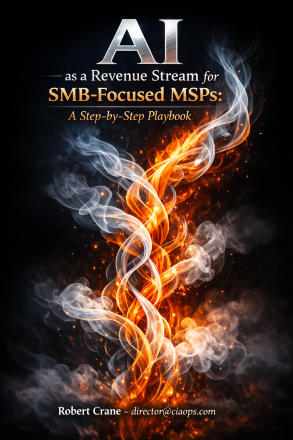
Unlock New Revenue with AI: The Ultimate Playbook for MSPs Serving SMBs

cover440

Transform your MSP business and your clients’ success with “AI as a Revenue Stream for SMB-Focused MSPs: A Step-by-Step Playbook.”
My comprehensive guide reveals how Managed Service Providers (MSPs) can harness the power of AI—especially Microsoft 365 Copilot—to create profitable, recurring revenue streams while delivering real, measurable value to small and mid-sized business clients.

What’s Inside:

  • Proven Strategies: Learn how to build in-house AI expertise, develop marketable service offerings, and position your MSP as the go-to AI advisor for SMBs.
  • Actionable Playbooks: Step-by-step instructions for AI readiness assessments, Copilot pilot deployments, custom AI solution development, and ongoing managed AI services.
  • Real-World Examples: Discover practical use cases, pricing models, and packaging ideas that have driven success for forward-thinking MSPs.
  • Marketing & Sales Tactics: Get tips on educating your market, overcoming AI skepticism, and using demos and case studies to close deals.
  • ROI-Focused Guidance: Master value-based pricing, SaaS-style subscriptions, and how to clearly demonstrate the business impact of AI for your clients.

Why This Guide?

  • Written by industry experts with deep Microsoft 365 and AI experience.
  • Packed with checklists, templates, and ready-to-use service packages.
  • Designed for immediate action—whether you’re just starting with AI or looking to scale your offerings.

Perfect for:

  • MSPs and IT consultants serving small and mid-sized businesses.
  • Business owners seeking to future-proof their services and boost client retention.
  • Anyone looking to monetize AI and Microsoft Copilot in the real world.

Don’t let your MSP get left behind.
Download “AI as a Revenue Stream for SMB-Focused MSPs” and start building your next growth engine today!

As a Boxing Day sale, I’m offering this publication for free in exchange for your joining my email list. To get your copy just provide your details here:

https://forms.office.com/r/T4ZSWhquJ8

and will be emailed out to you. This offer is valid until 1/1/2026.

I would always appreciate you supporting my work by purchasing a copy (nominate your own price) here:

https://directorcia.gumroad.com/l/airevenue

and don’t forget all my other publications can be found here:

https://directorcia.gumroad.com/

All the best for the holidays.

Step-by-Step Program to Achieve Priority #6 with Microsoft 365 Business Premium

This is part of a series on MSP priorities for 2026.

Driving Efficiency with Process Automation – Program Overview: To rapidly streamline SMB operations, MSPs should implement a structured program focusing on quick automation wins, gradual scaling, and strong governance. The plan below leverages Microsoft 365 Business Premium tools (Power Automate, Teams, SharePoint, Copilot, etc.) to automate high-volume, repetitive tasks and continuously improve processes while maintaining security and compliance.

Step-by-Step Program for MSPs (SMB Clients): The table below outlines each step, its purpose, tools, timeline, and key considerations:

Step NameDescription (What MSP does)Tools Used (M365 Business Premium)Est. TimelineKey Considerations (Resources & Governance)
1. Process Discovery & PrioritizationConduct an automation audit with client stakeholders. Identify repetitive, high-friction processes (e.g. data entry, approvals, reporting) and rank them by impact and feasibility [blog.sourcepass.com]. Produce a roadmap focusing on one or two quick-win processes first.Workshops; Microsoft Forms/Lists to capture process info; Planner for backlog prioritization.~2–4 weeks (Month 1)Resources: Client process owners & MSP business analyst collaborate.
Considerations: Ensure leadership buy-in on target processes and confirm any compliance requirements (e.g. data privacy) before automation.
2. Solution Design & Pilot BuildFor the top priority process, design the workflow and choose the appropriate automation approach. Configure a pilot solution – e.g. build a Power Automate flow or simple Power App – addressing the selected task. Incorporate Copilot or AI if it adds value (e.g. use Copilot Studio to create an AI that handles unstructured inputs or generates content as part of the process) [blog.sourcepass.com], [blog.sourcepass.com]. Test the pilot in a controlled setting with sample data.Power Automate (cloud flows or RPA desktop flows) for workflow logic; Power Apps for a custom input form (if needed); Teams (Copilot Chat) or Copilot Studio to design AI-assisted steps (optional); SharePoint (test data lists or library).~4–6 weeks (Month 2)Resources: MSP Power Platform developer (or skilled engineer) builds the pilot; client subject-matter experts provide feedback.
Considerations: Adhere to security best practices – e.g. use least-privilege accounts for automation, and ensure data sensitivity labels/permissions are respected during design [blog.sourcepass.com]. Plan for pilot success metrics (e.g. time saved, error reduction).
3. Pilot Deployment & EvaluationDeploy the pilot automation in the client’s live environment for a small user group or single department. Train those users on the new workflow (e.g. how approvals now come via Teams, or how a bot assists them). Monitor the results closely: verify the automation is running correctly, gather user feedback, and measure performance against baselines (e.g. process cycle time, error rates) [blog.sourcepass.com]. Evaluate ROI and satisfaction to decide on broader rollout.Microsoft Teams (pilot users receive workflow notifications/approvals in Teams); SharePoint/OneDrive (live data storage); Power BI or Excel for tracking metrics (optional).~2–4 weeks (Month 3)Resources: MSP consultant & client IT lead to support pilot users; helpdesk ready for issues.
Considerations: Implement initial governance checks – e.g. review audit logs of the flow, ensure compliance with data policies during pilot. Collect success data (e.g. “Process X now 50% faster”) to secure full rollout approval [cmitsolutions.com].
4. Broad Rollout & ExpansionWith pilot success, roll out the automation to all relevant users or across the organization. Integrate the solution with additional systems if needed (e.g. link to email, CRM, or third-party apps via connectors). In parallel, expand automation to the next priority processes on the roadmap [cmitsolutions.com]. Use lessons from the pilot to accelerate development of new workflows (leveraging templates and proven patterns). Conduct user training and change management for each new automation to ensure adoption.Power Automate (additional flows or RPA bots for new processes); Teams and Outlook (wider notification channels); Connectors for third-party apps (if automating beyond Microsoft ecosystem); possibly Power Virtual Agents (for chatbot interfaces to processes).Phase-wise over ~3–6 months (Months 3–6+ for multiple automations)Resources: Additional MSP engineering time for each new process; client department champions to help roll out and train colleagues.
Considerations: Stagger deployments to manage change – e.g. automate one process at a time. Verify licensing (Business Premium covers standard automation; ensure any premium connectors or AI features are licensed appropriately). Continuously update documentation for each automated workflow. Maintain alignment with security policies for new processes (e.g. if automating finance tasks, involve compliance officer in design).
5. Ongoing Governance & OptimizationEstablish a governance framework to sustain and improve the automation portfolio. Assign ownership for each automated workflow (who will update it when business processes change). Set up monitoring and alerts for failures or exceptions. Enforce security and compliance standards: e.g. use Azure AD role-based access control for connectors, regularly review permissions of automation accounts, and ensure data handling meets regulations. Optimize continuously by reviewing performance metrics and user feedback on a scheduled basis (e.g. quarterly). Identify new automation opportunities as the client’s needs evolve, and fold them into the program.Power Platform Admin Center (governance of environments, data loss prevention (DLP) policies); Azure AD / Entra ID (manage service accounts and roles); Microsoft 365 Admin & Security Centers (monitor audit logs, compliance status); Power BI dashboards (ongoing KPI tracking).Ongoing (governance reviews monthly; new enhancements each quarter)Resources: MSP offers managed services for automation – providing a dedicated advisor for upkeep.
Considerations: Treat governance as “business-as-usual”: implement policies for change control (e.g. approval required to publish new automation), and training programs to keep users and admins up to date. Ensure measurable outcomes are reported to client leadership regularly (e.g. quarterly business reviews highlighting time saved or error reduction) to demonstrate value and adjust the roadmap.

Implementation Timeline: This program is typically executed in phases over ~3–6 months for initial automations. For example, within 90 days an MSP can complete assessment, deliver one or two automation solutions, and have a roadmap for subsequent projects. Quick wins (like automating backups or simple approvals) are done first to reduce risk and show impact early, while more complex workflows are scheduled for later phases. The timeline can be adjusted based on the client’s size and readiness. [cmitsolutions.com]

Resource Requirements & Governance: Throughout the program, MSPs should plan for cross-functional resources – e.g. business analysts (to map processes), Power Platform developers, and cloud security experts. SMB client participation is vital, including process owners and IT admins to champion the changes. Leverage Microsoft 365 Business Premium’s integrated security (Azure AD identity, Microsoft Purview compliance, Defender) to build trust in the automation. Crucially, embed governance as a continuous thread: set clear data access boundaries, maintain an inventory of automations, and provide user training and support as new workflows roll out. This ensures that efficiency gains from automation are realized safely and sustainably – achieving the outcomes of reduced manual effort, faster service delivery, and higher consistency that Step Six outlines. [itarian.com], [cmitsolutions.com]

Step-by-Step Program to Achieve Priority #5 with Microsoft 365 Business Premium

This is part of a series on MSP priorities for 2026.

Continuous Monitoring & Improvement Program for MSPs (Microsoft 365 Business Premium)

For MSPs serving SMB clients, achieving continuous security monitoring, ongoing improvement, and user education (Priority #5 from the CIAOPS outlook) requires leveraging Microsoft 365 Business Premium’s built-in tools in a structured, repeatable way. Below is a step-by-step program focusing on technical implementation and monitoring, using only Business Premium features (Secure Score, Compliance Manager, Defender for Business, Intune, audit logging, etc.), with alerting and reporting to drive continuous improvement and informed end-users.

Overview of Key Steps (Core Actions First):

  1. Establish Security & Compliance Baselines: Use Microsoft Secure Score and Compliance Manager to assess current security posture and compliance state. Identify gaps (e.g. missing MFA, outdated policies) and define target scores. [learn.microsoft.com], [blog.apps4.pro]
  2. Deploy Continuous Threat & Device Monitoring: Enable Microsoft Defender for Business across all devices and apply Intune compliance policies. This ensures endpoints are protected (AV, EDR) and device configurations meet your security baseline (no drift).
  3. Implement Audit Logging & Alerting: Turn on Unified Audit Log and configure alert policies for suspicious activities. Monitor user/admin activity (logins, file access, mailbox changes) and get immediate alerts for anomalies (e.g. mass failed logins, external forwarding rules).
  4. Perform Regular Reviews & Improvements: Review Secure Score, Compliance Score, and Defender reports on a schedule (e.g. weekly/monthly). Track progress, address new recommendations, and adjust configurations/policies to continuously improve the security posture. Use built-in dashboards and reports for insight. [learn.microsoft.com]
  5. Ongoing User Education: Conduct continuous user security training and awareness. Leverage Microsoft 365 tools and insights (phishing simulation for those with Defender P2, or regular security tip campaigns) to reduce human risk. Incorporate user feedback and real incident learnings into training. [syncromsp.com]

Each step is detailed below, followed by a summary table of Step, Feature, Actions, and Outcomes for quick reference.


Step 1: Establish Baselines with Secure Score & Compliance Manager

Objective: Create a clear starting point and roadmap by assessing the customer’s current security and compliance posture.

  • Gather Baseline Metrics: Begin with Microsoft Secure Score in the Microsoft 365 Defender portal to measure the tenant’s security posture (score 0-100%). Secure Score scans configurations and user behaviors across identity, device, app, and data protections. A higher score means alignment with more best practices. Similarly, check Compliance Manager’s Compliance Score in the Purview compliance portal to gauge adherence to data protection and regulatory controls. [syncromsp.com] [blog.apps4.pro]
  • Identify Improvement Actions: Both Secure Score and Compliance Manager provide prioritized recommendations (“improvement actions”). For security: e.g. enable MFA for all users, disable legacy authentication, configure anti-phishing policies, etc., each worth points. For compliance: e.g. implement data retention labels, enable DLP for sensitive data, or train users on compliance policies. Document these recommended actions. [syncromsp.com], [syncromsp.com]
  • Set Target Goals: Use these baselines to set improvement targets (e.g. raise Secure Score from 50% to 80% within 6 months). Prioritize high-impact items first (Secure Score highlights actions by risk reduction). Similarly, aim to close top compliance gaps indicated by Compliance Manager’s score (e.g. resolve all “high risk” improvement actions). [learn.microsoft.com]
  • Obtain Stakeholder Buy-In: Ensure clients understand the baseline results and the plan. Secure Score provides an objective metric to justify security investments and measure progress over time. Compliance Score helps illustrate regulatory risk if not addressed. This sets the stage for continuous improvement as a collaborative effort with the client. [syncromsp.com]

Step 2: Deploy Continuous Threat & Device Monitoring (Defender for Business + Intune)

Objective: Implement 24/7 threat detection and enforce secure configurations on all user devices and services, using Microsoft 365 Business Premium’s security tools.

  • Microsoft Defender for Business (Endpoint Protection): Deploy Defender for Business (part of M365 Business Premium) to all client endpoints (Windows, macOS, mobile) via onboarding scripts or Intune integration. This provides next-gen antivirus, endpoint detection and response (EDR), and vulnerability management across the SMB’s devices. Ensure real-time protection, firewall, and automatic sample submission are enabled on all devices via security policies. Once deployed, the Defender portal will continuously monitor for malware, suspicious behaviors, and vulnerabilities (unpatched software) on endpoints.
  • Configure Security Policies in Defender: In the Defender for Business portal, review default threat protection policies (for email, files, and devices) and adjust as needed. For example, enable Safe Attachments & Safe Links for Office 365 email (Defender for Office 365 Plan 1 is included) and tune anti-phishing policies for the client’s domain. These settings ensure threats are proactively filtered. In Defender’s Vulnerability Management dashboard, monitor the “exposure score” and apply recommended patches or configurations to reduce it.[learn.microsoft.com], [learn.microsoft.com]
  • Microsoft Intune (Endpoint Manager) for Devices: Use Intune to enforce compliance and prevent configuration drift on devices. Define Compliance policies that require healthy settings – for example: require devices to have encryption enabled, require a minimum OS version/patch level, block jailbroken devices, and require Microsoft Defender anti-malware to be active. Non-compliant devices (which drift from this baseline) should be flagged and, via Conditional Access (Azure AD P1), denied access to corporate data until remediated. Also deploy Security Baselines (pre-configured baseline profiles for Windows 10/11 and Office apps) through Intune; these baseline profiles apply recommended security settings in bulk and will highlight any setting conflicts (drift) for review.
  • Integrate Device Signals: Microsoft 365 Business Premium ties these together – Intune device risk/compliance feeds into Defender and Azure AD. Ensure that Conditional Access policies leverage these signals (e.g. only allow sign-in from compliant devices and require MFA for an added layer of security). This guarantees that if a device falls out of compliance (e.g. antivirus is disabled or OS is outdated), the user’s access is limited, prompting immediate correction – effectively detecting and mitigating configuration drift in real time.
  • Outcome: With Defender for Business and Intune configured, the MSP now has continuous visibility into threats (malware, suspicious activities) on endpoints, and assurance that devices remain within the secure configuration guardrails. Any breach attempts or risky deviations trigger alerts or automatic responses (like quarantining a file or isolating a device) thanks to Defender’s EDR capabilities.

Step 3: Implement Audit Logging and Alerting Mechanisms

Objective: Gain awareness of security events and configuration changes as they happen, by enabling comprehensive logging and defining alert triggers for early warning.

  • Enable Unified Audit Log: In the Purview Compliance Center (or Defender portal’s Audit section), ensure the Unified Audit Log is turned on for the tenant. (It’s enabled by default for new tenants, but an older tenant might need manual activation.) Audit Logging records user and admin activities across Exchange, SharePoint, Teams, Azure AD, etc., into a central log. This is critical for investigating incidents and spotting unwanted changes. Verify mailbox auditing is also enabled (it is by default) so actions like mailbox access or rule creation are logged. With audit logs, you can later trace who did what (e.g. which admin changed a setting or which user deleted a file).
  • Set Up Security Alert Policies: Leverage built-in alerting in Microsoft 365 Defender/Compliance centers to detect suspicious or important events automatically. For example, configure alerts for:
    • Unusual mailbox activities – e.g. an inbox rule created to forward email externally or mass deletions. Possible compromised account – e.g. many failed login attempts, sign-ins from atypical locations (note: “impossible travel” detection requires Azure AD P2; without it, focus on obvious anomalies like multiple country logins in short time). Malware or Phish detection – e.g. when Defender flags an email with malware or multiple users report a phishing email. Admin role changes – e.g. any addition of a Global Admin role or privileges escalation in Azure AD.
    These alerts can be set in the Microsoft 365 Defender portal under Alert Policies. Tailor the policies’ sensitivity to minimize noise (e.g. require a threshold of events where applicable). Configure each alert to send email notifications to the MSP’s operations team (and/or notify via Teams channel or mobile app). This ensures no critical event goes unnoticed.
  • Implement Configuration Drift Detection: Beyond reactive alerts, proactively schedule checks for drift from baseline configurations. For instance, run a Secure Score delta review weekly – if the score drops unexpectedly, investigate which action regressed (perhaps a setting was undone). Also, periodically export or review key tenant settings (using a script or Microsoft 365 Lighthouse) to catch unauthorized changes (like security group membership changes or policy toggles). Many such changes would appear in audit logs; consider using PowerShell or Graph API to query the Unified Audit Log for specific events (e.g. Set-OrganizationConfig changes or Intune policy edits) on a regular basis. While this is not an out-of-the-box “button,” an MSP can automate these checks as part of the service.
  • Leverage Microsoft 365 Lighthouse (for MSPs managing multiple clients): Although not a direct Business Premium feature for end-customers, MSPs can use the free Microsoft 365 Lighthouse tool to unify monitoring. Lighthouse provides a single pane for alerts, user activity, and device compliance across all your SMB tenants – e.g., it can highlight which customer tenants have new alerts or which need attention (like MFA not enabled on some accounts). This complements per-tenant alerting by helping MSP teams manage scalability.
  • Outcome: With audit logs capturing all activities and well-tuned alerts, the MSP gets instant visibility into potential incidents or misconfigurations. For example, if an employee creates a forwarding rule to an external address or an admin turns off a policy, the team will know in near real-time. This step shifts the security stance from passive to proactive, allowing quick response before small issues become major breaches.

Step 4: Regularly Review Reports, Secure Score & Compliance Manager for Improvement

Objective: Continuously improve the security posture by periodic reviews, using Microsoft 365’s built-in scoring and reporting tools to guide prioritization and verify progress.

  • Weekly Secure Score Reviews: At least weekly, review the Microsoft Secure Score dashboard. Note the current score and any new improvement actions introduced (Microsoft may add recommendations as new threats emerge or as you enable new features). Track which pending actions have been completed and which remain. Use Secure Score’s feature to compare your score with industry benchmarks or similar-sized organizations, if available, to give context. For any action that was recently completed, confirm the Secure Score reflects it (points should be earned once the system detects the change). This serves as a “scorecard” for ongoing security hygiene. [learn.microsoft.com]
  • Monthly Compliance Manager Check-ins: Similarly, review the Compliance Manager each month. Check the Compliance Score progress: have more improvement actions been implemented since last review? Ensure documentation or evidence is uploaded for any completed actions (for audit readiness). If the SMB has to meet specific standards (e.g. GDPR, ISO 27001), ensure the corresponding assessment is active in Compliance Manager and track its score. Address new or pending improvement actions – for example, if Compliance Manager suggests enabling retention on a SharePoint site or conducting staff training on a policy, schedule those tasks.
  • Analyze Defender and Intune Reports: Microsoft 365 provides various security reports – e.g. threat protection reports, device health and compliance reports, user sign-in trends:
    • In the Defender portal’s Reports section, generate the Security Report which shows threat detections, top targeted users, etc., and the Defender for Office 365 reports for email threats. This helps verify that defenses are working (e.g. “X malware blocked this month”) and identify any patterns (like repeated attacks on a particular user). [learn.microsoft.com]
    • In Intune (Endpoint Manager), review the Device Compliance report – see what percentage of devices are compliant vs. not, and drill into reasons for non-compliance (maybe a new device was enrolled but missing an update). Use Intune’s Configuration Analyzer to compare device settings to recommended baselines. [learn.microsoft.com]
    • Check Azure AD sign-in logs for anomalies or trends (available for 30 days with P1) – e.g. look at successful vs failed login attempts, any legacy authentication use that should be addressed, etc.
  • Quarterly Security Posture Meetings: Every quarter (or as appropriate), compile a summary for the client: improvements made (Secure Score up X points, Y number of attacks blocked, Z compliance actions done) and list planned next steps. Use the data from reports to illustrate ROI – e.g. “Multi-factor Authentication was enabled for all users, which Secure Score shows improved our identity security. As a result, 350 suspicious login attempts were thwarted this quarter”. Also discuss any incidents that occurred and lessons learned to feed into new improvements. This not only keeps the SMB informed but also reinforces the continuous improvement cycle.
  • Adjust and Evolve: Use findings from these reviews to update the program’s policies and priorities. For instance, if Secure Score and incident trends show phishing is a major issue, perhaps prioritize rolling out Defender for Office 365 Plan 2 (add-on) for enhanced phishing protection and attack simulation training (if the client agrees). If Compliance Manager shows new regulations or if the client expands into a new industry, add those compliance requirements into the plan. The key is to treat security and compliance as an ongoing process, not a one-time project. [syncromsp.com]

Step 5: Continuous User Education and Awareness

Objective: Create a security-aware culture among end-users so that technology improvements are complemented by responsible user behavior. Users should be regularly educated to recognize and avoid threats, and to follow best practices.

  • Security Awareness Training Program: Establish a recurring training program for employees. Leverage Microsoft 365’s resources where possible:
    • If available, use Attack Simulation Training (part of Defender for O365 Plan 2; if the client doesn’t have this, consider it as an add-on or use third-party tools). This feature lets you run phishing simulation campaigns to test and teach users. For example, send a benign phishing email to see who clicks it, then auto-enroll those users in a training module. While Plan 2 is not included in Business Premium by default, MSPs can simulate similar exercises manually or via third-party if needed, focusing on the same goal – reducing phishing susceptibility. [syncromsp.com]
    • Use Microsoft Learn and productivity training content: Business Premium tenants have access to free training resources (e.g. Microsoft 365 learning pathways on SharePoint, end-user security best-practice guides). Curate short monthly tips or an internal newsletter about recent scams or new security features (“Did you know? OneDrive now has ransomware restore – here’s how to use it if needed.”).
  • Policy and Compliance Training: When you roll out new policies (e.g. a requirement to use Outlook’s “Report Phish” button, or a policy for data classification), conduct a mini training or communication so users understand why and how to comply. For instance, if external email tagging is enabled or USB usage is restricted by Intune policy, inform users in advance with guidance on alternatives. Compliance Manager can also have improvement actions that involve user training (e.g. “Provide annual GDPR training to staff”); track these and ensure they’re delivered.
  • Encourage a Security Feedback Loop: Foster an environment where users can easily report suspicious emails or incidents (Microsoft 365’s built-in Report Message add-in helps with this). When users report phishing emails, ensure IT follows up and also closes the loop by thanking or informing the organization if it was a wider campaign. This positive reinforcement encourages vigilance. Additionally, share sanitized stories of security wins/losses: e.g. “Last month, an employee spotted and reported a phishing email impersonating our CEO – great job, this prevented a potential breach!” or “We recently had an incident where a weak password led to an account compromise; as a reminder, our policies now require MFA and strong passwords.”
  • Measure and Improve User Awareness: Just as we track Secure Score, track metrics for user awareness. This could be phishing simulation success rates (if using a tool), attendance/completion of trainings, or even simple quiz scores from training sessions. Over time, aim to see improvement (e.g. phishing click rates dropping). Use these metrics to identify departments or individuals who might need extra focus.
  • Keep Training Material Fresh: Update content to cover new threats or Microsoft 365 features. For example, if a new type of phishing attack is trending or if Teams introduces a new security feature for file sharing, incorporate those. Microsoft Secure Score itself sometimes recommends “user training” activities as part of improvement – integrate those suggestions to fulfill technical and human aspects together. [syncromsp.com]

The combination of these five steps creates a continuous loop of monitoring, improvement, and education. MSPs should integrate this program into their service delivery, using automation where possible (PowerShell scripts for reporting, Lighthouse for multi-tenant views, etc.) to stay efficient. The result for SMB clients is a steadily improving security posture, high compliance standards, and a workforce that is increasingly resilient against cyber threats.

Step-by-Step Program Summary

The table below summarizes each step of the program, the Microsoft 365 Business Premium feature(s) utilized, key implementation actions, and the expected outcomes for the MSP and client:

StepBusiness Premium Feature(s)Implementation ActionsExpected Outcomes
1. Establish Baseline
Assess current state
Secure Score (Microsoft 365 Defender)
Compliance Manager (Purview)
Assess Secure Score: Record baseline and list recommended improvement actions (e.g. enable MFA) [syncromsp.com].
Assess Compliance Score: Initiate relevant compliance assessments (e.g. Data Protection Baseline) and identify gaps in controls [blog.apps4.pro].
Document & Prioritize: Compile all identified security and compliance gaps, prioritize by risk.
• Clear view of current security posture (score) and compliance status.
• List of prioritized tasks mapped to M365 features (serves as roadmap).
• Management buy-in on improvement plan (data-driven justification).
2. Deploy Monitoring
Always-on threat protection
Microsoft Defender for Business (Endpoints)
Defender for Office 365 P1 (Email/Collab security)
Intune (Endpoint Manager)
Onboard Devices to Defender: Deploy Defender for Business to all endpoints; verify AV, EDR, and vulnerability management are active Apply Intune Baselines & Compliance: Enforce security baseline configurations and compliance policies (encryption, OS updates, device health) Configure Policies: Enable anti-phishing, Safe Links/Attachments, and other threat protection policies in Defender for O365Conditional Access: Require compliant devices and MFA for user access (using Azure AD P1).• Comprehensive coverage against malware, phishing, and other threats across devices and email • Devices stay in line with security standards; non-compliant ones are flagged/blocked (prevents config drift).
• Automated threat response available (isolate infected device, etc.), reducing manual workload.
3. Enable Logging & Alerts
Detect issues early
Unified Audit Log (Purview Audit)
Alert Policies (Defender/Compliance Center)
(Azure AD P1 logs)
Turn on Audit Logging: Ensure unified audit log is enabled to record all user/admin activitiesextend log retention via Azure AD P1 (30 days by default)Create Alert Rules: Define alerts for suspicious events (e.g. new inbox forwarding rule, multiple failed logins, malware upload to SharePoint) with notifications to ITTune and Test: Adjust alert thresholds to minimize false positives; periodically test alerts (e.g. create a dummy policy change) to ensure they’re working.
Centralize Monitoring: Use Microsoft 365 Lighthouse for multi-tenant alert visibility (for MSP-scale efficiency)
.Immediate awareness of potential security incidents or policy changes – allows quick response before damage occurs
• Audit trail available for investigations and compliance audits (who did what, when).
• MSP can monitor many clients efficiently (via Lighthouse), ensuring no tenant is overlooked.
4. Regular Reviews & Improvement
Continuous enhancement
Secure Score Dashboard (weekly)
Compliance Manager (monthly/quarterly)
Defender Reports (Threat & Vulnerability reports)
Intune Reports (Device compliance)
Weekly Secure Score Review: Log improvements made, plan next actions for pending Secure Score recommendations [learn.microsoft.com]; ensure no regression (score drop) went unaddressed.
Monthly Compliance Audit: Update and review compliance score; close out completed actions and identify new gaps (if regulations changed or new MS features available).
Monthly Reports: Analyze Defender threat reports (email and endpoint) [learn.microsoft.com] and Intune device reports; address any recurring issues (e.g. frequent malware on unpatched devices -> enforce stricter update policy).
Quarterly Exec Summary: Report to client on achievements (Score improvements, incidents prevented) and next-quarter focus areas.
Measured improvement over time – higher Secure Score and Compliance Scores demonstrate progress (or reveal areas needing attention).
• Up-to-date security posture: policies and configurations are continually refined based on latest data and threats.
• Client sees value through regular reports (transparency), supporting retention and trust in the MSP partnership.
5. Continuous User Education
Empower the humans
User Training Content (Microsoft 365 Learning, SharePoint/Viva Engage)
(Optional) Attack Simulation (Defender for O365 P2 add-on)
Secure Score User Insights
Phishing Drills & Training: Conduct periodic phishing simulations and follow-up training for susceptible users (using MS Attack Simulation Training if available) [syncromsp.com]; otherwise use custom email campaigns and track responses.
Monthly Security Tips: Share short lessons or tips via email or Teams (e.g. “how to spot a phishing email”, “data classification do’s and don’ts”). Leverage Microsoft’s ready materials when possible.
Policy Acknowledgements: When rolling out new policies, require users to read and acknowledge guidelines (can use SharePoint or Intune’s compliance terms). Reinforce with a brief quiz or Q\&A session.
Measure Engagement: Track metrics like training completion rates or reduction in simulated phish click-rate. Recognize improvements and address gaps with targeted coaching.
• Users are more vigilant and informed, reducing risky behavior (the “human firewall” is strengthened).
• Fewer incidents caused by user mistakes (e.g. falling for scams), as shown by improved simulation results and real incident metrics.
• A culture of security: Users actively participate in protection (reporting suspicious emails, following policies) rather than seeing security as a hindrance.

References: The program above is grounded in Microsoft’s best practices for Business Premium. Tools like Secure Score provide visibility and guidance to improve security posture, while Compliance Manager offers a structured approach to meeting regulatory requirements. Microsoft Defender for Business and Intune deliver enterprise-grade endpoint protection and management for SMBs, enabling MSPs to implement zero-trust principles (secure identity, devices, and data) in a manageable way. Logging and alerting ensure that no change goes unnoticed, forming the backbone of a proactive security stance. Finally, ongoing user education addresses the fact that technology is only part of the equation – educated users significantly lower the overall risk. By following this program, MSPs can confidently fulfill the “continuous monitoring, improvement, and user education” mandate using the capabilities already available in Microsoft 365 Business Premium, creating a safer and more compliant environment for their SMB clients. [learn.microsoft.com] [blog.apps4.pro][syncromsp.com]