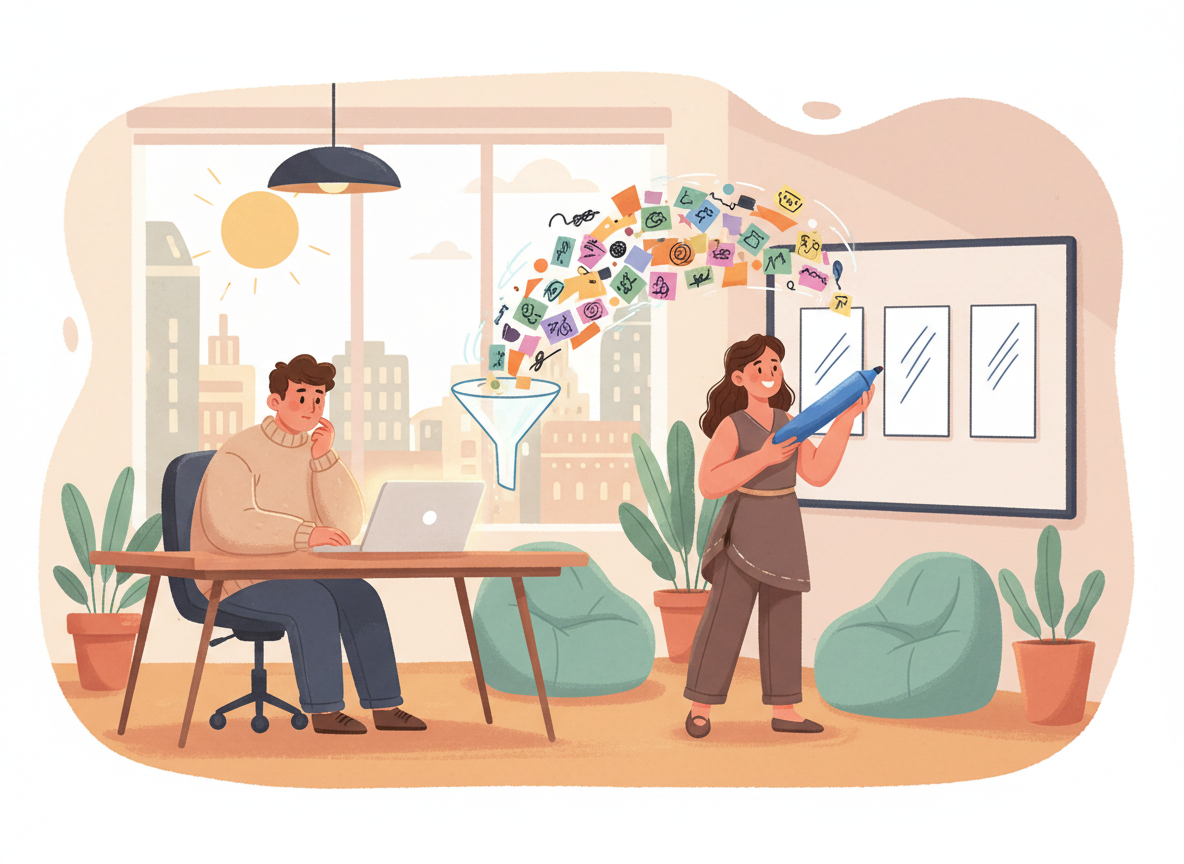
I scroll past another perfect feed and feel that familiar sour taste. Neat theories. Spotless creators. Slide decks that look like they have never met a real tenant. I do not learn much from people who only polish. I learn from people who still have grease under their sleeves.
I want the residue of making. Campaigns that actually shipped. Workshops that ran long because someone asked a hard question. Odd little experiments with clients where half the room shrugged and the other half leaned forward. What worked. What failed in spectacular fashion. The soot, not the lab coat. If the work left a mark on your day, I want to hear about that mark.
What I actually look for
In Microsoft 365 land the polished story is endless. Another AI deck. Another thread about how Copilot will change everything if you just adopt the mindset. Fine. I still want the artefacts. Screenshots with the edges showing. Notes scribbled beside a failed run. The version of the story you tell after the meeting, not the one you rehearsed before it.
Show me the Copilot prompt you tried in Word that spat out a policy draft with three confident wrong facts, and how you fixed the grounding. Show me the Outlook draft that saved you twenty minutes on a reply chain until it politely invented a deadline that never existed. Show me the Teams meeting summary that missed the one decision that mattered, so you had to go back into the recording like a detective with a coffee that had gone cold.
I care about the imperfect Power Automate flow that emailed the wrong SharePoint library for a week before someone noticed the condition was upside down. I care about the SharePoint build with three views too many and a permissions model you had to redraw on a whiteboard while the client watched. I care about the workshop demo that half-worked on the day — Copilot Chat answering beautifully until someone asked about their own retention labels and the room went quiet while we dug through the admin centre together.
That quiet is useful. That stumble is useful. The residue of a real session is useful. Perfect creators rarely leave residue. Practitioners leave trails you can follow.
Content theatre versus leftover evidence
Plenty of content is theatre. Lights up. Script tidy. No fingerprints. I am not interested in performing usefulness. I am interested in doing useful work and then talking about it. The difference sounds small until you have sat through both kinds of session and realised which one changed how you configure a tenant the next morning.
The best posts I have written for CIAOPS were not born as content calendars. They came from a messy Tuesday: a Copilot experiment in Word that surprised me, a flow that broke overnight, a Teams rollout where the chat etiquette mattered more than the licence SKU. I made something. Then I showed the leftovers. Colleagues remembered the leftovers longer than the slides.
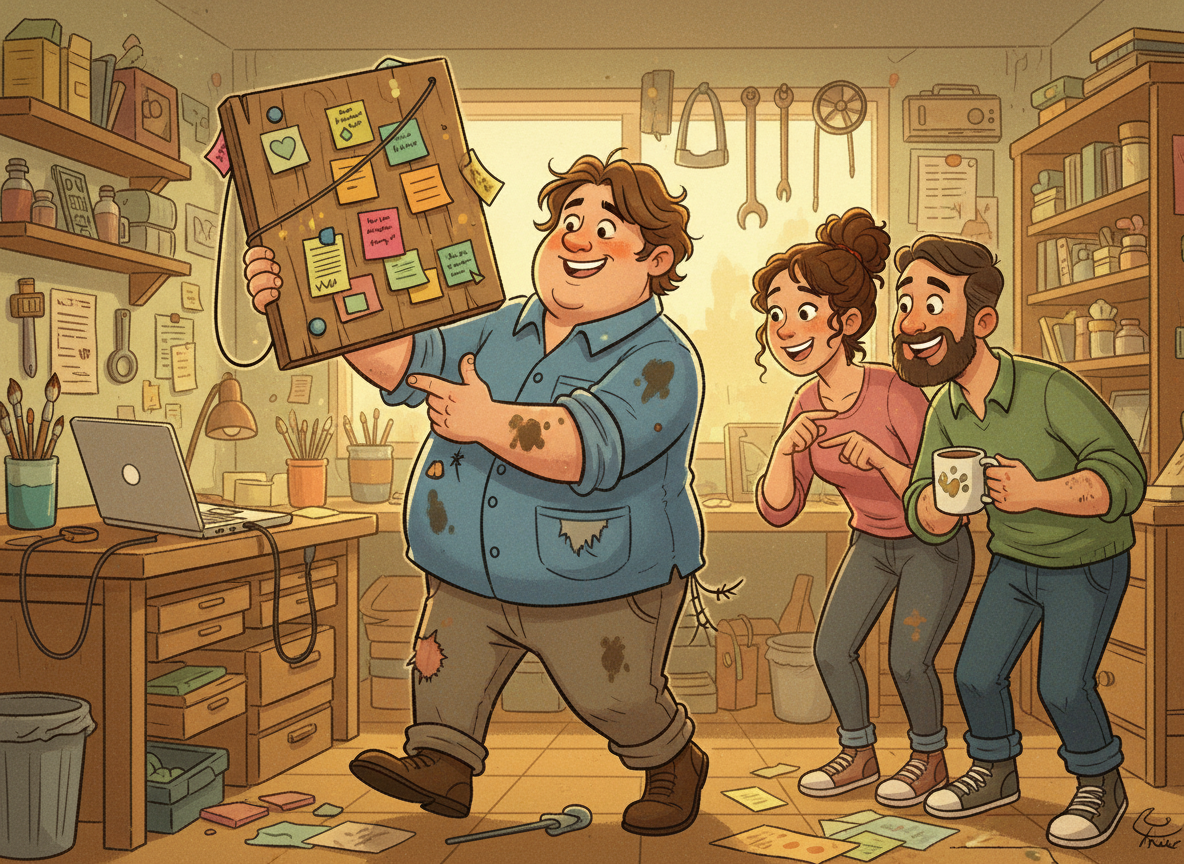
When I stagger out of a workshop still holding a sticky-note laptop and a prototype that looks like it lost a fight with a highlighter, that is the signal. Not a victory lap. Just: we figured something out, and here is the board if you want to try it yourself. Bring your own stains. Ask awkward questions. Prefer the workshop mess over the feed glow.
In a world of perfect creators and AI slide decks, I would rather be the practitioner with dirty hands. Coach the work. Share the stains. Prefer makers over gloss.
Do something useful and talk about it. Make something and show it. That is enough.