This month I’m going to closer look at SharePoint and hopefully share with you some features that you may not know about. SharePoint is a big service and there’ll be lots to talk about. I’ll have the the latest Microsoft Cloud updates plus open Q and A as well.
You can register for the regular monthly webinar here:
CIAOPS Need to Know Webinar – April 2020 Thursday 23rd of April 2020 10.30am – 11.30am Sydney Time
All sessions are recorded and posted to the CIAOPS Academy.
The CIAOPS Need to Know Webinars are free to attend but if you want to receive the recording of the session you need to sign up as a CIAOPS patron which you can do here:
Also feel free at any stage to email me directly via director@ciaops.com with your webinar topic suggestions.
I’d also appreciate you sharing information about this webinar with anyone you feel may benefit from the session and I look forward to seeing you there.
This video provides an overview of what is involved in conducting a Microsoft Teams Live Event. You see what it is like from a presenter’s point of view as well as an attendee. This functionality is part of Teams and allows you to have more control over audience interactions if you wish. A direct link to the video can be found here:
Live Events allow you to broadcast your content to a very large audience. Such events can be directly scheduled from inside Microsoft Teams. The video above takes you through the process of actually scheduling a Live Event. The direct for the video is here:
Remember, Live Events in Teams are different from typical Teams Meetings which are ad hoc with everyone typically able at the same level. Live Events gives you more control over audience interactions and allows you to integrate professional grade broadcast equipment if you wish. This doesn’t mean that Live Events is only for very large groups, it can work for smaller environments as well. It all depends on what you are trying to achieve.
Hopefully, this short video will get you started on creating your own initial Live Event.
One of the great abilities of OneDrive for Business and SharePoint Online is the ability to quickly and easily share a link to a file with people outside your organisation.
I’m not going to show you how to do this in this article but if you need to see how this is done have a look at:
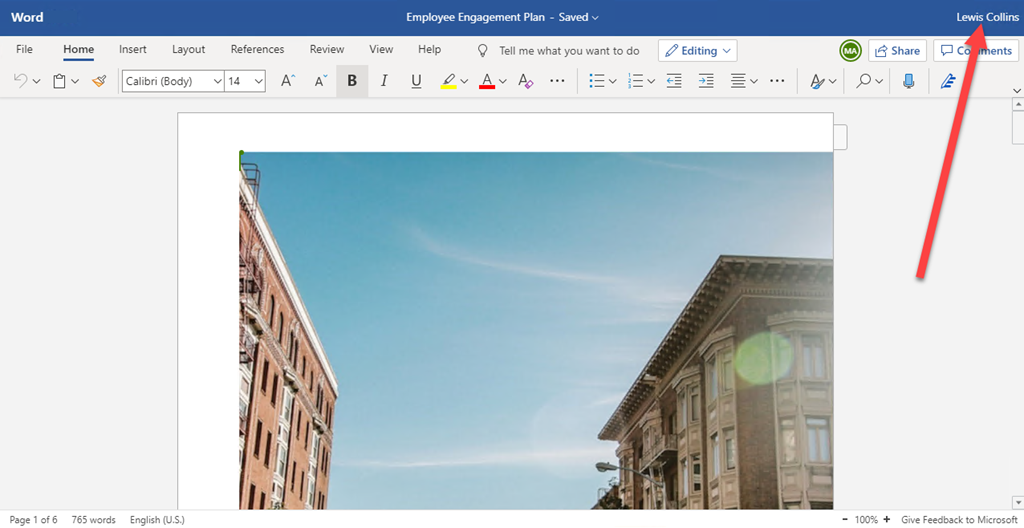
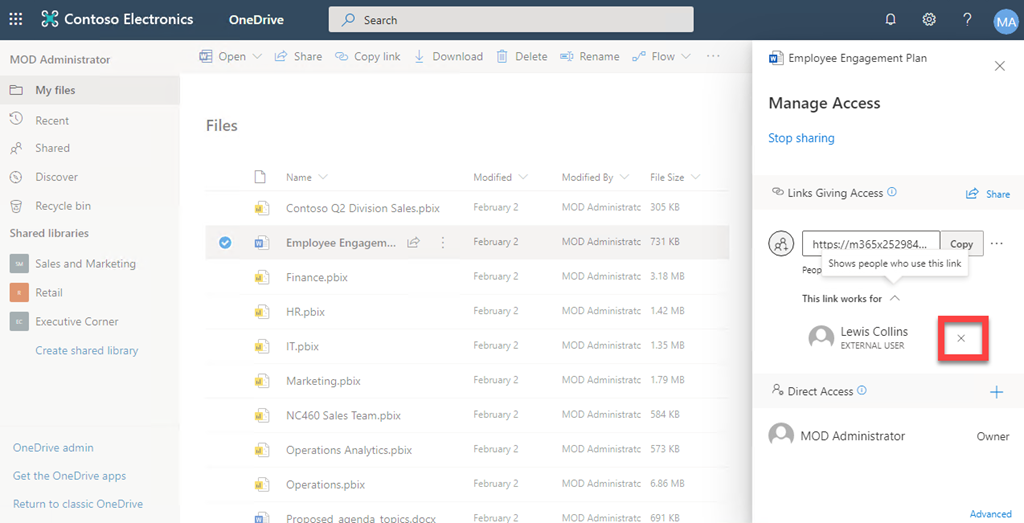
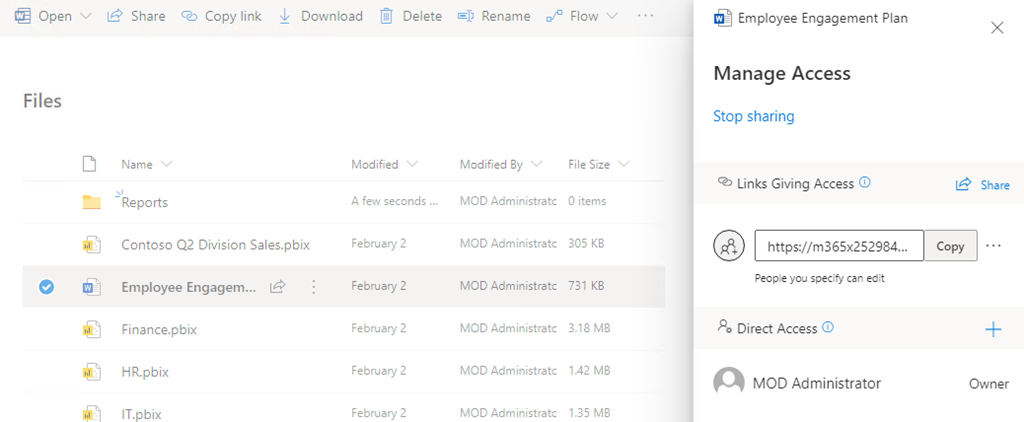
In the above example you’ll see that the file Employee Engagement Plan.docx has been been shared by the owner with an external user (Lewis Collins).
Somewhere else, you can see that this user (Lewis Collins) has the document open to work on.
One of the benefits of sharing using OneDrive for Business is that the sharing rights can easily be revoked by the original user if desired.
The easiest way to achieve this would be simply to hit the cross next to the external users name in the web interface as shown above.
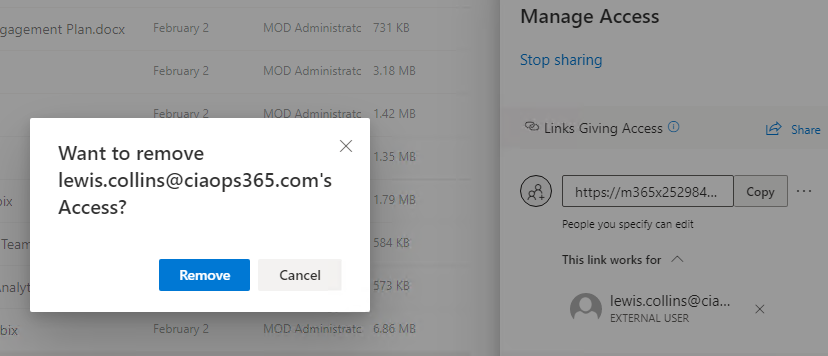
The original user would then be prompted the Remove the external user, which they would do to remove access.
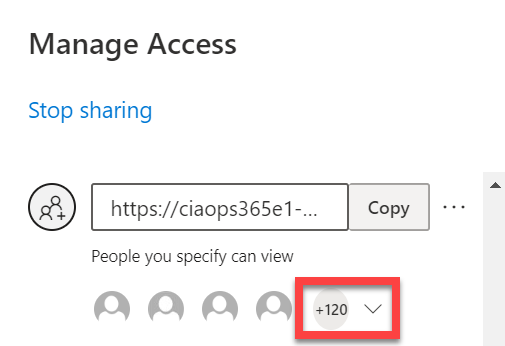
That all works fine when you have a small number of shared files and a small number of users working with a file. It becomes a lot more problematic when you start scaling to many users as you can see here:
What happens when you need to find just one user to remove sharing from amongst a list of hundreds of users?
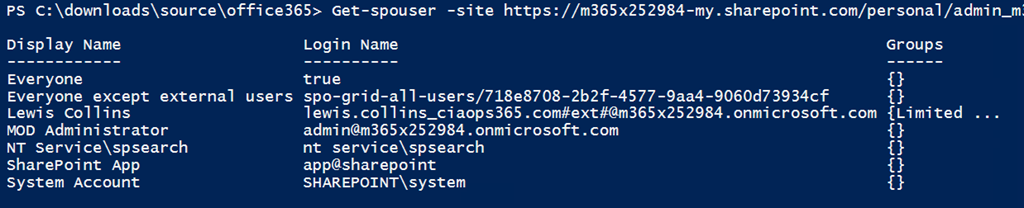
PowerShell to the rescue!
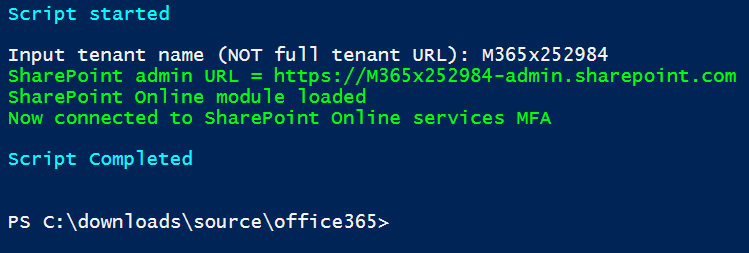
1. Connect to SharePoint Online via PowerShell. You can use my script at:
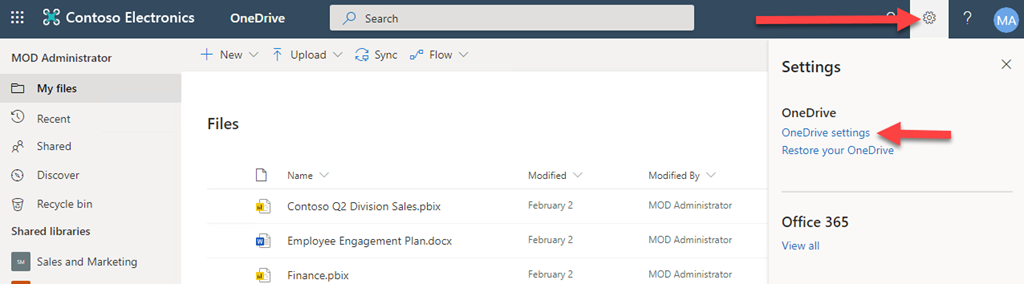
In the source OneDrive for Business, select the COG in the upper right corner and then the option OneDrive Settings.
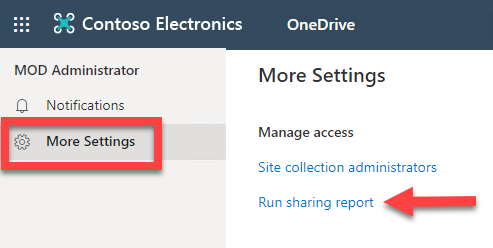
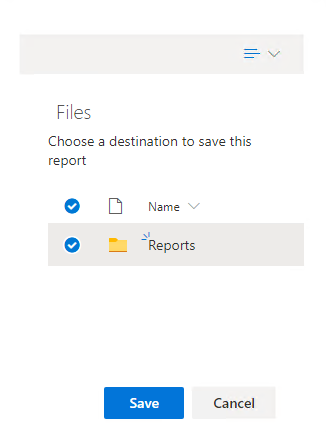
Now select More Settings on the left and Run sharing report from the options that appear on the right as shown above.
Nominate a folder for this report to be sent to.
You’ll receive an email when the report is ready. It will be in Excel format as you can see above.
Open the file and do a search for the external email address of the removed users.
The removed users should not appear in the report as expected.
If you now look at the sharing option for file(s) in that OneDrive for Business you should find that the removed user no longer appears, as shown above.
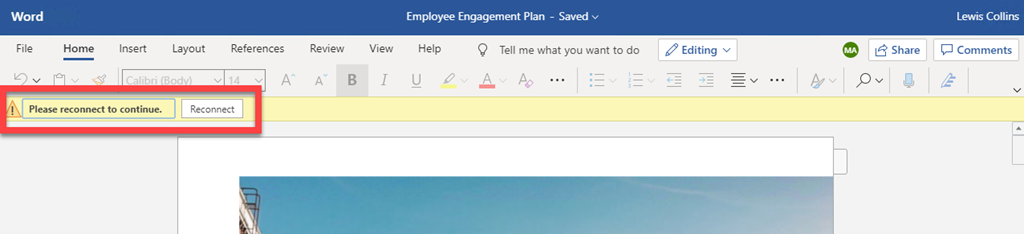
If the external user, who has just been removed, actually has the file open at the moment that access is removed they will see:
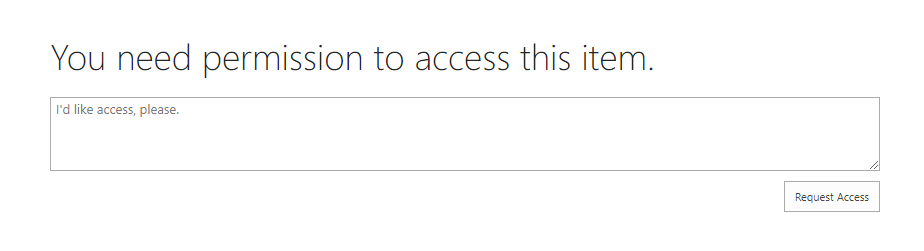
and be prompted to Reconnect. If they then attempt to reconnect they will see:
and will be denied access going forward.
Note – This removes that users access to ALL files shared in the OneDrive for Business location, not just for a single file.
that will display a list of all externally shared across your tenant as shown above.
If you do have a situation where you have large numbers of shared files or shared users in OneDrive for Business and you wish to make bulk removal easier, I’d encourage you to look at PowerShell as an option. However, remember, this option will remove ALL sharing for that user(s) across the WHOLE OneDrive for Business.
In this episode I’m back with Brenton to bring you up to date with news from the cloud as well as hopefully give you some resources to help during these challenging times. Also with that in mind I speak with Tim O’Neill from Dicker Data all about what’s happening out there with IT partners and the challenges as well as opportunities.
This episode was recorded using Microsoft Teams and produced with Camtasia 2019
Robert Crane 0:43
Welcome along to a Need to Know podcast we’ve got the hand sanitizer out and we’ve made sure that we’re all clean and tidy. And we’ve also brought in a fully sanitised Brenton Johnson welcome along Brenton. Good to be back Robert. It is said that we are in some unprecedent Time’s at the moment we take this opportunity to hope everybody is safe staying safe doing the right thing. And this incident or incidents or situation won’t last too much longer. Unfortunately, it would seem it’s going to be at least six months, but fingers crossed that it won’t be hopefully it’s not affecting people to bail out and get on with remote stuff. I know I can. How are you and your customers funny, Brendan?
Brenton Johnson 1:24
I bronzes sort of fell into the swing of things. People are panicked and having all these problems and whatever. But all my customers just went back to their normal way of working of using teams. And you know, they’re asking a few questions around video conferencing. They may not do a lot of that beforehand, but now they’re doing a lot more of that. And yeah, it’s just all been business as usual for most people. I think the challenge for most people is trying to figure out how to be productive at home for my customers. They’re sort of a month ahead of the pack. Everyone’s trying to bpn back into head office and they don’t have bandwidth and it doesn’t know what to do. And they’re often sleekness sleepless nights. And I’ve basically gone beyond Corp with all my customers. Sure I say zero trust with all my customers years ago. So it’s not really a problem that I have to deal with thankfully.
Robert Crane 2:21
Well, again, I think it’s obviously going to a major shift, it’s going to change the way a lot of people who have worked this way before, I think it’s going to accelerate this move to the cloud, it’s going to expose those who were hesitant and perhaps aren’t skilled enough in the cloud. So there are some big changes even at the end of all this, I think it is going to be one of these seismic changes in humanity, probably, again, it is something that really seems to be affecting the whole planet. We’re not through it yet. And I think once we finish that we do have an economic situation to deal with as well. That’s going to be a consequence of the shutdown. But since Brent and I are skilled operators and Brent is still making noise in the background. You Even though he’s in a podcast, do you think you’d know by now that we will bring you the best news, we’ll keep it light, we’ll keep it focused on some information for you. And we’ll bring you an interview as well, which I think is relevant for the time. So I’m going to kick it off and let people know that the large Microsoft inspire conference, which is their worldwide partner conference has been cancelled. We just see whether they go virtual. The MVP summit that I was scheduled to attend in probably would have been to a couple of weeks ago, again was cancelled and they ran it virtually there and it very successfully served together very quickly. My interest will be to see whether we get ignite which is the big technical conference cancelled my bet would be on Yes, because they’re already streaming. They’re already doing a lot of that remotely. We will see but basically all the meetings all anything to do with the community is going online and that is forcing a lot of people to get up to speed with it quickly, but I think Microsoft has the skills already in the product. So, see how we go with that. But what else have you seen out there that’s cancelled or shifting to virtual meetings online there. Brenton?
Brenton Johnson 4:13
Oh, you know, like, I’ve got a client that does all the videos for events and all the AV for events and stuff and you know, everything’s cancelled for them for the foreseeable future. So I think everything’s going to be shifted online. I think one of the big challenges is it takes 12 to 18 months to organise big conference. Most people are planning a conference, the second that the conference ends, is planning the one for two or three years down the track. So I don’t think it’s going to be as simple as Alright, everything’s back on again. But you know, the way that we’re talking about this is pandemic if we can get on top of it. We can have it all over and done within six weeks if they will, can stick to the rules. But it’ll just be a case of how compliant people are. I did find a good, I thought I’d share this one just for Euro, but it’s a Power BI from the Victorian Government. And he talks, it shares a little bit about how the cases are progressing and what where they’re from, and what government area and all of that sort of stuff all down in Power BI.
Robert Crane 5:22
That’s a good little thing, I did come across that as well. So we’ll share that make sure that’s in the show notes to people, I’ve got one that I found across on GitHub that I recommend. That’s really good as well for regular updates. And hopefully, again, it all starts dropping off but shows you what’s achievable with the tools. And this is obviously something that’s been made public as well. So you can do that with Power BI. So if you remember the Power BI has a free T and he’s able to push out information like this freely as well. That’s pretty darn impressive. So another reason I think to look at the Microsoft Cloud for a lot of your solutions. Now, the other thing that we should mention here too, is that Microsoft is giving people the option For some free or trial licences to start using things like teams and SharePoint and OneDrive work in the cloud, and we’ll make sure that the links for those are in the show notes. There isn’t a one trial licence. I think it’s six months, that people can spin up any one enterprise, he wanted to start using that. And there’s also what’s called a team’s exploratory licence, which again, gives you roughly about six months I believe, to spin up and get experienced with that. So if you have customers that are looking at and and maybe it hasn’t, maybe their cash flow is the impacted. These are two options that they can take out from Microsoft, I know a lot of other providers are doing something similar around the services that they offer. So again, keep an eye out for what’s available. We’ll make sure these ones from Microsoft are in the show notes for you to take advantage of. Now, one of the other things that I saw that was interesting is Microsoft has announced some new first line worker licences. So we used to have just about Basically f1, which was the standard licence, but now, we basically have a f3 and f1. And also we have an office 365 f3. So we have Microsoft 365 f1, Microsoft 365 f3 and office 365 f3. So I don’t know if more skews are a good idea here there are a number of different options available to release with the F three being the more powerful and the office 365 being the cheap and cheerful option, I suppose. But obviously there must be demand for it and people are requiring this for their frontline workers to obviously give them the tools they need to get the job done with the minimal costs. We’ll make sure a link is in the show notes so you can review that see if any of that may be of relevance. See to you what your thoughts you sell any frontline licences out there, Brendan?
Brenton Johnson 7:54
Yeah, actually the frontline losses, so it was really good because it gives you an option. Mobile Device Management the frontline workers, so you might want to use Intune to manage a device rather than the office 365 run of the mill MDM, the field worker may not need office, which means they don’t really need a Microsoft 365 business. So Microsoft 365 f one. I don’t know what the price of it is, it’s certainly a lot less than a full business premium or business. Microsoft 365 business gives you that mobile device management on the device, it gives them access to teams, it gives them a bit of SharePoint and a mailbox and everything that they need. They get directory, Azure Active Directory p one, which is pretty cool.
Robert Crane 8:49
And yeah, they basically give you the prices the Microsoft 365 is in US dollars Microsoft f1 will be $4 per user per month. The F three will be $10 Which has obviously more functions and features and the office 365, again, will be $4 per user per month. So that’s the office 365 f3. So the prices are there. And I think like I said, the $4 one is a, probably a great start out for, you know, a lot of people who really don’t need that, you know, their desktop beyond licence. So yeah, sorry about that. What else were you?
Brenton Johnson 9:23
Scott says, Yeah, just looking at the differences, you know, between their front line one front line three, the f1 and the f3. f3 comes with Windows 1083. And virtual desktop rights, which I think that’s probably a bit of a nod to Windows virtual desktop, perhaps being more of a thing. With some of these portable devices. A lot of frontline workers are on terminals or on tablets. You know, they’re replacing organisations or replacing their written log books with digital ones are using iPad apps, but I think Microsoft seeing a larger vision here, that the frontline workers not going to just be using some simple app that they’ll actually need more powerful tools. And this really enables all of that and gives organisations a surety around a direction if they want to go down that path of building out a dynamics environment. They can use Windows virtual desktop in the cloud, they can connect their tablets to it, you know, five g around the corner, get some pretty good connectivity. There’s really no reason why as frontline workers should be second class citizens anymore.
Robert Crane 10:33
It’s very interesting. And I think Microsoft obviously has done this research and it’s targeting these markets. I especially like, again, the really, really cheap option the complete mobile worker, I suppose without some of the other heavy native services but the f3 with more functionality and those other additional licences, I think is a good move. So we’ll basically show the details are in the show notes tab. Look at also on the grapevine I hear from people at Microsoft that the windows virtual desktop is in great demand more and more especially larger companies are using the VDI environment to spin up as a replacement as they’ve made users going work remotely. So the windows virtual desktop is, again a really, really big thick, especially in the enterprise. So if you haven’t looked at that, go in again and spend a little time learning about what that is. Now, one of the other things I think that was really interesting was that Microsoft Teams has reached its third anniversary, I read an article that says I think they’re up to over 44 million active users per day. I’m sure that’s much much more as each day progresses and the blog post here that will link will have a number of new features that are coming to it. We have the background blur on iOS so young Brenton can join us on these podcasts with a black background blur from wherever it is. Interesting that’s coming iOS, I’m sure will be not far off from My Android as well. I also like the, there’s a there’s an interesting demo about basically a team’s connected camera that bill had matter on on a helmet. And I think the other one, which I don’t know if it’s gonna work or if it’s cool or whatever, but I like the push to talk, walkie talkie. So basically, you’ll have a phone where you can basically push that and use it like a walkie talkie on a common channel. The advantage of that is if you’re in, for example, a datacenter or somewhere and you need to, you know, communicate with somebody can do some do so with teams, but you no longer have the limit of the radio frequency distance. So again, some really cool stuff coming out and teams is more and more coming every day. Three years is not much for a product that’s beginning to really dominate its market is that red?
Brenton Johnson 12:44
Well, it’s unbelievable. Like, you know, slack invented the category. You know, to Microsoft went to slack and said, We’d locked by you. They said some stupid amount of money. Microsoft said now we can build it cheaper than that and the amount of integration is going to be too odd for you on it months later they come out with teams and people will like oh wow, this is so close to everything we need already. And over the last three years, it’s it’s certainly got better and better and you know, just these sort of specific use case stuff that they’re building into it are really locked that sort of central place for work where everyone can go to the same place and office 365 and do work together bringing people out of Outlook and bringing them into teams from a you know, an outlook which is a primarily an individual based thing to attain, which is a collaborative. I just really like how how hard this has been pushed by Microsoft. And now that all this stuff is happening around the background. I think there’s a lot of businesses that are a lot better off because of that push and because of the push to the the partners out there going out talking about or getting people comfortable with Getting people familiar with new ways of working? And yeah, you know, like that walkie talkie is a great, great use case, again, in the sense that, you know, radio frequencies aren’t encrypted. And yeah, if you have a police scanner, you can listen to all of that. So having something that Yeah, is is reliant on on something other than distance. And here are the wives is much better. So they really lock it Oh, I want to keep saying the development of the product. And I think the biggest challenge for it’s going to be keeping that simplicity and that ease of use while they continue to add all these features in.
Robert Crane 14:40
I’m going to show you there’s lots and lots of really cool features coming in the short term and think about think about how many team servers they must be running now in Microsoft data centres and how much they’ve had to spin up to reach demand with children, working from home using teams for teaching and education and now all these employees working with teams as well. It’s pretty good. pressive when you think about it for this, you know, this load that’s come on in such a short period of time to basically be able to accommodate that and more so going forward. So again, have a look at this blog post really interesting stuff, which is coming with teams and lots of features in there, I think that you’d be really excited about. Now one of the other things that I will mention in here is the Microsoft 365 business voice will be available in the US from the first of April. So the voice is basically a package of the Cloud PBX, the PSTN calling licence plus a calling plan from Microsoft. So this is bundled together and will be available in the US it’s already available in the UK and Canada. We are seeing some licencing availability now in Australia. We won’t have this voice playing for a little while, but there are some licencing that will allow you to incorporate third party providers in Microsoft 365 business so we can see the march towards a fully integrated teams with Microsoft 365 business was really exciting. I think this is going to be a huge thing. In the SMB, it’s another great opportunity for partners to jump on and use to be able to spin up a complete phone system from Microsoft without the need to basically provision anything special just add a licence, and everybody uses teams as their front end. So this is gonna be pretty darn impressive, I think when it’s coming out. Now the other one to keep us moving along key is that Windows 10 has finally reached 1 billion devices, 1 billion monthly active users take them a little while longer than they expected. But 1 billion still a pretty impressive number. Isn’t it, Brendan? Hi. Yeah, yet?
Brenton Johnson 16:38
Yeah, it doesn’t. It blows your mind. Like he can’t understand the scale of a billion. Until you think about it in terms of I probably need to Google this, but it’s something like a million is if you count one second at a time. You know, when you count a million, it’s like seven, eight minutes old. Something or whatever, so nine days, and then if you count to a billion is 34 years. So it’s it’s a huge amount of of people, you just you cannot humanly get your brain around it very easily.
Robert Crane 17:18
I’ve noticed also too that in the current situation Microsoft has also said that it’s going to delay pushing out feature updates. And I’m going to push security updates, obviously to limit bandwidth for people in the background as well. So you’ll be getting still be getting a security update feature updates, obviously, hopefully, when things calmed down a bit, we’ll be able to get those are flowing through as well. It’s still a billion is a very, very impressive number. All right, what other things have you got your sleeve that we can talk about before we get diving deeper into?
Brenton Johnson 17:49
Ah, yeah, so I’ve been undergoing some Intune training via YouTube with the Australian guy An American guy and it’s really really good really valuable information in there you know little tips and tricks and war stories in there
Robert Crane 18:15
about a time you invest I mean, you know, is it you know, ah
Brenton Johnson 18:18
the videos the videos are around 40 minutes average Joe suppose no one’s an hour and a half you know those sorts of things is two hour one, but those go through each of the areas. So, you know, like I was doing iOS with the apple configurator the other day and we’ll have some problems with it. So went back and watch that video and realise you applied the serial numbers into Intune before you can enrol it with Apple configurator. So I have that I’ve already done this before, but for whatever reason, I didn’t I forgot that step. So you know, just best practices. They got one on nine file move there and So I’ll probably sunk on an iPhone seven look on YouTube now, I’ve sunk of quite a few hours into getting through immersive videos now. And it’s Yes, it’s all that other stuff that’s not necessarily in the docs, like, Oh, this is how we do this. And we still have to run PowerShell for that. And you’ll have to apply this to users not devices, or vice versa. It does work and, you know, you gotta have the right a three licence windows a three licence for this and all those sorts of things. So I might actually try and reach out to these guys and try and get one of them on the podcast probably save our second Steve Hosking. Do you know
Robert Crane 19:40
me on honestly asking? Yeah, I know. Well, we still have it. Yep. Knowing well.
Brenton Johnson 19:45
Yeah. So he’s got I don’t at all and Adam grace from Texas, I believe.
Robert Crane 19:52
Yeah, well, if you can know that you want to do that. Otherwise, I can certainly reach out to him behalf of the podcast and get him to come on and talk about it. So That’s good. Good to know. Yes, I do. I’ll have a look at that stuff that Steve’s done. But yeah, if he’s done it, I highly recommend that you invest the time and have a look at it. Now what about this last link that we’ve got here that you put up about the Microsoft VPN? What can you tell us about that?
Brenton Johnson 20:15
It’s quite interesting, actually. So this, this came across my LinkedIn feed, I follow all the Microsoft people on LinkedIn and talking about trying to run Microsoft on VPN, because even though Microsoft’s very cloud transformed company, like Marsanne across if not all enterprise companies, they have a lot of on premises resources that they can’t, that they need access for our VPN. Now, when you have 150,000 employees or whatever, you know, trying to manage 150,000 people connecting to a VPN can be really tricky. They talk about how they did it, they said at this time, there’s probably 50 to 60,000 People on their VPN at any one time they’re saying one of the key case of their success was they worked with Windows team and fixed up the internal VPN client in Windows ran better. And they also do split tunnelling. So anything that’s office 365, or cloud or whatever, that all gets sent off through the internet, and then they only send that absolute critical, the VPN only stuff over the VPN. They say if they didn’t have that implemented three years ago, when this whole thing hit, they would just not have been ready for. And it would have been a different story, but because they’ve invested in their infrastructure, you know, that they talk about how they use, I think open VPN protocols and that to keep it all happening. It’s just really fascinating, right? So definitely check it out if you’re particularly interested in how to do VPN at 60,000 user
Robert Crane 22:00
Well, again, there’s a lot to be learned from these, these sort of things. So again, we’ll put the link in the show notes so that you can review that a lot of information there. We don’t want to overload people, we know that they’ve got a lot on their plate generally, and they’re making adjustments and working from home and that can take a bit of time. So we want to get that information to you. We wish everybody the best. We hope that again, you’re safe, you stay safe and that we aren’t subject to these conditions for too much longer. We will continue to give our best effort to get more information to you and interviews. Hopefully people are available now rather than travelling all over the place. You can stay in contact with us he had at into k podcast on Twitter and Facebook. Feedback at need to know cloud on the emails. And I am at contact is anomaly I’m at director CIA. What about yourself, Brendan, what are you
Brenton Johnson 22:52
at contact Brenton on the twittersphere if you need if you come into my office, I’m not there. So yeah It’s best to get me via digital means.
Robert Crane 23:03
Excellent. All right, well, like I said, I will take this opportunity to thank you again for listening to the podcast. We hope you all safe. Remember that if you do have any questions, feel free to reach out to us, I’m sure that we can answer. Also, we understand in this environment, people do suffer from being separated from their normal work environment. So again, if you do feel that you want to just reach out to us for a chat, by all means, feel free to do that. I’m certainly open to do that. So any of those contact details, and we’ll reach out and we can run something to have a bit of a chat. And again, hopefully, give everybody the solace that I need at this point in time. So I think that’s all for me. Before we get into our interview, what about yourself, Brent, anything else?
Brenton Johnson 23:42
No, I just echo your thoughts. Completely.
Robert Crane 23:47
All right. Well, thank you very much, everybody, and let’s get into our interview for this episode. Welcome along to this interview, and I’m joined by Tim O’Neill from Dicker Data, welcome along to
Tim O’Neill 24:01
Robert, thanks very much.
Robert Crane 24:03
Well, for those listening, we do have a bit of a unique situation. Tim is probably a little bit different from most people we’ve interviewed, he’s not into the, the technical deep dive side of it. He’s not actually selling a product. He’s a distributor. So a bit of a unique view on the market out there. So before we launch into that, Tim, why don’t you just give people a bit of an intro, who you are and what role you feel?
Unknown Speaker 24:29
Yeah, sure. So I work for a distributor in Australia called tick data. We proudly are the largest Australian owned distributor in Australia and and my role is, I lead the CSP programme, but also, more specifically lead lead the modern workplace programme here in Australia for ticket data.
Robert Crane 24:48
So why don’t we start there with the concept of the modern workplace so what do you see is the Transformation or the need for the modern workplace in the workplace out there today, what’s the messaging? What’s the reason that, you know, this is something that Microsoft’s taken to market?
Tim O’Neill 25:10
I think that the first thing we need to do is really kill that myth that modern workplace is just m 365. Because it’s it’s, it’s really not modern workplaces is exactly as it sounds. It’s, it’s the solution that that the Microsoft is bringing to market around the new way that we’re working. And I suppose, yeah, while we’re talking about covert 19, and everything that everyone is facing around the world, we’re starting to work remotely. And so what is that solution? What is the way that we need to support our end users around that modern workplace? So obviously, it’s, it’s we need to look at their security, we need to look at make sure they’ve got, you know, email and, and, and teams and all those things that they need, but what else do they need? What are they do they need things around dynamics and things around Azure? it’s it’s it’s really looking At the fact that under this whole digital transformation concept, we’re working differently. And if we’re working differently, we need to be able to support our end users differently.
Robert Crane 26:12
I think part of it is that we need an modern platform, as you mentioned, to take full advantage of a lot of these cloud bi services, the ability to work anywhere, as you’ve mentioned, because we’ve come from an environment where people have been on prem for so long, they’ve got servers, they’ve extended and extended and extended. And again, given the current situation where people you know, have to work from home almost all of a sudden, this modern workplace this concept makes sense. But as you say, it’s a much broader spectrum than again, just a new PC or just you know, Microsoft 365. Now, obviously, you spent a lot of time with resellers out there, they are the ones that are interfacing with the clients directly so you’re not selling to clients directly or going through typically an MSP client, how are you finding, you know, their approach to going out and talking to their customers about the modern desktop? Are they armed? And are they educated? And are they up to speed enough to sell this confidently? Do you think in the market,
Tim O’Neill 27:14
I think we have three buckets, which is frustrating, it’s best, we have that bucket of people that that have sold on prem most of their life, and are trying to move into this, this new way, by still selling the way they sold on prem. Then we have that that group of guys that are very transactional. And really just saying, I’m going to sell you an office 365 licence or an M 365 licence, and I’m going to look at something else. And then you get that smaller group that I think is starting to really get the right skills and the right weapons in their target bag and they’re going out to market and doing and actually doing this well. But I would say, Rob that probably out of the the partners that I deal with, in Australia, a very small percentage would be in that, in that, that they will well prepared and ready to take on the discussion and talk about it. It’s, it’s really as a small group,
Robert Crane 28:19
I think one of the interesting things we’re going to see, amongst many interesting things in the near future is there, especially in Australia, who we are going to, we’ve already experienced $1 shock for dollars fallen quite dramatically against the US dollar. I think we’re going to see a lot of those transactional prices increase because of the weakness of our dollar that’s going to be very hard for those transactional people to get back to customers. And basically, so we have to increase the prices because of these things, especially given the the environment that those customers are also in as well. I think now, those people that do have the skills Is there a common? Is there a common thing in there? Is there a common trait? Are they a certain size? Or do they sell to a certain demographic? Is it? Is it random? Or is there sort of key attributes you could pull out and share with us that you find with these people who are, you know, basically getting around the modern desktop experience?
Unknown Speaker 29:23
I think you get that you get that group of people that fall into that, you know, if you do what you’ve always done, you get what you always got. And, you know, I’m comfortable in my business, and I’m comfortable with where this is travelling, and I’m just going to go down this road. I don’t think there’s there’s a a type of partner that actually gets it, I think, or size for that matter. I think what it is, is that there are a group of partners that are looking at what is happening in the marketplace, and they are saying what we’ve done doesn’t isn’t going to work in the future and we need to treat Transition quickly. And it’s those very small group of partners that actually decide to put their hand up and invest in their time and invest in what is happening in the market and are willing to look at taking that to market. And it really is. There’s not even an age group. Yeah. Because I’ve got I’ve got, I’ve got partners who are in their 20s and mid 30s, who are doing it and then I’ve got partners in their 60s who saying I need to change and I need to move and adapt to the to where we’re heading. But I don’t think there is that I think, the partners that I that, that take the time to listen, the take the time to take on board or what what they’re learning about. I think they’re the ones that are really starting to adapt.
Robert Crane 30:47
It is interesting, I think that you’re right, I don’t see a particularly common trait that you can tie it down to, I think it’s a an awakening moment of transformation moment where it just clicks in They get it and like they see the the change that needs to make or the direction they need to take. And, again, I think the other thing is they appreciate they can’t do this immediately, overnight, they need to prioritise it, they need to make that investment. So where do you see that these customers the good cast, the good retells, where are they making these investments? Where do you think are the key things? I mean, obviously, is it things like education, they’re doing more courses? Or are they creating marketing material? You know, where are they making those investments that differ from the way they would have been doing it on prem? In your experience?
Unknown Speaker 31:37
I think education is a is a massive part. There needs to be that commitment to actually invest in some into some education, take some time out of the office, or working with with their clients to actually invest in themselves, to learn about those products to actually learn what they need to do and how they do it. But I think it’s a combination and you’ve talked about marketing and You know, and I, and I think one of the things that, that we do with with some of our partners is we actually take them on a journey of how do we productize this solution? How do we put a solution to market that is actually going to meet the requirements of this modern day management. And I, and there’s probably only 10% of my partners that are willing to take that time out and do it. invest the time and and for some of them may be an investment for six months. I’ve actually workshopping this actually coming up with the ideas coming up with the margins, looking at what segments they want to be in, what new segments do they want to be in? How can I take this product to market? How can they make sure that it’s hitting the right the right balance of where they need to be? And that process is quite phenomenal. Now, just for an example, Robert, we are I’ve got one partner, and we started we work with him over a six month period. When we first started working with them. They’d sold three tents, I think they had about 30 sits under management. We went through this process, we came with not just one product isolation, but actually had three levels of support that what they are able to offer, into their into their existing customer base. And over the following three months, they went from transacting about $150 a month to $19,000 a month Australia, just by actually coming to that point where they go, we’re going to invest, this is what we’re going to do. And this is what we’re going to move forward. And we’re going to start offering something modern to our existing bags.
Robert Crane 33:37
So that would seem to indicate that obviously the customer base the end users are obviously ripe, they’re keen, they’re obviously looking for these sorts of solutions. They’re at least open to these. And I think that’s one of the fallacies many resellers fall into I think Well, my customer never asked for this. They make assumptions that the customers are going to need this or the customers are going to want these And then again, the customer doesn’t know what they don’t know. And I think part of it is presenting this wider range of services and wider things that you can do with tools like agile CRM, all the stuff you’ve mentioned. So, I mean is that again a key thing is is embracing that change embracing these options and then taking that messaging out to customers who are probably I would suggest going to be much more receptive than the many resellers think.
Unknown Speaker 34:27
I think that I think sometimes resellers don’t take the time to actually show the true value of a product. They get excited about getting that sale and I can see the the buying signs and I can see that the customer wants to go ahead and they drop short on on where they’re heading. I had a my first sales manager that I ever had used to always say over and over again to me. Doesn’t matter whether you’re buying or selling someone someone’s buying and someone Selling. And and I think sometimes we just don’t take the time to actually give the customer all the information about this product. What can it actually do? How can it actually help protect them? How can it actually help improve the productivity? It’s, it’s over the last over the last week. We’ve been working remotely now for the last week with kovat 19 in Australia, and the amount of calls that I’ve got from partners who wrote me up and said,
Tim O’Neill 35:36
You know what, we’ve talked about 365. We’ve talked about teams or we’ve talked about this. I’ve got customers I need to do now and I don’t know what to do. It’s becoming a very topical topical situation and, and, and it really is that time to, to,invest in this products.
Robert Crane 36:01
I think also to part of the failure I see. And we’ve seen this in a lot of workshops we’ve run together, is the technical people are very good at technical things, they can, you know, generally set bits and bobs and tick things and understand what these things are. But what I found a significant skill deficit has been around converting the technical to something that a customer can understand. So a good example is things like what’s the benefit of office 365 ATP to an end user, not in technical terms, but in terms that they can understand and make sense for their business. I think that’s where a lot of people again, they’ll look at all the speeds and the feeds and they’ll take it on and maybe they go deep enough, but they don’t invest in that analysis, and look at it and then translate that into something of customer needs. And something like DLP. Data Loss Prevention is another really good example where it would speak to I would think the majority of customers in this day and age. With all the legislation we have about protect data and converting that into customer speak. I mean, would you say that, again, that is a key success feature are these these retailers who are successful are able to take what is a largely very technical product, which has a lot of features and translate that into real value meaning for our customer legacy inside the business,
Unknown Speaker 37:21
you know, no one wants to feel stupid, and no one wants to ask, what might be considered silly questions and, and I think you hit the nail on the head, you know, if you can take a product like m 365. And excuse the expression but damage down to everyday language. I think that’s a real key and, and you and I, we are we’ve done a lot of workshops together and, and we talked about Delve, you know, and we talked about Azure. And we’ve given that, you know, Azure has been my on demand Data Centre. That makes sense to me that that’s a simple concept for me to understand. So I absolutely think that if You can do that you really going to not only just get that concept across quickly, but then people are going to start to realise how awesome they can use this. And I think that’s a that’s a real key part. And it doesn’t really matter, you know? It you and I’ve talked about, you know, my wife and, and, you know, her understanding of lots of concepts and she has a PhD in molecular biology but but sometimes I need to put things about when we talk about teams or, or M 365, or office 365 into concepts that you can understand in everyday life. And it makes so much makes it so much easier.
Robert Crane 38:44
I think you’re right, I think that a lot of resellers get lost in you know, their own technology in their own products in their own day to day and I think it takes the skilled person to step back and again, simplify it. for people to understand and that is a real skill that is again not something to be minimised. Now, I think given the current global situation with the Cova 19 situation that that has never been more than four you’ve now got, you know, customers who know they have to work from home. But what does that mean? What do I have to get what, what’s involved and how quickly can I get it and those skill sets and I think we can do this, if you had the education at the school ready to roll out ready to go. But I think this again, he’s gonna be one of these seminal moments where I like to call 2020 which I did at the beginning of the year, the Pocky for so many reasons, and I’m proving to be unfortunately very correct, but it’s really at this point in time we are now he’s gonna create this complete delineation and move so much stuff to working remotely and using these sort of products like teams like stream Microsoft 365 working remotely as well. And I think that unfortunately, a large percentage of the the base, the partner base, has probably been tinkering around at the edges, they really haven’t, you know, got the the gloves on and gone in deep to really understand it and bring it into their business. They’ve just seen it, as you’ve mentioned, as a transactional way to generate a few additional revenue items here and there. So, again, I think this is such a key item. And I suppose that you can look at every threat as an opportunity and say, Well, this is a huge opportunity to go to market and offer this service and potentially get some others who aren’t moving fast enough a lot moving quick enough for customers. So you know, what’s the the demand that’s coming in for you that you’re hearing from partners? Are you getting a lot more calls now with partner saying, you know what, we really need to do this stuff and we need to make it happen tomorrow. Can you help us? Is that the sort of thing that we’re hearing?
Unknown Speaker 40:54
Absolutely. We’re hearing two things. One thing is I’m hearing from partners are calling me and saying You know, I’ve got I’ve got businesses laying people off, I’ve got businesses who are just folding up and closing because they can’t operate. And then we’ve got those businesses who are partners are coming to me and saying, I need to do this now. I’ve got businesses I need to set up a from home, and I don’t know what to do, what do I do? And I I honestly believe that we’ve got two things happening. The first thing we’ve got happening is we’ve got that that response that we need to act on urgently, and and help partners get their customers up and running. But I think the second thing is, I think the modern workspace in Australia is changing and I think it’s changing dare I say for good. I think we’re gonna see in the future, a lot more remote working. And and this is this is that pivotal moment in time that we’re the we’re seeing that change happen before our eyes.
Robert Crane 41:55
I think you would agree that what we see is generally been a hesitancy A lot of people are very conservative with their approach to technology, I want to keep my file explorer, I want my files on my local drive, I want everything the way it was I want, you know, word 2003 instead of, you know, 2016 or whatever. But when you get in a situation that we’re currently in, where you have to change, you have not got an option here we have to change, then I think it does force people to make that change opens their eyes. And like I said, I think that this is going to cause a massive shift and people are really going to realise that hang on, you know, this wouldn’t be possible before or we couldn’t have done this or we hadn’t been forced to change this would have and now I’ve got more flexibility and look what we can do. And other than that, so I think you’re 100% right. In the way the approach people are going to look at these when they step back and review it. And we are very lucky that a lot of businesses are able to do that. And to obviously keep going. But I think again, this is where this the it provides There is that key cog. I mean, they talk about essential services medical people, yes, absolutely fireese ambulance drivers fantastic. But again, the it is become such an important layer in the infrastructure, every business in every country these days that there’s that opportunity, but you have to make sure that you are current with the technologies and you’re able to provide that and, and this certainly is going to drive that demand. And we’re seeing that worldwide, not just in Australia. So, again, it’s really gonna make the difference as you say, Now, because this is happening and let’s say that we take it to be your partner, who has been a little bit tinkering around the edges and may not be sure what sort of advice or what sort of support can your organisation yourself provide for these sort of people? Are you giving them any guidance? Are they you know, how can they when they come to you for help? What can what can you do for them?
Unknown Speaker 43:56
It’s It’s interesting, I actually spent the weekend Putting together a resource library around office 365 m 365. Team security, a whole range of things to make it available for my team to start sharing with partners. Each partner is different each partner has customers that are different, but each partner is looking at how they how do they really allow their their customers to be able to work remotely and to work in a different environment. So it’s it’s really important that, you know, a partner is able to go to the distributor, and actually say, I need help and, and this is what I need to do I need to understand how to do and I’ve been on I’ve been on conference calls today with partners and their own customers taking them through that process. So what we’ve really tried to do at Dickie data, is we really focus in on how can we as a distributor, provide the support structure around the the partner And around their, their end user. So, you know, we’ve done things like taking her after our support to a 24, seven support to be able to support the partner. So it’s really about I suppose a bit of a knowledge transfer, helping you with the customer and at the same time transferring that knowledge to you as to what you can do in the future.
Robert Crane 45:21
So I think the one of the things I would suggest to you and I think it’s great that you’re providing that I think this is what again, one of these sort of characteristic traits we see of many it providers, they they tend to look at the environment is alone gun, yes, they have peers, yes, they have distributors, but they very much take it all upon themselves. They’re not really into asking for help or, or reaching out until it’s desperate until it’s too late until it’s, you know, again, the fact that we’re all basically beyond the point where it really makes a difference. I think, the secret would be is that you need to reach out early. You need to be Doing this as soon as possible and coming up with a plan and moving forward for today, tomorrow, six months, a year because that timeframe is going to be different. But again, would you be encouraging people to say look, yes, okay, we need to make a plan, we need to reach out early if we need help. Let’s put up our hands and ask for it rather than trying to batten down the hatches and hopefully ride it out until you know, we get to the other side where everything will be the same. Is that a fair statement? That you know from your point of view?
Unknown Speaker 46:28
Absolutely. And and look, my philosophy around this actually comes from my grandfather and my, my grandfather used to tell a story about a boy that would walk down to the wharf and he saw four silver pieces on the ground. He picked them up. And as he’s walking down down the jetty, he saw six gold coins at the bottom of the water. And there was an old man there and he said, I’ll hold your silver coins for you while you dive down and, and get the gold. And he said, No, no, no, that’s fine. I can do it. And he put his hand in his pocket where he had the silver coins, dived into the water that couldn’t pick up The gold coins, because he had to move something at the bottom of the ocean and end up losing both lots of coins. So I think, you know, the thing is, is that data we see ourselves as an extension of your business. And we want to support you on that I work with you and be part of be part of your team rolling that out. And I think, you know, that’s, that’s a really key part of, of what we’re seeing today in our ecosystem around the market supply.
Robert Crane 47:33
But also, would it be fair to say that, you know, somebody can’t come to you and in absolute desperation, and wanted all their own way, obviously, there has to be some alignment between you know, what is the direction what can we provide and in this new modern environment, not, you know, selling more servers not doing that sort of thing. So there does have to be a transformation by the partner if they are looking to get this, this sort of support.
Unknown Speaker 47:59
Absolutely. And that’s I suppose that’s the key part of transformation isn’t that, that you transform first so that you can help others to transform?
Robert Crane 48:09
I think that’s exactly right. I think that is really part of it is the world has changed and is changing more so every day, but is very different from even the last round of workshops that we did a couple of weeks ago. And we sort of brought this up. And we tried to make people aware that we could end up in the situation that we are in at the moment, but again, it has changed so dramatically, even a couple of weeks, and it’s going to change dramatically, even more so going forward. So let’s let’s just again, pause on the situation now. And when it all comes down, when we get back to inverted commas, you know, normal and you can have a drink and you go to the beach and all this stuff. We can’t do it the moment. You know, what do you see is going to come out the other side of this. I would suspect that there’s going to be a lot of partners who probably aren’t going to make the cut. Why can I survive necessarily because I they’re not getting revenue from customers who may have again, I may have filed as well but they haven’t transformed that ready to move in this environment. And what do you see is the the result once the bushfire as cleaned up all the dead wood there what what do you see on the other side of all this team?
Unknown Speaker 49:21
A very different ecosystem to what we see today. I think we’re going to see partners that are that have been forced to transform themselves and are transforming their customers. I see a very different working environments what we see today. And I think it’s the, the scary part a little bit is, is that little bit of unknown of what’s not out there at the moment.
Robert Crane 49:50
I think probably the biggest unknown for most people is simply duration are we looking at, you know, a month, two months, six months, 12 months, you know, again, based on history, it could Roll out to be quite an extensive period of time. So I think that’s the biggest uncertainty and that’s what everybody’s trying to deal with. But, again, I would suggest on the other side, there are things that can be done, there are positives to focus on. We have to let obviously the government do what it needs to do and follow in their requirements of us. But there’s certainly things that we could do proactively to make sure that we can take advantage of getting through this but also getting advantage on the other side of this. So what would you suggest are the top couple of things that, you know, partners should be doing on their own to really put themselves in the best position to benefit from this and to, you know, survive the current situation we’re experiencing?
Unknown Speaker 50:46
I think they need to reach out to the to the distributor to see what support is available, or auto Microsoft. I know that Microsoft’s looking at the different ways that they can help support partners. At the moment, I think the second thing is that they need to be looking at some some, some guides, some, some sort of information that that helps them about what they can provide into their customer base and actually looking at things like m 365 as a whole. But I think I need to focus on the customer. And they really need to focus in on their customers need.
Robert Crane 51:24
Yeah, and I think you’re right. I think obviously the need at the moment is we need to get people working remotely, but that will then evolve into into to collaborate together and to share files. We need to have meetings together. We need to do presentations, we need to work with third parties. We need to get them on our meetings as well. How do we optimise that? How do we get the most from that? So there is a big opportunity there for an ongoing, you know, relationship with the customer. I also think too, that this is a point in time to obviously stand up show leadership and let people know that yes. You know, you have a strategy, you have a product you can deliver it you can give people surely in these times, I think that’s going to go a long way to I think a lot of people are looking to providers who, who have a definite strategy who can provide in these times, given the limitations given the challenges that are around there. I think they’re the things that a lot of people are looking for that that certainty when everything else is becoming largely uncertain, and that, again, requires a bit of discipline internally a bit of work. From my point of view, the other thing I would suggest on top of everything is obviously reaching out for help but look at this as an opportunity also for education. Again, there’s lots and lots of YouTube videos from Microsoft Ignite from the teams around Azure from the teams around Microsoft Defender ATP, there is so much learning in there that can be done that again, you hear the cry, I don’t have enough time I don’t have enough time will probably now you do have enough time to look at these so that on the other side, you are expected With these products, especially if you haven’t dedicated that time at sites, I think that part of that is allocating time for everybody in the business to make sure that they are across these information. I think Tim would agree with me that probably one of the best videos you can go and look at is the team’s video with Dr. Coleman from the University of New South Wales was in last year’s inspire on how he integrates his learning using teams and all the services into an environment 500 plus students. I think that’s a magnificent video and very inspirational. But I’ll make sure the link is in there in the show notes and I believe that you’ll have him on a webinar shortly.
Unknown Speaker 53:40
Yes, in a couple of weeks. We’ll have you on a webinar, which is going to be fantastic. I’ve actually got also john seek from his Microsoft Teams laid out here in Australia with Microsoft will be on that same way. We’ll be on a on a webinar as well. So we’re we’re changing the webinars up a little bit. Just to, I suppose respond to the climate that we’re seeing today to try and get some really good information out to our partners.
Robert Crane 54:08
Excellent. All right, well, I’ll make sure that I do get those links from Tim. And we could put those up for people who are interested in those. And I would highly recommend those as a source of education as well. I think deca provides a fantastic support for their partners, and we encourage you to get in contact with Tim. And with that said, How can people get in contact with you and also with digger data?
Tim O’Neill 54:34
Sure. So fire email is a very easy way. So I’m sure Rob that you could
Robert Crane 54:41
get put on my property near because you have a funny surname with an O apostrophe sometimes and not apostrophe sometimes. So all my
email address
is in there, and that people can refer to that any other resources you’d like to point them towards.
Tim O’Neill 54:59
Look, I’m going to send you a link Rob for you to share. This link. It’s six videos around teams was released by Microsoft on Friday in response to what we’re what we’re seeing here in Australia right now. So this is this will give, give your listeners something concrete, I can actually go and have a listen to and and hopefully hold on the lock. And obviously you know if they want to get in touch, I’m more than happy to help them out as well.
Robert Crane 55:28
So I’ll make sure all those details and links are in the show notes for this episode of work to get this out as quickly as possible to get the benefits out there for people take the opportunity to thank Tim for his time his insight. And remember, don’t be afraid to contact him directly to ask for any support. Again, it is challenging times we certainly in at the moment and encourage that you can also contact me as well for any other specific questions. I’m happy to to help people there as well. So once again, I will thank you him for his time on the Need to Know podcast and I will wrap up this episode. Until next time, thanks everybody for listening.
Announcer 56:07
You have been listening to the Needs to Know podcast from CIA ops to training on using technologies like SharePoint online or Microsoft 365. Visit www dot CIA ops academy.com. by purchasing from the selections available, you’ll be directly supporting this podcast. To provide feedback on this episode, visit www dot CIA ops.com slash contact
Branding is great way to improve the visual look and feel during the login experience but may also help mitigate phishing compromises in a small way by providing uniqueness. It only takes a few moments to brand your tenant and branding will also start showing up in a number of different areas when you use Microsoft 365 services.
This video takes you through that process and shows you how easy it is to set up. a link to the video is here:
One of the easy ways to protect your environment is to implement Conditional Access which is included with all Microsoft 365 plans. Otherwise, you can add Azure AD P1 to your environment to get this functionality.
This video will take you through the basics of setting up a Conditional Access including how to block access based on location. You’ll see how to create a Named Location, a Conditional Access policy and what it looks like when it is actually applied to a user.








 CIAOPS