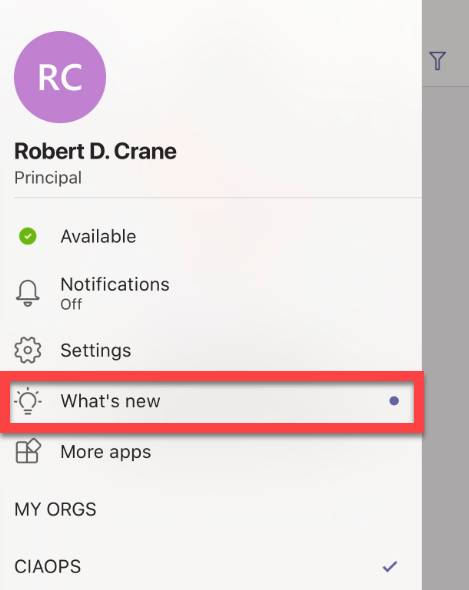
If you update to the latest version of the Microsoft Teams app for iOS you will now find a What’s new option in the settings as shown above. This will provide you information about everything that has been to the current version of the mobile app.

Information about SharePoint, Microsoft 365, Azure, Mobility and Productivity from the Computer Information Agency
If you update to the latest version of the Microsoft Teams app for iOS you will now find a What’s new option in the settings as shown above. This will provide you information about everything that has been to the current version of the mobile app.

The above from is from the message center of a Microsoft 365 Business tenants confirming that Shared Computer Access (SCA) will very soon to be available in Microsoft 365 Business SKUs. This will allow those SKUs to install Office desktop software on things such as on premises servers with a Remote Desktop Services (RDS) role (aka on a Terminal Server).
To do so previous required an Enterprise (E) license. This is big news for Microsoft 365 Business and further improves the value of this SKU!
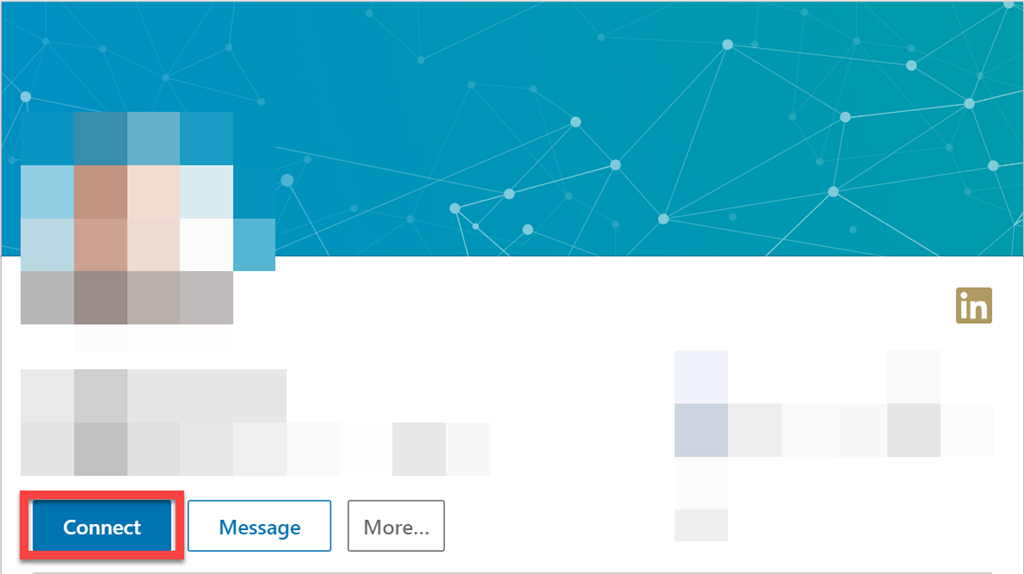
By default, you’ll see that most people on Linkedin have a Connect button like shown above. Now that is a great option, however unfortunately, I’m sure many people have connected with someone on Linkedin innocently and almost immediately you get spammed since they can now message you. Of course, you can remove them but there is a better way to reduce this happening.
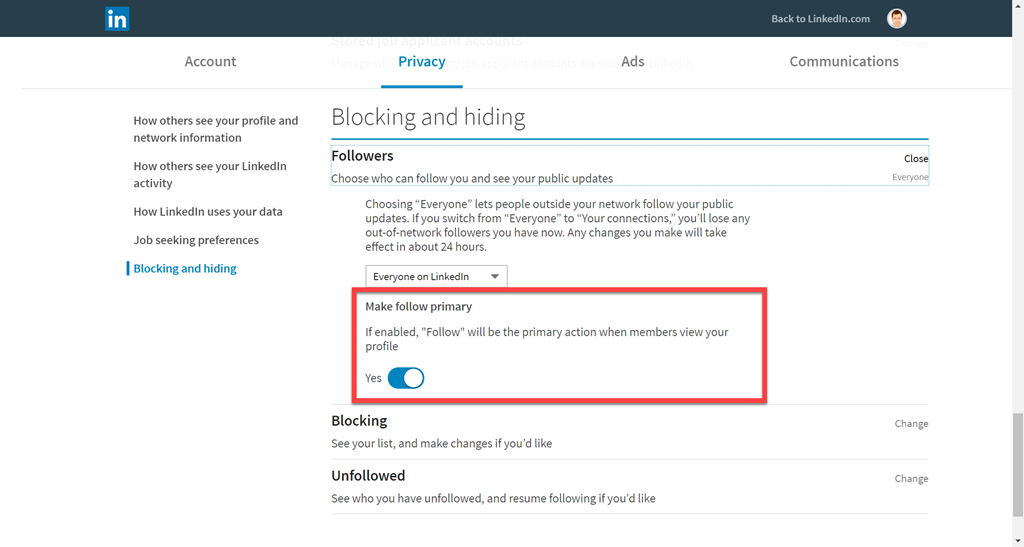
What you do to change the default option from Connect to Follow is go into your Privacy settings, then select Blocking and hiding. At the bottom enable Make follow primary.
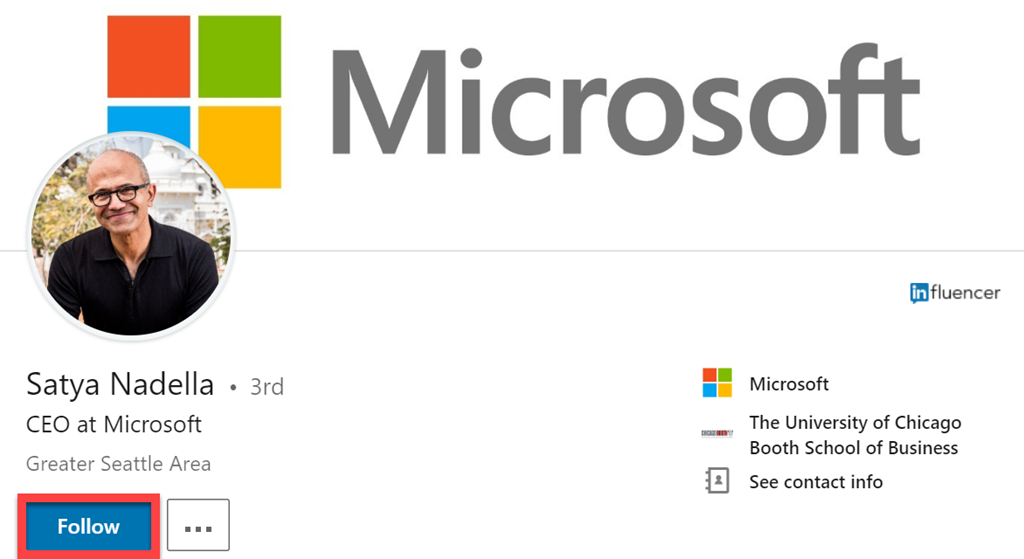
Now the default action will be Follow as seen above. Is Connect still there?
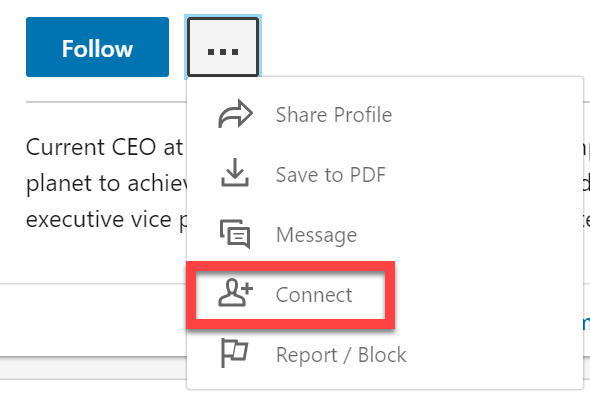
Yes, but you need go hunting for it, which means that most people trying to spam you probably won’t bother doing that.
Not foolproof I admit, but certainly a handy way to make it just that little bit harder to spam you!
One of things that I’m spending a lot of time here at the MVP Summit in Seattle doing is networking with other MVPs. One of the best tools to connect is via Linkedin. Here’s a really simple way to make that happen that I learned about today (and can share) using the Linkedin mobile app.
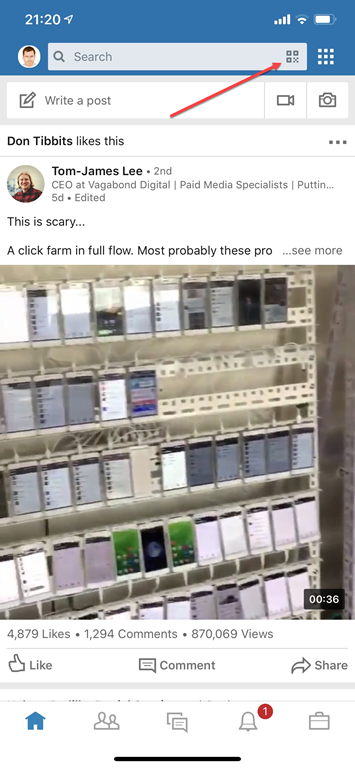
Fire up the Linkedin App on your mobile device. Here I’ll use iOS. To the right of the search bar you’ll notice four squares arranged together as shown above. Select this.
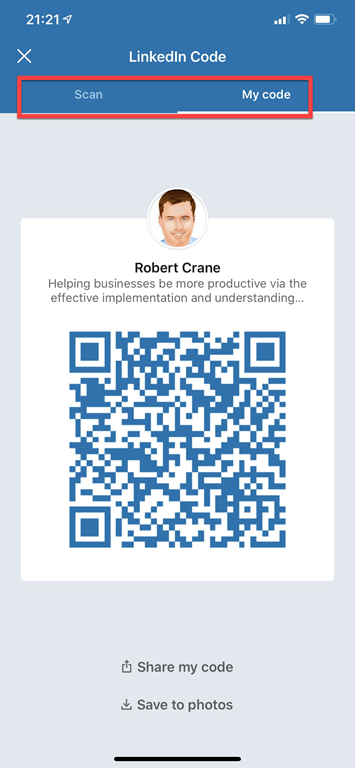
This should take you to a screen like shown above. Across the top you now have two options, Scan and My code. Scan allows you to use the camera on your device to scan someone else’s Linkedin QR code. My Code display your QR code that you can share with others.
Once you have scanned in the QR code using this method, that person’s Linkedin details will appear on your mobile device and you can connect. Easy eh?
We catch you up with everything in the Microsoft Cloud and then spend some time talking about the new certifications that have just become available from Microsoft for both Microsoft 365 and Azure. I share some of my experiences and thought around doing these exams and their value to all IT Professionals going forward. We’ll be covering more about certifications down the track but this one should get you thinking about which one you should do!
Take a listen and let us know what you think – feedback@needtoknow.cloud
You can listen directly to this episode at:
https://ciaops.podbean.com/e/episode-203-certifications/
Subscribe via iTunes at:
https://itunes.apple.com/au/podcast/ciaops-need-to-know-podcasts/id406891445?mt=2
The podcast is also available on Stitcher at:
http://www.stitcher.com/podcast/ciaops/need-to-know-podcast?refid=stpr
Don’t forget to give the show a rating as well as send us any feedback or suggestions you may have for the show.
Resources
Azure opens datacenters in Africa
Microsoft announces Azure Sentinel
Introducing Microsoft Threat Experts
Get the latest Microsoft Security Intelligence report
A very common need these days is to do an email message trace. This can be done the old way in the Exchange Online Admin center or the new way via Mail Flow in the Security and Compliance center.
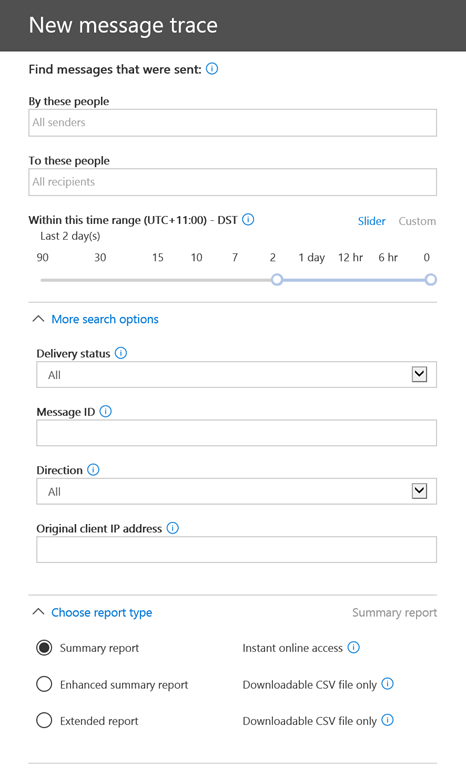
You simply enter the details and then run a search.
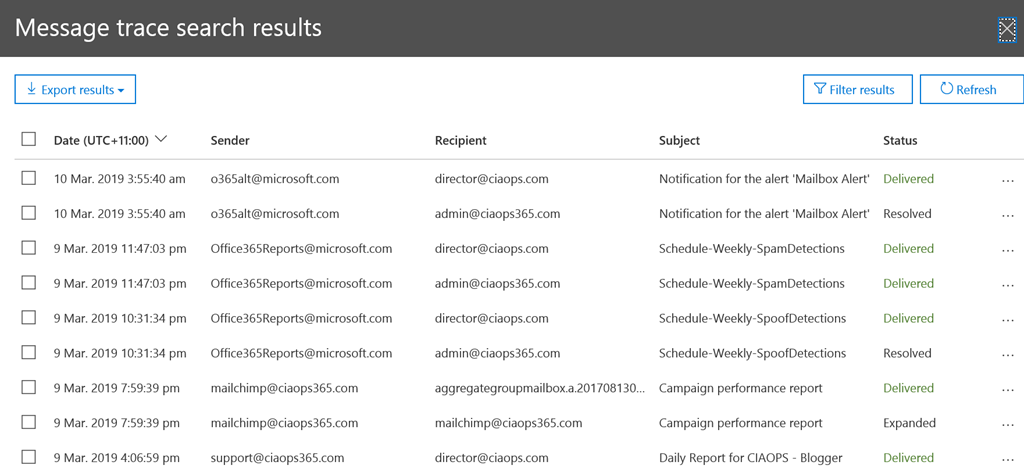
and the output looks like the above, where you can also drill in and get more detail.

As with all things Office 365, you can achieve the exact same thing using PowerShell as I have shown above. The code to achieve this is quite straight forward but I have uploaded it to my GitHub repo to save you the trouble:
https://github.com/directorcia/Office365/blob/master/o365-msgtrace.ps1
Where PowerShell comes into its own is when you need to a variety of tasks, perhaps an investigation of a breach. Using PowerShell you can easily dump all the information to CSV for further analysis rather than having to root it out in the web interface.
Before much of what is covered here is possible you need to ensure you have enabled all the logging in your Office 365 tenant. I’ve covered how to do that here:
Enabling Office 365 mailbox auditing
Enable mailbox auditing in Exchange Online
Enable activity auditing in Office 365
Once you have done that you will be able to track what’s going on in your tenant much better.
In the situation of a compromised mailbox, a bad actor has control of it using legitimate credentials. This eliminates looking for failed logins, because there won’t be any. It also makes the finding the bad actor tougher because their access is most likely mixed in with the legitimate user.
The place to start is to run an audit log search as I have detailed here:
Searching the Office 365 activity log for failed logins
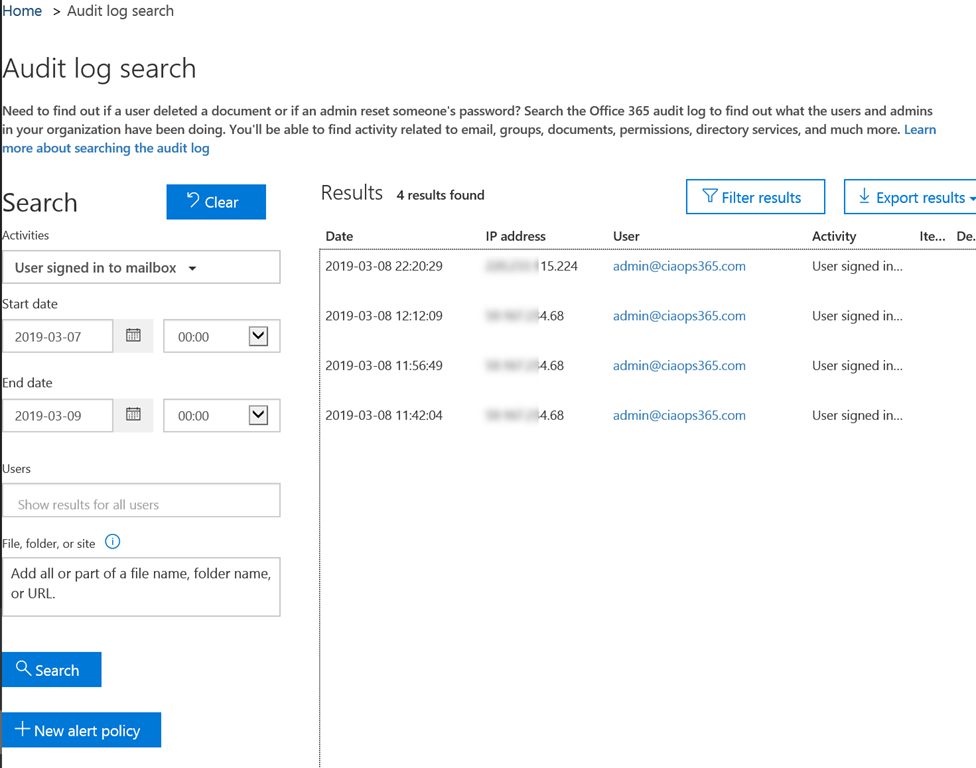
However, as I mentioned, we can no longer search for failed logins, we need to use a different search criteria. I would suggest that you instead run a search using the attribute “User signed in to mailbox” as shown above. That will produce something like shown for all users. Problem with this is that times and dates are in UTC not local time and it is cumbersome to manipulate in a web page. You can of course manipulate by exporting the results to a spreadsheet for more control.
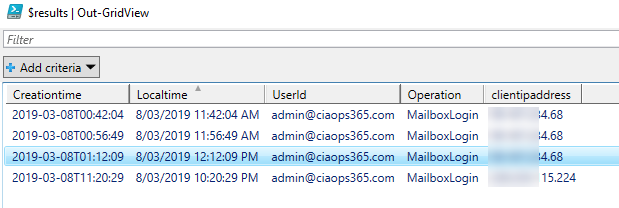
Unsurprisingly, I feel PowerShell offers a much better solution to check the logs and report as you can see above. The script to do this I have made freely available at my Github repo here:
https://github.com/directorcia/Office365/blob/master/o365-mblogin-audit.ps1
Basically, it will search the Audit log for Exchange Items that are Mailbox logins and send that output to a nice table via the Out-Grid command. As you can see, using Out-Grid you can now easily sort by time by clicking the column heading, and thanks to the script, the times are local not UTC!
By default, the script will check the last 48 hours but you can easily modify that to suit your needs by either entering the scope in hours or entering a start and end date in the variables at the top of the script.
With this output I can now look for suspect IPs that login into the mailbox and begin hunting from there. However, remember, all of this relies on you enable your auditing BEFORE you need it. So, if you haven’t enabled it, go do it now! You’ll find scripts to enable the logs also in my Office 365 repo here:
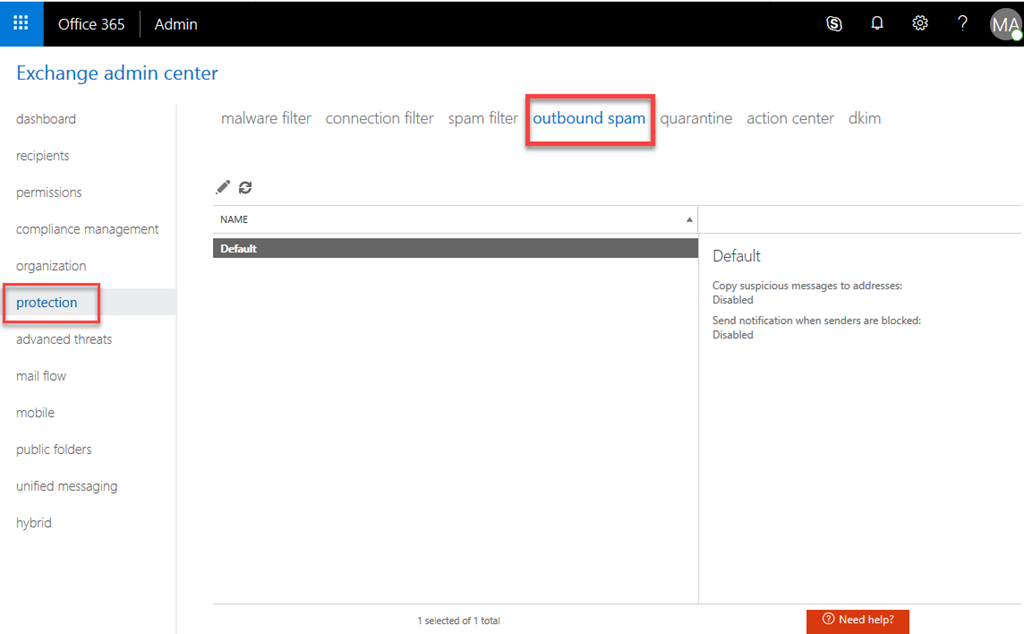
Hopefully everyone is well aware of the need to protect Office 365 email from inbound spam, however what are you doing about outbound spam?
Hopefully, no bad actor gains access to your environment BUT if they did and they started using you accounts to send spam email how would know?
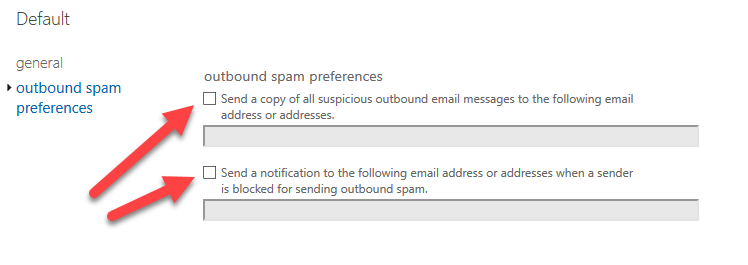
For this reason, I suggest that it is a good idea to go into the Exchange Administration console, select Protection, then Outbound spam. Edit the default policy (that’s really your only option), then select outbound spam protection on the left hand side. Then I suggest you should enable the option to send an email when there is a suspicious outbound email to somewhere that is monitored.
That obviously, won’t stop outbound spam but it should at least give you a heads up that it is happening.

 CIAOPS