My Stuff 2020

This post is my annual post aimed at bringing the links to everything I have out there on the Internet together into a single place. Here we go.

About me

Social Media

Free Stuff

Regular technical and business information, tutorials, walk throughs, learnings, upcoming courses and more.

Here you’ll find currently almost 200 videos full of tutorials on SharePoint, Office 365, Azure and technology.

Presentations and whitepapers for free download.

Documentation for older versions of SharePoint on premises, especially the free versions and those that came with SBS.

Cloud lecture series is a set of free tutorials, training session and so on that I have provided over the years:

I have number of free GitHub repositories that include things like PowerShell scripts, pricing calculators, reference documents, helpful links and more. You will find all these at:

With almost 240 episodes and now entering it’s 10th year my podcast focuses on providing you news and updates from the Microsoft Cloud around Office 365 and Azure.

You can subscribe using iTunes or Stitcher.

After the course complete this morphs into my Office 365 newsletter.

CIAOPS Yammer network is place you can visit to get answers on everything Microsoft Cloud all in one Yammer network:

Need to Know webinars are held monthly and announced on my blog but you can always register and get the details for the next one here:

Commercial stuff

This stuff helps pay for free stuff above so I appreciate your support for my paid work.

Access to the private CIAOPS community for technical support, product discounts and access to the best Office 365 and Azure information

For end user focused training on Office 365 services and applications:

Lots of courses on Office 365, PowerShell, Azure, SharePoint and the like.

Designed to help technology companies become cloud service providers

General Interest

This accounts sends a tweet to commemorate a significant dates from the Australian battles in France during World War 1.

I’m a big believer in supporting those who want to build their own business but just need a leg up to get started. Kiva is simply and easy way to provide this and I recommend this to everyone.

In 2019 I read over 20 books. That means I do a lot of reading on a variety of topics and with Goodreads you can follow along with the books I’m reading as well as those that I add to my bookshelf. I’ll have an upcoming post on my recommended reads, so watch out for that post coming soon.

Need to Know podcast–Episode 224

Our last episode for 2019. Thanks for all your support. Before Brenton speaks with Patrick Gray from the Risky Business podcast, I share my thoughts on technology for 2020. Firstly, I give you my wishes for Microsoft 365 Business. Then, I highlight what I believe is the specific Microsoft Cloud tech you should be paying attention to in 2020. Finally, I talk about some general tech trends to pay attention to and break down for your business for the new year. let us know your thoughts for 2020 via our various feedback options.

Take a listen and let us know what you think – feedback@needtoknow.cloud

You can listen directly to this episode at:

https://ciaops.podbean.com/e/episode-224-patrick-gray/

Subscribe via iTunes at:

https://itunes.apple.com/au/podcast/ciaops-need-to-know-podcasts/id406891445?mt=2

The podcast is also available on Stitcher at:

http://www.stitcher.com/podcast/ciaops/need-to-know-podcast?refid=stpr

Don’t forget to give the show a rating as well as send us any feedback or suggestions you may have for the show.

Resources

Risky Business

@riskybusiness

@contactbrenton

@diirectorcia

Need to Know podcast–Episode 223

FAQ podcasts are shorter and more focused on a particular topic. In this episode I’ll talk about my framework for file migrations to Microsoft 365 collaboration.

Take a listen and let us know what you think – feedback@needtoknow.cloud

You can listen directly to this episode at:

https://ciaops.podbean.com/e/episode-223-file-migration-framework/

Subscribe via iTunes at:

https://itunes.apple.com/au/podcast/ciaops-need-to-know-podcasts/id406891445?mt=2

The podcast is also available on Stitcher at:

http://www.stitcher.com/podcast/ciaops/need-to-know-podcast?refid=stpr

Don’t forget to give the show a rating as well as send us any feedback or suggestions you may have for the show.

Resources

A framework for file migrations to Microsoft 365

Need to Know podcast–Episode 222

I’m joined by Stephen Rose, Senior Product Marketing Manager for Microsoft 365, to speak about everything Microsoft 365. Stephen explains what the products is all about, how it can help businesses and the direction that the technology is taking off the back of many announcements from Ignite. Of course, Brenton is also here and we bring you up to date on all the latest Microsoft Cloud news before some of us head off for a Christmas break. Fear not! The episodes will continue even in the face of absenteeism. All the best to all our loyal listeners for the holidays season. We appreciate your support and look forward to providing you more information in 2020.

This episode was recorded using Microsoft Teams and produced with Camtasia 2019

Take a listen and let us know what you think – feedback@needtoknow.cloud

You can listen directly to this episode at:

https://ciaops.podbean.com/e/episode-222-stephen-rose/

Subscribe via iTunes at:

https://itunes.apple.com/au/podcast/ciaops-need-to-know-podcasts/id406891445?mt=2

The podcast is also available on Stitcher at:

http://www.stitcher.com/podcast/ciaops/need-to-know-podcast?refid=stpr

Don’t forget to give the show a rating as well as send us any feedback or suggestions you may have for the show.

Resources

@stephenlrose

@contactbrenton

@directorcia

Stephens’ presentation from Ignite 2019 around adoption

CIAOPS Patron Community

Ignite the Tour Sydney

CIAOPS Techwerks 10

Microsoft Teams now available on Linux

Microsoft Integrated Threat Protection

Campaign views in Office 365 ATP

Windows VM now support Azure AD authentication

Native support for WebAuthn and FIDO for iOS

Preview of Azure spot machines

What’s new in Microsoft Forms

Beazley Breach insights

Blocking macros with Intune

Licensing guidance

Need to Know podcast–Episode 221

I thought I’d try something different on the podcast. Of late, the podcast length has been growing simply due to the amount of content. I appreciate that this becomes harder and harder to digest all this in a single sitting. Thus, I’ve decided to try some shorter podcast episodes ,stripped back and focused on just one topic. I’m calling these episodes “FAQs”. The idea is to cover a single topic in more depth in 15 – 30 minutes.

I have a few ideas of what to cover for these FAQs but I’d love to hear from you as to what topics you’d want to hear covered in more depth. I’d also like to hear whether this is a good idea or not? If so, I’ll keep doing them. If not, then I won’t bother. So please provide me your input either on Twitter or via email (director@ciaops.com). I look forward to hearing from people.

The existing podcast episode will continue as normal but I’m interested to see whether there is demand for these deeper more focused FAQ episodes?

Take a listen and let us know what you think – feedback@needtoknow.cloud

You can listen directly to this episode at:

https://ciaops.podbean.com/e/episode-221-data-discovery-done-right/

Subscribe via iTunes at:

https://itunes.apple.com/au/podcast/ciaops-need-to-know-podcasts/id406891445?mt=2

The podcast is also available on Stitcher at:

http://www.stitcher.com/podcast/ciaops/need-to-know-podcast?refid=stpr

Don’t forget to give the show a rating as well as send us any feedback or suggestions you may have for the show.

Resources

Data Discovery Done Right

Azure file storage private endpoints

I’ve previously detailed how to create an Azure SMB File Share:

Creating an Azure SMB file share

as a way to create a ‘cloud USB’ drive that you can map to just about any desktop quickly and easily. All of this is accomplished securely but many remain hesitant to do this across the Internet directly. Luckily, there is now an option to map this SMB share to an IP address inside an Azure VNet to restrict access if desired.

image

Before you set this up you will need to have an existing Azure Vnet created as well as a paid Azure subscription. You can add a Private Endpoint to an existing Azure storage account or create one at the same time you create a new Azure Storage account. In this case, I’m going to an existing account.

In the Azure portal search for “private link”, which should then take you to the Private Link Center as shown above. Select the Add button on the right.

image

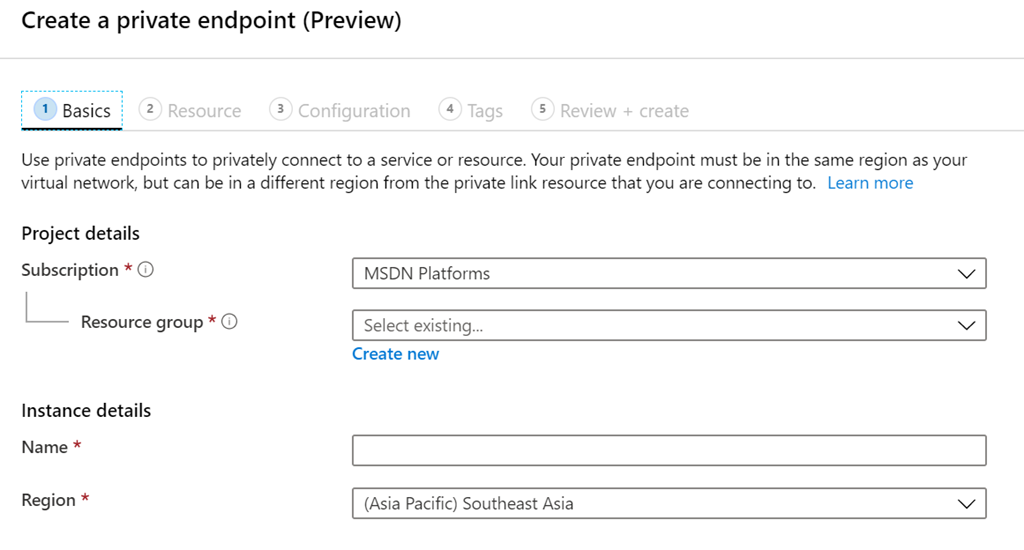
You’ll need to select a Resource Group as well as a Name as shown above.

image

You’ll then to select the Azure Storage account and the file option to connect to an existing SMB file share as shown above.

image

Next, you’ll need to connect to an existing Vnet and if you want to access the resource privately by a name, then you’ll need to integrate it with a private DNS zone, which will also be set up for you as part of this process.

image

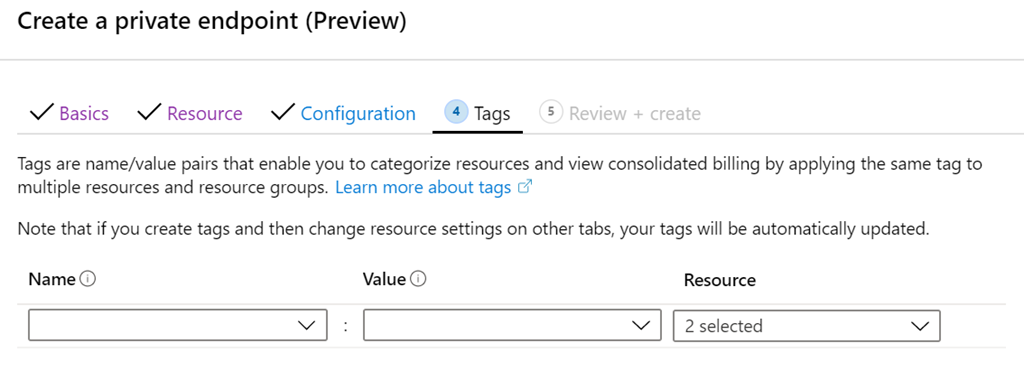
You can then add tags. Note – when I created mine, if I assigned tags here I couldn’t create the Private Endpoint, which appears to be a bug. So, if for some reason you find the same issue, create the Private Endpoint without tags and then add them later.

With all that done, select the Create button to finish the configuration on the Review + Create page.

image

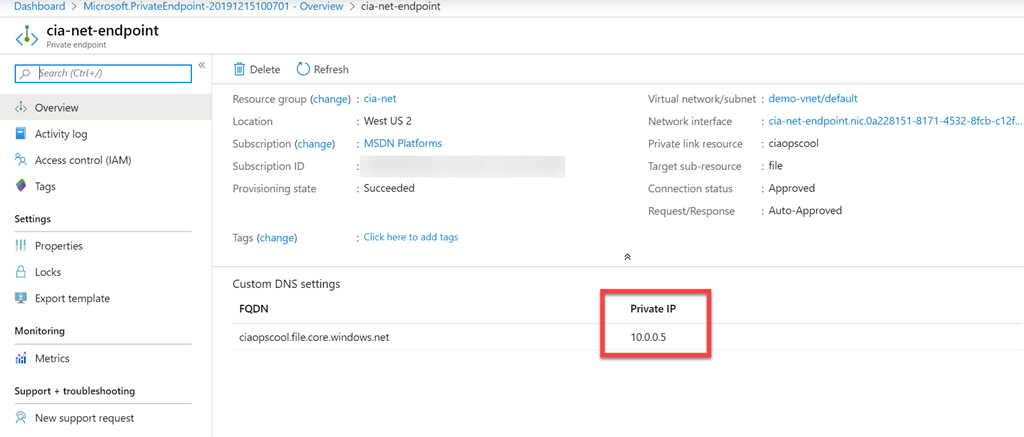
When the set up process is complete you’ll now see your endpoint as shown above with an allocated IP address on the Vnet you selected.

image

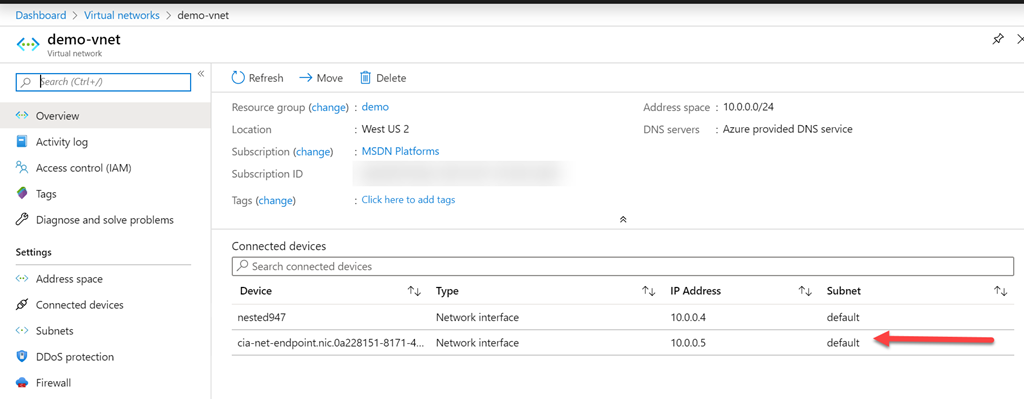
If you then look at your Vnet, as shown above, you will see that the Storage Account is seen as a connected device.

SNAGHTMLc990f5b

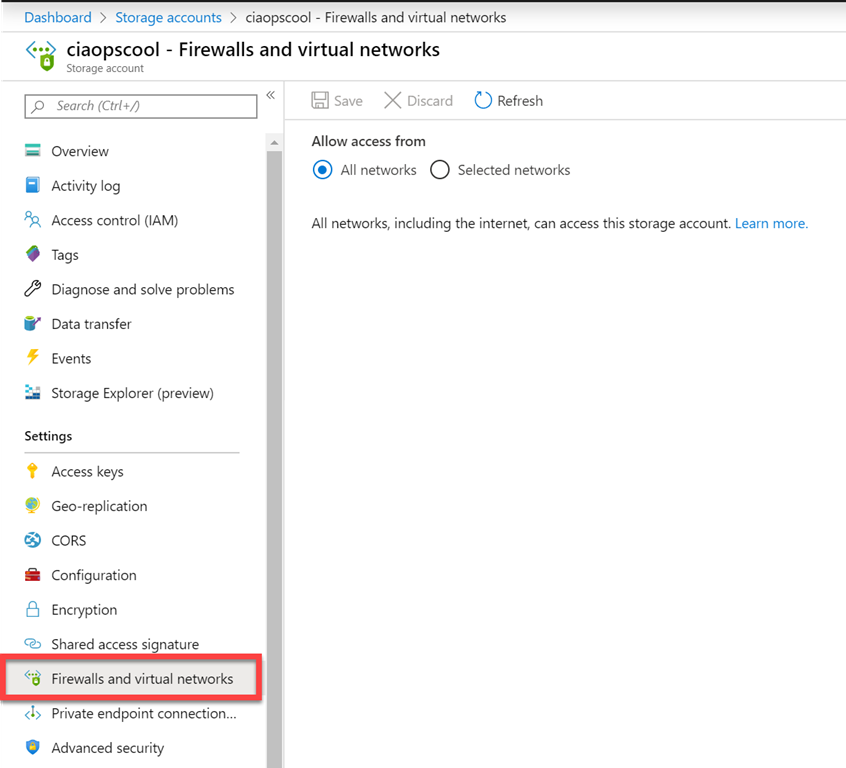
If you now visit the Storage Account and select Firewalls and virtual networks as shown above, you can configure what networks can access this new Private Endpoint.

Leaving the option set to All networks means that you can still map to that SMB share directly across the Internet, which you may want.

image

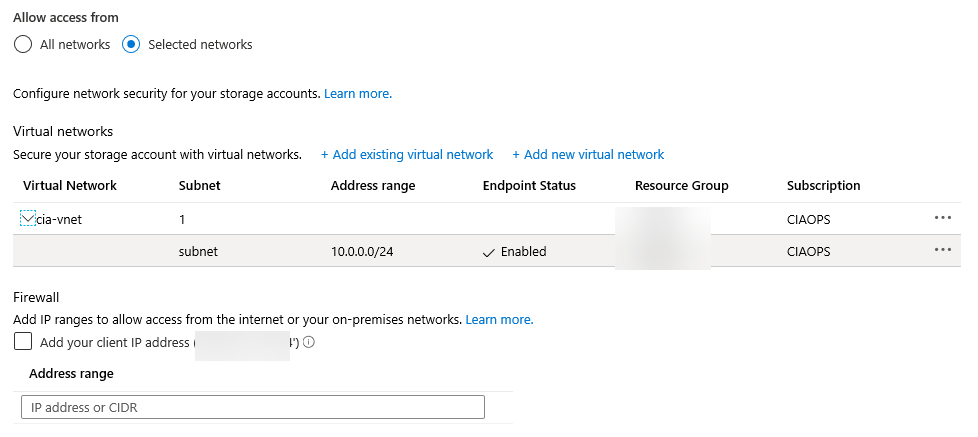
However, in the above case, I have selected to restrict the access to the Vnet only.

image

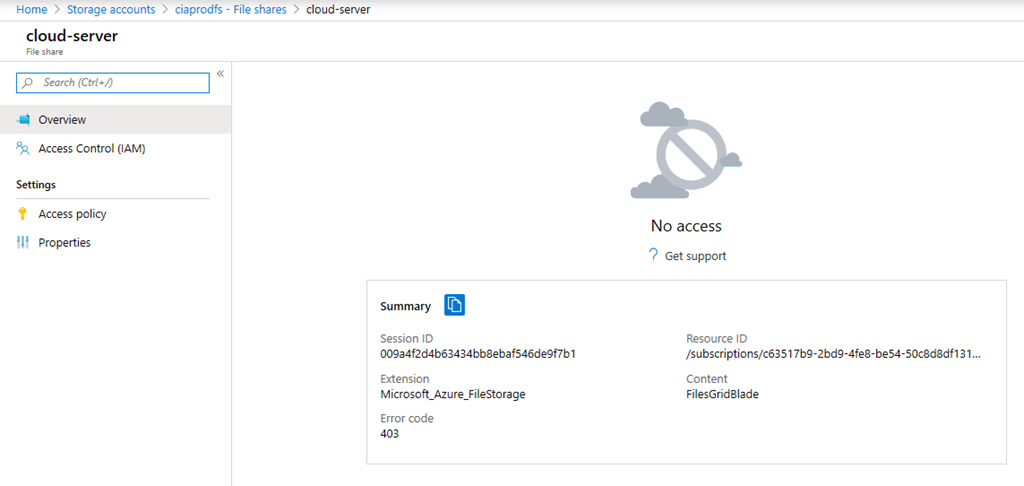
Doing so means that the ONLY way I can now access that SMB Share is via the selected Vnet. I can’t get to it using the Azure portal on my remote desktop machine as shown above.

image

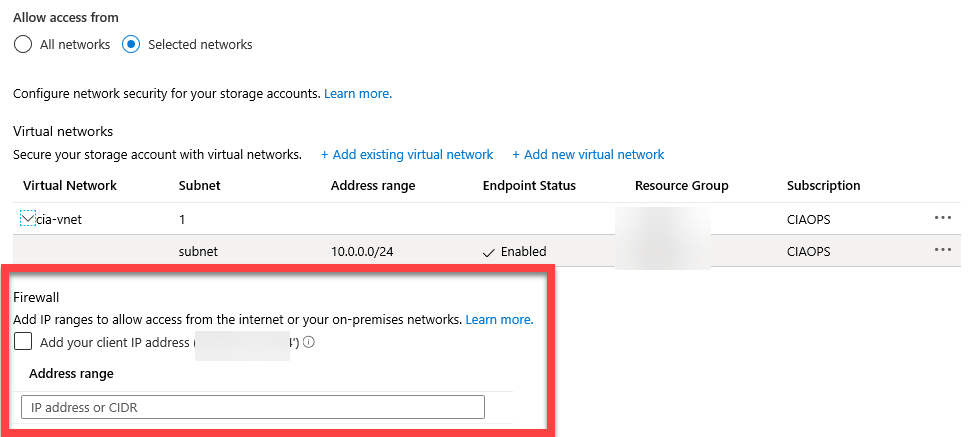
If I wanted to access this from a remote location, outside the Vnet across the Internet, I could add those details below. However, I have chosen not to do this.

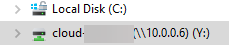
My Azure SMB File share now has a dedicated IP address that is restricted to access via an Azure Vnet, how do I work with this share directly on premises? Easy. I set up an Azure Site to Site VPN to that same Vnet and now I can access that Azure SMB File share from my local machines by mapping to something like the IP address.

image

Thus, the only way that Azure SMB file share can be access is across a Site to Site VPN, making even more secure.

image

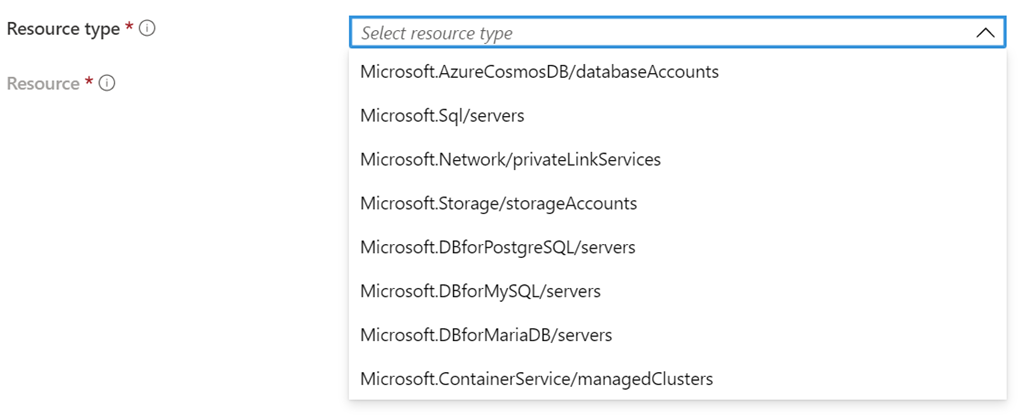
Private Endpoints support connection to a number of PaaS Azure services as shown above. This is handy as it allows you to connected you Azure IaaS services (like VMs) directly to Azure PaaS (like storage) quickly and easily as shown. What’s the benefit? Remember, IaaS is typically billed on time used, while PaaS is billed on resource consumption. Thus, why should I pay for a VM to store my data and pay the time it runs (typically 24/7), plus disk storage where I could use Azure Storage and most be billed just for the data capacity?

PaaS is the future and has many benefits over IaaS. You should be looking to shift as much of you infrastructure to PaaS to take advantage of things like reduce maintenance, cost savings, etc. Private Endpoints is an easy way to start doing just that. For more information on Azure Private Endpoint visit:

What is Azure Private Endpoint?

Remove known bad emails from tenant

Microsoft has a technology in Exchange Online known as ZAP. It will basically move known malicious emails, even after they may have initially been delivered to a mailbox. You can read more about the the technology here:

Zero-hour auto purge protection against spam and malware

ZAP however, is a ‘reactive’ security technology requiring knowledge of malicious content prior to taking action. There will therefore be cases when malicious content can get delivered to a mailbox, especially if the attack is relative new in the wild, simply because it has not yet been identified.  Hopefully, users have been trained so they can report any suspicious material that they do find, as I have detailed here:

Improved security is a shared responsibility

You can also enable an alert that notifies when someone reports an email. When that happens, you may want to check through all the other mailboxes to see whether that malicious email occurs elsewhere. If the payload is indeed malicious, you may wish to take the pro-active step of deleting that bad email from all users inboxes.

You can achieve this using two steps:

1. Create a content search to locate the suspect item in your tenant

2. Use PowerShell to delete the discovered items

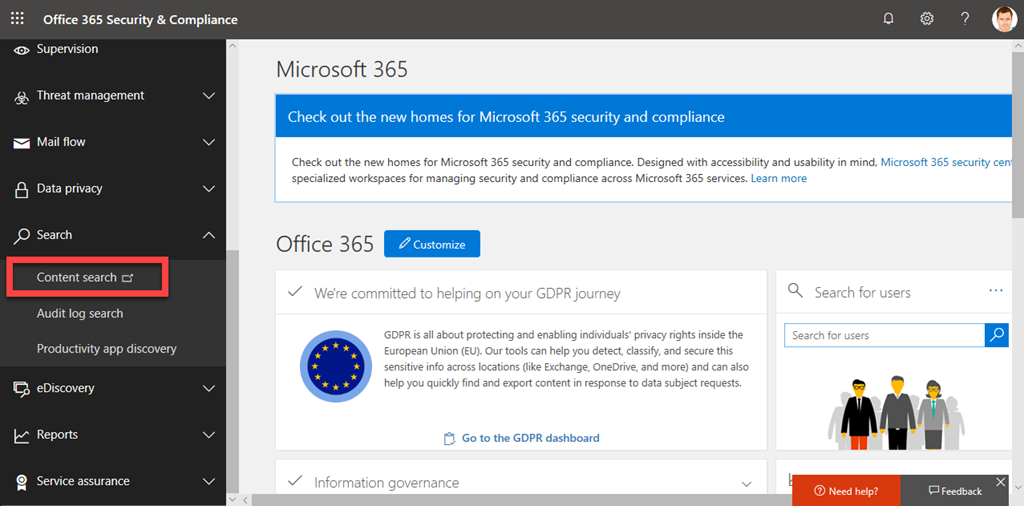
Step one is to login to the Microsoft 365 tenant as an administrator and visit the Security and Compliance Center like so:

image

Select Content Search from under the Search option on the left.

Before you create a new search, you’ll need to find something unique about the item you are searching for.

image

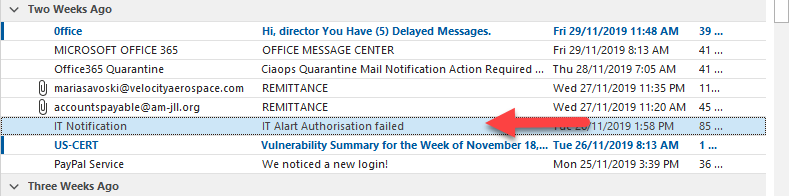
In the case above, with this dodgy email, I’ll do a search based on the senders email but I could as easily do one on the mis-spelled subject ‘Alart’. All you need is something unique.

image

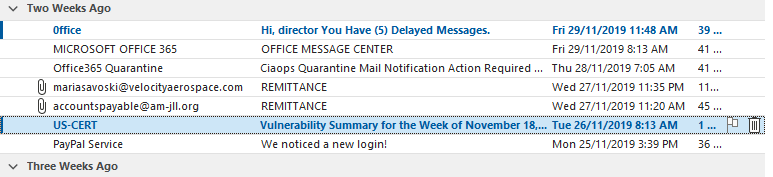
If I look in my inbox I can see this email listed as shown.

image

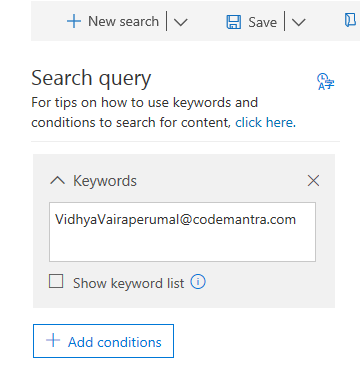
I create a new Content Search and use the unique criteria in the keywords as shown above.

image

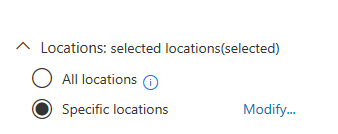
Below this I can limit where the search is conducted. In this case, I will specify messages, as that is what I am looking for. You can get quite granular here if you need to. Just select Modify and specify the location you wish to search. Remember, the more places you search the longer it will take to return results.

image

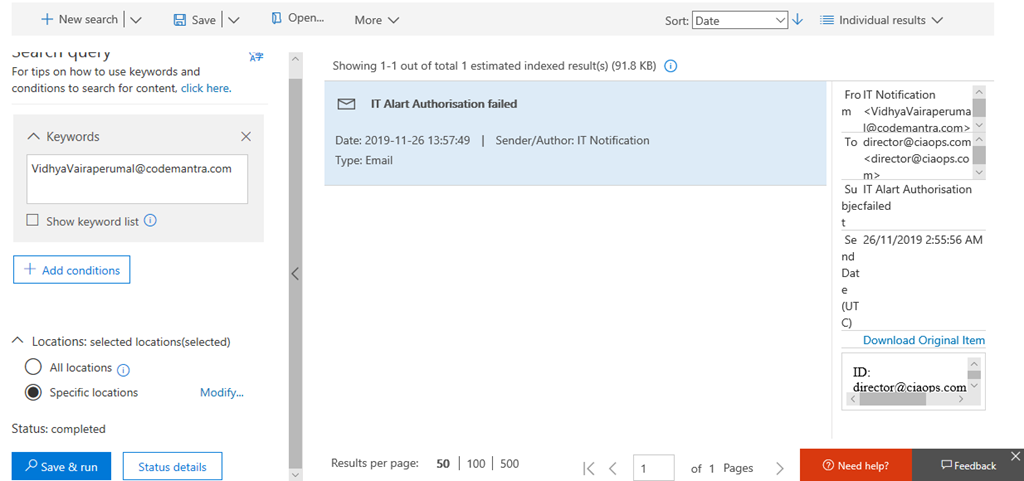
Once you have crafted your search, select Save & run in the lower left. After a short while, you should see the results. In this case, I have only found the one result, which is the item in my inbox. Make sure you check the items that are returned as it is these items that will be deleted! You may need to adjust your search to get exactly the results you wish.

Next, you’ll need to fire up PowerShell and connect to the Microsoft Security and Compliance Center for you tenant. I have a script that you can use here if you have MFA:

https://github.com/directorcia/Office365/blob/master/o365-connect-mfa-sac.ps1

and if you don’t (shame on you):

https://github.com/directorcia/Office365/blob/master/o365-connect-sac.ps1

Once you have successfully connected you need to run the following line of PowerShell:

New-ComplianceSearchAction -SearchName “<Content search query name>” -Purge -PurgeType SoftDelete

for a ‘soft delete’ of the item (i.e. recoverable). Or

New-ComplianceSearchAction -SearchName “<Content search query name>” -Purge -PurgeType HardDelete

for a ‘hard delete’ (i.e. non-recoverable). You’ll also need to change <Content search query name> to match the name you gave the Content Search when you created it.

image

You should now see a prompt, as shown above, asking you to confirm your actions. Generally, you’ll select Yes to All here.

image

This will kick off the process of deleting the content you have found. Note, this process is not immediate. It may take a little while to work through all the locations.

image

When the process is complete, as shown above, that item no longer appears in mailboxes.

That’s how you run your own ZAP!