Modern Device Management with Microsoft 365 Business Premium–Part 9

Previous parts in this series have been:

Office 365 Mobile MDM – Modern Device Management with Microsoft 365 Business Premium–Part 1

Intune MDM – Modern Device Management with Microsoft 365 Business Premium – Part 2

Intune MAM – Modern Device Management with Microsoft 365 Business premium – Part 3

Endpoint Manager – Modern Device Management with Microsoft 365 Business Premium – Part 4

Baselines – Modern Device Management with Microsoft 365 Business Premium – Part 5

Deployment – Modern Device Management with Microsoft 365 Business Premium – Part 6

Autopilot admin – Modern Device Management with Microsoft 365 Business Premium – Part 7

Autopilot endpoint – Modern Device Management with Microsoft 365 Business Premium – Part 8

In part 3 I talked about Mobile Application Management (MAM) and in the last part, I talked about Windows deployment using Autopilot, now it is time to look at deploying applications to devices via Endpoint Manager.

image

This tasks will be accomplished via the All apps option inside the Apps menu in Microsoft Endpoint Manager as shown above.

image

Here you’ll see a list of existing applications, but what you’ll typically need to do is select Add from the menu at the top to add a custom application.
image

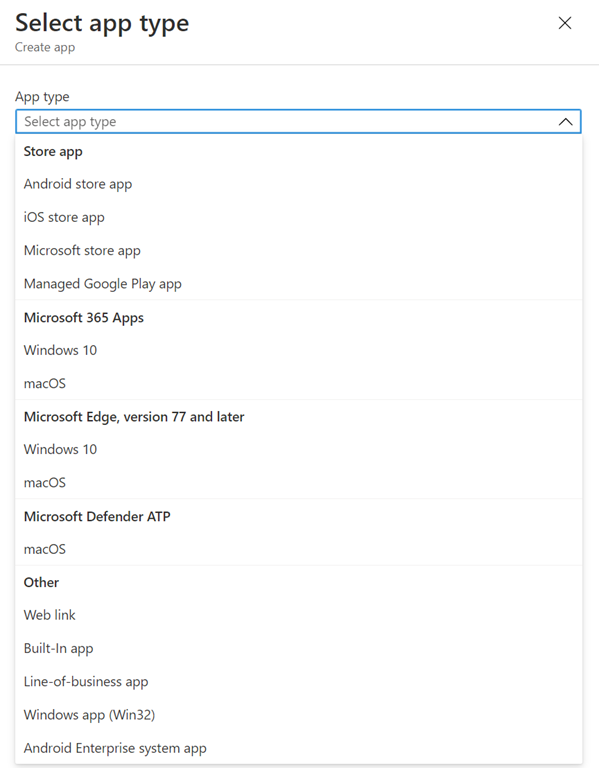
You’ll now need to select an app type, as you can see above, from the list that appears. Because we are dealing with applications across a wide range of platforms, you need to create a deployment policy for each app on each platform.
image

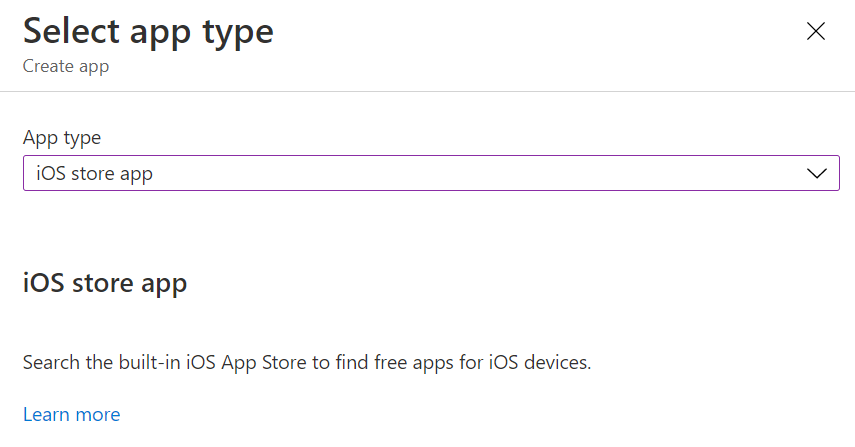
In this case, I’ll go with an application from the iOS store as shown above, just to keep things simple.
image

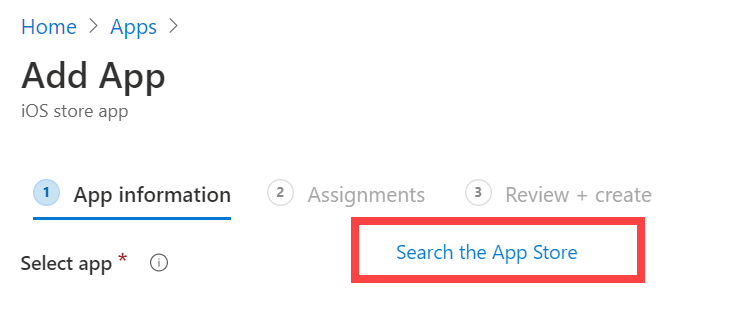
I’ll then need to select the link, as shown above, to Search the App Store for the desired application. Note that it doesn’t necessarily have to come from the store, but it is easier if it does.
image

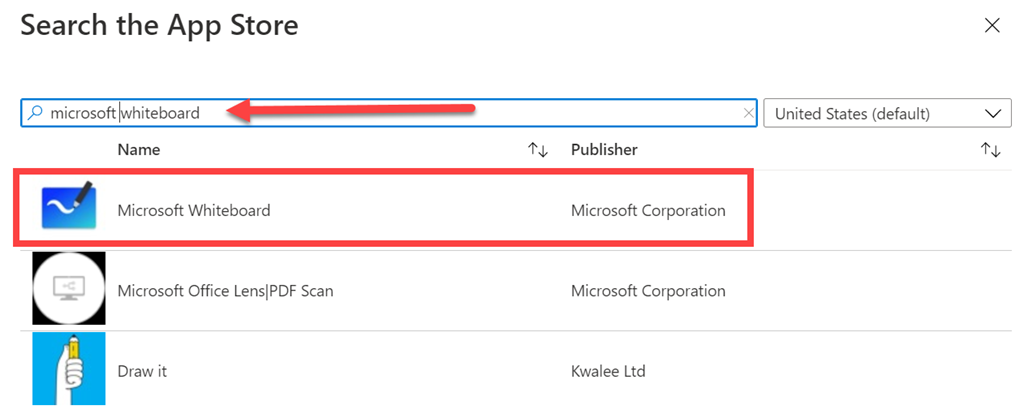
Here, I’ll locate Microsoft Whiteboard as shown above and select it.
image

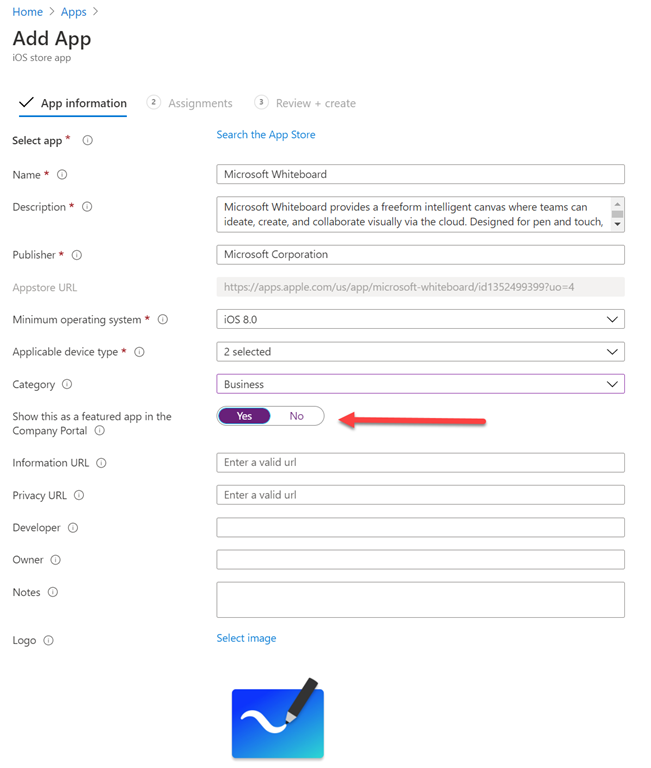
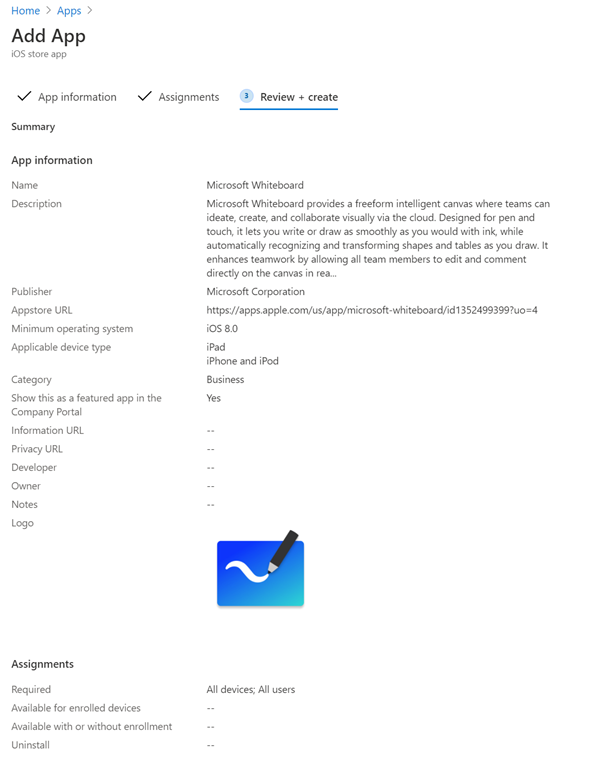
The details of the app are now populated as shown above. You can make any changes here you wish. Note, I have elected to feature this app in the Company Portal as well.
image

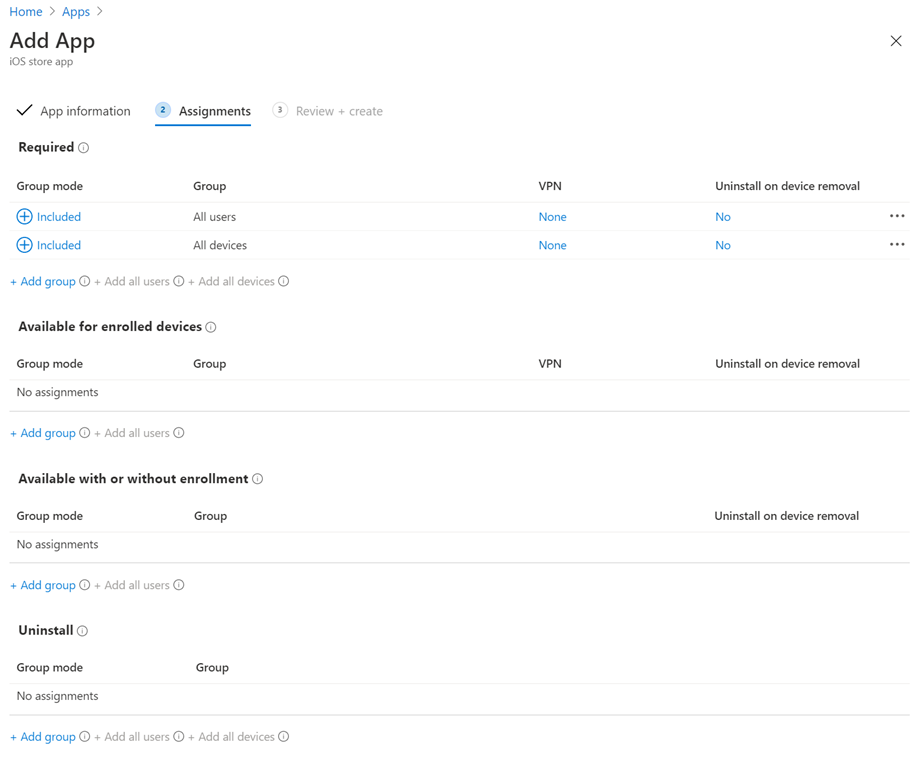
Next, I can target that application to be Required by users and or devices, which I have done as shown above. However, you see that it is possible to just make the application available (i.e. optional) for enrolled and non-enrolled devices as well as being able to uninstall the application if present.
image

You can now review the application settings and then press the Create button to complete the policy process.
image

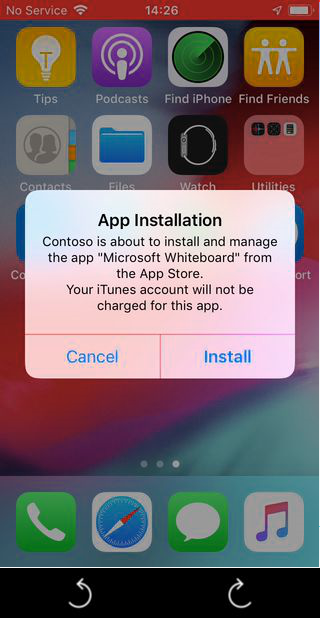
In a short amount of time the device will process that policy as seen above. Here the user will be prompted that a required application will be installed. Press Install on device to continue.
image

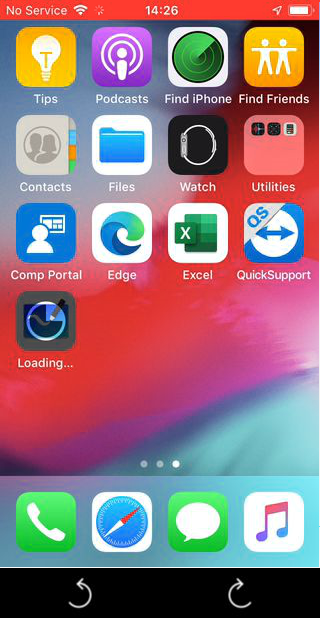
The application will be installed.

image

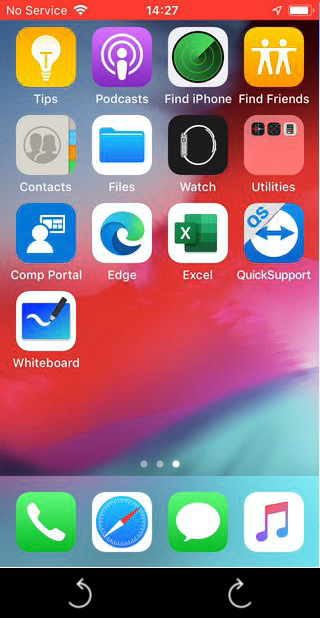
The application is now ready for use on the device.
image

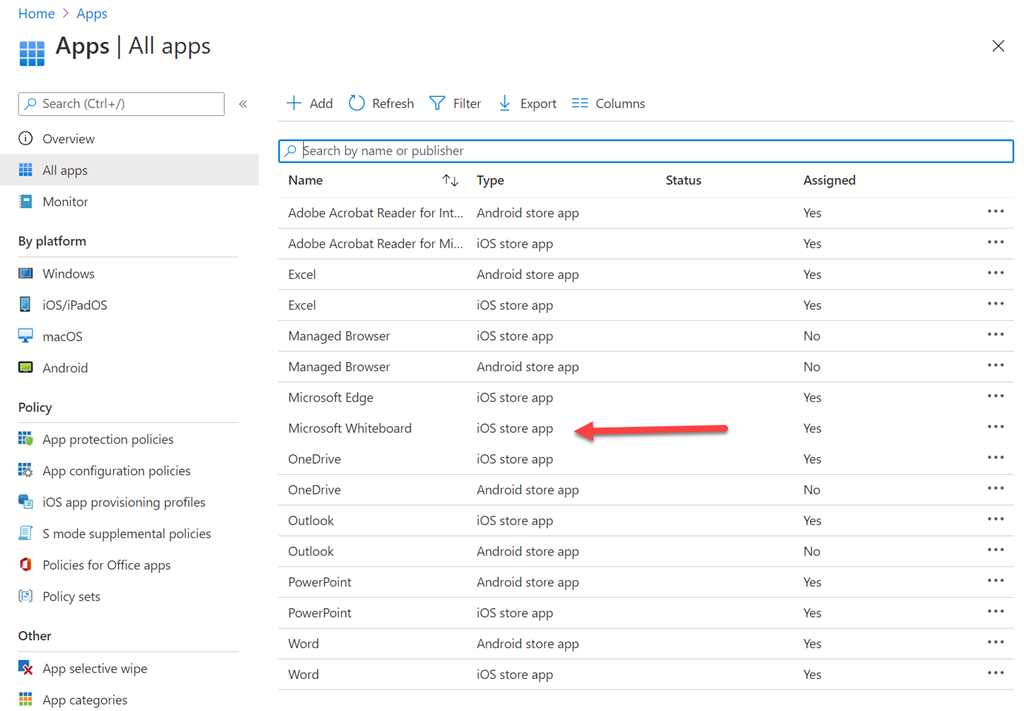
If you now look back at the All Apps area, as shown above, you should see the app that was just configured for deployment.
image

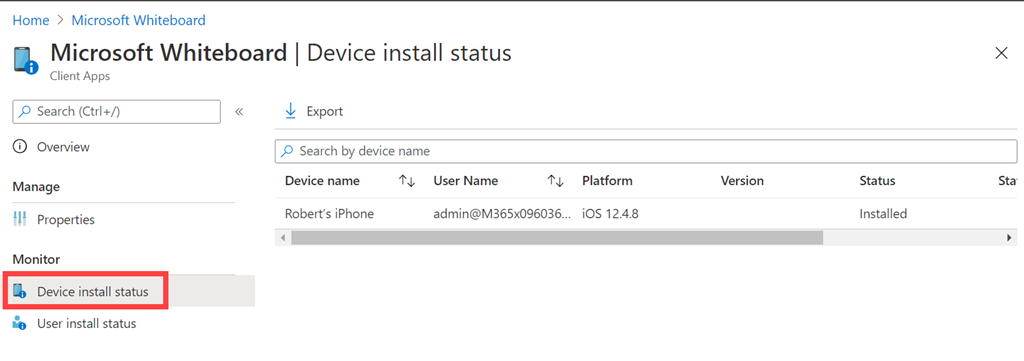
If you select this entry and then select Device install status, you should see a confirmation that the Status is installed as shown above.
image

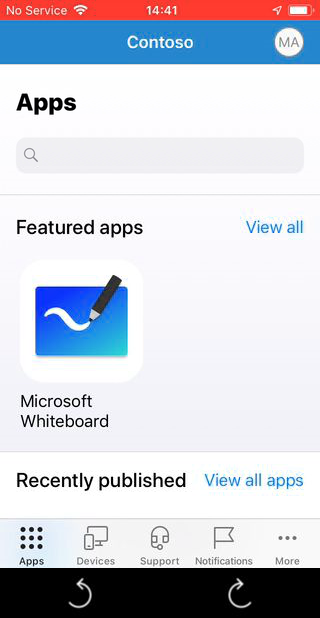
If you take a look inside the Intune Company Portal App, you see the app is featured as shown above. The application can now be installed directly from here as well if needed.
image

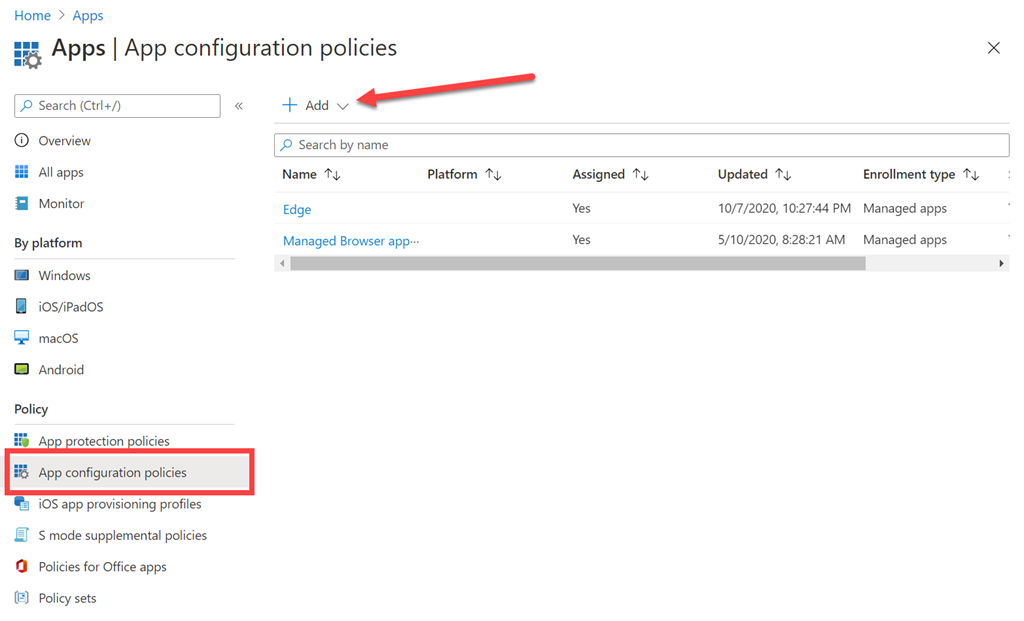
To configure the settings for applications that are deployed, navigate to the the App configuration policies option as shown above and select the Add button that appears on the right.

image

Here, I will select Managed devices from the drop down menu that appears.
image

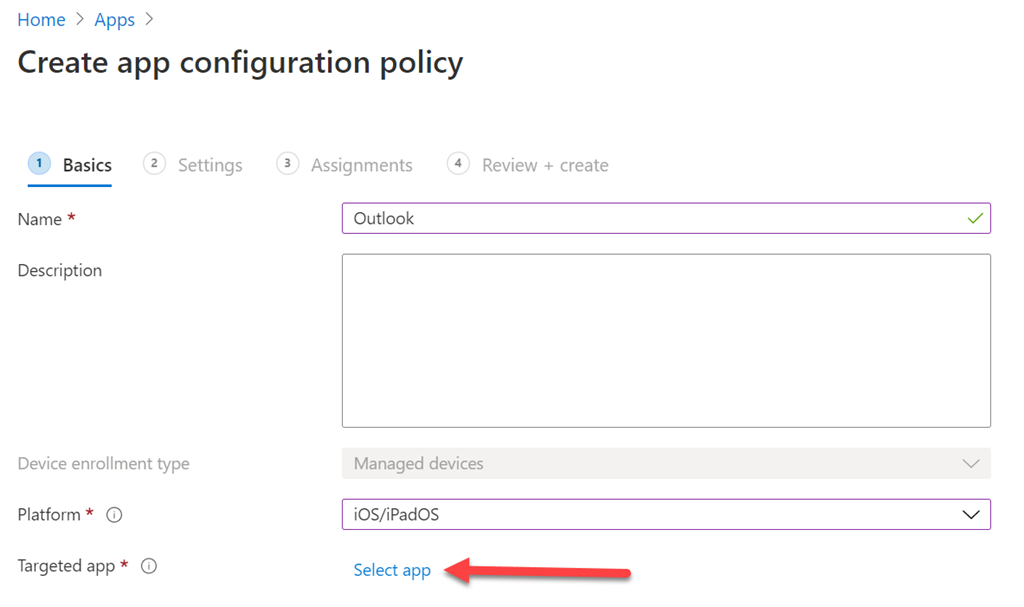
To keep things simple, I’ll choose to configure the Outlook app for iOS. This is because there are many different ways to configure applications, especially if they are not from Microsoft or not common apps like Outlook, Word, Excel, etc.

In this case, you need to click the Select app at the bottom of the page as shown.
image

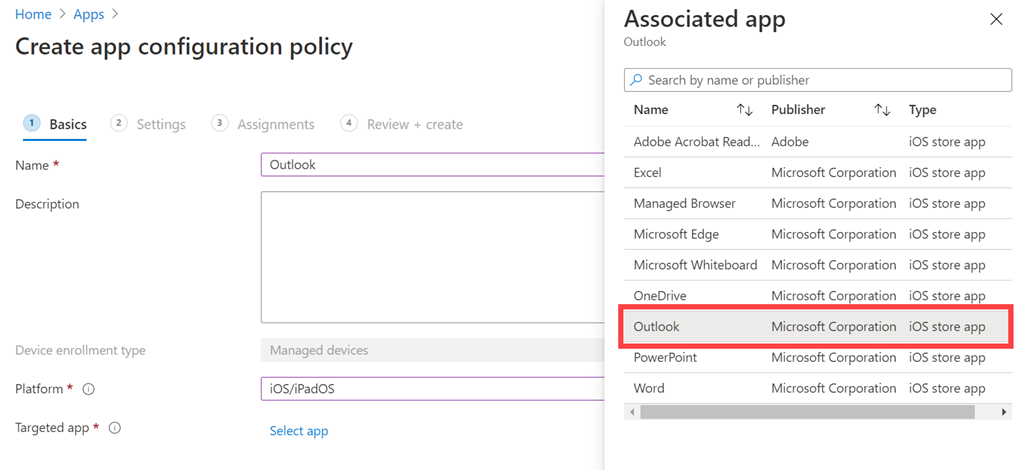
Select the Outlook option from the menu that appears as shown.
image

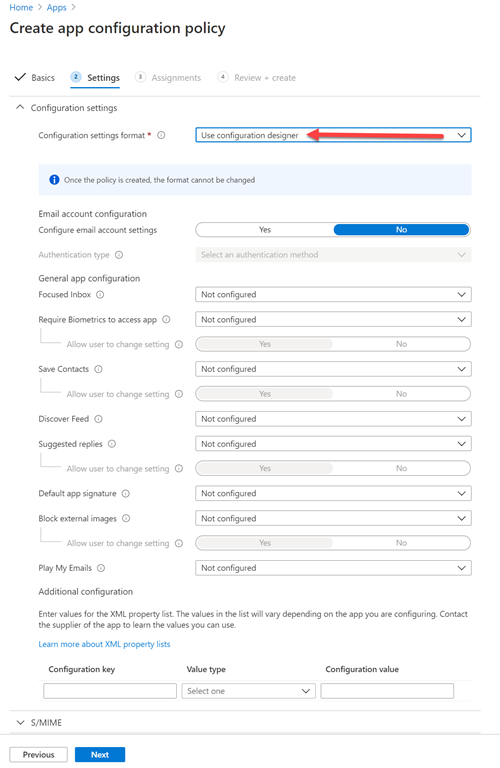
Because this a ‘well-known’ app, I select Use configuration designer in the Configuration settings format field as shown. This presents a number of options I can now configure for that application.
image

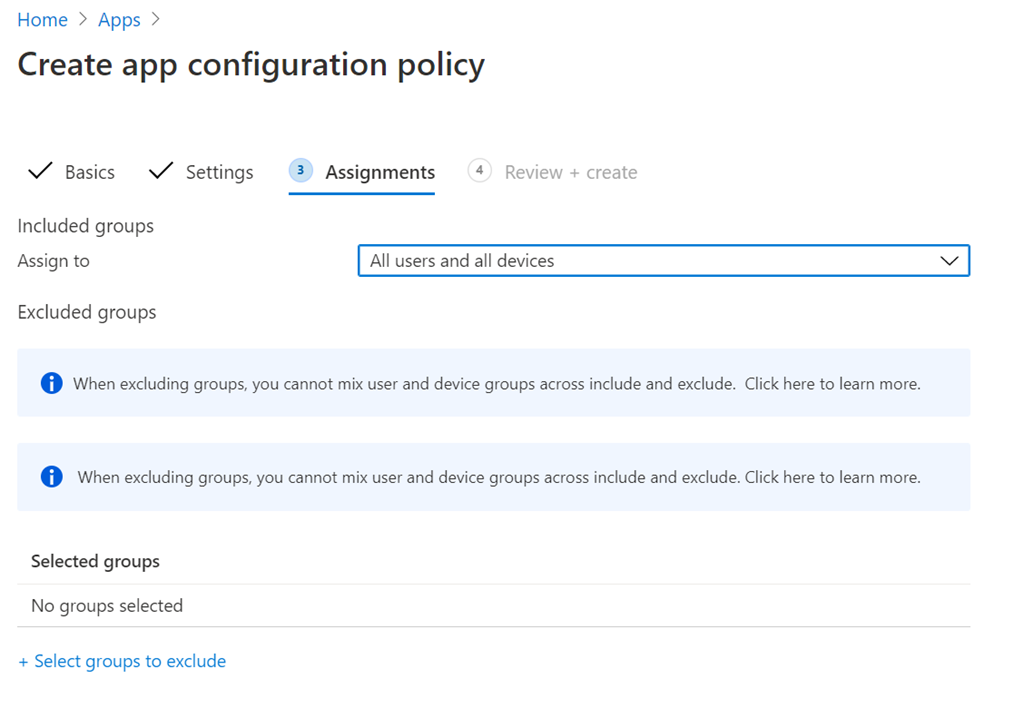
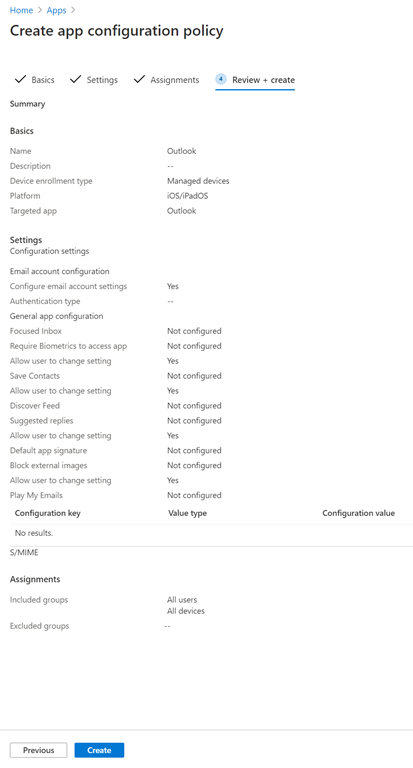
You’ll then need to allocate this application configuration policy as shown above. Again, to keep this example simple, the option for All users and all devices has been selected but you can get more granular if you wish.
image

You can now Review and Create the policy.
image

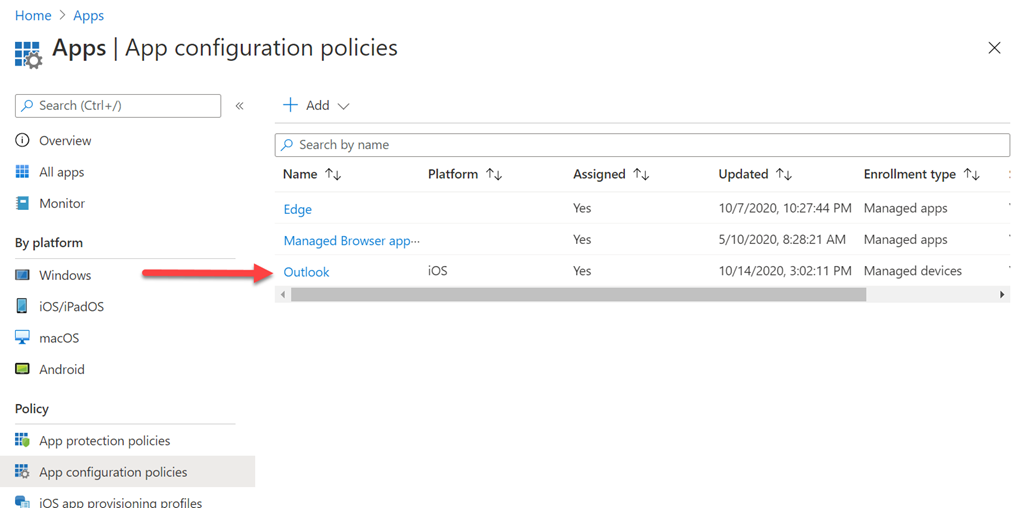
The policy should then appear in the list of App configuration policies as shown above. You can select the policy name at any time to return to editing the policy.
image

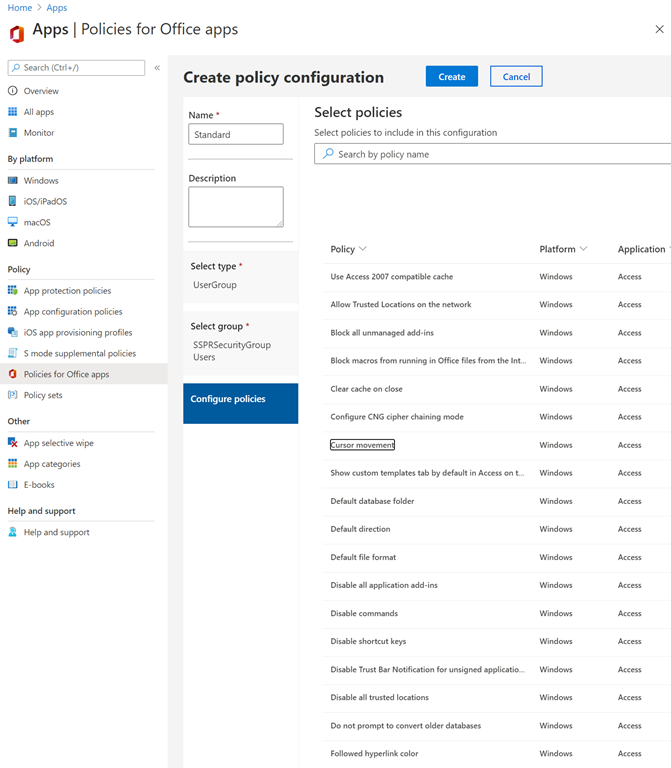
The main take away is that you can use Endpoint Manager to create deployment and configuration policies for the different applications on the different platforms and apply them quickly and easily. As shown above, this also extends to granular configuration of the Office suite of apps.

It is important to remember that there can be a lot to configure here if you consider individual apps on individual platforms, so be prepared for some set up initially. But, once complete, deployment and configuration going forward across all platforms is easy. The main benefit is that both deployment and configuration can be done directly across the Internet for both enrolled and non-enrolled devices give good management of devices in the environment.

Modern Device Management with Microsoft 365 Business Premium – Part 10
Revisiting some facts around Microsoft 365 backup

A while ago I wrote an article:

Do you need to backup Office 365?

Recently, Tony Redmond wrote this article on a similar topic:

Questioning Six Reasons Why Backing up Office 365 is Critical

That then lead to the following debate:

The Great Debate: The Need For Office 365 Backup [VIDEO]

I’ve also seen people quote the following from Microsoft:

Microsoft Services Agreement

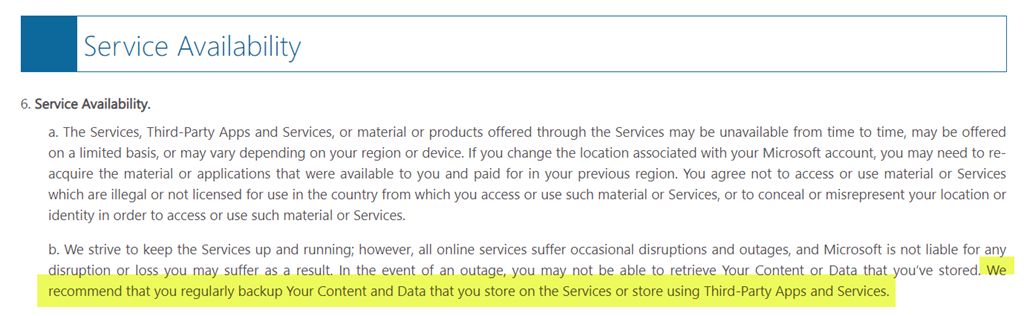
which contains the following clause:

image

which reads:

“We recommend that you regularly backup Your Content and Data that you store on the Services or store using Third-Party Apps and Services.”

However, it is important to note at the top of that document:

image

which reads:

These terms (“Terms“) cover the use of those Microsoft consumer products, websites, and services listed at the end of these Terms here (#serviceslist) (the “Services“).”

Note hyperlink to “services” that agreement actually covers. That leads to the following URL:

https://www.microsoft.com/en/servicesagreement/#serviceslist

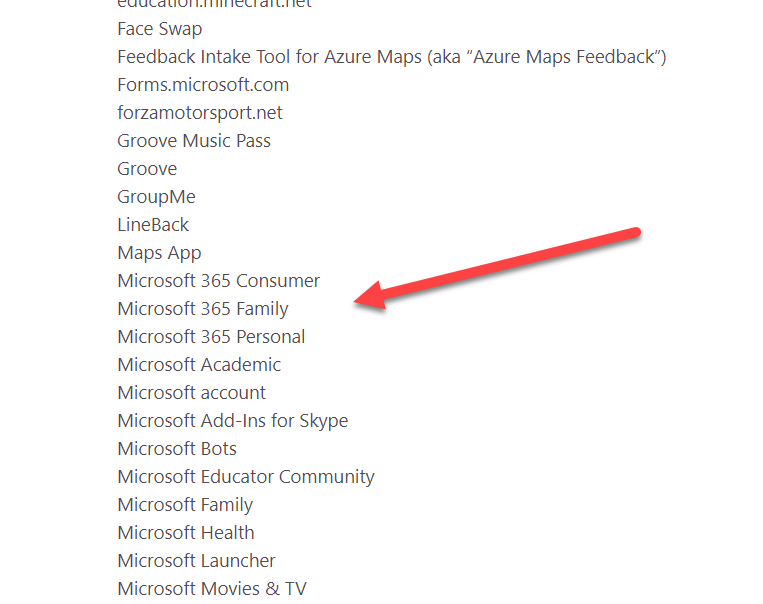
and when you look through that list there are no M365/O365 commercial services listed:

image

Thus, that Microsoft Services Agreement doesn’t apply when talking about data retention in Microsoft 365 commercial products.

In fact, the following slide was taken from a recent Microsoft Ignite 2020 presentation:

clip_image001

Here’s the time stamped video it came from – https://youtu.be/zBHXVGrxBqM?t=1971 (Protecting Exchange Online Mailboxes As A Secure Vault)

I will also highlight the following article:

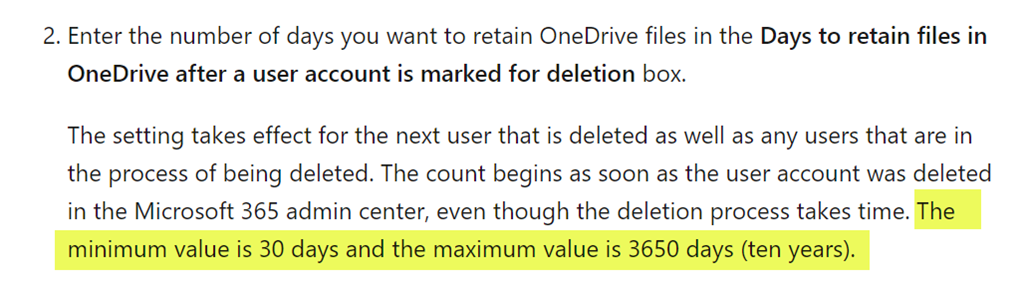
Set the OneDrive retention for deleted users

which says:

image

The minimum value is 30 days and the maximum value is 3650 days (ten years).

As my original article states and Tony Redmond reinforces, the importance is to understand what M365 does out of the box with data retention and how that can and ‘should’ be configured to reduce risk. After which, third party products can be added to supplement what Microsoft 365 does. As I say, more backups are good but at some point they fail to significantly reduce risk for the investment made in them. That point is up to the individual business to determine.

It is important to have the correct information when it comes to data retention and recovery in Microsoft 365, and if you don’t appreciate what can be done with Microsoft 365 out of box then I’d encourage you to go and take a closer look, because it does a pretty good job in my opinion.

Need to Know podcast–Episode 256

We’ve crossed the 8 bit barrier and now into 16 bit episode numbers! I’ll give you a quick round up of what I thought was the most important announcements from Microsoft and where you can go to get all the information Microsoft recently provides about its products. Then I’ll speak with Microsoft MVP Lars Klint about his project with llamas. Yup, that’s the animal, not some secret code word. So listen in for some fun as well as interesting take away Lars has to share in this episode.

This episode was recorded using Microsoft Teams and produced with Camtasia 2020

Take a listen and let us know what you think – feedback@needtoknow.cloud

You can listen directly to this episode at:

https://ciaops.podbean.com/e/episode-256-lars-klint-and-llamas/

Subscribe via iTunes at:

https://itunes.apple.com/au/podcast/ciaops-need-to-know-podcasts/id406891445?mt=2

The podcast is also available on Stitcher at:

http://www.stitcher.com/podcast/ciaops/need-to-know-podcast?refid=stpr

Don’t forget to give the show a rating as well as send us any feedback or suggestions you may have for the show.

Resources

@larsklint

@directorcia

Introducing llama cam

llama cam

Lars Klint blog

Ignite book of news

Ignite on demand sessions

New management capabilities for Microsoft Defender Antivirus in Microsoft 365 Business Premium

Announcing Microsoft 365 Lighthouse for Managed Service Providers serving small & medium customers

Seven ways we’re empowering every person and every organization to thrive in a new world of work

Discover the new Teams feature that supports social-emotional learning

Microsoft Defender for Endpoint adds depth and breadth to threat defense across platforms

Announcing SharePoint Syntex

Celebrating the top OneDrive moments from Microsoft Ignite 2020

SharePoint admin and migration announcements at Ignite 2020

What’s New in Microsoft Teams

Collaboration, communication and knowledge sharing with Microsoft Teams, SharePoint, Project Cortex

October poll

ask-blackboard-chalk-board-chalkboard-356079

For October I’m asking people:

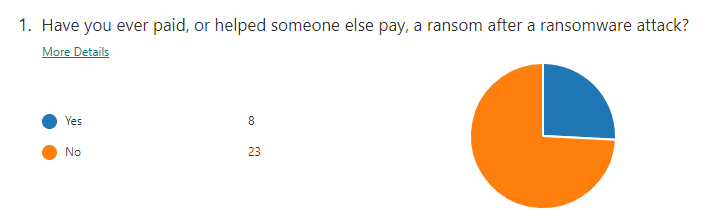
Do you feel things are changing too quickly with Microsoft 365?

which I greatly appreciate you thoughts here:

http://bit.ly/ciasurvey202010

You can view the results during the month here:

http://bit.ly/ciaresults202010

and I’ll post a summary at the end of the month here on the blog.

Please feel free to share this survey with as many people as you can so we can get better idea of there is too much change with Microsoft 365?

Modern Device Management with Microsoft 365 Business Premium–Part 8

Office 365 Mobile MDM – Modern Device Management with Microsoft 365 Business Premium–Part 1

Intune MDM – Modern Device Management with Microsoft 365 Business Premium – Part 2

Intune MAM – Modern Device Management with Microsoft 365 Business premium – Part 3

Endpoint Manager – Modern Device Management with Microsoft 365 Business Premium – Part 4

Baselines – Modern Device Management with Microsoft 365 Business Premium – Part 5

Deployment – Modern Device Management with Microsoft 365 Business Premium – Part 6

Autopilot admin – Modern Dev Management with Microsoft 365 Business Premium – Part 7

In the previous post I detailed Windows Autopilot from the administrator’s point of view. What does it look on the device side?

image

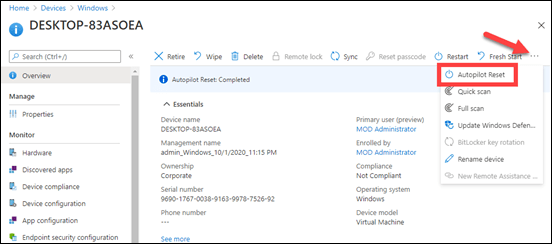
Just before the Autopilot Reset is selected in the EndPoint Manager portal as shown above, let me show you one quick configuration I’ve also done in Windows Hello for Business to make life that little bit easier.

image

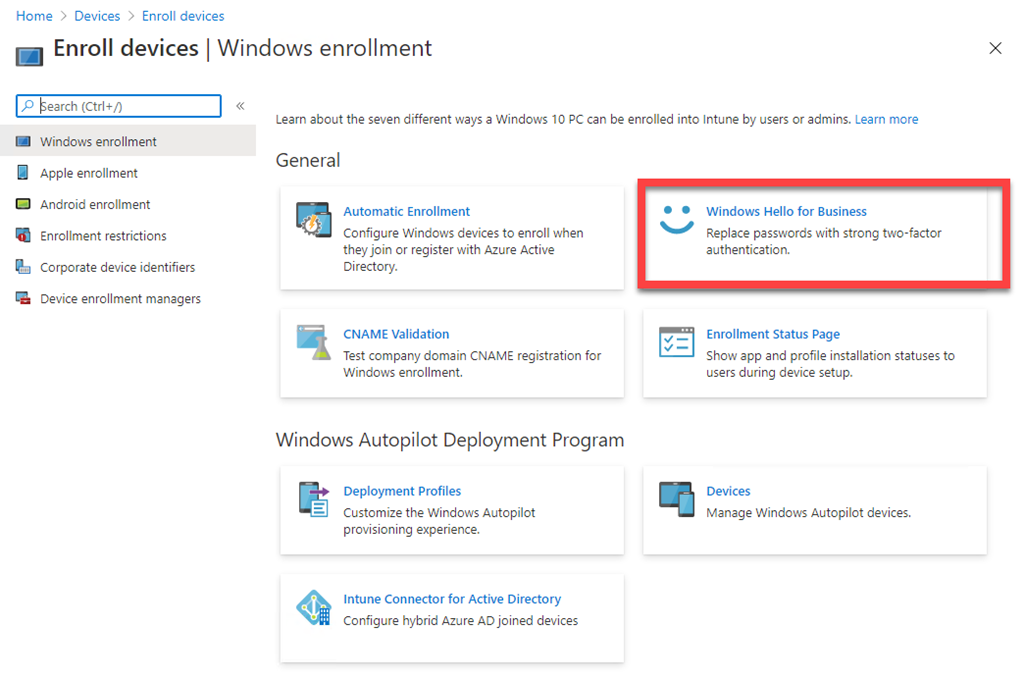
In Devices | Enroll Devices | Windows enrollment select Windows Hello for Business as shown above.

SNAGHTMLf86d2ee

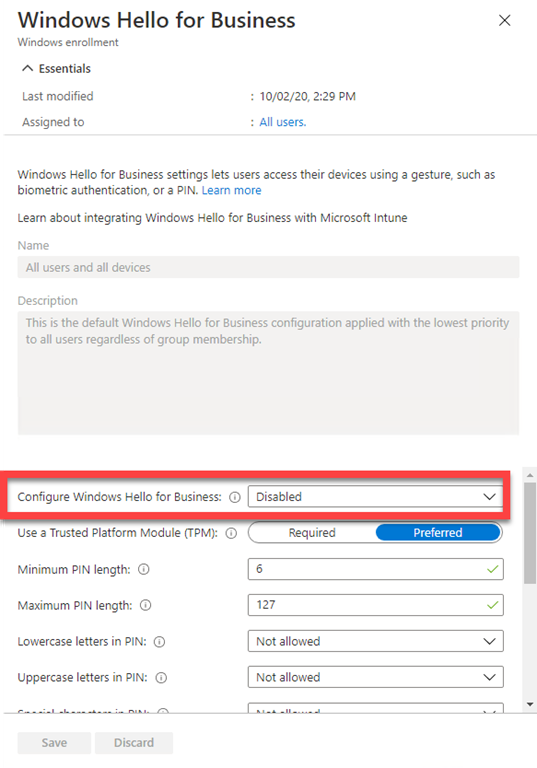
I have set the Configure Windows Hello for Business to be Disabled. Because I’m using a machine WITHOUT a TPM chip here (i.e. a Virtual Machine), it means that if Windows Hello for Business is enabled I’m going to need to go through the process of registering a device PIN. For now, to keep it as simple as possible, I want that Disabled.

Of course, I have also completed the Autopilot enrolment process and created an Autopilot device policy as detailed in the previous part in the series. Note, that a user has also already been assigned to this device. This means that the machine will be joined to Azure AD using this assigned user. That means they will not need to input their credentials during the process.

image

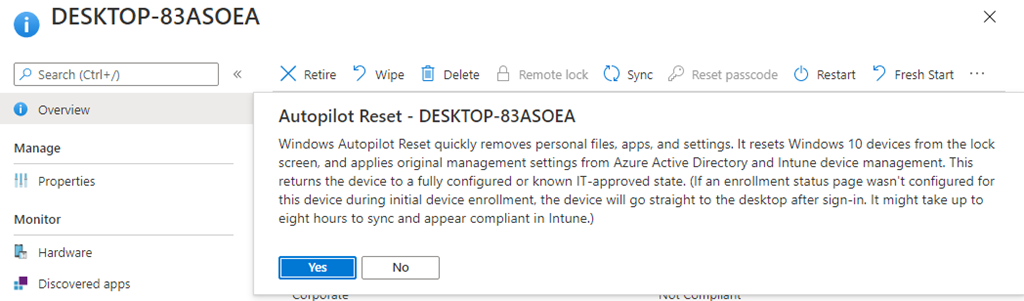
After selecting Autopilot Reset in Endpoint Manager I am asked to confirm the process as shown above. Take careful note here of what Autopilot does to that machine.

Select Yes to continue.

image

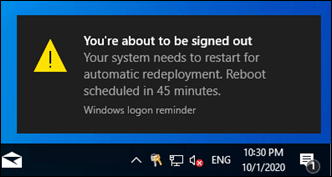
Once I select Autopilot Reset in Endpoint Manager, any active user will receive the above message that they have 45 minutes before the targeted machine is forcibly rebooted. I will fast track that process by manually rebooting the workstation to commence the Autopilot reset process.

image

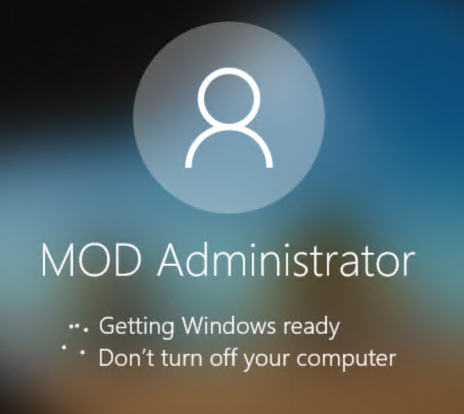
If the devices is at the lock screen you will see the above message when the Autopilot process commences.

image

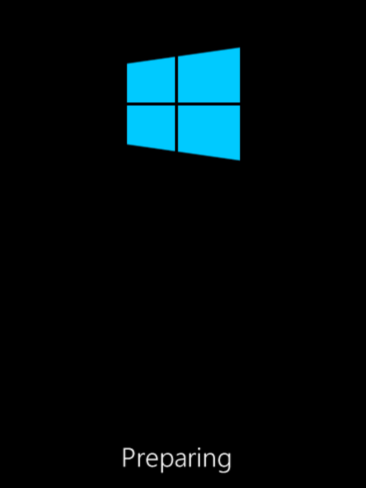
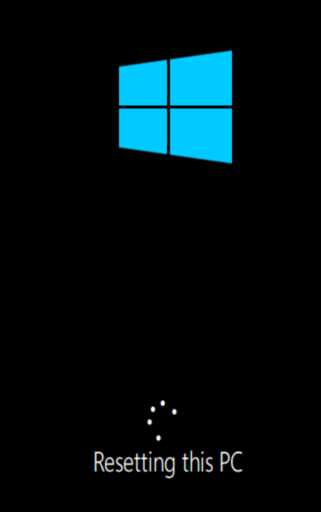
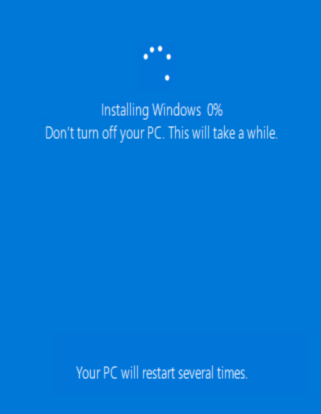
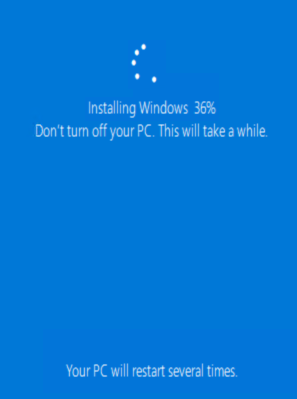
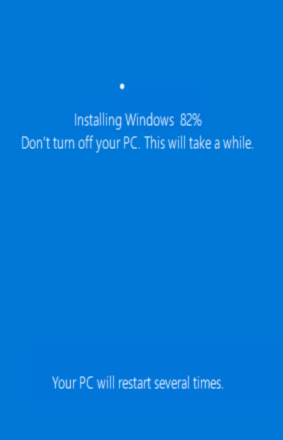
The workstation will then reboot and commence a Windows ‘refresh’ of the device, effectively doing a clean installation of Windows 10.

image

image

image

image

image

image

image

image

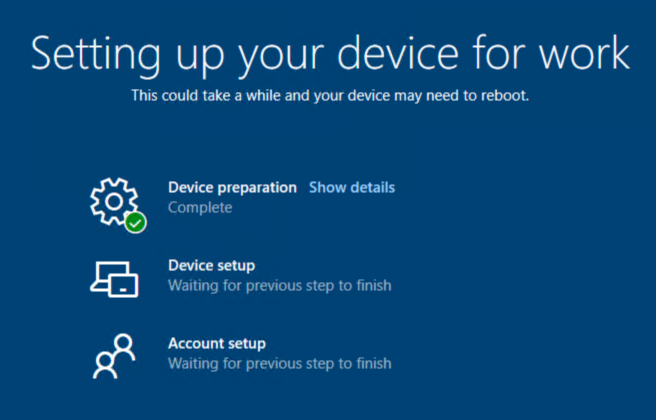
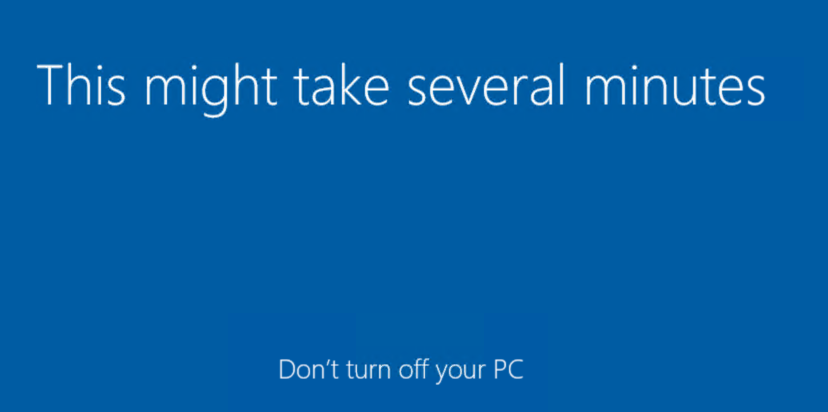
It will then complete the Autopilot configuration as seen above. You will note here that no user input is required. The reason for this is in Endpoint Manager a user has already been assigned to the device.

image

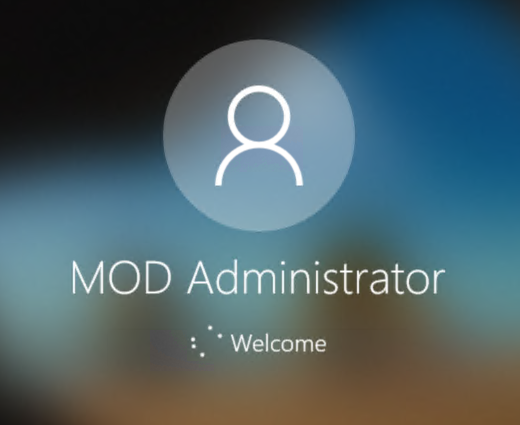
Not long after, you’ll will then end up with the ability to login to the workstation, as shown above.

image

image

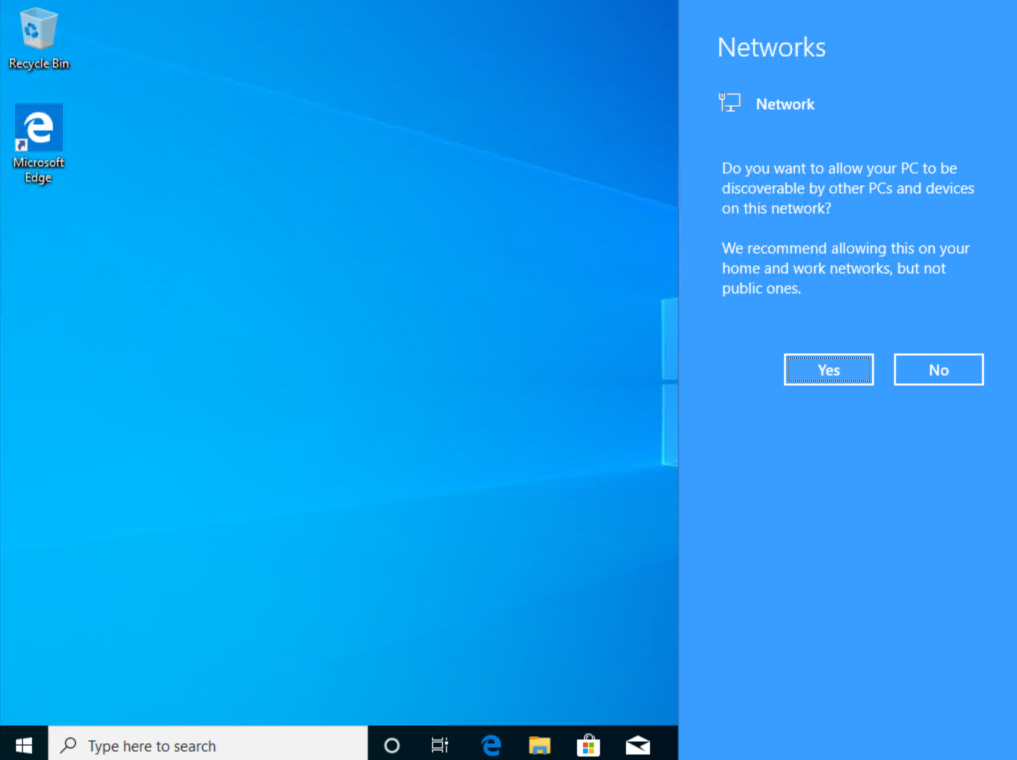
When you do, you’ll be taken through the normal first run Windows experience as shown above.

image

The standard desktop should appears and all the device policies, Intune, Endpoint Security, etc will commence application to the device. Thus, it is just like you did a manual device join to Azure AD but you DIDN’T! Autopilot did all the hard work for you!

This is an example of how easy modern device management cam make your life once you set it up. If there is a problem with a machine, don’t waste long hours troubleshooting! Do an Autopilot reset to get a fresh version with everything deployed and accessible from the cloud. Easy! Need to reprovision an existing machine for a new user? Autopilot Reset again. Easy! the list goes on and on for the benefits of Windows Autopilot.

Although not yet available, what would you say if the same Autopilot concept was coming to both iOS and Android? Roll on modern device management is what I would say.

Modern Device Management with Microsoft 365 Business Premium – Part 9

CIAOPS Need to Know Microsoft 365 Webinar–October

laptop-eyes-technology-computer

It’s about time we revisited what Microsoft Teams is all about and how to get the most from this major service in Microsoft 365. Join us for a deep dive into what Teams is and how to make the most from it in your business. I’ll warn you that it probably going to challenge the way you think about collaboration. There is also plenty of news that I’ll cover as well as open Q and A for any questions you may have.

You can register for the regular monthly webinar here:

October Webinar Registrations

The details are:

CIAOPS Need to Know Webinar – October 2020
Friday 30th of October 2020
11.00am – 12.00am Sydney Time

All sessions are recorded and posted to the CIAOPS Academy.

The CIAOPS Need to Know Webinars are free to attend but if you want to receive the recording of the session you need to sign up as a CIAOPS patron which you can do here:

http://www.ciaopspatron.com

or purchase them individually at:

http://www.ciaopsacademy.com/

Also feel free at any stage to email me directly via director@ciaops.com with your webinar topic suggestions.

I’d also appreciate you sharing information about this webinar with anyone you feel may benefit from the session and I look forward to seeing you there.

Need to Know podcast–Episode 255

FAQ podcasts are shorter and more focused on a particular topic. In this episode I speak about some automation options that are available in the Microsoft Cloud.

This episode was recorded using Microsoft Teams and produced with Camtasia 2020

Take a listen and let us know what you think – feedback@needtoknow.cloud

You can listen directly to this episode at:

https://ciaops.podbean.com/e/episode-255-modern-device-management/

Subscribe via iTunes at:

https://itunes.apple.com/au/podcast/ciaops-need-to-know-podcasts/id406891445?mt=2

The podcast is also available on Stitcher at:

http://www.stitcher.com/podcast/ciaops/need-to-know-podcast?refid=stpr

Don’t forget to give the show a rating as well as send us any feedback or suggestions you may have for the show.

Resources

FAQ 17

Modern Device Management – Part 1

CIAOPS Patron Community

@directorcia