This is a follow to my article:
Talent versus Skill
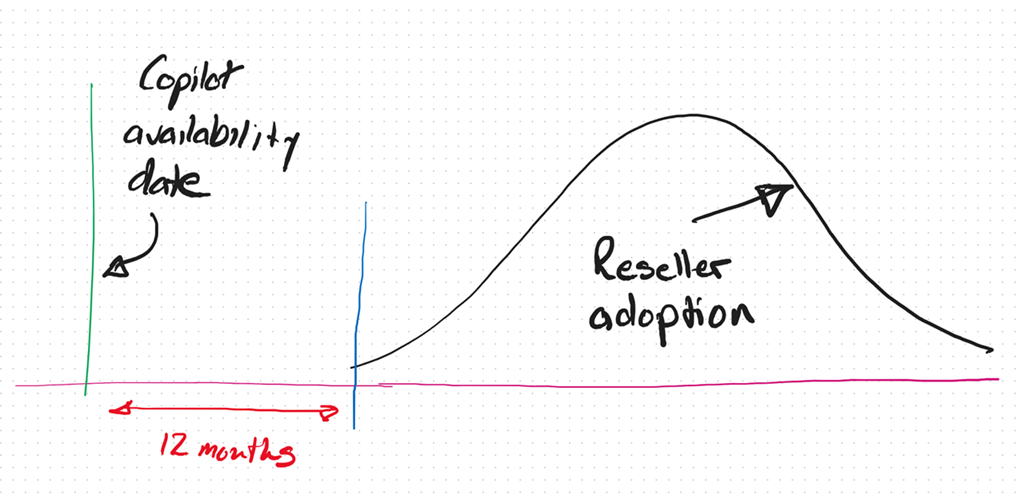
As we now approach the 12 month anniversary of when Microsoft 365 Coplot was available widely in SMB (16 January 2024), I thought I’d reflect on what I see in the market.
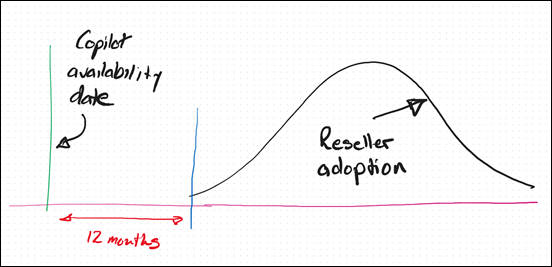
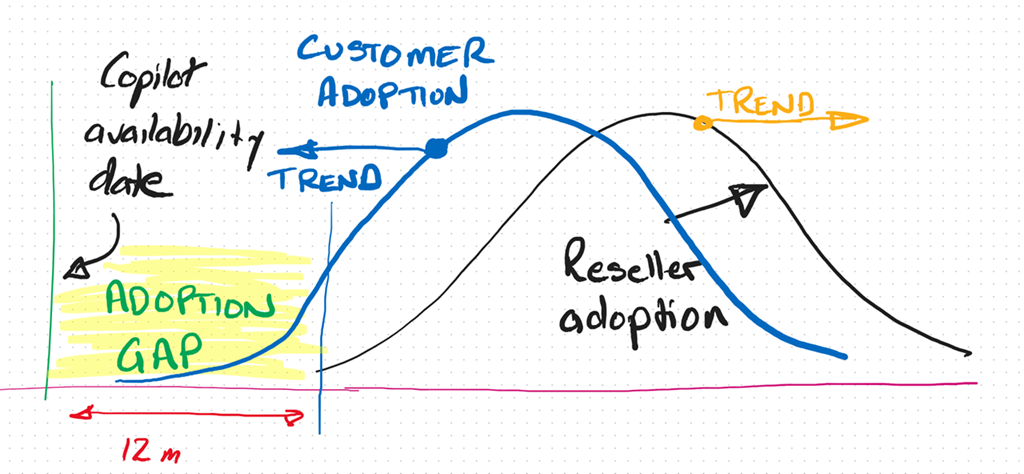
It is my experience that only now, 12 months after the release of Microsoft 365 Copilot, are the most progressive resellers and MSPs orientating themselves to understand and make AI part of their business and what they offer to their customers. This means even the most progressive are already at least 12 months behind.
As I have said previously, I see the reaction to Ai from SMB IT Professionals and MSPs much like what happened with the move to the cloud. In short, that cynicism at best and denial at worst, seems to have again reappeared.
If you simply look at the business opportunity presented by AI it is hard for me to grasp why more IT Professionals and MSPs are not taking advantage of this unique opportunity for their business.
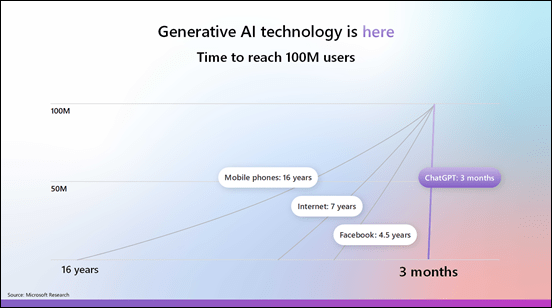
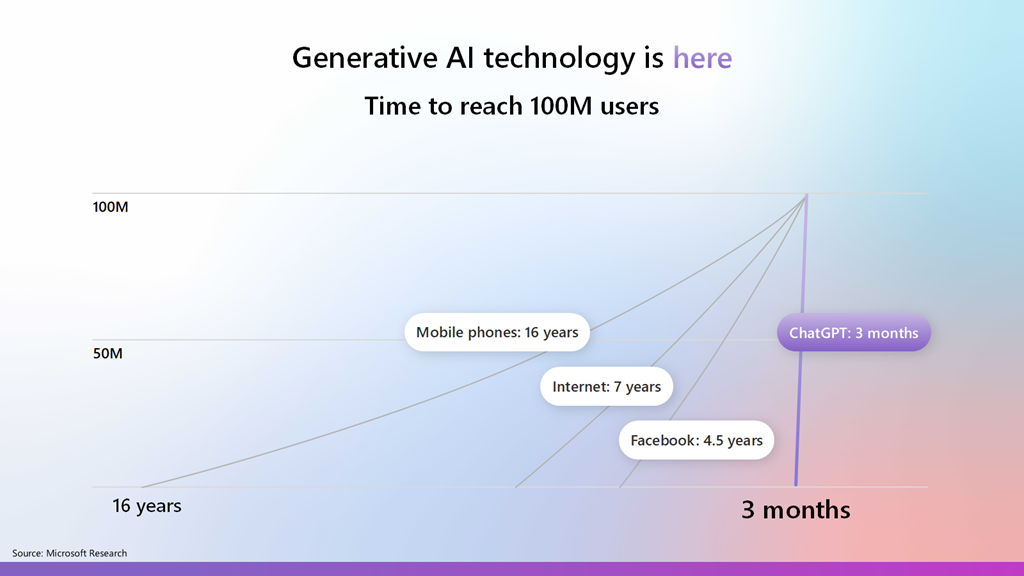
Most commentators agree that AI is one of the fastest adopted technologies in history and is now widely in use by individuals and business, because it part it is so easy to use. This explosive growth and penetration represents business opportunity that many IT Professionals and MSPs are well positioned to take advantage of, yet there seems to a hesitancy like there was moving to the cloud.
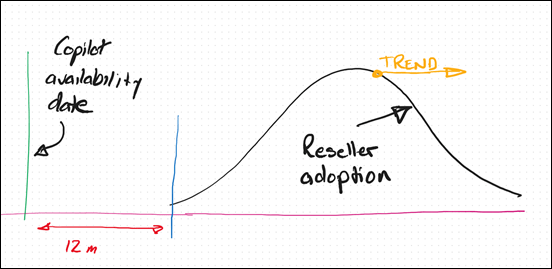
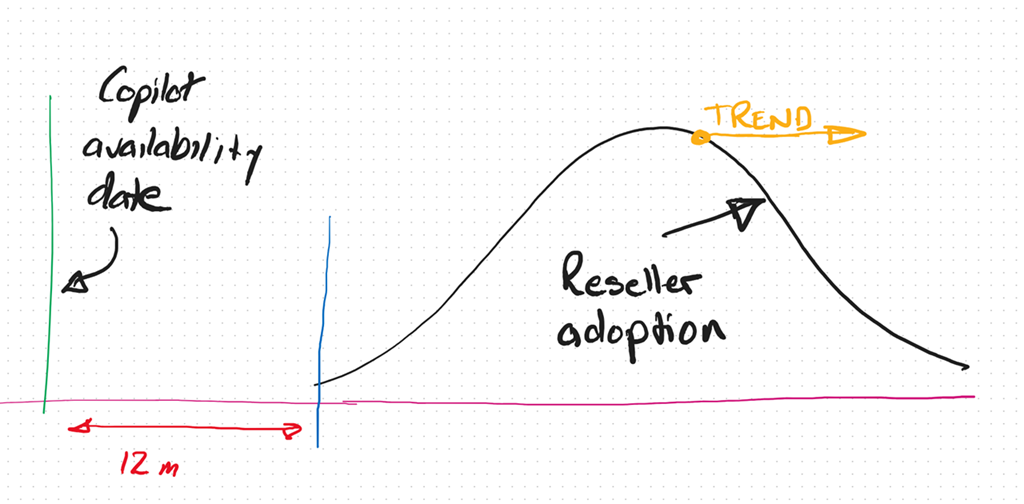
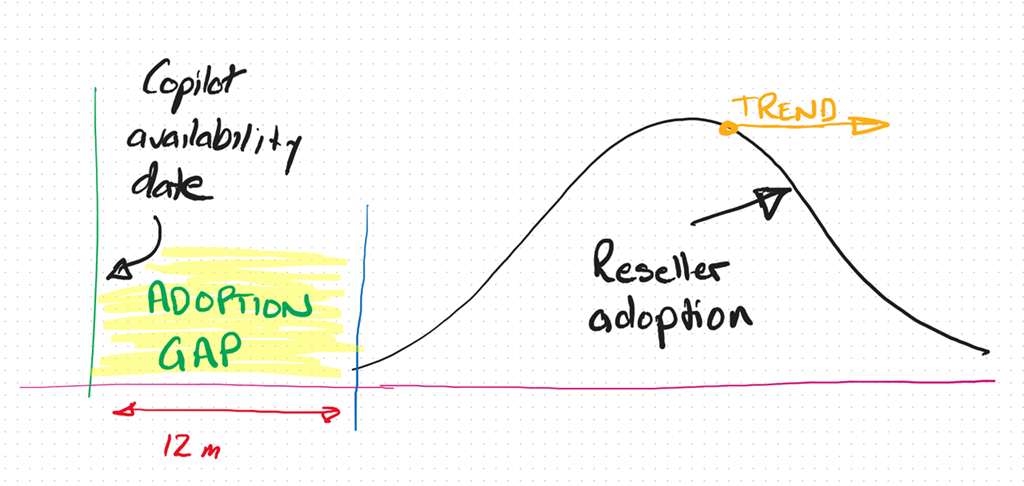
In fact, I see the IT Professional and MSP adoption curve with AI trending more and more away from adoption and integration into their businesses. To be brutally honest, the peak in that Reseller adoption curve, in my books, is at least 3 – 5 years behind already.

Thus, the adoption gap continues to increase. So too the opportunity.
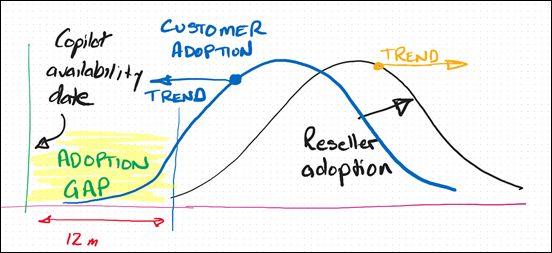
Alternatively, if you look at the customer trends, you find they are adopting AI much faster and looking to integrate into their business to remain competitive. The net result is that customers and their IT providers are trending in opposite directions when it comes to adopting AI from what I see.
Any new technology requires re-tooling and an investment in knowledge. Both of these don’t magically just appear inside a business or an individual, they require a dedicated approach to integrating these as well as some work. From what I see, customers are prepared to do this work because they see the business benefits but most IT Providers don’t. To me, that represents a huge risk that many incumbent IT providers wil miss out on the opportunity that the AI wave presents. The worst case scenario is that customers will ‘do it themselves’ with any need of an IT Provider.
At its core I believe the mismatch I’m seeing is the result of the incumbent MSP model being ‘reactive’. That is, waiting until something breaks and then fix it. It is like the fire brigade that waits until the bell rings and then goes to put out the fire. I think we are shifting to work where more consideration has to be given to a proactive approach to solving business needs before they arise rather than waiting for them to happen and reacting. To many technology providers AI represents something that will ‘break’ the status quo and that is not something they desire.
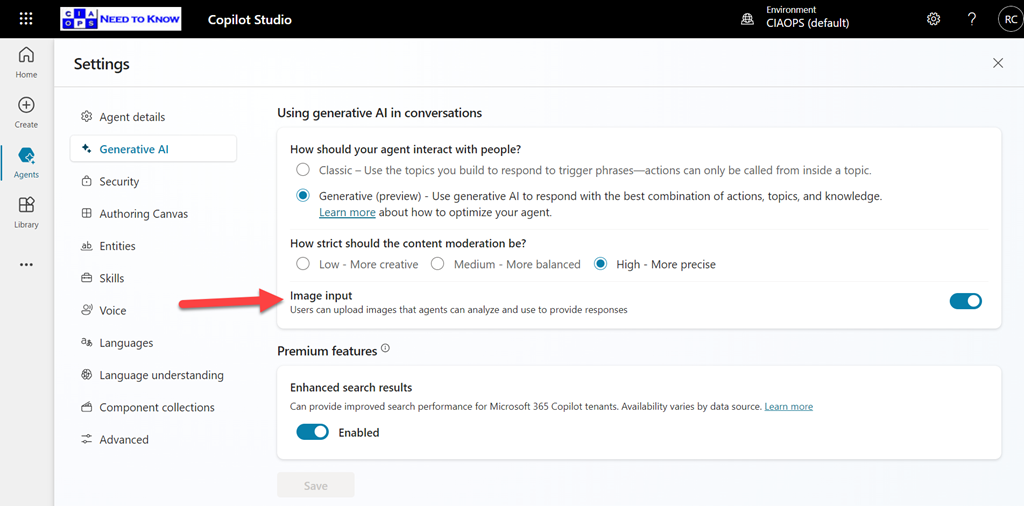
A reactive business I would suggest is not appropriate in the age of AI. Why? Because Ai doesn’t break, doesn’t need configuring, doesn’t require on going maintenance, password resets, etc. The age of AI is all about software and creators not mechanics as most IT Providers are. The reality now is that you don’t need to be an ‘expert’ in your field, even when it comes technology. Many people, when augmented with Ai can perform a lot more tasks and topics than they ever could. The agent that I have built with Copilot Studio and publish into Teams to answer technical questions continues to amaze me daily with the quality of answers while reducing my need to do that manually. Why hasn’t every MSP implemented something like that in their business already? The tools are there to get more value from the knowledge in their business, make their lives easier and business more profitable.
Another factor I see is one of demographics. Most small MSPs are run by what you might euphemistically call ‘industry veterans’, meaning they have been doing what they do for a long time. This ‘time in business’ tends towards an inertia and a hesitancy to embrace or enthusiastically embrace change. The pace of technology change is increasing, not decreasing and that requires adaptation to the ever changing environment. This will always be challenging when the trend is to inertia.
A common approach with many SMB IT Providers is their belief that they have to do it all. Whether than belief comes from a desire for revenue or fear of competition, it is not something that is really possible in today’s diverse environment. Like ever other business, an IT provider runs a BUSINESS and the primary goal of any business is to make a profit to provide the freedom to grow, enjoy, help others, etc. Any business needs to make business decisions about what they do to generate revenue in their business. Sometimes, these business decisions are not easy. Generally, these decisions will also involve some form of risk. But, they need to be made for the business to succeed.
The simplest metric for making these decisions is profit. Will this decision generate my business more profit than this decision? Is the question du jour. This undoubtably means leaving somethings on the tables as well as abandoning others as time changes. To wit:
“You can’t do today’s job with yesterday’s methods and be in business tomorrow” – George W. Bush
The position that any business (or individual) is in today is a product of the choices they have made over time. Future success, thus, will also be a product of choices made now and into the future. All decisions come with a cost, the best choice for a business is the one which has the least risk and most profit opportunity?
Over many years, and having been through a few new technology cycles, I have learned that sometimes you can lead a horse to water but you can’t make them drink. Sometimes, inertia is too powerful and change doesn’t happen no matter how much you try. A better use of effort is with those that want the opportunity change brings. The good news for those select few is that, thanks to inertia, your competition is much smaller than it probably is in existing business models.
I am not suggesting that you throw the baby out with the bathwater here when it comes to AI and wholesale abandon business models that are currently profitable. What I am suggesting is to look to the future and see where the ‘ball is going’ and be there to meet it. Today, that only takes a small investment but overtime that investment will become larger and larger just to get onboard. As have highlighted with something like Bitcoin, a small investment early would today reap substantial rewards. You would never go all in, but a few hundred dollars back in the early days when most people scoffed at blockchain technology would certain see you having the last laugh now.
This AI stuff is, by all accounts, moving faster than any previous technology, which means the risks of getting left behind are much greater. It seems clear that Ai is going to have a major impact in all businesses, including small business. All businesses are looking to skilled providers to assist them with understanding and adopting AI. The good news I see for the very few SMB IT providers who ‘get’ Ai and integrating it into their business, is that there little competition now and into the foreseeable future. In an environment with increasing demand your chances of profitability are extremely high. It just takes a small amount of effort to overcome the effects of inertia and ride the coat tails of what certainly will be the next great wave in technology.