How effective is enabling Windows Attack Surface Reduction in preventing a Windows device from Malware?

image

Enabling Windows Attack Surface Reduction (ASR) rules is **highly effective** in preventing a Windows device from many common types of malware and attack techniques. It’s a crucial component of a defense-in-depth strategy.

However, it’s not a silver bullet and its effectiveness depends on several factors.

Here’s a breakdown of its effectiveness:

How ASR Works and Why It’s Effective:

  1. Targets Common Attack Vectors: ASR rules are specifically designed to block behaviors commonly used by malware to infect machines and execute malicious code. This includes:

    • Office Application Abuse: Blocking Office apps from creating executable content, injecting into other processes, creating child processes, or running macros deemed malicious.

    • Script-Based Attacks: Blocking obfuscated scripts (JavaScript, VBScript, PowerShell), or scripts that download/run payloads.

    • Email-Based Threats: Blocking executable content from email clients and webmail.

    • Exploitation Techniques: Preventing credential stealing (e.g., from LSASS), process hollowing, or unsigned/untrusted executables from running from USB drives.

    • Ransomware Behaviors: Some rules can help mitigate common ransomware tactics.
  2. Pre-Execution and Early-Execution Prevention: Many ASR rules intervene before malware fully executes or early in its execution chain, stopping the attack before significant damage occurs. This is more proactive than relying solely on detection of already-running malware.

  3. Reduces Reliance on Signatures: While traditional AV relies heavily on signatures for known malware, ASR focuses on behaviors. This makes it more effective against new or polymorphic malware that might not have a signature yet.

  4. Complements Antivirus: ASR works alongside Microsoft Defender Antivirus (or other AV solutions) and Endpoint Detection and Response (EDR) solutions like Microsoft Defender for Endpoint. It adds an extra layer of proactive defense.

Factors Influencing Effectiveness:

  1. Which Rules Are Enabled: There are many ASR rules. Not all may be suitable for every environment. Enabling more relevant rules increases protection. Some key high-impact rules include:

    • Block Office applications from creating child processes.

    • Block Adobe Reader from creating child processes.

    • Block execution of potentially obfuscated scripts.

    • Block credential stealing from the Windows local security authority subsystem (lsass.exe).

    • Block executable content from email client and webmail.
  2. Mode of Operation (Audit vs. Block):

    • Audit Mode: Logs what would have been blocked. Essential for testing and identifying potential legitimate application conflicts (false positives) before enabling block mode. Provides visibility but no active prevention.

    • Block Mode: Actively prevents the flagged behaviors. This is where the true preventative power lies.
  3. Exclusions: Properly configured exclusions are necessary for legitimate applications that might otherwise trigger ASR rules. Overly broad exclusions can reduce effectiveness.

  4. Configuration and Management: Consistent deployment and management (e.g., via Group Policy, Intune, MEMCM) ensure all devices are protected.

  5. Attacker Sophistication: While ASR stops many common TTPs (Tactics, Techniques, and Procedures), highly sophisticated attackers might find novel ways to bypass specific rules or use techniques not covered by ASR.

  6. Keeping Systems Updated: Microsoft continually updates ASR rules and the underlying Defender platform to address new threats and improve detection logic.

Limitations:

  • False Positives: The primary challenge. Some legitimate applications, especially older or custom-developed ones, might exhibit behaviors that trigger ASR rules. Thorough testing in audit mode is crucial.

  • Not a Complete Solution: ASR doesn’t cover every conceivable attack vector. It won’t stop zero-day exploits against unpatched vulnerabilities if the exploit doesn’t trigger a specific ASR rule behavior.

  • User Experience: If not carefully tuned, blocking legitimate actions can frustrate users.

Conclusion:

Enabling Windows Attack Surface Reduction rules is a very effective proactive measure to significantly reduce the likelihood of malware infection from common attack vectors. It raises the bar for attackers, forcing them to use less common or more sophisticated techniques.

For maximum effectiveness:

  • Start in Audit Mode: Understand the impact on your environment.

  • Gradually Enable Rules in Block Mode: Prioritize rules that block high-risk behaviors with low potential for false positives first.

  • Monitor and Tune: Continuously review ASR logs and adjust exclusions as needed.

  • Use in Conjunction with Other Security Layers: ASR should be part of a comprehensive security strategy that includes antivirus, EDR, firewalls, patching, and user education.

When implemented thoughtfully, ASR is a powerful, built-in tool that provides a substantial boost to Windows endpoint security.

Check Windows Attack Surface Reduction (ASR) enablement

Windows Attack Surface Reduction (ASR) is an excellent method to improve the security of your Windows devices for free. It is not generally enabled by default and my free script here:

https://github.com/directorcia/Office365/blob/master/win10-asr-get.ps1

enables you to quickly see whether all the ASR rules are enabled for your Windows device.

The script also has other reference links you can use if you then wish to enable ASR in your environment. Always be careful enabling something like this without at least putting it in audit mode first to determine any impact in your production environment.

The video run through above and here:

https://www.youtube.com/watch?v=1KLGsNuz088

hopefully give you a better idea about what the script can accomplish for you.

Block applications on Windows devices using Intune

This series of posts is an approach to implementing Intune inside a business. So far, I have covered off:

1. Create compliance policies and update devices to be compliant

2. Implement LAPS to control the local device admin account that cannot be deleted

3. Remove all other accounts from local administrator group on devices

4. Setting the default search engine in Edge with Intune

5. Managing browser extensions in Edge with Intune

6. Setting an Edge Security Baseline with Intune

7. Setting an individual Attack Surface Reduction (ASR) rule in Intune

8. Setting Edge as the default browser using Intune

Now that we have Microsoft Edge all set up and have done as much as we can to encourage people to shift away from using other browsers, it’s now time block any other browsing options.  We can again use Intune to achieve this and, typically, it can be done using a number of different methods. Here, we’ll use what I consider the easiest method.

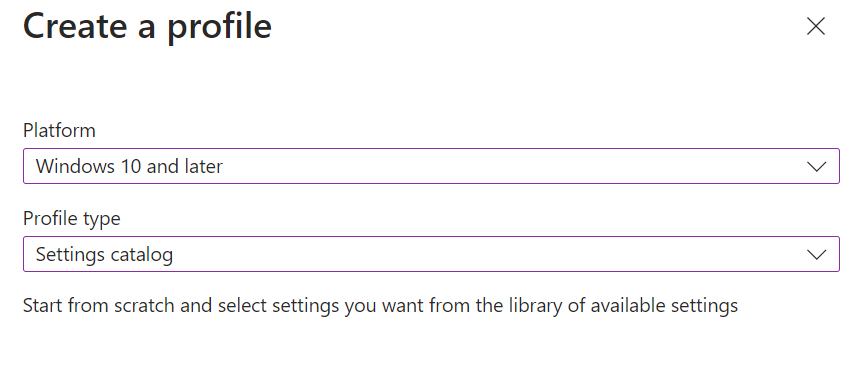
Once again, create a Configuration profile for Windows 10 and later using the Settings catalog as shown above.

Give the policy a suitable name and continue.

image

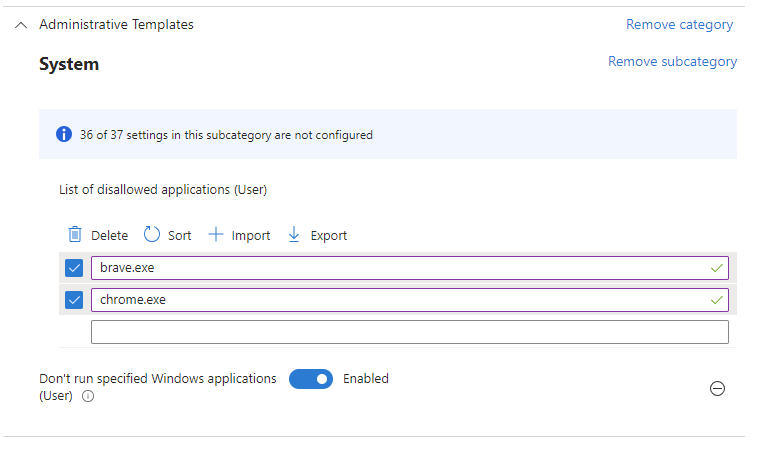
In the search field type ‘specified windows application’ and select Search. The only category that appears should be Administrative Templates\System, which you should select. Then in the lower pane select Don’t run specified Windows applications (User) as shown above.

image

Enable the Don’t run specified Windows applications (User) and then enter the name of the applications you do not wish to run. Here, we’ll block chrome.exe and brave.exe as shown above.

These settings are covered in the RestrictApps documentation in which you will note:

1. The setting applies to users not devices:

image

and

2. This policy setting only prevents users from running programs that are started by the File Explorer process. It doesn’t prevent users from running programs such as Task Manager, which are started by the system process or by other processes. Also, if users have access to the command prompt (Cmd.exe), this policy setting doesn’t prevent them from starting programs in the command window even though they would be prevented from doing so using File Explorer.

3. Blocking occurs by filename only. If users can rename the file then it will execute.

As mentioned previously, this is but the simplest method to block existing applications from running. Other options are available if you wish a more comprehensive blocking approach.

Finish configuring the policy remembering to assign it to a user NOT device group.

image

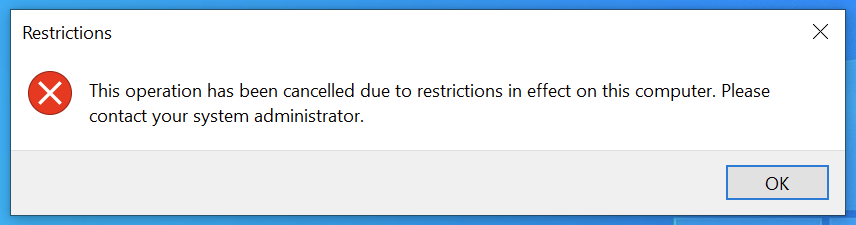
Once the policy has been deployed to your fleet and these machines have been rebooted, when a user tried to run an application that you have specified as block in the policy they will receive message like that shown above.

The good thing about this policy is that you can easily extend it to include any other applications you don’t users to run on their Windows devices.

Setting Edge as the default browser using Intune

This series of posts is an approach to implementing Intune inside a business. So far, I have covered off:

1. Create compliance policies and update devices to be compliant

2. Implement LAPS to control the local device admin account that cannot be deleted

3. Remove all other accounts from local administrator group on devices

4. Setting the default search engine in Edge with Intune

5. Managing browser extensions in Edge with Intune

6. Setting an Edge Security Baseline with Intune

7. Setting an individual Attack Surface Reduction (ASR) rule in Intune

Now that Microsoft Edge has been secured in the environment, the next task will be to set Microsoft Edge as the default browser. There are number of ways of achieving this, but I’ll use the more modern Intune Settings catalog approach.

The first step in the process is to take a machine that already has Microsoft Edge configured as the default browser app and run the command:

dism /online /export-defaultappassociations:edgedefault.xml

This will produce an XML with all the application defaults for that device.

If you just want to configure Microsoft Edge as the default browser you’ll need to edit the XML file until it looks something like this:

<?xml version=”1.0″ encoding=”UTF-8″?>
<DefaultAssociations>
     <Association Identifier=”.htm” ProgId=”MSEdgeHTM” ApplicationName=”Microsoft Edge” />
     <Association Identifier=”.html” ProgId=”MSEdgeHTM” ApplicationName=”Microsoft Edge” />
     <Association Identifier=”.mht” ProgId=”MSEdgeMHT” ApplicationName=”Microsoft Edge” />
     <Association Identifier=”.mhtml” ProgId=”MSEdgeMHT” ApplicationName=”Microsoft Edge” />
     <Association Identifier=”.pdf” ProgId=”MSEdgePDF” ApplicationName=”Microsoft Edge” />
     <Association Identifier=”.svg” ProgId=”MSEdgeHTM” ApplicationName=”Microsoft Edge” />
     <Association Identifier=”.xht” ProgId=”MSEdgeHTM” ApplicationName=”Microsoft Edge” />
     <Association Identifier=”.xhtml” ProgId=”MSEdgeHTM” ApplicationName=”Microsoft Edge” />
     <Association Identifier=”ftp” ProgId=”MSEdgeHTM” ApplicationName=”Microsoft Edge” />
     <Association Identifier=”http” ProgId=”MSEdgeHTM” ApplicationName=”Microsoft Edge” />
     <Association Identifier=”https” ProgId=”MSEdgeHTM” ApplicationName=”Microsoft Edge” />
     <Association Identifier=”microsoft-edge” ProgId=”MSEdgeHTM” ApplicationName=”Microsoft Edge” />
     <Association Identifier=”microsoft-edge-holographic” ProgId=”MSEdgeHTM” ApplicationName=”Microsoft Edge” />
     <Association Identifier=”ms-xbl-3d8b930f” ProgId=”MSEdgeHTM” ApplicationName=”Microsoft Edge” />
     <Association Identifier=”read” ProgId=”MSEdgeHTM” ApplicationName=”Microsoft Edge” />
</DefaultAssociations>

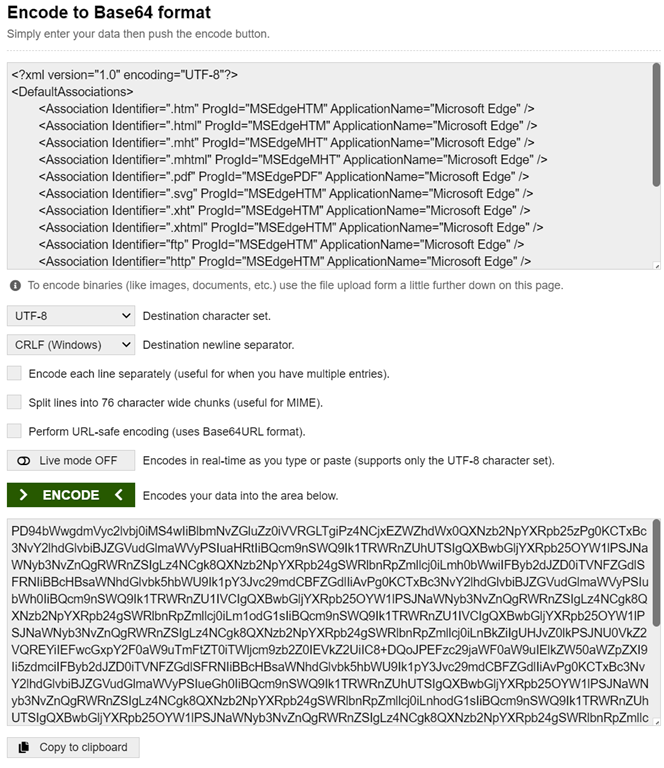
Next, you’ll need to convert that XML file to a base64 file for us an Intune policy. You can do that using the following site:

https://www.base64encode.org/

image

The output from this conversion should look like this:

PD94bWwgdmVyc2lvbj0iMS4wIiBlbmNvZGluZz0iVVRGLTgiPz4NCjxEZWZhdWx0QXNzb2NpYXRpb25zPg0KCTxBc3NvY2lhdGlvbiBJZGVudGlmaWVyPSIuaHRtIiBQcm9nSWQ9Ik1TRWRnZUhUTSIgQXBwbGljYXRpb25OYW1lPSJNaWNyb3NvZnQgRWRnZSIgLz4NCgk8QXNzb2NpYXRpb24gSWRlbnRpZmllcj0iLmh0bWwiIFByb2dJZD0iTVNFZGdlSFRNIiBBcHBsaWNhdGlvbk5hbWU9Ik1pY3Jvc29mdCBFZGdlIiAvPg0KCTxBc3NvY2lhdGlvbiBJZGVudGlmaWVyPSIubWh0IiBQcm9nSWQ9Ik1TRWRnZU1IVCIgQXBwbGljYXRpb25OYW1lPSJNaWNyb3NvZnQgRWRnZSIgLz4NCgk8QXNzb2NpYXRpb24gSWRlbnRpZmllcj0iLm1odG1sIiBQcm9nSWQ9Ik1TRWRnZU1IVCIgQXBwbGljYXRpb25OYW1lPSJNaWNyb3NvZnQgRWRnZSIgLz4NCgk8QXNzb2NpYXRpb24gSWRlbnRpZmllcj0iLnBkZiIgUHJvZ0lkPSJNU0VkZ2VQREYiIEFwcGxpY2F0aW9uTmFtZT0iTWljcm9zb2Z0IEVkZ2UiIC8+DQoJPEFzc29jaWF0aW9uIElkZW50aWZpZXI9Ii5zdmciIFByb2dJZD0iTVNFZGdlSFRNIiBBcHBsaWNhdGlvbk5hbWU9Ik1pY3Jvc29mdCBFZGdlIiAvPg0KCTxBc3NvY2lhdGlvbiBJZGVudGlmaWVyPSIueGh0IiBQcm9nSWQ9Ik1TRWRnZUhUTSIgQXBwbGljYXRpb25OYW1lPSJNaWNyb3NvZnQgRWRnZSIgLz4NCgk8QXNzb2NpYXRpb24gSWRlbnRpZmllcj0iLnhodG1sIiBQcm9nSWQ9Ik1TRWRnZUhUTSIgQXBwbGljYXRpb25OYW1lPSJNaWNyb3NvZnQgRWRnZSIgLz4NCgk8QXNzb2NpYXRpb24gSWRlbnRpZmllcj0iZnRwIiBQcm9nSWQ9Ik1TRWRnZUhUTSIgQXBwbGljYXRpb25OYW1lPSJNaWNyb3NvZnQgRWRnZSIgLz4NCgk8QXNzb2NpYXRpb24gSWRlbnRpZmllcj0iaHR0cCIgUHJvZ0lkPSJNU0VkZ2VIVE0iIEFwcGxpY2F0aW9uTmFtZT0iTWljcm9zb2Z0IEVkZ2UiIC8+DQoJPEFzc29jaWF0aW9uIElkZW50aWZpZXI9Imh0dHBzIiBQcm9nSWQ9Ik1TRWRnZUhUTSIgQXBwbGljYXRpb25OYW1lPSJNaWNyb3NvZnQgRWRnZSIgLz4NCgk8QXNzb2NpYXRpb24gSWRlbnRpZmllcj0ibWljcm9zb2Z0LWVkZ2UiIFByb2dJZD0iTVNFZGdlSFRNIiBBcHBsaWNhdGlvbk5hbWU9Ik1pY3Jvc29mdCBFZGdlIiAvPg0KCTxBc3NvY2lhdGlvbiBJZGVudGlmaWVyPSJtaWNyb3NvZnQtZWRnZS1ob2xvZ3JhcGhpYyIgUHJvZ0lkPSJNU0VkZ2VIVE0iIEFwcGxpY2F0aW9uTmFtZT0iTWljcm9zb2Z0IEVkZ2UiIC8+DQoJPEFzc29jaWF0aW9uIElkZW50aWZpZXI9Im1zLXhibC0zZDhiOTMwZiIgUHJvZ0lkPSJNU0VkZ2VIVE0iIEFwcGxpY2F0aW9uTmFtZT0iTWljcm9zb2Z0IEVkZ2UiIC8+DQoJPEFzc29jaWF0aW9uIElkZW50aWZpZXI9InJlYWQiIFByb2dJZD0iTVNFZGdlSFRNIiBBcHBsaWNhdGlvbk5hbWU9Ik1pY3Jvc29mdCBFZGdlIiAvPg0KPC9EZWZhdWx0QXNzb2NpYXRpb25zPg==

In the Intune console, create a new Device Configuration profile using the Settings Catalog:

image

Give the new policy a meaningful name and continue.

image

In the Settings picker search for applications and then select Application defaults and then Default Associations Configuration in the results as shown above.

image

Into the option Default Associations Configuration paste a copy of the base64 file you created from the original XML.

Complete the policy by assigning it to a group of devices NOT users. This is because the Policy CSP – ApplicationDefaults is only scoped to devices per:

image

This may mean you need to create a different Edge configuration policy from the one created in previous steps, if that policy was assigned to users.

When the policy has been deployed from Intune, and the device rebooted, Microsoft Edge will be the default browser for the device.

image

Of course, the user can still change the default back but they will need to do that after every reboot. In the future, you’d create a policy to prevent that, but for now, if the user is that desperate for their old browser they can swap. However, the next policy I’ll cover will show you how to stop other browsers (or any other application) from running on Windows devices.

Windows Phone link is cool

image

I’ve been using Windows Phone Link for a while now. Only recently did I dedicate the time to get it fully operational! I now wish I had done this earlier.

Bringing my mobile phone functionality onto my desktop is a huge productivity bonus I am now finding. My favourite feature that I only recently discovered is that I can make and receive phone calls via my desktop. Huge!

Not only can you make and receive phone calls you can also view your text messages. How many times have I needed to copy and paste something between a PC and my phone? Typically, I’d use email but now I don’t need to do that since all the functionality is available to me on a device with a full keyboard that I can use with my fat fingers. Means I don’t have to change devices to deal with what comes in on the phone.

Windows Phone Link has some requirements, most obvious is that it only works with Windows 11. You’ll also need to use Bluetooth to pair the devices. It’ll also work with iPhones and Android devices. Android has a little more functionality at this stage it seems but I use it with an iPhone and now wouldn’t be without it.

If you haven’t checked out Microsoft Phone Link then I suggest you do because it has been a great productivity booster for me.

Need to Know podcast–Episode 304

Join me for the latest news and updates from the Microsoft Cloud and then a look at Application Control and how you consider implementing it.

This episode was recorded using Microsoft Teams and produced with Camtasia 2023.

You can listen directly to this episode at:

https://ciaops.podbean.com/e/episode-304-application-control/

Subscribe via iTunes at:

https://itunes.apple.com/au/podcast/ciaops-need-to-know-podcasts/id406891445?mt=2

The podcast is also available on Stitcher at:

http://www.stitcher.com/podcast/ciaops/need-to-know-podcast?refid=stpr

Don’t forget to give the show a rating as well as send me any feedback or suggestions you may have for the show

Brought to you by www.ciaopspatron.com

Resources

@directorcia

@directorcia@twit.social

Join my shared channel

CIAOPS merch store

Become a CIAOPS Patron

CIAOPS Blog

New CIAOPS Power Automate course

Device actions during an incident

CIAOPS June Need to Know webinar

New Microsoft 365 apps security baseline profile and updates to the Microsoft Edge baseline

Update to Microsoft Intune PowerShell example script repository on GitHub

Detecting and mitigating a multi-stage AiTM phishing and BEC campaign

SharePoint roadmap pitstop: May 2023

Increasing Transparency into Azure Active Directory’s Resilience Model

Microsoft 365 Lighthouse provides deployment insights across all tenants on a single pane of glass

ITDR with Microsoft: Identity threat-level detections and automatic attack response

XDR meets IAM: Comprehensive identity threat detection and response with Microsoft

Conditional Access authentication strength is now Generally Available!

AppLocker vs WDAC

Windows AppLocker basics

Basics of deploying Windows AppLocker using Intune

Windows Defender Application Control (WDAC) Basics

Basics of deploying Windows Defender Application Control (WDAC) using Intune

WDAC basics

Microsoft recommended block rules

Microsoft recommended drive block rules

Blocking Command Prompt on Windows with an Intune Device Configuration profile

This article shows you how to use Intune to block the Command Prompt on Windows devices using a Configuration profile.

Navigate to https://endpoint.microsoft.com and select Device from the menu on the left as shown above.

Then, select Windows on the right.

Select Configuration profiles from the menu on the left as shown.

image

Select Create profile.

Then select the Platform as Windows 10 and later.

Select the Profile type as Templates.

From the list of templates select Custom.

Select Create in the bottom right.

image

Give the policy a name and select Next to continue.

image

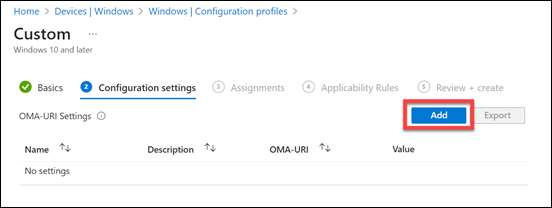
Select Add.

image

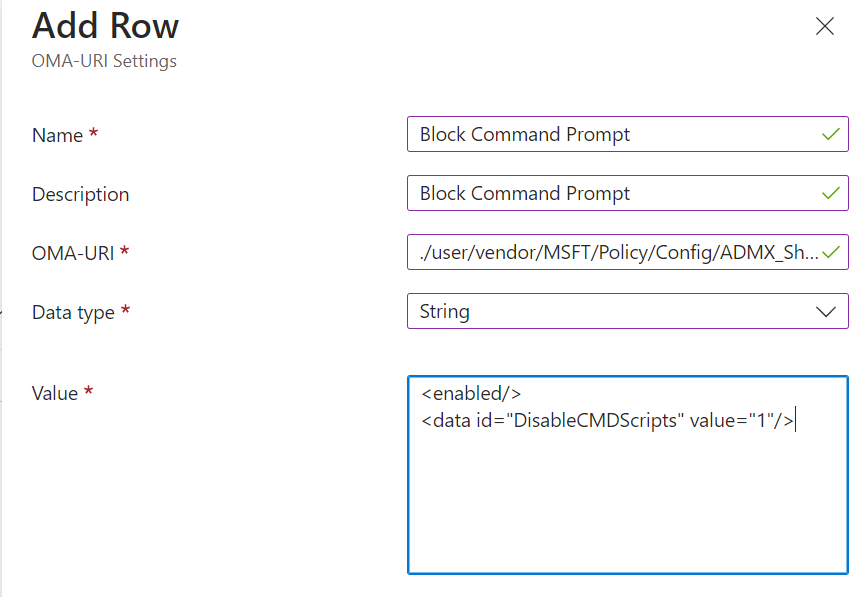
In the OMA-URI settings enter the following as shown above:

Name = Block Command Prompt

Description = Block Command Prompt

OMA-URI = ./user/vendor/MSFT/Policy/Config/ADMX_ShellCommandpromptRegeditTools/DisableCMD

Data type = String

Value =
<enabled/>
<data id=”DisableCMDScripts” value=”1″/>

Ensure you enter these exactly as shown, anything else will prevent the policy working as expected.

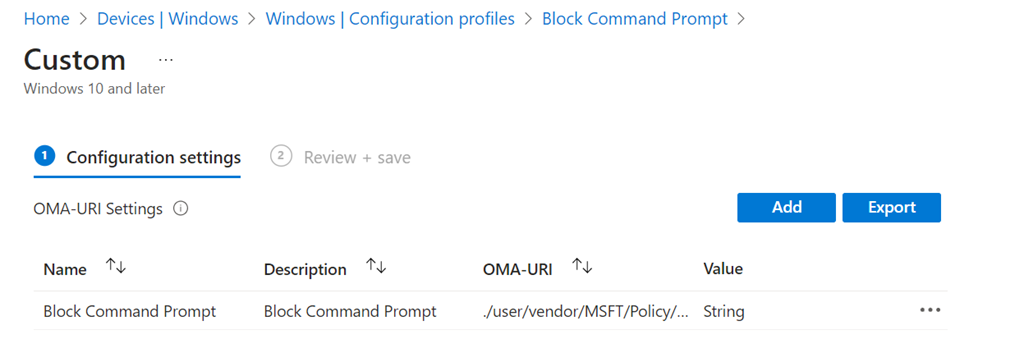
Press Save.

image

You should now see the item you just entered displayed as shown above.

Select Next to continue.

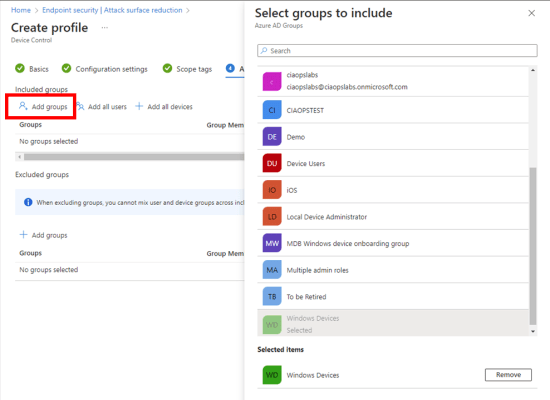
Assign the policy to a group. Here it is being assigned to all Windows devices.

Select Next to continue.

image

You will now see a summary. Ensure the Configuration settings has the above set before selecting the Create button to complete the policy.

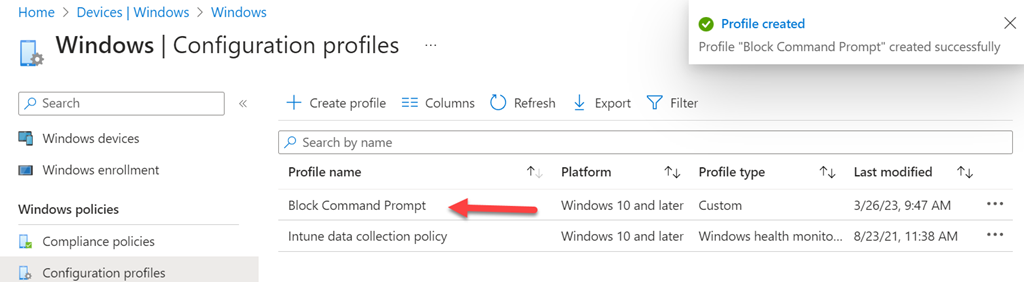
image

You should now see that the policy has been created and listed with all other Configuration profile policies as shown above.

You can edit this policy at any stage simply by selecting it.

image

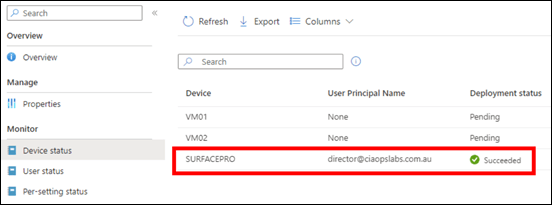
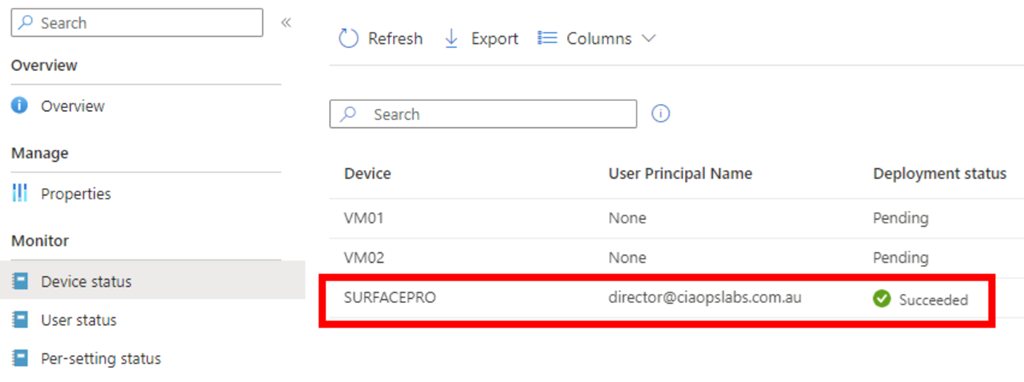
You now need to wait until the policy is deployed successfully to devices. You can check the status of this by viewing the Device status for the policy as shown above.

Capture2

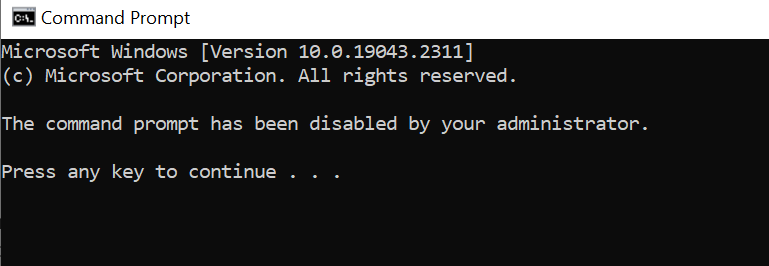
If you open the Command Prompt on a device where the policy is deployed you will see the above message.

Blocking Registry edits on Windows with an Intune Device Configuration profile

This article shows you how to use Intune to block Registry editing on Windows devices using a Configuration profile.

Navigate to https://endpoint.microsoft.com and select Device from the menu on the left as shown above.

Then, select Windows on the right.

Select Configuration profiles from the menu on the left as shown.

image

Select Create profile.

Then select the Platform as Windows 10 and later.

Select the Profile type as Templates.

From the list of templates select Custom.

Select Create in the bottom right.

image

Give the policy a name and select Next to continue.

image

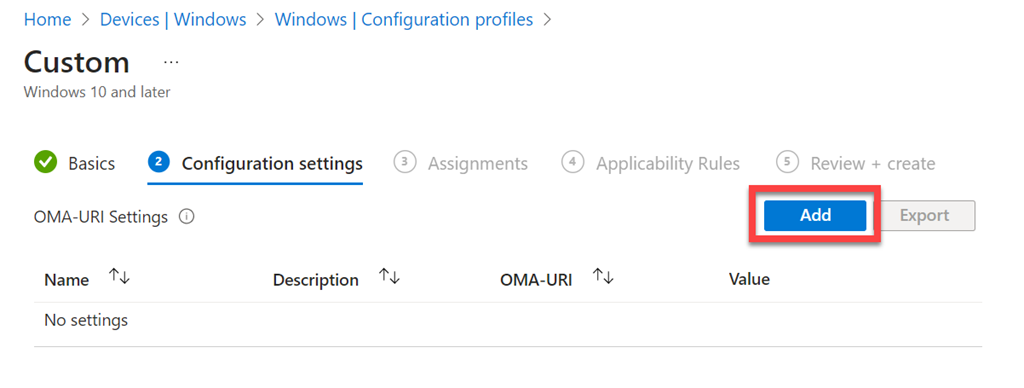
Select Add.

image

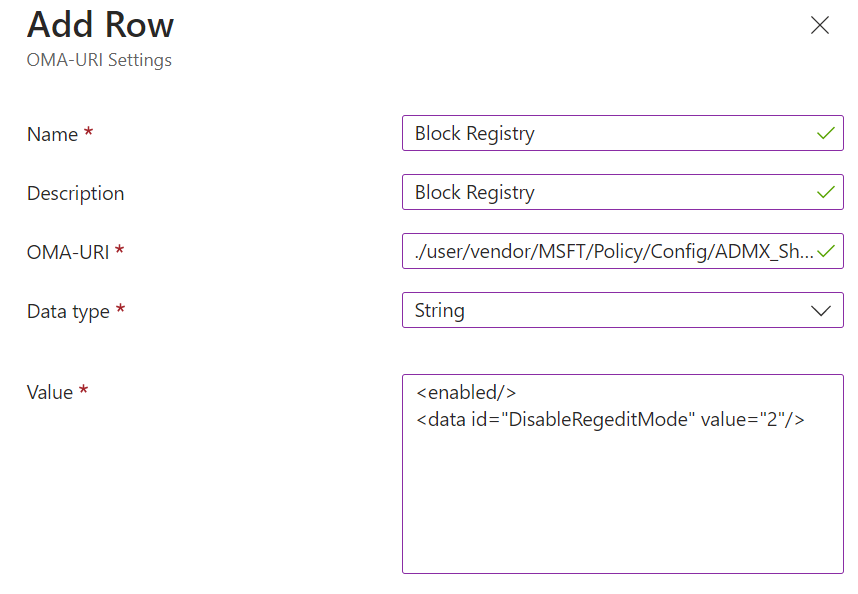
In the OMA-URI settings enter the following as shown above:

Name = Block Registry

Description = Block Registry

OMA-URI = ./user/vendor/MSFT/Policy/Config/ADMX_ShellCommandpromptRegeditTools/DisableRegedit

Data type = String

Value =
<enabled/>
<data id=”DisableRegeditMode” value=”2″/>

Ensure you enter these exactly as shown, anything else will prevent the policy working as expected.

Press Save.

image

You should now see the item you just entered displayed as shown above.

Select Next to continue.

Assign the policy to a group. Here it is being assigned to all Windows devices.

Select Next to continue.

image

You will now see a summary. Ensure the Configuration settings has the above set before selecting the Create button to complete the policy.

image

You should now see that the policy has been created and listed with all other Configuration profile policies as shown above.

You can edit this policy at any stage simply by selecting it.

image

You now need to wait until the policy is deployed successfully to devices. You can check the status of this by viewing the Device status for the policy as shown above.

Capture1

If you now try and make a change to the registry on a device where the policy is deployed you will see the following message.