Protecting your information with Office 365

I’m beginning to see a major differentiator in the security offerings between what Microsoft provides and what other cloud vendors do.

For an overview, have a look at the latest Garage Series video.

I didn’t know that Office 365 now allows you to do compliance around document finger printing. This basically means you upload a template document and Office 365 will check outbound attachments to see whether they are similar.

If a match occurs then you can use rules to determine what happens. You may for example force that message and attachment to be sent via Office 365 encrypted email.

For more information on this document fingerprinting in Office 365 have a look at:

Protect Your IP Using Document Fiingerprints

and if you want even more nitty gritty detail check out:

Data loss prevention in Exchange just got better

It is really impressive stuff and with Office 365 already configured and enabled.

Imagine what it will be like when document fingerprinting comes to SharePoint Online and OneDrive for Business (which it will). You’ll be able to probably prevent sensitive information being copied or sent anywhere outside your organization. You’ll be able to control all of this via policies.

If you want security (even better than on premise in many cases) Office 365 I reckon is fast becoming the leader.

Why can’t I sync Picture libraries?

I wrote a post about how to manipulate SharePoint Online images stored in Pictures libraries. However, after some more thought, it would surely be easier to sync a Picture Library to your desktop (as you can with Document Libraries). Change the images there and then let them sync back up.

That way you would have a copy of the images locally. You would work with them locally and they automatically sync in the background back to Office 365. Also given that Picture Libraries are basically ‘special’ Document Libraries would seem easy right?

image

So here’s my Document Library with the sync option available.

image

But in my Picture Library sync isn’t available.

image

Changing the view for the Picture Library doesn’t work either.

Puzzling. Surely, there is no technical reason why you can sync a Picture Library when you can a Document Library or have I missed something here?

Seems to me that easiest way to allow people to manipulate images would be to allow them to sync a Picture Library to the desktop where they can manipulate it like they can any local file.

Please add to you list of things to update when you get a chance Microsoft. I think it would benefit a lot of people!

Office Graph and Project Oslo

As I have eluded to in many of the posts I have made on this blog about SharePoint, I strongly believe that we are moving away from traditional files and folders into the realm of collaboration. Collaboration means it is more about who you know than what you know, in essence bringing social networking inside a business.

Microsoft has begun that process with the integration of Yammer into Office 365 and I am a big fan of Yammer however it is clear they are going beyond this with Office Graph and Project Oslo.

If you don’t know what these are then you should look at this video:

and read this blog post:

Introducing codename Oslo and the Office Graph.

In essence, this technology is about information finding you based on what you and your interactions with others. This to me is how people will be working more and more as we move forward in business. Doing things any other way will simply be too slow and cumbersome.

The Office Graph and Oslo technology is being rolled into Office 365 before year’s end and I can’t wait to get my hands on it to see how it works. However, if you still back in the days of files and folders then I would suggest to you that you should be looking at Yammer right now, because chances are if you don’t your customers will and then you’ll have real problems.

Put files and folders behind you and embrace social for the enterprise is what I say.

Manipulating images in SharePoint Online picture libraries

Unfortunately, one of the things that Microsoft removed from Office 2013 was the Microsoft Picture Manager that allowed you to easily manipulate images.

You can still install it by following the information in this blog post:

How to install and get “Microsoft Office Picture Manager” back in Office 2013

However here is another way to solve this issue.

The first step is to create a “mapping” from the SharePoint Online Picture Library to your desktop.

image

Start by navigating to your Picture Library in SharePoint Online. Once there, select the Library tab in the top left of the page to reveal the Ribbon menu.

image

Towards the right hand side of the Ribbon Menu in the Connect & Export section you find a Open with Explorer button.

image

Press this.

image

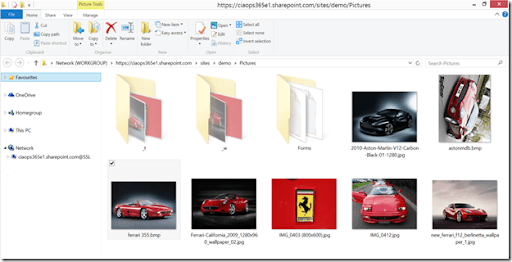
You’ll then see Windows Explorer open and in there you will see the files in the Picture Library as shown above. You have now effectively ‘mapped’ a drive on your local desktop directly to the SharePoint Online Picture Library.

You can now manipulate those files as though they were on your local desktop. Beware however, that are still working with the files directly from Office 365. This means they will typically have to transferred down locally, updated and then saved back to Office 365 all across your broadband connection. If you have very large images (many megabytes for example) this may mean things work slower than expected. Yet another case for better bandwidth.

image

If you select the Manage tab in Windows Explorer you will see that there is some basic manipulations that you can perform such as rotating the images.

image

If you need more functionality when working with images you can now use just about any program and simply point it to the newly ‘mapped’ SharePoint Online Picture Library on your desktop.

In the case above I’m using the free Windows Live Photo Gallery product from Microsoft.

image

Now I select the image that I want to rotate and then the Rotate Left button from the Ribbon Menu.

image

You will then see the program working on the file. In this case there is clock icon next to the image and the status bar at the bottom says it is updating the file.

Remember, this may take longer than you expect, depending on the size of the image, because it needs to be downloaded to the local desktop, manipulated and the saved back to Office 365. That’s why you should really ensure your images are only as large as they need to be.

image

The process will complete and the updated image will appear in your application.

image

If you now refresh the browser page that also displays the SharePoint Online Picture Library you also now see that it has updated with the changes made to the image as shown above.

“Mapping” a drive like this to SharePoint Online is not a prefect solution. It can have challenges at times, typically do to the desktop and broadband connection. A far better option would be if Microsoft incorporated even some basic image editing features (re-sizing, crop, rotation, etc) directly into Office 365 so you could do all this in a browser and without the need for the image to be brought down and saved back.

Hopefully, they have that on their ‘to-do’ this but hopefully the information provided here will let you get the job done.

Accessing Exchange admin center in Office 365 Small Business Plans

I’m never an advocate of Office 365 Small Business (P1 and P2) plans. They are just too limiting I find for customers. However, they certainly represent very good value a few dollars per user per month for people whoo are still using ISP POP3 email accounts.

One of the major limitations faced as an administrator of such Small Business plans is the inability to get to the Exchange admin center from the web console.

image

When you login as an administrator you’ll see the above screen.

image

If you scroll down you will see there are no options to manage Exchange. So how do you do some of the more advanced things that need doing?

The most obvious answer I will give you is to use PowerShell, but if you REALLY must use the web console here’s how.

Firstly, navigate to:

https://outlook.office365.com/ecp/?realm=.onmicrosoft.com

but of course replace with the actual name of your tenant. In my case that is ciaops365p3.

image

You’ll be asked to login to Office 365 as normal and you should do that using an administrator account. After that, you should be greeted with the above Exchange admin center screen where you can now go in an work with the protection filters as shown for example.

image

You should be aware that there are functionality limits with P plans. For example, as you can see above, there is no option for Mail Flow rules.

My preference would always be to do administration via PowerShell but you can certainly use the web console if you have to using the above method. However, always beware of the limits around P plans. They are cheaper for a reason!

Adding a site collection Administrator to SharePoint Online

A site collection administrator in SharePoint Online has full admin rights to a SharePoint site no matter what rights are set within the site. They do not show within the permissions for that site. If you need full control of a site collection this is an excellent way to achieve this.

image

For an M or E plan

image

From the menu bar, in the top right select Admin, the SharePoint from the drop down menu that appears.

image

This will take you to the SharePoint admin centre as shown above.

image

Select the site collection you wish to assign a new site collection administrator as shown above.

image

Then from the buttons at the top select Owners. From the menu that appears select Manage Administrators.

image

Now add the new user into the Site Collection Administrators box in the lower part of the screen.

You can also replace the Primary Site Collection User if you want but remember there can only be one of those.

Once you have added the new user press OK to save the changes and any new Site Collection Administrator will have full rights to every site and subsite with that Site Collection independent of what rights are set actually inside the site.

Finally, remember that this only assigns rights to the Site Collection you selected. You will need to repeat this process for other Site Collections you have if you also need to assign rights there.

SharePoint Online interface upgrade

The most frustrating thing about all the stuff that comes out with Office 365 is that if you already have Office 365 you have to wait until the changes get rolled out to your tenant. The time that you need to wait is getting shorter and shorter but I now most happy the upgrades to the SharePoint Online have hit my tenant.

image

The first change you note is the new menu bar for items in SharePoint. As you can see above upload, sync, edit, manage and share are now surfaced at the top. This really makes the most common tasks easier.

image

I especially like the fact that you can select a file and press manage, you get the list of options that you used to have dig through the ellipses to get to. Nice!

image

What I also discovered was that if you select the ellipse to view the properties and preview of the file you see the usual direct link for the file.

image

But, if you look at the end of the URL field you will notice a little mobile phone icon.

image

If you select that icon you are taken to a new page that provides you a QR code that contains the URL to the file. Nice!

image

The menu at the top has also changed slightly. You can see that the Office 365 to the left is now a darker colour from the user menu settings on the right. Nice!

Small things perhaps but they all make the service better. The new navigation bar will certainly make things easier for users in my book.

The best thing? There are even more improvements on the way. I can’t wait.

Click to run install on RDS server

*** Please see this update – https://blog.ciaops.com/2014/09/installing-office-365-pro-plus-on-rds.html ***

A while back I wrote an updated post on using Office 365 Pro Plus on an RDS server. You can find that post at:

Installing Office 365 Pro Plus on an RDS server

One of the issues I highlighted is that currently the Office 365 Pro Plus with its click to run functionality doesn’t allow the ability to install on an RDS server. This means you need to purchase an addition Office Pro Plus VL media and key set to actually do the install of the software into that environment.

That is all about to change as Microsoft announced in this blog post:

Updates to Office 365 ProPlus for admins and first look at upcoming shared computer support

Now you will be able to use the click to run Office Pro Plus to install on a RDS server. This means you’ll no longer to purchase that one additional license.

The blog post also highlights a number of significant improvements in the ability for IT Professionals to deploy Office 365 Pro Plus, including the ability to de-select certain applications from the package during installation.

If you are an IT Professional working with Office 365 Pro Plus I’d suggest you have a read of the blog post and watch the new Garage Series video that demonstrates all this new stuff.

It is clear that Microsoft is listening to people’s needs and acting quickly to bring these to market. This simply makes Office 365 an even better option for customers.