CIAOPS Need to Know Microsoft 365 Webinar–January

laptop-eyes-technology-computer

We’re back for 2021 and for January we are going to cover a topic which remains a mystery to many – PowerShell. I’ll show you how to quickly set up PowerShell to use with Microsoft 365 and some handy things that you can do with it to make your life easy through automation. I’ll also have the latest news from Microsoft and as always there will be time for your questions.

You can register for the regular monthly webinar here:

January Webinar Registrations

The details are:

CIAOPS Need to Know Webinar – January 2021
Friday 29th of January 2021
11.00am – 12.00am Sydney Time

All sessions are recorded and posted to the CIAOPS Academy.

The CIAOPS Need to Know Webinars are free to attend but if you want to receive the recording of the session you need to sign up as a CIAOPS patron which you can do here:

http://www.ciaopspatron.com

or purchase them individually at:

http://www.ciaopsacademy.com/

Also feel free at any stage to email me directly via director@ciaops.com with your webinar topic suggestions.

I’d also appreciate you sharing information about this webinar with anyone you feel may benefit from the session and I look forward to seeing you there.

Enabling Play my emails on iOS

Play your emails on iOS has been with us for a while now. My experience is however that most documentation doesn’t tell you how to actually enable this if it is not already on.

To do so, ensure you have a Bluetooth connection to your iOS device. That could be a wireless headset or in your car.

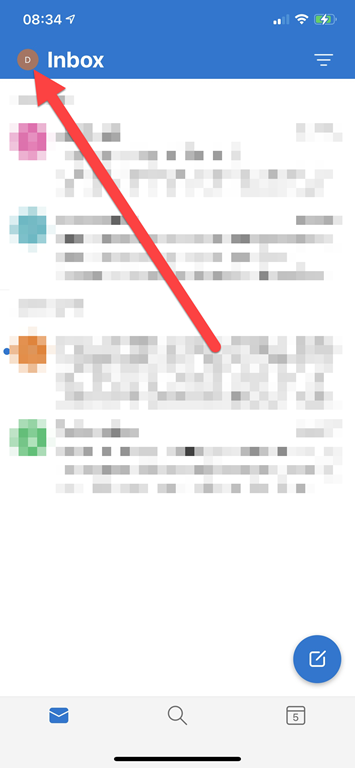
image

Click the icon in the very top right of you Outlook app once it is open as shown above.

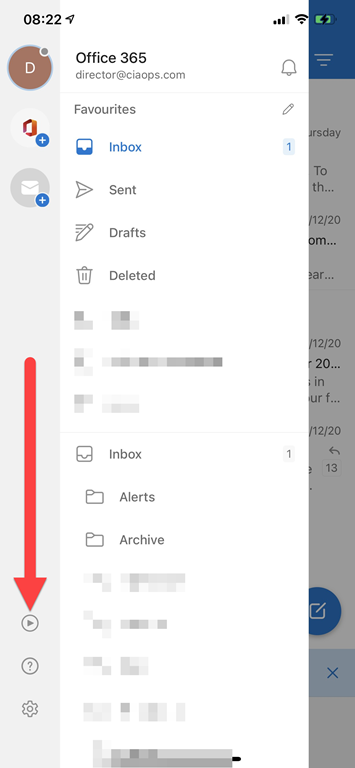
image

That should display the ‘back stage’ as shown above. Select the Play button on the left hand side towards the bottom as shown.

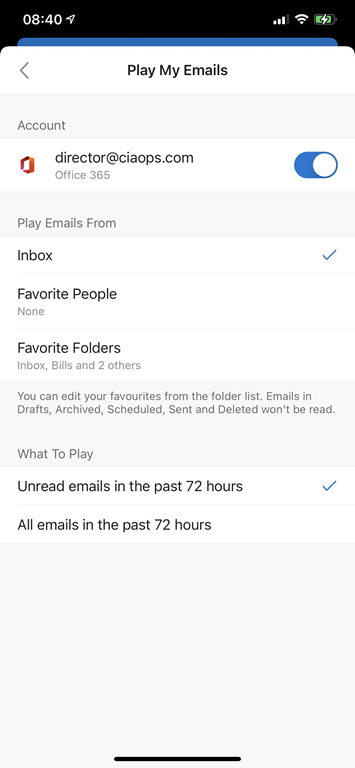
file

If the setting is Off then switch it On.

image

You can now make any adjustments to your configuration.

image

If you return to ‘back stage’ of the app and press the same Play button Cortana will appear and you’ll be able to have your emails read to you.

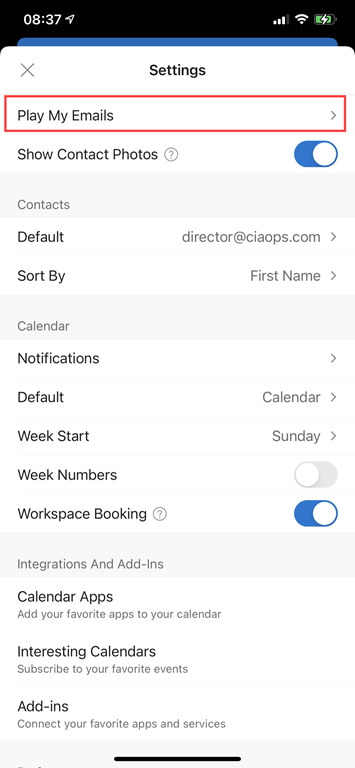
image

You can get back to the Play My Email configuration at anytime now via the app settings as shown above.

For more details on Play My Email in Outlook see:

Recovering a Deleted Stand Alone SharePoint site

Recovering a deleted stand alone SharePoint using the admin center is quick and easy. You’ll be able to do for up to 93 days after you delete the site. If you do delete a SharePoint site using the admin center be careful that it isn’t connected to other shared resources like Microsoft Teams. if it is, then use the recommended process for removing the whole Microsoft Team not just the SharePoint.

The above will will show the process of identifying a stand alone SharePoint site, the various ways that you can delete it using the web interface and the how to restore it. Remember, you have up to 93 days to do this if you need to but you can also immediately purge the site if you need to reclaim storage space as well. It is all pretty simple and the video will run you through that process.

Using a Microsoft Template for a new SharePoint Online site

It is now super  easy to add a really classy template to your SharePoint Site Collection, to make creating a high impact and engaging site really easy. All you need to do is firstly login to your Microsoft 365 environment as a global administrator and then visit:

https://lookbook.microsoft.com

Next, just select the template that you like and press the button to add it to your tenant. In less than five minutes you’ll have a stunning starting point for your collaboration site.

If you want to see that in action just watch the above video.

End to End email protection with Microsoft 365–Part 4

This is part of a series of articles about email security in Microsoft 365. Please check out previous articles here:

End to End email protection with Microsoft 365 – Part 1

End to End email protection with Microsoft 365 – Part 2

End to End email protection with Microsoft 365 – Part 3

These articles are based on a model I have previously created, which you can read about here:

CIAOPS Cyber protection model

designed to help better explain expansive security included with Microsoft 365.

In previous parts, we covered how an external email was delivered into the Microsoft 365 service and all the protections that it passed through until it finally came to rest in the Data container (user’s inbox) ready to be viewed. The next step in the process will therefore for the user to fire up their device to read the email. This article will therefore focus on the protections available for that device.

For the sake of simplicity we’ll focus on that being a modern device running at least a Windows 10 Professional. Of course, email from Microsoft 365 can be viewed on just about any devices these days, Windows or not, and all of these have unique and overlapping protections. However for the sake of brevity let’s just focus on the more common Windows 10 device for now.

A range of hardware device protection is available and recommended including:

and should already be in place to protect the device.

We will also assume that the Windows device is fully up to date

How to keep your Windows computer up to date

The device in question should also already live inside the Device container as shown in the above model. This is largely achieved thanks to being joined to Azure Active Directory (AD):

Azure AD joined devices

Join your work device to your organization’s network

Tutorial: Join a new Windows 10 device with Azure AD during a first run

When that device is turned on we want it to complete the:

Secure Windows boot process

Once the machine has booted and before the user has logged into the machine, thanks to being Azure AD joined, Microsoft Endpoint device policies have already been pushed and implemented on that machine per:

Manage device security with endpoint security policies in Microsoft Intune

Such policies could be enforcing disk encryption, implementing Attack Surface Reduction (ASR) and so on.

Importantly, you can also enforce device compliance policies to ensure devices meet a security standard before they are allowed to access any data:

Use compliance policies to set rules for devices you manage

All of this is achieved via:

Microsoft Endpoint Manager

which I have also written a whole series of articles to help provide a better understanding of the role that it plays with device security. You can read these articles here:

Modern Device Management with Microsoft 365 Business Premium–Part 1 of 10

Assuming that the device has booted and successfully completed all the protection processes associated with that have been correctly applied, it is now time for the user to login to that devices. This means that we now follow the User connector in our model shown above, into the Service container from outside, then onto the Device Container and so on.

The user’s identity is protected inside the Microsoft 365 service via a variety of mechanisms. When logging into a Windows 10 device they will typically need to provide their account and password details that were set up with the service. However, best practice would now be to use Windows Hello for Business.

Windows Hello for Business Overview

Windows Hello addresses the following problems with passwords:

  • Strong passwords can be difficult to remember, and users often reuse passwords on multiple sites.

  • Server breaches can expose symmetric network credentials (passwords).

  • Passwords are subject to replay attacks.

  • Users can inadvertently expose their passwords due to phishing attacks.

Many mistakenly believe that the Windows Hello PIN is all that protects a users access to device and the service when at login. That is in fact not the case as Windows Hello leverages the TPM hardware to provide a highly secure login to the service.

Why a PIN is better than a password

How Windows Hello for Business works

These days just a login and password are not enough to secure any identity, you MUST implement Multi Factor Authentication (MFA). Why? As Microsoft will tell you:

Your password doesn’t matter, but MFA does! Based on our studies, your account is more than 99.9% less likely to be compromised if you use MFA.

Your Pa$$word doesn’t matter

All your creds are belong to us!

So MFA, along with a number of other recommended steps, are what can be done with Microsoft 365 to protect user identity.

Five steps to securing your identity infrastructure

Windows Hello for Business requires all users perform multi-factor authentication prior to creating and registering a Windows Hello for Business credential. Importantly, Windows Hello for Business replaces passwords with strong two-factor authentication on PCs and mobile devices. This authentication consists of a new type of user credential that is tied to a device and uses a biometric or PIN. Many don’t appreciate that correctly configured Windows Hello for Business DOES provides MFA when users access their devices, while making the device login process seamless. If you are however still concerned about this ‘single credential’ being compromised then you can also implement:

Multifactor Unlock

It is also important to remember that MFA is provided FREE on all Microsoft 365 accounts and support a variety of methods including authenticator apps, hardware token and more.

Enable multi-factor authentication for free

Once the user has correctly provides a login and password, then completed their MFA challenged (or equivalent thanks to Windows Hello for Business) they would then be subject to Azure AD Conditional Access.

It is important to remember that Azure AD Conditional Access is evaluated AFTER a successful login from a user, not before! This means that it can’t be used to block things like Password Spray Attacks.

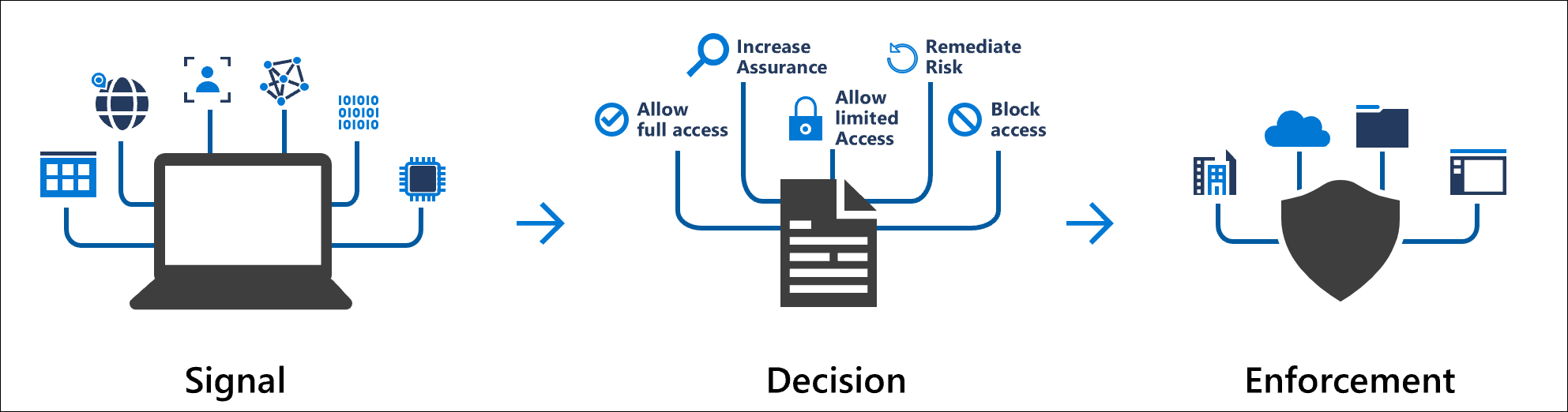
Conditional Access policies at their simplest are if-then statements, if a user wants to access a resource, then they must complete an action.

Conceptual Conditional signal plus decision to get enforcement

What is Conditional Access?

For example, user account access can be blocked if it comes from outside a specific country or region.

Conditional Access: Block access by location

and enforcing MFA

Conditional Access: Require MFA for all users

Conditional Access: Require MFA for administrators

Once any Conditional Access policies have been met the user will be able to login to their device. At this point additional Microsoft Endpoint Manager policies will be applied to that specific account now logged in. Such policies could restrict applications the user has access to, limit Windows functionality and so on.

Remember, all of these protections have taken only during the user has logging onto their device. They have not as yet run an application like Outlook to read the inbound emails. That is what is going to happen next and I’ll cover that process in the next part of the series, so stay tuned.

End to End email protection with Microsoft 365–Part 5

End to End email protection with Microsoft 365–Part 3

This is part of a series of articles about email security in Microsoft 365. Please check out previous articles here:

End to End email protection with Microsoft 365 – Part 1

End to End email protection with Microsoft 365 – Part 2

These articles are based on a model I have previously created, which you can read about here:

CIAOPS Cyber protection model

designed to help better explain expansive security included with Microsoft 365.

image

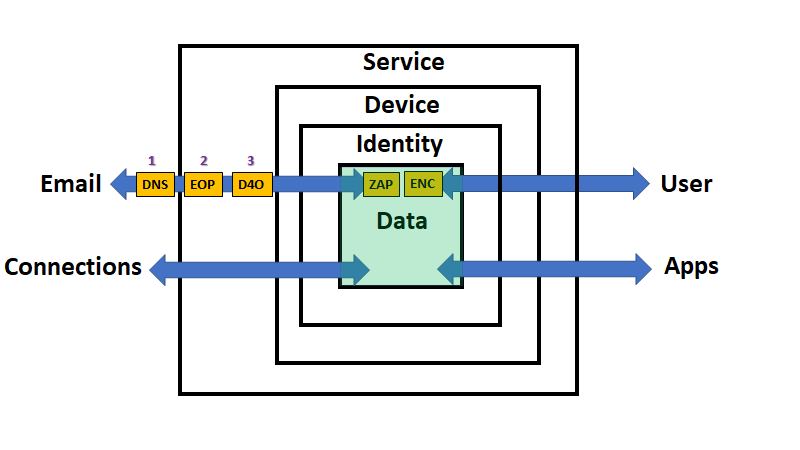
So far, email has travelled from ‘somewhere’ on the Internet (outside the service) through various layers of protection, which I have already spoken about previously. It has now finally come to ‘rest’ in the data container inside the Service (Microsoft 365) as shown above. However, even at ‘rest’, data is still protected thanks to the capabilities in Microsoft 365.

Remember, that as yet, there has been no user interaction with the data so far. The email has simply been delivered to the users inbox awaiting them to log in and view it.

While the email sits inside the data container in Microsoft 365, protection is being provided by Zero Hour Purge (ZAP). As Microsoft says:

In Microsoft 365 organizations with mailboxes in Exchange Online, zero-hour auto purge (ZAP) is an email protection feature that retroactively detects and neutralizes malicious phishing, spam, or malware messages that have already been delivered to Exchange Online mailboxes.

which you can read more on here:

Zero-hour auto purge (ZAP) in Exchange Online

This means that even after an email is delivered to a users inbox it is constantly being monitored as to whether it is phishing, malware, spam or something otherwise nefarious. If it is detected as such, then appropriate action is taken. Such action can be determined by an administrator during configuration things like spam policies per:

Use the Security & Compliance Center to create anti-spam policies

So this means that not only does Microsoft 365 scan inbound and outbound emails as they pass through the service, they continue to scan all emails once delivered thanks to the fact that they reside inside the actual Microsoft 365 service at all times. This is a big benefit over third party scanning services that only do so as the email passes through their filters, no inside the actual inbox.

You can therefore rest assured that if a malicious email is detected at any stage in Microsoft 365, and assuming you have enabled ZAP, you’ll be protected.

While sitting on servers in Microsoft data centers all sorts of additional protections are in place such as being encrypted at rest:

Encryption in the Microsoft cloud

Encryption Risks and Protections

In addition to using volume-level encryption, Exchange Online, Skype for Business, SharePoint Online, and OneDrive for Business also use Service Encryption to encrypt customer data per:

Service encryption

The best reference for all the extensive Microsoft cloud protections is the:

Service Trust Portal

You also might want to take a look at virtual tour of a Microsoft datacenter:

Take a guided tour of a Microsoft datacenter to learn how Microsoft delivers your cloud services

and read about how Microsoft meshes all these datacenters together to provide the Microsoft 365 service:

Azure global infrastructure

Azure facilities, premises, and physical security

Where your data is located

Hopefully now you are comfortable with the fact that the protection Microsoft 365 provides for your inbound email data (as well as all your other data) is rigorous, from the moment that it enters the Microsoft 365 service until it sits ready for a user to interact with it.

The next stage in the journey will be for a device (i.e. PC) to connect to the Microsoft 365 service and then for a user to log into that device and run an app, like Outlook, to read the delivered email. Spoiler alert – there is even more protection involved here and I’ll start covering that in upcoming articles, so stay tuned for a closer look at what happens during user interaction with the data inside Microsoft 365.

End to End email protection with Microsoft 365–Part 4

End to End email protection with Microsoft 365–Part 2

This is part of a series of articles about email security in Microsoft 365.

End to End email protection with Microsoft 365 – Part 1
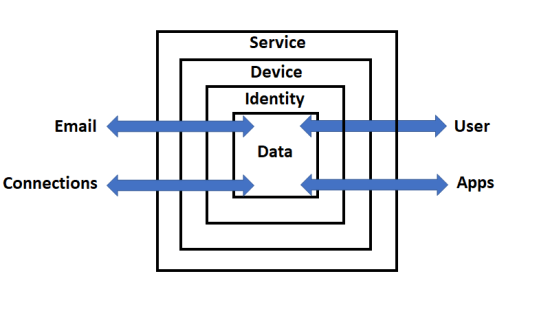
These articles are based on a model I have previously created, which you can read about here:

CIAOPS Cyber protection model

designed to help better explain expansive security included with Microsoft 365.
image

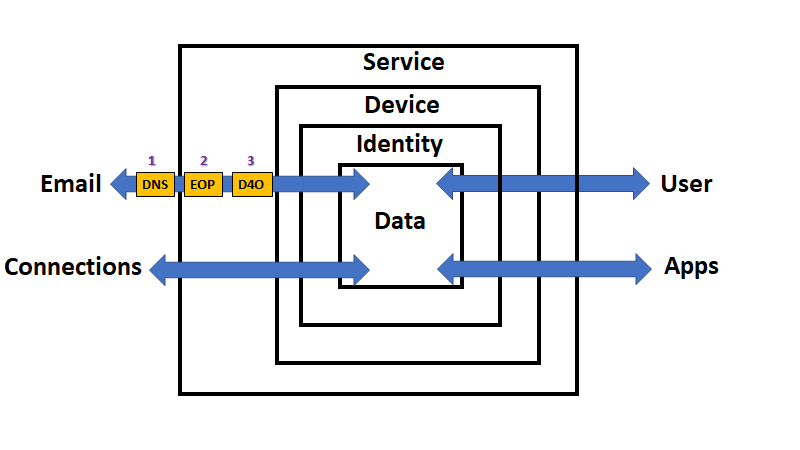
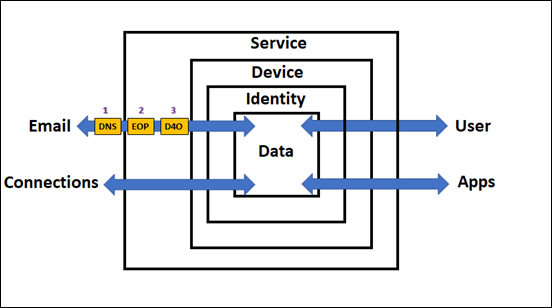
In the previous part of this series I spoke about DNS and Exchange Online Protection (EOP) and the role they play in email security as well as how to configure these in your service. I haven’t as yet spoken about the best practices settings that you should employ. The initial objective here is to help you understand the flow as well as all the security services that can be utilised in Microsoft 365 to better help you protect your data.

If you look at the above diagram, you’ll see that data is flowing via the email connector in and out of our Microsoft 365 environment (the ‘Service’). Through which, so far, we have talked about DNS and EOP, now it is time to move onto Defender for Office 365 (D4O). However, just before we do let, me point out somethings that you may not appreciate. Firstly, via the process far, inbound email data has not yet come to rest. That is, it hasn’t as yet been stored inside a users mailbox, it is still being ‘processed’ by the security feature set of Microsoft 365 (i.e. the ‘Service’). Secondly, and more importantly for security considerations, what we have examined so far largely only ‘scans’ the data and makes security decisions as data passed through that service. It doesn’t generally continue to protect the data once it has been processed by that service. For example, with spam filtering inbound emails are scanned by the anti spam service in EOP, appropriate action taken based on the policies in place but then the data exits the service. Once an email has exited the anti spam service in EOP it will no longer be scanned by the service. To distinguish these type of security services going forward, let’s refer to them as ‘pass through’ security services being that they only handle the data once during its transit through a connector.

So after DNS and EOP have ‘processed’ the inbound email it is time for Defender for Office 365 (D4O) to do it’s job.
image

Defender for Office 365 is an add-on to existing plans like Microsoft 365 Business Basic and Business Standard but included in Microsoft Business Premium. Interestingly, it is not part of Microsoft 365 E3 but is part of Microsoft 365 E5. In short, we’ll assume the plan here is Microsoft Business Premium.

Defender for Office 365 also has two plans

Gains with Defender for Office 365, Plan 1 (to date):

Technologies include everything in EOP plus:

  • Safe attachments

  • Safe links

  • Microsoft Defender for Office 365 protection for workloads (ex. SharePoint Online, Teams, OneDrive for Business)

  • Time-of-click protection in email, Office clients, and Teams

  • Anti-phishing in Defender for Office 365

  • User and domain impersonation protection

  • Alerts, and SIEM integration API for alerts
  • SIEM integration API for detections

  • Real-time detections tool
  • URL trace
  • So, Microsoft Defender for Office 365 P1 expands on the prevention side of the house, and adds extra forms of detection.

    Gains with Defender for Office 365, Plan 2 (to date):

    Technologies include everything in EOP, and Microsoft Defender for Office 365 P1 plus:

  • Threat Explorer
  • Threat Trackers

  • Campaign views
  • Automated Investigation and Response (AIR)

  • AIR from Threat Explorer

  • AIR for compromised users

  • SIEM Integration API for Automated Investigations
  • So, Microsoft Defender for Office 365 P2 expands on the investigation and response side of the house, and adds a new hunting strength. Automation.

    The above is from The Office 365 security ladder from EOP to Microsoft Defender for Office 365.

    Microsoft Business Premium includes Defender for Office 365 P1, while Microsoft 365 E5 includes Defender for Office 365 P2.

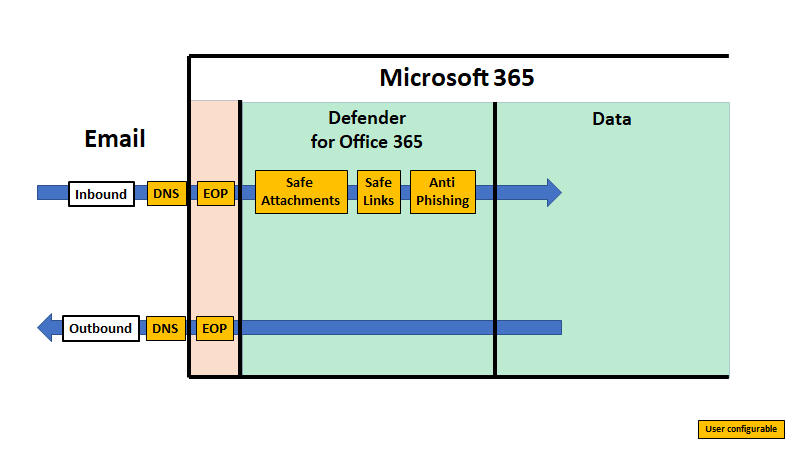
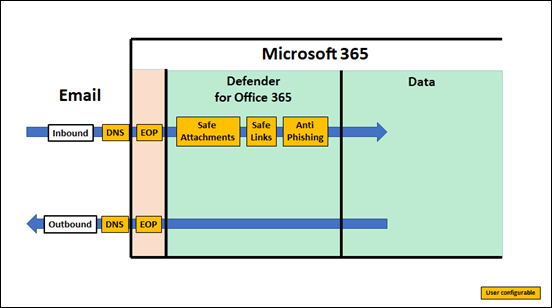
    Unlike EOP, you’ll also note that Defender for Office 365 extends protection actually into the data container as well as providing initial scanning of data as it passes through the service. This effectively means that Defender for Office 365 is monitoring email data inside user email boxes and providing additional protection even after an item is delivered. This is very important to appreciate because once most emails are delivered they are generally no longer protected by scanning technologies like anti-spam policies, especially third party offerings. Therefore, a major of value of using Microsoft 365 is that it can ensure the security of data even after it has been delivered using technology like Defender for Office 365.

    Another point that the above diagram illustrates is that Defender for Office 365 largely applies only to inbound email data. all the policies in Defender for Office 365 are focused at emails being delivered to, not from, mailboxes.

    Finally it is also important to note that previous components in the data flow chain impact Defender for Office 365, DNS probably being the more influential. This is why it is so important to ensure that you have your DNS records (especially SPF, DKIM and DMARC) configured correctly because their impact is more than on a single service in Microsoft 365.

    Defender for Office 365 is composed of three unique components:

    – Safe Attachments

    – Safe Links

    – Anti-Phishing

    Safe Attachments

    As Safe Attachments in Microsoft Defender for Office 365 notes:

    Safe Attachments uses a virtual environment to check attachments in email messages before they’re delivered to recipients (a process known as detonation).

    In short, it will open suspect attachments in a virtual environment and check to see whether they activate any malicious activity such as encrypting data (i.e. cryptolocker attack), changing registry settings and so on.

    Safe Attachments protection for email messages is controlled by Safe Attachments policies. There is no default Safe Attachments policy. Please note that, there is NO default Safe Attachments policy by default! Thus, ensure you have set one up if you are using Defender for Office 365.

    Set up Safe Attachments policies in Microsoft Defender for Office 365

    Safe Attachments will continue to provide protection even after the data has been delivered. This is because the maliciousness of the attachment is evaluated not only at the time the user opens it but also continually as they sit as data in users mailbox. Thus, you need to consider Safe Attachments as protection both during transit and at rest. This is generally different from the role of EOP.

    I will also briefly note here that Safe Attachments protection extends beyond just emails, but I’ll cover that in a later article.

    Safe Links

    As Safe Links in Microsoft Defender for Office 365 notes:

    Safe Links is a feature in Defender for Office 365 that provides URL scanning and rewriting of inbound email messages in mail flow, and time-of-click verification of URLs and links in email messages and other locations.

    In short, it routes any link clicked on in an email through a reputation proxy to ensure that it is safe prior to proceeding. This provides protection against malicious content, downloads, phishing and more.

    Safe Links settings for email messages

    How Safe Links works in email messages

    Safe Links can be configured to provide customised protection:

    Set up Safe Links policies in Microsoft Defender for Office 365

    Safe Links will continue to provide protection even after the data has been delivered. This is because the maliciousness of links is evaluated not only at the time the user clicks on them but also continually as they sit as data in users mailbox. Thus, you need to consider Safe Links as protection both during transit and at rest. This is generally different from the role of EOP.

    I will also briefly note here that Safe Links protection extends beyond just emails, but I’ll cover that in a later article.

    Anti-phishing

    Phishing is when attackers try to trick users into providing secure details in an effort to compromise that account. A common ‘trick’ is to attempt to impersonate a ‘familiar’ email address and try to have the recipient take an action that will result in an account compromise.

    Protection via Defender for Office 365 is again provided by a policy:

    Exclusive settings in anti-phishing policies in Microsoft Defender for Office 365

    Anti-phishing will continue to provide protection even after the data has been delivered. This is because the maliciousness of email content is evaluated not only at the time the user views  them but also continually as they sit as data in users mailbox. Thus, you need to consider Anti-phishing as protection both during transit and at rest. This is generally different from the role of EOP.

    In addition to the above Defender for Office 365 P1 also provides:

    Threat Explorer and Real-time detections

    while Defender for Office 365 P2 additionally provides:

    Threat Trackers

    Automated investigation and response (AIR) in Microsoft Defender for Office 365

    Attack Simulator in Microsoft Defender for Office 365

    Summary

    Inbound email data flows into Defender for Office 365 after it has been processed by EOP. Here additional protection policies are applied. All of these policies can be configured by the user and have capabilities that extend into protecting data even after it has been delivered. This means that a major benefit of Defender for Office 365 is that it not only scans email data during inbound transit but also while it is being stored in the users mailbox over the life of that data item for both current and future threats.

    It is also important to note that many of the Defender for Office 365 do not have appropriate default policies in place and it is up to the user to configure these to suit their environment.

    The inbound email data has yet further protection configurations to be applied to it after being processed by Defender for Office 365 thanks to the capabilities of Microsoft 365. Please follow that process with the next article:

    End to End email protection with Microsoft 365–Part 3