Power Automate ODATA filter failure when field named ‘Date’

image

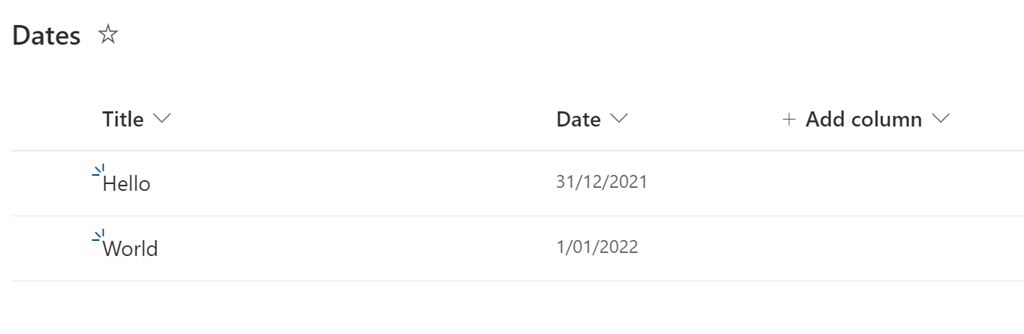
So, I was doing some testing with a new Flow in Power Automate. What I wanted it to do was, at a recurring time each day, look for today’s date in a list of SharePoint items and then display other values from any matching record in a Team’s chat. To prototype this out I created a very simple list with two columns, as shown above, Title and Date. Remember, the Title field is generally created for you by default when you create a basic SharePoint List.

image

In Power Automate I used a SharePoint Get Items action as shown above to get the information I wanted. To filter down to the data I used on ODATA query like:

Date eq ‘2021-12-31’

to test. Problem was, as shown above, I was getting no results that were feeding through to the next Apply to each action that followed directly after.

There were no errors indicated in my Flow. I tried a number of different format options and so on, trying to work out what the issue was.

image

The issue turned out to be the name of the field – Date – I had created in my SharePoint List! Once I created a new column called Dateoption with the same format, and entered the same data into it and removed the offending Date column, it successfully filtered data as expected and passed the result to the following Apply to each action as you can see above.

The moral of the story is that you should probably avoid naming your fields with any ‘reserved’ programming commands like ‘Date’ as I did. Make it something unique like ‘Datefield’ or whatever. Just don’t use a common term like ‘Date’ as I did or you might struggle to troubleshoot as I did here.

Hopefully, this will save you wasting the amount of time I did to solve this that you can better spend on creating your Flow!

Need to Know podcast–Episode 281

In this last episode for 2021 I share my thoughts about what we have seen from the Microsoft Cloud this year and what we may see in the next. Love to hear what you think as well so please reach out.

Take a listen and let us know what you think – feedback@needtoknow.cloud

You can listen directly to this episode at:

https://ciaops.podbean.com/e/episode-281-review/

Subscribe via iTunes at:

https://itunes.apple.com/au/podcast/ciaops-need-to-know-podcasts/id406891445?mt=2

The podcast is also available on Stitcher at:

http://www.stitcher.com/podcast/ciaops/need-to-know-podcast?refid=stpr

Don’t forget to give the show a rating as well as send me any feedback or suggestions you may have for the show.

This episode was recorded using Microsoft Teams and produced with Camtasia 2020.

Brought to you by www.ciaopspatron.com

Resources

@directorcia

Adoption with fun

*** UPDATE April 2023 – Dilbert has moved behind a paywall and is no longer available. See my updated post Adoption with fun and astronomy for alternate engaging content.

The majority of IT products and services are not actually used by IT people (amazing eh?). They are in fact, used by ordinary people (aka Muggels) in businesses, trying to do their job. For these people, changing the way that they work is frustrating because they need to adopt new approaches and tools. Helping with this adoption is a key to the success of modern approaches to IT I believe.

A handy technique that I have found to work well is make using new systems fun. In the distant past, when I was implementing SharePoint on premises, I used to implement the Daily Dilbert web part to post a Dilbert cartoon onto the front page of the SharePoint Intranet each day. The idea was to help drive adoption by getting people to visit the company Intranet to read the Dilbert comic and then, hopefully, dive into the other content that was there.

Today, the technology has changed but the adoption challenge hasn’t. I thought that I’d therefore share with you a way to get a Dilbert comic into your Teams channel daily using Power Automate.

This is all made possible via APIs and a suitable one I found is:

https://dilbert-api.glitch.me/json

which will produce an output that looks like this:

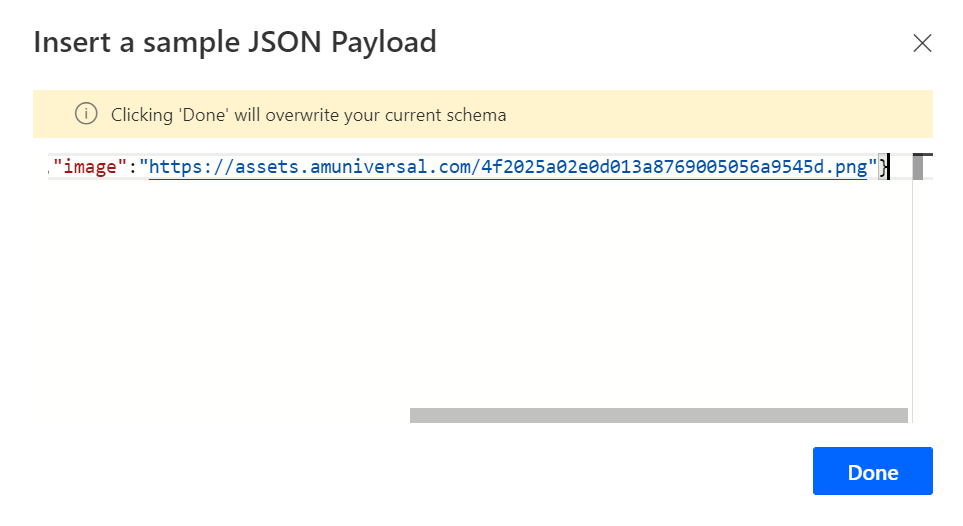
{"title":"Simulation TestingElbonia University Partial Win","image":"https://assets.amuniversal.com/4f2025a02e0d013a8769005056a9545d.png"}

In here you’ll see an image link to the Dilbert Cartoon.

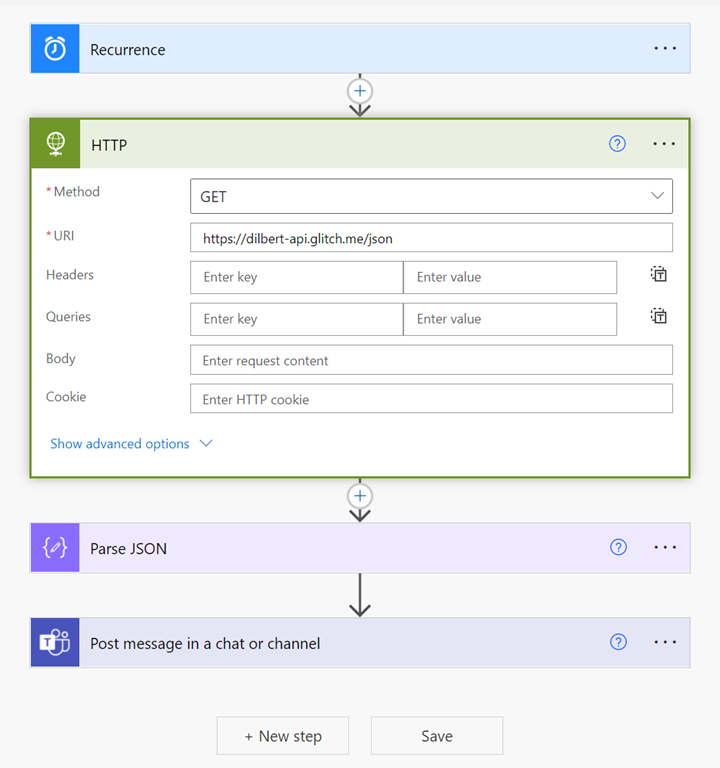
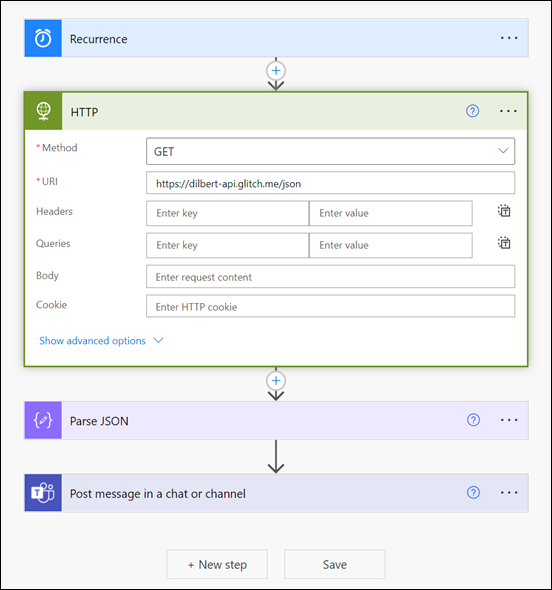
Step one is to create a new Flow that is triggered at a recurring time.
image

Next, you want to add the HTTP action. In here, use the GET method and the URI set to the above API link as shown above.

The HTTP action is actually a ‘premium’ connector and may not be available to you by default. Thus, you may need an upgraded Power Platform license to have this available. Remember however, you’ll only need that license for the user creating and running that Flow.
image

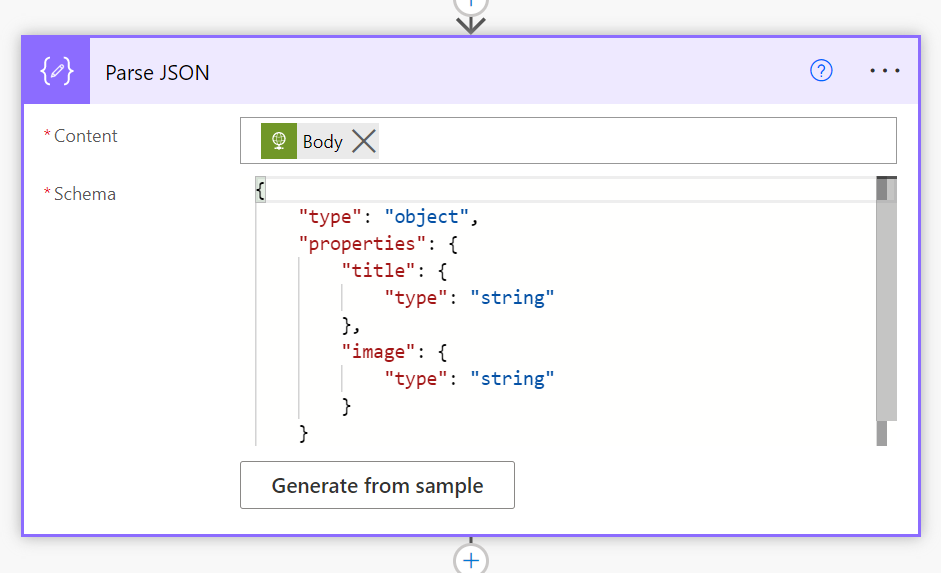
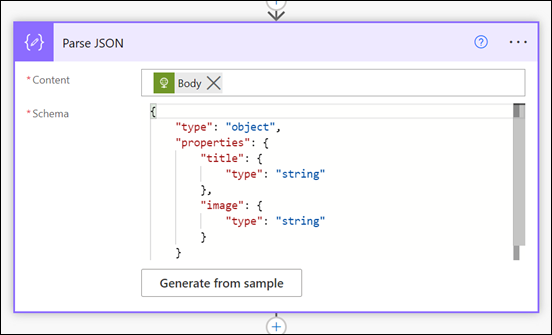
You’ll then need to the Parse JSON action as shown above. The content here will be the Body from the HTTP action above and simply copy and paste the output of the API above into the option Generate from sample.

image

Now add Post message in a chat or channel action.
image

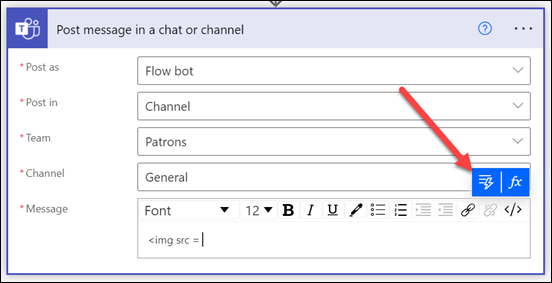
Enter option to post into the Team and Channel of your choice as shown above.

image

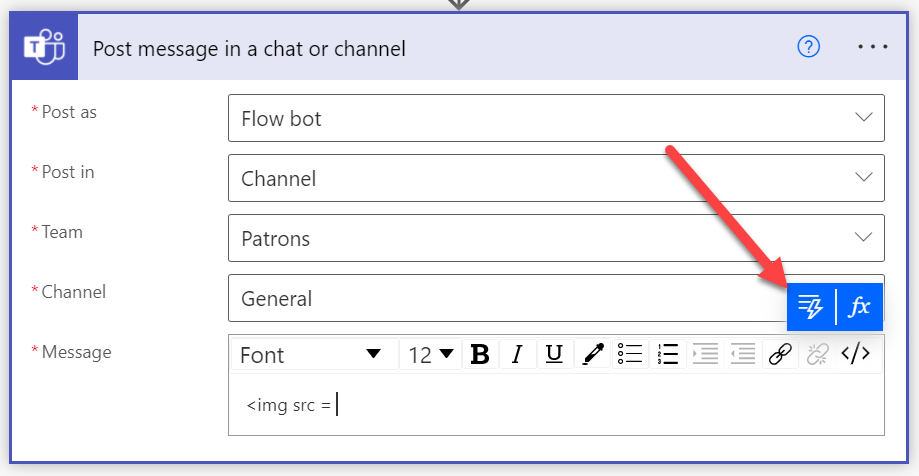
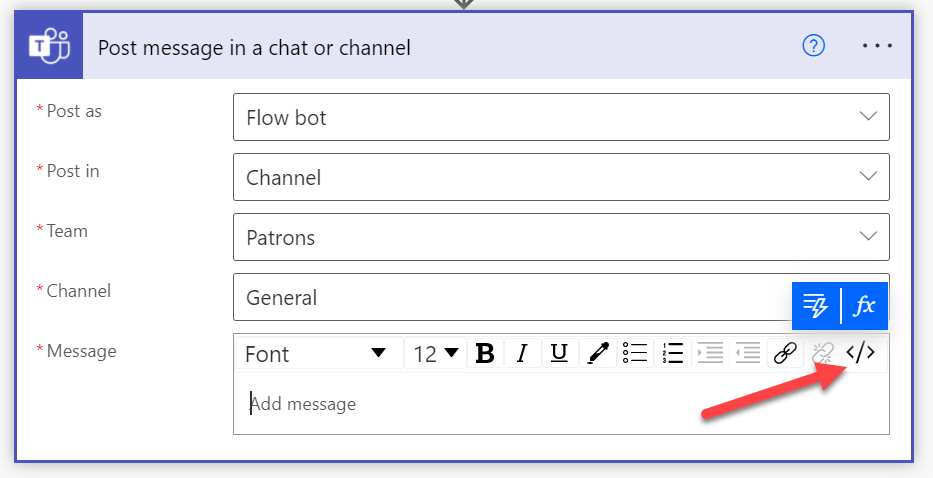
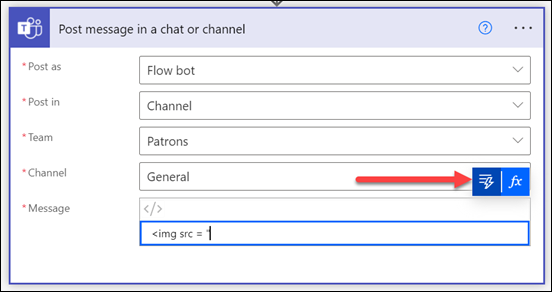
For the Message field select the </> option from the menu bar across the top, as shown. This will allow you to use raw HTML code here.

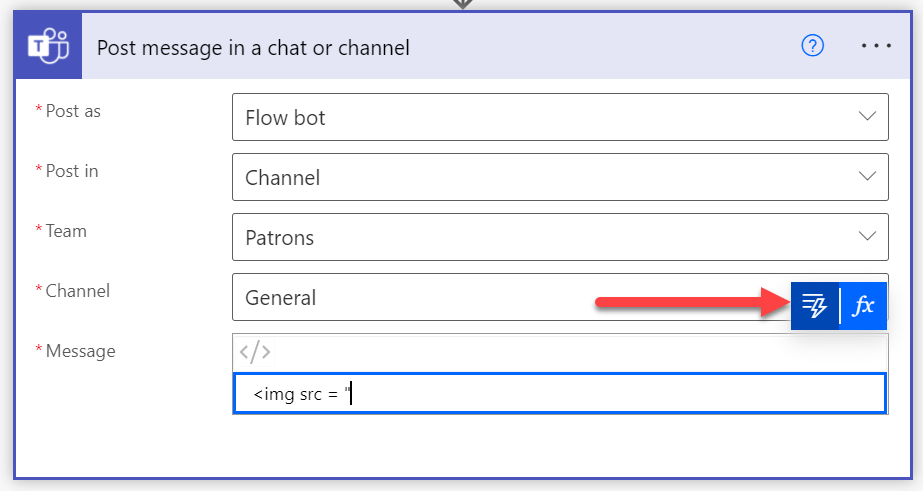
Type the following:

<img src = ”

then select the option to insert dynamic content like so:
image

(the lightning bolt icon)

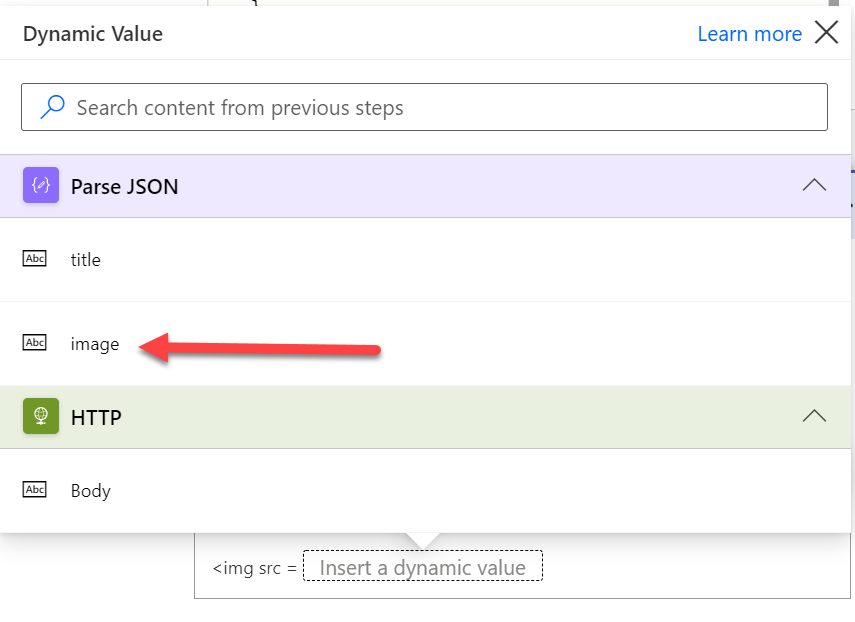
image

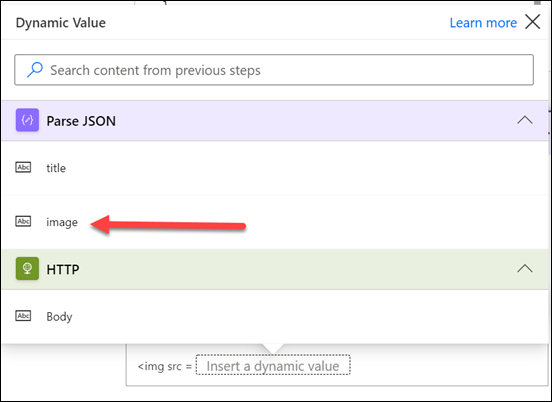
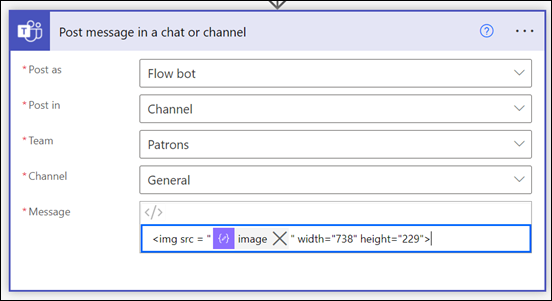
In this list that appears you should be able to select image as shown above.
image

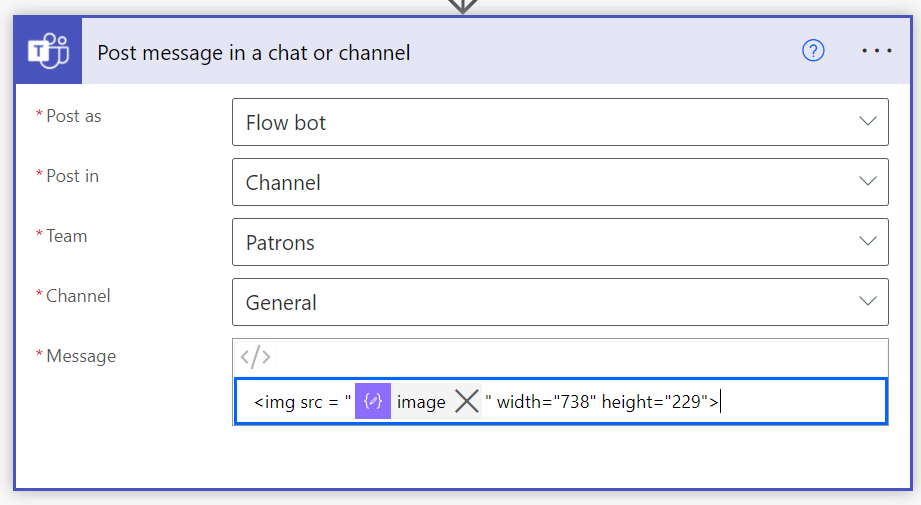
add the following text after the dynamic field

” width=”738″ height=”229″>

so the completed Message field looks like:

image

It is important that the HTML formatting is correct, otherwise the image will not display.
image

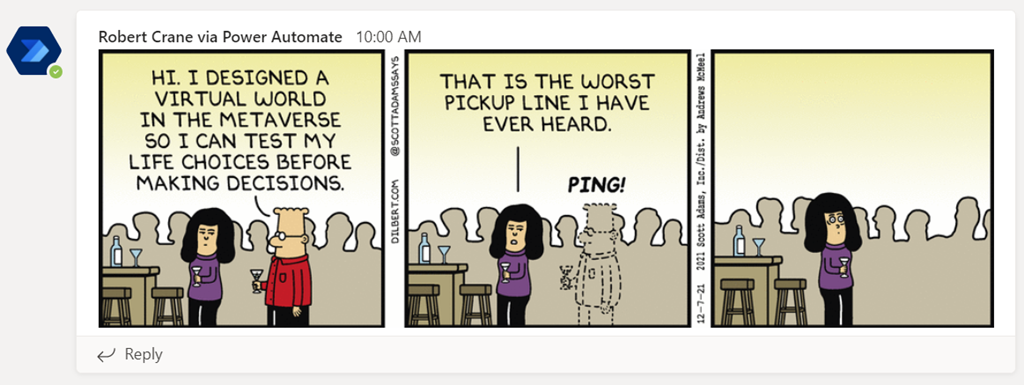
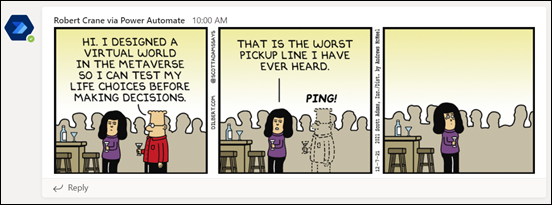
If you now test your Flow you should see the cartoon appear in your Teams channel as shown above. If you have scheduled your Flow daily then you should see a new comic every day. Remember, there is only one cartoon every 24 hours! Rerunning the Flow before then will simply display the same strip.

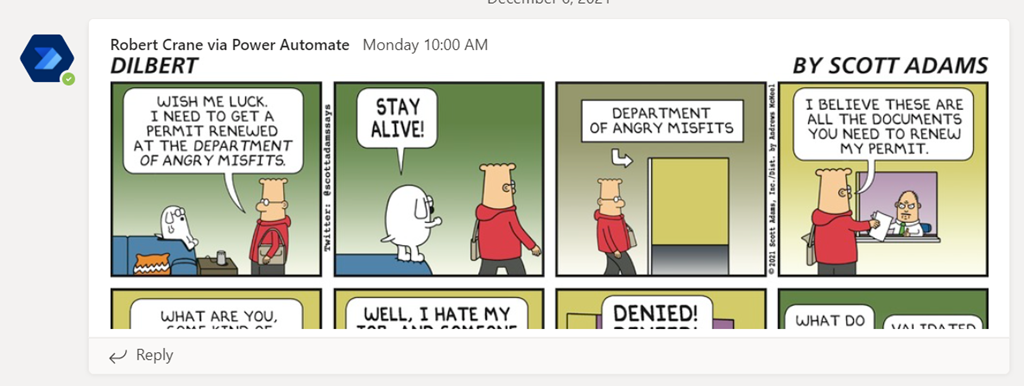
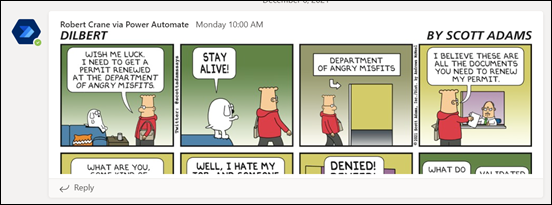
When the daily comic is more than three frames then it is cut off by default like so:
image

However, clicking on the comic will enlarge it for full viewing. This limitation is due to the height and wide parameters the HTML code used inside the Flow. Most strips are only three frames, that is why I used those height and width defaults for most readability most of the time, but you can vary those parameter if you wish.

So, the idea is to make visiting a Team a more fun place to visit regularly, hopefully with people engaging about the content to help drive adoption.

This Flow/API method can be utilised with just about anything that supports an API. Another I have found (although somewhat more risqué) is a Chuck Norris API here:

https://api.chucknorris.io/

which can be moulded to give a similar result (be it text only).

The only limitation of all of this is the need for the premium Flow HTTP action, but as I said, it is well worth the investment and is only really necessary for the user creating the Flow. Having a premium license for Flow opens up so many more capabilities, so it is highly recommended if you want to get serious about automation inside your environment.

Happily, Daily Dilbert is back baby! And now in Microsoft Teams.

Power Platform Community Monthly Webinar – December 2021

image

Join us for our monthly Power Platform webinar where we share the latest news and updates from the Microsoft Power Platform plus a deeper dive into Power BI.

You can register at:

https://bit.ly/ppc1221

If you wish to join our community and be part of the regular discussion and participation on the Microsoft Power Platform, you can join via:

https://www.ciaopspatron.com

(look for the Power Platform option to join us).

We look forward to seeing you on the webinar.

Better passwordless logins are here

Microsoft has announced some great improvements to the Microsoft Authenticator passwordless process.

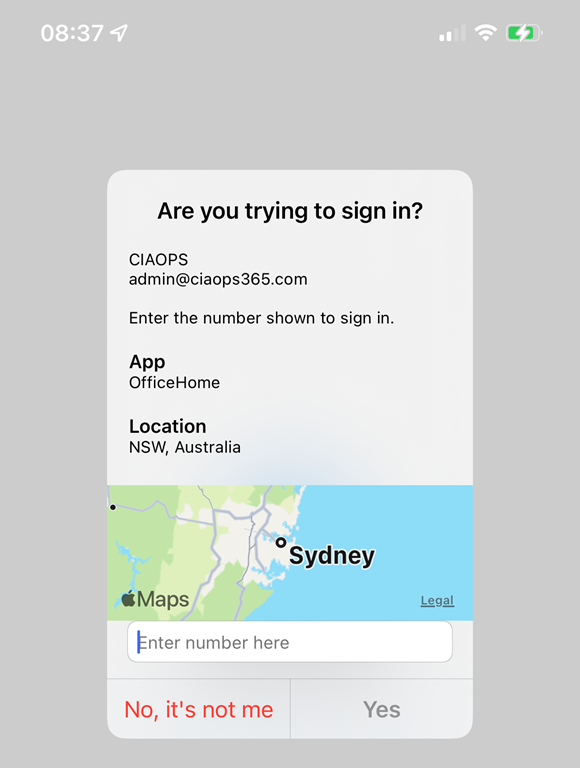
IMG_1151

One of these, as you can see above, I have already enabled on my tenant. It allows you to do number matching AND provides you the location from where you are logging in via a map.

To enable this in your tenant visit the link:

Enable additional context in the portal

This is a great enhancement for MFA with Microsoft 365. Simple and easy to use. Great work Microsoft. You can read about the other exciting announcements here:

Several Microsoft Authenticator security features are now available!

Need to Know podcast–Episode 278

In this episode I round up the major updates from Microsoft Ignite November 2021 as well as having a chat with Phil Meyer, Partner Technology Strategist – Hosting and Cloud from Microsoft about things like the new Microsoft commerce platform. Plenty of great information in this episode, so listen in and share around.

Take a listen and let us know what you think – feedback@needtoknow.cloud

You can listen directly to this episode at:

https://ciaops.podbean.com/e/episode-278-phil-meyer/

Subscribe via iTunes at:

https://itunes.apple.com/au/podcast/ciaops-need-to-know-podcasts/id406891445?mt=2

The podcast is also available on Stitcher at:

http://www.stitcher.com/podcast/ciaops/need-to-know-podcast?refid=stpr

Don’t forget to give the show a rating as well as send us any feedback or suggestions you may have for the show.

This episode was recorded using Microsoft Teams and produced with Camtasia 2020.

Brought to you by www.ciaopspatron.com

Resources

Phil Meyer – Linkedin, philme@microsoft.com

Ignite November 2021 book of news

Introducing Microsoft Defender for Business

Windows 365 Business will offer Windows 11 and admin capabilities

Change your SharePoint domain name (preview)

Rich, secure content and collaboration for hybrid work – Ignite 2021 announcements

New Power Platform capabilities announced at Microsoft Ignite

Introducing Microsoft Loop

Q&A in Teams is in Public Preview

Microsoft Ignite Fall 2021: Innovations coming to Microsoft Teams