With all this work from home going on it is a good time to focus on security in Microsoft 365. Attend to learn how you can make your environment more secure and minimise your risks. I’ll have the the latest Microsoft Cloud updates plus open Q and A as well.
You can register for the regular monthly webinar here:
CIAOPS Need to Know Webinar – May 2020 Friday 29th of May 2020 10.30am – 11.30am Sydney Time
All sessions are recorded and posted to the CIAOPS Academy.
The CIAOPS Need to Know Webinars are free to attend but if you want to receive the recording of the session you need to sign up as a CIAOPS patron which you can do here:
Also feel free at any stage to email me directly via director@ciaops.com with your webinar topic suggestions.
I’d also appreciate you sharing information about this webinar with anyone you feel may benefit from the session and I look forward to seeing you there.
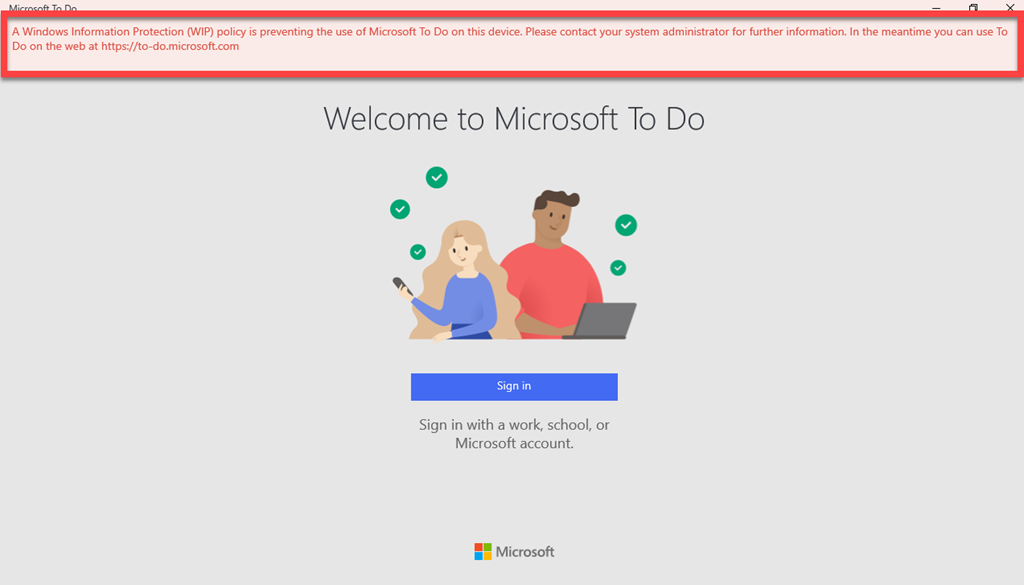
I’m a big fan of Microsoft To-Do but recently noticed that I was having trouble syncing data from my Windows 10 desktop to my other devices. Everything looked fine on my desktop but the next troubleshooting step I took revealed my problem as you can see below.
A Windows Information Protection (WIP) policy is preventing the use of Microsoft To Do on this device.
Ah ha, I had indeed recently changed my Windows Information Protection (WIP) policy for the desktop. This change had inadvertently stopped Microsoft To Do syncing as well as preventing me from logging in.
To solve the problem you need to add the Microsoft To Do app to the list of Protected apps in the Intune App Protection policy for the device, which by default, isn’t there.
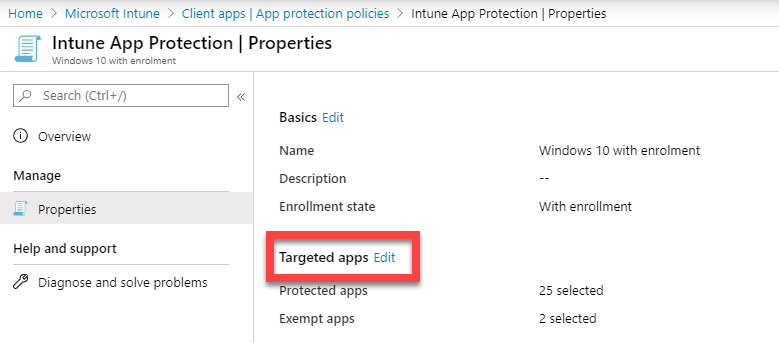
Navigate to the Intune App Protection policy in question and view the properties as shown above. On the right hand side, select the Edit link next to Targeted apps as shown.
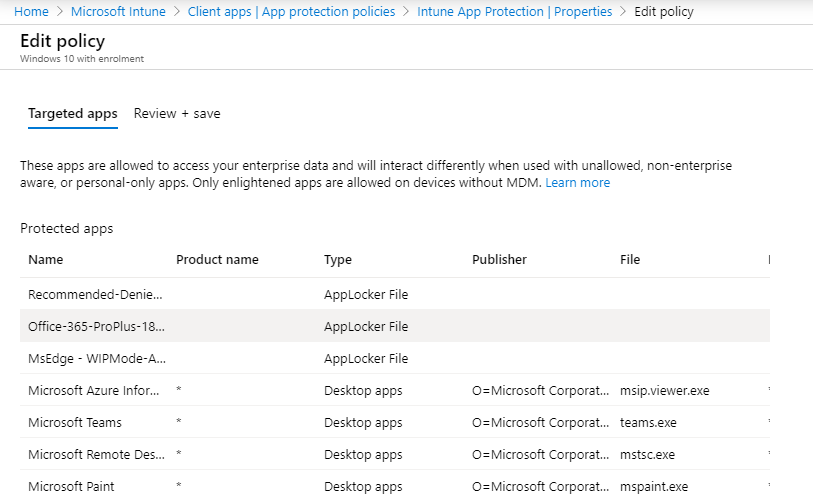
You should then see the Targeted apps as shown above.
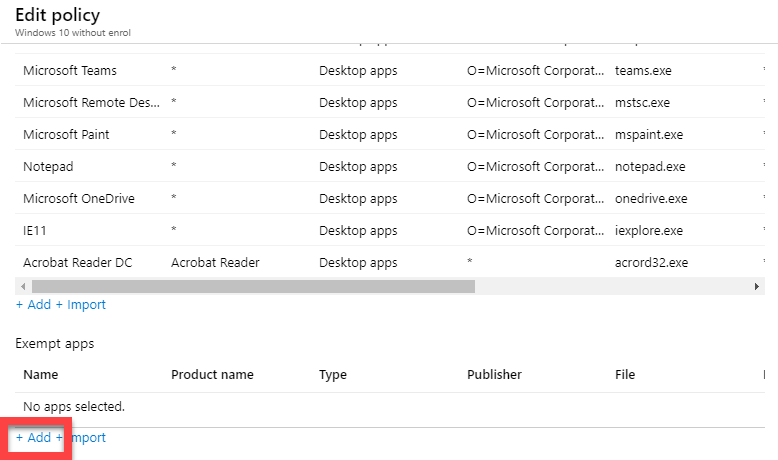
Scroll to the bottom of the list of Protected Apps and select the +Add link at the bottom as shown.
This process is similar to one I documented a while back for Adobe Acrobat:
The difference this time is that Microsoft To Do is a store app.
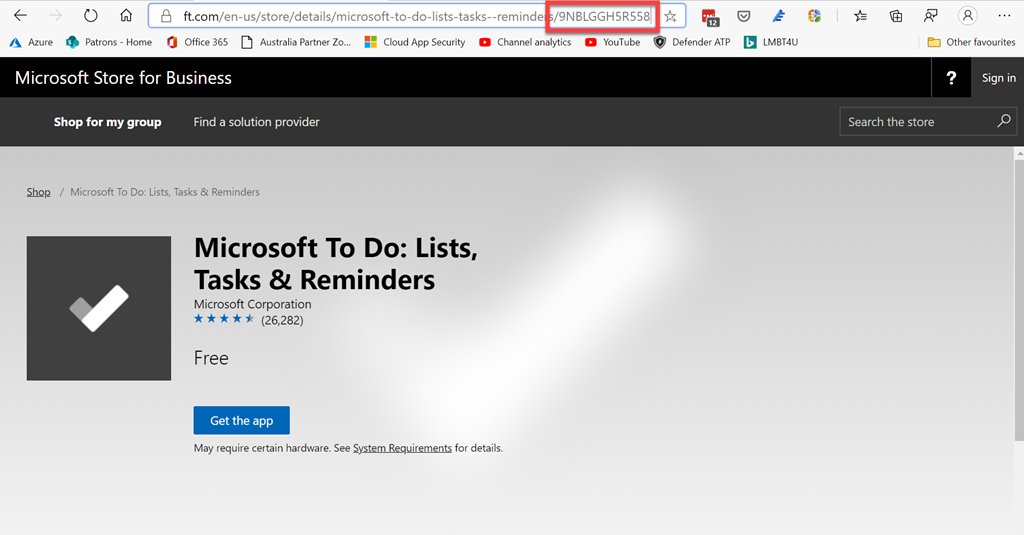
To identify the app you need to search for the store app on the Microsoft Store as shown above. When you locate the app and view the URL you will see a unique identifier as shown. In this case, for Microsoft To Do, it is 9NBLGGH5R558.
Doing so will spit out the information you need to add the app as a protected app to your policy. To view the result for other store apps just insert the appropriate identifier into the URL instead of the one for Microsoft To Do shown here.
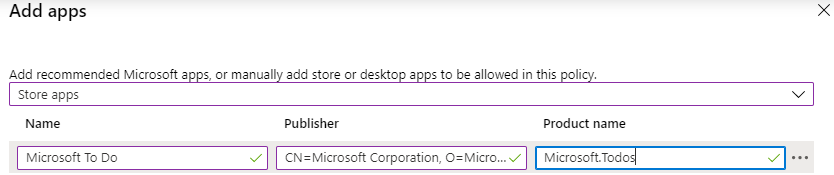
Back on the Add apps page opened earlier, change the pull down at the top of the page to be Store apps. Then enter the information for Name, Publisher and product name as:
Select OK at the bottom of the dialog to save the changes. Then select Review+Save to update the policy.
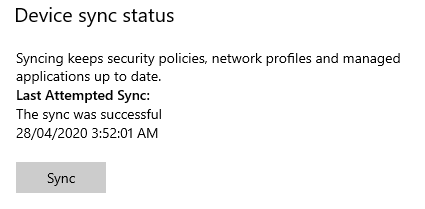
You can either wait for the policy to be pushed down or force a sync from the device sync settings in the user account information for the Windows device. Once the policy has been updated to the machine you’ll be able to open and use Microsoft To Do or any store app you have configured. Doing so fixed my Microsoft To Do issue by allowing me to login to the app again on the desktop and sync information.
In recent articles I’ve covered off how to add an Azure AD application to multiple tenants, then set the permissions and finally run a report all quickly and easily using automation. You’ll find all that here:
With those same Azure AD applications and permissions in place I have now developed a program that will provide you a summary report of emails, Teams, OneDrive for Business and SharePoint usage across multiple tenants, all WITHOUT the need to login to any of them!
You’ll find this program available at my GitHub repo here:
For it to execute you’ll have needed to completed the process I detailed earlier of creating an Azure AD application in every tenant and adding suitable permissions. When that is complete you can simply run the above program. The program will need to be downloaded into the same directory that the tenant configuration files are located and run from there.
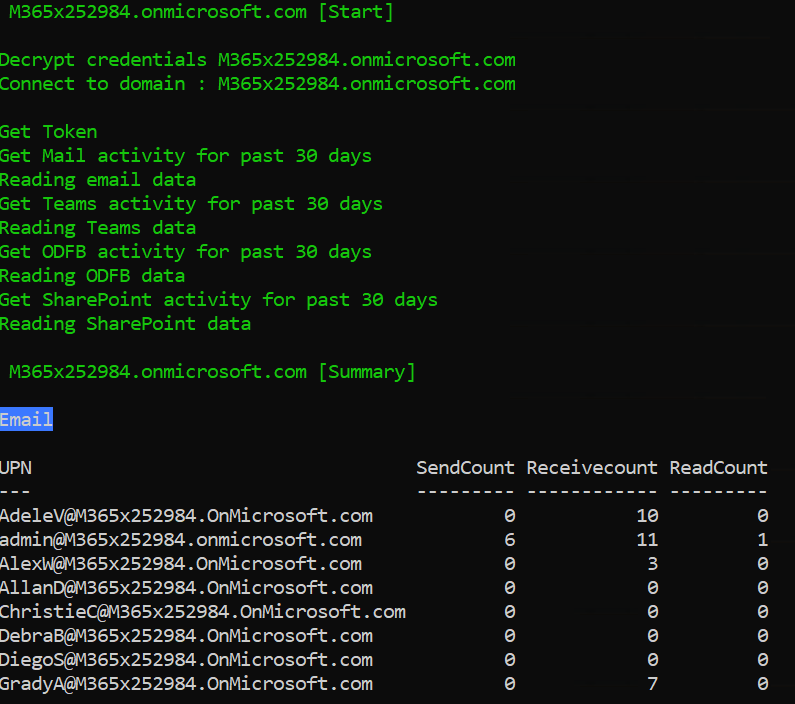
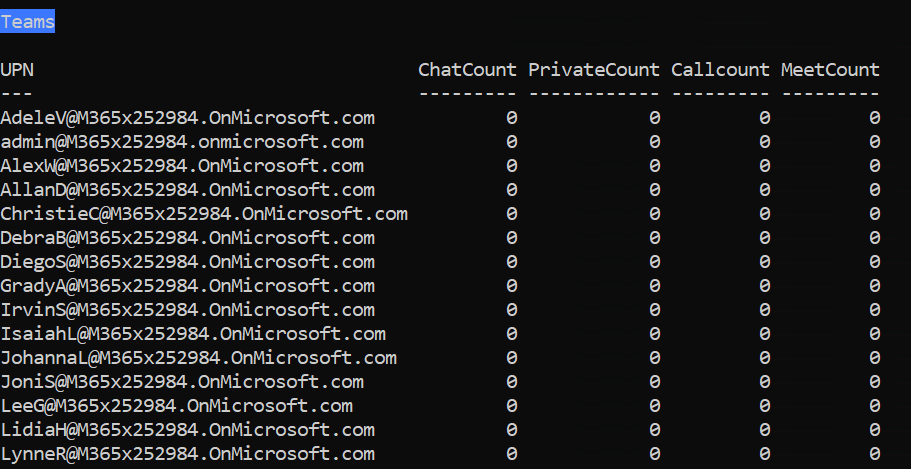
When it runs, it will get the configuration files in the current directory and access each tenant in order. It will collect information via the Microsoft Graph and then report on emails (above),
Teams (above),
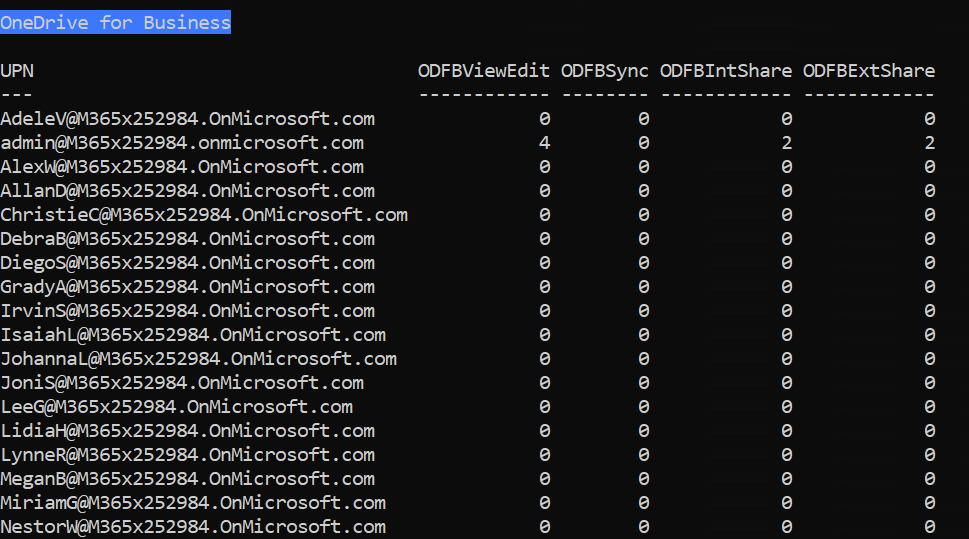
OneDrive for Business (above),
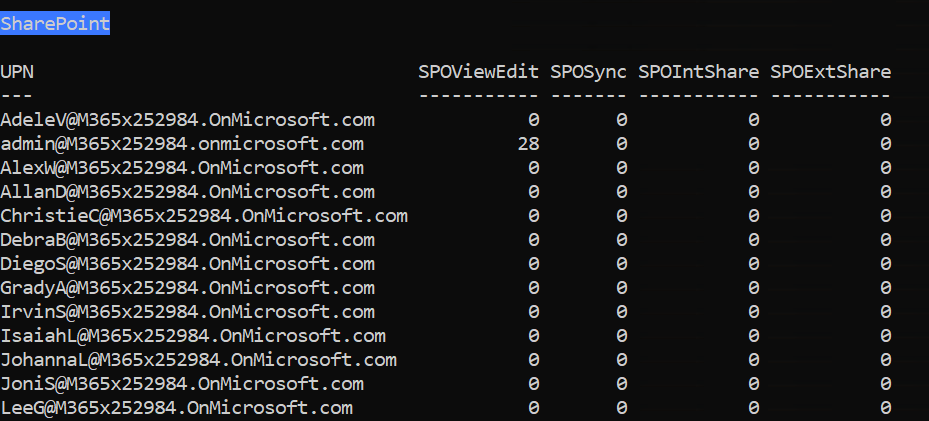
and SharePoint (above). It will do this for each user in each tenant, again without the need to login to the tenant.
Thus, you could use this report to run on a regular schedule and provide details on each of the tenants. because no login is required to the tenants you can do this whole process unattended!
There is lots more that can be done in this manner via the Microsoft Graph, so look out for more stuff I’ll be making available in the future.
FAQ podcasts are shorter and more focused on a particular topic. In this episode I’ll talk about the differences between OneDrive for Business and SharePoint.
This episode was recorded using Microsoft Teams and produced with Camtasia 2019
Robert Crane 0:00
Welcome along to the Need to Know podcast. My name is Robert Crane and this is episode 237. Now, these episodes are shorter episodes known as FA Q’s and they are aimed at a deeper dive into some of the technologies in the Microsoft Cloud. Now these episodes are brought to you by my CIAOPS Patron community and again, you’ll find information about that at http://www.ciaopspatron.com. Check it out if you’re interested in learning more and keeping up to date with everything in the Microsoft Cloud. Now what I want to cover today is a very common question I see out there around the differences between OneDrive for Business and SharePoint. Now the first point of order is to note that SharePoint is a technology, a service that OneDrive for Business takes advantage of. So the way to think about it is that SharePoint is the overarching technology that OneDrive for Business runs on and will also designate the common area as team sites. So again, think of SharePoint, the top of the tree, and that’s providing the storage capabilities for files and folders for OneDrive for Business and for team sites. And also for Microsoft Teams as well. So think of, again SharePoint as the manner in which items files are stored in Microsoft is five, four, which OneDrive
takes advantage of it, and so does team sites. Now one of the other differentiators here is to appreciate that OneDrive for Business is designed as personal storage per user. And team sites are designed for shared data. So think about a OneDrive for Business as what is on your desktop, my documents or a home drive or traditional home drive, you would have had potentially with a on prem server, and think of team sites as location for shared file. So this is going to be you know, the F drive in the old style file, so therefore shared location used by multiple people. Now, OneDrive for Business, as I said, is aimed at personal storage. And basically all you get is a single document library, right? So inside SharePoint technology, there are these apps or these locations where you can put information. The location that you put files into in SharePoint technology is called a document library.
And you only get one of those with OneDrive for Business. Whereas with team sites, you can have as many document libraries as you want. So the first differentiation point around these two technologies is that OneDrive is you get one document library with team sites, you can create as many document libraries as you want to help you separate out and manage your different files in their environment. So when we open our OneDrive for Business, we see one document library, and basically just see a list of files and folders. So think about the fact that we get no width. We don’t get the ability to add additional apps. We can’t add document libraries to OneDrive for Business. We can’t add calendars, contacts, lists all the other things that our intranet into OneDrive for Business or OneDrive for Business is a solely aimed at allowing users to store they follow information. Now this is really good to allow users to get information off there.
My Documents off their desktop off their home drive from a server and put it into an area in the cloud, which is backed up manage, maintain controlled and accessible remotely. Now, the most important thing I think about any SharePoint technology bit OneDrive for Business or team sites, is the fact that it’s all searchable. So once we put information up into SharePoint technologies, we’re able to take advantage of the fact that all the data will be indexed and can be recovered or can be viewed basically using search. Alright, so OneDrive for Business, one document library, you can’t add more document libraries. And you can, for example, add sub areas, you just get one single area with no width and no depth. It’s just a storage location. Now when you start out, in most cases, users will get at least one terabyte of space in their OneDrive for business to be able to store their own personal files. Okay, so one terabyte per user.
Generally is what is provision and is aimed at the users personal documents is not a place for parsers. It’s not a place largely for common documents, right? That is what we use team sites for. Now, the idea here with team sites is that it’s designed for this shared storage concepts. divined for designed for users to work on files in a group environment. Right. Now, as I mentioned, in SharePoint, you can add as many apps as you want to broaden what is available in that location. So you can add multiple document libraries. So you may have one location for your policies, your procedures, maybe a templates areas where you can keep building these out. And the advantage of having different document libraries, for example, is you can format them in a different way. And you can also have different permissions. But with team sites, we can also add things like calendars, contacts, lists,
We can build it out into a true intranet environment. So the idea with team sites is that it is for a group of people. And we can add more content in there besides just pure files and OneDrive for Business, largely designed for pure file storage. Now, when we basically configure our environment with our team sites, we get one terabyte of total storage across all of the teams I separate. So remember that when we create a Microsoft team, we get a team site, a SharePoint team site, into which we can put our documents for our Microsoft team, that and all the other SharePoint team sites when added together their total storage is or cannot exceed, generally one terabyte now, you get that one terabyte standing space which is shared across your Microsoft team, the team’s site environment and you also then get an additional 10
gigabytes per user added onto that space, you start with one terabyte. And then for every licenced user you have, using SharePoint team sites, you will get an additional 10 gig of storage capacity added on to that one terabyte, right? So if you have 10 users, you’re going to get 10 times the 10 gigs, you’re going to get hundred gigs of additional storage. And that means you’re going to get basically 1.1 gigs worth or sorry, 1.1 terabytes worth of data out there that you can use to put all your shared documents in. Now, not only can you get the one terabyte starting space with SharePoint team sites, you get the 10 gig per licence use as well, but you could also buy additional storage. So one of the advantages of SharePoint team sites is the fact that you get the one terabyte 10 gig per licence user
Then you also can add additional storage on there as a paid option if you so choose. So that makes it a little bit more extensive, a little bit more flexible to achieve what you want. Now, remember that this total space is one terabyte you can manage that you can make that automatically allocated, you can control that by the different team site, if you wish. Now, what are some of the other differences between my SharePoint team sites versus OneDrive for Business? Well, in a SharePoint team site, you get something called check in check out. So what that means is that when users work on typically we’re typically Office documents inside these technology inside SharePoint technologies. Then what happens is, is they are co authored by default, which means that multiple users can edit them, update them, change them at the same time by default. Now, there are probably times when you want to make sure that only as
single author has access to a document. In that case, you can check the document out, the author can update the file, everybody else can view the last version of it. And then when they’re finished, when the author’s finished with that they check the document in and make it available later on. So, SharePoint team sites gives us the ability to do these document manage which we management, which we don’t see with OneDrive for Business, because OneDrive for Business, again, is designed for a single user to work with. Now, probably the biggest difference between OneDrive for Business and SharePoint team sites is the fact that you get metadata. So metadata is available in SharePoint team sites, what use metadata for us think of it like tagging files. So the idea is is you will put a file into a SharePoint team site document library, and then you would tag it so instead of creating folders or very deep structure, you would use the tagging to keep that structure as flat as possible. The advantage of
Doing and using metadata which you can now filter, you can now sort. And you can now launch automated processes based on the metadata, you have now, a file an item inside, a SharePoint team site can have as many metadata tags effectively as you wish. So you can tag a file lot by, for example, an author by location by whatever you wish by a customer. And then you can start using that to filter and sort and we don’t see that metadata capability in OneDrive for Business. Now, the other thing with SharePoint team site is we can create a hierarchical structure so we can create something called sub sites inside our SharePoint team sites to allow us to organise our data in a hierarchical structure. Now generally best practices not to do very deep data structures these days, but it is possible and again, it’s one of the differentiation points between
A SharePoint team site and OneDrive for Business so they get ticked off. At SharePoint team sites. It’s much more like a traditional file server with data located in a hierarchical structure, and OneDrive for Business as just a single location with no sub area that you can put your files and folders if you want. So just in summary, again, the idea here is that the technology the storage technology, then the Microsoft Cloud typically uses easy storage technology, known as SharePoint that’s been with us probably for over 20 years now. Now, that technology allows us to build OneDrive for Business, which is a limited subset of the full features of SharePoint, as well as team sites. So team sites are aimed at grouping together information files, Contacts, Calendars, for a group of people, a team of people, where I OneDrive for Business is purely designed as a
storage location for a user’s files, right. So every user generally, by default, will get their own OneDrive for Business, they can put their own files in there, they can then access them in any location, they can share the odd file in and out of that. But if they’re working on a group of files, like your traditional file server, the idea is to put it into SharePoint team sites. Now, there are some differences between the two and what’s available and what surfaced and you get more of the functionality in SharePoint team sites. So you get things like check in check out, you get the ability to add additional metadata. You can, for example, pin files to the top of a document library list. To highlight them. You can also add calendars, contacts lists a number of different apps into a SharePoint team site to make it more like an intranet, right? So you want to gather all your information in there. Now importantly, remember that other components of the Microsoft Cloud like Microsoft Teams, do you
Use SharePoint team sites. So every time you create a Microsoft team, it will create a SharePoint team site in which you can put your files and folders in there that is surfaced in the Microsoft team’s interface. But you can dig in behind that. And you can go and get access to that full SharePoint team site from that Microsoft team if you want. Alright, so remember that the storage for a group of users is going to be in a SharePoint team site. And the individual data location for users and their files is going to be OneDrive for Business. And both of these are built on SharePoint technology giving us a lot of these enterprise capabilities, document management that is available in that. So hopefully that has given you a bit better clarification as to the difference between OneDrive for Business and SharePoint Online. And it sort of boils down to the fact that they both stores locations, they’re both built on SharePoint, OneDrive for Business is
individual users with SharePoint team sites are four groups of users. And that’s where you’re going to get the best usage and functionality out of that. Now, of course, you can use those services for other things, but they really shine when they are used in the correct way for storing data. So with that, Have you enjoyed that episode? Thank you very much for listening. You have been listening to the Need to Know podcast from CIA ops training on using technologies like SharePoint online or Microsoft 365, visit www dot CIA ops academy.com. by purchasing from the selections available, you’ll be directly supporting this podcast. To provide feedback on this episode, visit www.ciaops.com slash contact
In it, you see how to use the code that I created to install Azure AD applications in tenants, provide permissions to these Azure AD applications and then finally run a report routine to extract the desired information.
Hopefully, this summary provides a nice easy way to see this concept in action end to end.
The aim of this project has been to show you how to manage multiple Microsoft 365 tenants quickly, easily and securely using the Microsoft Graph. this article builds on a previous article so go and take a look at:
1. Embed a ‘static’ Azure AD application in all the tenants you wish to access.
2. Give those ‘static’ Azure AD applications, in all those tenants, the appropriate permissions to access the tenant values.
3. Run a Graph request against these Azure AD applications in each tenant and extract the desired results.
This article will show you how to complete Steps 2 and 3. Step 1 was covered in the previous article.
Step 2 requires granting appropriate permissions to the Azure AD application already in place inside each tenant. The manual process of how to achieve this is covered in my article:
However, why do it manually if you can automate it I say? With that in mind, I have created a self executing PowerShell script to add the appropriate permissions to multiple tenants and allow the reading of OneDrive for Business usage information for all users. You’ll find the program to do this in my GitHub repo here:
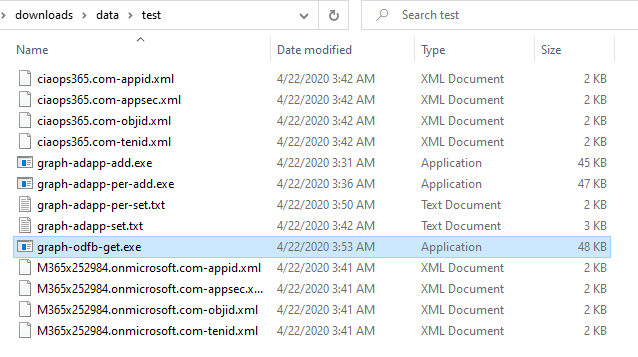
You’ll need to download the file into the location where all the XML configuration files are that were created in Step 1. These will be needed again as the program cycles through all those tenants adding the appropriate permissions.
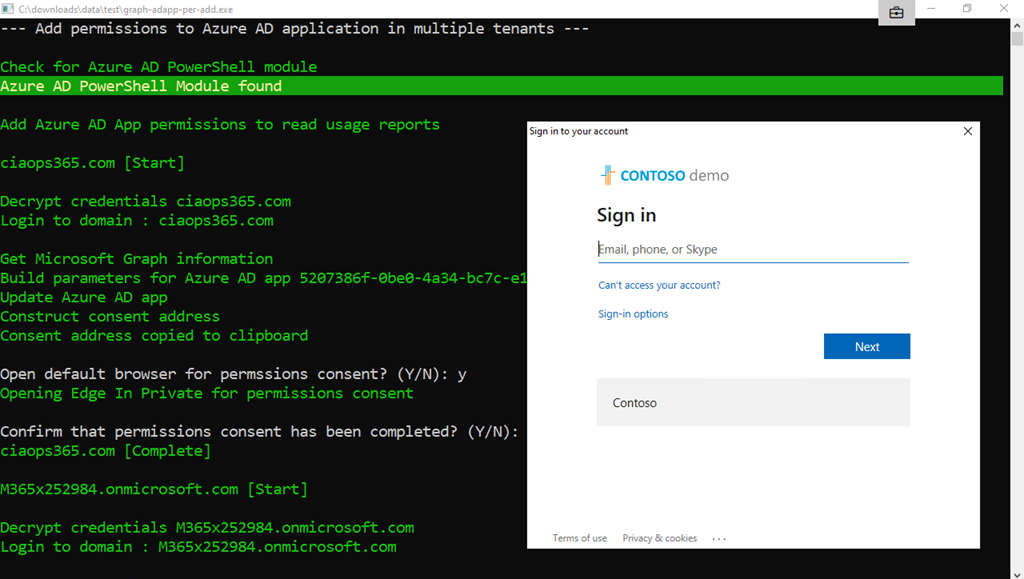
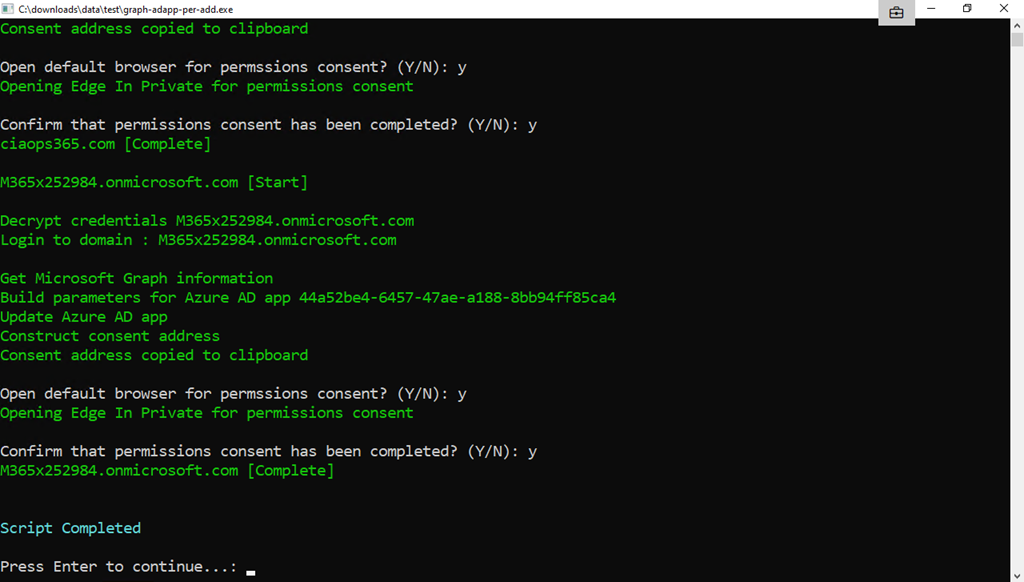
When you run the program, it will read the XML configuration files it finds in the directory and then ask you to login to each tenant again. You need to do this as you are granting/consenting to permissions and that requires administrator access.
You’ll need to complete the process of opening a browser session to each tenant and Accept the permissions as shown above. You’ll note that, in this case, they are read only permissions.
For more details on this process if you haven’t seen it, take a look at the article I wrote about doing the same thing for a single tenant:
Remember, that you don’t necessarily have to open the default browser all the time as the consent URL is always copied to the clipboard, so you could just past it into existing active sessions for that tenant if you wished.
The program will work through all the domains available.
If you want to see what’s happened visit the Azure portal for each tenant. Navigate to Azure Active Directory, then App Registrations, All Applications. Select the name of the Azure AD application you are using, then API permissions as shown above. You should see that the only permission it has is Read All usage reports. You should not that consent has also been granted.
That now completes Step 2 of the process.
We now have an Azure AD application in all the desired tenants and that Azure AD application has the appropriate permissions to do things. We can now start extracting information by continuing to Step 3.
In this example, we’ll run a program that will retrieve usage information about OneDrive for Business for each user in each tenant, without prompting for a login!
You’ll need to download the program I’ve written to do this (graph-odfb-get.exe), which you’ll find here:
Again, you need to place it the same directory where all the tenant configuration files are, as shown above, so it can access all the tenants configured in previous steps.
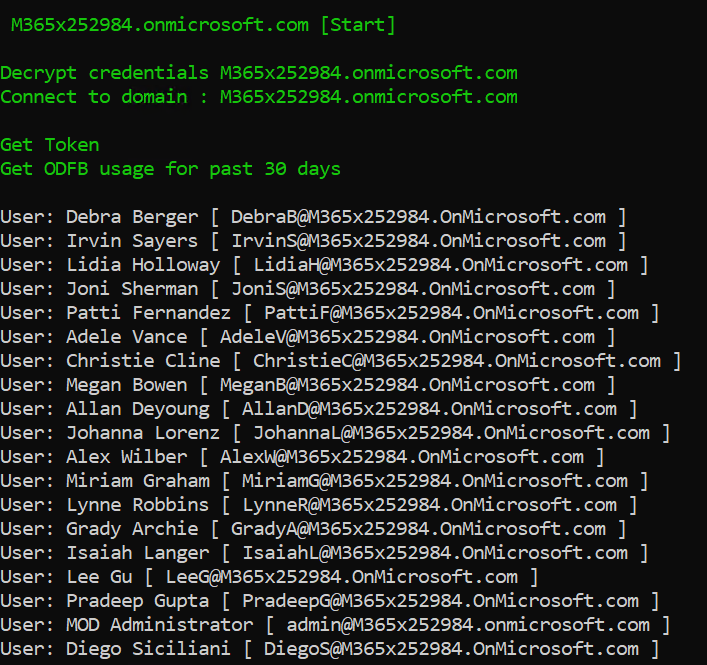
When you run the program, you’ll see the program loop through all the domains and all the users in those domains, without asking for a login.
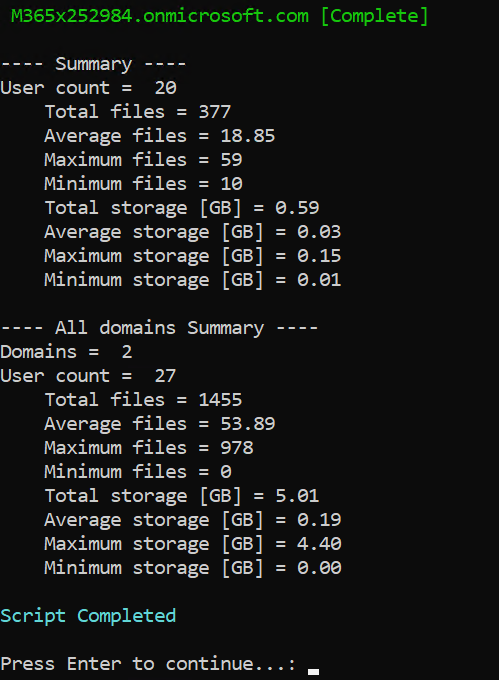
At the end of each domain you’ll see a summary of OneDrive for Business for that domain as shown above.
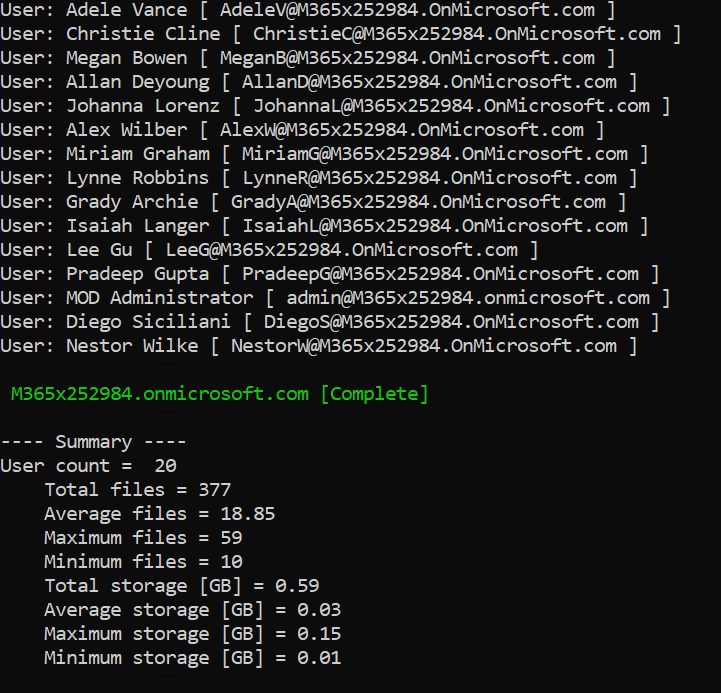
At the end of the process you’ll see an aggregate summary for all your domains, as shown above.
This may seem like a lot of work but remember, you only need to do Steps 1 and 2 ONCE! Once the Azure AD application is configured for each tenant and the Graph has the appropriate permissions you can run Step 3 as MANY TIMES as you wish, securely, WITHOUT be prompted for a login to each tenant! How easy is that to automate?
This example has used just one aspect of the Graph being OneDrive for Business. You can use the Graph to do just about anything in Microsoft 365 you need to, including actually changing and update parameters!. In fact that is what I’m off to do right now.
I showed how to use the Microsoft Graph to embed an Azure AD application in a single tenant and then use that to make Graph queries against. What happens when you want to that across multiple tenants?
To achieve this you’ll need to basically do three things:
1. Embed a ‘static’ Azure AD application in all the tenants you wish to access.
2. Give those ‘static’ Azure AD applications, in all those tenants, the appropriate permissions to access the tenant values.
3. Run a Graph request against these Azure AD applications in each tenant and extract the results you want.
This article is going to look at Step 1 of this process.
So, the task at hand is to create a ‘static’ Azure AD application in all the tenants we want to access. I have detailed how to achieve this manually before here:
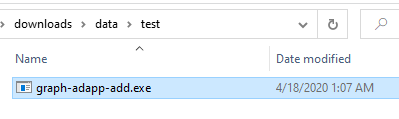
You can download the file into any directory on your machine. Best best is to use a Windows 10 machine that already has the AzureAD PowerShell module installed. This program will also generate a number of configuration files in the current directory for each domain you connect to.
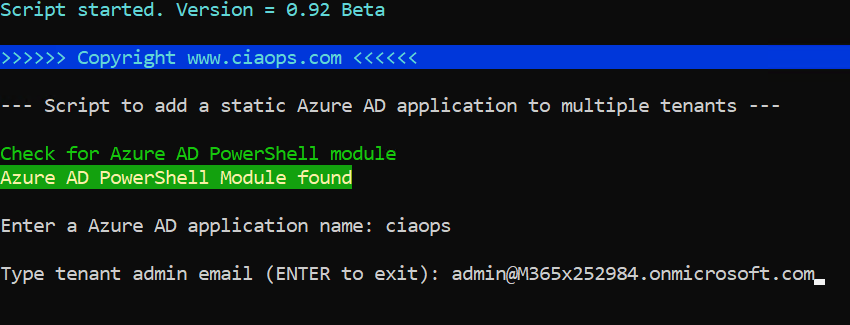
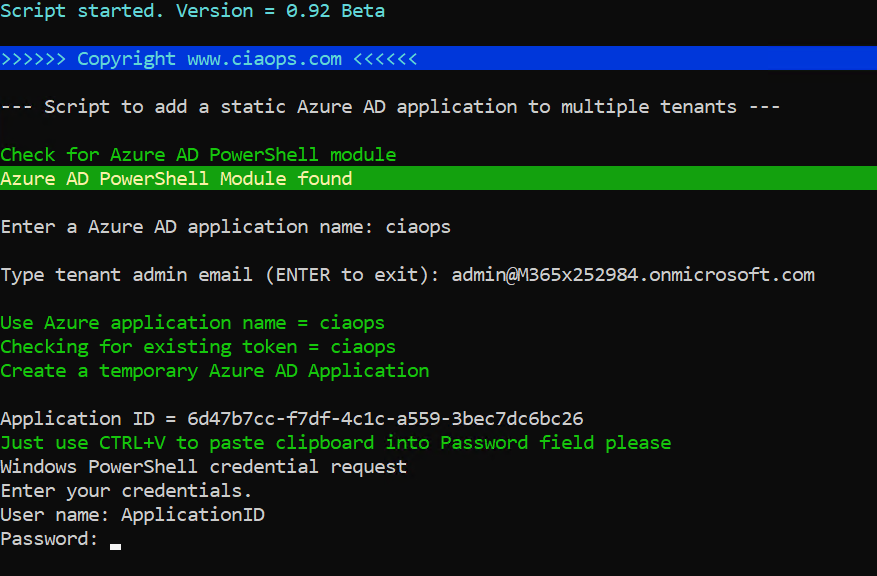
Running the program will launch the PowerShell script as shown. You’ll then be prompted for the name of your Azure AD application. This is the display name that will appear inside your Azure AD. This name will be the same across all tenants you connect to. Here I’ve chosen to call my Azure AD application ciaops.
You’ll then be prompted for the email address of a tenant administrator with the rights to create an Azure AD application.
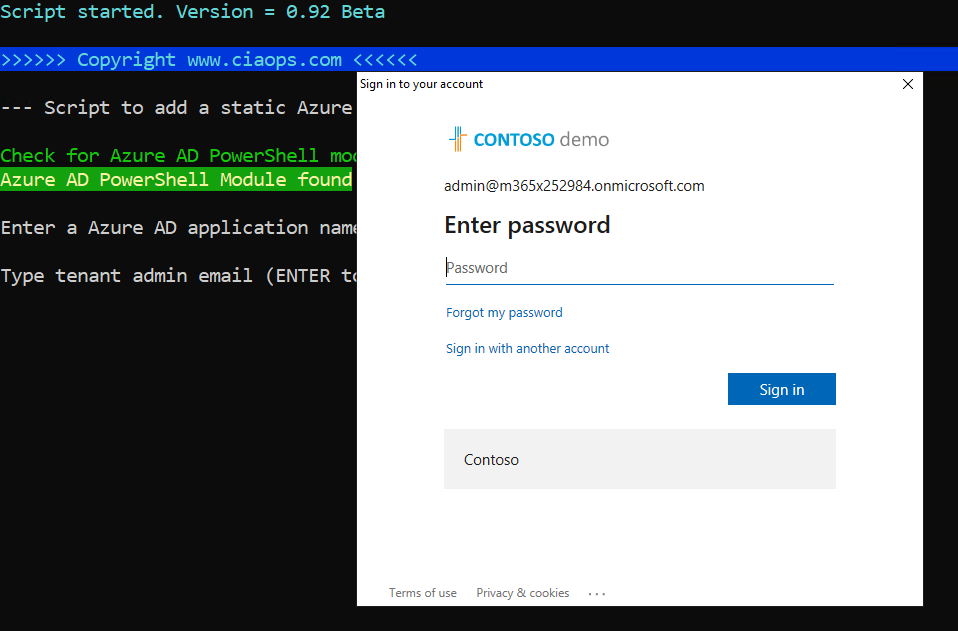
You’ll then be take through the normal sign in process for that tenant with that user as shown above. This will include any MFA if required.
The tenant will be check to see if an existing Azure AD application of the same name already exists and if it does you’ll see a warning like shown above. The program will then skip adding an Azure AD Application to this tenant and move on to the next tenant.
Assuming no Azure AD application of the same name exists in that tenant you’ll see that a new Azure AD application of that name is created. When a token is created in a tenant there are fours pieces of information that will need to be saved:
1. Application ID
2. Object ID
3. Application secret
4. Tenant ID
Each of these will be written to a secure configuration XML file I’ll explain in detail below. For now, just appreciate that these values need to be written securely to files so they can be used later. To achieve that, the program uses the get-credential PowerShell command to capture these securely to be written.
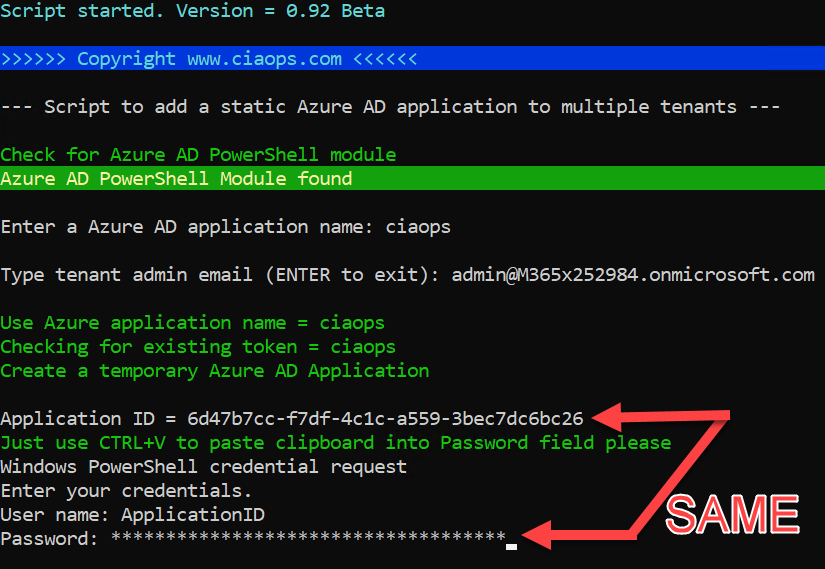
To complete this process all you need to do is use the Paste command (i.e. CTRL+V) when prompted at the password field as shown.
So here, simply hit CTRL+V and then ENTER. The actual value you are pasting is a few lines up in the display as you can see above if you need it.
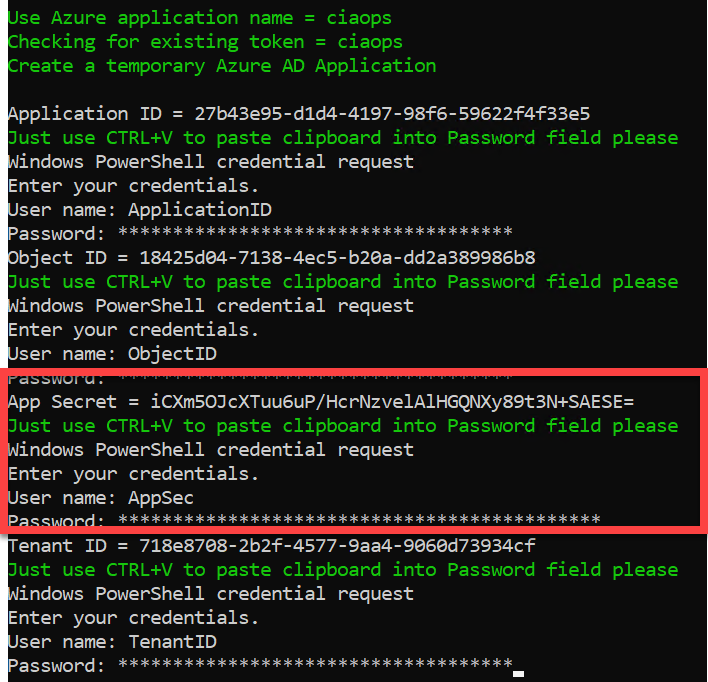
You’ll need to complete that process four times for each variable as shown above.
You are then prompted for the next domain you wish to add an Azure AD application to. You repeat the same entry process for each new domain you wish to use.
When you have no more domains to configure, simply press Enter at the admin domain prompt. At that point, the program will disconnect from any Azure AD and use the captured credentials to check whether it can access all these tenants. To do this, it reads from the saved configuration files and makes a basic read request to the Microsoft Graph using the Azure AD application details for each tenant to verify success. It merely tests that it can get the Graph API for that tenant.
At this point you now have an Azure AD application of the same name, inside each tenant you configured, with no permissions to anything with the Graph.
If you now return to the directory where you ran the program from you’ll see a number of additional files as shown above.
The graph-adapp-set.txt is a log of the whole process so you can see what has happened.
You’ll also see four XML files per tenant. These contain the important variables for the tenant mentioned previously. They are in format of:
<domain>-tenid.xml – holds encrypted Tenant ID
<domain>-appsec.xml – holds the encrypted application secret of the Azure AD application for the tenant
<domain>.objid.xml – holds the encrypted Object ID of the Azure AD application for the tenant
<domain>.appid.xml – holds the encrypted Application ID of the Azure AD application for the tenant
Storing these details on a workstation is not the most secure option I agree, but it’s a starting point for what I’ll show you down track (read Azure Key Vault). However, because some people want the flexibility and simplicity of local files that’s where this starts.
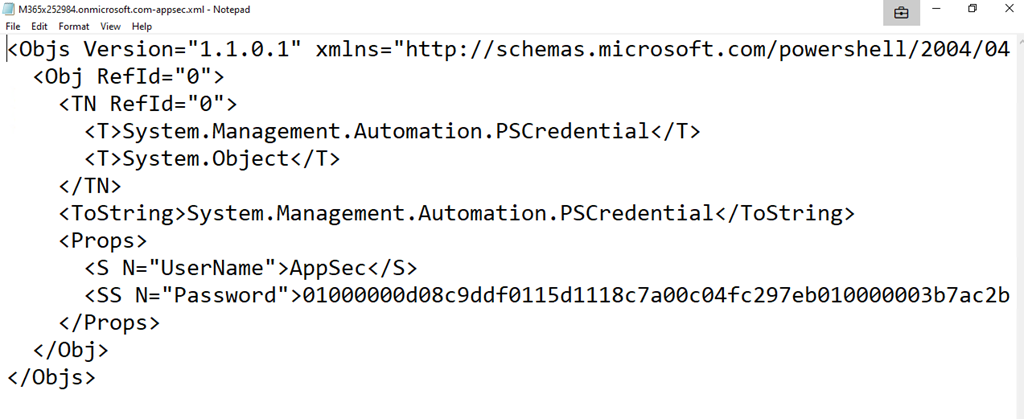
If you examine one of these XML configuration files more closely, as shown above, you’ll see that the variable name (here AppSec) is stored in the Username field and the Password field has a long string of characters. You’ll notice that these characters actually don’t in anyway match the actual Appsec value that was captured earlier. That value was:
This means that the actual tenant variables save in the files are encrypted, so they can’t be easily recovered.
To get the unencrypted values back you’ll need to use the PowerShell import-clixml as shown above.
Well, you maybe thinking that it is easy enough to copy these configuration files to another PC and decrypt them there. Not so fast my sneaky friend, because the way these details are encrypted is that they are locked to just THAT machine and just THAT logged in user! As you can see from the above, if you try and decrypt these files with another user on that same PC or on another machine, you can’t.
All of this comes about because of the use of the export-climxl command to save the variables, which says:
The Export-Clixml cmdlet encrypts credential objects by using the Windows Data Protection API. The encryption ensures that only your user account on only that computer can decrypt the contents of the credential object. The exported CLIXML file can’t be used on a different computer or by a different user.
That’s why you needed to do that CTL+V paste command for each variable previously so that the variable could be saved as a credential object and take advantage of this encryption process.
This has now achieved STEP 1 in the process I spoke about initially to allow secure access to multiple tenant using the Microsoft Graph.
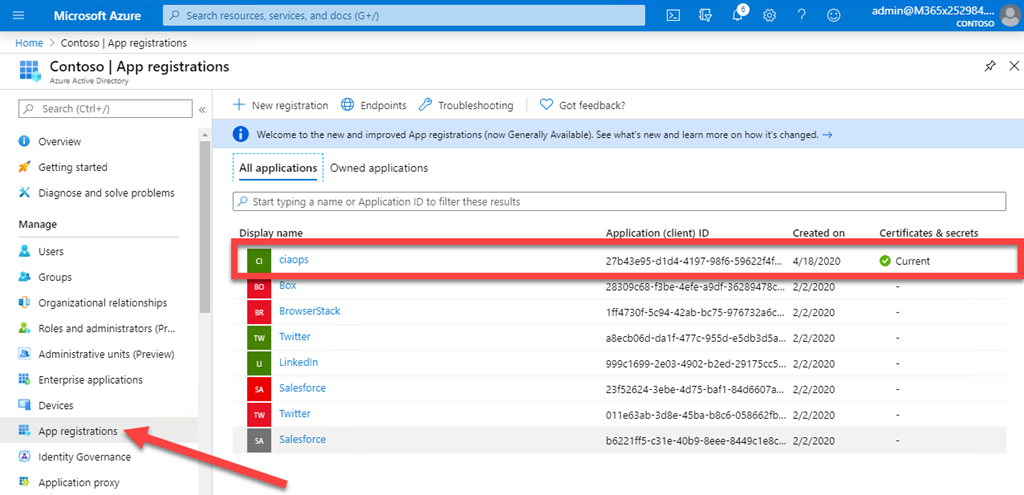
So what does the program actually do to each tenant behind the scenes? It is easy to see. Simply visit the Azure AD Directory location in the Azure portal for that tenant. If you then select the App registration from the menu on the left, and ensure you are viewing All Applications, you should see the application with the name you entered displayed on the right as shown above. Here, ciaops.
If you select the application name to get more details you’ll many of the variables saved to XML files as shown above.
If you then select API permissions on the left you will see that, as yet, no permissions have been given to this Azure AD Application (although they will be in an upcoming article).
However, we are not quite done yet as I have also created a program that will remove all of these Azure AD applications created quickly and easily. To do that download the program:
You need to place it into the directory where all the tenant configuration file are located as shown. Double click the program to run.
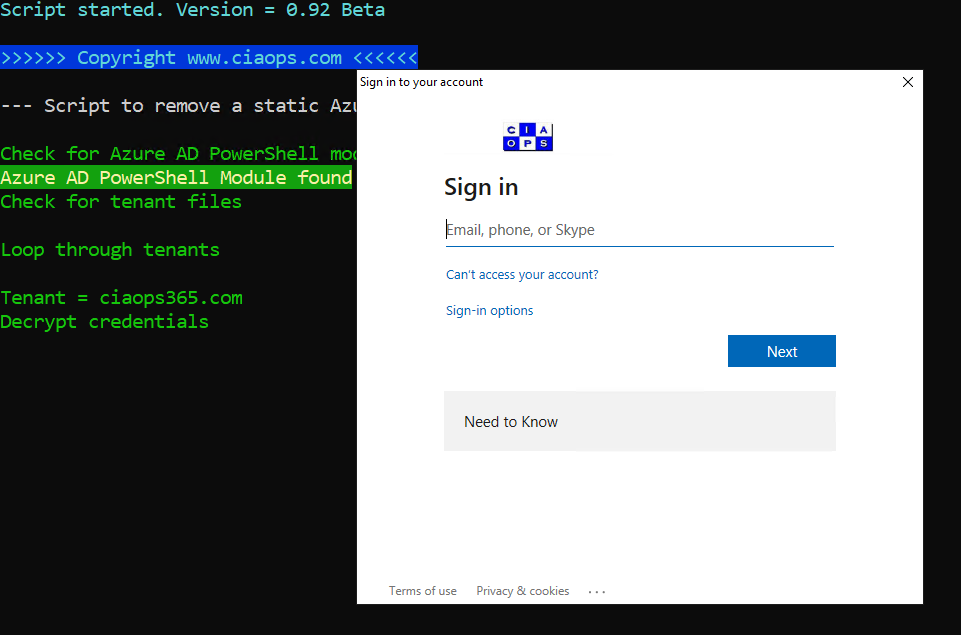
To remove that Azure AD application you’ll need to log back into every tenant interactively as shown above. You’ll see the same of the tenant that it wants credentials for in the program flow.
Once you have provided access to the tenant, the Azure AD application will be deleted along with the configuration files. You’ll then be take to the next tenant and asked to repeat the process.
Once there are no more configuration files found the program will end.
Remember, this program will delete every matching tenant it finds configuration files for in the current directory. If you only want to delete a subset of the total tenants you have configured, move the other configuration files out of the current directory until this process is complete.
In summary then, the programs that I have created and made available for free will create a ‘static’ Azure AD application in all the tenants you select. The idea in upcoming articles will be to show you how this ‘static’ embedded Azure AD application can now be used to report and potentially change the configuration of multiple tenants quickly and easily. I also provided a program to also remove all these Azure AD applications from tenants.
Next step will be to give the Azure AD applications appropriate permissions and then get some information from the tenants WITHOUT the need of manually logging into each.


















 CIAOPS