Need to Know podcast–Episode 244

Sarah Young from Microsoft joins us again to talk about Azure Sentinel. We run through what it is and why you should be using it to protect your IT environments. Brenton joins us as well to cover off the latest news and certifications he has achieved. Listen in for all the details.

This episode was recorded using Microsoft Teams and produced with Camtasia 2020

Take a listen and let us know what you think – feedback@needtoknow.cloud

You can listen directly to this episode at:

https://ciaops.podbean.com/e/episode-244-sarah-young/

Subscribe via iTunes at:

https://itunes.apple.com/au/podcast/ciaops-need-to-know-podcasts/id406891445?mt=2

The podcast is also available on Stitcher at:

http://www.stitcher.com/podcast/ciaops/need-to-know-podcast?refid=stpr

Don’t forget to give the show a rating as well as send us any feedback or suggestions you may have for the show.

Resources

Sarah Young

@contactbrenton

@directorcia

L400 Sentinel Ninja Training

MS Tech Community Sentinel blog

Sentinel GitHub repo

Sentinel documentation

MS Security Community webinars

Defender ATP for Linux now GA

Defender ATP for Android

OneDrive Roadmap Roundup – May 2020

PowerPoint Live is now generally available

What’s New: Livestream for Azure Sentinel is now released for General Availability

Azure responds to COVID-19

20 updates for Microsoft Teams for Education, including 7×7 video and Breakout Rooms

Outlook for Windows: Signature cloud settings

Configure new Edge to allow Exchange PowerShell MFA module download

One of the challenges with MFA and PowerShell is that you need to basically go into the Exchange management console and download a special PowerShell module that supports MFA. The need for that MFA module when connecting to Exchange Online with PowerShell is largely being negated by using the Exchange Online PowerShell V2 module (yeah). However, if you want to connect to the Security and Compliance center online with PowerShell and MFA you are still going to need to install this special module MFA from the Exchange Admin center in the portal (damm).

image

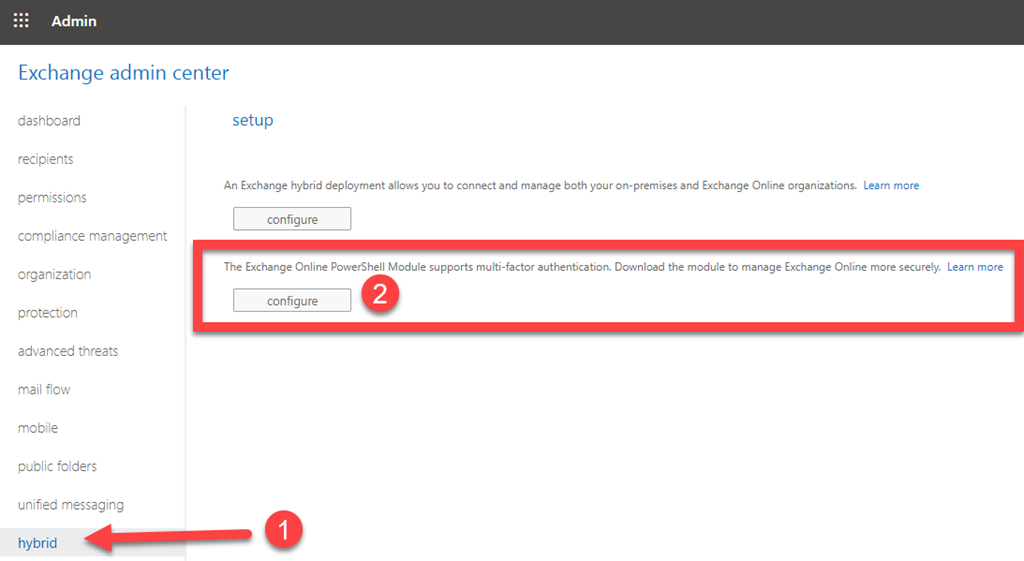
To do this, you’ll need to navigate to the Exchange admin center as shown above and select Hybrid from the items on the left. you’ll then need to select the lower option that is then displayed on the right hand side, which allows you to download the special MFA PowerShell module.

That should commence an automated download for you. This automated download “should” work in both the older Internet Explorer and the new Edge (chromium based) browser.

image

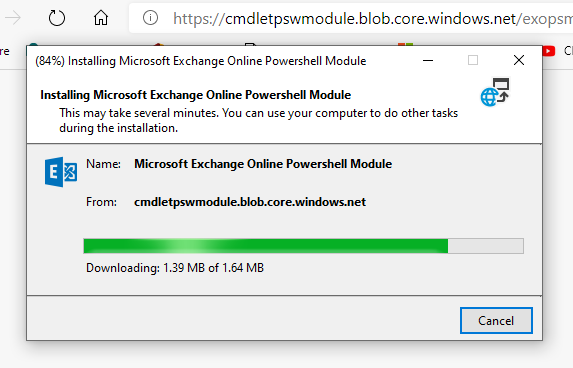
That download process should look something like what is shown above. However, if for some reason you can’t get it working with the new Edge (chromium based) browser navigate to:

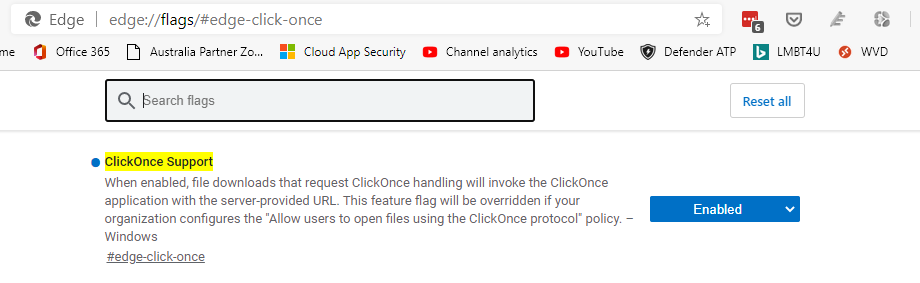
edge://flags/#edge-click-once

image

and Enable the ClickOnce Support option as shown above, if not already enabled. Most of the time it is set as Default, which you will need to change to allow the download to commence.

The browser will need to reload, but after that you should able to run the file in the Edge (chromium based) browser to get the Exchange Online MFA module installed on your local machine.

An easier way to connect using PowerShell

If you visit my Office 365 GitHub repository, you’ll find a whole of scripts there you can use for free. A subset of those scripts are designed to make connecting to the various Microsoft Cloud service easier. For example the script:

https://github.com/directorcia/Office365/blob/master/o365-connect-exov2.ps1

allows you to easily connect to Exchange Online using the version 2 module.

While all of this helps, it can still be a bit trickly for people to know what to run when to get connected. So, with that in mind I have created this script:

https://github.com/directorcia/Office365/blob/master/c.ps1

which when run by simply typing

.\c.ps1

in the PowerShell command line

image

will now pop up a dialog as shown above and allow you to select which service which wish to connect to.

image

Even better, you can also select multiple services in this same window. You simply use the CTRL and SHIFT keys to select multiple item, just as you do in any Windows desktop application (like Windows Explorer for files say).

After you have made your selection, those individual service connection scripts will be run.

Of course, the assumption is that you have all of my scripts (including the individual connection scripts) in the same directory. If not, then the connections will not be made. However, if you have ‘cloned’ what I have into a single location on your machine, then you should be all good.

I also created this short script:

https://github.com/directorcia/Office365/blob/master/r.ps1

which you can run at the PowerShell command prompt via:

.\r.ps1

to remove any currently loaded PowerShell sessions as well, quickly and easily.

Hopefully, this new ‘master connection’ script will make it easier for people to connect to the Microsoft Cloud services they need.

Make you you check back regularly to my Github repository for any updates and additions

Exchange Online mailbox check script update

I have just updated another of the free PowerShell scripts I provide on Github. This time o365-mx-check.ps1 has been given an update. You will find it here:

https://github.com/directorcia/Office365/blob/master/o365-mx-check.ps1

1. Prior to running the script you will have needed to install the Exchange Online PowerShell module. To set up your PowerShell environment I suggest you check out:

2. Connect to Exchange Online with PowerShell. For that I recommend you use my script:

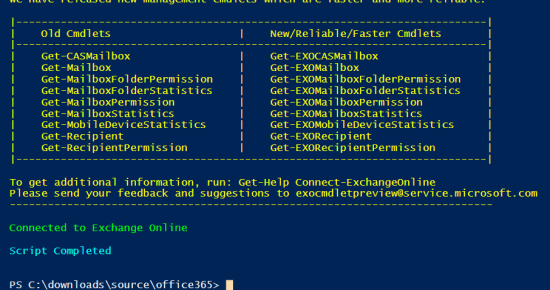
That should result in you being connected to Exchange Online PowerShell as shown above.

Once you have your PowerShell environment setup, you simply run the o365-mx-check.ps1 script at the PowerShell prompt.

image

After checking that the Exchange Online PowerShell module is loaded and connected, the script will loop through all the mailboxes in your tenant.

image

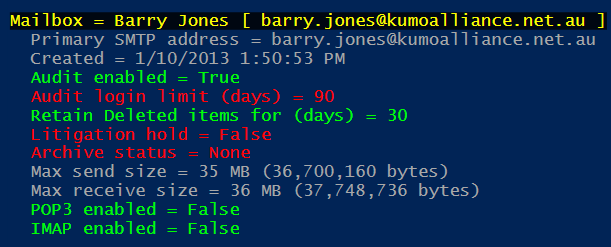
For each mailbox it will check and display a number of settings as shown above including:

  • Users Display name and principal name
  • The primary outbound email address the mailbox uses
  • When the mailbox was created
  • Whether auditing is enabled for the mailbox
  • What the maximum age limit of audit log entries for the mailbox
  • Deleted items retention period
  • If Litigation Hold is enabled
  • If mailbox archiving is enabled
  • The maximum message send size
  • The maximum message receive size
  • If POP3 is enabled for the mailbox
  • If IMAP is enabled for the mailbox

Items that are not best practices will be highlighted in red for your attention as shown above.

By default, these results will only display on the screen, however if you specify the optional –CSV parameter when you run the script like:

.\o365-mx-alert –csv

A CSV file with the output will be created in the parent directory.

image

You will see the name of the CSV created at the end of the script as shown above.

image

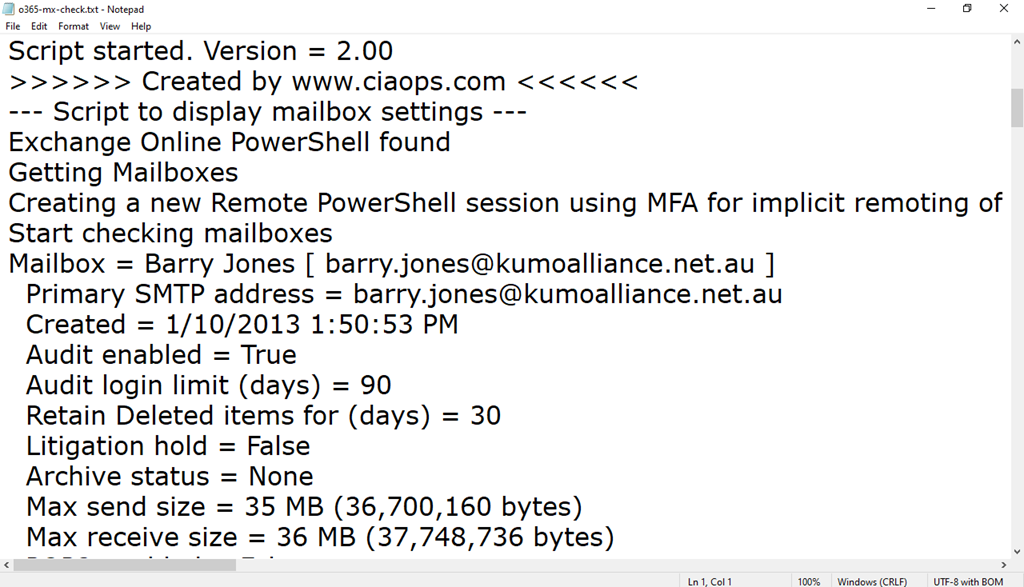
Each CSV file is timestamped to ensure that a unique file will be created each time the script is run.

A log file, o365-mx-alert.txt is also created in the parent directory as well on each run.

image

The log file will be overwritten each time the script is run.

Thus, the o365-mx-check.ps1 script has 1 optional parameter, that can be used:

-csv = output all logs for period to a CSV file in the parent directory. A new CSV file is created for each script execution

The script will also produce a log file (o365-mx-check.txt) in the parent directory, that is overwritten on the each run of the script.

You will find this script and all my publicly available scripts at:

http://github.com/directorcia

Don’t forget to check back there regularly for updates. Also, if you have any feedback or suggestion on this script or what you’d like to see me create, please let me know. I also maintain a large array of additional scripts via a paid subscription. More details of that can be found at www.ciaopspatron.com.

Need to Know podcast–Episode 243

FAQ podcasts are shorter and more focused on a particular topic. In this episode I speak about what Office 365 ATP is and provide some best practice suggestions.

This episode was recorded using Microsoft Teams and produced with Camtasia 2020

Take a listen and let us know what you think – feedback@needtoknow.cloud

You can listen directly to this episode at:

https://ciaops.podbean.com/e/episode-243-office-365-atp/

Subscribe via iTunes at:

https://itunes.apple.com/au/podcast/ciaops-need-to-know-podcasts/id406891445?mt=2

The podcast is also available on Stitcher at:

http://www.stitcher.com/podcast/ciaops/need-to-know-podcast?refid=stpr

Don’t forget to give the show a rating as well as send us any feedback or suggestions you may have for the show.

Resources

CIAOPS Patron Community

Office 365 ATP

@directorcia

Audit script update

About two years ago I created a free PowerShell script to report on tenant logins by checking the Unified Audit Log. You’ll find that original article here:

Auditing Office 365 user logins via PowerShell

I’ve now updated the script and added some functionality as well. But before you go off and run the script, make sure you have completed the pre-requisites:

1. You’ll need to ensure that you have enabled your Unified Audit Logs in the tenant. You can see how to do that here:

2. Prior to running the script you will have needed to install the Exchange Online PowerShell module. To set up your PowerShell environment I suggest you check out:

3. Connect to Exchange Online with PowerShell. For that I recommend you use my script:

image

Once you have your PowerShell environment setup, you simply run the o365-connect-exov2.ps1 script as shown above.

image

That should result in you being connected to Exchange Online PowerShell as shown above.

image

At this point you can now run the o365-login-audit.ps1 script which you will find at:

https://github.com/directorcia/Office365/blob/master/o365-login-audit.ps1
image

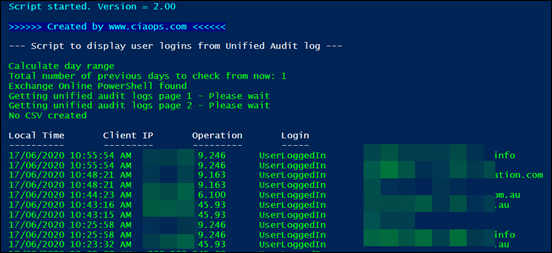
That should output the list of user logins from the Unified Audit Log for the past day as shown. It will show you both successful and failed login attempts, the time they occurred, the IP that the login came from the user attempting the login as shown above.

image

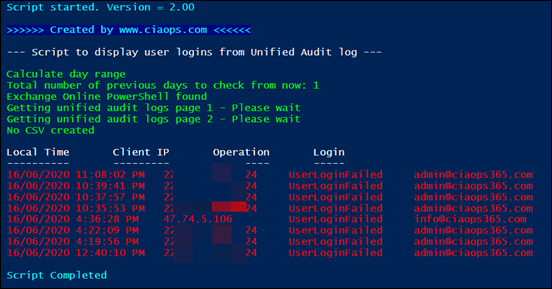
If you instead run the o365-login-audit.ps1 script with the –fail parameter as shown above,
image

The output will only display failed login attempt details as shown above.

image

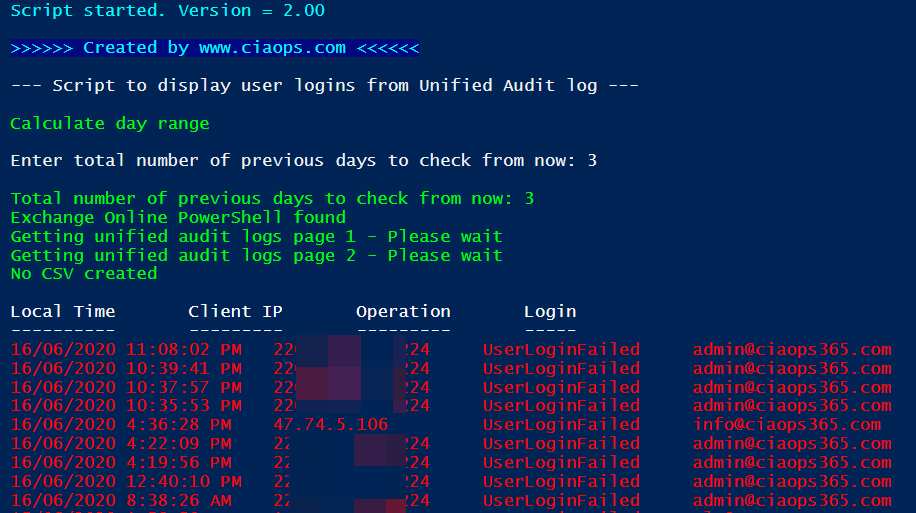
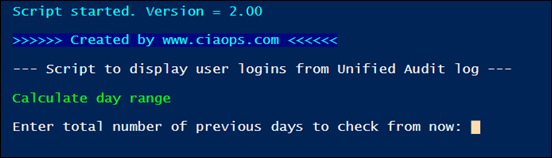
If you run the o365-login-audit.ps1 script with the –days parameter as shown above,
image

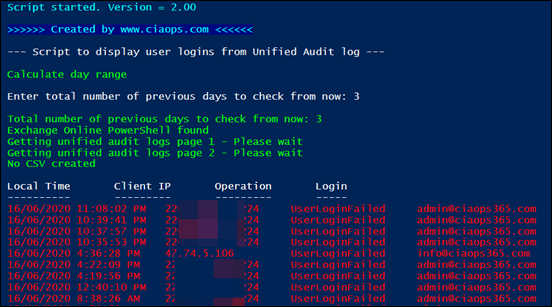
You will be prompted to enter the number of previous days you wish to check as shown above beyond the default one day. Remember, the more days you specify, the more logs need to be retrieved, and the longer the process will take.
image

The results will be displayed as before. You will notice the message line in the output to the total number of days being checked.

image

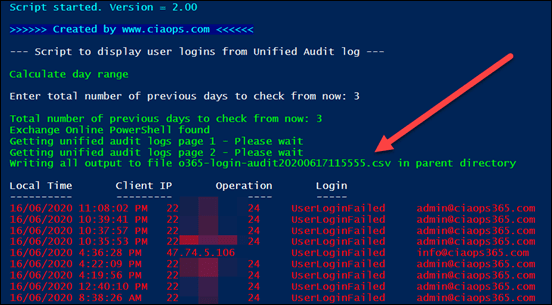
If you instead run the o365-login-audit.ps1 script with the –csv parameter as shown above,
image

You will notice the same output but you will also see a line, as shown above, that confirms the total results have also been sent to a CSV file.
image

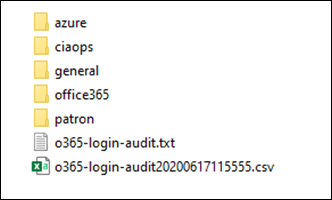
if you look the parent directory, from where the script ran, you will find the CSV file (o365-login-audit.csv) mentioned previously as well as the script log file (o365-login-audit.txt).
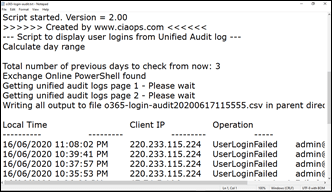
image

The script log file (o365-login-audit.txt), as shown above, contains the output from what was displayed on the screen when you ran the script. This file is always overwritten when the script runs.
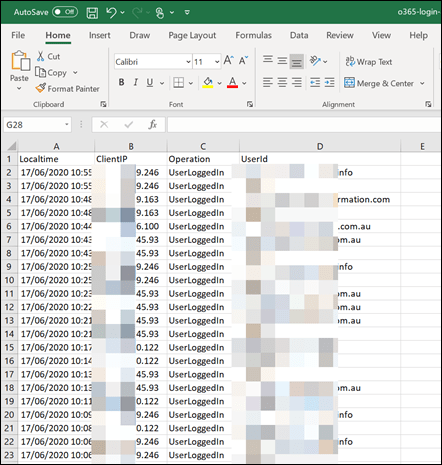
image

The CSV file contains all the log file entries for the period specified. This allows you to open the file in Excel and filter, sort and format as needed. A new CSV is created every time the script is run with the –csv option.

Thus, the o365-login-audit.ps1 script has 3 optional parameters, that can be used in any combination:

-fail = display only failed logins

-days = prompt for total number of days to check from current

-csv = output all logs for period to a CSV file in the parent directory. A new CSV file is created for each script execution

The script will also produce a log file (o365-login-audit.txt) in the parent directory, that is overwritten on the each run of the script.

You will find this script and all my publicly available scripts at:

http://github.com/directorcia

Don’t forget to check back there regularly for updates. Also, if you have any feedback or suggestion on this script or what you’d like to see me create, please let me know. I also maintain a large array of additional scripts via a paid subscription. More details of that can be found at www.ciaopspatron.com.


Need to Know bot for your Microsoft Cloud Q and A

Recently I wrote an article about using Microsoft At to create,

a dedicated Microsoft Cloud Search engine

Another form of AI that is available is a chatbot service for questions and answers. Many people have seen these already on web sites, where a helpful customer service rep appears on your web page asking if you need assistance. I have now created a similar chat experience which I have christened the CIAOPS N2Kbot.

You’ll find the N2KBot here:

http://bit.ly/n2kbot

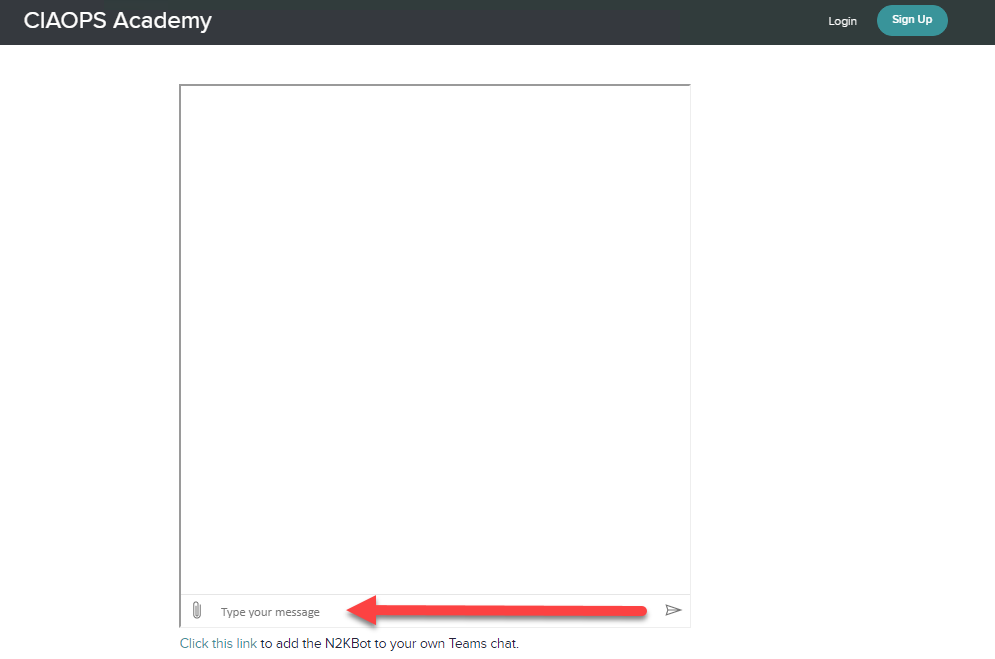
image

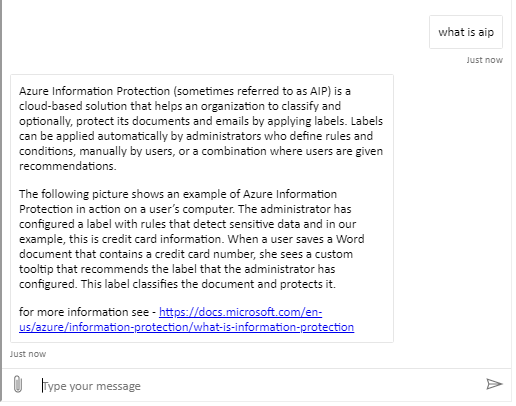
When you first arrive you’ll see a page like that shown above. simply enter your question in the lower line (where it says type your message” and then press enter). I haven’t as yet automated it greet you as personally I find that annoying. So for now, you can interact manually.

image

You’ll see above that if I ask “what is aip” I get a response back about Azure Information Protection.

SNAGHTML19eeb575

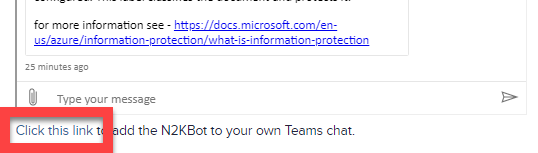
At the bottom of the page, you’ll also find a link to add the N2KBot to your Team if you want, as shown above.

image

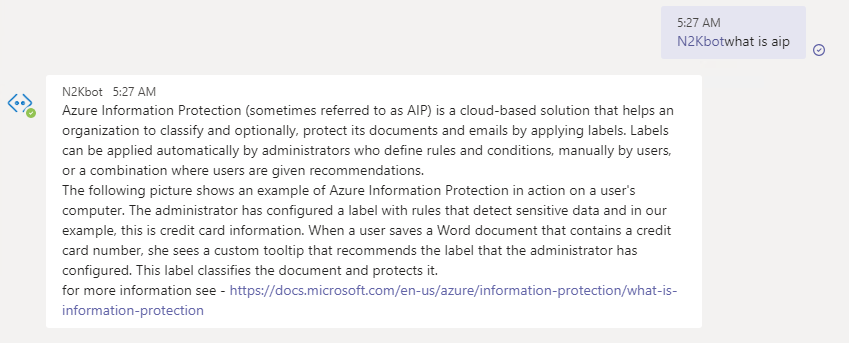
You can have it as a private bot or inside a channel if you wish. Once installed you activate the bot by starting a line with @n2kbot and then asking as question, like:

@n2kbot what is aip

as shown in the above example.

What is interesting about this chatbot versus the custom search engine I created previously, is how people so far have interacted with it. Most have treated this chatbot like a search engine, expecting to give them the exact answer to the question they asked. A chatbot really isn’t that. It is basically a list of question and answer pairs. That is, if you type in this (or close to it), then answer with this. It doesn’t search the web, it looks to it’s pre-programmed question and answers pair largely.

You can prime the chatbot with your own custom questions and answers or you can target web links. Sites that have lots of FAQs (frequently asked questions) on it ingest very well into the bot. However, it is important to remember that chatbots are not search engines.

So where could I see chatbot playing a role? I think they would work well for adoption, that is people asking basic questions about OneDrive for example (i.e. “How do I upload to OneDrive”) or things like “What is Sway”. So think of chatbots more as a way to answer common questions in an automated way. When you actually sit down and have a look at how many times the same or similar questions get asked you begin to appreciate the role that chatbots could play.

I am still testing this chatbot concept out in the area of providing information specifically on the Microsoft Cloud but, as I said, I can see an initial benefit in things like adoption, which I have started working on. In an upcoming article, I’ll show you how easy it is to create a chatbot like this in Azure. However, the idea for this preliminary article is to get you thinking about:

1. The differences between chatbots and search

2. Where a chatbot may make sense in your business. That is, what information is going to help with?

Once you have that, then creating an effective chatbot will be much easier in my experience.

In the meantime, feel free to have a play with the N2KBot and let me know your thoughts. It is far from perfect and only runs on the cheapest plan, so it might be a bit slow initially when you use it. However, once ‘awake’ it should perform normally. If you have some suggestions for the questions it should be able to answer, let me know, I’m very interested to hear other people’s thoughts on this.

My aim with all this, is to get the cogs in my head turning about where this new “AI” technology can effectively be applied. They are certainly beginning to turn in mine.