The bottom line is that Copilot for Security is a very beneficial tool for SMB. The approach, as always with SMB, is going to be that it needs to used in a specific manner to unlock the best ROI for smaller businesses.
I want to make it clear that I have no special inside information about Copilot for Security in any way. Everything here my own experience, summation and projection of how Copilot for Security can work for SMB customers.
Copilot for Security is going to give SMB customers access to expertise, in an on demand capacity, that most would simply not be able to afford otherwise. It is also going to be able to provide this expertise when and where is required, without the need of employing additional skilled specialised staff. Thus, the best way to think of Copilot for Security is that, it is an on demand experienced and skilled cyber security specialist consultant that can be employed when required for around $4 per hour. I however would suggest that probably a better way to budget for Copilot in Security is to allocate around $100 per month for the capabilities that Copilot for Security can provide in an ongoing basis. At $100 per month for what can be done to improve your cybersecurity environment is a worthwhile investment for an SMB serious about security.
Importantly, you need to understand that Copilot for Security is not a stand alone service. It is a service from which you only get the most from if you already have appropriate security services and signals enabled in your environment. It is this data that feeds Copilot for Security and produces the quality analysis you desire. In short, a lack of signals will mean a lacks of results with Copilot for Security. So the starting point, before you invest a penny in Copilot for Security is to ensure you have everything turned on and enabled in your environment that can help Copilot for Security do its job.
You are also going to be get more from Copilot for Security the more Microsoft security services you have. I feel that Microsoft 365 Business Premium is the minimum license SMB should have if they are serious about cybersecurity. This is because Microsoft 365 Business Premium is going to give you important tools like Intune and EntraID P1 that help Copilot for Security really shine. However, I suggest you need to go beyond just Microsoft 365 Business Premium and look at additional services like Sentinel and Defender EASM to provide even greater benefit and more signals for Copilot for Security to work with.
The next step to implementing Copilot for Security is to ensure you have an Azure subscription enabled in your environment, because this is how Copilot for Security will be billed. Another important asset needed is a familiarity and comfort using the pricing tools that Azure provides, like budgets and assigning resources. These Azure skills are going to help ensure costs are monitored and you don’t end up with bill shock. Just adding an Azure subscription without knowing how to manage an Azure environment effectively will result in spending much more money that is necessary.
Copilot for Security works best out of the box with the Microsoft Security stack. Integrating with things like Defender for Endpoint (Business), Intune, Sentinel and the like are quite straight forward assuming they have been enabled prior to on boarding Copilot for Security. Also, given the on-demand approach that should be taken with SMB, it means the integrations with Microsoft Security services will largely automatically light up when the service is re-enabled as required. Yes, you can and will be able to integrate third party security services but these will typically require some reconfiguration after re-enabling the service, while the Microsoft stuff will typically just be enabled. This means less to do after re-enabling Copilot for Security when you need it.
Unfortunately, Copilot for Security in SMB will not be a set and forget proposition. Doing so will rack up enterprise size charges that are unsustainable for SMB. This means Copilot for Security in SMB will be a service that needs to be turned on and off as required. At the moment , there is no simple way to achieve this but there will be. I have already seen solutions with Azure Logic Apps Azure Functions, PowerShell, etc that automate this on demand process already. However, none yet are a simple button press. This means that, for the time being, some manual intervention is required every time that Copilot for Security is enabled or disabled. Yes, there is a cost to this manual switching approach but it is a small price to pay when compared to the cost of leaving Copilot for Security running 24/7.
Another important point to appreciate on billing is that the fact that even though you would only configure the smallest SCU of 1 initially, this scales on the demand placed on Copilot for Security. In my testing, when I have been placing load on Copilot for Security, say for investigating an incident, I have seen the SCU in use jump up as high as 4. This means you are actually paying 4 SCUs x $4 = $16 per hour with Copilot for Security. Now, if you are in the middle of major investigation I feel that sort of investment is more than justified but it is important to remember, in all aspects, Copilot for Security is a service based on consumption. That is, you pay for what you use, per hour. This is very different from the flat fee per month billing that Microsoft 365 uses.
The way that I see Copilot for Security being used effectively will be that it is enabled and set up in the tenant and then de-provisioned. Then once a week someone will come in, re-provision Copilot for Security, run some checks, ask some questions, for an hour or so and the de-provision the service. Where Copilot for Security will really shine for SMB will be by bringing security information from all the services together in one place and generating report and ‘plain english’ emails and communications for the management of a business. If you asks for a summary, Copilot for Security will generate one for you in a matter of moments which you can copy and paste and send on. Doing that alone will save hours when it comes to effectively monitoring a Microsoft 365 security environment.
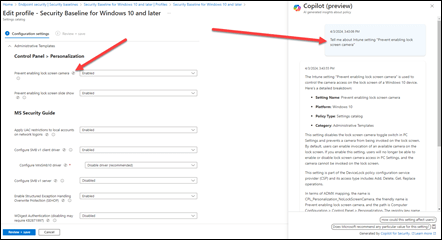
The other place that I see Copilot for Security providing the business benefit in SMB will be in device management, that is, in Intune. I have been working to understand all the new settings in the updated Windows 10 Security Baseline policy and the integration with Copilot for Security has been magic. It allows me to quickly query individual settings to understand what they do rather than having to dig through granular documentation. This is a huge time saver and really helps expose the value that Intune provides because Copilot for Security can analyse, report and summarise policies as well as provide a wealth of information at your finger tips. As with most AI, the biggest benefit will come from its use with people who know the least about the service it integrates with. Intune is a great case in point here. Most IT Professionals I know have very low experience and understanding with Intune and what it can do. They are intimidated by the interface and all the settings. Copilot for Security helps overcome this and makes even a unskilled Intune operator far more effective and efficient with it. That in a nutshell is the bottom line about how SMB should look at ANY AI. It is not yet something that removes the need to do the work, it does however mean you can complete the work required without needing high levels of skill and experience with the service much faster than without it.
Another other typical place I see Copilot for Security coming into its own is during a security incident. Unfortunately, most SMBs are not prepared or experienced in dealing with a cybersecurity incident. Luckily, Copilot for Security can be called on, as needed, to provide skilled cybersecurity services. Again, Copilot for Security will not resolve or investigate the issue automatically for you, however its capabilities are going to provide the business with the skills they need to solve the issue rather than having to deploy additional human resources. Thus, when an incident is detected, Copilot for Security is provisioned to assist with the investigation. At the end of the shift, it is de-provisoned to either be used tomorrow or the next time there is an incident. Of course, the usage costs of Copilot for Security will escalate with any type of intense usage, but again having access to the capabilities of Copilot for Security in a time or need for SMB will be priceless. Most importantly, these skills can be deployed almost immediately to help resolve the issue.
We need to remember that it is still early days for Copilot for Security. That means the service will continue to improve over time. This is great for SMB because it means even while the service is de-provisioned it is improving for the next time that it is needed. Another significant different is the shift from scripts to playbooks. Without AI you largely need to use PowerShell to achieve detailed incident investigations. However, with Copilot for Security you simply ask it a number of standard questions in English to get the same result. When these standard questions are combined together you get a playbook. Thus, there will be a playbook for ransomware attack, one for business email compromise and so on. This frees the responder from having to be a PowerShell expert and have access to the right PowerShell scripts to simply running and playbook inside Copilot for Security. Many of these playbooks already exist inside Copilot for Security now and they will just keep growing. A whole community will emerge providing playbooks for Copilot for Security. Many will be incorporated directly in the product. Best of all you’ll be able to add your own based on previous situation and interactions with Copilot for Security. SMB has the most to benefit from not re-inventing the wheel and simply providing what others provide already largely for free.
There is nothing Copilot for Security does that can’t already be achieved by a skilled operator. The challenge in SMB is having access to such skilled operators and having access pretty much immediately when required. I see Copilot for Security becoming more and more integrated with the security settings we see in the Microsoft 365 security admin console. Imagine when Copilot for Security is integrated with Exchange Online threat policies and can actually adjust these automatically to make your environment more secure. I can see a day when Copilot for Security can configure a complete environment to any security framework of your choice by simply (say Essential 8) using an inbuilt playbook. The possibilities are endless and should be very exciting for those in SMB since, rarely, are their jobs to be skilled cybersecurity anaylsis and operators. Copilot for Security brings those skills down to being applied on demand, for what I would suggest is a very small investment.
In summary then, is Copilot for Security a benefit to SMB? Yes, without doubt. Does Copilot for Security need to be implemented differently in SMB? Yes, without doubt. It is all about using the tools effectively for the job and from what I see. Copilot for Security is a highly effective tool when used correctly. However, as I have talked about before, Copilot for Security has pre-requisites to make it an effective tool. The greatest of these is ensuring that signals are already in place for Copilot for Security to use. You really shouldn’t be thinking about using Copilot for Security anywhere until all that is in place purely and simply because that is what feeds Copilot for Security. Poor input leads to poor output and this Copilot for Security should not be seen as a stand alone saviour of the lack of cybersecurity skills in SMB. It should be seen as the icing on the cake of what is already a amazing stack of services from Microsoft to protect the SMB customer.