

Here’s last year’s post for comparison:
My software and services – 2021
All my PC’s are running the latest version of Windows 10 (21H2) without any issues and none during the upgrade process either. I no longer run any Windows 10 Insider builds as I had trouble backing out of these when I needed to. I still have Office Insider builds happening in my environment. Most production machines I have are eligible for Windows 11 but none have been offered this upgrade as yet, however when it is I will be upgrading.
All Windows 10 Pro machines are directly joined to Azure AD and managed via Intune and Microsoft Endpoint Manager. Their configurations are based on the Windows MDM security baseline settings. All machines only use Windows Defender for security monitoring and management. Thanks to Microsoft E5 on my production tenant, I am also using Microsoft Defender For Endpoint at the back end for monitoring and investigation of endpoint threats.
The WD Sentinel DX4000 runs Windows Storage Server 2008 and is now effectively obsolete and only maintained for historical purposes and as an archive.
My two main tenants are an Office 365 E5 demo and Microsoft 365 production environments. A mix of Windows 10 Pro and Enterprise machines are all Azure AD joined to the Microsoft 365 production domain. The production Microsoft 365 tenant has Microsoft 365 Business for all users except myself. I have a Microsoft 365 E5 license on which I have configured all the services including integrated PSTN calling via Switch Connect.
I use Microsoft Sentinel to monitor threats across my environments via a single pane of glass.
I use the following major browsers:
– Edge – my primary browser across all my devices including iOS and Android. I have it locked down with baseline policies via Microsoft Endpoint Manager.
– Brave – I have become increasingly concerned about the surreptitious tracking that many sites perform, especially when it comes to social media sites. I therefore now do all my ‘random browsing’, searching and viewing of social media sites. I became aware of the extent of tracking when I was adjusting the security settings in Edge Insider and found the following:
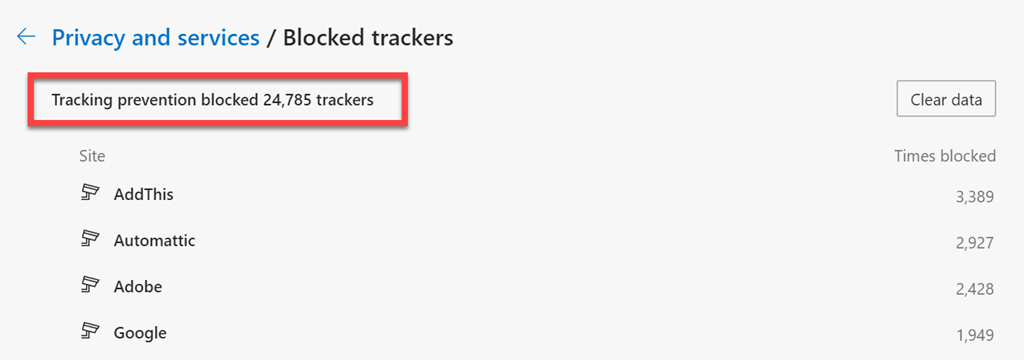
Made me realise that I probably need to take this ‘do not track’ stuff more seriously!
– Firefox – I now only use this on my Surface Pro X because Brave doesn’t offer an ARM version.
I have now cranked Edge up to the maximum security level but wanted to isolate the most likely tracking culprits into another browser that was security focused. After some evaluation, I have chosen Brave to be this browser. This is now where I do all the stuff that is more likely to be tracked and now hopefully blocked or at least minimised. I have also set this browser up to use Duck Duck Go as the default search engine, otherwise I use Bing for my production Edge browser. I have completely eliminated Google Chrome off all my machines without any issues and recommend those who are becoming more concerned about their privacy, like me, do the same.
Services like SharePoint Online and OneDrive I use regularly both in the demo and production tenant. I have the OneDrive sync client installed, running and connected to various locations on my production and demo tenants. I can now sync across all my different tenants as well as my consumer OneDrive storage. We have come a long way with the sync client!
I regularly use Microsoft Teams which is now my main messaging application. All the CIAOPS Patron resources like the intranet, team, etc all reside in the Office 365 E5 demo tenant but I connect to it on my desktop normally via an Azure B2B guest account from my production tenant. Thus, I can admin the Patron resources in a browser if need be but I get the same experience on my desktop as any Patron would. Handy to know what works and doesn’t work with Microsoft Teams guest access. Thanks to Microsoft E5 and Switch Connect, I also have Teams connected as a phone.
I use Lastpass to keep my passwords and private information secure. It allows me to do things like generate and store unique passwords for each website that I sign up for. It is also available across all browsers on my machine (including Microsoft Edge). I also now also use Lastpass to store secure notes.
The extensions I run in all my browsers are:
– LastPass
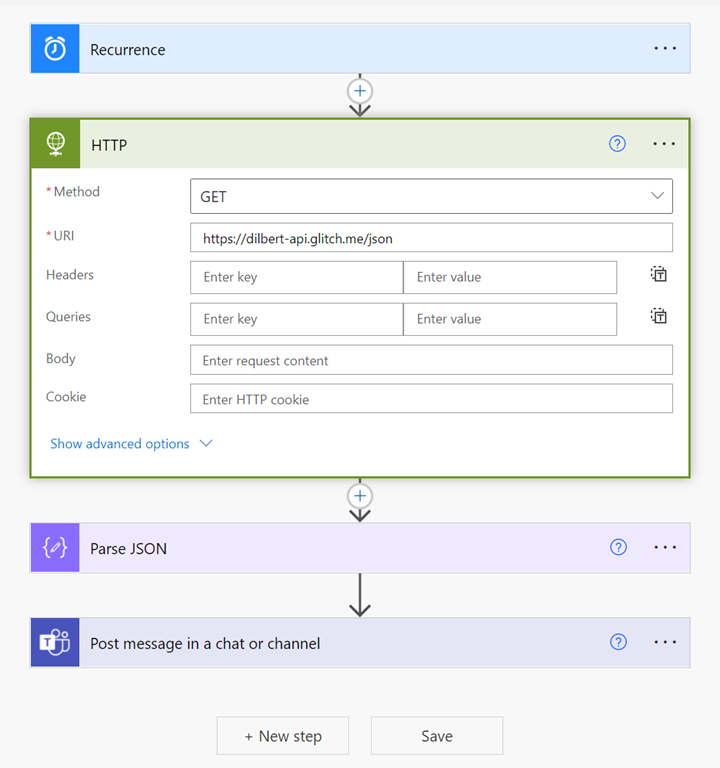
I use Microsoft Power Automate for automation as well as Azure Functions.
For my email newsletters I use Mailchimp.
My preferred public social networks for business, in order are:
1. Twitter
2. Linkedin
3. Facebook
I consume a lot of content from YouTube both for business and personal interest. I also also use YouTube extensively for my publicly available training video training.
Microsoft Office desktop software is still part of my everyday workday via applications such as Outlook, Word, Excel, PowerPoint, etc. I use the desktop version of Outlook on my Surface Pro 7 which lives on my desk but I only use Outlook Web App on my travelling Surface Pro 6 device. I could happily not use Outlook on the desktop any more I believe but I still use so I understand the experience for most users. However, I do see the day when Outlook on the desktop begins to lose its appeal.
One of the things I have added to my desktop version of Outlook is a digital certificate that signs every email that I now send. This helps the receiver confirm that the message they have received is in fact from me and that it hasn’t been altered in any way. There are some issues when people attempt to reply to these emails from a mobile device but I believe a fix from Microsoft is coming..
The key application from the suite for me is OneNote. OneNote is my go to Swiss Army knife for just about everything digital. I use it to capture all sort of data. I even use it as a diary as I have detailed previous here:
The reason OneNote is key is because:
1. Just about everything I put in there us searchable
2. It is freely available across all platforms.
3. All my information is synced and accessible on all devices.
4. It is available on the web or offline if needed.
There are now two version of OneNote, the Windows store OneNote and OneNote 2016. I am a big user of OneNote on my iPad mini with the Apple pencil. This combination has allowed me to totally eliminate my paper notebooks for things such as journaling.
I use Pure Text to easily paste information, especially to and from OneNote as only text.
I am now a big Microsoft To-Do user. I use it to keep many tasks and items that I need to follow up. I love how it is available on all my devices and syncs across them all as well.
I use Windows terminal now for things like PowerShell execution and Microsoft Whiteboard for demonstrations and training.
Microsoft PowerToys allows me to customise my desktop layouts using FancyZones.
Another key service I use everyday along with Office 365 and OneNote is Azure. Typically, I use it for running up virtual machines that I test various things with but I also use it to backup my local data as well as that of other members of my family using Azure Backup.
I have also now implemented an Azure site to site VPN as well as Azure SMB File storage to start moving my data into. I use Microsoft Sentinel to monitor all my services and machines in one single console and tell me about any incidents.
There is just so much that can be done with Azure and I pretty much use it everyday.
I still have a copy of some private data in Truecrypt but that is only as a backup. Nearly all of my data now lives in Microsoft 365 protected with things like Windows Information Protection and other Microsoft information protection options. All my Windows 10 machines run with full disk encryption thanks to Bitlocker, but stuff like financial and customer data live inside Microsoft 365..
In the last year I implemented Windows Defender Application Control (WDAC) to provide application control to improve security in my environment.
To capture my desktop for my online training academy or my YouTube channel I use Camtasia. I use SnagIt to capture screen shots and add highlights and emphasis to these. Snagit allows me to capture complete screens or specific areas quickly and easily.
I use Microsoft Teams to record my podcasts, which I then produce with Camtasia. These are uploaded to Podbean where they syndicated across various network.
To compose and publish blog articles I use Open Live Writer. My blog lives on WordPress.com.
My web site and Battlefields site live on Squarespace.
The majority of images I get, like the one at the top of this article, I get from Pexels. Pickit is also another great option.
For improved meeting management productivity I use Microsoft FindTime.
Having recently purchased a Duo 2 device I have it connected to my Surface Pro 7 using the Microsoft Your Phone app.
I use Visual Studio Code in which I do most of my PowerShell editing and publishing. The end result typically is my GitHub repository where you will find a range of scripts and other resources that I maintain regular. With Visual Studio Code I can edit publish and sync all my machines and my GitHub repository no matter where I am. Very handy.
Here are also a few of the other items I use regularly that are not for business:
Amazon Prime Video – only place to the latest The Grand Tour action. I also liked the Jack Ryan series and well as the Gymkana Files but most of this viewing is now on my iPad mini.
NetFlix – Seen a lot of great stuff this give all the time in lock down but most of this viewing is now on my iPad mini.
XBox Live Gold – access to all the online Xbox goodness.
Duolingo – language learning, Japanese and Italian at the moment but most of this access is now on my iPad mini.
I try and keep my production machines as ‘clean’ and free of unused software as possible. I ensure that they are updated regularly. Any software testing that I need to do is typically done on a virtual machine in Azure.
So there you have it, the major software and services that I use regularly. I continue to search out additional software that will improve my productivity. If you use something that you’ve found really handy, please let me know and I always keen to explore what works for others.





 CIAOPS