Configuring DLP with Microsoft 365 Copilot

Here is a video that takes you through the process of setting up a Data Loss Prevention Policy (DLP) that protects content when used in Microsoft 365 Copilot.

To achieve this you need to set up Data Labelling in your Microsoft 365 environment which is not covered in this video. Documentation from Microsoft on DLP with Microsoft 365 Copilot can be found here:

Learn about the Microsoft 365 Copilot policy location (preview)

Copilot pages missing

Recently, I discovered that Copilot pages were not appearing in Edge inprivate.

image

You can see the example above: Edge, inprivate and no Copilot pages.

image

It seems that a control in the Microsoft 365 administration portal (Copilot | Settings | Pin Copilot) plays a role somehow. Initially mine was set to Do not pin Microsoft Copilot to the navigation bar.

image

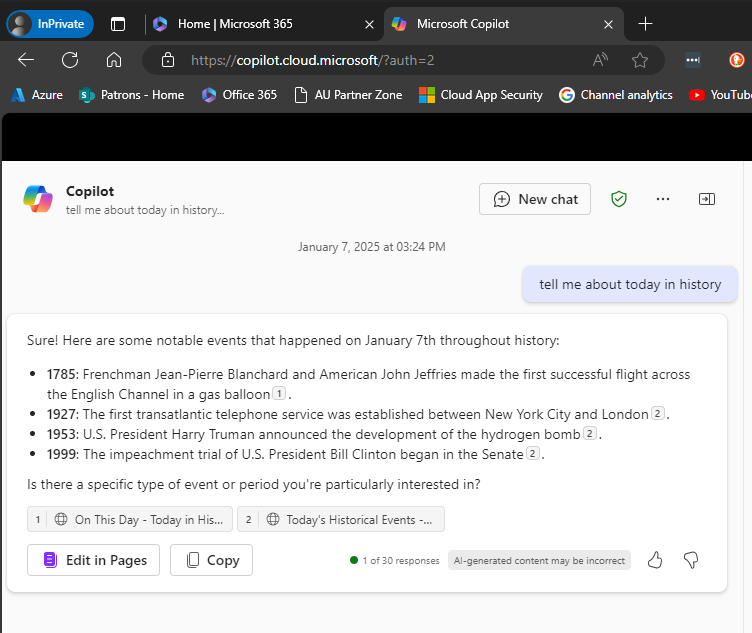
However, when I changed the setting to Pin Copilot to the navigation bar (recommended) and after a browser refresh or two (or close down/reopen browser), the Edit in Pages now appears within Edge inprivate as shown above.

What I also didn’t appreciate is that if you don’t have a paid version of Copilot for Microsoft 365 and simply use the free version of Copilot with your Microsoft 365 environment you can also get access to the Edit in Pages capabilities, which I thought required a fully paid Copilot for Microsoft 365. However, that doesn’t appear to be the case as the above screen shot came from a tenant with no paid Copilot for Microsoft 365 and the Edit in Pages is available, PROVIDED it seems, you turn on the pin Copilot option!

Of course, I can’t find this documented anywhere and only stumbled across it playing around. I have found the Edit in Pages button appearance to be somewhat unreliable when it did appear, but I have been turning the setting on and off to test, which have contributed to that unreliability.

After all this testing, my advice would be, based on the tests I’ve run, that even if you don’t have a pad version of Copilot for Microsoft 365 in your environment you want the option to Pin Copilot to the navigation bar enabled as I detailed above. That should allow the Edit in Pages to always appear regardless of a paid version of Copilot being in the tenant or not and regardless of browser or browser session you use.

Another observation is that with the pinned option set, the free version of Copilot returns more information as you can see when you compare the screen shots. With the pinned option enabled you get citations and hyperlinsk to the citation. Interesting.

It would be nice to know for sure if this setting does what I have found but for now you’ll have to take my word for it based on what I have found in my testing.

My Business Apps 2025

pexels-mohi-syed-50614

I remain a low volume mobile app user. I much prefer to access corporate data on a large screen with a full size keyboard I very selectively install apps on my device to try and keep them to a minimum. My limited use of apps on mobile devices is largely explained by ergonomic. Less is definitely more for me.

To see what I was using at the beginning of last year check out the article:

My Apps – 2024

My daily driver when it comes to a phone is an iPhone 12 Pro Max currently but I also have a Surface Duo 2 as a backup. The other device that I use apps on is my iPad mini.

My most used business apps on mobile devices over the last year were:

Outlook – for email access across multiple Microsoft 365 accounts secured via Intune.

Spotify on iOS to listen to all my podcasts.

Lastpass password manager and authenticator for general password management.

Microsoft Authenticator – I use this for a number of select web sites as well as Microsoft 365.

I have Microsoft Defender protecting all my devices including those running iOS and Android.

Car Play – Connects to my daily drive to provide the ability to listen to podcasts as well as use Waze for navigation.

OneNote – is a must on every device I own. Syncs all my notes to every device. Allows me to not only truly have my information everywhere I am but also capture information quickly and easily.

OneDrive – This mobile app now not only allows me to manage my Microsoft 365 files but it also incorporates the more advanced Office Lens technology that scans and uploads, documents, whiteboards, etc.

Tripview – One of the few apps that I have happily paid for. I use this to let me know the Sydney train schedule to help me get around when I need to negotiate the ‘real world’. Although not much travel is happening at the moment, this app is super handy for negotiating local public transport.

Qantas – Given the amount of interstate travel I generally do having all my business flight information is handy. It also has my boarding pass so I can remove the need for paper.

Audible – This app allows me to listen to my audio books where ever I am.

Amazon Kindle – If I don’t have access to my Kindle then I can still read my books. In my case that will most likely be on my iPad. I also use the Kindle app on the iPad when the ebook has a lot of images that sometime don’t display well or are too small for the Kindle device.

Of course I have all the social media apps, such as X, and Linkedin on my devices, although I will say that I’m not a big users of these apps at all. They are used occasionally but I really limit my usage of these apps which I find very distracting.

I also have all the Microsoft/Office 365 apps. The ones I use the most are probably To-Do, Outlook, SharePoint, OneDrive, and Teams, although Word and Excel also get used regularly. Just about every Microsoft Office 365 service has an app that you should have on your mobile device. On my Duo 2 I am also using Edge as the primary browser along with the new Edge Insider. I also have the Brave browser on my devices as I no longer use Chrome at all.

I’ve also added the Intune app to all my devices so they can be better managed.

I use the Signal messaging app for private conversations and groups that I am part of.

Some occasional ones I use include:

– Get Pocket

– Duolingo

– Uber

– Amazon music

I use the normal personal apps for things like Internet banking and so on.

One my iPad, which also serves as a personal entertainment device, I have the streaming services Youtube, Netflix and Amazon Prime Video. I also try apps regularly just to see what they do and whether they can benefit me. However, most don’t and summarily removed.

I will generally also update the apps on my mobile devices manually, so if there issues for some reason I know what has happened recently.

The above are my used apps across my various mobile devices. My aim to try and keep the apps standard across all the devices and as few as possible. I try and standardise on the Microsoft apps on all platforms and use these as much as possible. I certainly use a wide variety of apps on my devices by prefer the desktop versions if available.

CIA Brief 20250104

image

Passkeys Authentication Across Platforms and Devices using Entra ID –

https://techcommunity.microsoft.com/blog/coreinfrastructureandsecurityblog/passkeys-authentication-across-platforms-and-devices-using-entra-id/4361075

Understanding the Evolving Threat of DDoS Attacks in 2024 –

https://techcommunity.microsoft.com/blog/azurenetworksecurityblog/understanding-the-evolving-threat-of-ddos-attacks-in-2024/4362031

The Golden Opportunity for American AI –

https://blogs.microsoft.com/on-the-issues/2025/01/03/the-golden-opportunity-for-american-ai/

Share files and folders in Microsoft 365 –

https://www.youtube.com/watch?v=RbOkcOqlavw

Get ready for the new year with Microsoft 365 –

https://techcommunity.microsoft.com/blog/microsoft365insiderblog/get-ready-for-the-new-year-with-microsoft-365/4358415

Hyperscale ML threat intelligence for early detection & disruption –

https://techcommunity.microsoft.com/blog/microsoftthreatprotectionblog/hyperscale-ml-threat-intelligence-for-early-detection–disruption/4359763

After hours

Hunted From Above | Trailer – https://www.youtube.com/watch?v=1Ug0YGouHmY

Editorial

If you found this valuable, the I’d appreciate a ‘like’ or perhaps a donation at https://ko-fi.com/ciaops. This helps me know that people enjoy what I have created and provides resources to allow me to create more content. If you have any feedback or suggestions around this, I’m all ears. You can also find me via email director@ciaops.com and on X (Twitter) at https://www.twitter.com/directorcia.

If you want to be part of a dedicated Microsoft Cloud community with information and interactions daily, then consider becoming a CIAOPS Patron – www.ciaopspatron.com.

Watch out for the next CIA Brief next week

CIAOPS Need to Know Microsoft 365 Webinar – January

laptop-eyes-technology-computer_thumb

Join me for the free monthly CIAOPS Need to Know webinar. Along with all the Microsoft Cloud news we’ll be taking a look at Data Protection in Microsoft 365 once again.

Shortly after registering you should receive an automated email from Microsoft Teams confirming your registration, including all the event details as well as a calendar invite.

You can register for the regular monthly webinar here:

January Webinar Registrations

(If you are having issues with the above link copy and paste – https://bit.ly/n2k2501)

The details are:

CIAOPS Need to Know Webinar – January 2025
Thursday 30th of January 2025
11.00am – 12.00am Sydney Time

All sessions are recorded and posted to the CIAOPS Academy.

The CIAOPS Need to Know Webinars are free to attend but if you want to receive the recording of the session you need to sign up as a CIAOPS patron which you can do here:

http://www.ciaopspatron.com

or purchase them individually at:

http://www.ciaopsacademy.com/

Also feel free at any stage to email me directly via director@ciaops.com with your webinar topic suggestions.

I’d also appreciate you sharing information about this webinar with anyone you feel may benefit from the session and I look forward to seeing you there.

My software and services 2025

startup-photos

Here’s last year’s post for comparison:

My software and services – 2024

My PC’s are either running the latest version of Windows 10 (24H2) or Windows 11 (24H2) without any issues. Some machines cannot be upgraded to Windows 11 and some I have left at Windows 10 for the time being to verify their operation. I no longer run any Windows 10 Insider builds as I had trouble backing out of these when I needed to. I still have Office Insider builds happening in my environment.

Given that Windows 10 goes out of support in October 2025 I will upgrade what I can to Windows 11 and probably just leave the rest as is. All my production machines can go to Windows 11, it will just a test machines that can’t.

All Windows machines are directly joined to Entra ID and managed via Intune and Microsoft Endpoint Manager, except for one that remains stand alone for use with my IoT projects.  The Entra ID connected configurations are based on the Windows MDM security baseline settings. All machines only use  Windows Defender for local security monitoring and management. Thanks to Microsoft E5 on my production tenant, I am also using Microsoft Defender For Endpoint at the back end for monitoring and investigation of endpoint threats.

My two main tenants are Microsoft 365 E5 demo and Microsoft 365 E5 production environments. A mix of Windows 10 Pro and Enterprise machines are all Entra ID joined to the Microsoft 365 production domain. The production Microsoft 365 tenant has Microsoft 365 Business for all users except myself. I have a Microsoft 365 E5 license on which I have configured all the services including integrated PSTN calling via Switch Connect.

I use Microsoft Sentinel to monitor threats across my environments via a single pane of glass. I have also now added Defender EASM for monitoring security threats.

I use the following major browsers:

– Edge – my primary browser across all my devices including iOS and Android. I have it locked down with baseline policies via Microsoft Endpoint Manager.

– Brave – I have become increasingly concerned about the surreptitious tracking that many sites perform, especially when it comes to social media sites. I therefore now do all my ‘random browsing’, searching and viewing of social media sites using Brave. I also like that Brave allow me easy access to Tor browsing for anonymous security work.

I have now cranked Edge up to the maximum security level but wanted to isolate the most likely tracking culprits into another browser that was security focused. After some evaluation, I have chosen Brave to be this browser. This is now where I do all the stuff that is more likely to be tracked and now hopefully blocked or at least minimised. I have also set this browser up to use Duck Duck Go for search, otherwise I use Bing for my production Edge browser. I have completely eliminated Google Chrome from all my machines without any issues and recommend those who are becoming more concerned about their privacy, like me, do the same.

Services like SharePoint Online and OneDrive I use regularly both in the demo and production tenant. I have the OneDrive sync client installed, running and connected to various locations on my production and demo tenants. I can now sync across all my different tenants as well as my consumer OneDrive storage. I have common places pinned to my Windows Explorer Quick access, which I find to be a real time saver.

I regularly use Microsoft Teams which is now my main messaging application and I’m using the new Teams client. All the CIAOPS Patron resources like the intranet, teams, etc all reside in the Microsoft 365 E5 demo tenant but I connect to it on my desktop normally via an Azure B2B guest account from my production tenant. Thus, I can admin the Patron resources in a browser if need be but I get the same experience on my desktop as any Patron would. Handy to know what works and doesn’t work with Microsoft Teams guest access. Thanks to Microsoft E5 and Switch Connect, I also have Teams connected as a phone.

I use Lastpass to keep my passwords and private information secure. It allows me to do things like generate and store unique passwords for each website that I sign up for. It is also available across all browsers on my machine (including Microsoft Edge). I also now also use Lastpass to store secure notes. I accept recent security breaches with Lastpass generate concerns but after some investigations I believe the risk for myself is minimal and as yet don’t feel a need to switch. If I am going to change at any point I think I’d be going with Bitwarden but that hasn’t been necessary as yet.

The extensions I run in all my browsers are:

– LastPass

– GetPocket

– Duck Duck Go Privacy Essentials

I use Microsoft Power Automate for automation as well as Azure Functions.

For my email newsletters I use Mailchimp.

My preferred public social networks for business, in order are:

1. X

2. Linkedin

I would suggest that no matter what social media service you elect to use that you should spend time customising what you see. Unfiltered content is distracting but you can get good results if you spend just a little time telling the service what you do want to see I have found. Thus, don’t accept the defaults. You CAN customise what is presented to you.

I consume a lot of content from YouTube both for business and personal interest. I also also use YouTube extensively for my publicly available training video training.

Microsoft Office desktop software is still part of my everyday workday via applications such as Outlook, Word, Excel, PowerPoint, etc. I use the desktop version of Outlook on my Surface Pro 7 which lives on my desk but I only use Outlook Web App on my travelling Surface Pro 9 device. I could happily not use Outlook on the desktop any more I believe but I still use so I understand the experience for most users. However, I do see the day when Outlook on the desktop begins to lose its appeal.

Currently, I use both classic Outlook and New Outlook on various desktops without too much issues. I prefer classic Outlook but New Outlook has come a long way and added many of the capabilities I use in Classic Outlook. The missing piece for me still is the way to customised New Outlook to see emails, calendar and tasks all on a single page, which I don;t believe New Outlook supports just yet. I appreciate that Microsoft will soon be forcing everyone to New Outlook and I believe my soul is prepared for this transition when it comes.

The key application from the suite for me is OneNote. OneNote is my go to Swiss Army knife for just about everything digital. I use it to capture all sort of data. I even use it as a diary as I have detailed previous here:

One of the ways I use OneNote

The reason OneNote is key is because:

1. Just about everything I put in there us searchable

2. It is freely available across all platforms.

3. All my information is synced and accessible on all devices.

4. It is available on the web or offline if needed.

I am a big user of OneNote on my mobile devices. This combination has allowed me to totally eliminate my paper notebooks for things such as journaling.

I am now a big Microsoft To-Do user. I use it to keep many tasks and items that I need to follow up including when bills are due. I love how it is available on all my devices and syncs across them all as well.

I use Windows terminal now for things like PowerShell execution and Microsoft Whiteboard for demonstrations and training.

Another key service I use everyday along with Microsoft 365 and OneNote is Azure. Typically, I use it for running up virtual machines that I test various things with but I also use it with my IoT projects.

I use Microsoft Sentinel to monitor all my services and machines in one single console and tell me about any incidents now along with Defender EASM to search out vulnerabilities.

There is just so much that can be done with Azure and I pretty much use it everyday.

All of my data now lives in Microsoft 365 protected with things like Windows Information Protection and other Microsoft information protection options. All my Windows machines run with full disk encryption thanks to Bitlocker.

I have implemented Windows Defender Application Control (WDAC) to provide application control to improve security in my environment.

To capture my desktop for my online training academy or my YouTube channel I use Camtasia. I use SnagIt to capture screen shots and add highlights and emphasis to these. Snagit allows me to capture complete screens or specific areas quickly and easily.

I use Microsoft Teams to record my podcasts, which I then produce with Camtasia. These are uploaded to Podbean where they syndicated across various network.

To compose and publish blog articles I use Open Live Writer. My blog lives on WordPress.com.

My web site and Battlefields site live on Squarespace.

The majority of images I get, like the one at the top of this article, I get from Pexels. Pickit is also another great option. I have also been using Microsoft Designer a lot lately.

I use Visual Studio Code in which I do most of my PowerShell editing and publishing. I also use it now for my IoT projects. The end result typically is my GitHub repository where you will find a range of scripts and other resources that I maintain regularly. With Visual Studio Code I can edit publish and sync all my machines and my GitHub repository no matter where I am. Very handy.

Here are also a few of the other items I use regularly that are not for business:

Amazon Prime Video – only place to the latest The Grand Tour action. I also liked the Jack Ryan series and well as the Gymkana Files but most of this viewing is now on my iPad mini.

NetFlix – Seen a lot of great stuff this give all the time in lock down but most of this viewing is now on my iPad mini.

XBox Live Gold – access to all the online Xbox goodness.

Duolingo – language, maths and music learning, Japanese and Italian at the moment but most of this access is now on my iPad mini.

Kindle app – for typically reading books on my iPad

I try and keep my production machines as ‘clean’ and free of unused software as possible. I ensure that they are updated regularly. Any software testing that I need to do is typically done on a virtual machine in Azure.

A new section I thought I’d add is the AI that I use. The common Ai I use by far is GitHub Copilot. i use this daily to assist with coding tasks like creating PowerShell scripts and writing KQL queries amongst other things. Even though I have a paid version of GitHub Copilot I am happy to say there is also a free version that yo can take advantage of and the details are here.

I have a subscription to Microsoft 365 Copilot which I have had now for about a year. I use this regularly, but especially with Teams and Stream to summarise videos and other content. I also use Copilot Studio to create custom agents which I and others use inside the Microsoft Teams I manage. Even though Microsoft 365 Copilot is a significant cost investment it has more than proven its value to me over the past twelve months.

The main non-Microsoft AI that I use is Perplexity even though there are some ‘ethical’ challenges around this service. ChatGPT is also something that I use now ana again.

So there you have it, the major software and services that I use regularly. I continue to search out additional software that will improve my productivity. If you use something that you’ve found really handy, please let me know and I always keen to explore what works for others.

Need to Know podcast–Episode 336

A final episode for 2024. Thanks all for listening in 2024. For this episode I thought I’d wrap up my thoughts on the previous AI episodes experiment as well a let you know how I use Ai currently I also have some resources that I suggest you dig into to give you a better understanding of where all this Ai hype may end up.

Brought to you by www.ciaopspatron.com

You can listen directly to this episode at:

https://ciaops.podbean.com/e/episode-336-thoughts-on-ai/

Subscribe via iTunes at:

https://itunes.apple.com/au/podcast/ciaops-need-to-know-podcasts/id406891445?mt=2

or Spotify:

https://open.spotify.com/show/7ejj00cOuw8977GnnE2lPb

Don’t forget to give the show a rating as well as send me any feedback or suggestions you may have for the show.

Resources

@directorcia

Join my shared channel

CIAOPS merch store

Become a CIAOPS Patron

CIAOPS Blog

CIAOPS Brief

CIAOPSLabs

Support CIAOPS

The Coming Wave: Technology, Power, and the Twenty-first Century’s Greatest Dilemma – Mustafa Suleyman, Michael Bhaskar

My Goodreads feed

Mustafa Suleyman on the coming wave of AI

What is Ai anyway?

Free Github Copilot

Create a Microsoft Licensing Agent

CIA Brief 20241228

image

8 Components of SharePoint Information Architecture –

https://techcommunity.microsoft.com/blog/spblog/8-components-of-sharepoint-information-architecture/4356712

Seizing the AI opportunity: How to transform Canada’s economy by 2030 –

https://www.microsoft.com/en-us/microsoft-cloud/blog/2024/12/16/seizing-the-ai-opportunity-how-to-transform-canadas-economy-by-2030/

After hours

Festivus Dinner At The Costanzas – https://www.youtube.com/watch?v=1vSLryYdrX4

Editorial

If you found this valuable, the I’d appreciate a ‘like’ or perhaps a donation at https://ko-fi.com/ciaops. This helps me know that people enjoy what I have created and provides resources to allow me to create more content. If you have any feedback or suggestions around this, I’m all ears. You can also find me via email director@ciaops.com and on X (Twitter) at https://www.twitter.com/directorcia.

If you want to be part of a dedicated Microsoft Cloud community with information and interactions daily, then consider becoming a CIAOPS Patron – www.ciaopspatron.com.

Watch out for the next CIA Brief next week