Microsoft Defender for Business: The MSP Reality Check

image


The short version: Microsoft Defender for Business scored 100% detection coverage across all 16 attack steps in the 2024 MITRE ATT&CK Enterprise evaluation. It also ships with no native multi-tenant console, no included 24/7 SOC, and an admin portal MSP operators openly describe as “a damn mess.” Both facts are true. Most MSPs have only priced one of them.


If you are an MSP selling Microsoft 365 Business Premium to sub-300-seat clients, you have almost certainly had the conversation: “Does Business Premium include endpoint protection?” The answer is yes—and that is exactly where the problem starts.


Defender for Business (DfB) is not the question. The question is what an MSP is actually delivering when it ticks the Business Premium box, onboards the tenant, and moves on. This post works through the technical reality of DfB in MSP deployments: what the product genuinely does well, where the operational gaps sit, what the practitioner community has settled on as the minimum viable wrap, and what the liability exposure looks like when the wrap is missing.


1. The Detection Engine Is Real—Stop Arguing About It


Defender for Business runs the same agent technology as Defender for Endpoint Plan 2 (MDE P2), the enterprise-tier EDR included in Microsoft 365 E5. The product ships:


  • Next-generation antivirus with cloud-delivered protection and behaviour-based detection
  • Behavioural EDR—endpoint detection and response with timeline and forensic telemetry
  • Automated Investigation and Remediation (AIR)—auto-triage and containment of common threat patterns without waiting for an analyst
  • Attack Surface Reduction (ASR) rules—policy-driven controls that block the abuse of common Windows features (Office macros, LSASS access, script execution chains, etc.)
  • Web content filtering and network protection
  • Threat & Vulnerability Management (TVM)—a simplified posture view that highlights missing patches, misconfigurations, and software exposure across managed endpoints


The 2024 MITRE ATT&CK Enterprise evaluation, independently scored by MITRE Engenuity, recorded Microsoft Defender XDR at 100% detection coverage across all 16 attack steps and all 80 sub-steps. This is the same underlying agent technology DfB uses. Calling Defender for Business “just antivirus” in 2026 is not a security assessment—it is an indicator that the person has not looked at the product since 2021.


Confidence note (HIGH): The MITRE result is independently scored and publicly verifiable at attackevals.mitre-engenuity.org. G2’s 30-review aggregate for DfB sits at 4.5/5, with the dominant negative theme being “complex to configure”—not “missed threats.”


What DfB does NOT include versus MDE Plan 2 / E5


Clarity on the gaps matters because MSP decisions about upgrade paths depend on them:


  • Full Advanced Hunting with the complete KQL schema and 30-day cross-tenant query capability is absent. DfB has a stripped view only.
  • Custom detection rules at scale—the API-driven workflow for building organisation-specific KQL detections is an E5/MDE P2 feature.
  • Microsoft Threat Experts / Defender Experts for Hunting is an add-on entitlement, not included at any Business Premium tier.
  • Full TVM prioritisation workflows, including contextual risk scoring and remediation ticket integration, are more limited in DfB than in MDE P2.


For most sub-300-seat SMB clients, the missing features are not the bottleneck. The bottleneck is operational—and it starts at the management layer.


2. The Management Gap Is the Real MSP Problem


Across r/msp threads spanning August 2022 through January 2025—the most sustained practitioner conversation about DfB in MSP deployments—the dominant complaint is not detection quality. It is operability at scale.


“There is supposed to be auto remediation, but every tenant has a blank page in the settings… Logging into each tenant (delegation won’t work on these pages) is a PITA, and manually requesting remediation for the following day or later. Typical Microsoft, great idea, so lacking in cohesive execution.”

— GremlinNZ, MSP operator, r/msp canonical thread


“They need to make the Defender portal easier to use. It’s a damn mess right now.”

— ancillarycheese, MSP operator, r/msp


“We use Defender for Business WITH SentinelOne… as a stand-alone EDR solution—I wouldn’t recommend it. Without CIPP and other tools it becomes problematic to manage.”

— blindgaming, MSP operator, r/msp


The core structural problem is this: security.microsoft.com does not support delegated multi-tenant access in the same way that the Microsoft 365 admin portals do. An MSP with 40 tenants cannot manage Defender for Business alerts across all of them from a single pane of glass using native Microsoft tooling alone. Each tenant requires a separate login context. Delegation through GDAP helps with permissions but does not solve the unified-view problem.


This is not a minor UX complaint. It is a scalability ceiling. An MSP tech managing 20 tenants who needs to check for active incidents across all of them each morning is looking at 20 individual logins, 20 separate portal states, and 20 alert queues with no aggregated view. At that point, either the techs burn out or the alerts go unchecked—and in a security context, unchecked alerts are the same as no alerts.


The contrast with single-tenant environments


It is worth noting that the r/sysadmin community—practitioners managing one tenant rather than twenty—runs consistently more positive on DfB than r/msp:


“It’s pretty decent, and you’re only going to be able to do better if you move to a much higher-end EDR like CrowdStrike or SentinelOne. But Microsoft is no slouch here.”

— canadian_sysadmin, r/sysadmin


“Windows Defender for Endpoint/Business is a world leading solution. That being said it is best managed and monitored through your Microsoft 365 Business license with Intune and native management.”

— Avas_Accumulator, r/sysadmin


The split in sentiment is not about the product. It is about deployment context. In a single-tenant environment the multi-tenancy gap does not exist. In an MSP environment running 20–200 tenants, it is the dominant operational constraint.


3. Microsoft Does Not Include a 24/7 SOC with Business Premium


This is the single most consequential fact MSPs fail to communicate to clients, and the one most likely to produce a liability incident when it surfaces during a breach.


Microsoft’s managed SOC offering—Defender Experts for XDR—is sold separately. It has no public per-seat price. It is gated behind an interest form and is clearly positioned as an enterprise offering. There is no indication it is accessible to sub-300-seat SMB clients at a commercially viable price point.


The practical consequence for MSPs is blunt:


  1. DIY 24/7 monitoring—viable only for MSPs with a staffed NOC/SOC running around the clock, which is rare at the SMB-MSP tier.
  2. Defender Experts for XDR—enterprise-priced, opaque, and not practically accessible for Business Premium clients.
  3. Third-party SOC partner—Huntress, Blackpoint, Field Effect, Arctic Wolf, or Pax8-distributed MDR offerings layered on top of DfB.


The liability gap: A CFO at a 40-seat SMB hears “Business Premium includes Microsoft Defender” and reasonably concludes they have bought managed security. They have not. They have bought a detection engine. Whether anyone reads the alerts—and how fast—is entirely determined by the MSP’s service design, and if that is not documented in the MSA, neither party knows what they have bought.


4. The Minimum Viable MSP Wrap Stack


The practitioner community on r/msp has, over three years of iteration, converged on a standard architecture for running Defender for Business at MSP scale. None of the components are optional if the MSP wants to deliver an operationally sound result:


Layer 1: Access Management

GDAP (Granular Delegated Admin Privileges)—required for MSP access to customer tenants using the principle of least privilege. Replaces the legacy DAP model. Without GDAP properly configured, the MSP is either operating with excess privilege or managing access manually per tenant—neither is acceptable from a security or audit perspective.


Layer 2: Multi-Tenant Management

Choose one or more of:

  • Microsoft 365 Lighthouse—Microsoft’s own multi-tenant management portal for MSPs serving SMB clients. Provides an aggregated view of device compliance, alerts, and user risk across tenants. Improving but still limited for deep Defender operations.
  • CIPP (Community Intune and Partner Portal)—open-source MSP management platform with strong M365 coverage. Widely used in the community for tenant management, user operations, and policy deployment.
  • Inforcer—commercial MSP management layer with strong Business Premium policy management. Specifically designed for MSPs running large numbers of Microsoft tenants.


Layer 3: Policy Hardening

Intune-enforced security policies are the mechanism by which ASR rules, device compliance baselines, and Defender configuration actually land on endpoints. DfB in default configuration is not a hardened deployment. An MSP that onboards a tenant, enables DfB, and does not push a policy baseline is leaving a significant proportion of the product’s protective capability unused.

Critical policies that must be configured intentionally:

  • ASR rules—in Audit mode by default; must be switched to Block mode per rule after validating impact
  • AIR configuration—automated remediation level (Full vs. Semi-require-approval) per device group
  • Tamper protection—on by default in DfB but worth verifying across all enrolled devices
  • Network protection and web content filtering category configuration
  • Device isolation policy for high-severity incidents


Layer 4: The 24/7 SOC Layer

The alert that fires at 7:14pm on a Friday needs to be read and acted on within minutes, not at 9am Monday. For most MSPs this means a third-party MDR partner. The most commonly recommended option in the practitioner community is Huntress Managed EDR.


“Ditch your current AV spend for Huntress and use Microsoft Defender. Huntress manages a lot of the MS Defender features… from a multi-tenant monitoring/management/alerting perspective, this is the best solution on the market today.”

— amw3000, MSP operator, r/msp canonical thread (consistently upvoted 2022–2025)


Huntress was named a Microsoft Verified SMB Solution in November 2024 and announced an expanded Microsoft Defender collaboration in July 2025. The fact that Huntress chose to build on Defender rather than displace it is the strongest possible product-level endorsement of the DfB engine—and simultaneously the clearest acknowledgement that the engine alone is not sufficient for MSP-scale operations.

Alternatives to Huntress for the SOC layer: Blackpoint Cyber, Field Effect, Arctic Wolf, and Pax8-distributed MDR offerings. The choice of partner matters less than the fact that a choice has been made and that it is priced into the client’s service agreement.


5. What Happens When the Wrap Is Missing


A 40-seat accounting firm signs onto Business Premium on the MSP’s recommendation. The MSP onboards them in a week—Intune basic policy, MFA, Conditional Access, Defender for Business switched on across all endpoints. The client’s CFO asks once whether they are now “covered” for ransomware. The MSP says yes, in writing. Eleven months pass without an alert worth investigating.

On a Friday in month twelve, a partner clicks a payroll-themed phishing link from a hotel Wi-Fi. Defender flags the executable, isolates the device, and writes the incident to the security portal at 7:14pm. Nobody opens the portal until Monday at 9am. By then the attacker has used the seventy-two-hour window to pivot through the partner’s saved credentials into the firm’s tax software vendor and exfiltrate two seasons of client returns.

The post-incident review is short. The detection worked. The agent did exactly what Microsoft’s MITRE result said it would. What did not work was the part that was never bought, never built, and never priced—the layer that reads the alert at 7:14pm on a Friday and acts on it. The MSP had sold a licence. The client had assumed they bought a service. Both were correct. Both were also wrong about what the other one meant.


6. The Cost Economics—Why DfB + Wrap Beats the Alternatives


The Business Premium upgrade conversation is often framed as “is Defender for Business worth $9.50 per user per month?” That is not the right question. The $9.50 Business Standard to Business Premium delta delivers:


  • Defender for Business (EDR)
  • Microsoft Intune (MDM/MAM)
  • Azure Information Protection / Microsoft Purview Information Protection
  • Conditional Access (Entra ID P1)
  • Defender for Office 365 Plan 1 (anti-phishing, Safe Links, Safe Attachments)


Valued individually, the $9.50 delta is almost always defensible for any SMB with more than a basic threat profile. The correct question is whether the MSP has priced the wrap on top of it—because that is what determines whether the $9.50 produces security outcomes or merely a compliance checkbox.


Product Price Notes
M365 Business Standard $12.50 / user / month No EDR included
M365 Business Premium $22.00 / user / month DfB + Intune + CA + AIP + Defender for Office 365 P1
Defender for Business (standalone) $3.00 / user / month EDR only, same 300-seat cap
MDE Plan 2 (standalone) $5.20 / device / month Full EDR + Advanced Hunting + Threat Experts eligibility
CrowdStrike Falcon Go $59.99 / device / year (~$5.00/month) Closest single-vendor SMB alternative
Huntress Managed EDR Per-agent (contact Huntress) Layered on top of DfB; includes 24/7 SOC and <8 min median response


For clients already paying $22.00/user for Business Premium, DfB is sunk cost. The marginal question is the SOC layer—and layering Huntress on top of the included DfB engine almost always produces better economics than replacing Defender with a competing EDR, because the competing EDR still does not include 24/7 human response at the Huntress price point.


7. When to Move Beyond Defender for Business


DfB has a hard ceiling of 300 seats per tenant. At 301 users, the organisation must move to Microsoft 365 E3 (which includes MDE Plan 1) or E5 (which includes MDE Plan 2). This is a contractual limit, not a technical one.


The soft thresholds where MSP guidance should flip to E5 / MDE P2 before reaching 300 seats:


  • Regulated workloads—HIPAA, PCI-DSS, CMMC Level 2 or higher. These require documented custom detections, extended retention, and SOC reporting that DfB’s simplified tooling cannot produce.
  • Elevated threat profile—clients with significant third-party integrations, supply-chain exposure, high-value IP, or a documented history of targeted attacks. The Advanced Hunting / KQL gap becomes material at this profile.
  • Contractual SOC requirement—clients whose cyber insurance, board mandate, or regulator requires a named 24/7 SOC with documented SLAs. Defender Experts for XDR or a contracted MDR partner with E5 tooling is the appropriate response.
  • Multi-geo or cross-tenant consolidation—organisations with subsidiaries or complex ownership structures where cross-tenant Advanced Hunting is operationally required.


8. The Framework That Settles the Debate


“I see far too many MSPs ‘turn on’ Defender for Business and then move on. That’s not implementation. That’s box-ticking. Defender for Business is a serious security platform—but only if it’s deployed properly, configured intentionally, and monitored consistently.”

Robert Crane, CIAOPS, Microsoft MVP


This is the most useful single sentence for framing the MSP decision. The product does what it says. The gap is not in the technology—it is in the implementation discipline. Specifically:


  • Deployed properly—GDAP configured, all endpoints enrolled in Intune, DfB policy pushed to all device groups, not just the easy ones.
  • Configured intentionally—ASR rules reviewed and moved to Block mode per environment; AIR level set deliberately (Full automation for most SMB, semi-require-approval for environments where business operations cannot tolerate false-positive isolations); TVM findings reviewed on a scheduled cadence.
  • Monitored consistently—a named process, supported by a named tool or partner, that reads and acts on alerts within a defined SLA. Not “we check the portal when we think of it.”


The MSPs failing with DfB are not failing because the product does not detect threats. They are failing because they have sold a licence and delivered an engine, when what the client needs is the engine plus the configured policies plus the monitoring layer that makes the engine operationally useful.


9. Alert Volume and the Noise Question


Microsoft’s official position after MITRE ATT&CK Enterprise 2024 is high detection coverage with minimal false positives. SentinelOne’s competing write-up of the same evaluation claimed their product produced “88% less noise” than Microsoft. As a competitor source this requires appropriate scepticism, but the directional claim aligns with MSP practitioner experience: DfB in default configuration, across a large number of tenants, produces significant alert volume.


The relevant counter-evidence:


  • AIR is a genuine differentiator. Multiple MSP operators note that Automated Investigation and Remediation catches and closes the majority of routine alerts before a tech ever sees a ticket. The noise problem is substantially worse for MSPs who have AIR configured at Semi (manual approval) than for those running Full automation.
  • TVM is useful in passive mode. Even without active alert response, DfB’s vulnerability and posture data surfaces actionable hardening recommendations that are independent of alert volume.
  • The noise threshold varies by ASR rule configuration. An environment with ASR rules tuned against the specific application baseline will generate substantially fewer false positives than one running with audit-mode defaults or globally applied Block rules on mixed-use devices.


The practical implication: alert volume management is a configuration problem, not a product problem. MSPs who complain about noise and have not audited their ASR rule states, AIR configuration, and detection exclusions are working on the wrong variable.


10. MSP Checklist: Minimum Viable DfB Deployment


Use this as a deployment validation checklist. Each item represents a gap that, if left open, reduces the client’s actual security outcome regardless of the licence they are paying for.

Area Required Action Common Miss
Access GDAP configured with least-privilege roles for all MSP technicians Legacy DAP still in place, or GDAP roles not scoped to minimum required
Enrolment All Windows endpoints enrolled via Intune / Entra hybrid join; DfB policy applied to all device groups Unmanaged devices not onboarded; DfB policy applied only to a subset of groups
ASR Rules Each ASR rule reviewed in Audit mode, validated against app baseline, then moved to Block for applicable rules All rules left in Audit mode; Block applied globally without application validation causing false positives
AIR Automation level set to Full for standard device groups; Semi only where business continuity requires manual approval Left on default Semi requiring approval; MSP never approves pending actions; threats sit isolated but unresolved
Multi-tenant view M365 Lighthouse, CIPP, or Inforcer configured to aggregate alerts and compliance state across all tenants MSP techs logging into each tenant individually; alert review not on a defined schedule
SOC layer Named 24/7 response partner (Huntress, Blackpoint, etc.) contracted and integrated with DfB telemetry No after-hours response; client believes Business Premium = managed security
Documentation Client MSA clearly specifies what is and is not included; incident response SLA documented MSA silent on security scope; client assumes coverage that does not exist
TVM review Scheduled cadence (monthly minimum) for reviewing TVM findings and converting to remediation tickets TVM data collected but never acted on


Key Statistics


Metric Value Source
DfB standalone price $3.00 / user / month MSPoweruser
M365 Business Premium $22.00 / user / month Microsoft
M365 Business Standard $12.50 / user / month Microsoft
DfB seat cap 300 users / tenant Microsoft Learn
MITRE ATT&CK Enterprise 2024—Microsoft detection coverage 100% across 16 attack steps / 80 substeps Microsoft Security Blog, Dec 2024
SentinelOne “noise” claim vs Microsoft (MITRE 2024) “88% less noise”—competitor source SentinelOne
Huntress Managed EDR median response <8 minutes Huntress
CrowdStrike Falcon Go SMB pricing $59.99 / device / year CrowdStrike
G2 aggregate rating—DfB 4.5 / 5 (30 reviews) G2 Reviews 2026
Huntress Microsoft partnership milestone Microsoft Verified SMB Solution, November 2024 Huntress blog


Closing: The Question That Actually Matters


The debate about whether Defender for Business is “good enough EDR” has been settled since the 2024 MITRE evaluation. It is a legitimately strong detection engine. It is not a complete security program.


The question for every MSP selling Business Premium is not “is DfB real EDR?” It is: who in your organisation owns the alert at 2am on a Sunday?


If you can name that person or that service, and it is priced into the client’s agreement, and the policies are configured rather than defaulted, and TVM findings are reviewed on a schedule—then Defender for Business at sub-300 seats is extraordinarily hard to beat economically. The $9.50 Business Premium delta, plus a Huntress-tier SOC layer, competes with anything in the SMB market at a price point no competing vendor can match.


If you cannot name that person, and the client signed an MSA that does not address security scope, and the ASR rules are in Audit mode, and nobody has checked the portal since onboarding—then the client believes they have managed security and the MSP is one incident away from finding out the difference.


Turning on Defender for Business is not implementation. It is the starting line.


Sources


  1. Microsoft Learn. Compare Microsoft Defender for Business plans. learn.microsoft.com/en-us/defender-business/compare-mdb-m365-plans
  2. Microsoft Learn. What’s included in Microsoft Defender for Business. learn.microsoft.com/en-us/defender-business/mdb-overview
  3. Microsoft. Microsoft 365 Business Premium pricing. microsoft.com
  4. Microsoft Security Blog. Microsoft Defender XDR demonstrates 100% detection coverage in 2024 MITRE ATT&CK Evaluation: Enterprise. 11 Dec 2024. microsoft.com/en-us/security/blog
  5. MITRE Engenuity. ATT&CK Evaluations Enterprise 2024. attackevals.mitre-engenuity.org
  6. Microsoft. Defender Experts for XDR. microsoft.com
  7. SentinelOne. 2024 MITRE ATT&CK Evaluation results. sentinelone.com
  8. Huntress. Managed EDR product page. huntress.com
  9. Huntress. Huntress expands Microsoft Defender collaboration. Jul 2025. huntress.com
  10. Huntress. Huntress named Microsoft Verified SMB Solution. Nov 2024. huntress.com
  11. CrowdStrike. Falcon Go for small business. crowdstrike.com
  12. r/msp. Do any of you use Microsoft Defender for Business. Aug 2022 (active comments through 2024). reddit.com/r/msp
  13. r/msp. Defender for Business: This is the way for clients <300 users. Nov 2021. reddit.com/r/msp
  14. r/sysadmin. Microsoft Defender for Business. Mar 2022. reddit.com/r/sysadmin
  15. G2. Microsoft Defender for Business reviews 2026. g2.com
  16. NinjaOne. How to Set Up Microsoft Defender for Business in MSP Environments. 31 Oct 2025. ninjaone.com
  17. MSPoweruser. Microsoft Defender for Business standalone $3 pricing announcement. mspoweruser.com
  18. Robert Crane / CIAOPS. Blog and posts on Defender for Business deployment. blog.ciaops.com


© 2026 — Research compiled May 9, 2026. Sources span August 2022 – October 2025.

Pricing and product details subject to change. Verify current figures at publish time.

Endpoint Privilege Management in Intune: a deployment that actually sticks

image

Endpoint Privilege Management (EPM) is the cleanest answer Microsoft has shipped for the local-admin problem. Done well, it lets your tenants run as standard users while still installing approved apps and updating drivers — auditable, just-in-time, no helpdesk ticket. Done badly, you ship a half-configured agent that produces noise, breaks line-of-business apps, and convinces the customer that “least privilege” is somebody else’s problem. Here is how to make EPM stick at an MSP.

The licensing trap nobody warns you about

EPM is not included in Microsoft 365 Business Premium. It needs Microsoft Intune Plan 1 plus either the Intune Suite add-on or the standalone EPM add-on. If your customer is on BP only, you have a quoting conversation before you have a deployment conversation. Confirm assignments under Tenant administration → Intune add-ons before you create a single policy.

While you are there, validate the other prerequisites people skip: devices must be Microsoft Entra joined or hybrid joined, Intune-enrolled (or ConfigMgr co-managed), 64-bit only, and on supported builds — Windows 11 24H2/23H2/22H2/21H2 or Windows 10 22H2/21H2 with the listed cumulative updates. EPM also needs clear line of sight to its endpoints without SSL inspection — this single item kills more pilots than anything else.

See EPM deployment planning for the full prerequisite matrix.

Where to configure

Everything lives in the Intune admin center at Endpoint security → Endpoint Privilege Management. There are two policy types you need to understand:

  • Elevation settings policy — provisions the EPM agent on the device, sets the default elevation response, and turns on reporting. One per device-targeted persona.

  • Elevation rules policy — defines which binaries can elevate, how (Automatic, User confirmed, Support approved, or Elevate as current user), and using which signal (file hash, certificate, or metadata). Up to 100 rules per policy.

Do not configure rules first. The agent does not exist on the endpoint until the settings policy lands. See the EPM overview.

The rollout pattern that actually works

Three rings, audit-first — same as every other Intune deployment that survives contact with users:

  1. Audit ring (week 1–2). Deploy only an elevation settings policy to a pilot device group. Set Default elevation response = Require support approval, Send elevation data = Yes, Reporting scope = Diagnostic data and all endpoint elevations. No rules yet. Let it bake. EPM data is processed once every 24 hours, so resist the urge to declare it broken on day one.

  2. Pilot ring (week 3–4). Use the Overview dashboard and the Frequently unmanaged elevations and Frequently approved by support tiles to identify the real top 5–10 elevation candidates. Build rules for those — prefer publisher certificate + file path over file hash, because hashes change with every app update. Roll into a 20–30 user pilot.

  3. Production ring (week 5+). Widen progressively. Once managed-elevation coverage is high, deploy an account protection policy to remove standing local admin from the user group on those devices. That is the actual goal — the rules are just the bridge.

Build rules from Creating elevation rules. Watch coverage from EPM reports.

Top pitfalls

  • Certificate-rule sprawl. A certificate-only rule allows any binary signed by that publisher to elevate. Some vendors sign their entire catalogue — including tools you did not intend to elevate — with one cert. Always pair certificate with file name or path.

  • SSL inspection on the proxy. EPM telemetry travels over a pinned channel. Decrypt it and the device reports as “not applicable” with no useful error. Add an exclusion before you blame the agent.

  • Forgetting to remove local admin. Shipping rules without ever taking standing admin off the user group means EPM is theatre, not control. The whole point is the standard user.

Get those three right and EPM is a near-magical capability for an MSP. Get them wrong and it is just another agent on the box.

Copilot image generation in PowerPoint

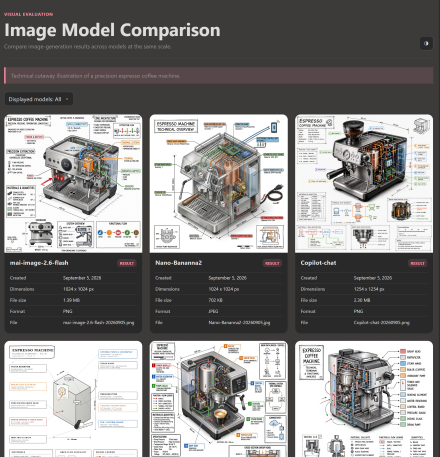
One of the ways I like to test new image models is to give them the same prompt to create an image of an expresso machine. You can see the last iteration here:

https://blog.ciaops.com/2026/05/05/revisiting-copilot-image-generation-analysis/

More advanced image options have made their way into PowerPoint and it allows me to use the image model of my choice per:

image

So to test, I took exactly the same prompt I had used before to create images and used it inside PowerPoint with each model. Here’s the result from using GPT-Image-1.5

image

and Flux.2 Flex

image

These output are now beginning to revival dedicated image creation tools and they are backed right into PowerPoint and probably soon, all other desktop apps thanks to Copilot!

As a slight variation, I asked Copilot in PowerPoint to create a complete slide rather than just a single image and here’s what I got:

GPT-Image-1.5

image

and Flux.2 Flex

image


CIA Brief 20260516

image

Security & Threat Intelligence

Microsoft 365 & Teams

Windows

Power Platform

AI & Copilot

After hours

Reimagining the mouse pointer with AIhttps://www.youtube.com/watch?v=pZNzfQLgGsA

Editorial

If you found this valuable, the I’d appreciate a ‘like’ or perhaps a donation at https://ko-fi.com/ciaops. This helps me know that people enjoy what I have created and provides resources to allow me to create more content. If you have any feedback or suggestions around this, I’m all ears. You can also find me via email director@ciaops.com and on X (Twitter) at https://www.twitter.com/directorcia.

If you want to be part of a dedicated Microsoft Cloud community with information and interactions daily, then consider becoming a CIAOPS Patron – www.ciaopspatron.com.

Watch out for the next CIA Brief next week

Tamper Protection and EDR Block Mode: An Opinionated Rollout for Business Premium

image

If you manage Microsoft 365 Business Premium tenants and you are still treating Tamper Protection as a one-click toggle and EDR in block mode as an afterthought, you are leaving real protection on the table. Both are included with Defender for Business — there is no licence excuse — but the production rollout is more nuanced than the docs suggest.

Here is the playbook I run on every BP tenant.

Prerequisites that bite people

Before either feature does anything useful, devices must be onboarded to Microsoft Defender for Endpoint (or Defender for Business) and reporting healthy in the Defender portal. Until onboarding completes, Tamper Protection literally shows as Not Applicable on the device, and the EDR sensor cannot enforce anything.

Three prerequisites that catch MSPs out:

  • Devices must be Intune-managed or co-managed with the Endpoint Protection workload pointed at Intune. Co-managed devices where the workload still points to ConfigMgr are not supported by the Intune Tamper Protection policy.
  • Defender antimalware platform must be at 4.18.1906.3 or later. Modern devices are; stale gold images and the odd Server 2016/2019 host often are not.
  • If you plan to manage AV exclusions through Intune, set DisableLocalAdminMerge = true in your AV policy. Without it, tamper-protected exclusions silently fail to apply.

Verify all of this on a pilot device with Get-MpComputerStatus, checking IsTamperProtected and AMRunningMode, before you flip anything.

Where to configure

For Tamper Protection, do it in Intune, not the Defender portal. Granular targeting beats a tenant-wide toggle every time.

Intune admin centre → Endpoint security → Antivirus → Create policy → Platform: Windows → Profile: Windows Security Experience → Tamper protection (device): On.

For EDR in block mode, the cleanest path is the Defender portal — it is tenant-wide and does not fight your AV policies:

Microsoft Defender portal → Settings → Endpoints → Advanced features → Enable EDR in block mode → Save.

You can also drive it through Intune via the Defender CSP when you need device-group scoping, but for most BP tenants tenant-wide is correct.

Microsoft’s references:

The rollout that survives contact with users

Three rings, always:

  1. Pilot (5–10 devices) — your own techs plus one cooperative power user. Apply the Tamper Protection policy first, leave it 48 hours, then enable EDR block mode tenant-wide. Watch the Action Center for unexpected Blocked/Prevented entries; confirm IsTamperProtected = True and AMRunningMode = Normal (or EDR Block Mode on third-party AV tenants).
  2. Broader pilot (~25%) — one quiet department, ideally not Finance during end-of-month. Run for a full working week.
  3. Full rollout — assign to your “All Workstations” dynamic group.

Sequencing matters. Enabling EDR block mode before Tamper Protection means a misbehaving LOB app can still be silenced by a local admin disabling Defender — which defeats the point.

Top three pitfalls

  1. Passive-mode false sense of security. If a third-party AV is the primary product, Defender drops into passive mode. EDR block mode still fires, but real-time protection, network protection, ASR rules, and indicators are all inactive. Either document this in the customer-facing security baseline or migrate them off the third-party AV.
  2. Tamper Protection blocking your own policy changes. Once on, you cannot edit AV exclusions or disable real-time protection from the device — and sometimes not cleanly from Intune either. Use troubleshooting mode from the Defender portal for short-lived changes; never disable Tamper Protection at scale.
  3. Forgetting the servers. Windows Server 2012 R2/2016 do not auto-passivate when third-party AV is installed. Set the ForceDefenderPassiveMode registry value before onboarding, or you will have two AV products fighting at boot.

Get the prerequisites right, ring the rollout, and these two features quietly become the most boring — and most valuable — controls in your Business Premium stack.

Inspect What You Expect: Why MSPs Can’t “Set and Forget” Copilot (or Anything Else)

image

One pattern I see repeatedly in MSP businesses—especially as they start adopting Microsoft 365 Copilot—is the quiet belief that once something is delegated, the job is done.

Hand it to a technician.
Hand it to an admin.
Hand it to an AI tool.

Then move on.

That approach has always been risky. With Copilot in the mix, it becomes outright dangerous.

Not because Copilot is untrustworthy—but because systems don’t improve unless you observe them. And as an MSP, improving systems is literally your job.

Delegation Without Inspection Is How Problems Hide

Most MSPs already understand this with infrastructure. You don’t deploy backups and just hope they work. You test. You get alerts. You look for drift.

But when it comes to productivity work—emails, reporting, meetings, content creation—we suddenly relax.

I’m seeing MSPs roll out Copilot, show users a few prompts, and then disappear. No feedback loop. No measurement. No review of outputs or behaviours.

Weeks later, the questions start:

  • “Why are users still asking basic questions?”

  • “Why hasn’t productivity improved?”

  • “Why does Copilot feel underwhelming?”

The issue isn’t the tool. It’s the lack of inspection.

Copilot Changes the Work—So You Need New Sensors

Copilot doesn’t just speed things up. It changes how work happens.

People delegate thinking earlier.
Drafts appear faster.
Decisions are made with less friction—and sometimes less reflection.

That’s powerful, but only if you can see what’s going on.

This is where I introduce the idea of sensors.

Sensors are simple mechanisms that tell you when reality drifts from expectation. They’re not about distrust—they’re about visibility.

In Copilot terms, that might look like:

  • A short weekly check‑in where users paste an example output that helped (or failed).

  • A dashboard showing adoption signals across apps, not just license counts.

  • A Teams message when usage patterns drop after the initial rollout.

  • A review cadence where managers validate whether Copilot‑created artefacts are actually being used.

None of this is complex. Almost no one does it.

AI Amplifies Weak Processes First

Here’s the uncomfortable truth: Copilot makes good systems better and bad systems louder.

If documentation is outdated, Copilot spreads outdated thinking faster.
If decision rights are unclear, Copilot accelerates confusion.
If users don’t know what “good” looks like, Copilot produces more confident mediocrity.

Inspecting outcomes—not effort—is how you catch this early.

I’ve worked with MSPs who expected Copilot to “lift capability” across the board. What actually happened was more revealing: high performers got better, while poor habits became more visible.

That visibility is a gift—if you’re looking for it.

Growth Comes From Feedback Loops, Not Trust Falls

Whether you’re an MSP of five people or fifty, growth doesn’t come from hiring smarter people or deploying smarter tools. It comes from tightening feedback loops.

That’s why mature MSPs obsess over:

  • Red/green indicators

  • Exception reporting

  • Notifications when something deviates from normal

The same thinking now applies to knowledge work.

Copilot isn’t a project you “finish”. It’s a system you tune. And tuning only works when you inspect what you expect.

The Takeaway for MSP Leaders

If you’re advising clients—or running your own MSP—don’t treat Copilot like a magic upgrade.

Treat it like any other core system:

  • Define what “good” looks like

  • Build simple sensors

  • Review outputs, not intentions

  • Adjust the environment, not just the prompts

Trust is fine. Visibility is better.

If you’re not inspecting, you’re guessing. And guessing doesn’t scale—especially in an AI‑assisted world.

A Cleaner Way to Connect PowerShell to SharePoint Online

image

Connect-PnPOnline with a browser sign-in is fine when you’re sitting at the keyboard. It becomes a problem the moment you’re not. The script that worked beautifully on your laptop refuses to run unattended. The scheduled job that was meant to tidy up orphaned sites overnight quietly does nothing, because it’s still waiting for someone to type a password. And the moment conditional access tightens on the admin account you’ve been quietly using for automation, every script that touches SharePoint behaves like it’s been thrown out a window.

The fix has existed. The setup hasn’t.

Certificate-based app authentication for SharePoint Online has been supported by Microsoft for years. The mechanics are well documented. The trouble has always been the assembly — generate a cert, export the public key, register an app in Entra ID, paste the right GUIDs in the right boxes, find Sites.FullControl.All in the API permissions list, grant admin consent, copy the thumbprint somewhere you won’t lose it, and verify the tenant ID in three different places along the way. By the time you’ve finished, you’ve forgotten which client you were doing it for.

So I’ve written a script that does the whole sequence end to end:

  • Generates a self-signed RSA-2048 certificate in your local certificate store

  • Creates the Entra ID app registration

  • Uploads the certificate and grants Sites.FullControl.All with admin consent

  • Provisions the service principal and adds Application.Read.All on Graph so the app can read its own metadata back

  • Resolves your tenant’s SharePoint root URL automatically from the Graph verified-domains call

  • Saves tenant, app ID, site URL, and thumbprint into a JSON profile so future connections need almost no parameters

What’s normally half an hour of clicking between Entra, the SharePoint admin centre, and a Notepad full of half-remembered GUIDs runs in about ninety seconds.

I’ve been written a new script — https://github.com/directorcia/Office365/blob/master/o365-connect-pnp-cert.ps1

with full documentation here – https://github.com/directorcia/Office365/wiki/Connect-to-SharePoint-Online-with-Certificates

What the Script Actually Does

There are two modes, controlled by switches.

-GenerateLocalCertificate creates a self-signed RSA-2048 certificate in your current user’s certificate store, exports the public key as a .cer file, and optionally exports a password-protected .pfx. By default it’s valid for two years. That’s the local side of the handshake.

-UseCertificateAuth is the everyday mode. You tell it which tenant to connect to — or let it look up the details in a profile map file — and it signs into Exchange Online using that certificate. No password. No browser. No MFA dialog.

The clever bit is the third option: combining -GenerateLocalCertificate with -ProvisionEntraApp -Tenant 'contoso.onmicrosoft.com'. In a single run, the script will generate the local certificate, authenticate to Microsoft Graph via a device-code flow, create the Entra ID app registration if it doesn’t exist, upload the certificate, grant Exchange.ManageAsApp and Application.Read.All with admin consent, create the matching service principal, sign you into Exchange Online to add the app to the Organization Management role group, and save the tenant, app ID, and certificate thumbprint to a JSON profile file so future connections don’t need any of those parameters.

Getting Started

If you’re new to certificate auth, the first run is the one that matters. Drop the script onto an admin machine, open PowerShell, and run:

.\o365-connect-pnp-cert.ps1 -GenerateLocalCertificate -ProvisionEntraApp -Tenant 'yourtenant.onmicrosoft.com'

You’ll be prompted to sign in — via device code for the Graph permissions (which if you use the –copydevicecodetoclipboard, option will put the required device code straight into the clipboard to paste into the request). You need a Global Admin account.

Where this earns its keep across a client base

After that first run, connecting to a tenant looks like this:

.\o365-connect-pnp-cert.ps1 -UseCertificateAuth -Tenant ‘contoso.onmicrosoft.com’

No password. No browser. No MFA prompt. The profile file is the bit that pays you back across an MSP book. One script lives in your tooling folder, each client has its own certificate and entry in the JSON map, and Task Scheduler can finally drive things like site collection audits, sharing reports, lifecycle cleanup on Teams-connected sites, and external-user reviews without anyone watching it run. Filter by tenant or site URL on the command line and the same script services twenty different customers without you ever editing it.

One honest caveat

When you’ve just provisioned a brand-new app, give Entra fifteen to thirty minutes for the role grants to replicate before your first cert-based connect. It’s the single most common reason a fresh setup looks broken when it isn’t. The script flags this on the way out, but it’s worth saying twice.

Why Certificates Beat Passwords

The security argument is the easy one. A certificate’s private key never leaves the machine that generated it. Nothing crosses the wire that an attacker could intercept and replay. There’s no shared secret to rotate across a team, no admin password sitting in a vault that someone might extract, and no MFA bypass to engineer because the flow doesn’t involve a user account at all.

If the certificate is ever compromised, you remove the key credential from the app registration and the access is gone — no password reset required, no impact on any human admin account.

The script enforces TLS 1.2, refuses to assign RBAC if the PnP session has landed in the wrong tenant, warns when the certificate is within thirty days of expiry, and keeps the device-code value off the clipboard by default to avoid leaks on RDP or shared sessions.

The change is a quiet one. You stop thinking about who is signing in and start thinking about which certificate is presenting itself. Once your SharePoint automation is no longer at the mercy of someone else’s MFA settings or a password rotation policy, the kind of work you’re willing to schedule expands. That’s the real win — not the ninety seconds saved on setup, but the chores you finally get around to doing.

Making Attack Surface Reduction Rules Actually Work in Microsoft 365


image


Attack Surface Reduction (ASR) rules are one of the most powerful — and most misunderstood — security capabilities in Microsoft Defender for Endpoint.

On paper, they’re simple:

Reduce the ways attackers can abuse Windows.

In practice, many environments either:

  • Enable everything in block mode and break workflows, or

  • Leave ASR in audit forever because “it caused issues once”.

Just like Conditional Access, ASR only works properly when:

  • You understand what problem you’re solving
  • You deploy it gradually and intentionally
  • You accept that security without friction isn’t security

This post explains how to deploy ASR rules properly using Intune and Microsoft Defender — in a way that actually raises the security bar without torching productivity.


Why ASR Rules Matter (Still)

ASR rules are designed to block common attacker techniques, not malware files.

That distinction matters.

Most modern attacks don’t rely on:

  • Dropping obvious malware

  • Exploiting rare zero‑days

They rely on living‑off‑the‑land (LOLBins):

  • PowerShell

  • WMI

  • Office macros

  • Credential dumping from LSASS

  • Script abuse from user‑writable locations

ASR targets behaviour, not signatures — which is why Microsoft consistently recommends them as part of a Zero Trust baseline.

But behaviour-based controls must be deployed carefully.


The Core Problem with ASR Deployments

In the wild, I usually see one of three patterns:

1. “Turn Them All On”

Someone enables every ASR rule in block mode.

Result:

  • Line of business scripts fail

  • Custom automation breaks

  • IT disables ASR entirely
2. “Audit Forever”

Rules sit in audit mode indefinitely “until we review logs”.

Result:

  • Attack techniques pass straight through

  • Security teams get a false sense of protection
3. “We Enabled One or Two”

Only macro-related rules are enabled.

Result:

  • Partial coverage

  • Easily bypassed attack paths remain open

None of these deliver meaningful protection.


A Better Mental Model for ASR

Instead of thinking:

“Which rules should we turn on?”

Ask:

“Which attacker techniques do we want to make impractical?”

ASR works best when combined with:

  • Standard user devices
  • Intune-managed endpoints
  • Defender for Endpoint P1/P2
  • Strong Conditional Access

Sound familiar? Same foundations as compliant-device CA policies.


The ASR Rules That Actually Deliver Value

Here are the ASR rules that consistently provide the best risk reduction with manageable impact in real environments.

1. Block credential stealing from LSASS

Rule ID: 9e6c4e1f-7d60-472f-ba1a-a39ef669e4b2

This blocks tools like Mimikatz-style credential dumping.

✅ High attacker impact
✅ Minimal end-user disruption
✅ Should be BLOCK in almost every environment


2. Block Office from creating child processes

Rule ID: d4f940ab-401b-4efc-aadc-ad5f3c50688a

This stops:

  • Macro → PowerShell

  • Document-based malware chains

Realistically:

  • Most organisations do not need Office spawning shells

Start in AUDIT, then move to BLOCK once exceptions are known.


3. Block executable content from email and webmail

Rule ID: be9ba2d9-53ea-4cdc-84e5-9b1eeee46550

This blocks users launching:

  • EXEs

  • Scripts

  • Payloads straight from email or web download locations

✅ Enforces basic hygiene
✅ Aligns well with user expectations
✅ Rarely breaks legitimate workflows


4. Use Advanced Protection Against Ransomware Abuse

Rules that help here include:

  • Blocking untrusted executable content

  • Blocking abuse of vulnerable signed drivers

These pair extremely well with:

  • Defender Tamper Protection

  • Controlled Folder Access (selectively)


How to Deploy ASR Rules Properly with Intune

Step 1: Create an ASR Policy in Audit Mode

In Intune:

  • Endpoint Security

  • Attack Surface Reduction

  • Create policy

  • Start with Audit

Audit mode tells you:

  • What would have been blocked

  • Which apps or scripts need exclusions

This is not optional.


Step 2: Review Events in Advanced Hunting

Use this table in Defender:

DeviceEvents

| where ActionType contains “Asr”

Focus on:

  • Repeat offenders

  • Automation tools

  • Known admin workflows

If something fires once, ignore it.
If it fires 300 times a day, investigate.


Step 3: Use Targeted Exclusions — Sparingly

ASR exclusions should be:

  • File path–specific

  • App–specific

  • As narrow as possible

Avoid:

  • Wildcards

  • Folder-wide exclusions unless absolutely required

Bad exclusions undo the entire point of ASR.


Step 4: Move High‑Confidence Rules to Block

Once audit noise stabilises:

  • Move specific rules, not the whole policy

  • Prioritise credential theft and Office abuse

Yes, this causes friction.
So does getting owned.


Common ASR Mistakes (That I Still See in 2026)

  • Treating ASR as “optional”

  • Letting developers demand blanket exclusions

  • Ignoring audit logs

  • Enabling rules without Defender onboarding complete

  • Forgetting ASR only protects Defender-managed devices

ASR is not a set-and-forget tool.
It’s an operational security control.


ASR + Conditional Access = Real Endpoint Trust

Here’s the key point many miss:

ASR strengthens the integrity of “Compliant Device” signals.

If a device:

  • Meets Intune compliance

  • Runs Defender

  • Enforces ASR rules

  • Has tamper protection enabled

You can trust Conditional Access decisions far more.

Compliance without hard endpoint controls is mostly paperwork.


Final Thought

Attack Surface Reduction is one of those Microsoft security features that:

  • Looks scary

  • Sounds complex

  • Delivers massive value when done properly

If your ASR rules are all disabled, set to audit forever, or barely touched — you’re leaving one of the best cost‑to‑benefit controls on the table.

Just like Conditional Access… ASR only works when you actually enforce it.