Techwerks 21

bw-car-vehicle

CIAOPS Techwerks returns to Brisbane CBD on Thursday the 21st of September.

The course is limited to 20 people and you can sign up and reserve your place now! You reserve a place by completing this form:

http://bit.ly/ciaopsroi

or by sending me an email (director@ciaops.com) expressing your interest.

The content of these all day face to face workshops is driven by the attendees. That means we cover exactly what people want to see and focus on doing hands on, real world scenarios. Attendees can vote on topics they’d like to see covered prior to the day and we continue to target exactly what the small group of attendees wants to see. Thus, this is an excellent way to get really deep into the technology and have all the questions you’ve been dying to know answered. Typically, the event produces a number of best practice take aways for each attendee. So far, the greatest votes are for deeper dives into the Microsoft Cloud including Microsoft 365, Azure, Intune, Defender for Endpoint, security such as Azure Sentinel and PowerShell configuration and scripts, with a focus on enabling the technology in SMB businesses.

Recent testimonial – “I just wanted to say a big thank you to Robert for the Brisbane Techworks day. It is such a good format with each attendee asking what matters them and the whole interactive nature of the day. So much better than death by PowerPoint.” – Mike H.

The cost to attend is:

Gold Enterprise Patron = Free

Gold Patron = $33 inc GST

Silver Patron = $99 inc GST

Bronze Patron = $176 inc GST

Non Patron = $399 inc GST

I hope to see you there.

Need to Know podcast–Episode 307

All the news and announcements from Microsoft Inspire plus Azure AD getting renamed to Entra as well as some recent security news you should be across. Lots in this episode so listen along and let me know what you think.

You can listen directly to this episode at:

https://ciaops.podbean.com/e/episode-307-news-from-inspire/

Subscribe via iTunes at:

https://itunes.apple.com/au/podcast/ciaops-need-to-know-podcasts/id406891445?mt=2

The podcast is also available on Stitcher at:

http://www.stitcher.com/podcast/ciaops/need-to-know-podcast?refid=stpr

Don’t forget to give the show a rating as well as send me any feedback or suggestions you may have for the show.

This episode was recorded using Microsoft Teams and produced with Camtasia 2023.

Brought to you by www.ciaopspatron.com

Resources

@directorcia

@directorcia@twit.social

Join my shared channel

CIAOPS merch store

Become a CIAOPS Patron

CIAOPS Blog

Microsoft inspire

Furthering our AI ambitions – Announcing Bing Chat Enterprise and Microsoft 365 Copilot pricing – The Official Microsoft Blog

Welcome to Microsoft Inspire 2023: Introducing Microsoft 365 Backup and Microsoft 365 Archive – Microsoft Community Hub

Microsoft Inspire: Accelerating AI transformation through partnership – The Official Microsoft Blog

Microsoft Inspire: Prepare for the future of security with AI | Microsoft Security Blog

Microsoft Sales Copilot, Dynamics 365 Customer Insights, and cloud migration reshape the future of business – Microsoft Dynamics 365 Blog

SMB security New innovations from Microsoft Inspire 2023

Introducing a new SharePoint Web UI kit! – Microsoft Community Hub

Security Copilot – How it works

Azure AD is Becoming Microsoft Entra ID – Microsoft Community Hub

Microsoft Entra Expands into Security Service Edge with Two New Offerings – Microsoft Community Hub

Get started with Global Secure Access (preview) | Microsoft Learn

How Microsoft is expanding cloud logging to give customers deeper security visibility | Microsoft Security Blog

Analysis of Storm-0558 techniques for unauthorized email access | Microsoft Security Blog

Compromised Microsoft Key: More Impactful Than We Thought | Wiz Blog

Techwerks 20

bw-car-vehicle

CIAOPS Techwerks returns to Melbourne CBD on Friday the 11th of August.

The course is limited to 20 people and you can sign up and reserve your place now! You reserve a place by completing this form:

http://bit.ly/ciaopsroi

or by sending me an email (director@ciaops.com) expressing your interest.

The content of these all day face to face workshops is driven by the attendees. That means we cover exactly what people want to see and focus on doing hands on, real world scenarios. Attendees can vote on topics they’d like to see covered prior to the day and we continue to target exactly what the small group of attendees wants to see. Thus, this is an excellent way to get really deep into the technology and have all the questions you’ve been dying to know answered. Typically, the event produces a number of best practice take aways for each attendee. So far, the greatest votes are for deeper dives into the Microsoft Cloud including Microsoft 365, Azure, Intune, Defender for Endpoint, security such as Azure Sentinel and PowerShell configuration and scripts, with a focus on enabling the technology in SMB businesses.

Recent testimonial – “I just wanted to say a big thank you to Robert for the Brisbane Techworks day. It is such a good format with each attendee asking what matters them and the whole interactive nature of the day. So much better than death by PowerPoint.” – Mike H.

The cost to attend is:

Gold Enterprise Patron = Free

Gold Patron = $33 inc GST

Silver Patron = $99 inc GST

Bronze Patron = $176 inc GST

Non Patron = $399 inc GST

I hope to see you there.

Basic event capture in Microsoft 365

If you want to be able to find out what has happened in Microsoft 365 you’ll need to ensure that you have enabled the appropriate logs as well as being able to view information there when needed. This video shows you the basic locations for logs in Microsoft 365 as well as the different services that cane be used to query and report on these. It is important to have all your logging enabled well in advance of when you’ll need it. This video should get you started.

Video link – https://www.youtube.com/watch?v=-YSHlo4Cvgo

Need to Know podcast–Episode 305

Join me for an update of the Microsoft Cloud news as well as some thoughts around the importance and approach to managing logs in Microsoft Cloud Services.

Join me for the latest news and updates from the Microsoft Cloud and then a look at Application Control and how you consider implementing it.

This episode was recorded using Microsoft Teams and produced with Camtasia 2023.

You can listen directly to this episode at:

https://ciaops.podbean.com/e/episode-305-logs/

Subscribe via iTunes at:

https://itunes.apple.com/au/podcast/ciaops-need-to-know-podcasts/id406891445?mt=2

The podcast is also available on Stitcher at:

http://www.stitcher.com/podcast/ciaops/need-to-know-podcast?refid=stpr

Don’t forget to give the show a rating as well as send me any feedback or suggestions you may have for the show.

This episode was recorded using Microsoft Teams and produced with Camtasia 2023.

Brought to you by www.ciaopspatron.com

Resources

@directorcia

@directorcia@twit.social

Join my shared channel

CIAOPS merch store

Become a CIAOPS Patron

CIAOPS Blog

New CIAOPS Power Automate course

PowerShell connection to M365 Compliance center no longer users WinRM

Basic Windows Application Control using Intune policies

Change in the share to specific users process in SharePoint Online and OneDrive for Business

Microsoft Inspire – July 18-19

Microsoft Confirms Recent Cloud Outages Caused By Storm-1359 DDoS Attacks

MAM for Microsoft Edge for Business on Windows

New home experience in OneNote on iPhone

Forrester names Microsoft a Leader in the 2023 Enterprise Email Security Wave

Defender Application control in Endpoint Security

Unified Audit logs

Email logs

Change in the share to specific users process in SharePoint Online and OneDrive for Business

Recently, this appeared in the Microsoft 365 message center:

[OneDrive for Business, SharePoint Online] New Tenants as of March 31 will have Azure B2B Integration with SharePoint enabled by Default [MC526130]

Description

Message ID: MC526130

Published date: 11/03/2023

Category: Stay informed

Tags: Admin impact

Relevance: Processing

We’re making some changes to the default configuration for new tenants for Azure B2B integration with SharePoint & OneDrive.

When this will happen:

Starting March 31, 2023, new tenants will have Azure B2B Integration with SharePoint & OneDrive enabled by default.

How this will affect your organization:

This message is for your information and there is no impact to existing tenants or tenants created before March 31, 2023.

What you need to do to prepare:

No change is needed for existing customers. New tenants can opt out of using Azure B2B Integration using the SharePoint Online Management Shell.Please click Additional Information to learn more.

The major impact of this is that going forward, all newly created tenants will have this Azure B2B integration enabled by DEFAULT. That changes the way many have become familiar with when it comes to sharing files with specific users via an email address.

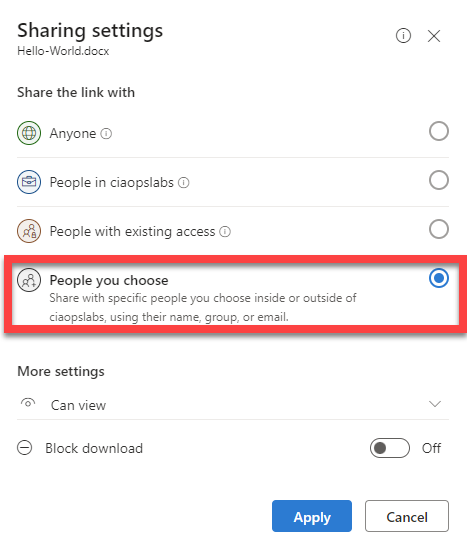
With this Azure B2B integration enabled the process now looks like:

image

The initial sharing process is identical. You select the files to share from the source location. Next, select the external user to share the file with, typically using their email address. Then you share the file as per usual. Nothing different yet.

image

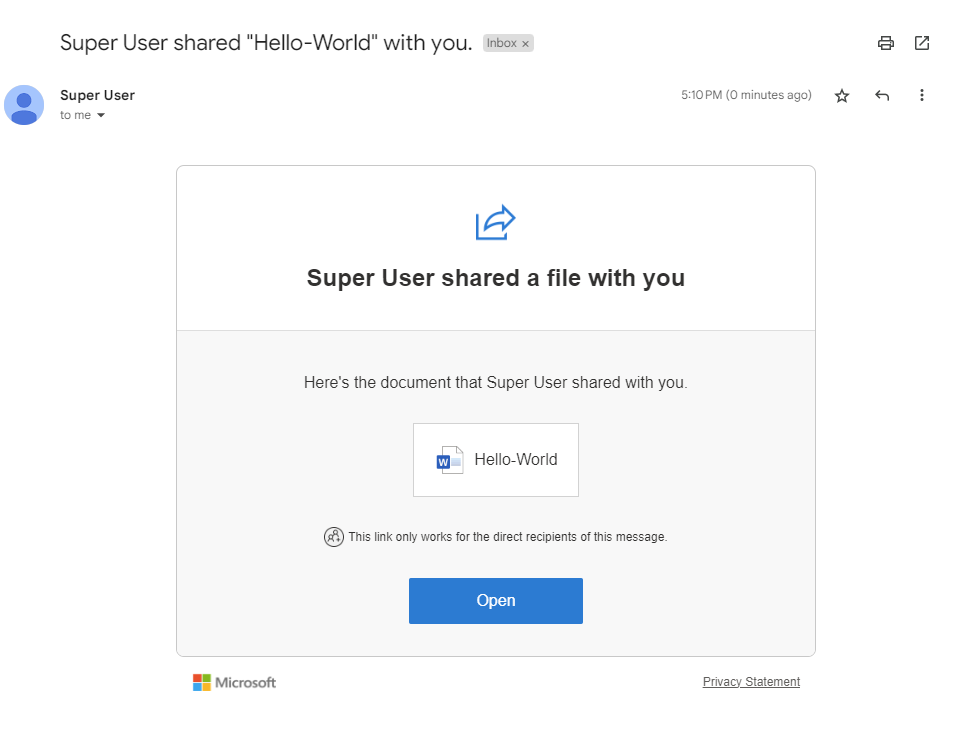
The external user (in this case a Gmail account) gets a normal sharing message like shown above. They click on the link as usual and see:

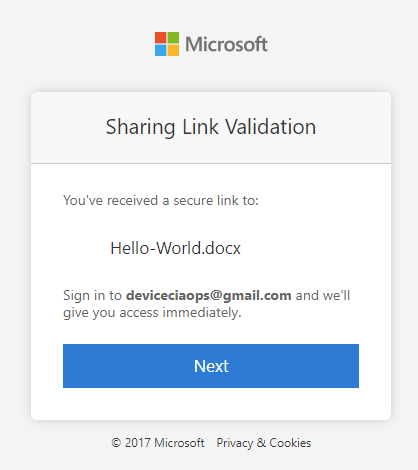
image

They click Next and see:

image

They then select Send code to obtain an access code via email. Still nothing appears to be different.

image

In the background however, things are quite different. As you can see above, an Azure B2B account is created in the source Azure AD for this external user.

image

After the destination user enters the sharing code they receive in email, the experience changes.

image

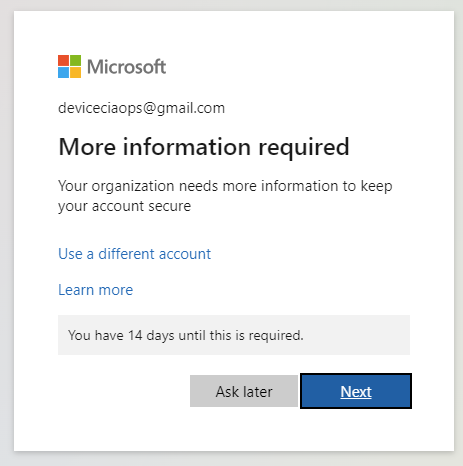
Because the sharing process has created a new guest Azure B2B account in the source tenant, all the security of the source Azure AD environment is enforced.

In this example, the tenant has Security defaults enabled, which is also now on by default in new M365 environments.

image

This will force the destination user who wants access to the document to enrol in MFA for M365 as shown above.

image

Only after they complete that process are they able to view the document as seen above.

image

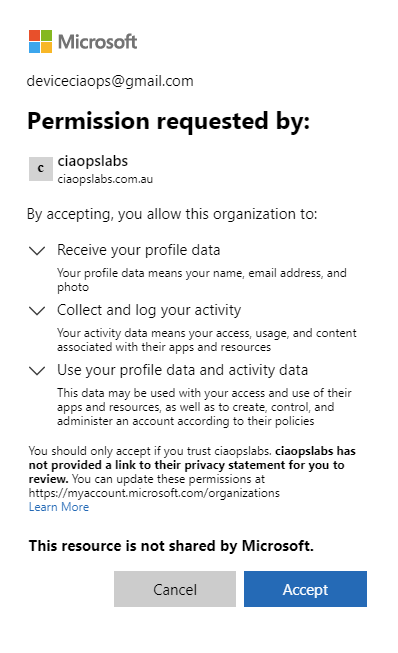
Depending on how the source environment where the originating sharing is coming from is configured, the external user may also need to Accept the permission consent like shown above.

The key change now is that Azure B2B integration with SharePoint & OneDrive. is now ON by default.

The other unfortunate thing is that I don’t believe there is option where you can control this in the M365 administration portal. You must use PowerShell.

image

To view whether Azure B2B integration is on, you’ll need to connect to SharePoint Online with PowerShell. You can use my free script to do so here:

https://github.com/directorcia/Office365/blob/master/o365-connect-spo.ps1

Once you have successfully done that, as shown above, run the command:

Get-SPOTenant | Select *B2B*

image

If the result of this is True as shown above, then Azure B2B integration is enabled.

In summary then, if you have a new tenant in Microsoft 365 it will have Azure B2B integration with SharePoint and ODFB ENABLED and Security defaults ENABLED. That means when you share a file with a specific email address, that user will be required to complete MFA enrolment.

If you have a tenant that also includes Conditional Access, which would be operating in place of Security defaults, then the external user that the document is shared will be subject to your Conditional Access policies like any other user!  This means, for example, if you have a Conditional Access policy that does location blocking (by IP address typically), and the external user is outside the allowed configured locations, their access to that document will be blocked.

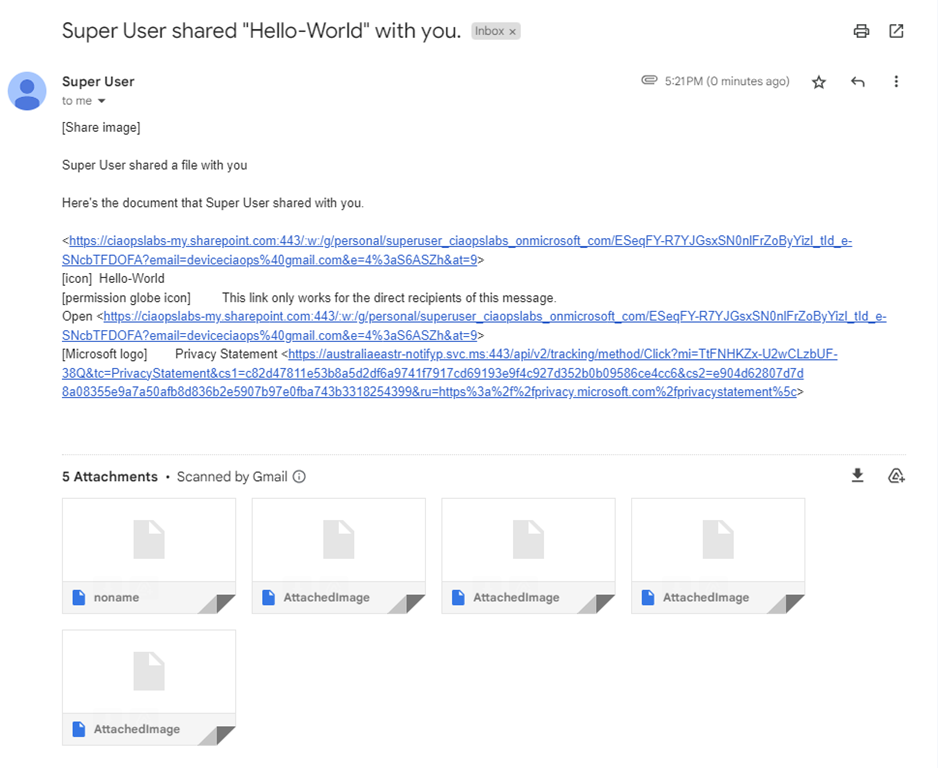
For example, if you have a Conditional Access policy that only allows compliant devices, the email received by the external looks like:

image

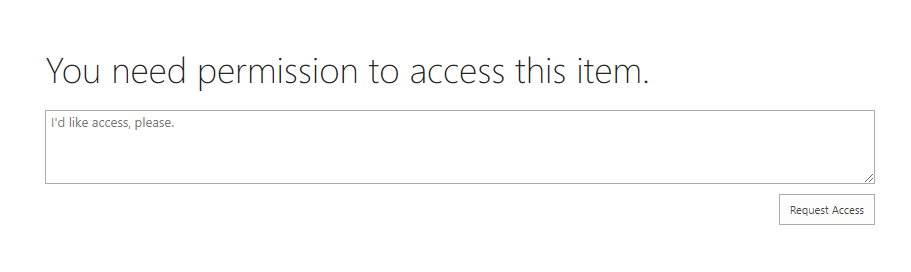
and clicking on the document link results in:

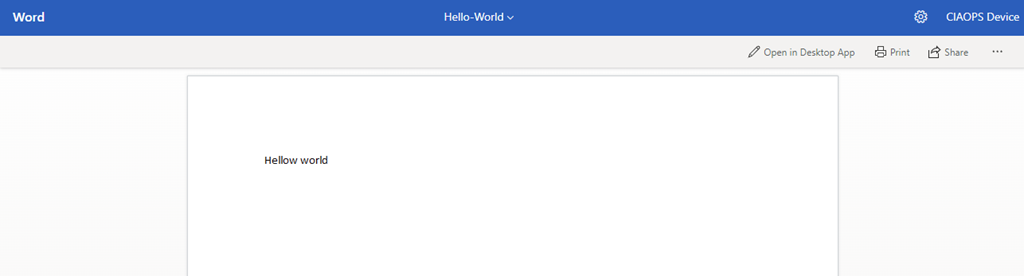
image

given that the device the external user is on is not compliant as it is not part of the source Azure AD.

The official Microsoft documentation on this is here:

SharePoint and OneDrive integration with Azure AD B2B

and importantly, if you want to disable the Azure AD B2B integration you must return to PowerShell and run the command:

Set-SPOTenant -EnableAzureADB2BIntegration $false

When the Azure B2B Integration feature is enabled is makes a big change to the way that specific sharing is done. Having that now enabled by default on tenants is going to be a surprise to those who are not aware of this. Hopefully though, given you have read this far, you’ll be prepared for and can make an informed decision as to whether you want the additional security for external user sharing to be subject to your Azure AD policies. You’ll also know how to turn it off if you don’t want it.

Connecting a Sparkfun ThingPlus ESP32-S2 WROOM to Azure IoT Central

One of the main aims I’ve had with all my IoT projects was eventually to integrate them into Azure. One way that I found was via:

Connecting to Azure IoT hub

The limitation there is that it really only gets the telemetry into Azure. From Azure IoT hub you need to send it off to another application to get any real value.

What I wanted to achieve was to send that data into Azure but have it display some sort of result, like a graph, without me having to do anything too much low level work.

The solution was to use the Azure IoT Central service. So the project plan was to use what I learned in building an

Adafruit Huzzah Temperature sensor

but instead of simply displaying the results on the serial console to have the results sent ot Azure and displayed in a graph.

The starting point was:

Quickstart: Connect an ESPRESSIF ESP32-Azure IoT Kit to IoT Central

problem was that the hardware device they use in this project is now obsolete it appears:

image

https://au.mouser.com/ProductDetail/Espressif-Systems/ESP32-Azure-IoT-Kit?qs=PqoDHHvF64%252BuVX1eLQkvaQ%3D%3D

Instead, I decided to use a:

SparkFun Thing Plus – ESP32-S2 WROOM

The hope being that it would be close enough to what the original document wanted.

Also for guidance and source files I used:

Connecting ESPRESSIF ESP32 to Azure IoT Central using the Azure SDK for C Arduino library

You should start here:

Getting started with the ESPRESSIF ESP32 and Azure IoT Central with Azure SDK for C Arduino library

which will take you through setting up a new IoT Central Application, which I won’t repeat here. The result of that will be 3 items that will need to be included in the code for the device:

  • ID scope
    Device ID
    Primary key

Next, you’ll need to download all the source files in the repo and include them in a new PlatformIO project. The files are:

  • AzureIoT.cpp
    AzureIoT.h
    Azure_IoT_Central_ESP32.ino
    Azure_IoT_PnP_Template.cpp
    Azure_IoT_PnP_Template.h
    iot_configs.h

I renamed Azure_IoT_Central_ESP32.ino to main.cpp in my project.

The next thing you’ll need to do is set your local wifi parameters in the file iot_configs.h. The settings should look like:

// Wifi

#define IOT_CONFIG_WIFI_SSID “<YOUR LOCAL SSID>”

#define IOT_CONFIG_WIFI_PASSWORD “<YOUR WIFI ACCESS POINT PASSWORD>”

Make sure you save any changes to the files you make.

In this same file also locate and the set the Azure IOT Central settings like:

// Azure IoT Central

#define DPS_ID_SCOPE “<ID SCOPE>”

#define IOT_CONFIG_DEVICE_ID “<DEVICE ID>”

// Use device key if not using certificates

#ifndef IOT_CONFIG_USE_X509_CERT

#define IOT_CONFIG_DEVICE_KEY “<PRIMARY KEY>”

which need to include the values obtained when configuring Azure IoT Central earlier.

If you now build your code and upload it to the device you should find that it will connect to your local wifi and start sending information to Azure IoT Central.

image

The device configured in Azure IoT Central should report as connected as shown above when you view this in the Azure IoT Central portal at:

https://apps.azureiotcentral.com/
image

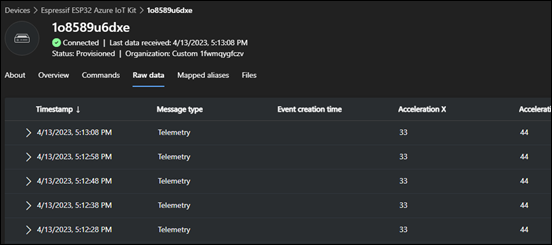
If you then select the Raw Data menu item as shown above, you see the data from your device being received regularly into Azure.

image

If you look at the serial monitor connected to the device locally you should see something like the above indicating that data is being sent up to Azure.

This, therefore, now indicates that there is a correct connection to the Azure IoT Central portal. The problem is that the data being sent currently is actually just static dummy data that never changes. What I want to do is send actual data read from a temperature sensor connected to my device. So I need to find the source of the data in the code so I can replace that with the dynamic data from the tempreture sensor connected to my device I want.

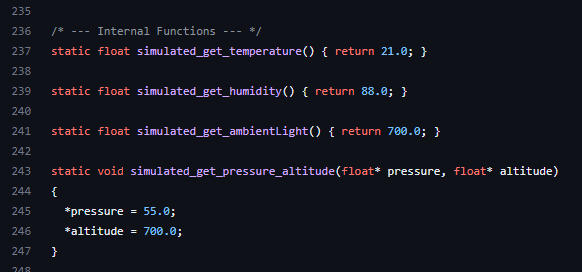
Turns out the source of that dummy data is in the file Azure_IoT_PnP_Template.cpp around line 236:

image

What I now want to do is replace the static value of 21.0 for temperature and 88.0 for humidity with actual readings from the device.

To achieve that I’ll need the code from the previous project that read the temperature data which is here:

https://github.com/directorcia/Azure/blob/master/Iot/huzzah-tempsens.ino

I’m going to add that to a new file in my project called ciaath.cpp to keep my code separate from the templated Azure stuff. In there I’ll have 2 functions:

float ciaaht_getTemp() which returns temp.tempreture

float ciaaht_getHumidity() which returns humidity.relative_humidity

Remember, both temp and humidity are objects and all I want is the actual numeric value in there.

I’ll also create a ciaath.h file that looks like:

#ifndef CIAATH_H
#define CIAATH_H
void ciaaht_init();
float ciaaht_getTemp();
float ciaaht_getHumidity();
#endif

The idea is that this tells other pieces of code about these functions. You’ll also note I have a function ciaaht_init() to initialise the temperature sensor at start up.

Back in the Azure_IoT_PnP_Template.cpp file I need to include the line:

#include <ciaath.h>

to tell it about my functions in my ciaath.cpp file. I can now also change the lines that report the temperature and humidity from their original static value to the value read from the temperature senor connected to my device to be:

static float simulated_get_temperature() { return ciaaht_getTemp(); }
static float simulated_get_humidity() { return ciaaht_getHumidity(); }

which basically get the data from my device which will then be sent to Azure.

Back in main.cpp I need to add:

#include “ciaath.h”

to tell it about my custom functions. I also have to add around line 359:

ciaaht_init();

to initialise the temperature sensor on my device at startup.

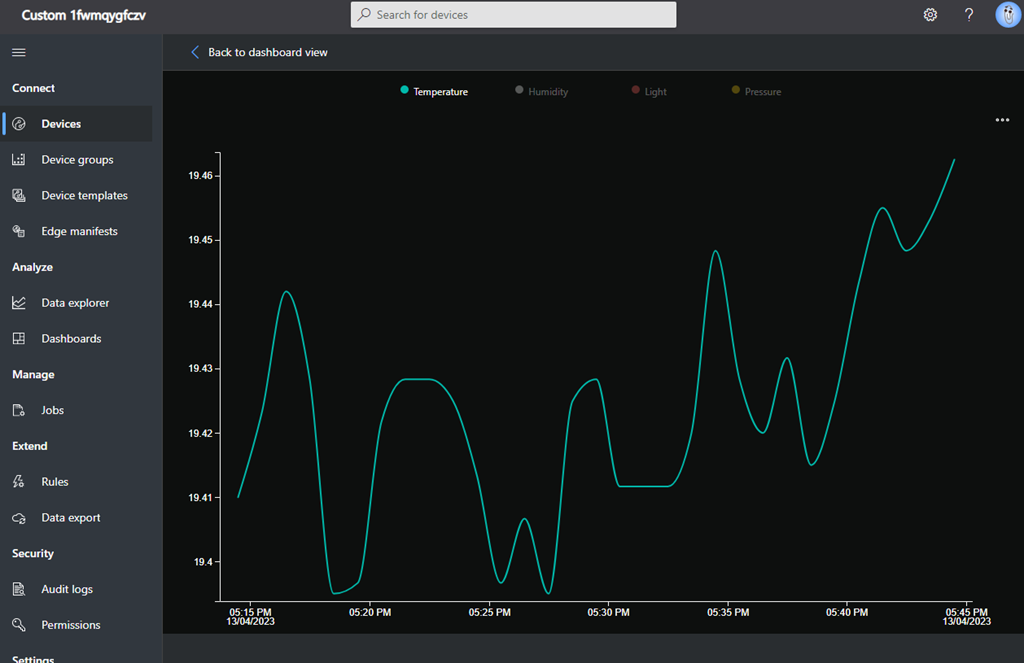
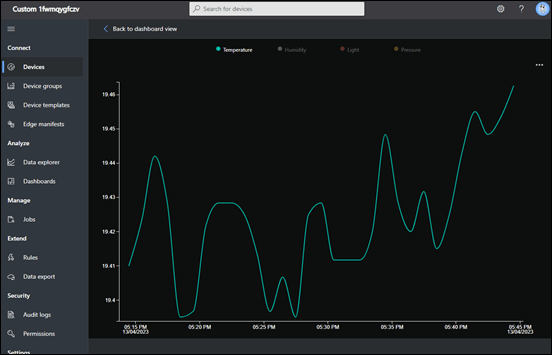
Once this all compiles and uploads to the device I can again check Azure IoT Central portal and see in the Overview menu item
image

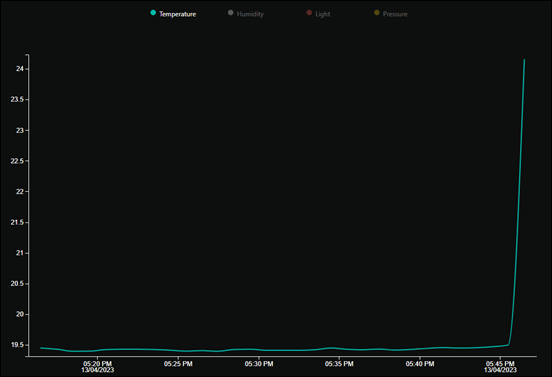
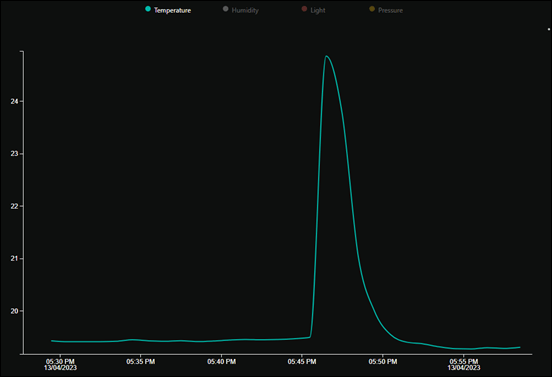
and I see my temperature and humidity are no longer a constant.

If I heat up the temperature senor connected to my device I see:
image

and if I leave it to return to normal I see:
image

I’ve put all the code up at:

https://github.com/directorcia/Azure/tree/master/Iot/ESP32-S2/IoT-Central

so you can have a look and use it if you need to.

I did need to get some help along the way, especially with the code and working out where the values uploaded to Azure came from initially as well as how to structure the .h files to make it cleaner. I’m no coder but hopefully my explanation here helps other non-coder, but let me know if I haven’t got it right as I really want to better understand all this.

I’m now super happy I have this working and I’m confident that I can use this as a base to start creating more powerful projects connected to Azure!

Need to Know podcast–Episode 300

In this episode I cover off why adding Azure to every environment makes sense. Even though the billing model is different that doesn’t there isn’t an opportunity to add value to an environment with what Azure can provide. There are also plenty of updates from the Microsoft Cloud with many exciting new things to try. Listen along and let me know if you have any feedback.

You can listen directly to this episode at:

https://ciaops.podbean.com/e/episode-300-why-you-should-add-azure/

Subscribe via iTunes at:

https://itunes.apple.com/au/podcast/ciaops-need-to-know-podcasts/id406891445?mt=2

The podcast is also available on Stitcher at:

http://www.stitcher.com/podcast/ciaops/need-to-know-podcast?refid=stpr

Don’t forget to give the show a rating as well as send me any feedback or suggestions you may have for the show

This episode was recorded using Microsoft Teams and produced with Camtasia 2022.

Brought to you by www.ciaopspatron.com

Resources

@directorcia

@directorcia@twit.social

Join my shared channel

CIAOPS merch store

Become a CIAOPS Patron

CIAOPS Blog

YouTube edition of this podcast

Introducing the new Microsoft Teams, now in preview

The new Teams

Welcome to the new era of Microsoft Teams

Windows 365 Frontline available in public preview

Adding your Microsoft Store for Business and Education apps to the Microsoft Store in Intune

What’s New at Microsoft Secure

Avatars for Microsoft Teams

Introducing Microsoft Security Copilot: Empowering defenders at the speed of AI

Explaining the Microsoft 365 Copilot System

Microsoft Incident Response Retainer is generally available

Microsoft awarded Best Advanced Protection for Corporate and Consumer Users by AV-TEST

New Microsoft Intune Devices experience

What’s new in Microsoft Intune – 2303 (March) edition

How to enable Microsoft Authenticator Lite for Outlook mobile (preview)