Create a new Azure Key Vault

Given that a number of upcoming articles will discuss Azure Key Vaults, I thought a good place to start was to show you how to set one up. It is pretty easy, so let’s do it!

image

You’ll need a paid Azure subscription and administrator access to your Azure portal.

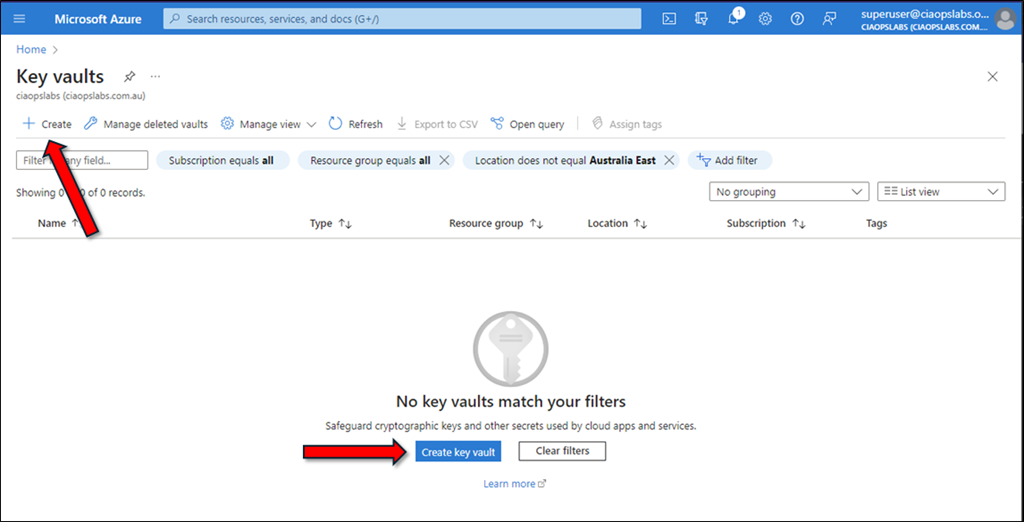
In the Azure portal, search for Key Vaults as shown and select Key Vaults from the results.

image

Then select the option to Create a new vault as shown above.

image

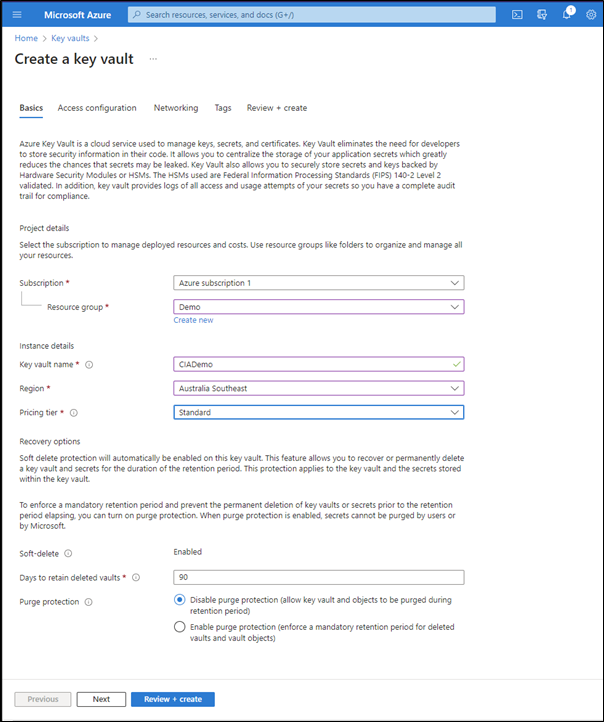
Complete the details for the vault, including:

– Azure subscription

– Resource group

– Key vault name

– Region

– Pricing tier

most of the other options can be left at their defaults. Select the Next button at the bottom of the window to continue.

image

In this case the default Permissions model of Azure role-based access control is desired setting.

Generally, no further changes are required. Select Next at the bottom of the windows to continue.

image

Typically, no changes need to be made here as we will want this new vault to be available publicly via something like PowerShell. However, you can make whatever changes you desire and select the Next button at the bottom of the screen to continue.

image

Add tags if you wish and then select the Next button at the bottom of the window.

image

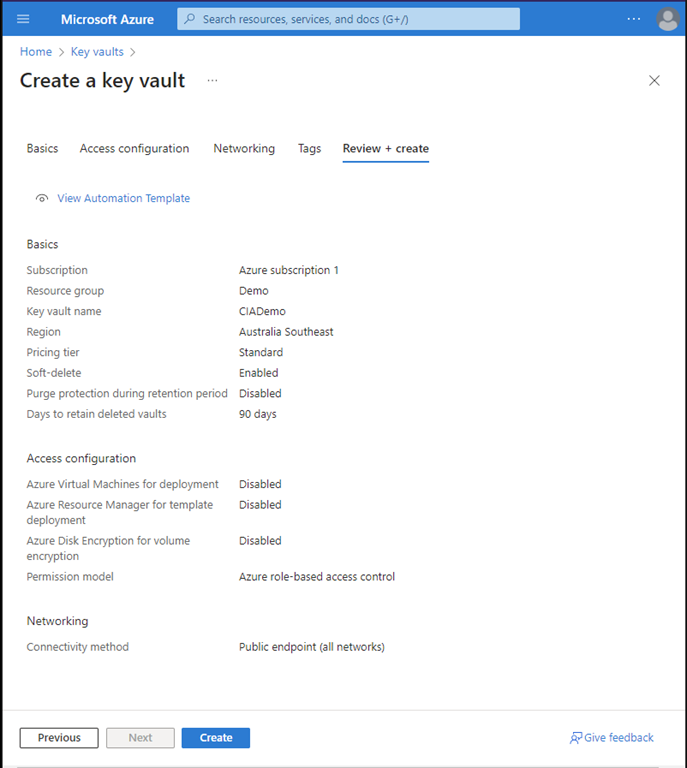
Review the settings you have made and select the Create button.

image

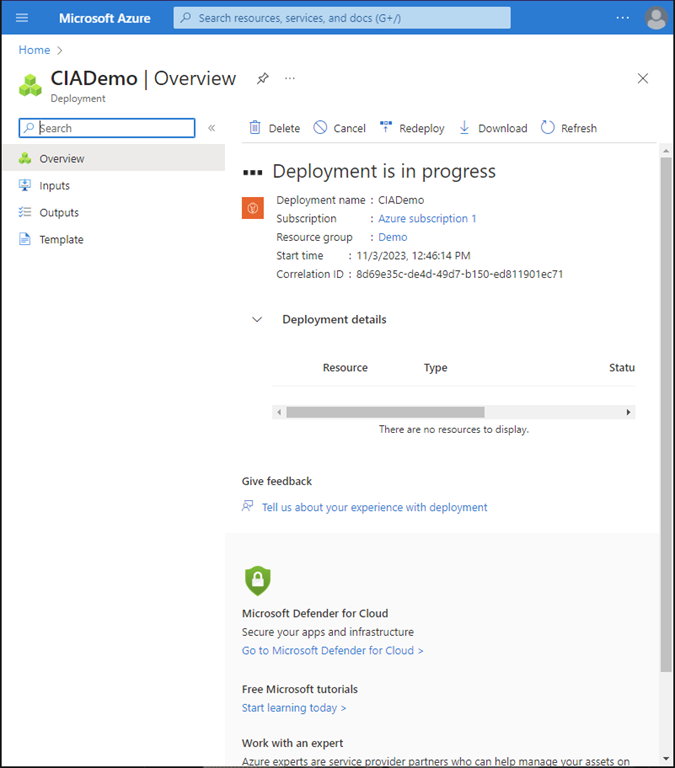
You should now see the new vault being provisioned as shown above.

image

When the provisioning you can select the option to view the result as shown above.

image

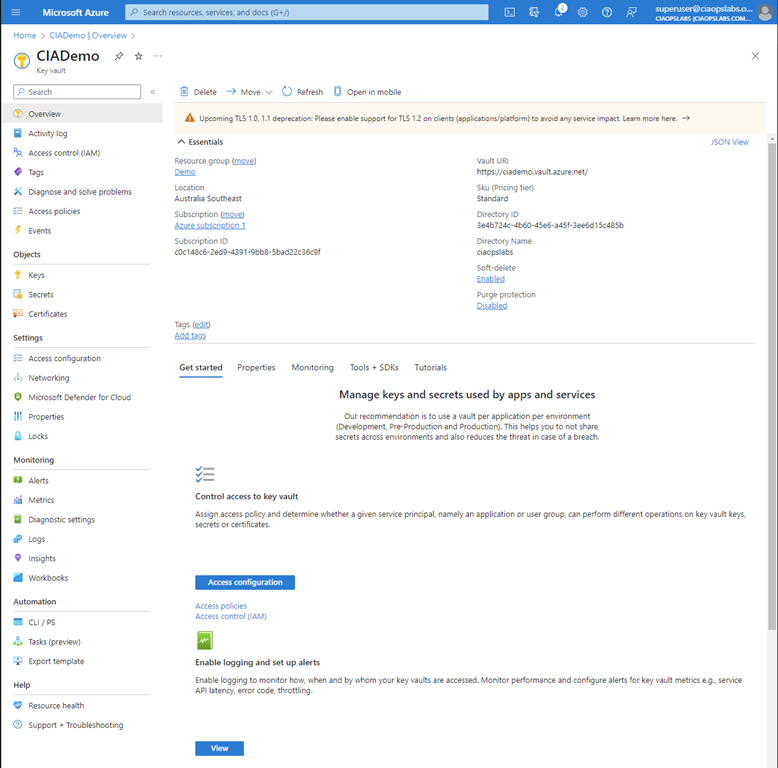
You can return to your new vault at any time by navigating to Key Vaults in the Azure portal where you should see the vault just created as shown above.

image

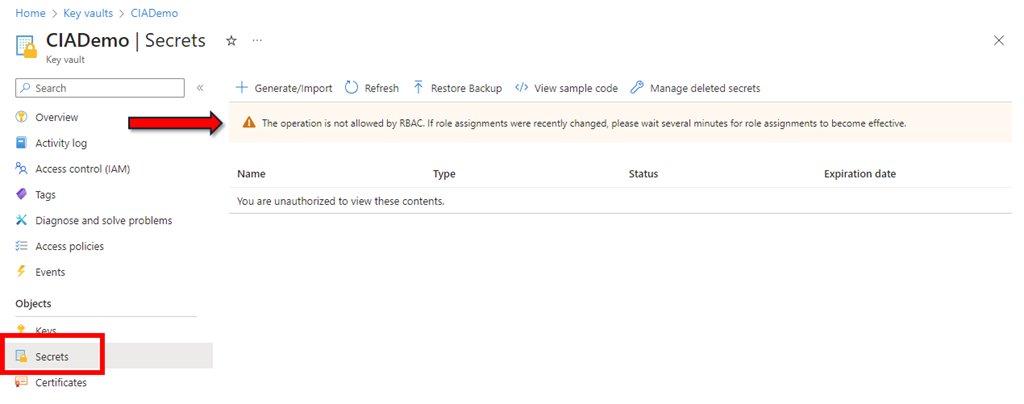
I’d also suggest you check some permissions before you leave. Open the newly created vault and select Secrets from the menu on the left. If you see the banner across the top as shown above the reads This operation is not allowed by RBAC then you’ll probably need to change some permissions.

image

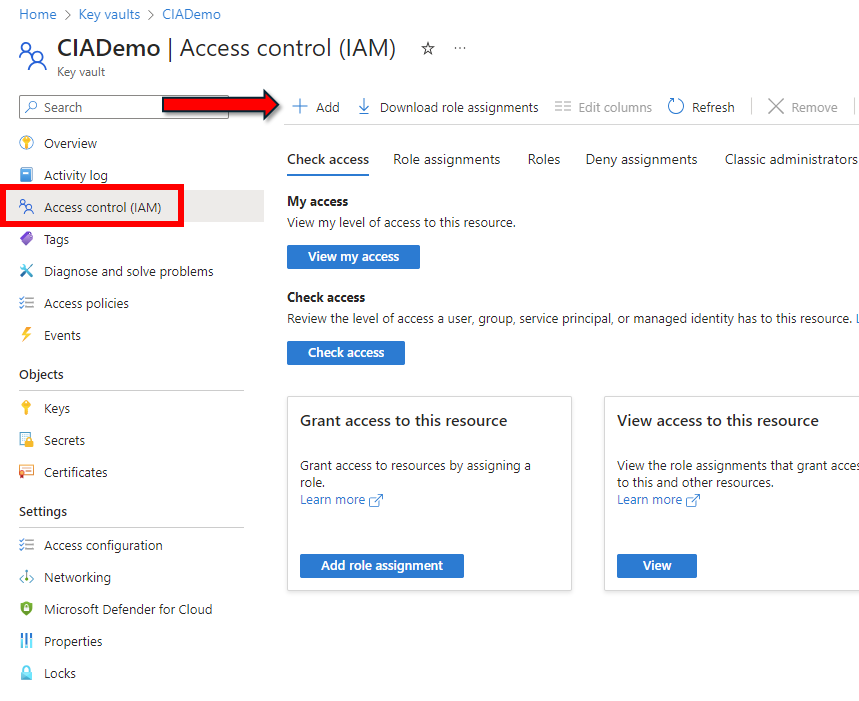
Navigate to the Access Control (IAM) option from the menu on the left as shown above. Then on the right select +Add.

image

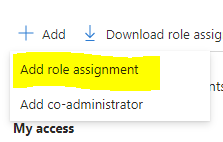
From the menu that appears select the Add role assignment as shown above.

image

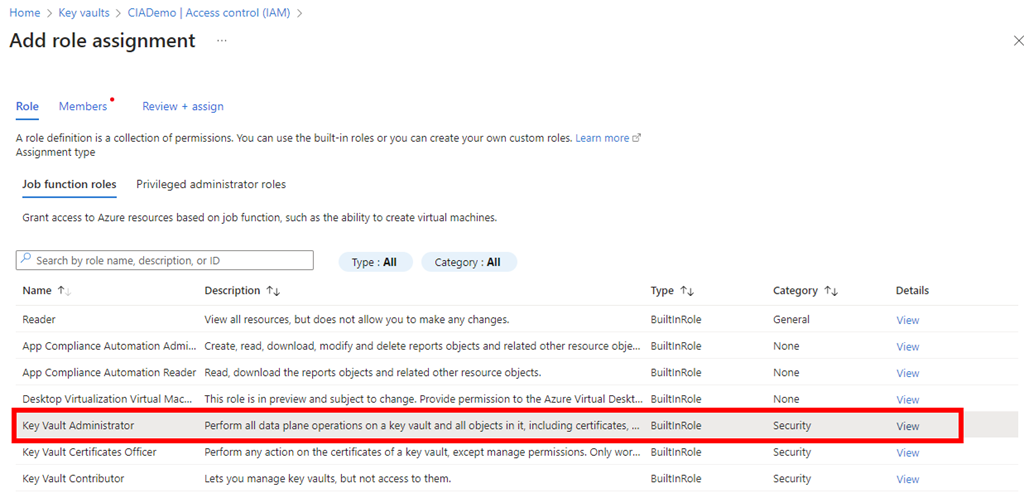
Locate and select the Key Vault Administrator job function role as shown.

Select Next at the bottom of the screen to continue.

image

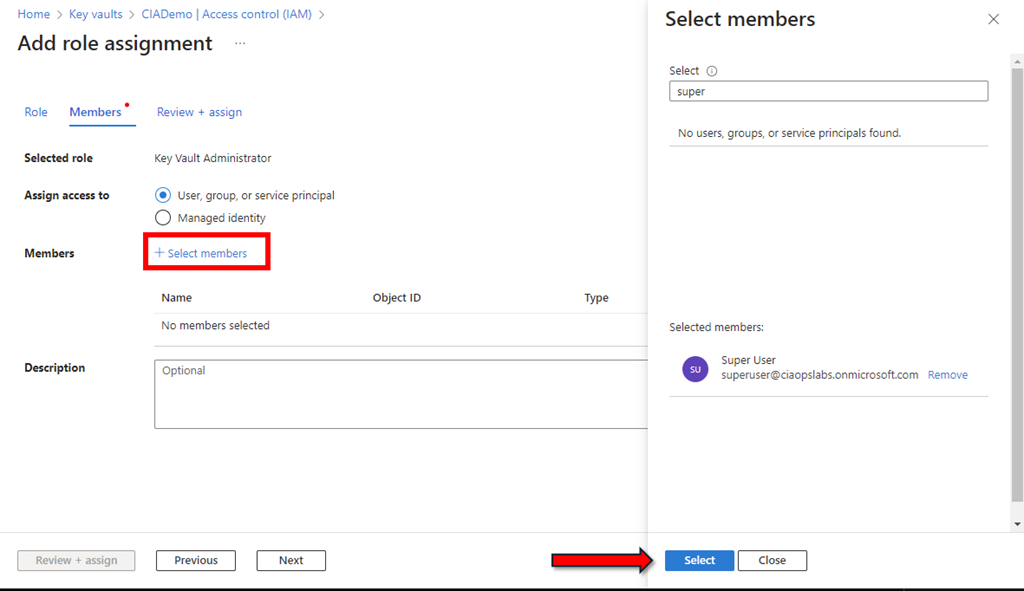
Click the +Select members hyperlink as shown above.

From the window that appears on the right, search for the user whom you want to have rights over the vault (typically the same user that is currently logged in). Press the Select button at the bottom of the window to continue.

image

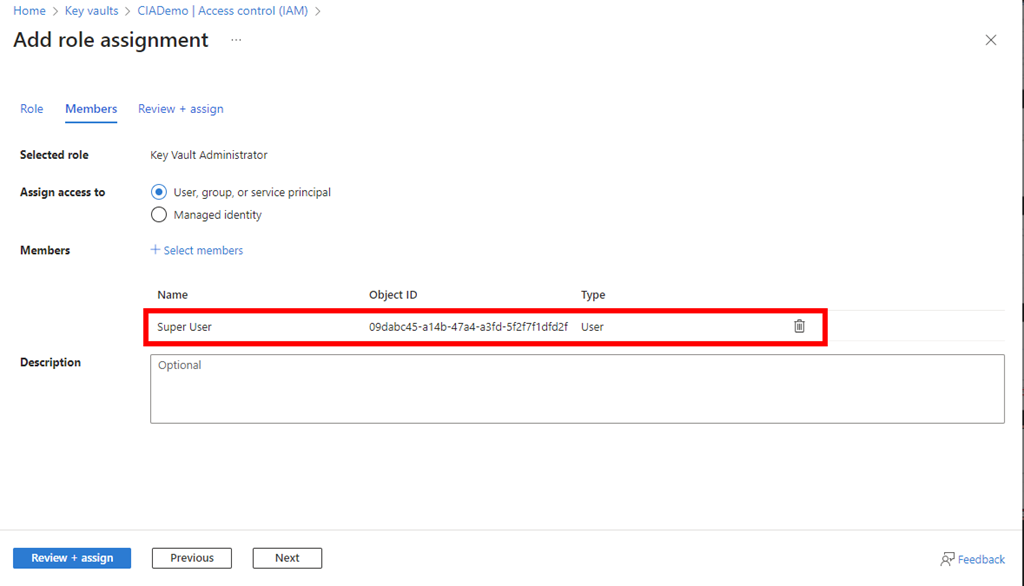
The selected user(s) should now appear under the Members section as shown above.

Press the Next button to continue.

image

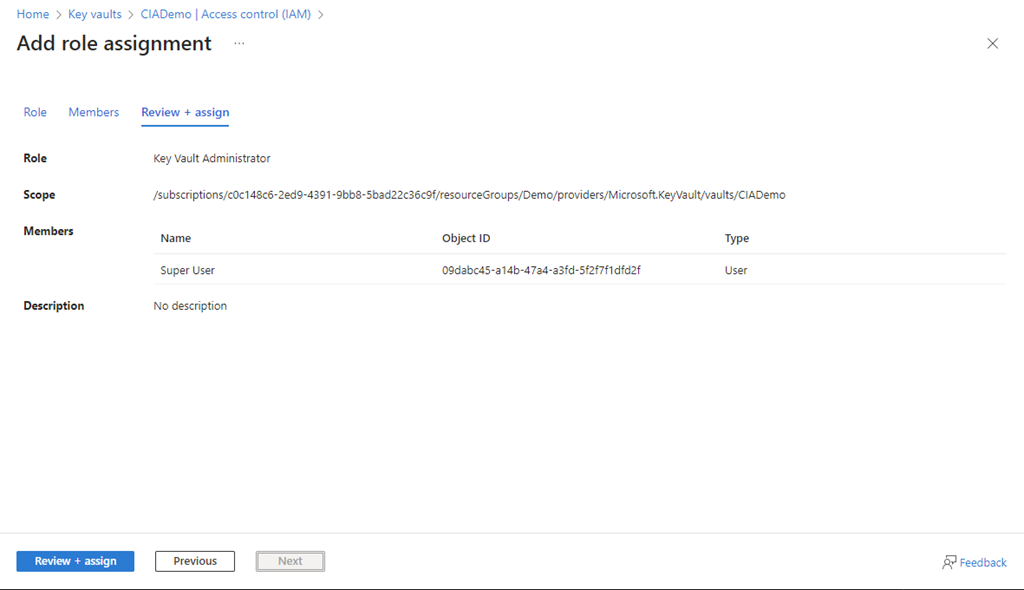
Select the Review + assign button at the bottom of the screen to complete the process.

image

If you now return to the Secrets area that displayed the original RBAC warning, after a minute or two, you should see that message is longer displayed. The user that you just added now has administrative rights to the vault.

If you want to learn more about what Azure Key Vaults are all about take a look at:

Azure Key Vault basic concepts

however, in essence they are going to place to store stuff you want kept secure, like configurations details, including passwords and then access them programmatically.

CIA Brief is coming

messenger delivering a new annoucement to the pubblic

For a long while I used Power Automate to push out interesting stories around the Microsoft Cloud I found to Twitter (X now). Unfortunately, X changed the pricing of their API which made it prohibitively expensive to continue with this approach.

Given this, I’ve been thinking about what would be a suitable replacement. I initially considered an email list, as that is what all the cool kids do, but I also needed a process that was simple and easy for me, especially if I was going to do something weekly. The problem using a bulk email system like Mailchimp, is that I would need to format each blast using the Mailchimp website as well as send it from there. If I planned to do a weekly update of links I have found, that becomes time consuming and inconvenient, especially if I’m travelling.

Another reason I have not opted for an email list is that I am already on plenty that send updates weekly and honestly I don’t find that it is a very effective mechanism. Yes, I do read them all and yes, they provide value but I tend to put off reading them and deal with more important things in my inbox. I kind of need to be in the ‘mood’ to sit there and read through all the information and if I’m not then they tend to ‘backup’ as a to-do item.

I also considered doing a video update and posting it on YouTube as many others do. The downside to this method is it is a huge amount of work behind the scenes. My experience is also that a video of a whole bunch of screen shots or text really doesn’t appeal to people because when I tried it a while back by posting my podcasts with this content, the number of views simply didn’t reach acceptable minimums for the amount of invested effort.

Thus, I ruled out setting up an email list or using a video update as well as few other methods and instead have favoured posting the information here on my blog. The benefits of this is that it will be easy for me to quickly copy, paste and post the collection of stuff I find weekly. For those that do want emails there is the option to subscribe to my blog as email if you wish. The blog method however means you can simply read the post without having to give up your email if you choose and not have additional emails in your inbox, which is always a good thing. I also like that it will be searchable and publicly available.

I have created a tag on my blog called ‘CIA Brief’ which allows you to filter by just that tag. For example the feed will be:

https://blog.ciaops.com/tag/CIA-Brief/

that means you can simply follow the items I post with this tag the get the list of information I plan to post.

image

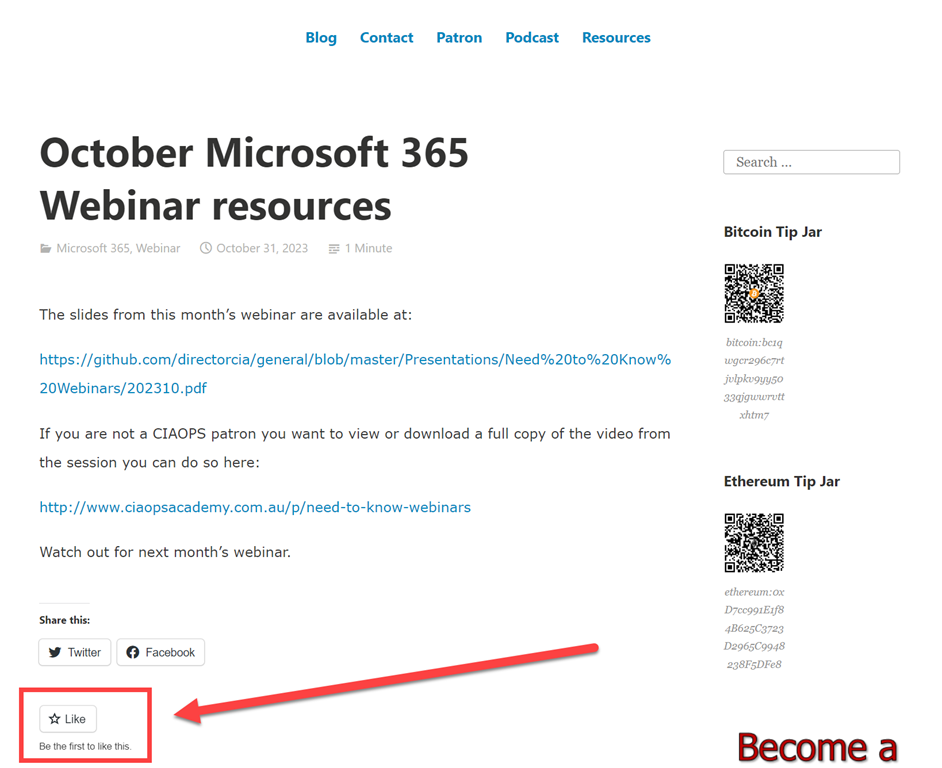
The ask I have of those that find value in the CIA Brief is to Like the post, as shown above at the bottom of each post. This way I know that the information is of value to people and provides an incentive for me to continue producing it. If you can Like each CIA Brief you see that would be very much appreciated.

Of course, I also welcome your feedback about how to make this concept even more valuable to people. I want something that is quick and easy to view on a weekly basis that will keep you up to date with the Microsoft Cloud. If you have any suggestions or feedback then I’m all ears.

That is the why and wherefores done. Stay tuned for the first CIA brief at the end of this week.
Monitoring a break glass account with Sentinel

In a previous article I covered off how to use Defender for Cloud Apps to monitor a break glass account. Typically, the alerts generated there will feed into Sentinel, however it is possible to configure Sentinel to perform a similar role.

The starting point is to use a KQL query like this:

SigninLogs
| where UserPrincipalName == “breakglass@domain.com”
| where OperationName == “Sign-in activity”
| project TimeGenerated, UserPrincipalName, ClientAppUsed, LocationDetails

image

If you run that query manually you’ll see a result like shown above. You will however also notice a New alert rule option in the top right of the window.

image

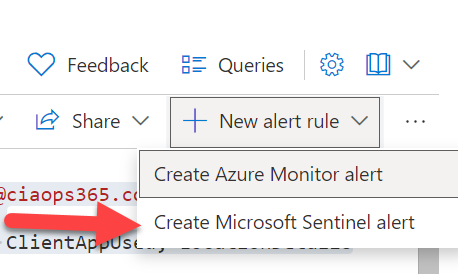
Selecting this will reveal two choices as shown above. Select Create Microsoft Sentinel alert to continue.

image

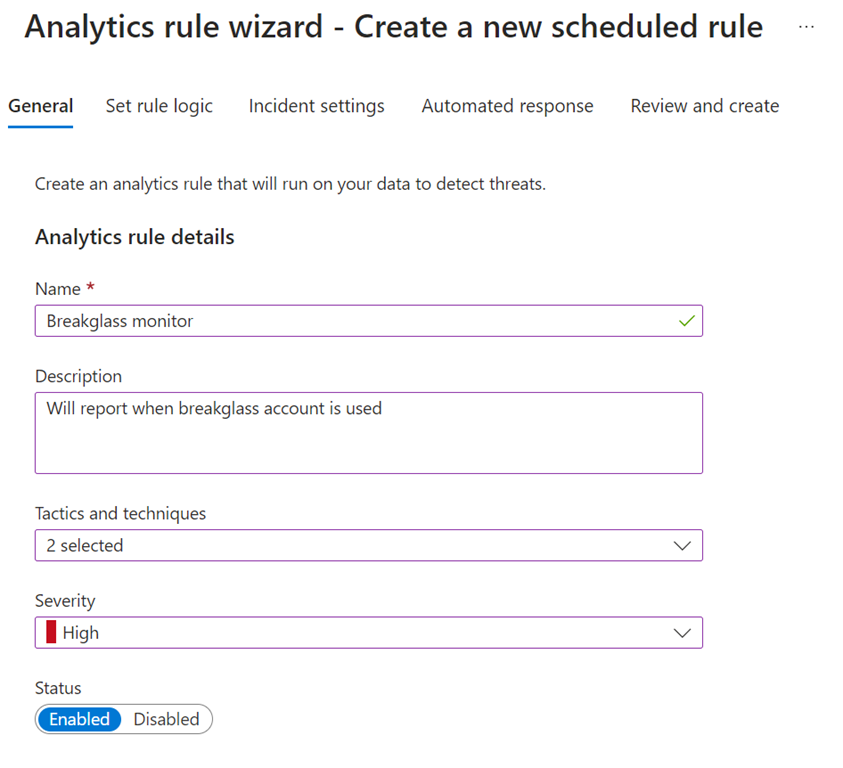
Make the appropriate settings in the General page, like shown above, and continue.

image

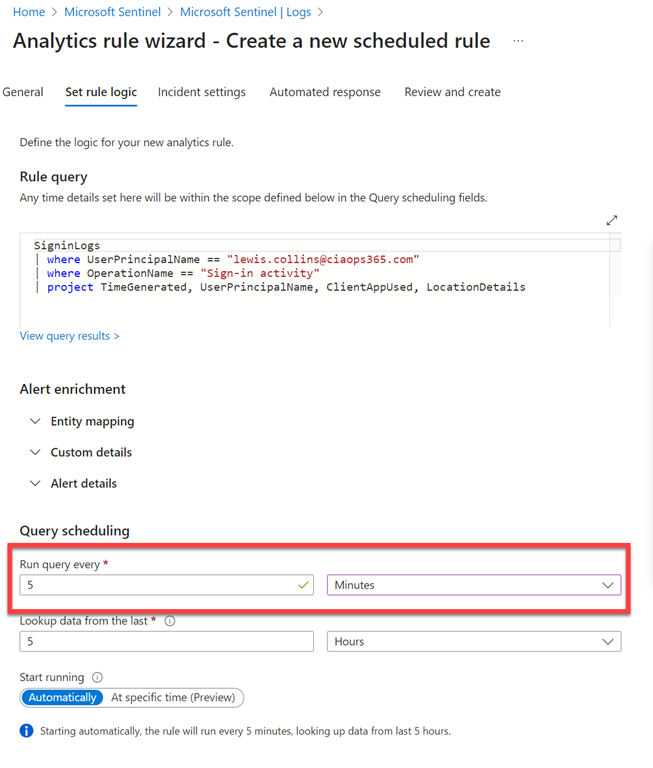
Here there are number of settings you can select but you will probably want to adjust how often the query is run as shown above. The important point to remember is that, as Azure is a consumption based billing model, there is a (very, very small charge) every time the query is run. Thus, the more often it runs the more it will cost.

When you have completed this section, move onto the Incident settings.

image

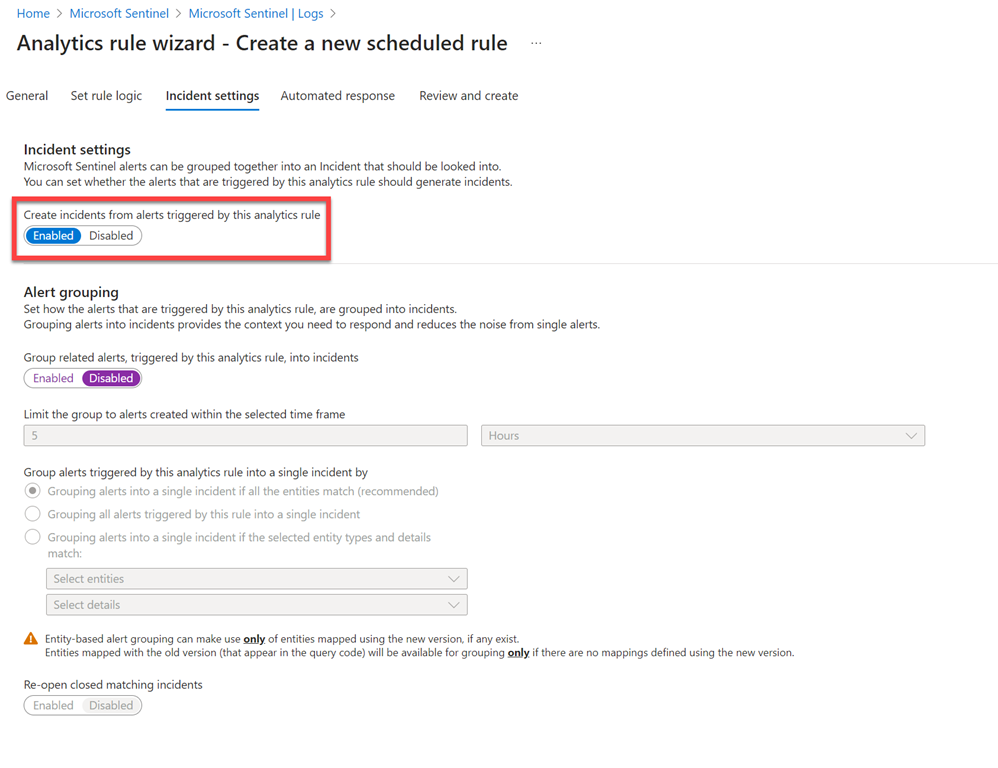
Here it is important to ensure that the option to Create incidents is Enabled as shown above.

Make any additional adjustments and move to Automated response.

image

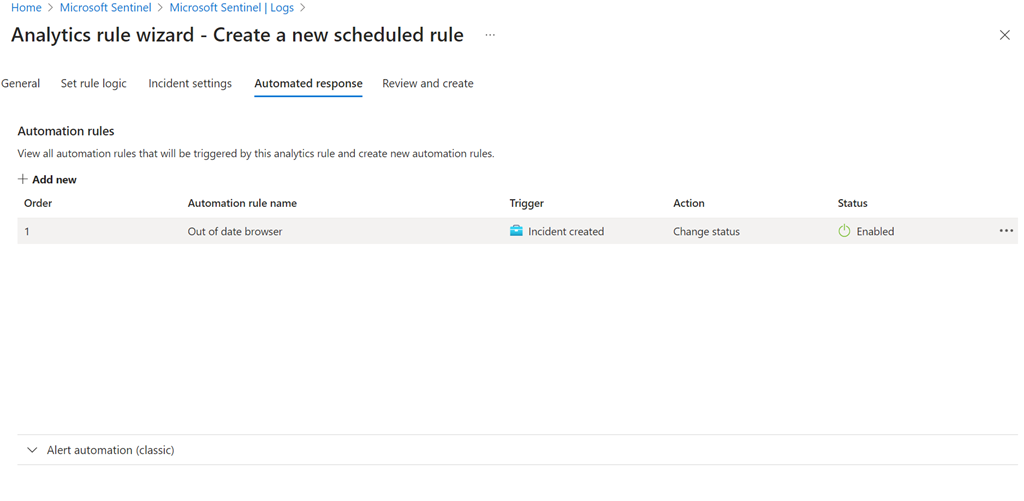
Here you can enable any automation action you wish by selecting from those already created, as shown above. You can always add additional automation later if desired.

image

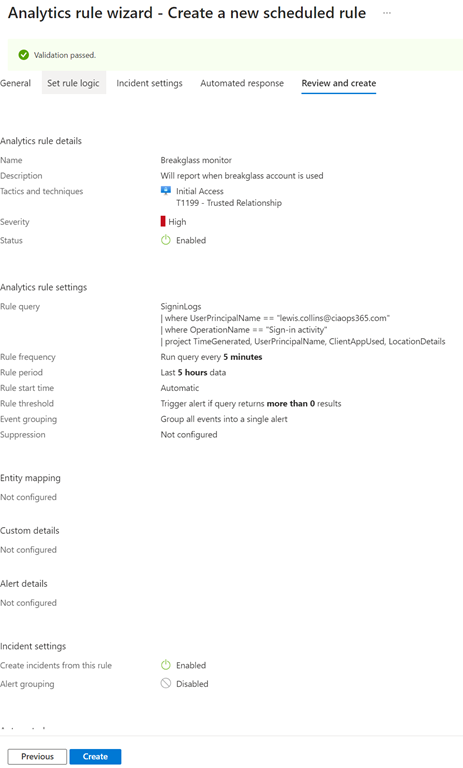
Finally, review and create the alert.

image

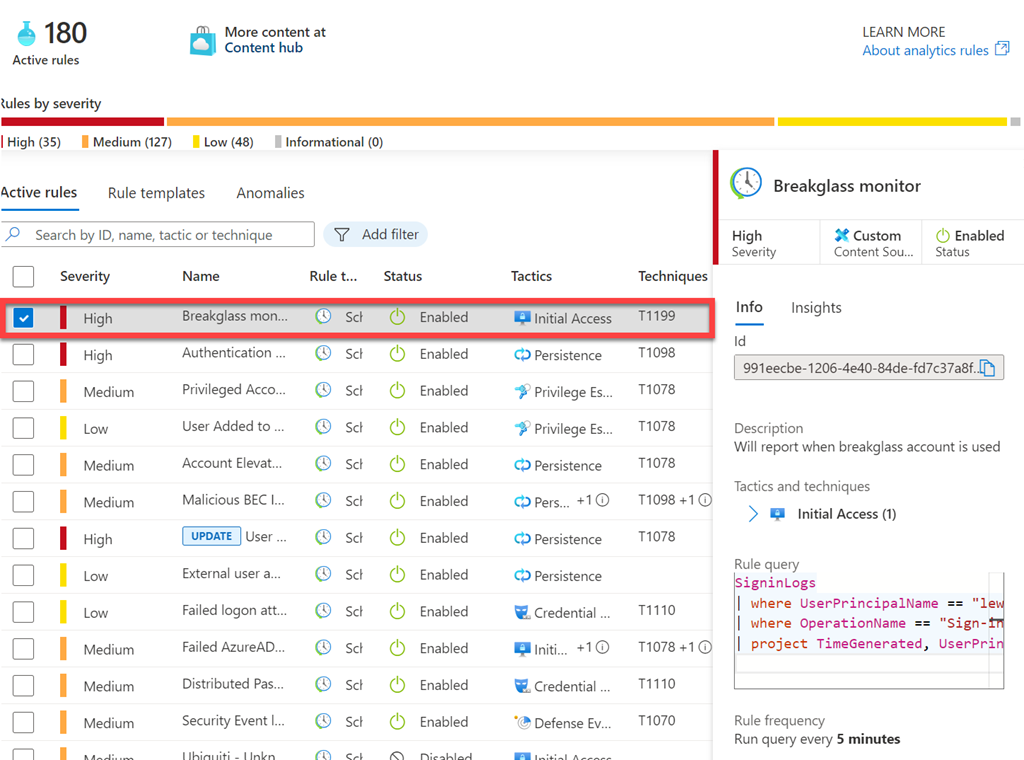
Verify that the alert you just created now appears in the list of Analytic rules for your environment as shown above.

image

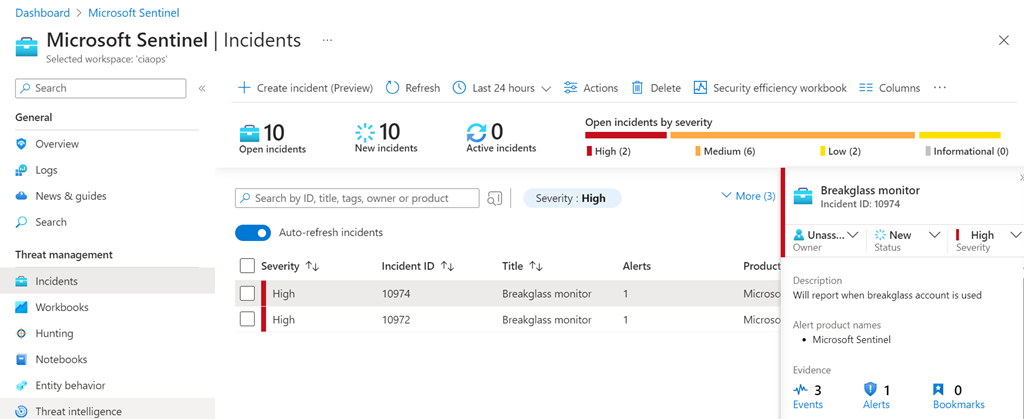
If you now test this by logging as your breakglass account you should an incident generated as shown above. Once again, it is important to remember that this incident doesn’t appear immediately. It will appear in a time period based on how often you set the alert to check.
Another important thing to remember is that by default, the incident will not send an email notification of the alert. You can configure that a variety of different ways if you wish, which I won’t cover here.

The differences with using Sentinel for custom alerts is that the billing is consumption based, but you have a lot more flexibility in how you configure the actual alerts as well as any automated response if desired. I would also say that Sentinel has more power around actually analysing signals as well which is handy to protect your breakglass account.


Using Sentinel to determine application usage

examinatyion using a magnifying glass

In recent article:

Block applications on Windows devices using Intune

I outlined how to prevent an application from running on a Windows device. It would be nice to know how many people are running this application prior to it being blocked (and even before). You can achieve this using Sentinel.

Many don’t appreciate

The extra value that Microsoft Defender provides

apart from security. In a nutshell, Defender for Endpoint sends signals from devices into the Microsoft cloud that something like Sentinel can take advantage of. This is something that can be taken advantage of to see application usage.

DeviceNetworkEvents
| where InitiatingProcessFileName contains “msedge.exe”
| project TimeGenerated, RemoteUrl, RemoteIP, DeviceName, InitiatingProcessAccountName
| summarize count() by bin(TimeGenerated,1day),DeviceName
| render columnchart

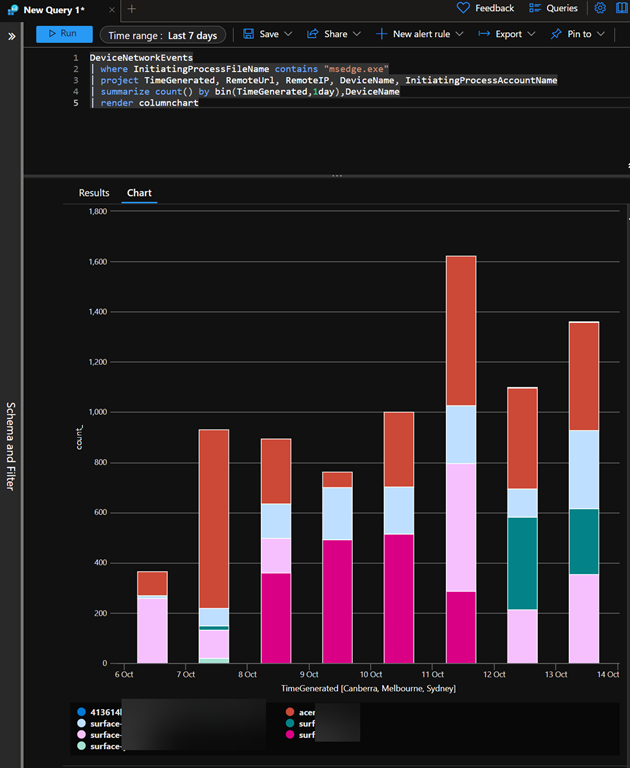
an example of this is the above KQL query, which when run provides an output like:

image

The result is basically a bar graph, over whatever time you specify, of how many times an application has been used. This is a great indicative way to get a feel for how often a device is running a particular application (here msedge.exe). The different bar colours show each particular device and each bar height represents the total usage of that application for one day.

The great thing is that you can further customize and enhance this query to suit your needs to product the output your require. You can then take that query and embed it into a Sentinel workbook so that it is available as part of a dashboard.

There is just so much that you can do and all it takes is becoming familiar with the tools Microsoft provides in your environment.


Techwerks 21

bw-car-vehicle

CIAOPS Techwerks returns to Brisbane CBD on Thursday the 21st of September.

The course is limited to 20 people and you can sign up and reserve your place now! You reserve a place by completing this form:

http://bit.ly/ciaopsroi

or by sending me an email (director@ciaops.com) expressing your interest.

The content of these all day face to face workshops is driven by the attendees. That means we cover exactly what people want to see and focus on doing hands on, real world scenarios. Attendees can vote on topics they’d like to see covered prior to the day and we continue to target exactly what the small group of attendees wants to see. Thus, this is an excellent way to get really deep into the technology and have all the questions you’ve been dying to know answered. Typically, the event produces a number of best practice take aways for each attendee. So far, the greatest votes are for deeper dives into the Microsoft Cloud including Microsoft 365, Azure, Intune, Defender for Endpoint, security such as Azure Sentinel and PowerShell configuration and scripts, with a focus on enabling the technology in SMB businesses.

Recent testimonial – “I just wanted to say a big thank you to Robert for the Brisbane Techworks day. It is such a good format with each attendee asking what matters them and the whole interactive nature of the day. So much better than death by PowerPoint.” – Mike H.

The cost to attend is:

Gold Enterprise Patron = Free

Gold Patron = $33 inc GST

Silver Patron = $99 inc GST

Bronze Patron = $176 inc GST

Non Patron = $399 inc GST

I hope to see you there.

Need to Know podcast–Episode 307

All the news and announcements from Microsoft Inspire plus Azure AD getting renamed to Entra as well as some recent security news you should be across. Lots in this episode so listen along and let me know what you think.

You can listen directly to this episode at:

https://ciaops.podbean.com/e/episode-307-news-from-inspire/

Subscribe via iTunes at:

https://itunes.apple.com/au/podcast/ciaops-need-to-know-podcasts/id406891445?mt=2

The podcast is also available on Stitcher at:

http://www.stitcher.com/podcast/ciaops/need-to-know-podcast?refid=stpr

Don’t forget to give the show a rating as well as send me any feedback or suggestions you may have for the show.

This episode was recorded using Microsoft Teams and produced with Camtasia 2023.

Brought to you by www.ciaopspatron.com

Resources

@directorcia

@directorcia@twit.social

Join my shared channel

CIAOPS merch store

Become a CIAOPS Patron

CIAOPS Blog

Microsoft inspire

Furthering our AI ambitions – Announcing Bing Chat Enterprise and Microsoft 365 Copilot pricing – The Official Microsoft Blog

Welcome to Microsoft Inspire 2023: Introducing Microsoft 365 Backup and Microsoft 365 Archive – Microsoft Community Hub

Microsoft Inspire: Accelerating AI transformation through partnership – The Official Microsoft Blog

Microsoft Inspire: Prepare for the future of security with AI | Microsoft Security Blog

Microsoft Sales Copilot, Dynamics 365 Customer Insights, and cloud migration reshape the future of business – Microsoft Dynamics 365 Blog

SMB security New innovations from Microsoft Inspire 2023

Introducing a new SharePoint Web UI kit! – Microsoft Community Hub

Security Copilot – How it works

Azure AD is Becoming Microsoft Entra ID – Microsoft Community Hub

Microsoft Entra Expands into Security Service Edge with Two New Offerings – Microsoft Community Hub

Get started with Global Secure Access (preview) | Microsoft Learn

How Microsoft is expanding cloud logging to give customers deeper security visibility | Microsoft Security Blog

Analysis of Storm-0558 techniques for unauthorized email access | Microsoft Security Blog

Compromised Microsoft Key: More Impactful Than We Thought | Wiz Blog

Techwerks 20

bw-car-vehicle

CIAOPS Techwerks returns to Melbourne CBD on Friday the 11th of August.

The course is limited to 20 people and you can sign up and reserve your place now! You reserve a place by completing this form:

http://bit.ly/ciaopsroi

or by sending me an email (director@ciaops.com) expressing your interest.

The content of these all day face to face workshops is driven by the attendees. That means we cover exactly what people want to see and focus on doing hands on, real world scenarios. Attendees can vote on topics they’d like to see covered prior to the day and we continue to target exactly what the small group of attendees wants to see. Thus, this is an excellent way to get really deep into the technology and have all the questions you’ve been dying to know answered. Typically, the event produces a number of best practice take aways for each attendee. So far, the greatest votes are for deeper dives into the Microsoft Cloud including Microsoft 365, Azure, Intune, Defender for Endpoint, security such as Azure Sentinel and PowerShell configuration and scripts, with a focus on enabling the technology in SMB businesses.

Recent testimonial – “I just wanted to say a big thank you to Robert for the Brisbane Techworks day. It is such a good format with each attendee asking what matters them and the whole interactive nature of the day. So much better than death by PowerPoint.” – Mike H.

The cost to attend is:

Gold Enterprise Patron = Free

Gold Patron = $33 inc GST

Silver Patron = $99 inc GST

Bronze Patron = $176 inc GST

Non Patron = $399 inc GST

I hope to see you there.