Need to Know podcast–Episode 203

We catch you up with everything in the Microsoft Cloud and then spend some time talking about the new certifications that have just become available from Microsoft for both Microsoft 365 and Azure. I share some of my experiences and thought around doing these exams and their value to all IT Professionals going forward. We’ll be covering more about certifications down the track but this one should get you thinking about which one you should do!

Take a listen and let us know what you think – feedback@needtoknow.cloud

You can listen directly to this episode at:

https://ciaops.podbean.com/e/episode-203-certifications/

Subscribe via iTunes at:

https://itunes.apple.com/au/podcast/ciaops-need-to-know-podcasts/id406891445?mt=2

The podcast is also available on Stitcher at:

http://www.stitcher.com/podcast/ciaops/need-to-know-podcast?refid=stpr

Don’t forget to give the show a rating as well as send us any feedback or suggestions you may have for the show.

Resources

@contactbrenton

@directorcia

Patron Community

Azure opens datacenters in Africa

Microsoft announces Azure Sentinel

Introducing Microsoft Threat Experts

Get the latest Microsoft Security Intelligence report

Teams V Slack

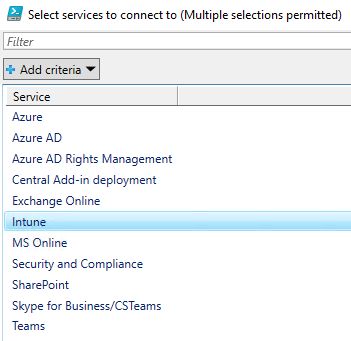
Connect to Office 365 PowerShell via GUI

MS-100 Certification

MS-101 Certification

Email message traces in Office 365

A very common need these days is to do an email message trace. This can be done the old way in the Exchange Online Admin center or the new way via Mail Flow in the Security and Compliance center.

image

You simply enter the details and then run a search.

image

and the output looks like the above, where you can also drill in and get more detail.

image

As with all things Office 365, you can achieve the exact same thing using PowerShell as I have shown above. The code to achieve this is quite straight forward but I have uploaded it to my GitHub repo to save you the trouble:

https://github.com/directorcia/Office365/blob/master/o365-msgtrace.ps1

Where PowerShell comes into its own is when you need to a variety of tasks, perhaps an investigation of a breach. Using PowerShell you can easily dump all the information to CSV for further analysis rather than having to root it out in the web interface.

Reporting mailbox logins

Before much of what is covered here is possible you need to ensure you have enabled all the logging in your Office 365 tenant. I’ve covered how to do that here:

Enabling Office 365 mailbox auditing

Enable mailbox auditing in Exchange Online

Enable activity auditing in Office 365

Once you have done that you will be able to track what’s going on in your tenant much better.

In the situation of a compromised mailbox, a bad actor has control of it using legitimate credentials. This eliminates looking for failed logins, because there won’t be any. It also makes the finding the bad actor tougher because their access is most likely mixed in with the legitimate user.

The place to start is to run an audit log search as I have detailed here:

Searching the Office 365 activity log for failed logins

image

However, as I mentioned, we can no longer search for failed logins, we need to use a different search criteria. I would suggest that you instead run a search using the attribute “User signed in to mailbox” as shown above. That will produce something like shown for all users. Problem with this is that times and dates are in UTC not local time and it is cumbersome to manipulate in a web page. You can of course manipulate by exporting the results to a spreadsheet for more control.

image

Unsurprisingly, I feel PowerShell offers a much better solution to check the logs and report as you can see above. The script to do this I have made freely available at my Github repo here:

https://github.com/directorcia/Office365/blob/master/o365-mblogin-audit.ps1

Basically, it will search the Audit log for Exchange Items that are Mailbox logins and send that output to a nice table via the Out-Grid command. As you can see, using Out-Grid you can now easily sort by time by clicking the column heading, and thanks to the script, the times are local not UTC!

By default, the script will check the last 48 hours but you can easily modify that to suit your needs by either entering the scope in hours or entering a start and end date in the variables at the top of the script.

With this output I can now look for suspect IPs that login into the mailbox and begin hunting from there. However, remember, all of this relies on you enable your auditing BEFORE you need it. So, if you haven’t enabled it, go do it now! You’ll find scripts to enable the logs also in my Office 365 repo here:

https://github.com/directorcia/office365

Monitor outbound spam as well

image

Hopefully everyone is well aware of the need to protect Office 365 email from inbound spam, however what are you doing about outbound spam?

Hopefully, no bad actor gains access to your environment BUT if they did and they started using you accounts to send spam email how would know?

image

For this reason, I suggest that it is a good idea to go into the Exchange Administration console, select Protection, then Outbound spam. Edit the default policy (that’s really your only option), then select outbound spam protection on the left hand side. Then I suggest you should enable the option to send an email when there is a suspicious outbound email to somewhere that is monitored.

That obviously, won’t stop outbound spam but it should at least give you a heads up that it is happening.

OneNote error code 0XE0001462 bukxq 19999

I received the not so helpful error code OXE0001462bukxq 19999 on an iOS device when trying to sync some OneNote notebooks.

This error I believed was the because I was mixing and matching identities on the device and inside OneNote. The result was that the notebooks would load into OneNote, I could see the sections but not any pages. I will also say that I was also playing with Intune app protection policies at the same time on the device, which probably really didn’t help.

To get rid of the error I figured that I needed to change the login credentials for each notebook. Problem was I couldn’t see how to do that within OneNote.

image

Turns out, what I needed to do was go into the iOS Settings, select OneNote and then down the bottom you’ll find an option to Reset OneNote as shown above.

image

Once you select that you’ll see the above screen giving you the option to Delete all notebooks or Delete Login credentials, which is what I selected.

I then restarted OneNote and re-authenticated to the notebooks and I was away. An easy fix when you know how, just wish the error message was a little bit more helpful. However, in the end, problem solved and new lesson learned.

Unable to enable Javascript on iOS device

While setting up a new iPhone that was enrolled in MDM and using Intune, I came across an issue when setting up the Qantas app on iOS.

When you attempt to login to the Qantas app to set it up for the first time you are shelled out to Safari and here it needs to use Javascript to complete its login process. Unfortunately, if you have Javascript disabled then you get a nasty error message that you need to enable it and you can go no further.

file

No problem, you think. I’ll just go into the device Settings, Safari then Advanced where you expect to see the above Javascript option. Only problem is, that for some reason, you can’t change this option because it is disabled for some reason.

image

In my case, the reason why it was disabled is because I had an Intune Device Restrictions policy in place that was blocking Javacript. You change this option by going into the iOS restriction policy, selecting Settings, Built-in Apps, Safari, Javascript as shown above. Change the setting from Block to Not configured, then Save the policy change and allow a few minutes for the policy to be applied to the device.

After that, I was able to re-run the Qantas app configuration and set up everything as expected. You could then, if course change the policy back if you wished to block Javascript going forward.

The lesson here is, that if something is blocked on your device that is managed by Intune, then most likely that setting is being controlled by an Intune policy and you’ll need to make the change there.

CIAOPS Techwerks 4–Perth April 12

bw-car-vehicle

The next instructor lead, all day, technical whiteboarding workshop session I’ll be doing on Microsoft Cloud Technologies (Office 365, Microsoft 365, Azure, Intune, Windows 10, etc) will be held in Perth on Friday April 12th, 2019. The course is limited to 15 people and you can sign up and reserve your place now!

The content of these events is driven by the attendees. That means we cover exactly what people want to see and focus on doing hands on, real world scenarios. Attendees can vote on topics they’d like to see covered prior to the day and we continue to target exactly what the small group of attendees wants to see. Thus, this is an excellent way to get really deep into the technology and have all the questions you’ve been dying to know answered. Typically, the event produces a number of best practice take aways for each attendee. So far, the greatest votes are for deeper dives into Intune, security and PowerShell configuration and scripts, however that isn’t finalised until the day.

Recent testimonial – “I just wanted to say a big thank you to Robert for the Brisbane Techworks day. It is such a good format with each attendee asking what matters them and the whole interactive nature of the day. So much better than death by PowerPoint.” – Mike H.

The cost to attend is:

Patron Level

Price inc GST

Gold Enterprise Free
Gold $ 33
Silver $ 99
Bronze $ 176
Non Patron $ 399

To learn more about the benefits of the CIAOPS Patron program visit www.ciaopspatron.com.

To register, simply email me – director@ciaops.com and I’ll take care of everything from there.

The CIAOPS Techwerks events are run regularly in major Australian capital cities, so if you can’t make this one or you aren’t in Perth on that date, stay tuned for more details and announcements soon. If you are interested in signing up please contact me via emails (director@ciaops.com) and I can let you know all the details as well as answer any questions you may have about the event.

I hope to see you there.

Windows Information Protection (WIP) in action

Windows Information Protection:

“helps to protect against this potential data leakage without otherwise interfering with the employee experience. WIP also helps to protect enterprise apps and data against accidental data leak on enterprise-owned devices and personal devices that employees bring to work without requiring changes to your environment or other apps”

It is a technology that is limited to Windows 10 desktops and is typically deployed via Intune using App Protection Policies.

image

To get there you’ll need to navigate to the Microsoft Intune service in the Azure portal and then select Client apps from the menu on the left.

image

You’ll then need to select App protection policies.

image

You’ll need to create a policy if one does not already exist.

For Windows 10 there are two policy options, with and without enrolment. The difference is that “with” enrolment the machine is effective using MDM (device management) and is typically directly connected to Azure AD. “Without” enrolment is typically just MAM (only application management) and is typically not directly joined to Azure AD. I’ll focus on a “with enrolment” option here but “without” is pretty much identical in the options provided.

image

Once the policy is in place don’t forget that you’ll also have to assign it to a group of users for it to take action. However, before you actually assign it to live set of users in your environment, you may want to take a moment to understand the ramifications of what the policy will do.

If you examine the Required settings of the policy, as seen above, you will see that you can set an option for the Windows Information Protection mode. If you are just testing things and don’t want to impact or change your environment then I recommend the Silent option. If however, you want to have the policy protections enabled but want a choice when it is applied, select Allow Overrides (recommended). If you want to be totally strict about applying the policy to your Windows 10 devices, select Block.

The domain for your tenant should appear in the Corporate identity field below. If you have any addition domains you use, ensure they are entered in this field.

image

If you then examine Advanced options, as shown above, you should see that an existing entry for Cloud resources already exists. When you drill into this, it should contain your Office 365 environment. I spoke about this location more in a previous post:

Intune App Protection blocking browser

and noted that you may need to make some adjustments to it to allow non Microsoft browsers on Windows 10 machines.

The interesting part is now if you also have on premises infrastructure you wish protected. So, imagine the Windows 10 devices are accessing data from Office 365 and from a local file server. By default, this local infrastructure will be considered ‘personal’ and won’t allow saving of corporate data there. In essence, Windows Information Protection (WIP) prevents corporate data being saved to personal locations. By default, your Microsoft 365 environment will be configured as a corporate data location but local fileservers will not be. Thus, if you wish to have your local infrastructure also classified as corporate data, then you need to specify your local DNS domain and IP range as I have done above as a Network Boundary. However, be warned, this has other implications that you need to consider which I’ll speak about later.

image

There are additional options if you scroll down further. When data that is protected by WIP is stored on a device covered by this policy, it will be protected by WIP encryption at rest. An option here in the policy allows you to revoke these encryption keys if the device is ‘unenrolled’ from Azure AD. That means, the moment the device is removed from Azure AD, any corporate data will be unable to be read since the encryption keys will be revoked for the device. You can generate and upload a recovery agent as you see above if required, however modern Windows 10 releases will actually recover the key from Azure AD if that same machine is re-joined again to Azure AD.

I have also select the option to Show the enterprise data protection icon which will appear on documents WIP considers corporate data. This is always a good way to distinguish corporate data, so my best practices is to have it there as a reminder.

You’ll also see that you can use Azure RMS (rights management) with WIP if you want. I’ll leave this disable for simplicity now, but if you want that extra protection that Azure RMS gives, then it is available if you have a license for RMS.

image

If those options are now saved to the policy and the policy is actually assigned to a set of users, once the policy has been fully assigned to a device you will see something like the above.

Here you will notice that all the OneDrive for Business files have been classified as corporate data as noted by the briefcase graphic in the file type icon. You will also note a new column as well – File ownership, which contains the domain you configured.

image

If I look at the data on a local file server I see the additional File ownership column again, with all data being owned by my domain.

Thus, all data from Office 365 and my local infrastructure is now considered corporate, not personal, data. This means that it can only be accessed using the apps I have authorised to access corporate data in the policy.

image

So how does this all work in practice? As an example, I created a new data file on the local Windows 10 device subject to the App Protection policy. This file is currently considered a personal file because it doesn’t have the briefcase graphic in the file icon.

image

I can change the file from personal to corporate by right mouse clicking, selecting File ownership and then picking the option that I want. Here’s I’d choose Work (ciaops.com) to swap that file to being considered corporate data.

image

Once I make the option to categorise it as corporate data, you’ll see the logo changes immediately to indicate the file is now managed. The file has also now been encrypted by WIP on the local device for protection. The user doesn’t see this as the WIP encryption/decryption is handled seamlessly behind the scenes on the device.

image

Now that this data is a corporate file, only apps that I have defined as corporate apps can open that file. You’ll see above that Notepad will work on both types of files, corporate and personal, but what happens if you try and open this corporate file with a non corporate app like Wordpad, which, as you can see, says it will only open personal files?

image

What happens, is that the corporate file cannot be opened by the non corporate app as shown above and I get an denied message.

image

You’ll see that I get a similar result if I try and copy data from a corporate app and attempt to paste to a personal app. Because I set the option earlier in my policy to Allow Overrides, I see the options shown above indicating that I can proceed pasting corporate data into a non corporate app but the actions may be tracked.

image

The way that I can tell whether the data in the file is being protected and considered corporate is with a small briefcase icon in the upper right as shown above.

image

If I select this icon I get further information that the app is being managed by my domain as shown.

This means in summary, that you can use WIP applied via Intune App Protection policies to ensure that defined corporate data does not end up in non corporate locations. WIP corporate data while stored on a Windows 10 device is protected at rest by encryption.

Also, remember that not all Windows 10 devices will be enrolled into your Azure AD. Some may just be associated (typically BYOD). By implementing a Windows 10 App Protection policy Without Enrolment you can protect the corporate data that is on these device as well. A good scenario here is to imagine a user’s personal Windows 10 Home machine that they use to access corporate data after hours to work on while not on their corporate joined devices. This means you can protect data even on Windows 10 Home editions machines (via a  non enrolled App Protection policy).

There are some issues to be aware of here, especially when you start mixing WIP with on premises locations. The best way to explain this is via an example I’d suggest. I set up WIP to include my local server and when the policy applied, all the data on that server was considered corporate. The apps that I used are mainly those that were set up in the Intune policy such as Word, Excel, etc as well as some custom apps like Adobe Acrobat Reader which I have detailed how to do here:

Adding Acrobat Reader as an Allowed app

Where things came unstuck a tad was when I wanted to use a not so common app like Keypass. The Keypass app lived on my Windows 10 machine but that data lived in the on premises server. Thus, the Keypass app could only open ‘personal’ data but all the data on the local file server, including the Keypass data file, was now ‘considered’ corporate data thanks to the Network Boundary settings in the policy. In short, I couldn’t open the data when I needed to. Moving the data file to other locations didn’t help either as it was still considered corporate data and the Keypass app could only open personal data. Annoying to say the least.

In the above scenario, with a small number of custom apps required to open data, you could add these custom apps to allowed list of apps in the policy so they are permitted to work with corporate data. If that becomes to hard then you probably need to evaluate whether you want your on premises infrastructure classified as ‘corporate’ data. However, failing to do that means you can’t copy from locations defined as corporate, such as Office 365, to these.

image

As you can see from the above, when I attempt to copy from my OneDrive for Business (corporate location) to a location that is considered non-corporate (local server) I get the above. Because I specified the ability to override I do get a bypass option but you’ll see when I do that, the data I copy will have it’s corporate protection removed and reverted to a personal data.

The key message is therefore that implementing WIP is something you need to think about carefully and plan prior to implementing. If you get it wrong then it will be a huge source of frustration for users, However, implemented correctly it is yet another way to protect your corporate data on both managed and unmanaged Windows 10 devices.