Windows 10 Upgrade finished on July 29 2016

Microsoft has confirmed that its free upgrade offer to Windows 10 will definitely end on July 29th 2016. After that you’ll need to pay to get the latest version of Windows or buy a new machine with Windows 10 installed.

My own experience with Windows 10 upgrades have been very, very positive. All my own personal machines upgraded without issue as well as all my family’s. Personally, I’ve really liked the upgrade to Windows 10, the new features, look and feel, etc but what really surprised me was how will the rest of my family also liked it. Many of these aren’t into computers but they remarked how much they liked it unsolicited. Wow, I never heard that about previous Windows upgrades I have done for them.

Even though I don’t sell hardware or PC upgrade services any more I have also found that the response to Windows 10 with business customers has also been very, very positive. People really want to upgrade to it and it has a real improvement to their productivity. I think they’ll see even more benefit when they get hardware that allows the Windows Hello feature to automatically log them into their devices once it recognises them.

Another big leap that Windows 10 has taken is the ability to join Azure AD. Although not quite as powerful as local AD at this point in time, I can see a day in the very near future where it will be but thanks to Azure AD you’ll no longer have to be tethered to your local network to be secure and access all your programs and data. When you then add on features in Azure AD Premium you begin to see what a mobile first, cloud first world is all about.

So, if you haven’t yet upgraded to Windows 10 then I suggest you hurry up and do so before July 29 because you’ll get it for free.

What’s been you experience? I’d love to hear.

Need to Know Podcast–Episode 101

Marc and I catch up on all the latest Azure and Office 365 news. We talk about the new Azure Resource Policy as well as the latest changes to the Office 365 interface. We also spend some time chatting about security and the best hardware device to get. THis one’s a little bit random, so enjoy the ride.

As always don’t forget to send us you questions and feedback as well as leaving review to help grow our audience. We appreciate you taking the time to listen.

or can listen to this episode at:

http://ciaops.podbean.com/e/episode-101-cloud-news/

or subscribe to this and all episodes in iTunes at:

https://itunes.apple.com/au/podcast/ciaops-need-to-know-podcasts/id406891445?mt=2

The podcast is also available on Stitcher at:

http://www.stitcher.com/podcast/ciaops/need-to-know-podcast?refid=stpr

Don’t forget to give the show a rating as well as send me anyfeedback or suggestions you may have for the show.

Resources

Marc Kean – @marckean

Robert Crane – @directorcia

Custom SSO through Azure AD

Azure Resource Policy

New Office 365 login screen

New Office 365 admin center look and feel

Office 365 B2B sharing

Lastpass

Office 365 customer lockbox

Project Madeira

Azure AD Connect is NOT supported on SBS

Been getting a few questions about integrating existing SBS servers with Office 365. The bad news is:

Azure AD Connect cannot be installed on Small Business Server or Windows Server Essentials. The server must be using Windows Server standard or better.

per:

https://azure.microsoft.com/en-us/documentation/articles/active-directory-aadconnect-prerequisites/

Azure AD Connect is supported on a Domain Controller (DC) just not on SBS (it won’t actually install in my experience). This means that you’ll need to factor in a separate members server to install Azure AD Connect so you can synchronise the users to Office 365.

Make sure you consult that link for all the other requirements for Azure AD Connect as well!

Need to Know Podcast–Episode 98

We’re joined again by Microsoft Senior Technical Evangelist Jeff Alexander to talk about the latest with Windows Server 2016. Jeff tells us about all the latest cool features that are now available and where the direction of this product is headed. We talk about virtualisation, Nano servers, containers, PowerShell, Azure and more.

You’ll also get a round up of the latest Office 365 and Azure new from us including information on Azure Resource Manager, increased SharePoint Online Team Site storage and more. Listen in to stay up to date with the latest in the Microsoft Cloud.

You can listen to this episode at:

http://ciaops.podbean.com/e/episode-98-jeff-alexander/

or subscribe to this and all episodes in iTunes at:

https://itunes.apple.com/au/podcast/ciaops-need-to-know-podcasts/id406891445?mt=2

The podcast is also available on Stitcher at:

http://www.stitcher.com/podcast/ciaops/need-to-know-podcast?refid=stpr

Don’t forget to give the show a rating as well as send me any feedback or suggestions you may have for the show. 

Resources

Jeff Alexander – http://about.me/jeffa36

Free Windows 10 eBook for IT Pros

Exploring Nano Server

Getting Started with Nano Server

Azure SDK

Azure Resource Manager Basics

Windows 10 update information

Windows 10 update history

Version numbers for update branches for Office 365 clients

Office 365 client branch releases

Updated Delve profiles

Office 365 Team Sites storage increased

Azure Backup Server for Applications configuration

I have written before about how Azure can be used to backup files and folders quickly and shown how to set all that up here:

Azure Desktop Backup

Recently, Azure Backup was extended to now be able to do server services like Exchange, SQL, SharePoint etc:

Azure backup now does servers

This involves a different process to setup and so here is the walk through process of setting Azure Backup Server for Applications.

image

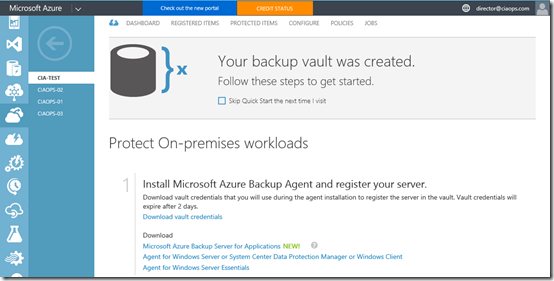
You’ll need to have an Azure Backup Vault already in place as the destination for your backups. You create this Azure Backup Vault in the Azure management console under the Recovery Services option. You can have as many Azure Backup Vaults as you wish and my personal practice is to have a separate vault for each machine. If you need to create a new vault I have detailed how to do this previously.
image

Once the vault has been created you’ll need to download the Azure Backup software. You can find this in the details for the Backup Vault as shown above. You need to download the Microsoft Azure Backup for Applications.

This will in effect take you to the following download link:

https://www.microsoft.com/en-us/download/details.aspx?id=49170

image

Which will allow you to download the software. Beware that the Backup for Applications software is about 3.2 GB in size. Why? Because it includes the Microsoft Data Protection Manager (DPM) and SQL 2014.

image

There are number of different files you need to download, as shown above. Place them all the same directory and then run MicrosoftAzureBackupInstaller.

image

The installation process will now commence. Select Next to continue.

image

The next step in the process is to expand the downloaded files into a single installation directory. You can customise this directory if desired. Select Next to continue.

image

Select Extract to continue.

image

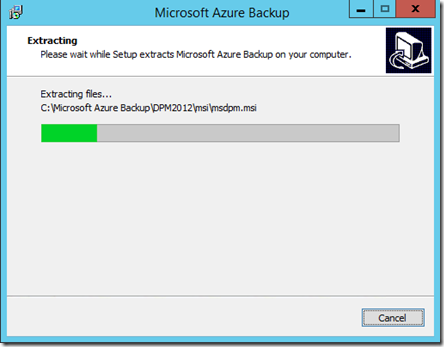
The files will now commence extracting into the directory that you nominated.
image

Be patient, the extraction process will take a few minutes.

image

When the extraction process is complete you are given the option to Execute setup.exe to install the software. Leave this option selected and press Finish.

image

The setup splash screen should now appear as shown above. From this screen select Microsoft Azure Backup under the Install column on the left.

image

The C++ Runtime will now be installed.

image

The setup screen should now appear as shown above. Select Next to continue.
image

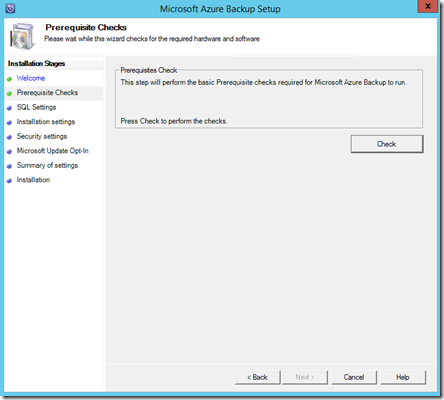
Select the Check button in the top right to ensure all the prerequisite software is installed.

image

If the prerequisites are met you should see a message confirming that as shown above. Select Next to continue.
image

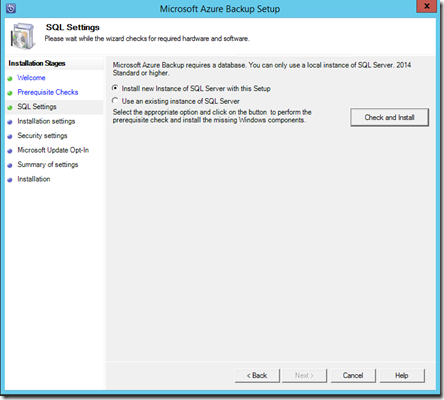
You’ll now need to specify an SQL server as part of the configuration. You can configure an existing SQL server on your network or you can elect to install a new instance on the current machine. If you select an existing SQL Server it will need to be running SQL 2014.

In most cases you’ll want to install a new instance of SQL 2014, so ensure that option is selected. Now select the Check and Install button in the top right.

image

Your system will then be checked. This should only take a minute or two.
image

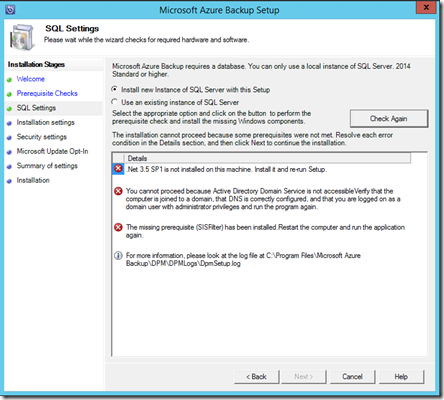
You’ll then see a report of the results. A couple of things to notice here:

– You need to install this software on a domain joined server

– You need to have .Net 3.5 SP1 installed

– You can install this software on a domain controller but if you do you’ll need to follow this guidance before proceeding:

https://technet.microsoft.com/en-us/library/ff399416.aspx

image

In this case the installation is on a member server and no critical issues were detected. Select Next to continue.

image

You’ll then be prompted to confirm your installation configuration.

Once you have made any modifications here select Next.

image

Now provide a password for the two accounts required to run services. Remember to record this password!

Select Next once you have entered a suitable password.

image

Select how you wish to manage updates and then Next to continue.
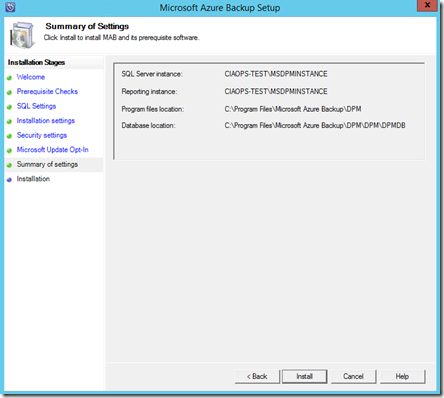
image

The configuration information is displayed. Select Install.
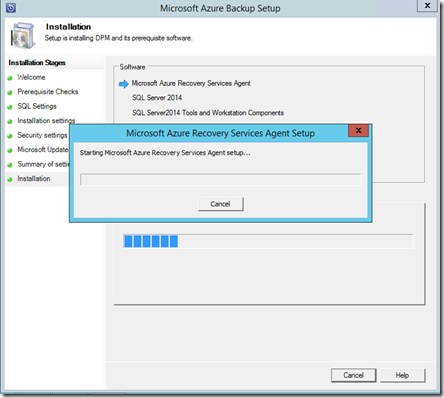
image

The selected software components will now be installed.

image

You’ll now be prompted to complete the Azure Recovery Services Agent Setup Wizard as you would with the normal Azure Backup option.

Enter any proxy details and select Next.

image

If additional software is required to support this agent it will be displayed.

Select Install.
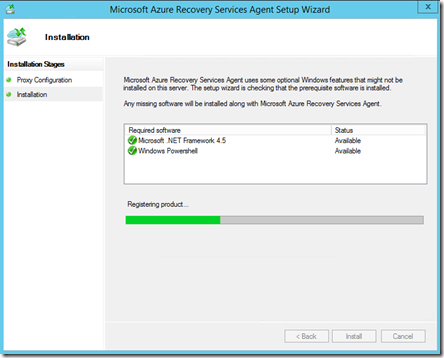
image

Supporting software will then be installed.

image

When the required supporting software has been installed select Next.

image

You’ll then be prompted for the location of the Vault credential file.

image

You download this file from the console of the Backup Vault as shown above by selecting the Download vault credentials link.

image

Once the vault credential file has been verified select Next.

image

You’ll now need to generate a unique encryption key for this backup. In most cases you will select the button Generate Passphrase to create a secure key.

You will also be prompted for a location to save a text file of this encryption key. Ensure that this key is recorded and a copy of the file is saved to another system so it can be used if recovery is required.

When all this is complete, select Next.

image

The installation process will continue.

image

You will receive a confirmation message as shown above that the process is complete.

Press the Close to complete the installation.
image

You should now find an icon on your desktop like that shown above for Microsoft Azure Backup Server. Double click this to launch.

image

The Microsoft Azure Backup console should now launch as shown above.

Here’s the Microsoft documentation on this configuration process:

Preparing to back up workloads using Azure Backup Server

I’ll look at covering how to use Azure Backup Server to backup and restore files in an upcoming post.

Power BI adds Cortana integration

image

One of the regular Power BI demos that i do involves using the natural language query engine at the top of the dashboard. The above example is from a spreadsheet I uploaded to my Power BI environment that contains information about all the Olympic medal winners.

image

So if I now type total medals by country into the query Power BI automatically provides me with the visualisation as you see above.

image

But if I wake Cortana up by saying “hey cortana” and then asking “total gold medals australia by sport” you’ll see from above that it comes back with some Power BI suggestions.

image

If I now select one of these you’ll see that it pulls the information from that same spreadsheet I was just using in Power BI.

That now means Cortana is integrated with Power BI! Pretty cool eh? So how do you configure that?

The first step in the process is to integrate Office 365 and Cortana. I have detailed that previously at:

Connecting Cortana to Office 365

Next, you’ll need to go into the Power BI Dashboard for the data set you wish to integrate with Cortana.

image

Select the COG in the top right corner of the dashboard for the dataset and then the Settings option from the menu that appears.

image

Ensure you have the desired dataset selected on the left. Then on the right ensure option Enable Cortana to access this dataset is checked.

Now users who have access to that Power BI dataset and have Cortana enabled and linked to their Office 365 account can query data by voice or simply by typing into the search box.

Another REALLY impressive new features is Quick Insights. Here I’ll use the Chicago Crime Statistics spreadsheet that I’ve also uploaded into my Power BI environment.

image

Select the ellipse (three dots) to the right of the data source under the Datasets heading in the lower left of the Power BI screen.

From the menu that appears (shown above) select View Insights.

image

You’ll now see a list of discovered “insights” displayed as shown above. But how are these “insights’ generated?

Power BI’s new Quick Insights feature allows you to run a variety of analytical algorithms on your data to search for potential insights with the click of a mouse. Through a partnership with Microsoft Research, we’re honing a growing list of algorithms to discover and visualize correlations, outliers, trends, seasonality, change points in trends, and major factors within your data, automatically, within seconds.

It gets even more impressive than that as detailed here:

Announcing Power BI integration with Cortana and new ways to quickly find insights in your data

Aside from all the new cool Power BI stuff the integration with Cortana illustrates another benefit of the Microsoft platform and how services like Cortana are being integrated across everything!

This stuff just keeps getting better!

CIAOPS Configuring and managing synchronised Office 365 users online course now available

sync

If you want to understand how to configure and manage the synchronisation of users from a local Active Directory to Office 365 then you can now do so thanks to my latest course:

Configuring and managing synchronised Office 365 users

Each lesson contains a short video tutorial, downloadable course notes and a quiz to test your knowledge. You can also ask questions and provide feedback to gain even more knowledge.

You’ll find this and a growing number of CIAOPS online courses at:

http://ciaops-academy.teachable.com/

Got a suggestion for a course you’d like to see me do? Then don;t be shy, let me know either via Twitter (@directorcia) or email (director@ciaops.com).