Azure Backup Server for Applications configuration

I have written before about how Azure can be used to backup files and folders quickly and shown how to set all that up here:

Azure Desktop Backup

Recently, Azure Backup was extended to now be able to do server services like Exchange, SQL, SharePoint etc:

Azure backup now does servers

This involves a different process to setup and so here is the walk through process of setting Azure Backup Server for Applications.

image

You’ll need to have an Azure Backup Vault already in place as the destination for your backups. You create this Azure Backup Vault in the Azure management console under the Recovery Services option. You can have as many Azure Backup Vaults as you wish and my personal practice is to have a separate vault for each machine. If you need to create a new vault I have detailed how to do this previously.
image

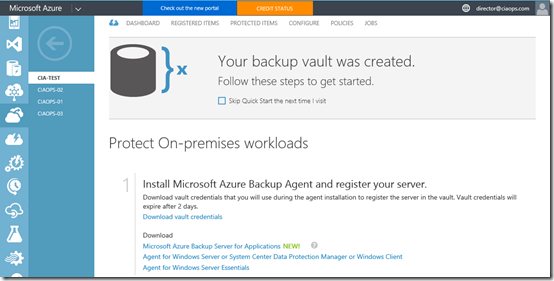
Once the vault has been created you’ll need to download the Azure Backup software. You can find this in the details for the Backup Vault as shown above. You need to download the Microsoft Azure Backup for Applications.

This will in effect take you to the following download link:

https://www.microsoft.com/en-us/download/details.aspx?id=49170

image

Which will allow you to download the software. Beware that the Backup for Applications software is about 3.2 GB in size. Why? Because it includes the Microsoft Data Protection Manager (DPM) and SQL 2014.

image

There are number of different files you need to download, as shown above. Place them all the same directory and then run MicrosoftAzureBackupInstaller.

image

The installation process will now commence. Select Next to continue.

image

The next step in the process is to expand the downloaded files into a single installation directory. You can customise this directory if desired. Select Next to continue.

image

Select Extract to continue.

image

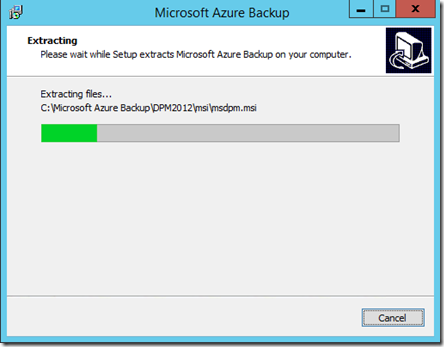
The files will now commence extracting into the directory that you nominated.
image

Be patient, the extraction process will take a few minutes.

image

When the extraction process is complete you are given the option to Execute setup.exe to install the software. Leave this option selected and press Finish.

image

The setup splash screen should now appear as shown above. From this screen select Microsoft Azure Backup under the Install column on the left.

image

The C++ Runtime will now be installed.

image

The setup screen should now appear as shown above. Select Next to continue.
image

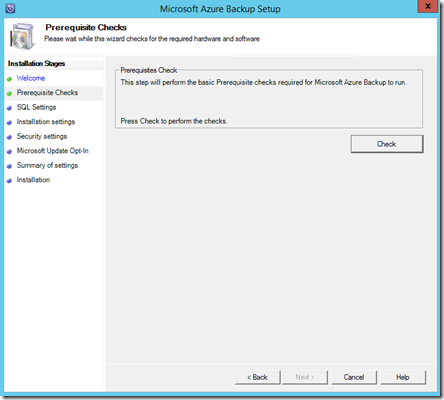
Select the Check button in the top right to ensure all the prerequisite software is installed.

image

If the prerequisites are met you should see a message confirming that as shown above. Select Next to continue.
image

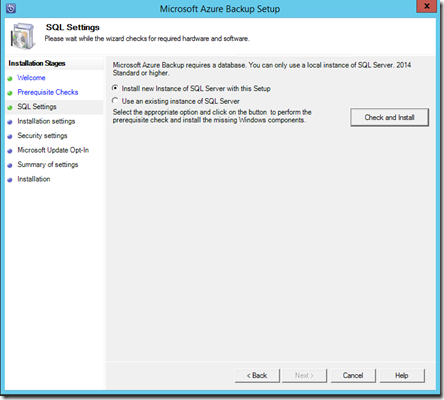
You’ll now need to specify an SQL server as part of the configuration. You can configure an existing SQL server on your network or you can elect to install a new instance on the current machine. If you select an existing SQL Server it will need to be running SQL 2014.

In most cases you’ll want to install a new instance of SQL 2014, so ensure that option is selected. Now select the Check and Install button in the top right.

image

Your system will then be checked. This should only take a minute or two.
image

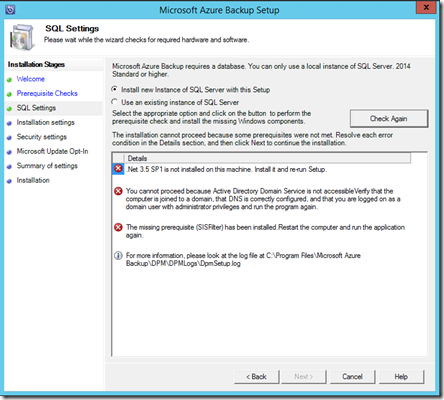
You’ll then see a report of the results. A couple of things to notice here:

– You need to install this software on a domain joined server

– You need to have .Net 3.5 SP1 installed

– You can install this software on a domain controller but if you do you’ll need to follow this guidance before proceeding:

https://technet.microsoft.com/en-us/library/ff399416.aspx

image

In this case the installation is on a member server and no critical issues were detected. Select Next to continue.

image

You’ll then be prompted to confirm your installation configuration.

Once you have made any modifications here select Next.

image

Now provide a password for the two accounts required to run services. Remember to record this password!

Select Next once you have entered a suitable password.

image

Select how you wish to manage updates and then Next to continue.
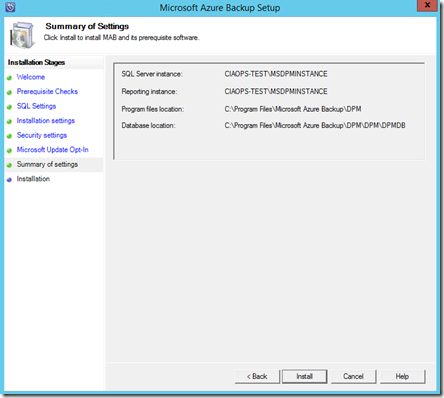
image

The configuration information is displayed. Select Install.
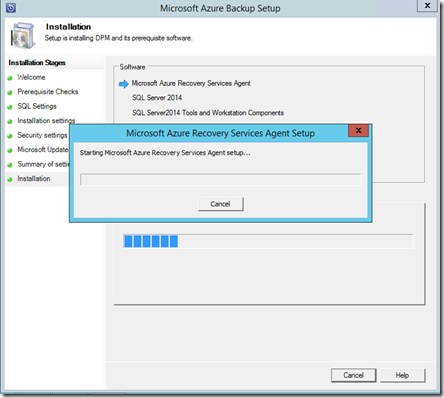
image

The selected software components will now be installed.

image

You’ll now be prompted to complete the Azure Recovery Services Agent Setup Wizard as you would with the normal Azure Backup option.

Enter any proxy details and select Next.

image

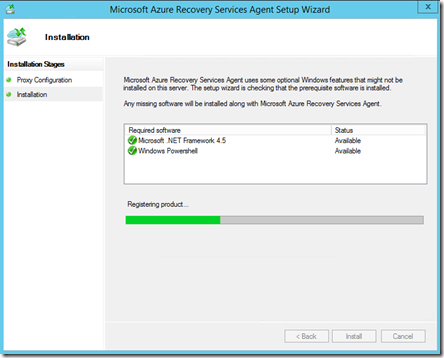
If additional software is required to support this agent it will be displayed.

Select Install.
image

Supporting software will then be installed.

image

When the required supporting software has been installed select Next.

image

You’ll then be prompted for the location of the Vault credential file.

image

You download this file from the console of the Backup Vault as shown above by selecting the Download vault credentials link.

image

Once the vault credential file has been verified select Next.

image

You’ll now need to generate a unique encryption key for this backup. In most cases you will select the button Generate Passphrase to create a secure key.

You will also be prompted for a location to save a text file of this encryption key. Ensure that this key is recorded and a copy of the file is saved to another system so it can be used if recovery is required.

When all this is complete, select Next.

image

The installation process will continue.

image

You will receive a confirmation message as shown above that the process is complete.

Press the Close to complete the installation.
image

You should now find an icon on your desktop like that shown above for Microsoft Azure Backup Server. Double click this to launch.

image

The Microsoft Azure Backup console should now launch as shown above.

Here’s the Microsoft documentation on this configuration process:

Preparing to back up workloads using Azure Backup Server

I’ll look at covering how to use Azure Backup Server to backup and restore files in an upcoming post.

Power BI adds Cortana integration

image

One of the regular Power BI demos that i do involves using the natural language query engine at the top of the dashboard. The above example is from a spreadsheet I uploaded to my Power BI environment that contains information about all the Olympic medal winners.

image

So if I now type total medals by country into the query Power BI automatically provides me with the visualisation as you see above.

image

But if I wake Cortana up by saying “hey cortana” and then asking “total gold medals australia by sport” you’ll see from above that it comes back with some Power BI suggestions.

image

If I now select one of these you’ll see that it pulls the information from that same spreadsheet I was just using in Power BI.

That now means Cortana is integrated with Power BI! Pretty cool eh? So how do you configure that?

The first step in the process is to integrate Office 365 and Cortana. I have detailed that previously at:

Connecting Cortana to Office 365

Next, you’ll need to go into the Power BI Dashboard for the data set you wish to integrate with Cortana.

image

Select the COG in the top right corner of the dashboard for the dataset and then the Settings option from the menu that appears.

image

Ensure you have the desired dataset selected on the left. Then on the right ensure option Enable Cortana to access this dataset is checked.

Now users who have access to that Power BI dataset and have Cortana enabled and linked to their Office 365 account can query data by voice or simply by typing into the search box.

Another REALLY impressive new features is Quick Insights. Here I’ll use the Chicago Crime Statistics spreadsheet that I’ve also uploaded into my Power BI environment.

image

Select the ellipse (three dots) to the right of the data source under the Datasets heading in the lower left of the Power BI screen.

From the menu that appears (shown above) select View Insights.

image

You’ll now see a list of discovered “insights” displayed as shown above. But how are these “insights’ generated?

Power BI’s new Quick Insights feature allows you to run a variety of analytical algorithms on your data to search for potential insights with the click of a mouse. Through a partnership with Microsoft Research, we’re honing a growing list of algorithms to discover and visualize correlations, outliers, trends, seasonality, change points in trends, and major factors within your data, automatically, within seconds.

It gets even more impressive than that as detailed here:

Announcing Power BI integration with Cortana and new ways to quickly find insights in your data

Aside from all the new cool Power BI stuff the integration with Cortana illustrates another benefit of the Microsoft platform and how services like Cortana are being integrated across everything!

This stuff just keeps getting better!

CIAOPS Configuring and managing synchronised Office 365 users online course now available

sync

If you want to understand how to configure and manage the synchronisation of users from a local Active Directory to Office 365 then you can now do so thanks to my latest course:

Configuring and managing synchronised Office 365 users

Each lesson contains a short video tutorial, downloadable course notes and a quiz to test your knowledge. You can also ask questions and provide feedback to gain even more knowledge.

You’ll find this and a growing number of CIAOPS online courses at:

http://ciaops-academy.teachable.com/

Got a suggestion for a course you’d like to see me do? Then don;t be shy, let me know either via Twitter (@directorcia) or email (director@ciaops.com).

Tips for maximum conference ROI

I have returned from presenting at another conference. You’ll find my presentations from the event embedded further down in this post or at my Docs.com.

I thought I’d also take a moment to share some techniques and tips I’d recommend you employ when attending a conference to ensure that you get the most from any conference.

1. Remember you are at the conference for business.

It is all well and good to take a step back and enjoy everything that a conference has to offer, the food, the drink, the location, the company, but remember it is all costing your business money. Thus, you should be asking yourself whether you are getting return on investment constantly. This may mean learning something new, meeting a new contact who can help your business, etc. but you need to ensure you GET something in return.

Don’t get caught in the trap of treating the whole event as a party. Don’t get caught in the trap of getting wiped out on the first night and then being unable to attend any of the sessions. Have fun, yes but always ask yourself, what return am I getting for my investment in time and money at the conference.

2. Have a plenty of business cards

Always ensure you have plenty of business cards before leaving for a conference. Every time you go anywhere near the conference venue ensure your pocket if full of business cards and you have an adequate supply elsewhere as a backup.

Don’t be shy handing out your business card as well as receiving cards from others. Every time your strike up a conversation with someone, make sure they leave that conversation with your card.

3. Carry a pen

As only fashioned as it seems having a pen ready and available is till the quickest way of writing notes and capturing information. In my case, I always ensure there is space to write on the back of my business card so I can write a URL or a note and give that to someone. If you don’t have a business card that allows this, carry some blanks cards just in case.

It is easy to say that you’ll send an email follow up, however jotting it down goes a long way to ensuring that you’ll follow through.

Also remember that battery power can be at a premium during conferences and you don’t want to be tethered to a wall and miss out on the hallway conversations. A pen is a great information recording device backup for your phone or tablet when it starts running low on juice.

4. Make yourself available for conversations

There is nothing wrong with waiting in a publically visible but off to the site location. Try and find an area that will accommodate at least one other person and is quieter than the middle of the conference throng.

By doing this you make it more enticing for someone to come up and have a chat with you, especially if they have been looking for a chance to do just that. Being immersed in the conference ‘mosh-pit’ is great and there is always something interesting happening but remember, you are looking to generate the most return for your business not listen to others pontificate constantly.

5. Convert business cards into Linkedin contacts asap

Whenever you get a chance, go through the business cards you have received so far in the day and connect with them on Linkedin. This is firstly a good backup in case you misplace their business card but it also give you deeper insight into that contact and their details thanks to Linkedin. It does likewise for your new contact but also indicates how keen and on the ball you are by making contact electronically shortly after meeting them.

6. Wear the uniform

Many people think that it is extremely boring to wear the same outfit to a conference every day. I purposely ensure I wear that same thing throughout the conference. One of the main things I ensure I do is wear a branded shirt. Why? People respond to consistency, the more consistent you are, in every aspect, the more comfort people derive. Also, if you wear the same thing you make it easier for people to identify you in the crowd if they are looking to seek you out to make contact.

Wearing the ‘uniform’ also reduces the decisions you need to make about packing for the event and dressing on the day. Personally, I don’t want to waste my precious decisions credits on working out what to wear each day, I simply don the uniform and get on with generating ROI for my business.

There are of course plenty more tips I could pass on but these hopefully should provide you some benefit next time you attend an event.

Let me know what you think works when you attend a conference. I’d love to hear.

Unleashing the Power of Azure

https://docs.com/d/embed/D25195773-6563-8190-0370-001714572934%7eMd4186d87-61d5-259a-4d26-00a8bd86cfff

Is Windows 10 the last version resellers will ever install?

https://docs.com/d/embed/D25195773-6441-7890-9780-002121714420%7eMd4186d87-61d5-259a-4d26-00a8bd86cfff

Office 365 Nation wrap up

Well I am back (finally, phew) from Seattle and being part of Office 365 Nation hosted by the one and only Harry Brelsford.

First, a shout out to Harry and his staff for putting on another great event. Everything ran very smoothly and everyone I talked to had a great time.

Next, I also have to thank all the attendees that came to my sessions (even those I was a tad under the weather for). Also to those who made time to come up and chat or just say hello. This is what community is all about and the main reason I’ll endure over 24 hours or travel door to door to be in attendance. That also doesn’t cover all the great new contacts I made during the time.

To these and everyone else who helped make the trip worthwhile I say thanks.

I have posted all my presentations from the event up at my DOCS.com site (which also has plenty of other interesting free stuff from me), in the Presentations collection:

https://docs.com/ciaops

https://docs.com/ciaops/7775/presentations

Across the Isle

https://docs.com/d/embed/D25195817-5442-1372-7770-000678446948%7eMd4186d87-61d5-259a-4d26-00a8bd86cfff

Understanding Microsoft Cloud Identities

https://docs.com/d/embed/D25195817-5258-1123-6760-001997999724%7eMd4186d87-61d5-259a-4d26-00a8bd86cfff

Office 365 security, privacy and compliance

https://docs.com/d/embed/D25195817-5129-1561-2200-001922537313%7eMd4186d87-61d5-259a-4d26-00a8bd86cfff

Office 365 Identity Management

https://docs.com/d/embed/D25195817-4993-0293-6390-001510353638%7eMd4186d87-61d5-259a-4d26-00a8bd86cfff

Riding the Big Data Wave with Excel and Power BI

https://docs.com/d/embed/D25195817-4913-1019-8790-000843845982%7eMd4186d87-61d5-259a-4d26-00a8bd86cfff

Configuring the Windows Web Server role and assigning a certificate

I’ve detailed the different Office 365 Identity options previously. I’ve also detailed how to install Azure AD Connect (which replaces both Azure AD Sync and DIRSYNC) and why it is necessary for both synchronised and federated Office 365 identities.

What I plan to cover in upcoming articles is how to establish federated identities (i.e. ADFS) for Office 365. I’ll break these down into a number of posts and then bring everything together as a single point of reference at the end.

This post will take you through the initial process of configuring the pre-requisites on the ADFS server. This means installing the Windows Server Web Server role and assigning a certificate to this Windows Web Server.

Prior to the steps here, I already have established a domain controller (DC) on the network. The local domain is called kumoalliance.com I have already successfully installed and configured Azure AD Connect on this DC. I am successfully synchronising user information from the local Active Directory (AD) to Office 365 via Azure AD Connect. I have also installed and configured the custom domain kumoalliance.com into my Office 365 tenant. This ensures that the UPN of the local AD matches those in Office 365. I have also assigned the appropriate Office 365 licenses for active users.

I have also added a separate member server (called CIAOPS365-ADFS) to this domain that will function as the ADFS server. I am now ready to configure the pre-requisites for ADFS which is the Windows Web Server role and an SSL certificate. The Web Server on this machine will be configured to respond to the URL https://adfs.kumoalliance.com for clients on the local network. Clients outside the domain (i.e. external) will use an ADFS proxy which will be configured later on after the ADFS server has been configured.

image

Launch the Server Manager Dashboard as shown above.

image

In the top right hand corner select the Manage menu item and then Add Roles and Features from the menu that appears.

image

This will launch the Add Roles and Feature Wizard as shown above.

Select Next to continue.

image

Ensure that Role based or feature based installation is selected, then select Next to continue.

image

Select the ADFS server name from the list of servers displayed. Typically, that should be the only server that appears. Select Next to continue.

image

Scroll down the list of roles until you locate Web Server (IIS) and select this.

image

This will pop up a dialog shown above. No configuration is required, so simply select the Add Features button to continue.

image

You’ll be return to the list of roles and you should now see that Web Server (IIS) is selected as shown above. Select Next to continue.

image

No additional options need to be made. Select Next to continue.

image

Select Next to continue.

image

No additional options need to be made. Select Next to continue.

image

Select the Install button.

image

The wizard will now install and configure Internet Information Services (IIS) on the server. This process should only take a few minutes and not require the server to be rebooted.

image

Ensure the installation process completed successfully then select the Close button to complete wizard.

image

In the top right of the Server Manager Dashboard you should see a message flag. if you select this you should receive confirmation that the Web Server role has been successfully installed.

image

In the Server Manager Dashboard, select the Tools option in the top right and then Internet Information Services (IIS) from the menu that appears.

image

Select the server name in the right pane. Then from the icons in the middle pane double click Server Certificates.

image

In the top of the right pane select Create Certificate Request.

image

Use the FQDN of the server (i.e. adfs.kumoalliance.com) as the Common name.

Complete the remaining fields with the information from the organisation. Select Next to continue.

image

Leave the Cryptographic service provider set to Microsoft RSA SChannel Cryptographic provider. However, ensure that the Bit length is set to 2048.

Select Next to continue.

image

Enter a file location to write the server key and select Finish to complete the process.

image

If you look at the file created you should see that it is simply a text file like that shown above.

image

You now need to take that certificate request information to your certificate provider and use it to request a certificate.

In this case I am using Digicert which allows me simply to copy and paste the text from the server certificate request directly into a web page, nominate which web server it came from (in this case IIS 8.0) and complete the certificate request.

image

In short order, you should receive confirmation that the certificate has been approved and in this case I am sent the certificate files as an attachment.

image

Copy the certificate files to the server and check to see that the files include a .CER file, which is the actual certificate.

image

Return to to the IIS Manager and in the top right now select Complete Certificate Request.

image

Provide the location to the certificate file received from the certificate authority in the first field.

For the friendly name enter the FQDN of the server (here adfs.kumoalliance.com).

Leave the certificate store as Personal and select OK.

image

When this process completes you should see the new certificate listed as shown above.

image

On the left hand pane of the IIS Manager, drill down and select Default Web Site.

Now on the right hand pane select the Bindings option towards the top.

image

Select the Add button in the top right of the dialog that appears.

image

Change the Type field to https.

Leave the Host name field blank.

In the SSL certificate area select the certificate that was added from the certificate authority (here, adfs.kumoalliance.com). Then select OK to complete the configuration.

image

You should now see an entry for https on port 443 displayed in the bindings as shown above.

Select the Close button.

You now need to create an entry in the DNS for the local domain so that requests to https://adfs.kumoalliance.com will be directed to the web server on this machine.

image

Open DNS management on the domain controller. navigate to the Forward Lookup Zones for the local domain (here kumoalliance.com).

Right mouse click on an empty location in the right panel and select he option to Add a new A record.

In the name field enter the first part of the common name you used when requesting the certificate (here adfs). The local domain will be appended to this name to create the FQDN of the server (here adfs.kumaolliance.com). This needs to generally match the common name on the certificate generated from the certificate authority.

Enter the IP address of the ADFS server on which IIS has just been installed. Then select Add Host button to complete the process.

image

To ensure everything is working as expected try and ping the FQDN of the ADFS server (here adfs.kuoalliance.com). You should receive a resolution to the IP address of the ADFS server, although the actual ping may time out due to firewall configurations. The important thing is that the name is resolved to the IP address of the ADFS server.

If that is successful, open up a web browser on the domain controller and navigate to the FQDN of the ADFS server (here https://adfs.kumoalliance.com) . Ensure you use https to verify that SSL and the certificate are operational. If they are you should be greeted with the default IIS web page as shown above.

If you then examine the certificate you should be able to verify that it is valid and issued by the certificate authority you used above.

Now that a secure Web Server has been configured on the ADFS machine, the next steps is to add the ADFS role to this same server. This will be the subject of an upcoming post so stay tuned.