Need to Know podcast–Episode 222

I’m joined by Stephen Rose, Senior Product Marketing Manager for Microsoft 365, to speak about everything Microsoft 365. Stephen explains what the products is all about, how it can help businesses and the direction that the technology is taking off the back of many announcements from Ignite. Of course, Brenton is also here and we bring you up to date on all the latest Microsoft Cloud news before some of us head off for a Christmas break. Fear not! The episodes will continue even in the face of absenteeism. All the best to all our loyal listeners for the holidays season. We appreciate your support and look forward to providing you more information in 2020.

This episode was recorded using Microsoft Teams and produced with Camtasia 2019

Take a listen and let us know what you think – feedback@needtoknow.cloud

You can listen directly to this episode at:

https://ciaops.podbean.com/e/episode-222-stephen-rose/

Subscribe via iTunes at:

https://itunes.apple.com/au/podcast/ciaops-need-to-know-podcasts/id406891445?mt=2

The podcast is also available on Stitcher at:

http://www.stitcher.com/podcast/ciaops/need-to-know-podcast?refid=stpr

Don’t forget to give the show a rating as well as send us any feedback or suggestions you may have for the show.

Resources

@stephenlrose

@contactbrenton

@directorcia

Stephens’ presentation from Ignite 2019 around adoption

CIAOPS Patron Community

Ignite the Tour Sydney

CIAOPS Techwerks 10

Microsoft Teams now available on Linux

Microsoft Integrated Threat Protection

Campaign views in Office 365 ATP

Windows VM now support Azure AD authentication

Native support for WebAuthn and FIDO for iOS

Preview of Azure spot machines

What’s new in Microsoft Forms

Beazley Breach insights

Blocking macros with Intune

Licensing guidance

Need to Know podcast–Episode 221

I thought I’d try something different on the podcast. Of late, the podcast length has been growing simply due to the amount of content. I appreciate that this becomes harder and harder to digest all this in a single sitting. Thus, I’ve decided to try some shorter podcast episodes ,stripped back and focused on just one topic. I’m calling these episodes “FAQs”. The idea is to cover a single topic in more depth in 15 – 30 minutes.

I have a few ideas of what to cover for these FAQs but I’d love to hear from you as to what topics you’d want to hear covered in more depth. I’d also like to hear whether this is a good idea or not? If so, I’ll keep doing them. If not, then I won’t bother. So please provide me your input either on Twitter or via email (director@ciaops.com). I look forward to hearing from people.

The existing podcast episode will continue as normal but I’m interested to see whether there is demand for these deeper more focused FAQ episodes?

Take a listen and let us know what you think – feedback@needtoknow.cloud

You can listen directly to this episode at:

https://ciaops.podbean.com/e/episode-221-data-discovery-done-right/

Subscribe via iTunes at:

https://itunes.apple.com/au/podcast/ciaops-need-to-know-podcasts/id406891445?mt=2

The podcast is also available on Stitcher at:

http://www.stitcher.com/podcast/ciaops/need-to-know-podcast?refid=stpr

Don’t forget to give the show a rating as well as send us any feedback or suggestions you may have for the show.

Resources

Data Discovery Done Right

Governance is always important

white-paper-with-note-669986

There are many times I’m called in to help people design their Microsoft 365 compliance environment. In other words, help with SharePoint, Teams, etc. I generally use my trusty framework that I have spoken about here before:

A framework for file migrations to Microsoft 365

Most of the time I find that people have already ‘given it a go’ themselves but generally ‘mucked it up’ and that’s the reason I’m now there.

I have no issues if someone has in fact ‘mucked it up’ because at least they have tried and it is generally easy to rectify. What I do seriously wonder about is the response to the first question I ask them – ‘Why did you do it that way?’.

The answer to this question I receive is generally a blank stare or silence, even a shoulder shrug. I point out that this is largely why things has been ‘mucked up’ in the first place,  because there was no governance.

In short, what I really want to see with collaboration in Microsoft 365 is the fact that thought has been invested beforehand. Why? Simple. A collaboration system in Microsoft 365 is something you build, not something you buy or magically appears. Microsoft 365 gives you the tools to create the best system, in the world for you. Tailored exactly to your business. Uniquely flexible for your business. Able to adapt to your needs, unlike any off the shelf system. However, it can never achieve that if it doesn’t know who you are what you want. You have to tell it (via governance) what you want it to be. In short, it is clay that you need to mould and governance tells you the shape into which you want to mould it.

Like any good project, the secret is to stop and think before acting. Planning before diving in makes a world of difference to the outcome. But most importantly, write down what you want to achieve! The one common thing about EVERY ‘mucked up’ Microsoft 365 collaboration project I see is simply the lack of documentation prior to commencement.

This documentation doesn’t have to be complex or involved and should be at the very minimum a single page that defines the ‘need’ for a collaboration system. What business pain point does it need to solve? What are the expected benefits? Why will it be used? Think of this document like a specification for the project, the plans if you like. You’d never build a house without foundations and plumbing before you put the walls up now would you? A plan helps make sure that you know what the desired outcome is, helps you understand how to get there and how avoid problems along the way. Without that, you are building something effectively blindfolded.

That one page governance document should hopefully be born before the Microsoft 365 collaboration project even starts. However it is by no means a static document. It is a living breathing entity. It should be added to, edited, enhanced, expanded constantly. But above all else, it should become the single point of truth for why we have this thing. Having such a document is both a guide and a reference. As you move through the various stages of development, which occur over a period of time, you can reference this document and understand the reasons for doing things the way you did. As the system grows it again becomes the reasons for what you are looking to achieve and how you approached that. If you don’t already have a governance document for your Microsoft 365 collaboration environment, then now is always the best time to start one.

The importance of this is that at some stage, maybe, the people initially charged to build the collaboration system move on or there is a decision to out source or change builders. If you have a document that sets out your manifesto for the Microsoft 365collaboration system it is so much easier for everyone involved. Everyone is on the same page and knows where to go to get answers if needed. That’s what I want to see if I become involved as a ‘collaboration consultant’. It means I can quickly understand what you want Microsoft 365 to achieve for your business. It is the platform on which your future solution is built. Remember, collaboration in Microsoft 365 is not a product you buy it is a solution you build.

Sadly, even the most generally organised business overlooks the need to have governance in any Microsoft 365 collaboration system. Governance at the very least should be everyone’s understanding of what is project is and what the aim is. The best way to achieve that, is to write it down beforehand! Without it then, there is no a single reference point that be used to guide the outcome and things unsurprisingly get ‘mucked up’.

As they say – ‘failing to plan, is planning to fail’. Governance is important for Microsoft 365 collaboration, if for nothing else because it is succeeding through planning!

Need to Know podcast–Episode 218

I talk to industry veteran and Microsoft MVP Tony Redmond about a variety of topics including Exchange Online, Teams, PowerShell as well as his fantastic Office 365 administration eBook offering. He shares lots of great insights on a variety of Microsoft offerings. Brenton and I also talk about news and updates in the Microsoft Cloud and get you ready for what we are potentially expecting from the upcoming Microsoft Ignite conference. Listen along and get ready for the tsunami from Microsoft Ignite.

This episode was recorded using Microsoft Teams and produced with Camtasia 2019

Take a listen and let us know what you think – feedback@needtoknow.cloud

You can listen directly to this episode at:

https://ciaops.podbean.com/e/episode-218-tony-redmond/

Subscribe via iTunes at:

https://itunes.apple.com/au/podcast/ciaops-need-to-know-podcasts/id406891445?mt=2

The podcast is also available on Stitcher at:

http://www.stitcher.com/podcast/ciaops/need-to-know-podcast?refid=stpr

Don’t forget to give the show a rating as well as send us any feedback or suggestions you may have for the show.

Resources

@12knocksinna = Tony Redmond

@contactbrenton

@directorcia

Tony’s blog

Office 365 for IT Pros eBook

Surface laptops are finally repairable

Microsoft’s cloud earnings

CIAOPS MS-101 online training course now available

New Microsoft partner CSP agreement

Microsoft acquires Mover.io

How to check user sign in history

Tamper protection in Microsoft Defender ATP

End user self service for Power Platform

What is Microsoft 365 Business [VIDEO]

Call of Duty – Modern Warfare

Need to Know podcast–Episode 216

In this episode I speak with Rohan Milne, Global CEO of Switch Connect who are a telephony provider focused on enabling voice with Microsoft Teams. Rohan gives the state of play in the Australian market as well as the opportunities, not only around voice in Team, but also around digital transformation across the whole Microsoft 365 suite. Listen along for some great insights and clarification on how to take advantage of this opportunity if you are an IT reseller.

This episode was recorded using Microsoft Teams and produced with Camtasia 2019

Take a listen and let us know what you think – feedback@needtoknow.cloud

You can listen directly to this episode at:

https://ciaops.podbean.com/e/episode-216-switch-connect/

Subscribe via iTunes at:

https://itunes.apple.com/au/podcast/ciaops-need-to-know-podcasts/id406891445?mt=2

The podcast is also available on Stitcher at:

http://www.stitcher.com/podcast/ciaops/need-to-know-podcast?refid=stpr

Don’t forget to give the show a rating as well as send us any feedback or suggestions you may have for the show.

Resources

@switchconnectau

Switch Connect

Switch Connect – YouTube

@contactbrenton

@directorcia


CIAOPS Need to Know Microsoft 365 Webinar–September

laptop-eyes-technology-computer

The September webinar is here. This month we’ll take a closer look at Microsoft Teams. You’ll learn what Teams is and how it integrates with the rest of the services available in Microsoft 365. I’ll again be using Microsoft Teams Live Events to host this, so by being part of this you’ll also see how this great technology from Microsoft functions. There will also be the latest Microsoft Cloud news as well as Q and A plus loads more. I’d love if you’d come along and be part of this.

You can register for the regular monthly webinar here:

September Webinar Registrations

The details are:

CIAOPS Need to Know Webinar – September 2019
Friday 20th of September  2019
11am – 12am Sydney Time

All sessions are recorded and posted to the CIAOPS Academy.

There of course will also be open Q and A so make sure you bring your questions for me and I’ll do my best to answer them.

The CIAOPS Need to Know Webinars are free to attend but if you want to receive the recording of the session you need to sign up as a CIAOPS patron which you can do here:

http://www.ciaopspatron.com

or purchase them individually at:

http://www.ciaopsacademy.com/

Also feel free at any stage to email me directly via director@ciaops.com with your webinar topic suggestions.

I’d also appreciate you sharing information about this webinar with anyone you feel may benefit from the session and I look forward to seeing you there.

Creating unique file permissions with Teams

Microsoft Teams is a really easy way to share files with others. However, the modern concept with Microsoft Teams is that once you are part of the Team then you have the same rights as everyone else. This generally means that all Team members have the ability to read, write, modify and potentially delete files. This is common across all channels in the Team.

One thing that you really don’t want to do is go into the SharePoint back end of the Teams files and modify the default permissions. If you do, you’ll cause a whole lot of problems. We are expecting private channels in Teams very soon but here’s an easy way to overcome the default common sharing options in Teams by creating a separate area with unique permissions and linking that back into the Team.
image

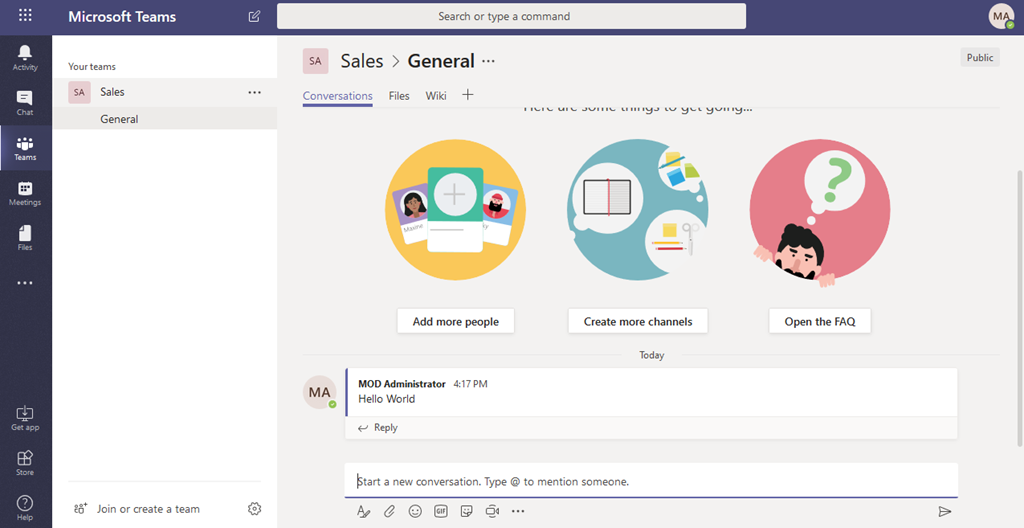
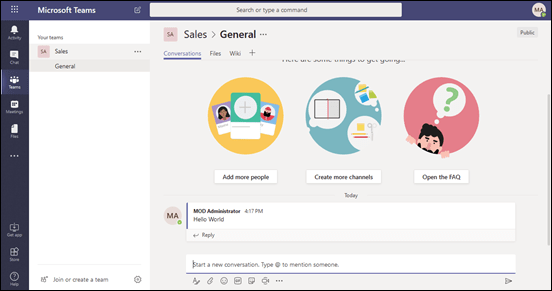
Firstly navigate to your Team.

image

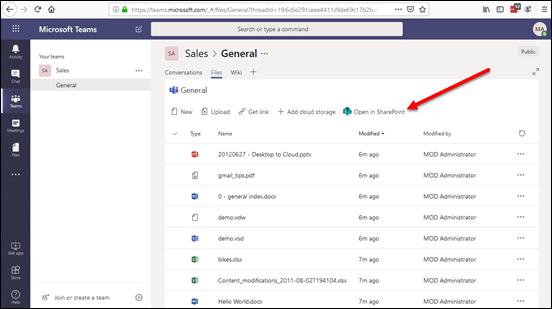
Select the Files tab to the right of Conversations to see all the files for that channel as shown above. These are common files that all Team members have the same rights to.

Select the Open in SharePoint option as shown above.
image

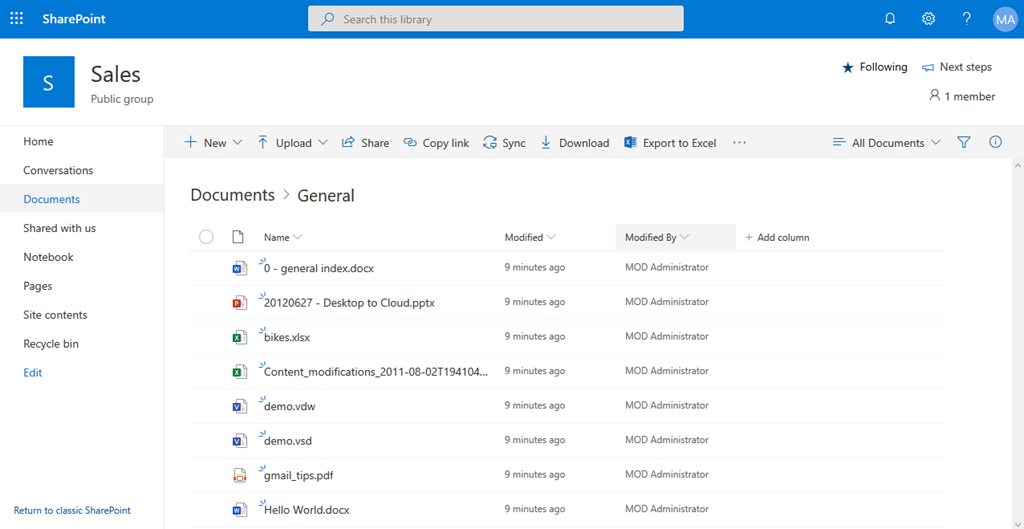
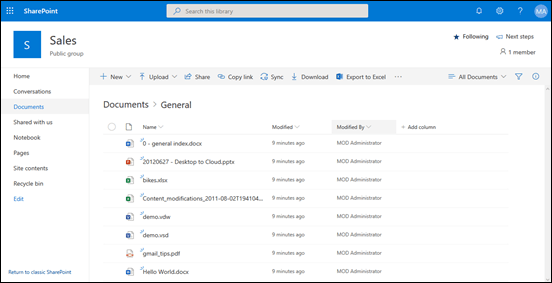
This will take you to the location of those channel files in SharePoint as shown above. This location is typically a subfolder with the name of the channel (here General), in a Document Library called Documents

You will need appropriate permissions to complete the process from here. So you will need to be an admin of the Team or a SharePoint Site owner.
image

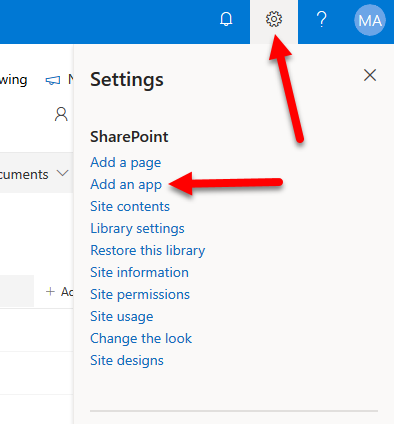
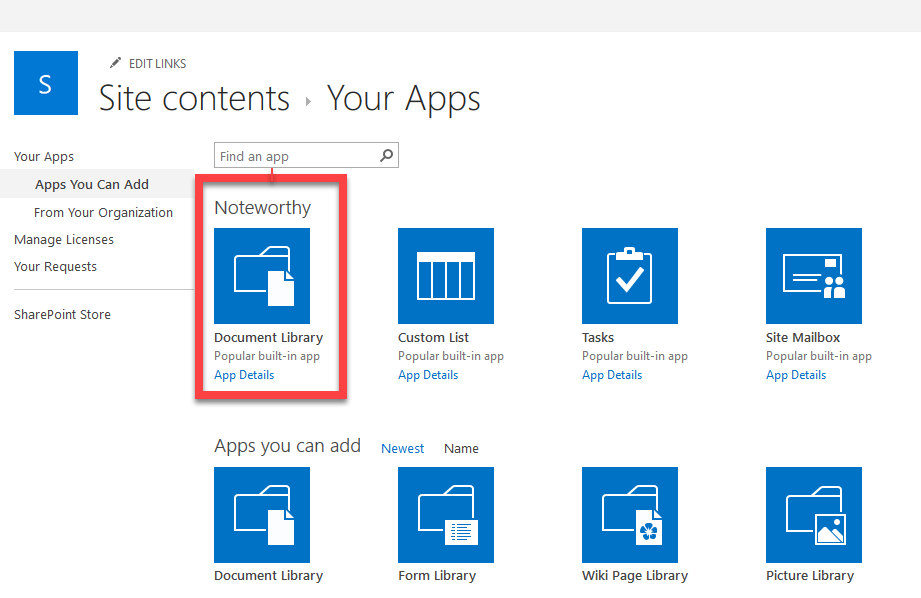
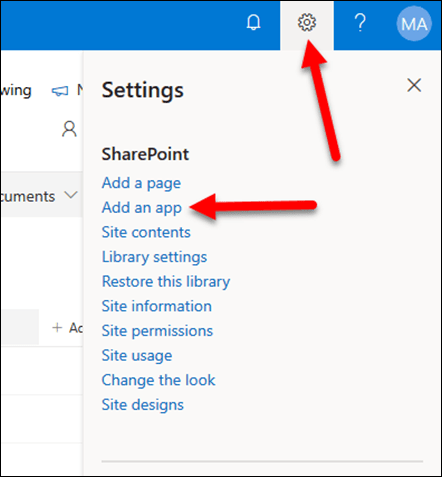
In the top right of the screen select the COG then Add an app from the menu that appears as shown.
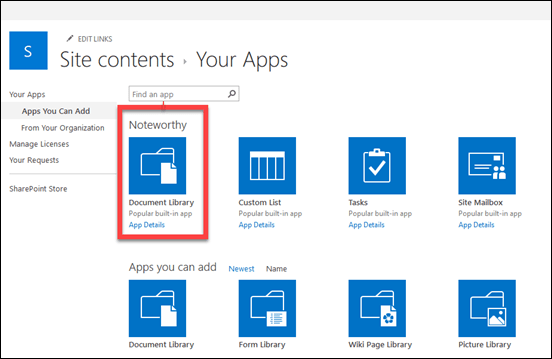
image

Typically, you’ll select to a new Document Library and give it a name.
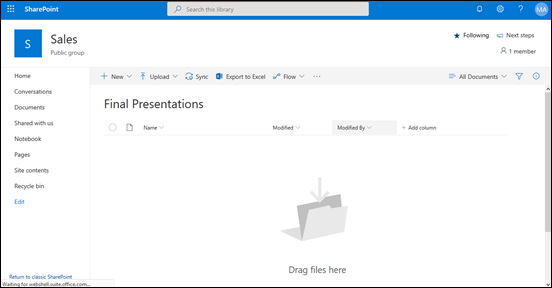
image

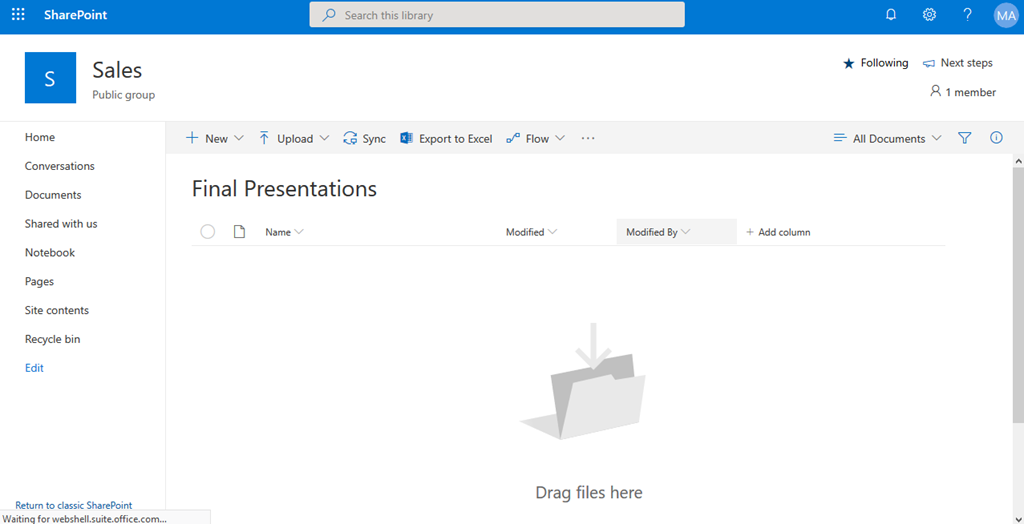
In this case, a new Document Library called Final Presentations has been created as shown.
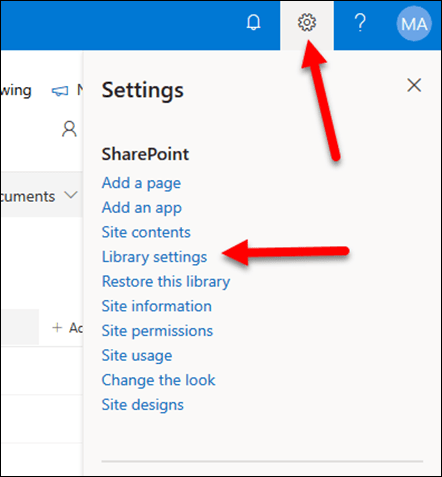
image

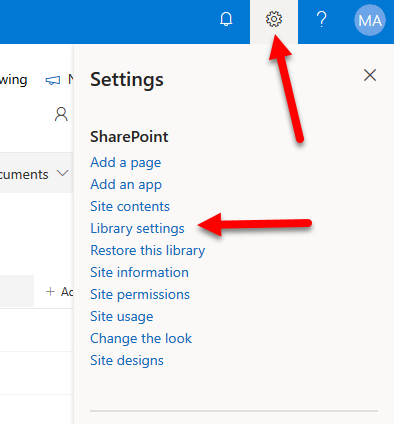
Once you are at this new location, select the COG again in the top right and this time select Library settings as shown.
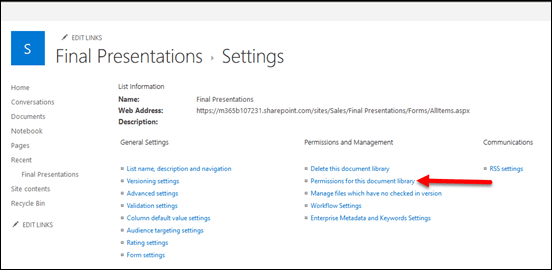
image

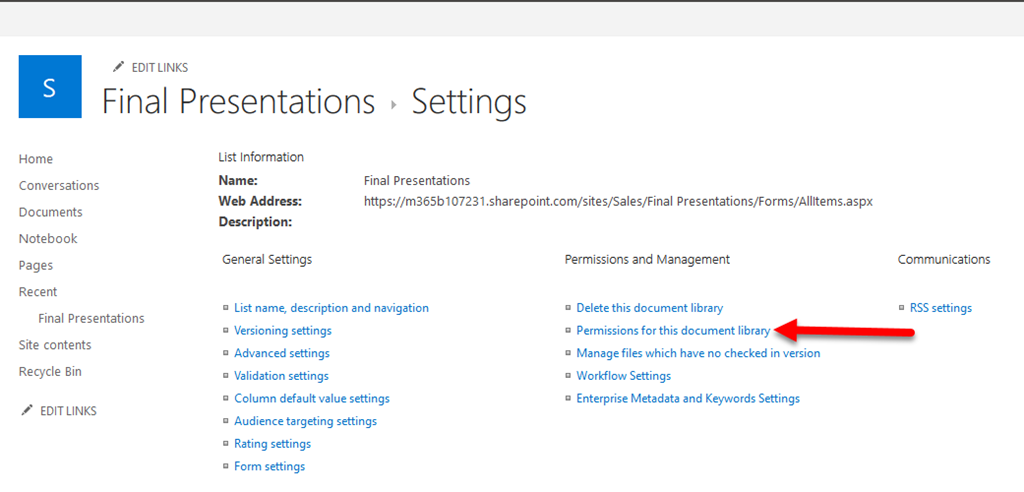
Select the second option from the second column at the top of the page called Permissions for this document library.
image

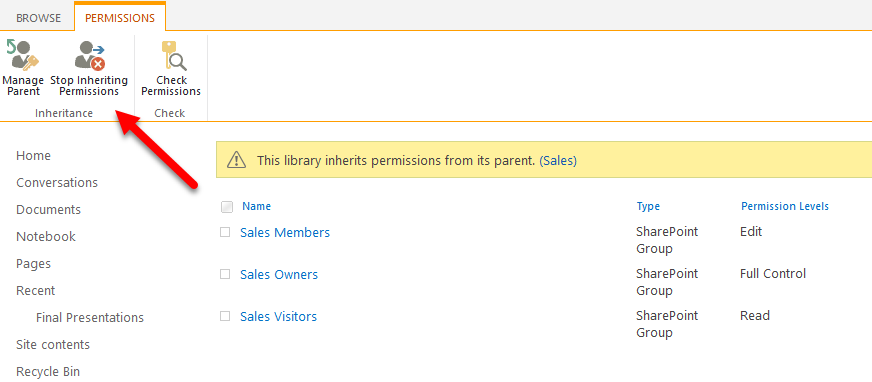
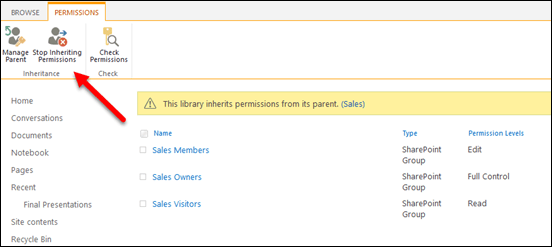
Now it is just good ol’ SharePoint permissions configuration.

Typically, you firstly select Stop Inheriting Permissions.
image

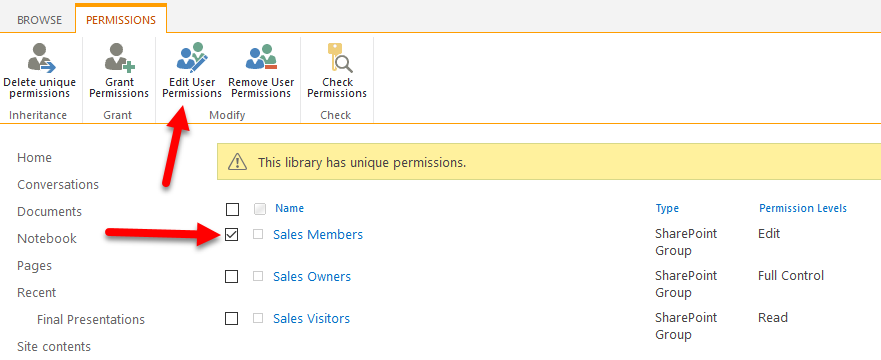
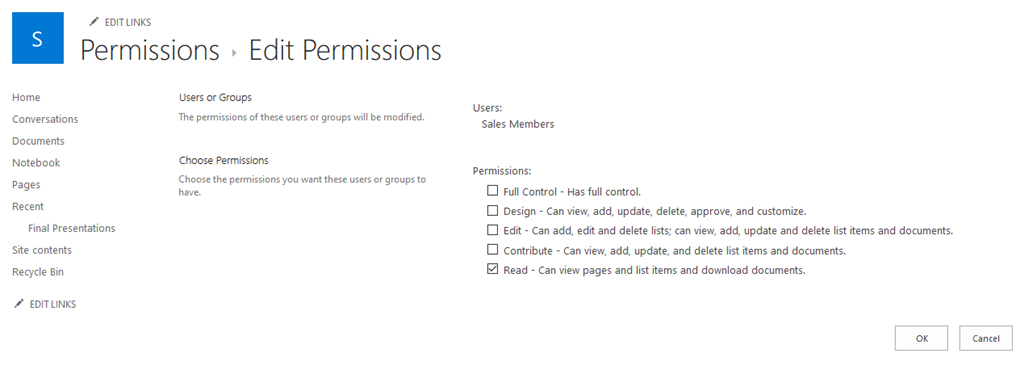
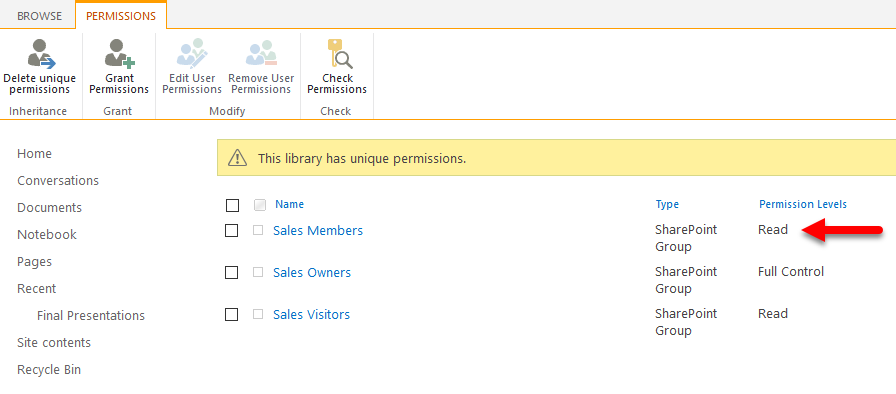
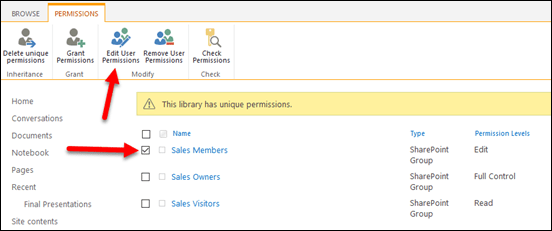
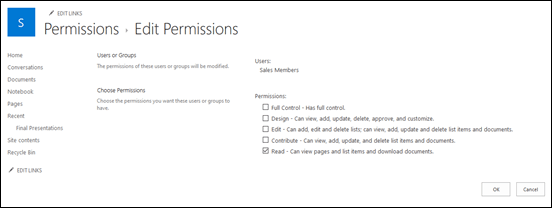
In this case, Sales members will be changed from Edit to Read permissions by selecting that group and then the Edit User Permissions button. However, you can configure whatever permissions suit your needs.
image

Make sure you select OK after you have made you changes.
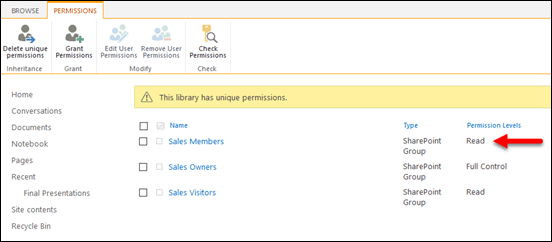
image

Once you have completed the require permissions, you need to return to the Team and link this new location there.
image

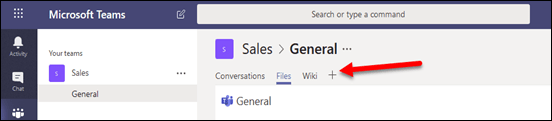
Inside the Team, select the channel in which you wish this new location to be linked and select the + icon on the right as shown.
image

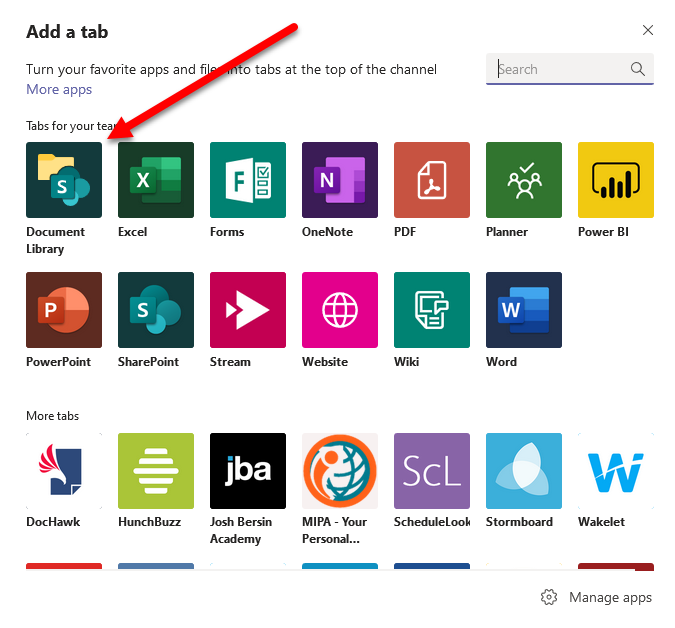
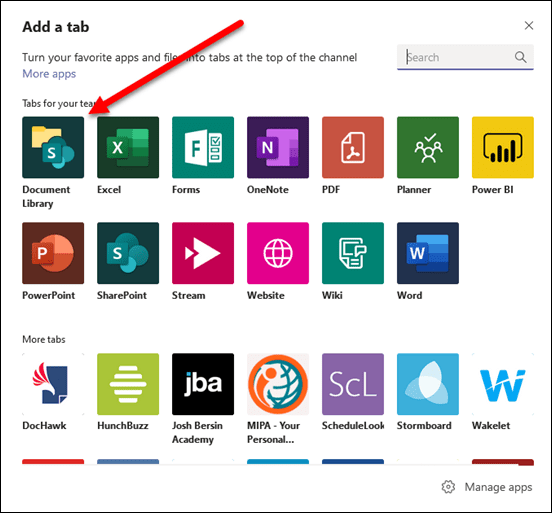
From the dialog that appears, select Document Library as shown.
image

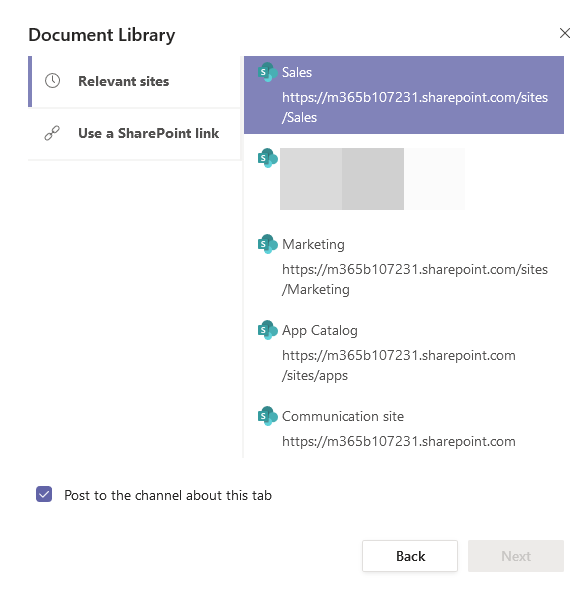
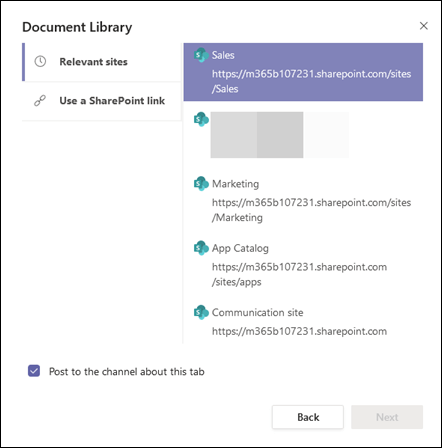
You can either navigate or input a direct link here. In this case the destination site, Sales, is selected.
image

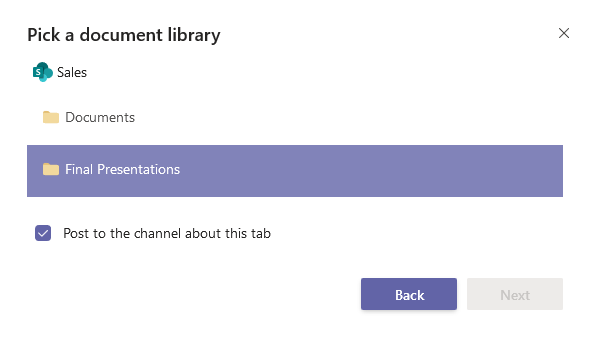
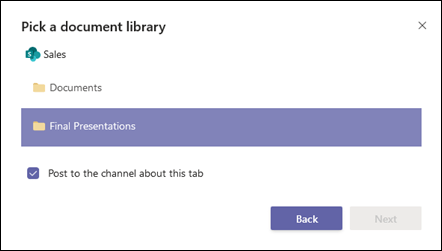
You should then see the new location you created (here Final Presentations). Select this and then the Next button.
image

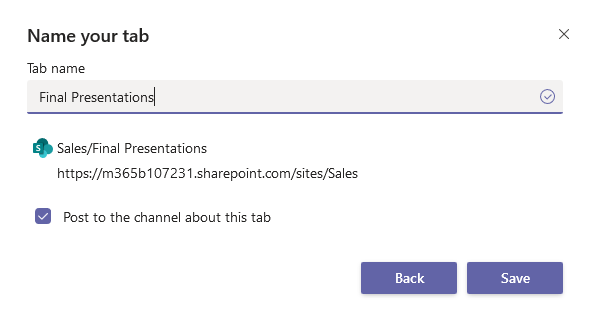
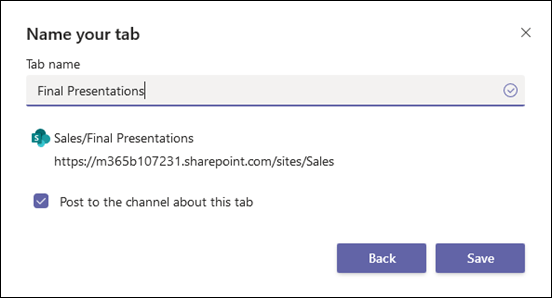
Give the new tab a name, which can be different from the location if you wish, and press Save.
image

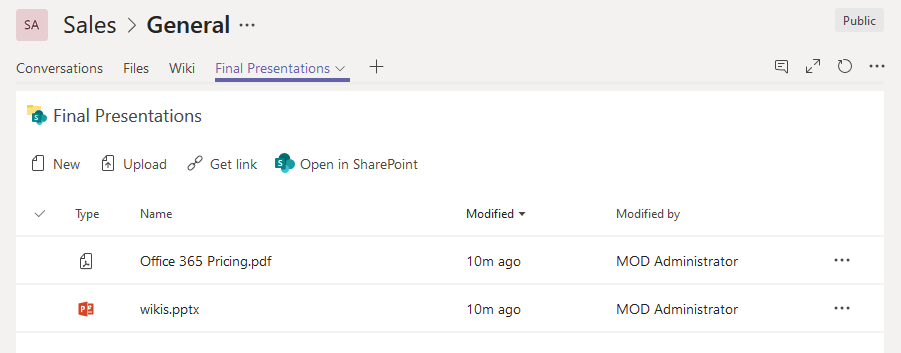
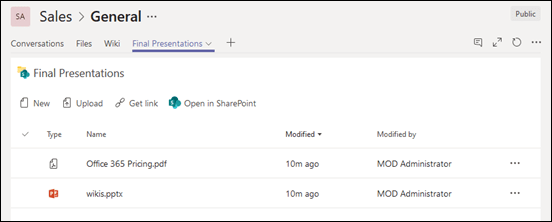
You should now see the location you created and any files in there as shown above. These items have permissions governed by those set previously in SharePoint but now they are also displayed and accessible in Teams. The great thing is you can link this new location in multiple places and you can link from locations not even in the current Team. As long as users have permissions, they can see and interact with those files based on those permissions.

Hopefully, that is an easy way to create locations for file with unique permissions but still have them accessible for users via Teams.