Last week I gave a presentation at Microsoft Ignite – The Tour in Sydney. Here are the slides from that presentation.

Information about SharePoint, Microsoft 365, Azure, Mobility and Productivity from the Computer Information Agency
Last week I gave a presentation at Microsoft Ignite – The Tour in Sydney. Here are the slides from that presentation.
One of the most important things when you implement adoption is to have a positive initial experience. This typically means ‘easing’ a user’s transition during the adoption process. If too many things are different, then there is much more likely to be a negative impression of the new processes. This slows adoption and at worst, can actually halt it in its tracks.
When moving to Microsoft 365, one of the most common things that a user needs to accomplish to be able to save and add attachments to emails. They have been performing this seamlessly using on premises file servers for years. They simply select to attach and then navigate to the file, attach it, then send. Easy.
Unfortunately, as I have documented before:
Saving attachments to SharePoint
it isn’t easily done with SharePoint Online. This is really strange, given that SharePoint Online is the place where users should save and access common files in the Microsoft Cloud. Let’s take a look at the issues I’m taking about.
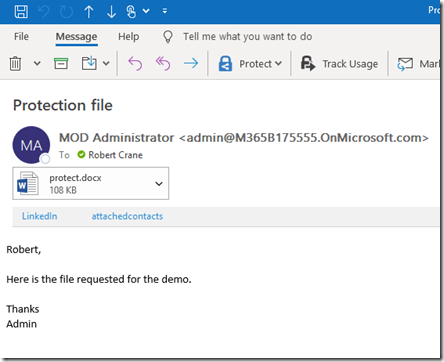
So an email arrives in my inbox on Outlook on the desktop, as shown above.
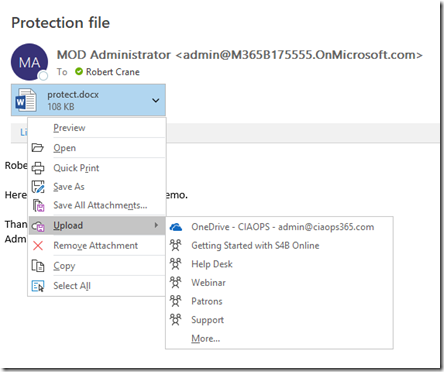
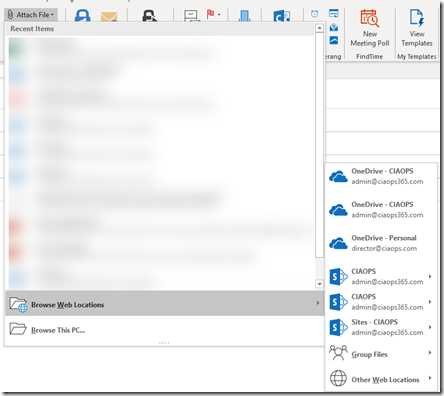
I want to upload this directly into an existing SharePoint stand alone Team Site, but as you can see the only option I have is my own personal OneDrive for Business or a range of Office 365 Groups and Teams that already exist.
Just to make sure I haven’t missed anything, I’ll select the More option at the bottom of the list.
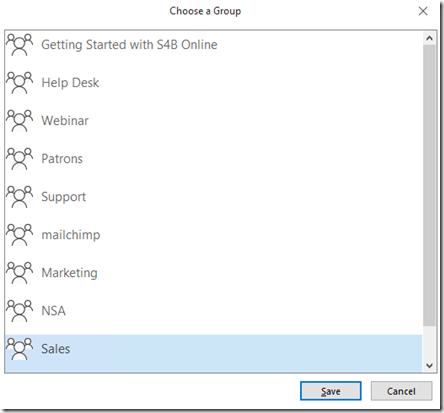
Now I only have the option to save to a Group (which includes Microsoft Teams). So, let’s say I select the Sales Group (which is actually a Microsoft Team).
I’m now returned to Outlook. Where did that attachment actually go?
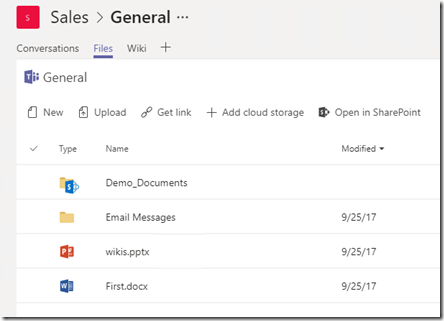
So, if I call up my Sales Team and rifle through all the file locations in Teams interface, I can’t find the file as you see above!
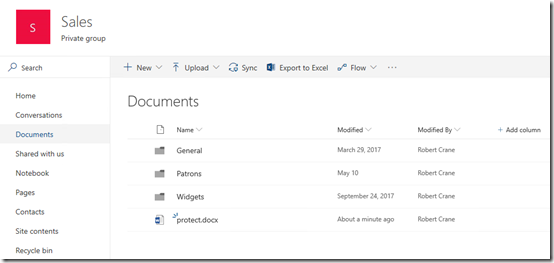
Turns out that the attachment I saved is placed into the root of the default Document Library in the Microsoft Team as you see above. But guess what? There is no way to actually see that unless I navigate to that location via SharePoint. I actually can’t see that attachment I just saved if I’m using the Microsoft Teams app! They all end up in the root of the Documents location, which isn’t accessible in the Teams app!
This means, that the only REAL solution for users to save the document to other locations in various SharePoint Document Libraries, is to firstly sync those destination locations to their desktop and then save the attachments the old fashioned way to the sync location so they will end up in SharePoint.
That means, to save or add attachments I firstly have to sync EVERY location I might want to save a file too!
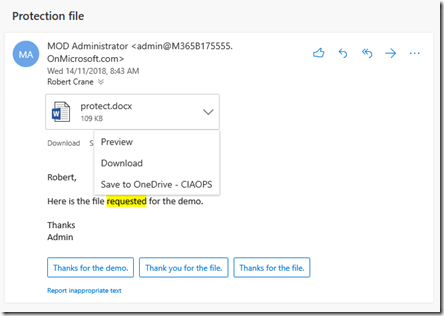
Outlook Web Access is actually worse than the desktop client as the only options you have are to download or save to OneDrive for Business as seen above.
Interestingly, if I want to attach a file from a SharePoint site I can navigate to Browse Web Locations, select the Team Site I want
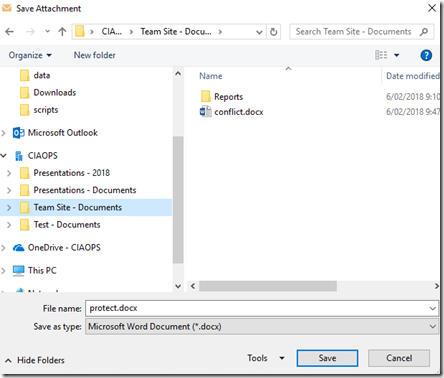
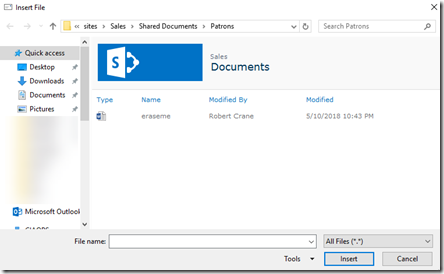
and I see a Windows Explorer pane where I can navigate to locate the file I wish to attach, just like on premises days. However, the look and feel here is pretty dated and requires Windows Explorer to be working and may pop up warning dialogs which will freak most users out.
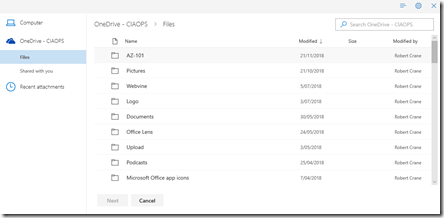
When I use Outlook Web Access I can Browse cloud locations for an attachment
I effectively only see my OneDrive for Business as shown above.
These experiences leave a bad taste in the mouth for users, especially first time users grasping with the ‘modern’ way of working. They need to have an experience which is pretty much identical to the one they had on premises. Why can’t we simply save and add attachments directly from SharePoint Online Team Sites like we have always been able to do from on premises network file shares?
I’m seeing this end user frustration more and more in the field and was prompted to write the article to hopefully rally the masses to get a change enacted. So the best thing you can do is visit this UserVoice request:
and vote it up.
Next, tweet about getting this enabled to the following accounts:
https://twitter.com/SharePoint
https://twitter.com/Microsoft365
and
I will be!
Perhaps I’m missing something obvious here and if I am please let me know but I don’t think I am. Help me raise awareness and improve Outlook so it is easier for users to adopt Microsoft 365!
A very common thing I see when working with many businesses implementing collaboration solutions in Office 365, is their rigid desire to implement customisations via code to SharePoint immediately.
Many have a pre-conceived idea of what they believe an ‘intranet’ should be and operate. Thus, they want to force SharePoint to fit that model. The only way to achieve this typically is to use custom code on the site. They want lots of changes made to not only the look and feel but also the functionality prior to implementing it across the business.
I warn them strongly, that the more you customise with code the more it is likely to break and the more issues you will have down the track. A much better option, at least to start with, is to go with what Microsoft provides you out of the box. Only once you have exhausted all in the out of box options, then look at custom code. Then and only then, and when you do be prepared to continually maintain it.
As further evidence for this stance, if you take a look at this video from the recent Microsoft 2018 Ignite from 47:03
https://www.youtube.com/watch?v=rhYHdYn5jdQ&t=2928s
and listen to what Tracey Haun, Director, IT Collaboration and Privacy from Dupont says:
When we set up SharePoint we were so proud of ourselves for only customizing less than 5% of the environment and that less than 5% customization has come back to bite us time and time again. Every time we upgrade, every time we migrate we have to deal with these customizations. I just want to say that we were so rigid in the way that we in way we wanted to — and this is specifically around our records management and the way we classify the security classification of our sites, we were so rigid and so set in our ways on how we wanted to do that. So I highly recommend, if you are just getting started, go with the industry standard. Don’t force your business model into SharePoint. Let the it adapt to the Microsoft way.
Thus, if you want to make major changes to the way SharePoint Online works out of the box you firstly need to find a developer who is specifically experienced with SharePoint Online. Even after the job is complete, you are going to need to have someone on tap to maintain that code, because sooner or later it will break. Why? Because Microsoft makes changes and improvements to the underlying SharePoint base that will affect the code.
When that happens, and you won’t know when it will, the more you have used custom code the more catastrophic the failure of your site is going to be. If the site has become a critical part of your business, then it means that system will be down until a developer can be found to rectify the problems. That could be quite a while.
Putting your business in that situation, to me, is increasing your risk which is not something you want to do. Going with what Microsoft give you out of the box may not be “exactly” what you want but it is going to keep on working as SharePoint is updated, unlike custom code.
Of late, Microsoft has added many improvements to SharePoint and collaboration in Office 365, that really make me question why you would want custom code at all? Is it really worth the risk and costs involved?
So my STRONGEST advice when it comes to SharePoint is to use what you are given out of the box to it’s fullest. After that, if you still want changes, make sure you FULLY understand the indications and increased risk this places your business under.
I’m sure people would love desktop applications like Excel to do more but they generally don’t go making wholesale customisations via code. They tend to work with what they are given out of the box. So too, it should be with SharePoint.

Heaps of news and update to cover from the recent Microsoft Ignite conference plus a deep dive into SharePoint is going to keep us pretty busy this month. If you want to know the latest and coolest technologies coming to your Office 365 environment plus get a better understanding of how SharePoint integrates with services like Microsoft Teams then don’t miss this month’s webinar.
You can register for the regular monthly webinar here:
The details are:
CIAOPS Need to Know Webinar – October 2018
Wednesday 24th of October 2018
11am – 12am Sydney Time
All sessions are recorded and posted to the CIAOPS Academy.
There of course will also be open Q and A so make sure you bring your questions for me and I’ll do my best to answer them.
The CIAOPS Need to Know Webinars are free to attend but if you want to receive the recording of the session you need to sign up as a CIAOPS patron which you can do here:
or purchase them individually at:
Also feel free at any stage to email me directly via director@ciaops.com with your webinar topic suggestions.
I’d also appreciate you sharing information about this webinar with anyone you feel may benefit from the session.

This is our follow up episode with Marcus Dervine from Webvine speaking about Digital Transformation. We continue with the transformation pillars that Marcus has outlined in his as the road to successful adoption of technologies like Office 365. Of course Brenton joins me again to catch you up on all the cloud news. We’ve tried to keep the update as short as we can as we noticed that the episodes are getting longer. We’ll do a deeper dive into updates in the next episode as we wanted to make sure there was plenty of time for our guest.
Take a listen and let us know what you think –feedback@needtoknow.cloud
You can listen directly to this episode at:
https://ciaops.podbean.com/e/episode-189-marcus-dervin/
Subscribe via iTunes at:
https://itunes.apple.com/au/podcast/ciaops-need-to-know-podcasts/id406891445?mt=2
The podcast is also available on Stitcher at:
http://www.stitcher.com/podcast/ciaops/need-to-know-podcast?refid=stpr
Don’t forget to give the show a rating as well as send us any feedback or suggestions you may have for the show.
Resources
Marcus’s book – Digital Transformation, from the inside out (use coupon code CIAOPS for 20% off)
Many people don’t seem to appreciate that most SharePoint sites in Office 365 are configured for sharing outside the organisation by default. This is designed to allow external parties to more easily access common content.
This means that generally, by default, users of those SharePoint sites (which includes Microsoft Teams) are going to be able to share links to that information. You can obviously disable this if you want, but generally, by default, sharing is enabled.
An easy way to see what the sharing status of your sites is current set to is to run the following PowerShell command after connecting to SharePoint Online:
get-sposite | Select-object url,sharingcapability
This will show you the one of following results:
Disabled – external user sharing (share by email) and guest link sharing both disabled
ExternalUserSharingOnly – external user sharing (share by email) enabled, but guest link sharing disabled
ExistingExternalUserSharingOnly – (DEFAULT) Allow sharing only with external users that already exist in organisation’s directory
ExternalUserAndGuestSharing – external user sharing (share by email) and guest link sharing both enabled
You can then go and make any adjustments you need to.
Best practice with the structure in SharePoint is to keep things as flat as possible. This typically means avoiding multi level folders within Document Libraries because doing so reduces the visibility of information and make it hard for people to find information if they don’t understand the folder structure it lives in.
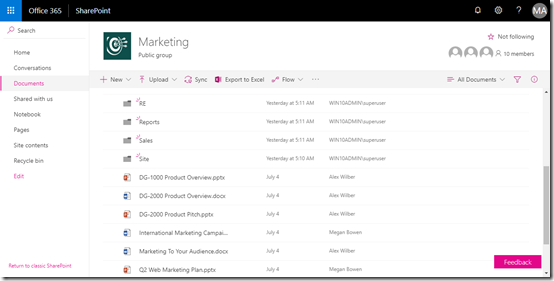
However, best practices is not what always happens I appreciate. So is there any easy way to see all in the file in a structure with a SharePoint Document Library? There certainly is and it requires working with Views.
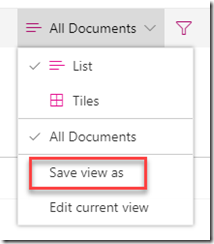
The recommended starting point is to navigate to the Document Library in question and then in the top right select the All Documents button. This should display a menu like shown above.
Select the Save view as option to create a duplicate of the way the Document Library is currently being displayed.
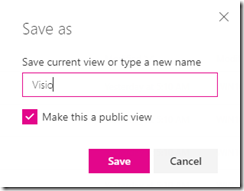
For this example, I’m looking for Visio files in my folder structure so I’ll call this new view Visio as shown above.
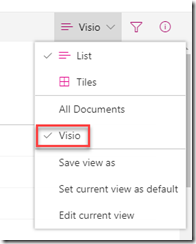
You should now see that the menu option on the right now show an item called Visio as shown, with a check to the left. This indicates that we are viewing the Document Library with a View called ‘Visio’.
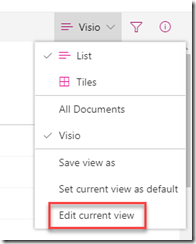
Because the ‘Visio’ view is simply a copy of the default All Documents view, we now want to go in and customise what is displayed with this View. To do this, select the Edit current view option from the menu as shown above.
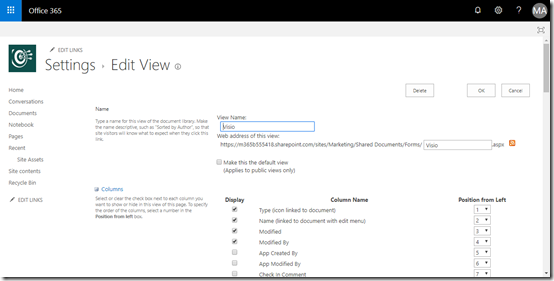
You are now taken into an area where you can customise all sorts of aspects of the current View.
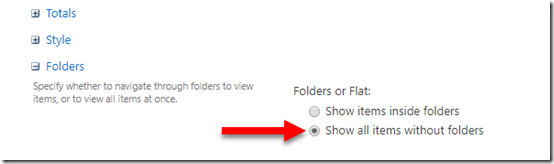
If you now scroll down to the bottom of all these options, you will find one called Folders, which you should expand as shown above. There you will find an option, Show all items without folders, which you need to select.
Scroll down to the bottom of the page and select Save to update your preferences.
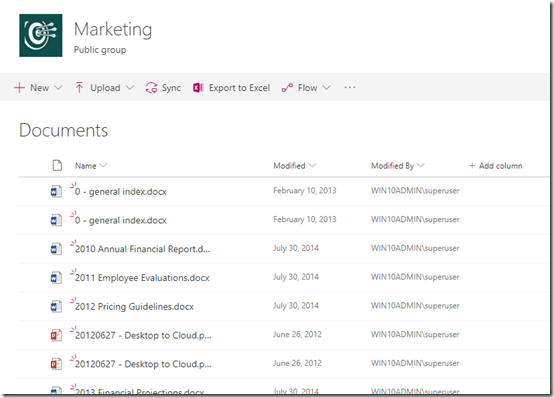
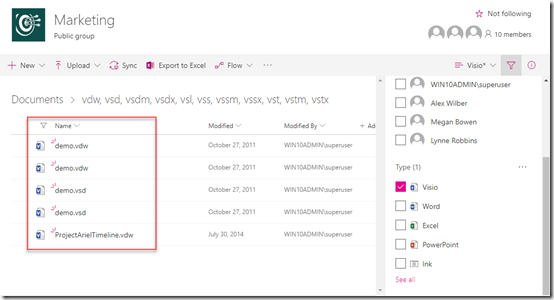
You should no be returned to the list and you should no longer see any folders but every file in the structure shown together as shown above.
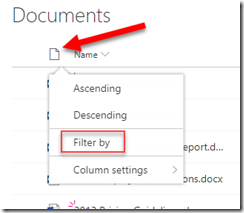
With this new list of just documents, you can select the Type column (first from the left) and from the menu that appears the Filter by option as shown above.
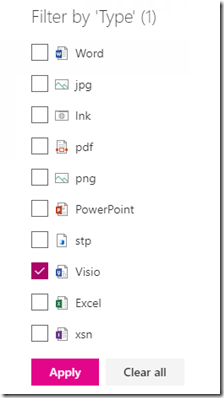
On the right hand side a filter menu will appear as shown above. Here, select Visio and then the Apply button.
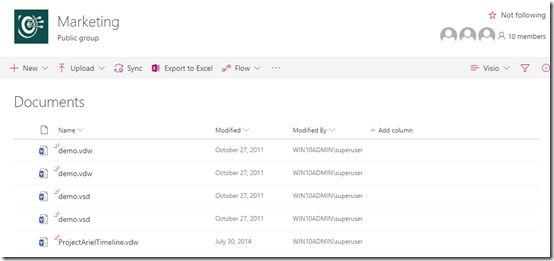
You should now only see Visio files as shown above.
This has achieved our aim but, all the filtering options are temporary. If we return to this Document Library later we’ll again see a full list of files. If we want our new View to continue to show just Visio files we’ll need to go in a edit the View again and make some changes.
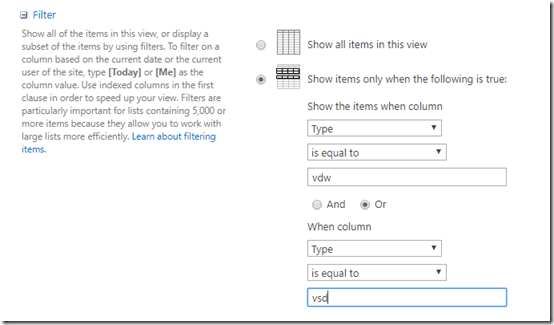
Once we are again editing the Visio view we can locate the Filter section and set conditions for what we want to see. Here, I’m adding filtering on the Type column in that I only want to see VDW or VSD file types.
Again, make sure you Save you changes before exciting the editing options.
Now, every time I go to that Document Library and select the Visio vie win the top right I will see my filtered list of all Visio files in that structure. If you want to make this new filter View the default, just go back to editing the View and select that option. Easy.
SharePoint views therefore allow to easily view your Document Libraries the traditional way with folders or roll up to single ‘non-folder’ View.
A while back I made a script available that allows you to find all the external users in your environment. You can learn about this here:
Checking SharePoint External Users PowerShell Script
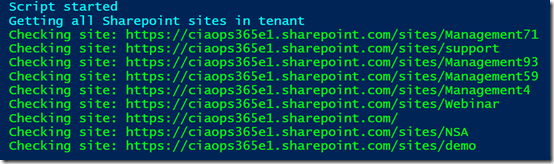
Now when I ran the script on my own tenant I noticed a number of SharePoint sites that didn’t seem right. As you can see from the above screen shot, these typically have the word “management” (e.g.management71, management93, management59, etc).
Hmm…ok, seems like I have some orphaned SharePoint sites. I kinda of remember playing around when Microsoft Teams came out, creating and deleting Teams to test the functionality. So it seems that when I deleted the Teams stuff in the early days it didn’t delete everything.
Ok, time for a clean up
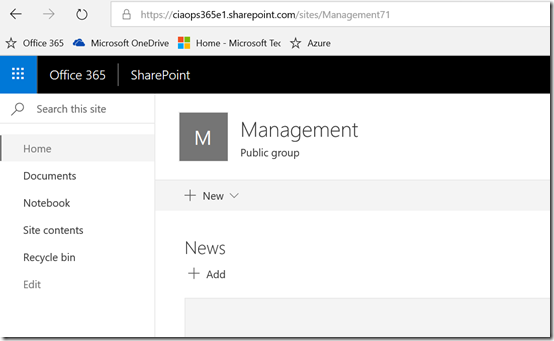
So I started with site Management71 and checked to see whether I could get to it. As you can see from the above, yes I can.
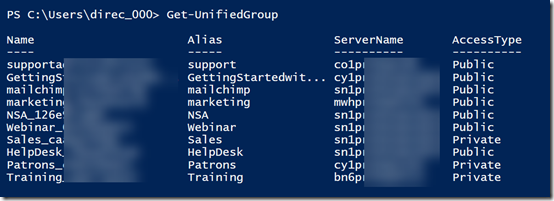
So back in the day, this would have been connected to the Office 365 Group. If I delete the site and it is isn’t fully orphaned (i.e. no Office 365 Group still exists) then I could have issues. So to see whether an Office 365 Group still existed with the word “management” in the title I ran this command to give me a list of every Office 365 Group in my tenant:
Get-UnifiedGroup | Format-List DisplayName,EmailAddresses,Notes,ManagedBy,AccessType
Turns out there still is an Office 365 Group called Management in my tenant as you can see from the results below.
So the question now, is whether the existing Office 365 Group called Management tied to the SharePoint site Management71 or another site also with management in the name? See how confusing I’ve made things?
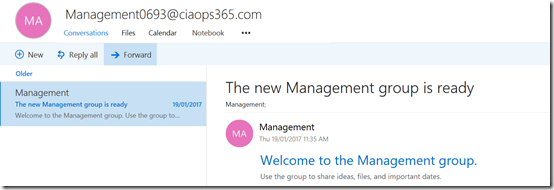
So next I checked whether I could discover this operational Office 365 Group I see via PowerShell and indeed I could see it in my tenant as you see above.
To determine whether this indeed was connected to Management71 I navigated to the SharePoint site connected to the Office 365 Group from the Group page. Low and behold, the Group Site in question is a different site, with a URL that includes the word Management not Management71. Hopefully you get why I’m trying to make all this go away!
So, not needing this valid Office 365 Group I decided the best way to remove it was to use the PowerShell command to delete it which you will find here:
Remove-UnifiedGroup -Identity "Management"
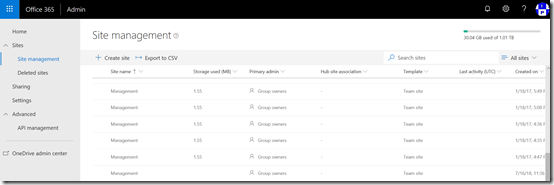
To see the sites created by Office 365 Groups you’ll need to go into the new SharePoint Online Admin console as you see above. Problem is, that this new portal doesn’t as yet allow you to delete sites. That means I’ll have to user PowerShell.
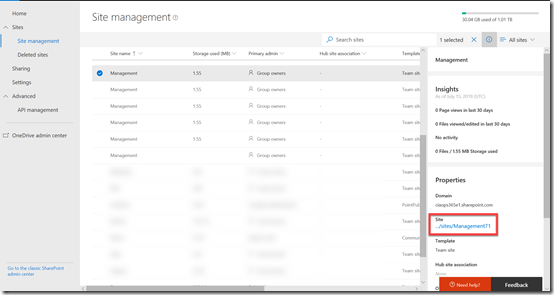
I was then able to locate the orphaned site in question – Management71 as shown above.
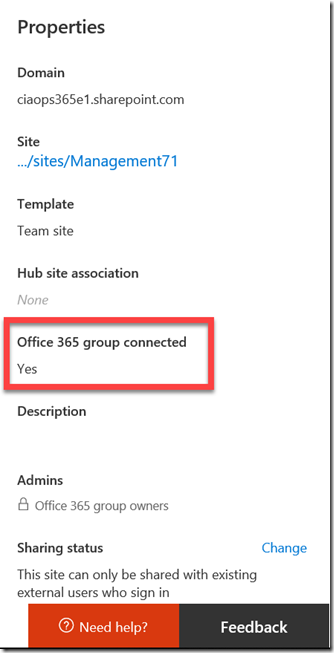
But if I look carefully at the properties for the site I see that it still thinks this site is connected to an Office 365 Group.
So I once again ran the PowerShell command to check the Office 365 Groups in the tenant and there is no longer one with the name management. I am therefore going to assume the site in question is orphaned and I’ll remove it using PowerShell.
When I look in the new SharePoint administration console, in the recycle bin for deleted sites I now see the site that was tied to the valid group that I just deleted called Management. To keep things tidy, I decided the best option was to purge unwanted items from here so the rogue SharePoint sites are completely gone from my tenant. To do that I ran:
remove-spodeletedsite -Identity https://ciaops365e1.sharepoint.com/sites/management –NoWait
To remove the other rogue SharePoint sites I firstly run:
remove-sposite -Identity https://ciaops365e1.sharepoint.com/sites/management71 –NoWait
Followed by the initial command to also remove them from the recycle bin and my tenant completely.
In the end, I have been able to remove active SharePoint sites in my tenant that appear to have been created by now defunct Office 365 Groups. I did all this via PowerShell to ensure that they weren’t still connected to something else in Office 365.
I feel much better have a clean tenant without these additional SharePoint sites float around and I got to also user PowerShell to get the job done. Win!





 CIAOPS