Step 6 in a series of posts documenting the Microsoft SharePoint Foundation 2010 upgrade process on SBS 2008. This is based on the document:
http://www.microsoft.com/downloads/en/details.aspx?FamilyID=2dc66a0f-f840-4b29-93d3-13db70c85cba&;;displayLang=en
Previous steps:
Step 1
Step 2
Step 3
Step 4
Step 5
Step 6 – Install Microsoft SharePoint Foundation 2010 in Farm mode
This step commences by instructing you to download SQL Express 2008 SP1 from:
http://go.microsoft.com/fwlink/?LinkId=186795
so here’s where my opinion differs from what is the document (even though these posts are following the Microsoft document, you’ll get the added “bonus” of my opinion along the way). I reckon your be better off downloading and installing SQL Express 2008 R2 with the Management Studio from:
http://go.microsoft.com/?linkid=9729747
Why?
1. SQL Express 2008 R2 has a 10GB database size limit rather than a 4GB limit with SQL Express 2008.
2. You are going to need the SQL Management Studio installed on there anyway so do it all in one hit which is what the Microsoft document recommends). If you do this you’ll need to remove the SQL Express 2005 Management studio first.
We now return you to the program already in progress ….
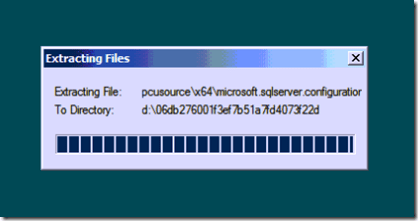
After download SQL Express 2008 run the file as an administrator. The installation files will be expanded to your hard disk.
When the SQL installation splash screen appears select the Installation option from the left hand menu (under Planning). Then select New SQL standalone installation or add features to an existing installation on the right (top option).

The installation will commence and some prerequisite files will be installed.

Next you move through the licensing screen. Nothing to see here, move along, move along.

Next, you’ll need to accept the EULA.

Now some support files will be installed. This is basically the SP1 files that allow SQL 2008 to run on Windows Server 2008.

You should then see a summary like so,

Yup, you shouldn’t run SQL server on a domain controller but this is SBS so we don’t have a choice. You should only have warning messages here so continue along.

Select Database Engine at a minimum. If you are installing a package that includes the Management Studio there will be option here that you should check to install that. You’ll be doing it later so that’s why I reckon its better to do it now but ….

Now you need to name your SQL instance. Another interesting point here. The Microsoft document says that you should call it Express, even though it is normally set to SQLEXPRESS by default. So strictly speaking you need to go in there and change it. Microsoft’s thinking was probably to try and avoid clashing with another potential SQL instance called SQLEXPRESS already on the box.
Anyway, whatever you call your SQL instance make sure you remember what it is called.

If there is enough disk space for the install you should see a green tick and be able to continue.

Here is where you set the service account for your instance. The Microsoft document warns you that it needs to be running as a domain account. There are all sorts of security and least privilege arguments that can be made here but we are focusing on the process here so press the button Use the same account for all SQL Server services and enter a ‘suitable’ account.

You should see the top row completed with account you just entered. Continue on.

Leave the Authentication mode set to Windows authentication but press the button at Add Current User (normally a domain admin account) as an SQL Server administrator.

Leave both of these option unchecked and move along.

The process runs a few more checks and let’s you know if there are any problems. If not time to install.
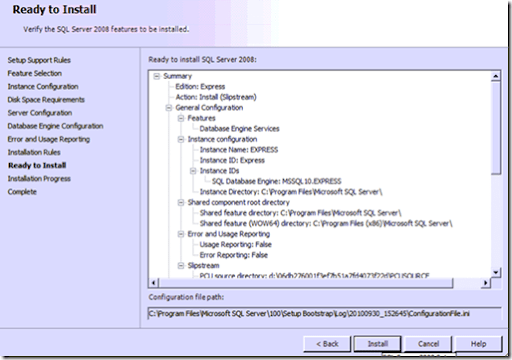
One last summary screen. Looks good to me, go for it – press Install.

Files get copied to your system and the configured using the options you just selected. This installation process may take a while ( several minutes ) depending on the speed of your machine.

Green is good. Installation success! Yeah.
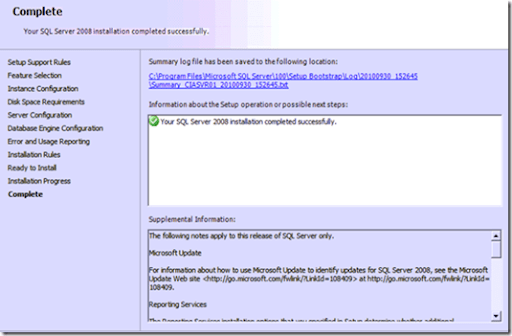
One last window of notes but everything is still green. SQL Express 2008 is now on our SBS 2008 system. Now for SharePoint Foundation Server 2010.

Fire up the SharePoint Foundation 2010 installation program again (you downloaded this in a previous step) and select option to Install software prerequisites.

Even though this has been run before we run it again to ensure everything required for SharePoint Foundation 2010 is on your system.

Accept the terms of the license and continue.

If everything is on the system as it should be you should get the all clear very quickly.
After returning to the splash screen select Install SharePoint Foundation and awwwwaaaayyyy we go.

Accept another license agreement and Continue.

Determine where the installation will go. By default this will be C: drive.

Now you should see the bar move across the screen as SharePoint Foundation 2010 is installed. It never moves fast enough it? if I had a dollar for every one of these I’ve watched over the years ….

Leave the Run the SharePoint Configuration Wizard now checked and continue.

You are now cordially invited to the installation of SharePoint Foundation 2010 on your SBS 2008 server. Do you wish to continue? I’ve come this far haven’t I? So yes, Continue.

Warning Will Robinson, warning your IIS and SharePoint services will be shut down during this wizard. Don’t forget that IIS is used for a number of other things that may interrupt users. If you have sent all your users home or just don’t care about users (I like your style), then Continue.

Select Create a new server farm as there is not yet any SharePoint on this server.

Now here’s where you need to connect to the SQL instance you created earlier. In the case of this Microsoft document the instance is will be EXPRESS or more correctly \EXPRESS.
Complete all the details including the user name with the domain prefix (i.e. \) and Continue. Typically you use the same account which you are installing the product with and made an SQL administrator earlier.

Enter a complex password for securing SharePoint configuration. You’d need this if you ever expanded beyond a single SharePoint server (which you can do).

You can specify the port at on which the SharePoint Central Administration web site appears if you want (say port 5555) but generally you leave this blank. Also leave the authentication set to NTLM and continue.

A final summary screen. Looks good, let’s Continue.

Off the wizard goes to complete its 10 steps.

At the end you will hopefully get a successful configuration. After you press Finish a browser will now open.

Select whether you wish to participate in the Customer Experience and press OK.

What more wizards? This is worse than Oz!
Now here’s where I diverge from the Microsoft document again. I can’t see why you need to use the wizard to create a new default SharePoint site when you are only going to delete it in an upcoming step. If it was me I’d Cancel the wizard, but that’s not what the Microsoft says and that’s not what we are going to do here, so click your heels together and the Start the Wizard button Dorothy and let’s Continue.

Select a service account for SharePoint. Again, don’t forget to consider security here. Leave the bottom two services checked and Continue.

Some thinking time….

Give the new SharePoint site a name. It doesn’t really matter as you are going to delete it soon.

What the heck, make it a Team Site.

After some more processing finally all done. Phew.

Upon clicking finish you’ll be taken to the SharePoint Central Administration web site. It should look all new and flashy like shown above.

If you type the name of the server into the URL of your browser you should see a SharePoint Foundation 2010 web site. Note this is not yet Companyweb but at least you know SharePoint 2010 is now working on your SBS 2008 server!


