Administering SharePoint

For those who are not familiar with SharePoint Online it can be a very daunting product to wrap your head around. This is even more so when it comes to administering SharePoint Online.

So with that in mind I have created the above video to give you an overview and some guidance when it comes to administering SharePoint Online that is part of Office 365.

Hopefully after watching the video you’ll be more comfortable with managing and configuring SharePoint Online which will allow you to more easily unleash SharePoint Online’s benefits in your business.

SharePoint updates have hit my tenant

image

image

When I took a look at my App Launcher in Office 365 I found that Sites has now been replaced with SharePoint. This tells me that the new SharePoint experience in Office 365 has arrived for my tenant.

image

If I then select that icon and navigate to my individual Site Collections I see a new page as shown above.

I am receiving these changes because my tenant is on the first release cycle. Normal tenants won’t see these changes immediately but they will start flowing through.

If aren’t aware of these changes to SharePoint, now is the time to prepare for the major changes that are coming down the road with SharePoint. You can read more about this here:

https://blogs.office.com/2016/05/04/the-future-of-sharepoint/

Watch out for future articles on these updates and what impact they’ll have for Office 365 users.

Beyond the Basics With SharePoint Online

BTB-SPO-Cover-400H

I am happy to announce that my new publication “Beyond the Basics with SharePoint Online” is now available.

This book is designed to help you take your knowledge to the next level with SharePoint Online. Once you have mastered the basics it is time to put document approvals, contents types, columns and more to work for you. This book will show you how to do all this plus more. It even covers how to get started using InfoPath and SharePoint Designer to really start customising your environment. SharePoint is an extremely powerful tool for solving business problems so knowing how to use it effectively is going to help you solve these problems faster. If you want the knowledge to do just that and you have already mastered the basics of SharePoint Online, then this is book for you.

This book contains over 250 pages of detailed information and screen shots of every stage of configuring SharePoint Online.

The book is available in a number of different formats and sources including:

PDF version

Via Amazon

Some of the topics it includes are:

– SharePoint structure overview

– Introduction to Email Alerts

– Introduction to Document Approvals

– Changing the Site Title, Logo and URL

– Document Check In/Out

– Connecting SharePoint to Access

– Content types

– Creating Subsites

– Introduction to Lookup Columns

– Advanced List Editing

– Working with Document Library Versioning

– Introduction to Views

– Using Promoted Links

– Create a Document Library Template

– Using a template to migrate a Document Library

– Creating and Using Site Columns

– Creating and Editing Site pages

– Adding a Yammer feed

– Displaying Linked Lists

– Getting Started with InfoPath

– Saving a Site as a Template

– Creating a new Site Collection

– Using a Template with a new Site Collection

– Deleting a Site Collection

– Getting Started with SharePoint Designer

By purchasing this title you’ll help support me and the work that I make available for free.

Now onto the next title!

Limit SharePoint Online outside sharing

A nice new feature that Microsoft has added across SharePoint Online, including OneDrive for Business, is the ability to whitelist or blacklist domains for sharing.

image

You’ll need to login to the Office 365 web console as an administrator. You’ll then need to navigate to the Office 365 Admin center as shown above.

From here, select the Admin icon on the left and then SharePoint from the menu that appears.

image

From the menu that appears on the left select sharing.

image

You should now see the sharing control options as displayed above.

image

Under the Additional settings, when you select the option Limit external sharing using domains the above box and selector appears.

Here you can now prevent sharing to specific domains by selecting the Don’t allow haring with users from these blocked domains or only allowing sharing to specified domains using the Allow sharing only with users from these domains option..

Thus you can either block a list of domains or allow access only to a list of domains, you can’t do both simultaneously.

Once you apply these settings they will be applied across both Teams Sites and OneDrive for Business for all users.

This now gives you an easy method of controlling which domains you allow your users to share information with across everything in SharePoint Online.

Sydney SharePoint User Group presentation

I am giving a presentation at the April meeting of the Sydney SharePoint Users Group on the Tuesday the 19th April at 5.30pm at the Sydney Mechanics School of Arts, 280 Pitt Street NSW, which is now even more relevant in light of the changes coming to SharePoint Online.

You can follow the group on Facebook at www.facebook.com/SharePoint.Sydney. On Twitter, use#SYDSP. Also via Meetup.

Topic:

Is SharePoint Pointless?

In a world challenging installations of traditional technologies like SharePoint with new products from Office 365 like OneDrive for Business, Delve, Planner, Yammer and Groups is SharePoint becoming irrelevant? Worse still, is SharePoint becoming a new world version of the old world file share? Attend the interactive session to understand and discuss what new products like Delve and Office 365 Groups bring to the modern workplace and the way people get work done and especially whether SharePoint as we know it still has a place for the information worker.

Registration: To help get an idea of numbers for this event, please register for the event using the links above.

I hope to see you there.

Office 365 Document libraries get a make over

Before I give you some more thoughts on the coming new look and feel for SharePoint Online Document Libraries let me preface all this with a few things:

1. I am coming at this new interface with a certain ingrained bias. Firstly as an IT ‘dude’ and secondly as a long time SharePoint user. I’ve been working with SharePoint Document Libraries for a very long time inside Team Sites and any changes I see are always viewed through this lens. Many others don’t have these long standing biases.

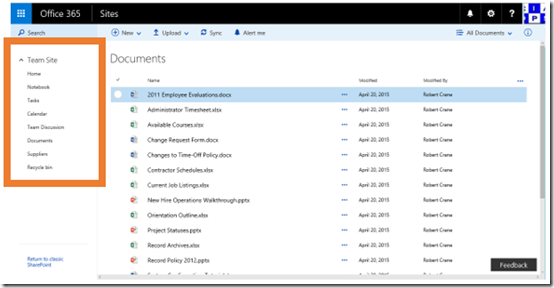
2. There were some issues with the initial roll out of the new look Document Libraries to my tenant and for some reason the navigation on the left of the screen (that shows the remainder of the Team Site) wasn’t displaying.
image

As you can see in the above image, the Quick Start Menu is now basically rendering which does make navigation much better and far less siloing than I thought when I initially saw the new format.
image

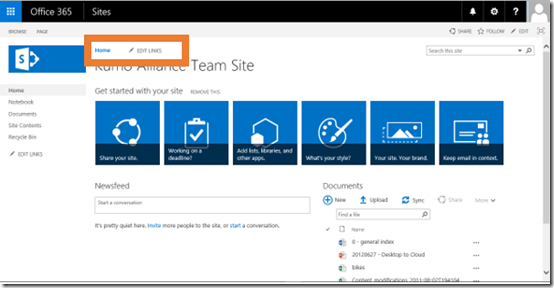
I will however note, that at this stage the traditional Top Link Bar doesn’t display in the new format. In most cases you use the Top Link Bar to navigate to different locations (i.e. Subsites) within your structure.

– This new look and feel for Document Libraries is part of a much broader set of changes that are coming to SharePoint Online. Microsoft has yet to fully announce these plans but we should expect to see an announcement at the Future of SharePoint event, on the 4th of May, which you should sign up for.

With that said, and with some extra poking around I have found the following:

1. The update is currently available only to those on office 365 First Release but will eventually roll out to all users.

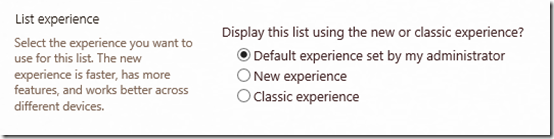
2. In the Advanced Settings for the Document Library there the following option:
image

which allows you to control the default experience. I haven’t yet found where an administrator can set the default experience but it does seem to indicate that it can be configure across the whole Team Site. Hopefully, there will also be a way to set this using PowerShell.

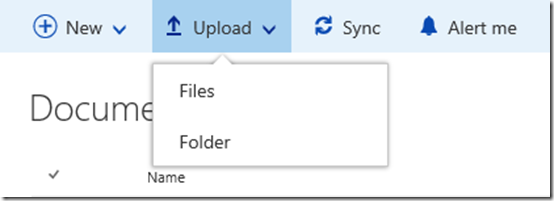
3. You can now upload folder to a Document Library.
image

As you can see from the above, you can now upload folders directly into a Document Library. This is not possible directly using the ‘classic’ interface. This going to make getting information into SharePoint Online much easier.

4. The new grid layout makes things look at lot like Delve.
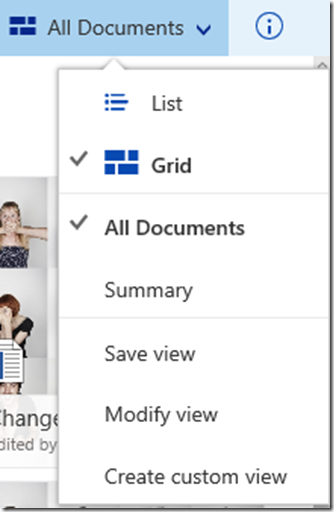
image

In the top left you’ll find the All Documents menu that allows you to flick between your different existing Views but also to swap to a Grid.
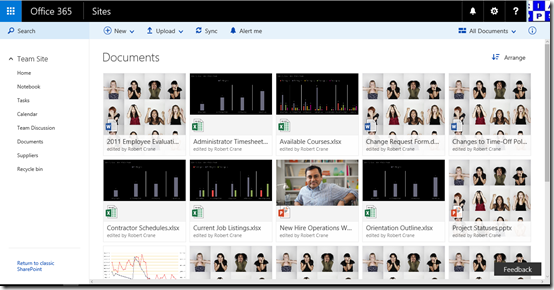
image

This makes the page look very much like Delve, which I personally believe is where Team Sites are headed towards.

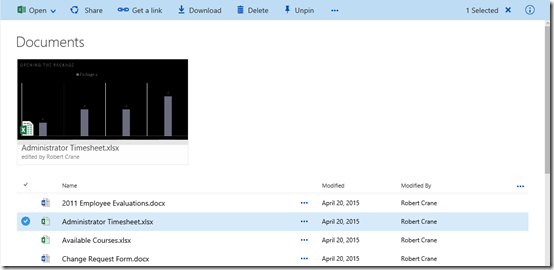
5. You can now easily pin a document to the top of a library.
image

When you select a document from the library, you’ll now see a Pin option at the menu across the top of the page. This allows you to have that document(s) highlighted at the top of the page as shown above.

Again, very reminiscent of Boards in Delve to me.

6. Sharing is now easier.

image

Again, when you select a file a new Get a link menu item appears that allows you to quickly and easily share a file with other just by creating a link as shown above. You can still go via the Share menu item to achieve this, but the new Get a link menu item make things much clearer I believe.

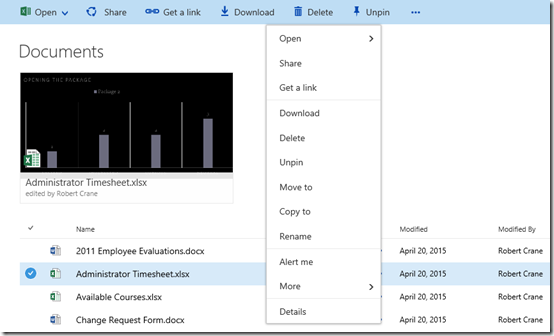
7. Right mouse clicking a file still works.
image

Right clicking on a file still brings up a context sensitive menu as you can see above.

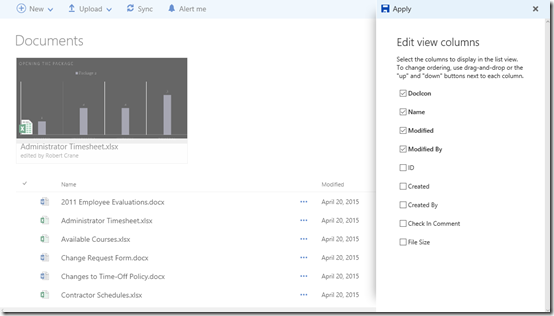
8. The ability to add columns to the view is now much easier.
image

If you select the three dots at the right of the column headings a menu will slide in from the right allowing you to select exactly which columns you want to display. This is much easier for an user to work with than going through and having to create separate Views.

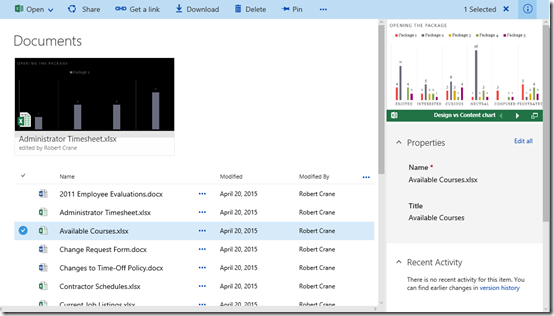
9. You can enable the information blade.
image

If you select the i icon with a circle in it in the top right hand corner an information blade appear on the right that display the properties of the file you have selected. Here you get a preview, can edit other information about the file, view sharing and so on. the information in the blade updates as you select different files.

This is a much better method of exposing file information for users than having to go through the ‘classic’ Ribbon Menu.

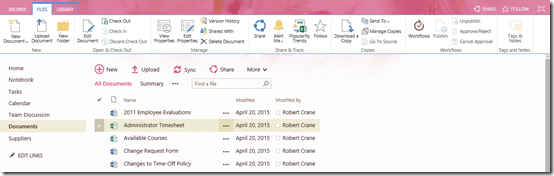
10. The Ribbon Menu has been deprecated in the new interface.
image

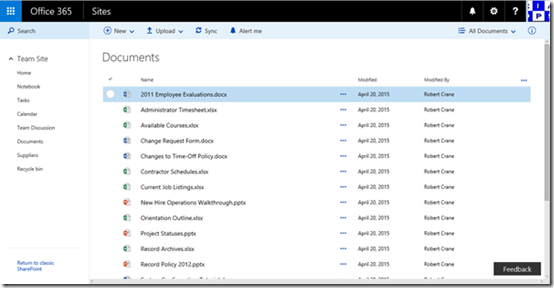
As you see from the ‘classic’ interface the Ribbon Menu was a major major way people interacted with the Document Library. However, for most users, the ribbon contained buttons they could use, didn’t understand what they did or were just so small they couldn’t read them.
image

The new interface is a lot cleaner and easier for the ‘average’ user to work with (not a crusty old SharePoint person like me).

One of stumbling blocks for SharePoint was that it was, well, SharePoint. There are some strong reservations about using ‘SharePoint’ based on previous bad experiences. Even when new and improved versions come along, these old biases are hard for many to shake. Having SharePoint not look like ‘old’ SharePoint makes sense when it comes to wider adoption.

So in summary, there is plenty to recommend this new look and feel for Document Libraries. It is important to remember that we are in the middle of a transition to a new way of doing things with SharePoint so we’ll have to wait and see what happens when all the pieces fall into place.

I will however say that changing Document Libraries is changing the fundamental way most users work with SharePoint and I would contend, files in Office 365. That is going to impact a lot of people. That is going to mean a change for most and change is always a hard sell. At the moment we are in transition and change is coming slowly, but it will still freak a lot of people out. The more used to ‘traditional’ SharePoint they are, the more freaked they are going to be (at least initially).

Those who have invested a lot in their Team Site look and feel are going to face challenges with these changes as the interface in the new look and feel is, at the moment at least, completely different and also doesn’t as yet carry across much existing Team Site theming. Having a different look and feel could be quite jarring for some.

We are yet to see how traditional navigation (like the Top Link Bar) will be handled along with some other traditional SharePoint elements. I’m sure however all will be revealed very soon but I expected SharePoint Teams Sites to become more and more like Delve every day!

Kudos also to Microsoft for updating their documentation for these changes so fast:

What is a document library?

Which you should look at for more information.

This seems like siloing to me

One of the big points I make about SharePoint Team Sites is that they are designed for collaboration rather than just storage. This means Team Sites are typically designed to contain not only files but contacts, lists, calendars and so in a structure that make sense for the business. The way many refer to it is as an ‘Intranet’, i.e. a web site full of information (not just files).

image

Microsoft is preparing an update to Team Site Document Libraries which I believe discourages the core of what Team Sites are all about, that is, collaboration.

When you visit a Document Library in a Team Site now you’ll see the above message asking you to Check it out.

image

When you do, you see the new interface as shown above. You’ll note that Document Libraries appear very much like the new OneDrive for Business interface.

Problem for me is that I believe this silos information. The new interface is fine for OneDrive for Business because that is effectively a silo for each users own ‘stuff’ but in a Team Site it doesn’t make sense to me because they are designed to be accessed by multiple people.

image

If you compare this to the ‘classic’ interface above, you can see how many more options the ‘classic’ interface provides. It allows you to see the whole structure, other elements, all the navigation options as well as any theming.

The new interface basically takes you to a place where you only see a simplified version of the files in that Document Library. That isolates, or silos you from other information and effectively prevents collaboration I would suggest.

I appreciate the desire to have a simpler interface for average users but if we go down the path of wide spread adoption of this new interface it is simply going to reinforce the notion that SharePoint Team Sites is nothing more than a file repository, a dumping ground for files if you would.

As I said, I think the new interface is fine for OneDrive for Business but I don’t feel it is appropriate for Team Sites, because these should be designed for encouraging users to share, not taking them to places where they can only see a small subset of the information.

I would also contend, that having this new interface also creates a marked difference between the ‘normal’ Team Site interface and Document Libraries. That difference makes it harder for users to understand and work with because it is inconsistent.

In short, I don’t this new Document Library look and feel is going to help Team Sites be more about collaboration. I fear it simply reinforces the current perception that Team Sites are just old world network shares in the cloud, which they ain’t!

Pre-order new CIAOPS SharePoint Online eBook

BTB-SPO-Cover-400H

Happy to announce I have another eBook on SharePoint Online that is not far away from release. As such, it is now available for pre-order at a significant discount. You can pre-order here:

http://www.e-junkie.com/ciaops/product/509950.php

Title

Beyond the Basics with SharePoint Online

About

This book is designed to help you take your knowledge to the next level with SharePoint Online. Once you have mastered the basics it is time to put document approvals, contents types, columns and more to work for you. This book will show you how to do all this plus more. It even covers how to get started using InfoPath and SharePoint Designer to really start customising your environment. SharePoint is an extremely powerful tool for solving business problems so knowing how to use it effectively is going to help you solve these problems faster. If you want the knowledge to do just that and you have already mastered the basics of SharePoint Online, then this is book for you.

Topics

– SharePoint structure overview

– Introduction to Email Alerts

– Introduction to Document Approvals

– Changing the Site Title, Logo and URL

– Document Check In/Out

– Connecting SharePoint to Access

– Content types

– Creating Subsites

– Introduction to Lookup Columns

– Advanced List Editing

– Working with Document Library Versioning

– Introduction to Views

– Using Promoted Links

– Create a Document Library Template

– Using a template to migrate a Document Library

– Creating and Using Site Columns

– Creating and Editing Site pages

– Adding a Yammer feed

– Displaying Linked Lists

– Getting Started with InfoPath

– Saving a Site as a Template

– Creating a new Site Collection

– Using a Template with a new Site Collection

– Deleting a Site Collection

– Getting Started with SharePoint Designer

Once the book is published it will be available in PDF, ePub and MOBI (Kindle) formats. It will be available, along with all my other publications, from my web site as well as via Amazon, iBooks, Nook and so on.

Remember, once the book gets published the price will increase so grab it now while it is discounted as publication is not far away.