A basic SharePoint Online framework structure

image

Getting the ball rolling with SharePoint Online is intimidating when it comes to using SharePoint Online for the very first time. Many get bogged down in being overly concerned about getting things ‘perfect’ before commencing. Here’s a few tips for you to get the ball rolling with SharePoint Online.

Firstly, the primary goal for any business when it comes to SharePoint Online is adoption! That is actually getting people to use it. This is far and away going to be your biggest challenge because most users will resist the change from files, folders and drive letters. Thus, the sooner you get them using SharePoint Online the better. Also, the easier you make it for them to start using SharePoint Online the better. This means keeping it simple and familiar to start with.

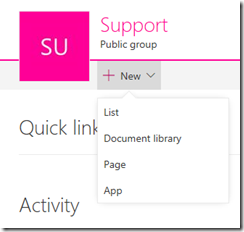
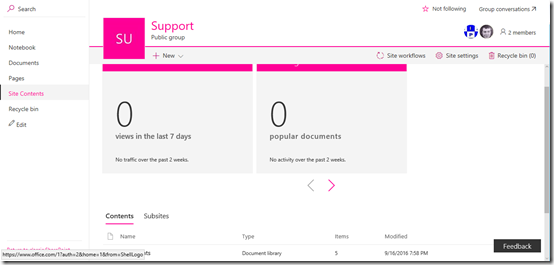
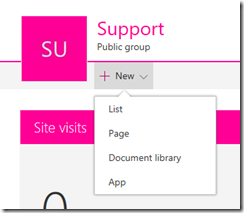
With this in mind, my suggestion is that you create a total of three document libraries in the root site of your default SharePoint Online Team Site. You then create three subsites below the root site than each contain three document libraries. This then gives you a total of 12 locations into which you can copy files.

With this structure in mind you obviously need to name each item as it is created. Here is where you need to make an important decision about the structure of SharePoint that can’t easily be reversed once it is made, so make sure you give it ample consideration before proceeding.

You need to basically decide whether SharePoint Online will be structured by function or location. If you decide by function the subsites will probably be called something like Admin, Finance, HR, etc. However, if it is by location then the subsite would be called something like Sydney, Paris, London, New York, etc.

Once you have the subsites named and created you would then create the three document libraries inside each. These will typically match existing folders on a file server to make it easier for user to identify with (i.e. make the Document Library names the same as existing server folder names). It is possible to change the naming at this point and start afresh but remember, we are looking to maximise adoption which will mean taking the long way round to achieving the end goal. Sub sites and Document Libraries in SharePoint Online can easily be re-named or relocated anytime down the track. Yoru guiding aim should be to reduce the friction of adoption.

So let’s say that you have decided to structure SharePoint Online by function and called the first subsite ‘Admin’. Inside this you’d probably have Document Libraries called Policies, Procedures and Templates for example. Yes, you can create more locations but again start off simple. Even if you have to leave some folders on premises, keep it simple and obvious for users.

So now you have a 2 tier structure in place with 12 locations into which you can put files. These 12 locations also typically map to existing locations on your file server. With this in place I show the customer how to copy one set of files across into the first location. I then have them do the process while I watch and advise, into the second location. Finally, I allow them to copy files into the third location without any feedback from me. At that point they have the knowledge to complete the rest of the location transfers without my help. I also have the confidence to leave them to their own devices and to accomplish this initial date relocation.

A few days later when I check back in with the customer, I usually find they are happily using SharePoint but want to now do more customisations, add more locations for storage, start flattening their existing folder structure by using metadata and so on. Yippee! Achievement unlocked! Initial adoption commenced success. Next?

In summary therefore, the big take aways I’ll give from this are:

1. Keep it really simple to start with.

2. Focus on adoption and getting EVERYONE to use SharePoint above anything else initially.

3. Base your SharePoint structure on either function or location.

Using SharePoint Online is always a journey never a destination. Business needs are constantly changing, so remain flexible and be comfortable with the need to change. However, ensure you have an appropriate adoption strategy based on how your users actually operate not on how you ‘think’ they’ll operate. If you don’t, then you’ll always be wrong and SharePoint Online adoption will always be a struggle. With appropriate planning and a systematic approach, that should never be the case!

Uploading Documents to OneDrive for Business

Few people I know who use OneDrive for Business can name ALL the ways that you can get documents into OneDrive for Business. My aim was to cover all of the methods (except for third party tools) in the above video.

So here are the ways I reckon you can do it:

1. Create a new Office document directly in OneDrive for Business using the browser.

2. Upload a single file(s) from the menu bar.

3. Upload folder(s) from the menu bar.

4. Drag and drop directly onto the browser.

5. Open OneDrive for Business using Windows Explorer (requires you to go back to the classic interface).

6. Map a network drive.

7. Save directly from Office desktop applications.

8. Use the OneDrive for Business Sync tool.

9. Third party tool (Spfilezilla springs to mind).

Have I left any out? Let me know if I have but hopefully the video covers everything a new user needs to know about getting data into OneDrive for Business.

Upcoming Ingram Bootcamps

Ingram Micro Cloud Elevate Bootcamp

I’m presenting at the next round of Cloud Elevate Bootcamps from Ingram Micro. You can register for upcoming sessions in Sydney, Brisbane and Perth here:

http://us1.campaign-archive2.com/?u=e7b9bf6fefc7f30ec0fad7629&id=a9dd2951fb&e=b579342c7f

In these sessions I’ll be talking about Office 365 collaboration (particularly SharePoint and OneDrive for Business) as well as on Skype for Business and Skykick backups. There will also be a session on Dropbox.

Love to see you come along, participate, ask questions and most importantly learn more about Office 365!

I hope to see you at an upcoming event.

Driving Office 365 adoption

adoption-curve

I’ve been doing a lot of work recently helping businesses drive SharePoint and Office 365 adoption, in many cases after a failed implementations. I thought that I’d share some of my thoughts about the process for everyone.

Above you’ll see the typical diffusion of innovation curve. It describes the breakdown of typical mentalities in a business.

The first 2.5% are the innovators. These are the people that are fiddling with things way before anyone else.

The next 13.5% are you early adopters.

The next 34% are your early majority.

This takes you to 50% adoption. The last 50% of adopters are your late majority and finally your laggards being the last 16% typically.

The magic number we are looking for to achieve an adoption tipping point with technology so that it gains widespread acceptance in a business is around the 16% mark. In my experience getting to the 16% mark alone won’t guarantee your business wide adoption of a technology like SharePoint. You certainly can’t succeed without it, and it is the critical first step, but adoption success requires something further.

In my experience, the problem is that too many businesses target the wrong audiences when it comes to adoption. Most target only the early majority. The secret to success is in fact to target the audiences at the extremes (i.e. innovators and laggards). If you can succeed at the extremes the audiences in between naturally follow.

You also can’t use the same strategies with early adopters as you can with laggards. Each requires a unique approach.

For innovators, it is all about being first, being recognised as a leader and standing out from the crowd. While for laggards it is typically about time and convenience.

Your innovators are the smallest audience in a business making them the ones you should work with first. They need to be identified and then included in ‘exclusive’ adoption programs where they are given the initial opportunity to utilise the latest technology. Part of the responsibility of being considered an innovator is the expectation of passing knowledge on to the early adopters and easing their up take of the technology. Achievement of this knowledge transfer by innovators needs to be rewarded and recognised publically. It is important to note that innovators are driven far more by recognition than they are monetary rewards.

Once you have a successful adoption program in place for innovators now it is time to turn your attention to the laggards. This audience has no interest in technology, typically they see it as an impediment to doing their job. The adoption program you implement here needs to focus on benefits to getting the laggard’s job done, and this typically means allowing it to completed faster or with more convenience.

An example of something in Office 365 or SharePoint that appeals to laggards is the search ability across the data, allowing them to find what they want with minimal effort.

In essence, both innovators and laggards are strongly driven by the ‘what’s in for me’ mentality but for innovators it is about external benefits, while for laggards, it is about internal benefits in this regard. Understanding the core motivation of each audience is key to creating any successful adoption plan.

So there, you have some high level considerations and tips when it come to technology adoption. You now just need to develop specific adoption plans that make technologies like SharePoint and Office 365 appealing to those audiences. That only comes by understanding what motivates them and crafting the benefits to appeal to that directly.

Adoption of new technology like SharePoint and Office 365 fails when businesses treat everyone the same. There are distinct audiences inside any business and when it comes to adoption you simply can’t change those attitudes no matter how hard your try. So rather than fighting these, you need to tailor a strategy specifically to each audience. Only then will you stand a good chance of wide spread adoption. if you don’t, you are doomed before you fail in my books. Don’t believe me? Take a closer look at any failed technology implementation and you’ll find the root causes in what I have oulined here. I guarantee.

Uploading documents to SharePoint Online

Here’s another updated video using the new ‘modern’ SharePoint Online interface to show you all the basic ways to get documents into SharePoint Online Document Libraries.

You’ll see how to create new documents on the fly, upload single files as well as whole folders. You’ll also see how to drag and drop directly onto the browser and copy using the desktop sync software. This video is aimed at people new to using SharePoint Online to help them get their ‘stuff’ up into Document Libraries.

Watch out for more updated videos coming real soon!

The extinction of the drive letter

Pretty much my whole working career with PC’s there have been drive letters. I think the good ole local C: Drive will be around for a while longer but, it’s my opinion that the days of the network drive letter (e.g. S:, M:, F:, etc) are fast coming to an end. That has major ramifications for the way many work with technology, especially in this new cloud world. I’m not saying that you’ll wake up tomorrow and network drive letters won’t be with us. What I’m however saying is that now is the time to start preparing for the day when they are no longer with us.

One of the greatest inhibitions many people (and IT resellers) have around SharePoint is they can’t simply map a persistent network drive letter to it and have it operate the ‘way it has always worked’ like a network share. The reality is, firstly you can still map a drive letter to both OneDrive and a Team Site Document Library as I have detailed previously if you really want:

Mapping a drive to OneDrive for Business

But secondly, the trend with SharePoint Online is away from providing the ability to map drive letters. That should signal it is time to adapt, not throw yourself on the floor and have a tantrum that things are different.

image

If we go into the ‘classic’ SharePoint interface with Internet Explorer and select the Library tab we can find the Open with Explorer option.

image

But if we repeat that on another browser like Microsoft Edge (or Chrome or Firefox) we see:

image

It isn’t supported. Remember, that Microsoft Edge is the ‘default’ browser for people using the latest version of Windows. Thus, it seems unlikely that you’ll be able to map a drive using the latest Microsoft browser going forward. 

image

If we now look at the ‘updated’ SharePoint Document Library experience, there basically isn’t a way to open in Windows Explorer directly from the Document Library that I can find as there was in the ‘classic’ environment. No matter what browser you use.

Both of these factors should provide very strong evidence that the trend is away from mapped networked drives. Sure, I hear you that accessing a file from a M: drive was something you were comfortable with, but you know what? Doing so means you sacrifice a huge amount of functionality that is built into SharePoint. You can’t access any metadata associated with files using Windows Explorer. You can’t also filter and sort as you can in the browser. You don’t get the same search abilities and so on and so on. It’s like driving a Lamborghini in first gear! And who wants that??

As I said initially, you can still map a network drive letter to SharePoint Online if you really want to and are prepared to jump through some technical hoops. But you know what? The writing is on the wall that it is now time to shift your thinking to working in new way. To working in a world that doesn’t constrain you to a letter of alphabet. To a world of more functionality than you can imagine with your files. All that you need to do is let go of your dependency on the ways things ‘used to be’ and open your mind to the possibilities the new way offers. In my experience, those that embrace the new ways soon appreciate how limiting their concept of working with files used to be.

The major shift people traditionally tied to network driver letters have to make is from a world of file storage to collaboration as I have detailed previously:

The classic SharePoint Online migration mistake

I’ve also talked about how to get the most out of these new tools, like SharePoint Online, you need to invest time learning how to make the most of their features provided:

Getting more from office 365 means understanding SharePoint

I would also point out that Office 365 is far more than just somewhere to store emails and files, it is a complete platform that includes some fabulous tools like Delve and Yammer to name but two, that can transform any business. However, it will never do this until the ‘old world’ mentality of wanting to remain with network drive letters is banished.

Now is the time to commence this transition. Learn how collaboration trumps storage every time and how it can make any business more effective. Graduate your technology from the S: drive to a world of co-authoring, Delve, Yammer, Planner and more. Expand your mind and your business to the possibilities rather than relegating it to a technology designed for bygone era.

The extinction of the drive letter is near. Those who don’t want to upgrade from it are also destined to go the same way. Technology changes, and to get the most from it, so should you. The earlier you do, the easier it is and the tea leaves should be telling you that it is now time to start that change.

If you really don’t want to change from using network drive letters then I’d be suggesting to you that Team Sites and OneDrive for Business are probably not the best place for your files to reside. A better place may be Azure SMB file shares:

Creating an Azure SMB file share

but that too has it’s limitations and is a poor second to what SharePoint can offer.

A world without network drive letters is a big change for many, but you know what? If you show these people the benefits of the new collaboration platform SharePoint Online provides you’ll be surprised at how readily they’ll adopt it. The secret to adoption is showing them how to get started. All they need is a little help to conquer that first hill, some training wheels to ease into it. After that all you need to do is stand back and be amazed at how people use the functionality that is now available to them. Here are further thoughts from me on how critical initial adoption is:

Start up is key

So, start freeing your business and users from the constraints of network drive letters today because I’m pretty sure the old F: drive won’t be around for much longer.

Migrations to SharePoint Online presentation

https://docs.com/d/embed/D25193336-9680-5661-1610-000083004089%7eMd4186d87-61d5-259a-4d26-00a8bd86cfff

Here’s the slides from my presentation at the July meeting of the Sydney SharePoint Users group. You can also download the file here:

https://doc.co/iGySJY/qcihGm

The presentation covered off the recommendations, best practices and tools to use when it comes to migrating data to SharePoint Online. There is not a single solution that is best for every situation, however there are certainly enough tools and methods of easily migrating to SharePoint Online. However as an overall guide here are my recommendations:

– Use an all encompassing tool like Sharegate if you have the means.

– Bandwidth is going to most important factor when it comes to migrations. Understand the impacts it will have on the migration process.

– Things will not be identical post-migration. It’s a different environment, different way of accessing files, etc. Different doesn’t mean bad, it simply means you need to invest inmore than just moving data to get a return.

A handy SharePoint migration tool

image

One of the most common things that needs to be done when moving to Office 365 is migration of files and folders from on premises locations to SharePoint Online Team Sites or OneDrive for Business. The native tools such as the browser and Windows Explorer work fine up to a point, but if you need to do bulk uploading of large subsets of files then a third party tools is generally in order.

If you are looking for an overview of the options that are available to you when it comes to migrating to SharePoint Online then have a look at my previous article here:

Migrating On Premises SharePoint to Office 365

where I outline that my recommended tool is Sharegate.

Sharegate is a commercial product that can be a bit cost prohibitive if you only need to do a migration once, especially if you are only looking to copy files. If all you want to do is move files to SharePoint Online the you may want to consider the free SPfilezilla tool.

Basically, Spfilezilla work a lot like a traditional FTP utility in that you connect to your destination (in this case a SharePoint Online site) and you are then able to copy local files and folders to SharePoint Online as shown above.

image

You simply select the local files on the left you want to copy to the destination and press the transfer button in the middle of the page. You will also notice that you can copy from the online location back locally as well if you want.

image

The files will transfer and you’ll see a record of the whole process in the lower pane.

image

Now when you look at SharePoint Online you’ll see the files as shown above. An interesting point to note with SPfilezilla is that it keeps the original time and data stamp from the source location when it copies the files to SharePoint Online, as you can see above.

image

If you repeat the copy process, but this time simply drag and drop onto the browser page, you’ll see that the timestamp for all the files is automatically set to the current time (i.e. when they were copied).

So SPfilezilla is a great tool if you simply want to copy files from local folders to SharePoint Online (or back). It also has the handy ability of keeping the source modified by date consistent, which some business use as a method of filing (that, I don’t understand at all). However, SPfilezilla can only migrate from local file systems. You can’t migrate from say another SharePoint site.

image

As you see from the above screen shot, it will also allow you to transfer from network locations (using a UNC path) as well as too OneDrive for Business destinations.

Although SPfilezilla is a basic migration program it is a very handy tool because it does its limited subset of tasks very well (i.e. file transfers). This therefore makes it an excellent choice for people who are just getting started with SharePoint Online and simply want to move their data files to Office 365.

Best of all SPfilezilla is free so I suggest you go and take a look because it will certainly make your basic file migrations to office 365 much easier.